
English
App share
App share is the feature that shares a web app with other people through a link. The other person opens the link in a browser and uses the app on your computer without installing any software.
SystemsLinuxWindowsmacOS
EditionsInternationalChina
Sincev0.6.0
App share works only for apps with a web page, such as code-server, SiYuan, Gitea, or a website you run in a container. Terminals, file sharing, remote desktop, SSH, port entries, the AI gateway and the panel cannot be shared.
Before you generate a link, turn on one of Direct, SakuraFrp, OpenFrp or SSH relay, so that the hub is reachable from outside. If none of them is on, the hub refuses to generate the link. The panel then shows First turn on one way in from the internet: Direct, SakuraFrp, OpenFrp or the SSH relay. EasyTier or NetBird alone is not enough. If you are unsure which one to choose, see Choose an access method.
Generate a link
These steps use code-server, and other apps follow the same steps. Before you start, the app must be installed and running; see Install an app on a system.
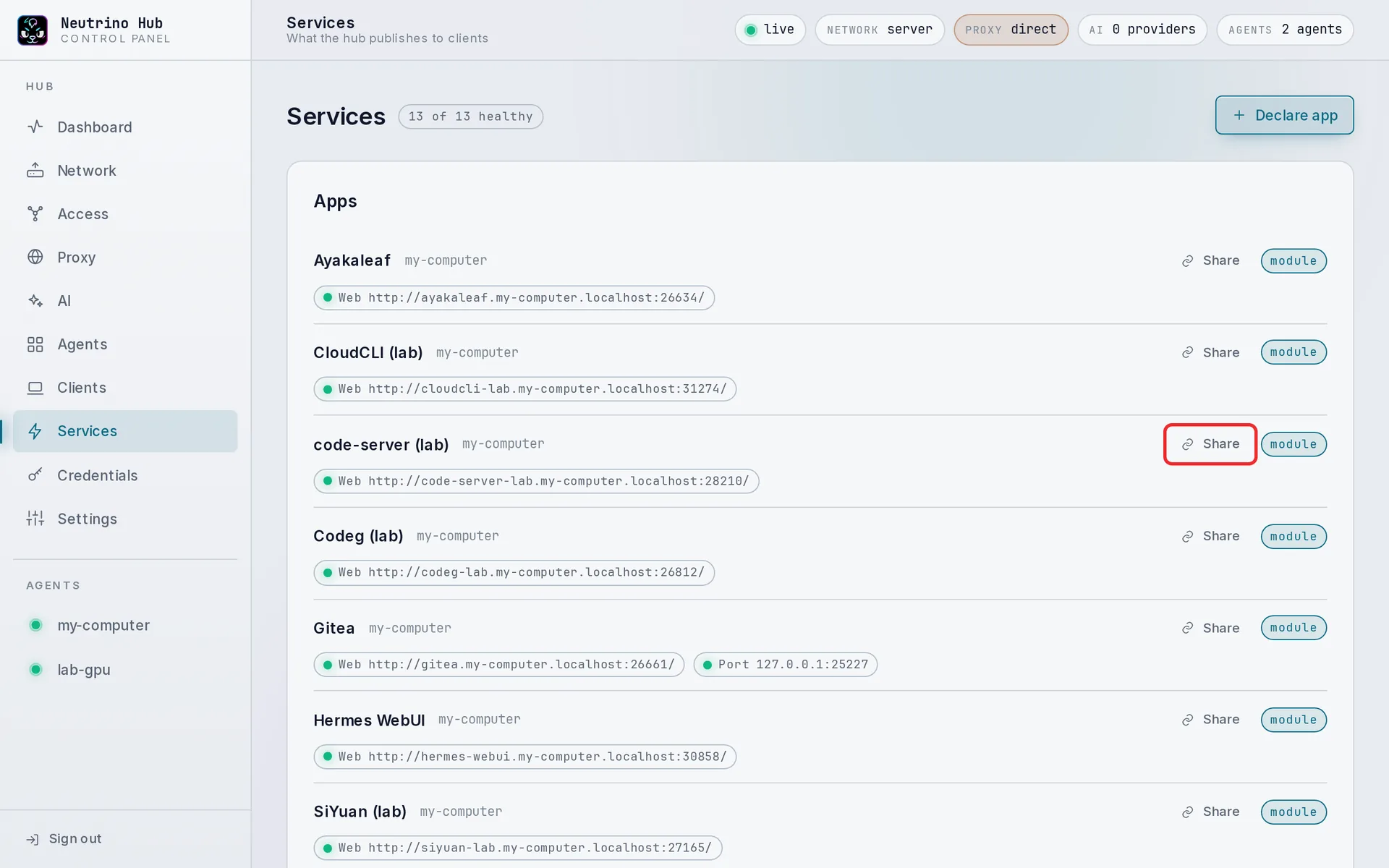
In the left sidebar of the panel, select Services. The Apps area has one row per app, and each app that can be shared has Share on the right. Select Share on the row of the app you want to share.
In the dialog, enter a Name that helps you identify the link; the other person does not see this name. App is already selected. A yellow notice states that the other person uses this app as the account lab.
The notice does not disable Generate link, and you decide whether to send the link. In Expires, choose how long the link stays valid: 1 day, 7 days, 30 days or Until revoked. The default is 7 days.
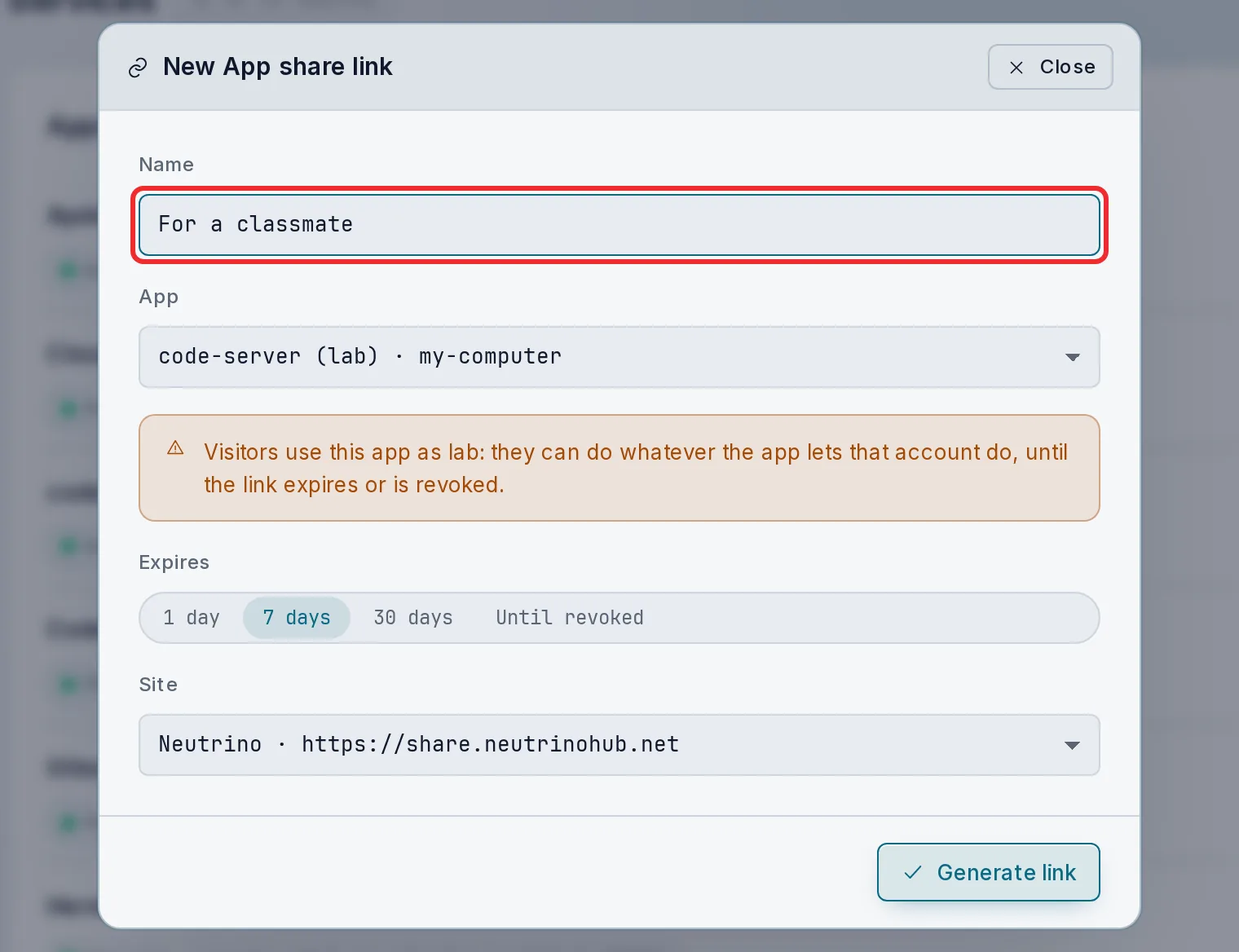
1Enter a name 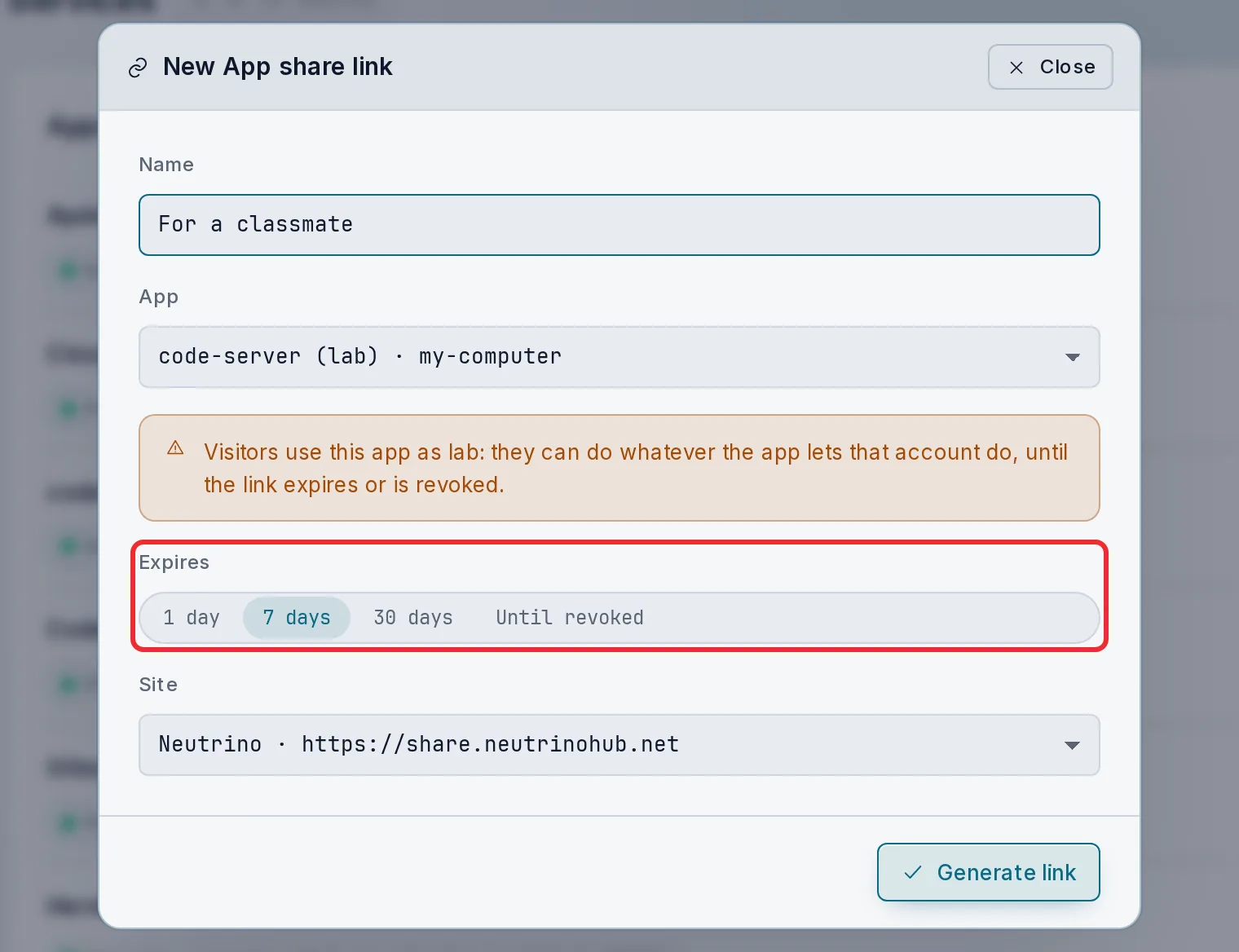
2Choose how long it is valid Leave Site at the default,
https://share.neutrinohub.net. To use a page you host yourself, choose Another site; see What share.neutrinohub.net does. Then select Generate link.Select Copy and send the link to the other person. If they use a phone, they can also scan the QR code under the link.
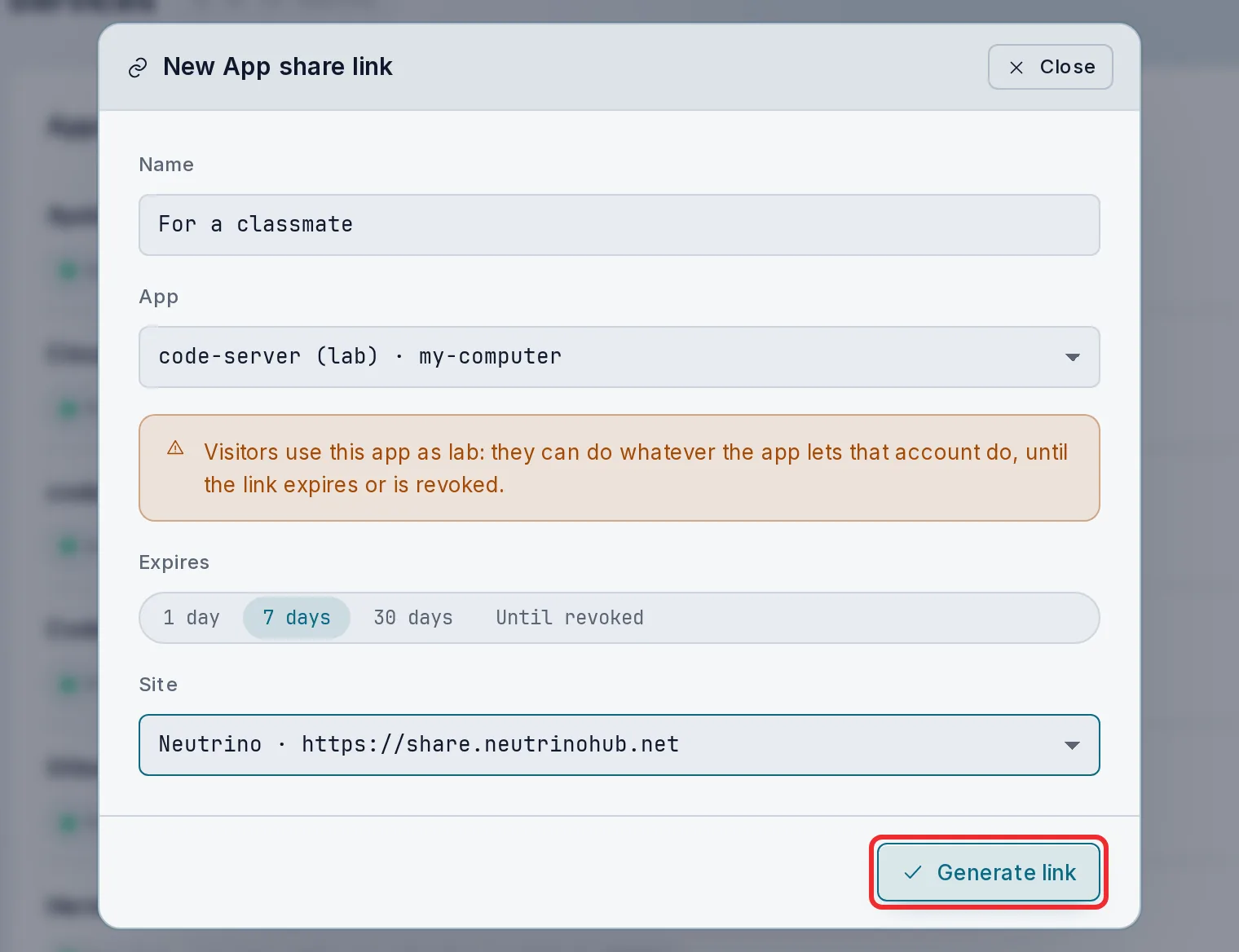
1Select Generate link 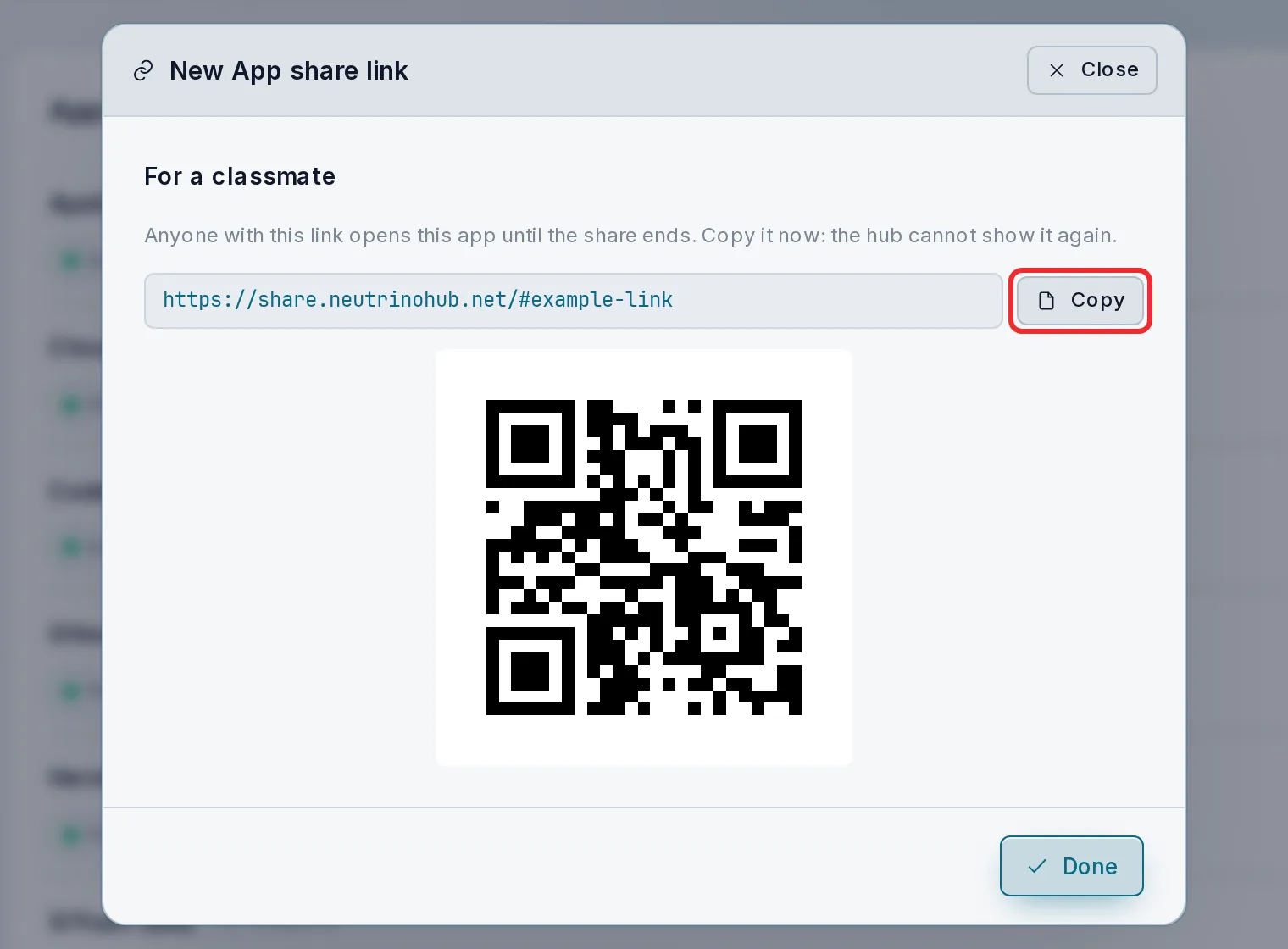
2Select Copy After you send the link, select Done to close the dialog.
The dialog shows the link this one time, and the hub cannot read it afterwards. To send it to someone else after you close the dialog, revoke this link and generate a new one. One link works for any number of people and any number of opens.
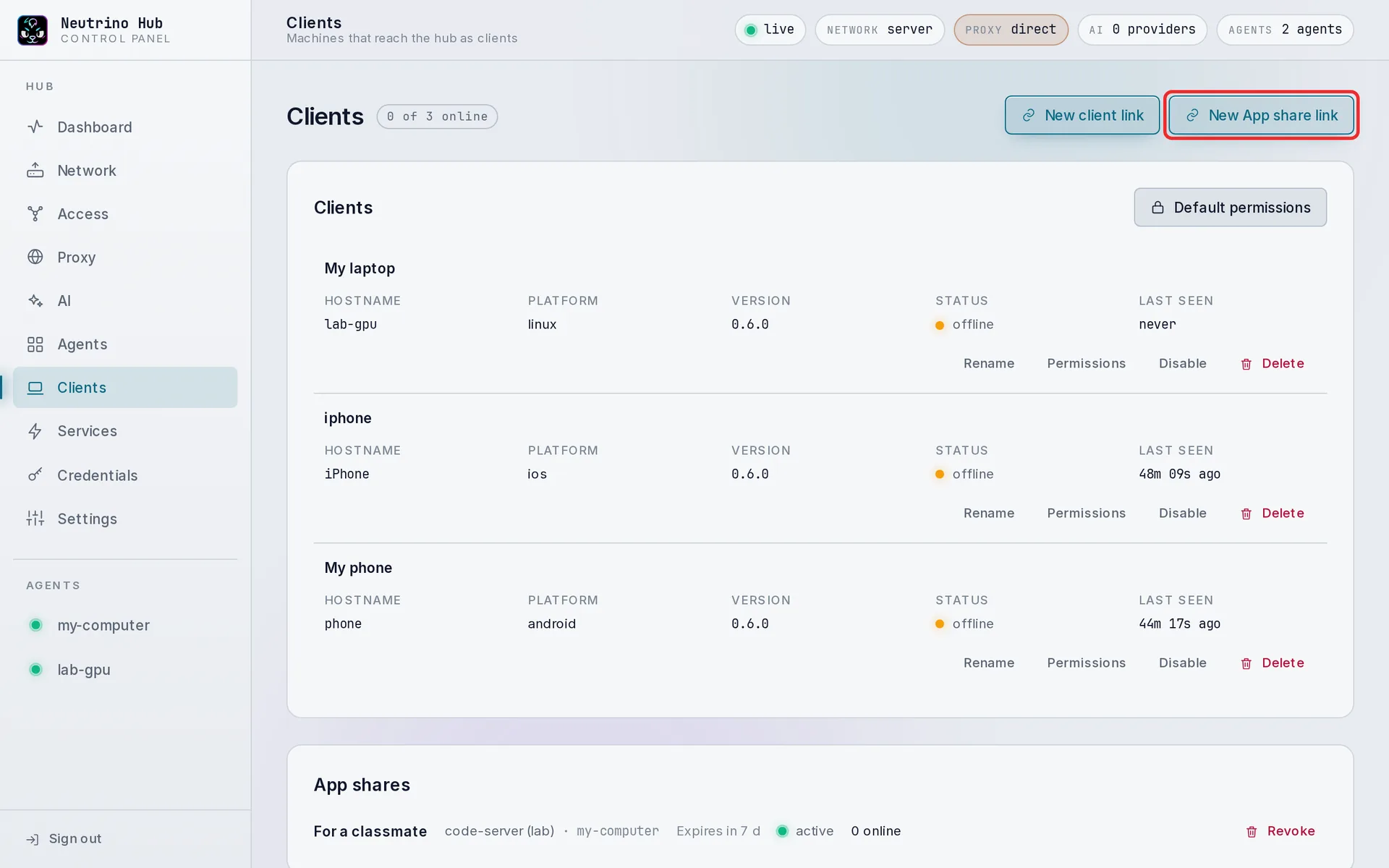
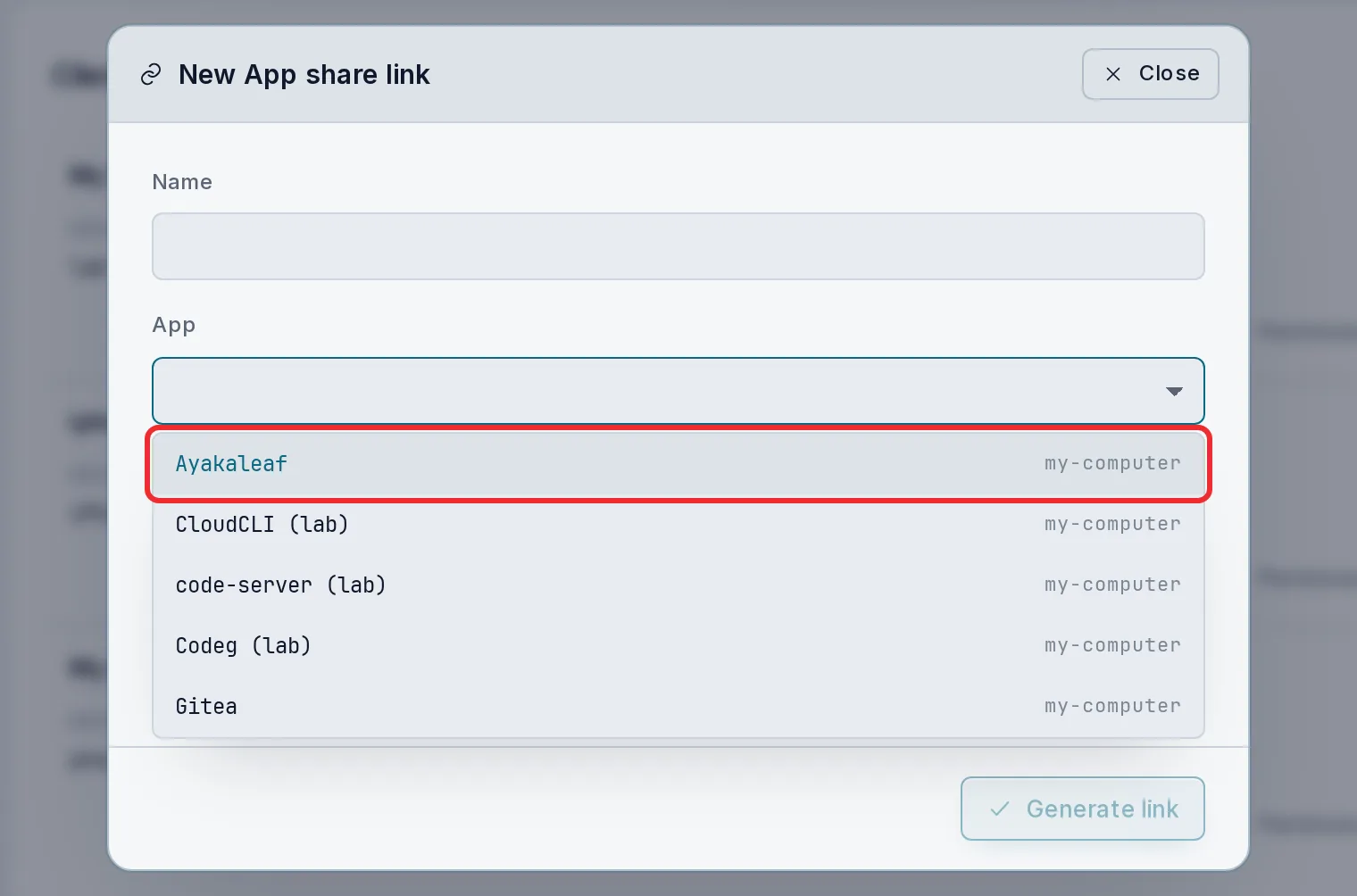
New App share link at the top right of the Clients page opens the same dialog. When you open it from there, choose the app in App. The list shows every app that can be shared and the system it runs on.
Visitor identity
Each app gives visitors a different identity. Check it before you generate a link.
| App | Visitor identity | Details |
|---|---|---|
| code-server, VS Code, SiYuan, Codeg, CloudCLI | The account that runs the app | No sign-in page appears, and the visitor can do everything this account can do in the app |
| Hermes WebUI | The account hermeswebui | No sign-in page appears, and the visitor shares your conversations, memory and workspace |
| Ayakaleaf | A guest account for this link only | The visitor sees only the projects you invite this account to; see Ayakaleaf |
| Gitea | Not signed in | The visitor sees the Gitea sign-in page, and accounts are created in Gitea |
| Containers, declared apps | Not signed in | The app opens as it is; if it has a sign-in page, the visitor sees that page |
code-server includes a terminal for this account, so a visitor can access every file this account can access. Send such links only to people you trust.
What the visitor sees
After the visitor opens the link, the app fills the whole window, and the visitor does not see the hub name or the system name. Chrome, Firefox and Safari can open it, on phones too.
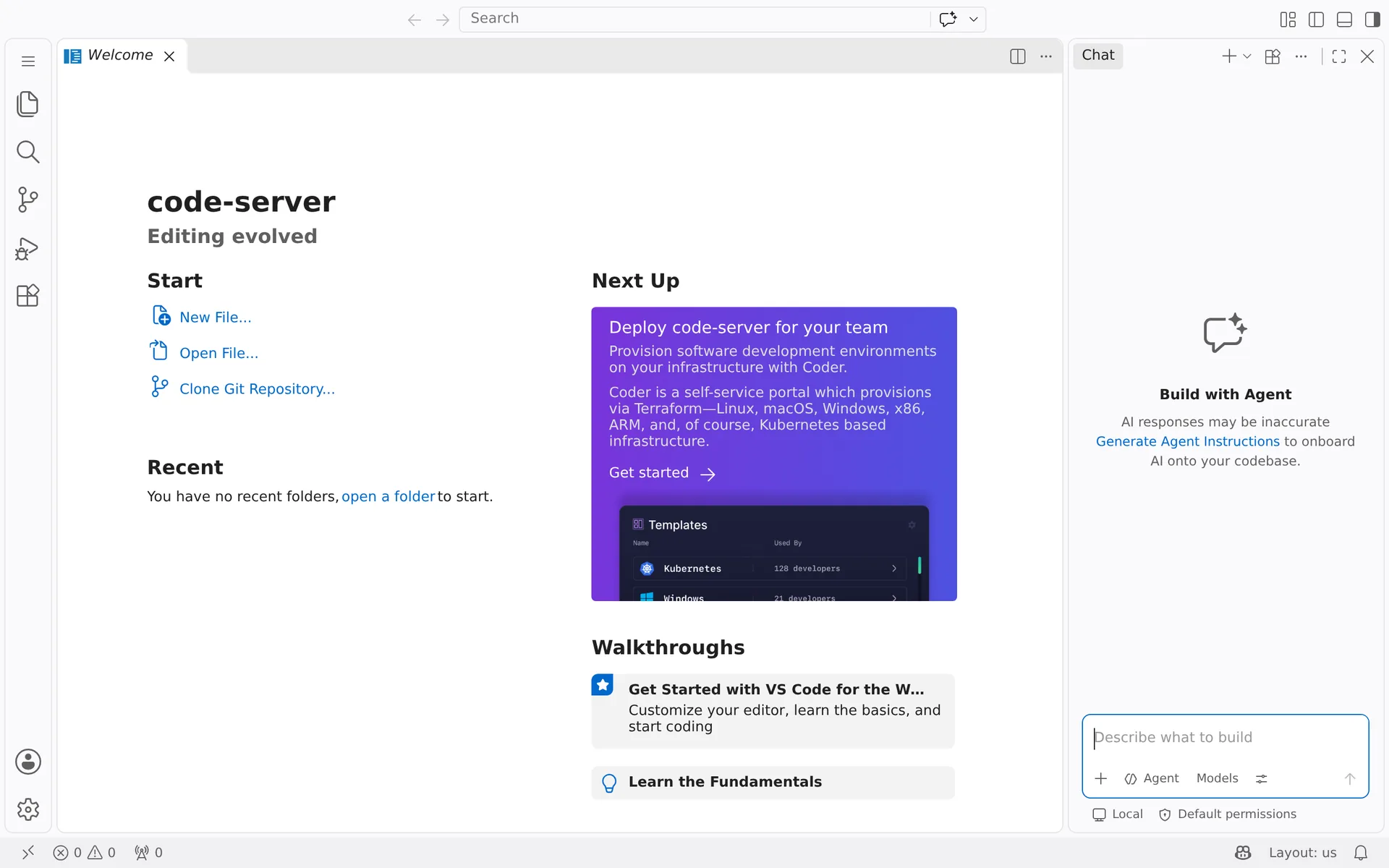
In one browser, only one tab at a time can use a share. If you open a share link in a second tab, the page shows An app is already open in another tab. Only one can be open at a time. and a Use here button. After you select Use here, the app moves to this tab, and the first tab shows This app is now open in another tab. When the tab in use closes or leaves the page, the waiting tab opens the app automatically.
Before the app opens, the page shows a one-line message. Only the last two screens in the table have a button.
| Screen | Message | Cause | What to do |
|---|---|---|---|
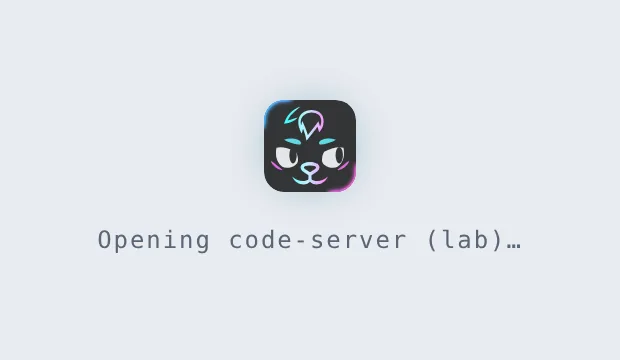 | Opening app name… | The page is connecting | Wait |
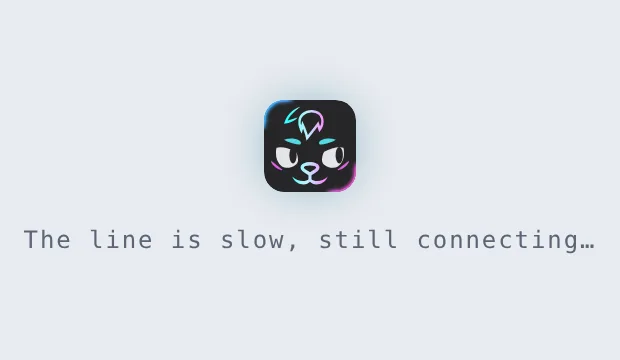 | The line is slow, still connecting… | The route is slow, and the page has not connected after 10 seconds | Wait; the page keeps connecting |
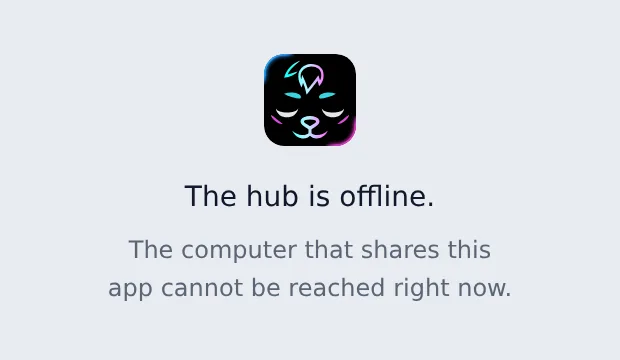 | The hub is offline. | The page has not connected after 30 seconds. The computer with the hub is off or unreachable, or this share has ended | The page retries every 10 seconds and shows the app after it connects |
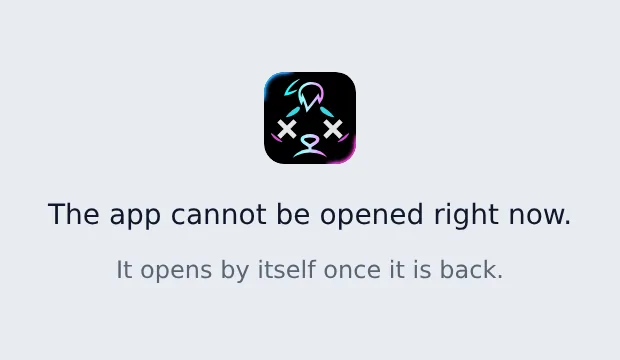 | The app cannot be opened right now. | The hub is running, but the system with the app is offline or the app has stopped | The page opens the app automatically after the system or the app recovers |
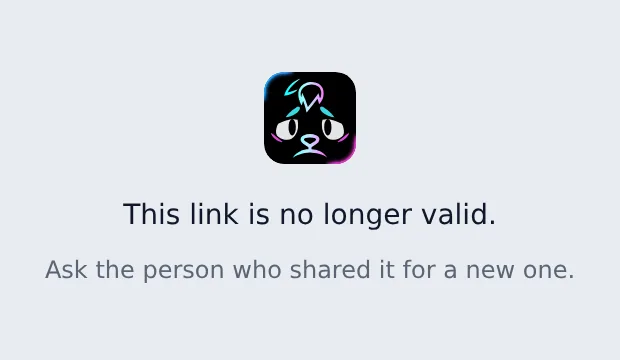 | This link is no longer valid. | The share ended while the page was open | The other person asks you for a new link |
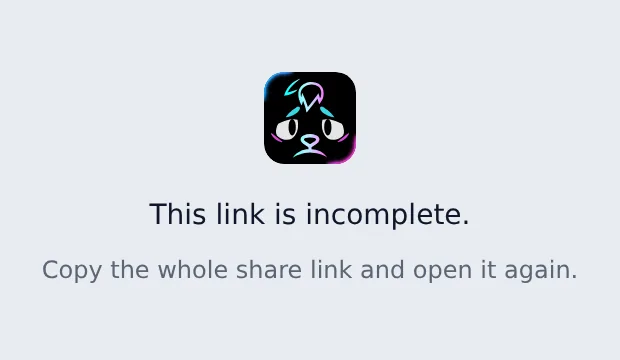 | This link is incomplete. | Part of the link was lost when it was copied | The other person copies the whole link again |
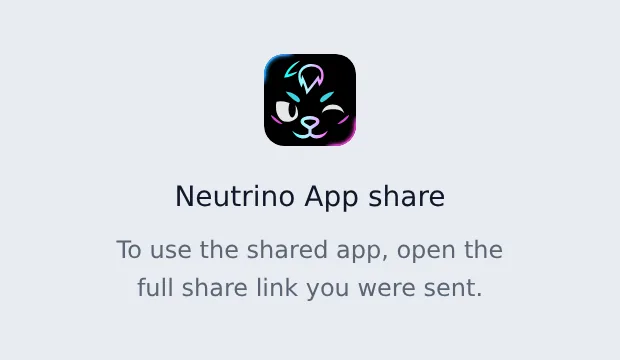 | Neutrino App share | The other person opened the site address without the rest of the link | The other person uses the complete link |
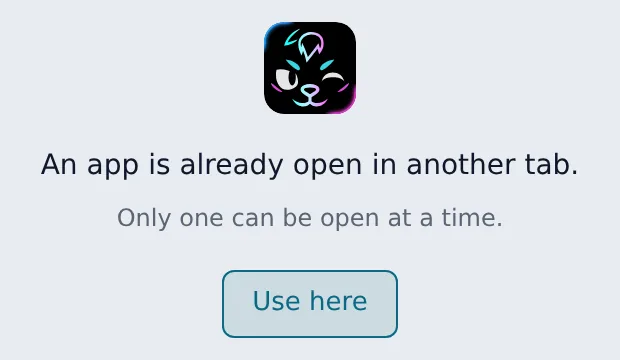 | An app is already open in another tab. Only one can be open at a time. | Another tab in the same browser is using a share | The other person selects Use here or closes this tab |
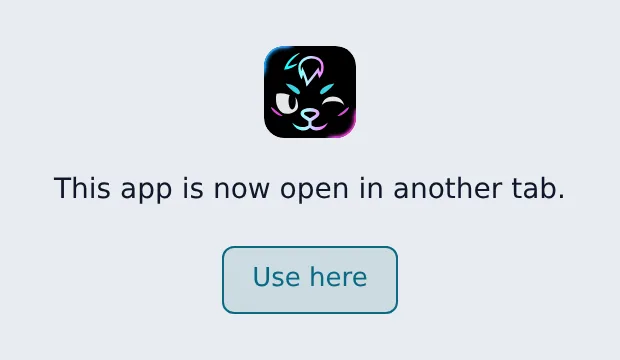 | This app is now open in another tab. | The other person selected Use here in another tab | To return to this tab, the other person selects Use here |
What share.neutrinohub.net does
This website cannot see the content between you and the visitor. It serves only a static client under 40 KB, which is the page that the visitor's browser loads. The website runs no program and stores no data.
After the page loads, the visitor's browser connects directly to your hub and to no other server of Neutrino Hub. Every connection is encrypted, with the visitor's browser and your hub at the two ends. The same holds through SakuraFrp, OpenFrp or the SSH relay: neither those routes nor this website can see the content.
The hub's address and the share details are in the part of the link after #. Browsers do not send that part to the website, so the website cannot learn whose app a visitor opens.
If you prefer not to depend on this website, you can host the page yourself:
In the Neutrino Hub code repository, run the packaging script. The script collects the page into one folder and runs offline.
bashpython3 packaging/build/build_share_page.py --output-dir dist/share_page/Deploy this folder to any static HTTPS website. The site's root is the share page, and links take the form
https://<your site>/#…. Cloudflare Pages and EdgeOne Pages work as they are, because the folder already includes their settings files. On any other website, set the following rules yourself:- The file
/__neutrino/sw.jsmust have the response headerService-Worker-Allowed: /. - Every address with no matching file returns
index.html.
- The file
When you generate a link later, choose Another site in Site, then enter your website address in the field under it. The address must start with
https://.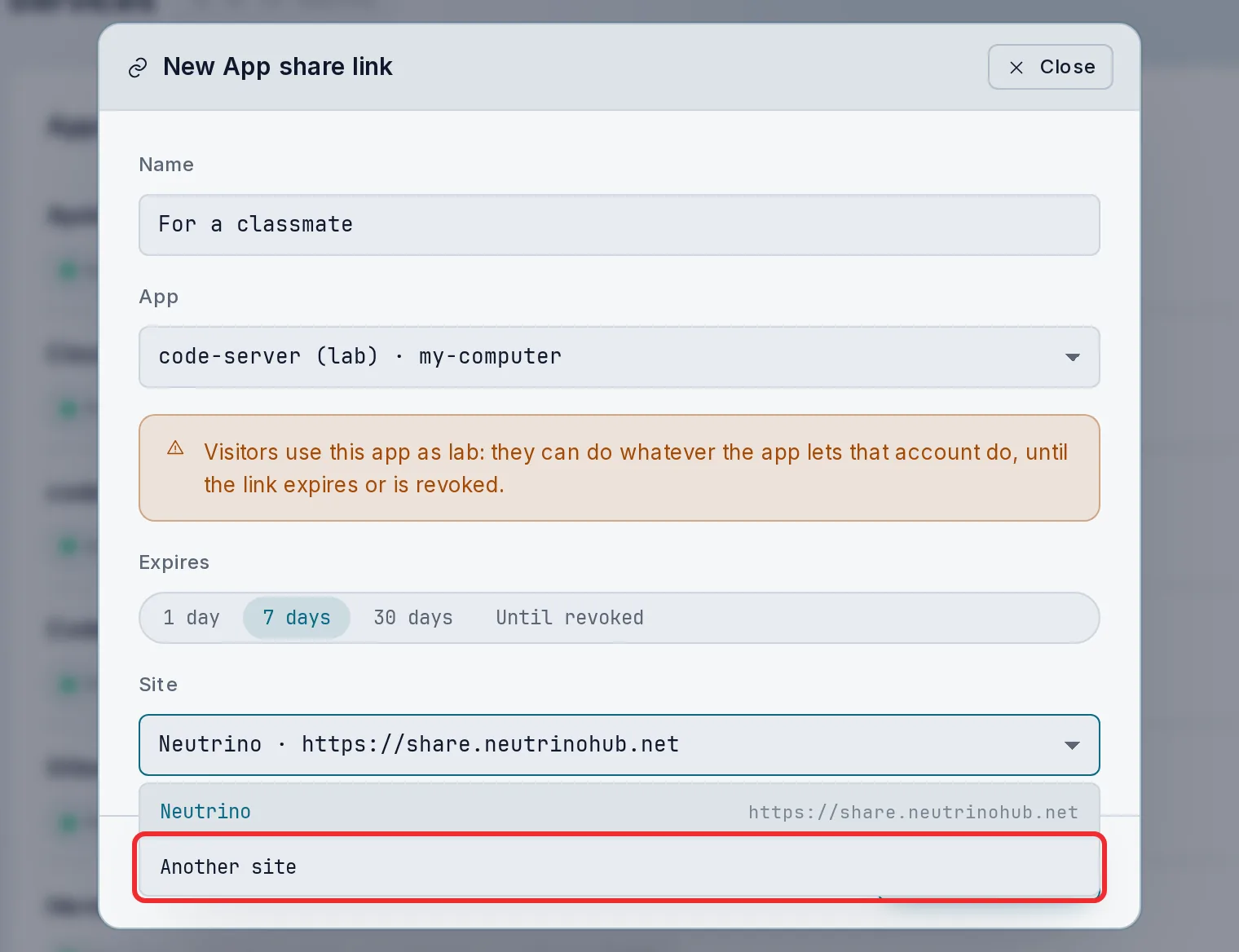
1Choose Another site 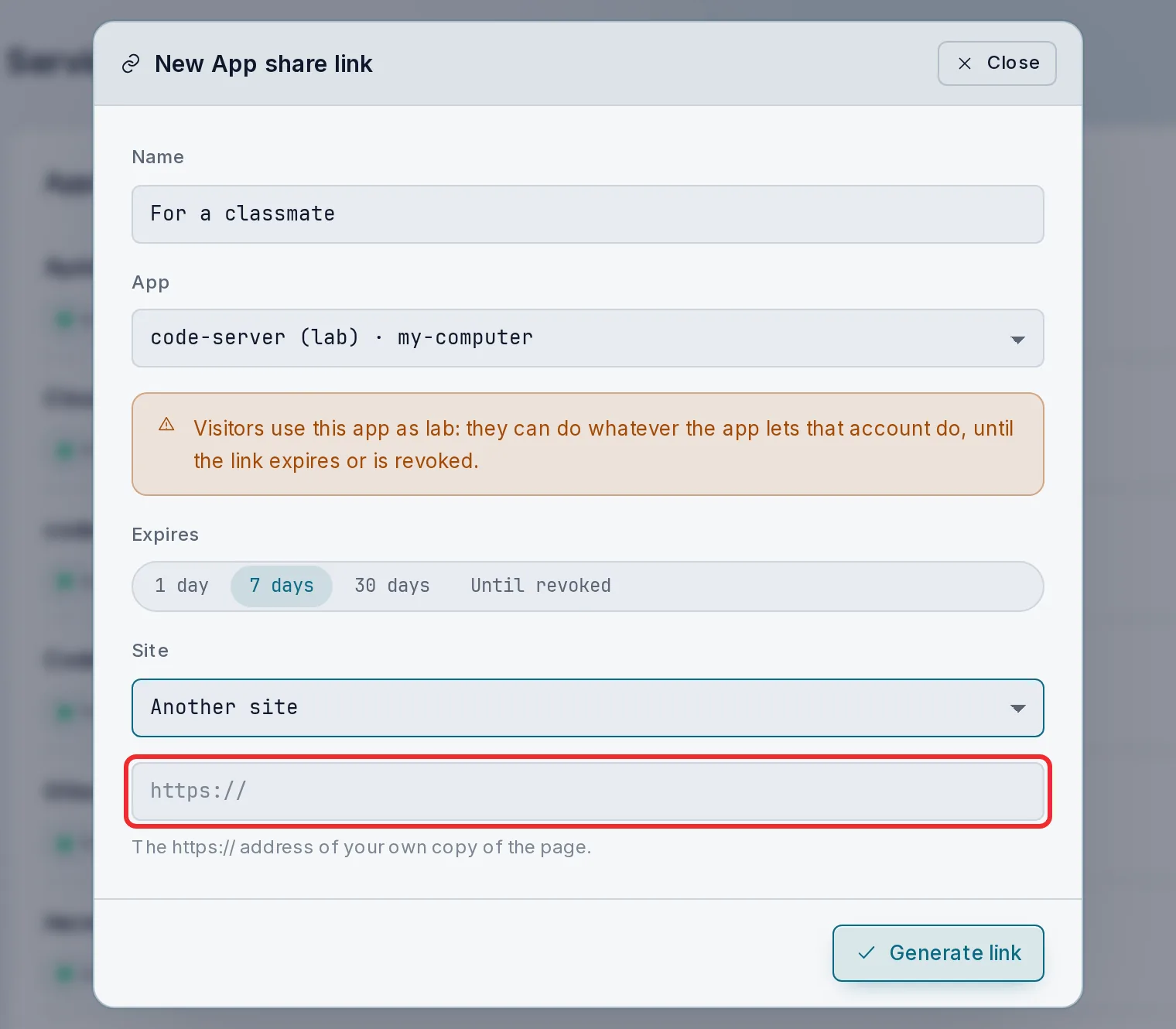
2Enter the website address
Address in a link
Each link holds one address, which is fixed when the link is generated. The hub picks the first access method that is on, in this order: the public address of Direct, SakuraFrp, OpenFrp, SSH relay. If none of them is on, or only EasyTier or NetBird is on, the hub refuses to generate the link.
An older link holds only the address from when it was generated. It cannot use an access method you turned on later, and it stops working when the public address changes. In both cases, generate a new link.
View and revoke
The App shares area at the bottom of the Clients page lists every share. Each share has one row with its name, app and system, expiry time, status, online count and Revoke. 1 online means that one page has the share open now. The panel shows only the online count and keeps no list of visitors.

Each status means:
| Status | Meaning |
|---|---|
| active | Visitors can open the link |
| preparing | The system is creating the guest account; only Ayakaleaf uses this |
| unavailable | The system is offline or the app has stopped; the link works again after the system or the app recovers |
| failed | Creating the guest account failed, and the reason appears under the row |

To end a share early:
Select Revoke on its row.

The dialog states that every open page closes. Select Revoke to confirm.
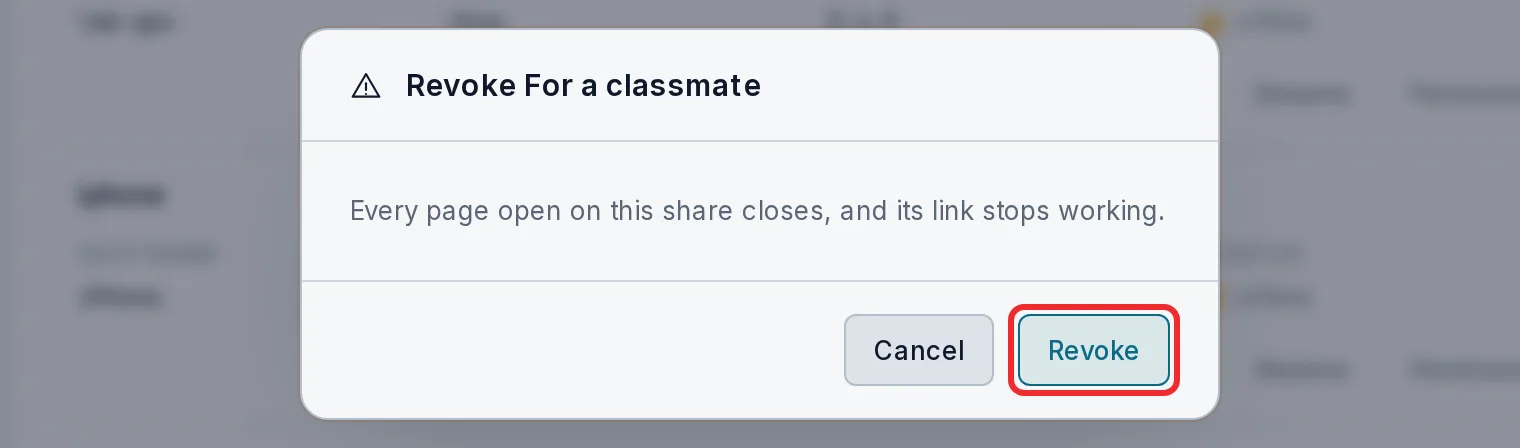
The visitor's page immediately changes to This link is no longer valid. and the row disappears from the panel. When a share expires, its link disconnects within a minute and its row disappears too.
These actions also end a share: uninstalling the app, forgetting the system, and deleting a declared app. Restoring a backup ends every share, and its dialog states this. Stopping the app alone does not end a share.
If a link does not open, see Troubleshooting.