English
Settings: backup, updates and password
The Settings page is where you back up the configuration, update the hub and change the panel password.
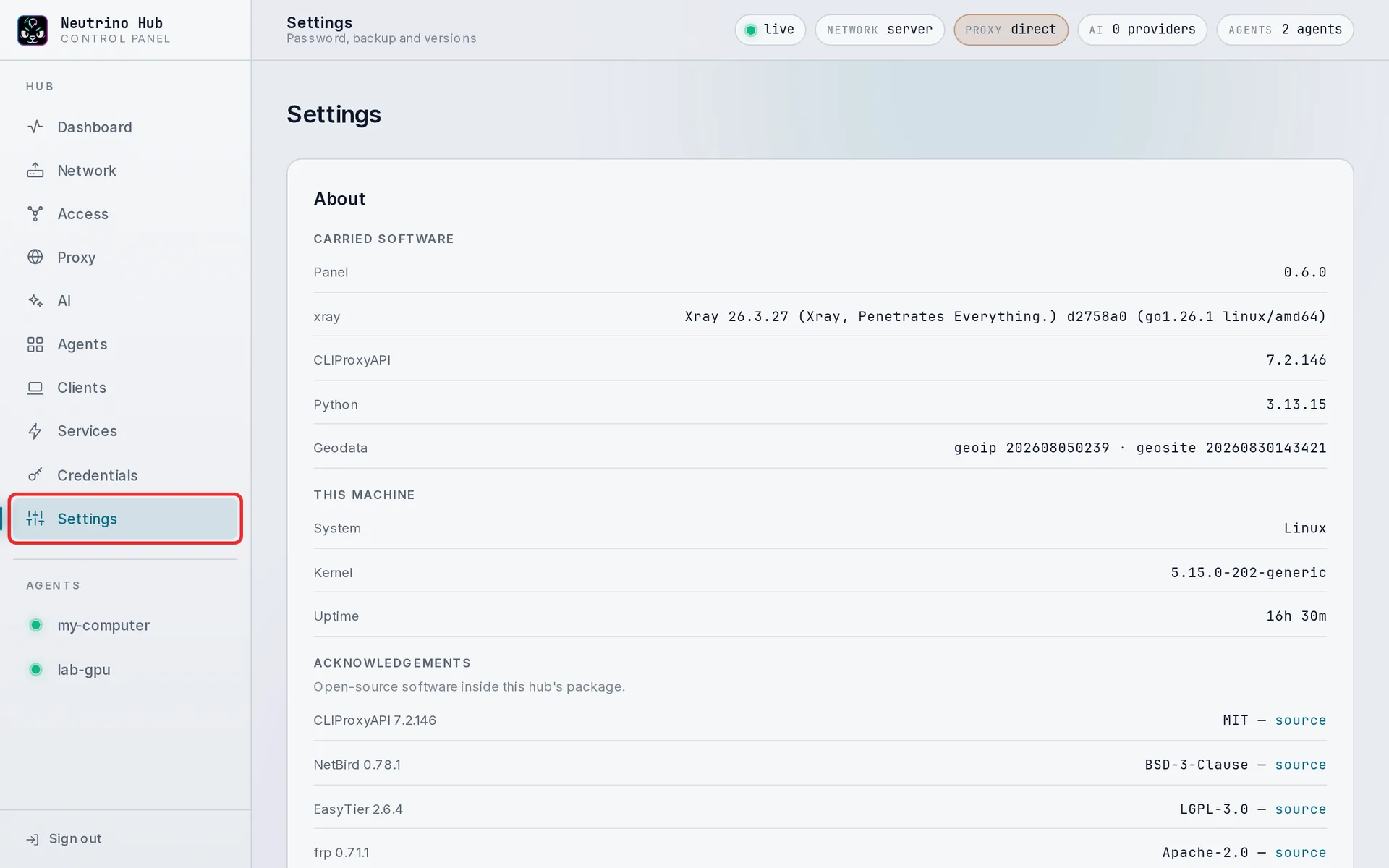
To open it, select Settings in the panel's sidebar.
Download a backup
A backup is a .tar.gz file that holds the whole configuration. The keys in it are encrypted, and only the vault passphrase decrypts them. Everything else is plain text, so keep the file safe.
A backup leaves out your files, Gitea repositories, container volumes and AI subscription sign-ins.
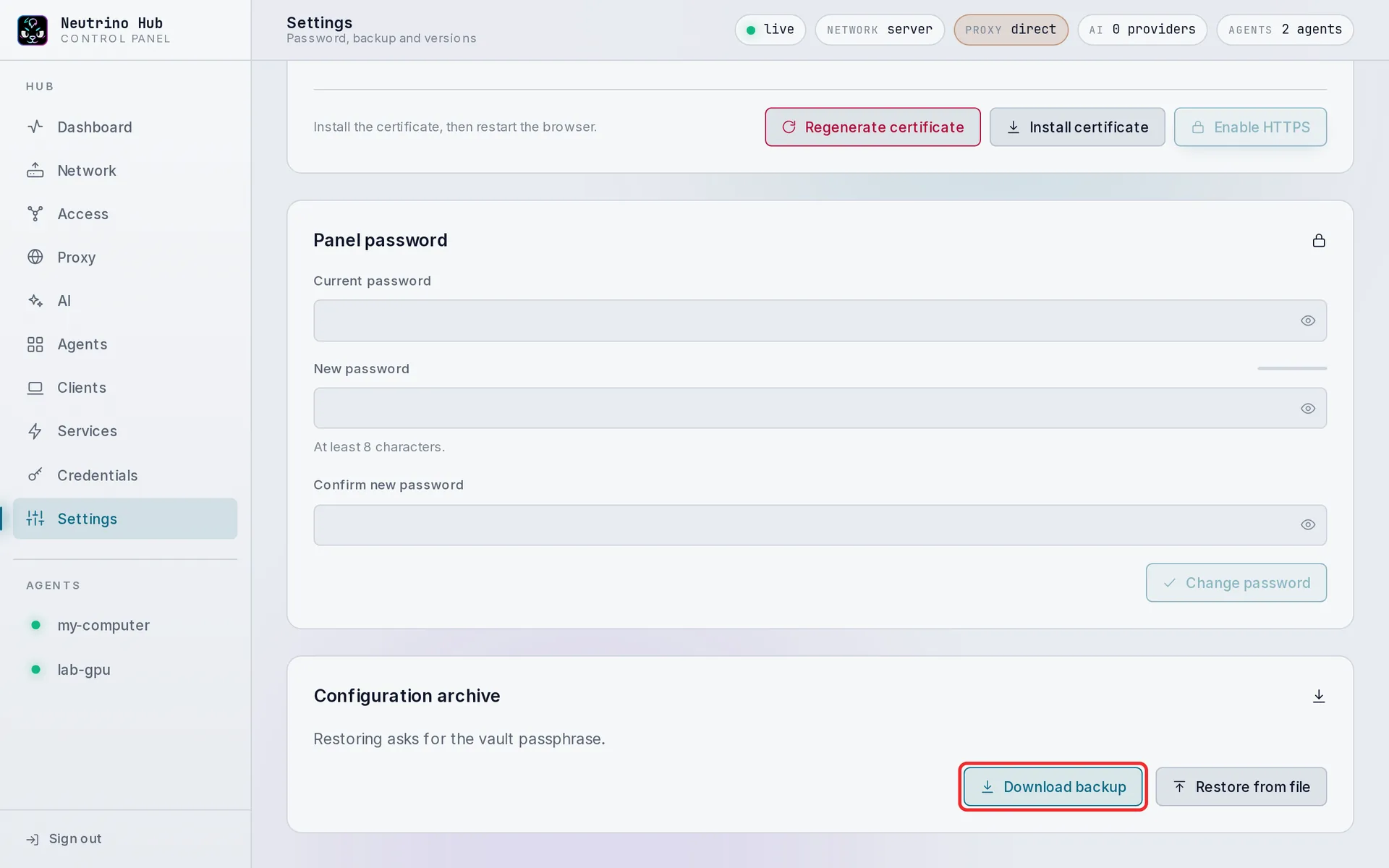
In the Configuration archive section, select Download backup. The browser saves the file to its download folder.
Record the vault passphrase, because a restore requires the passphrase that this backup was encrypted with.
Restore a backup
A restore replaces the whole configuration and ends every app share, and then the panel restarts.
In the Configuration archive section, select Restore from file and choose the backup file. Nothing is restored yet. In the dialog that opens, enter the Vault passphrase this backup was encrypted with, then select Restore. To back out, select Cancel.
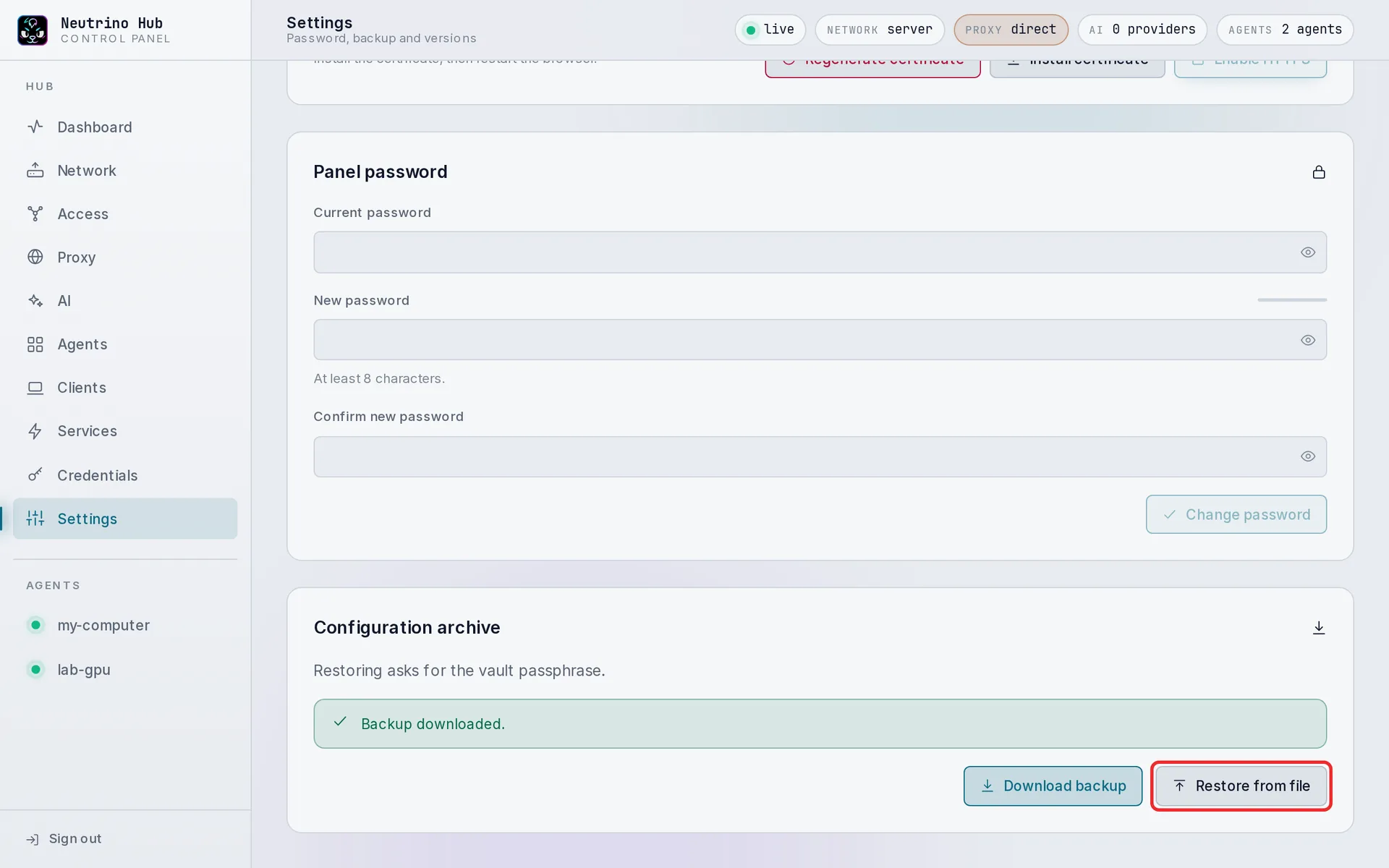
1Select Restore from file 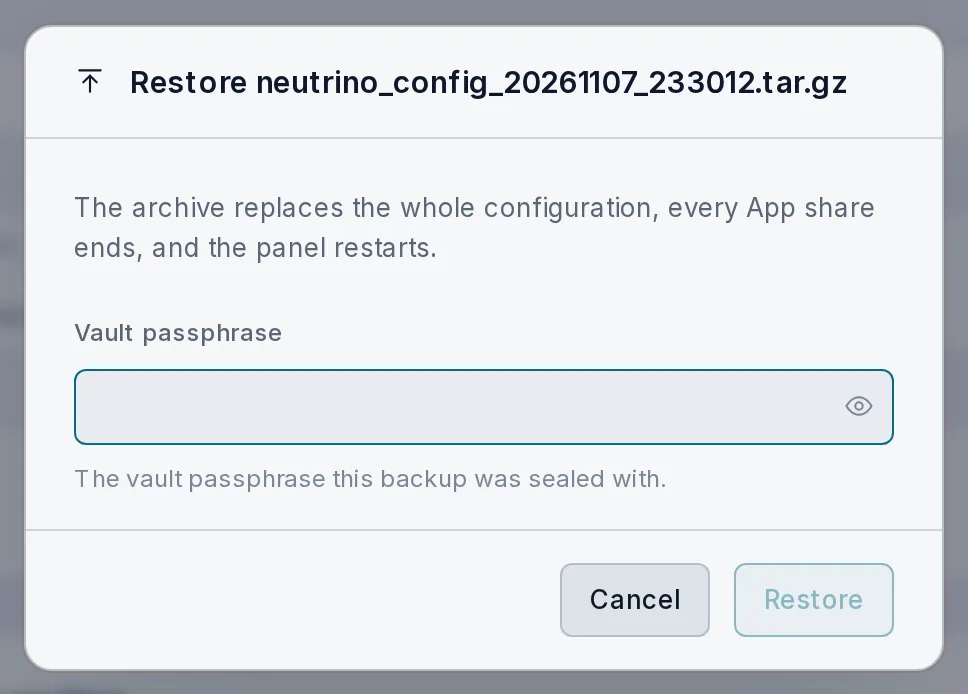
2Enter the passphrase, then select Restore After the panel restarts, sign in with the password of the restored configuration.
Agents and clients reconnect automatically, even after a restore onto a different computer. On a different computer, sign in to your AI subscription accounts again.
If the configuration fails to apply, the dialog shows the reason. Fix the cause, then run sudo nhub apply on this computer.
Update the hub
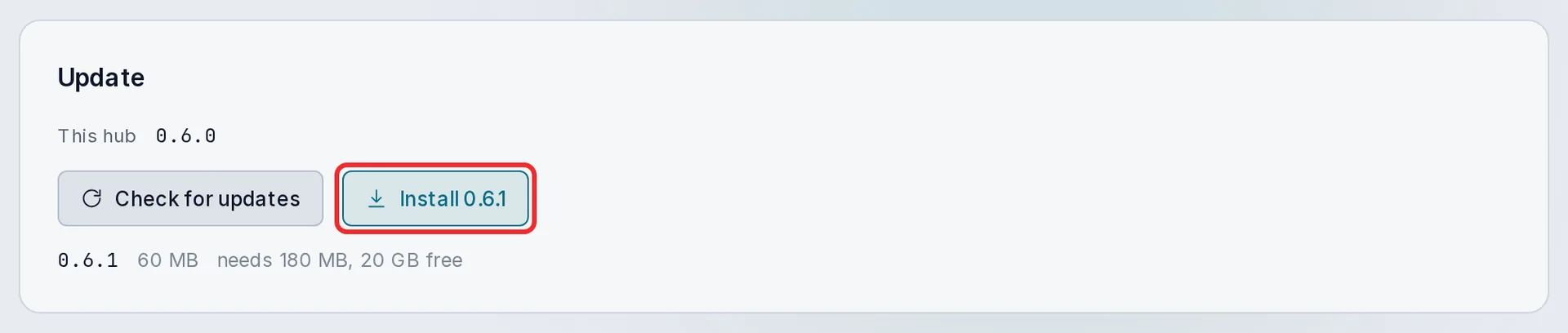
In the Update section, select Check for updates. The section lists the new version's notes and the disk space it uses.
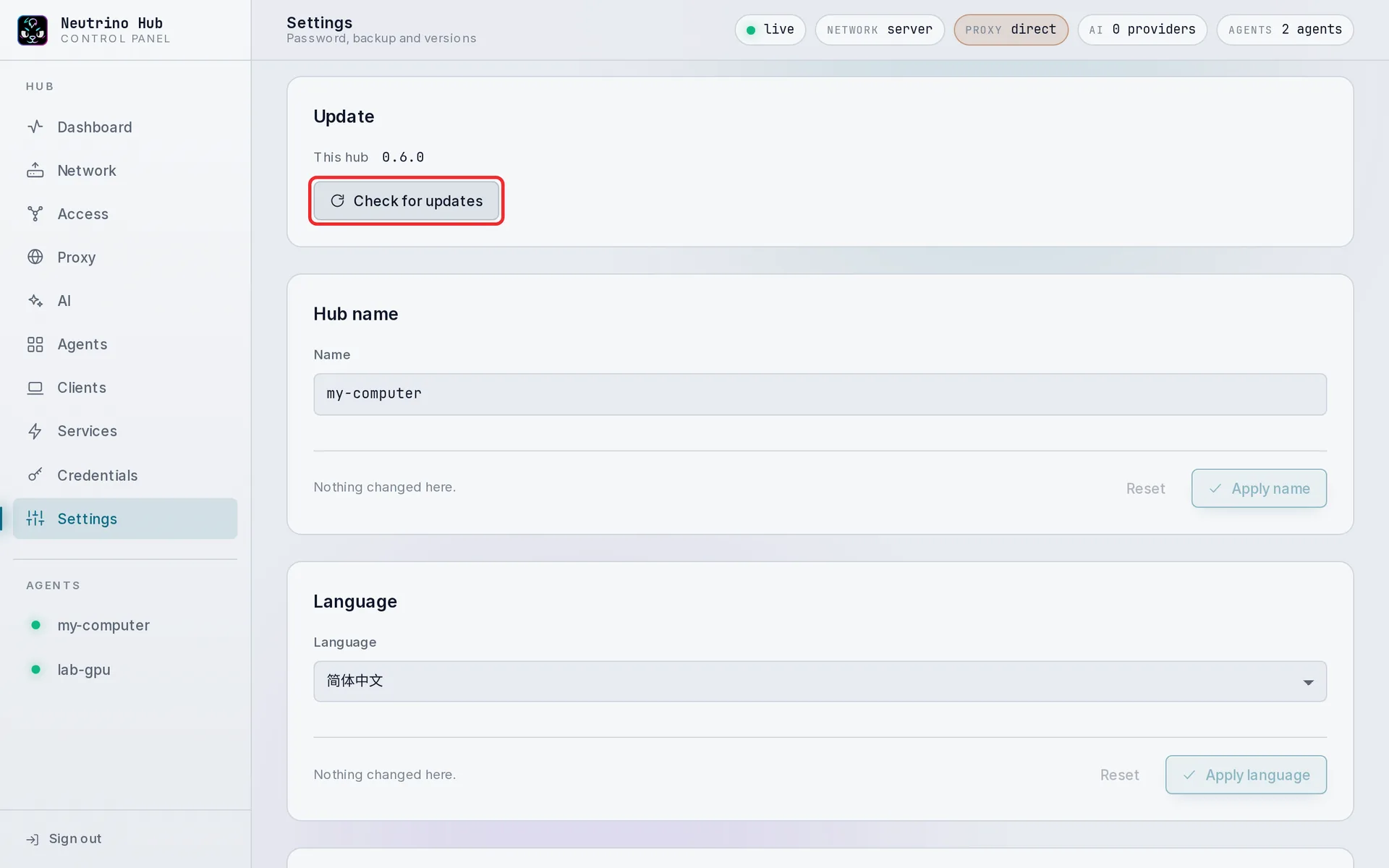
Select Install followed by the version number, read the confirmation dialog, then confirm.
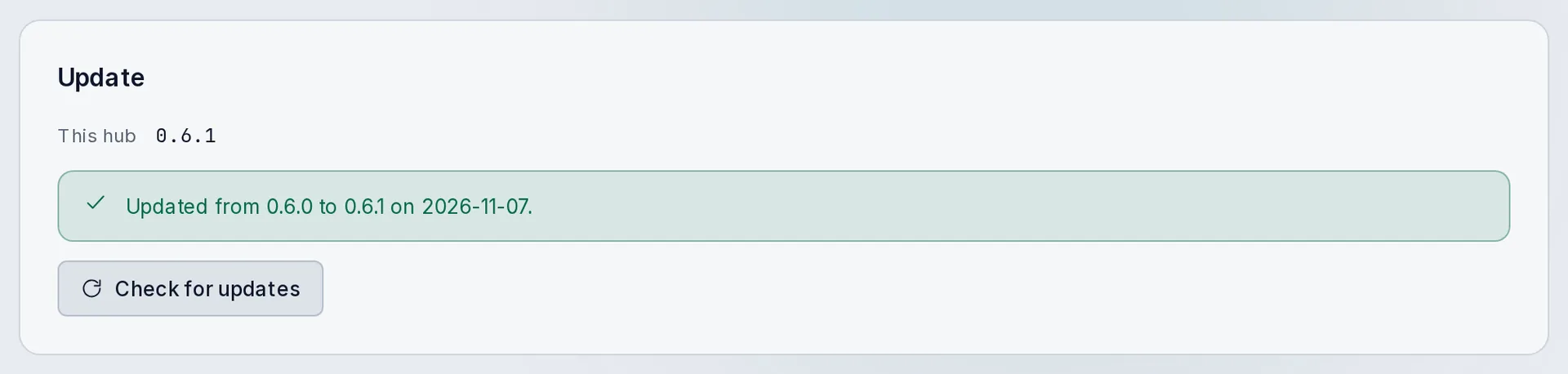
The panel restarts. Sign in again on the sign-in page, and the section then shows which version the hub updated from and to.
If the new version does not respond within three minutes, the hub restores the old version automatically.
The agent on this computer updates with the hub, and agents on other systems update automatically. If a system did not update, select Update agent on its page. If the confirmation dialog mentions agents on an older protocol, select Reinstall on that system's page. You install new client versions yourself.
A new major version cannot be installed from this section. Upgrade to it by hand with Upgrade from 0.5.
You can also update from the command line with sudo nhub update. The command shows a [y/N] prompt first, and --yes skips it. To install a package you downloaded yourself, run sudo nhub update --package <file>, with the package's path as <file>.
Change the panel password
In the Panel password section, fill in Current password, New password and Confirm new password, then select Change password.
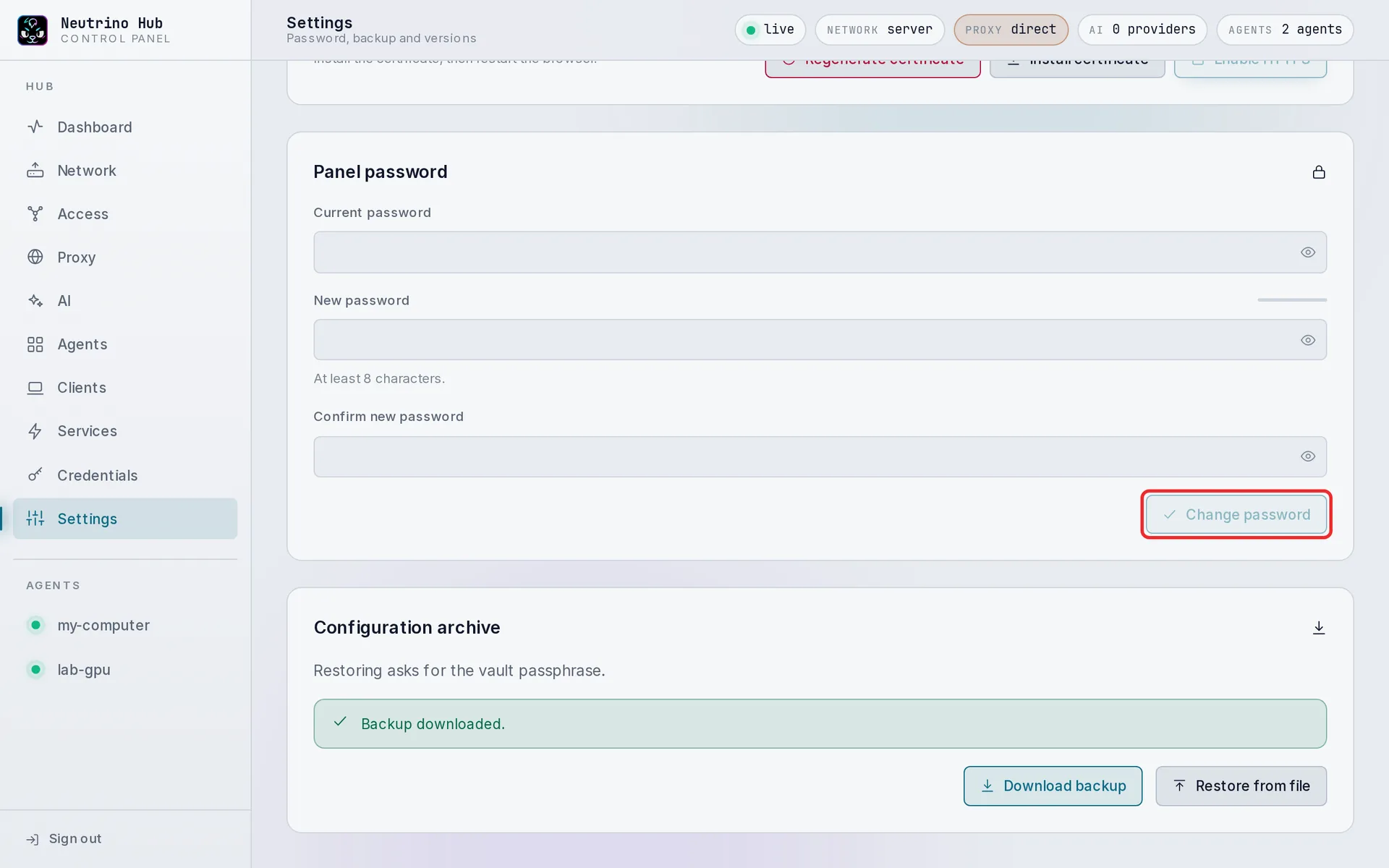
If you forget the password, run sudo nhub reset password on this computer, which sets a new password and signs out every session. If the sign-in page shows Locked after repeated failures., run sudo nhub unlock. On Windows, run both commands in an administrator PowerShell, without sudo.
Enable HTTPS
The panel uses HTTP by default. With HTTPS enabled, every HTTP address redirects to HTTPS. Install the certificate first on every device that opens the panel, or the browser shows a warning.
Open the panel at its http address and find the HTTPS section. Select Install certificate, which downloads the certificate. Select the tab for your system, for example Windows, then follow the steps it lists to install the certificate. Restart the browser.
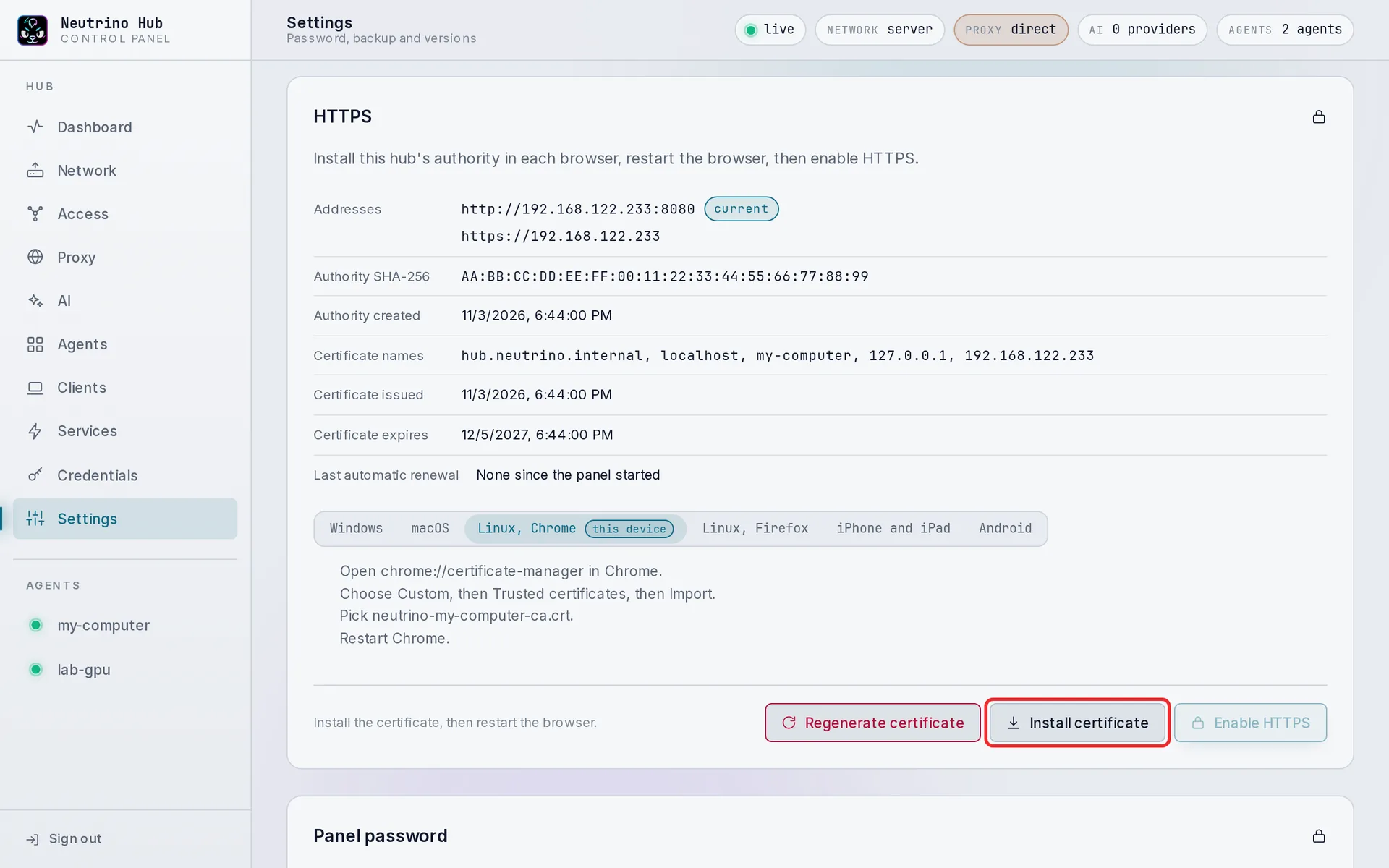
1Select Install certificate 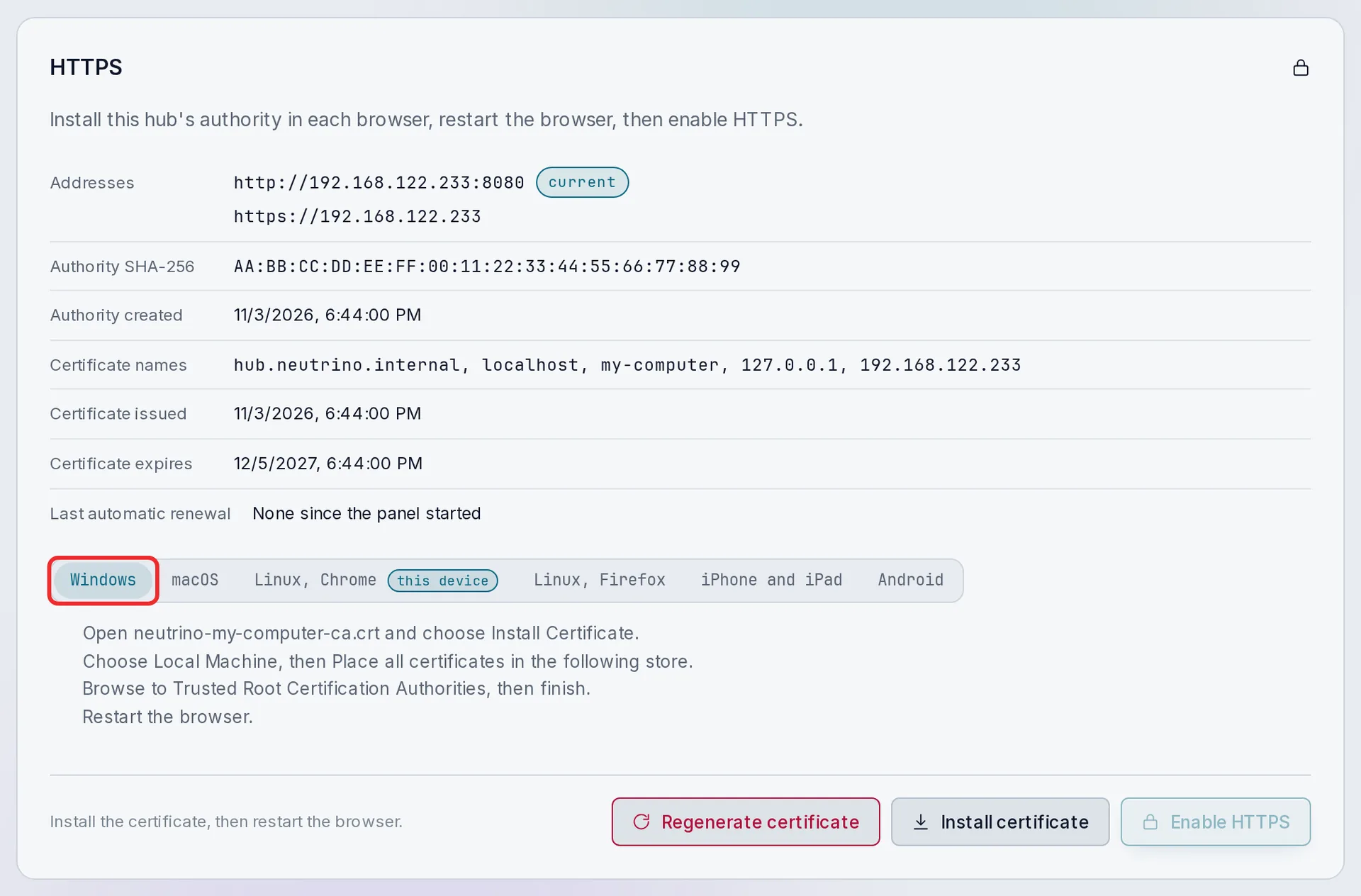
2Follow the steps Return to the section. Enable HTTPS becomes available after This browser trusts the certificate. appears. The button has no confirmation dialog and takes effect immediately.
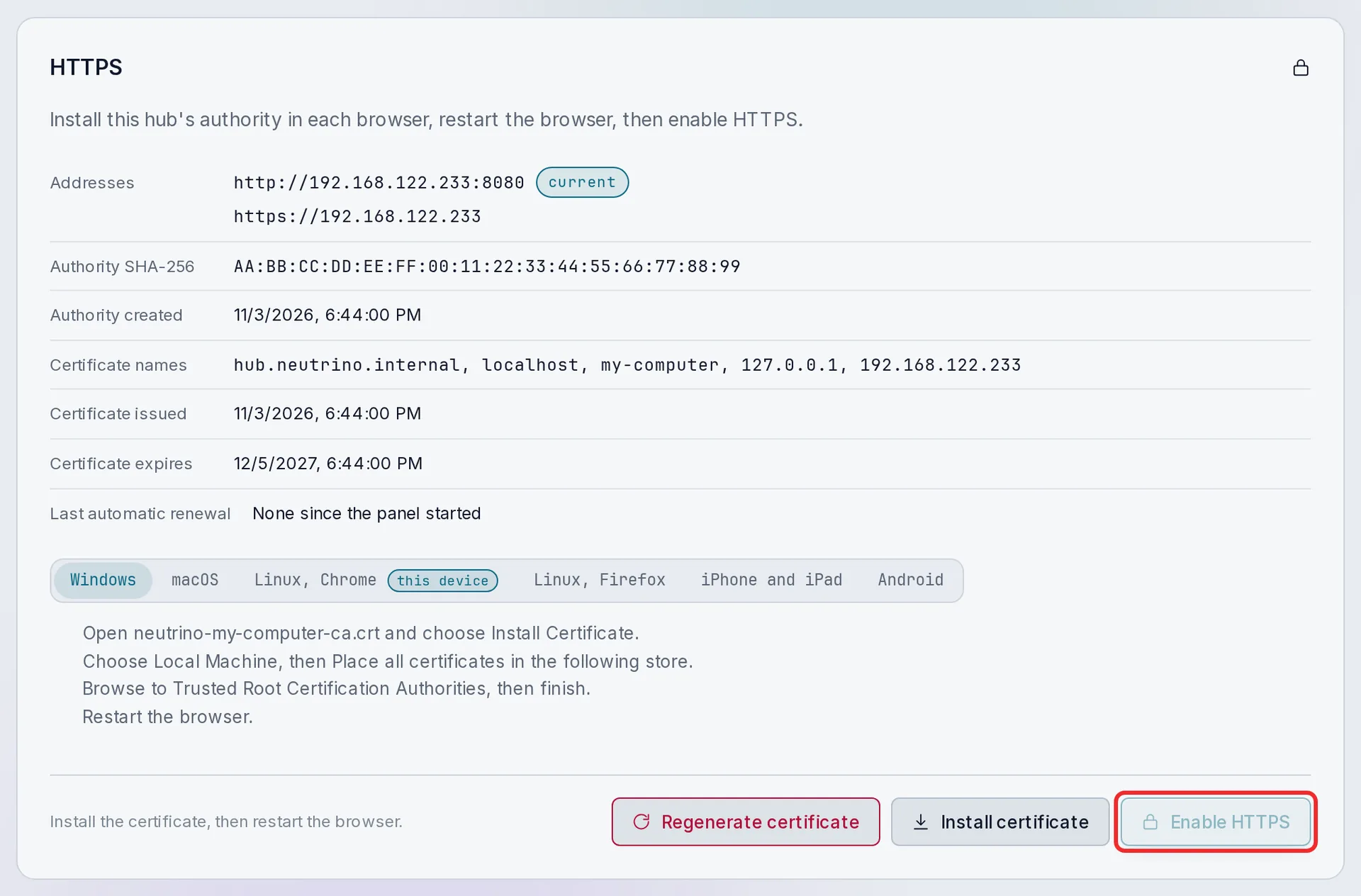
The certificate is valid only for private addresses, virtual network addresses and local names. A browser that opens the panel at a public address still shows a warning. Opening the panel with the client's Panel button is unaffected.
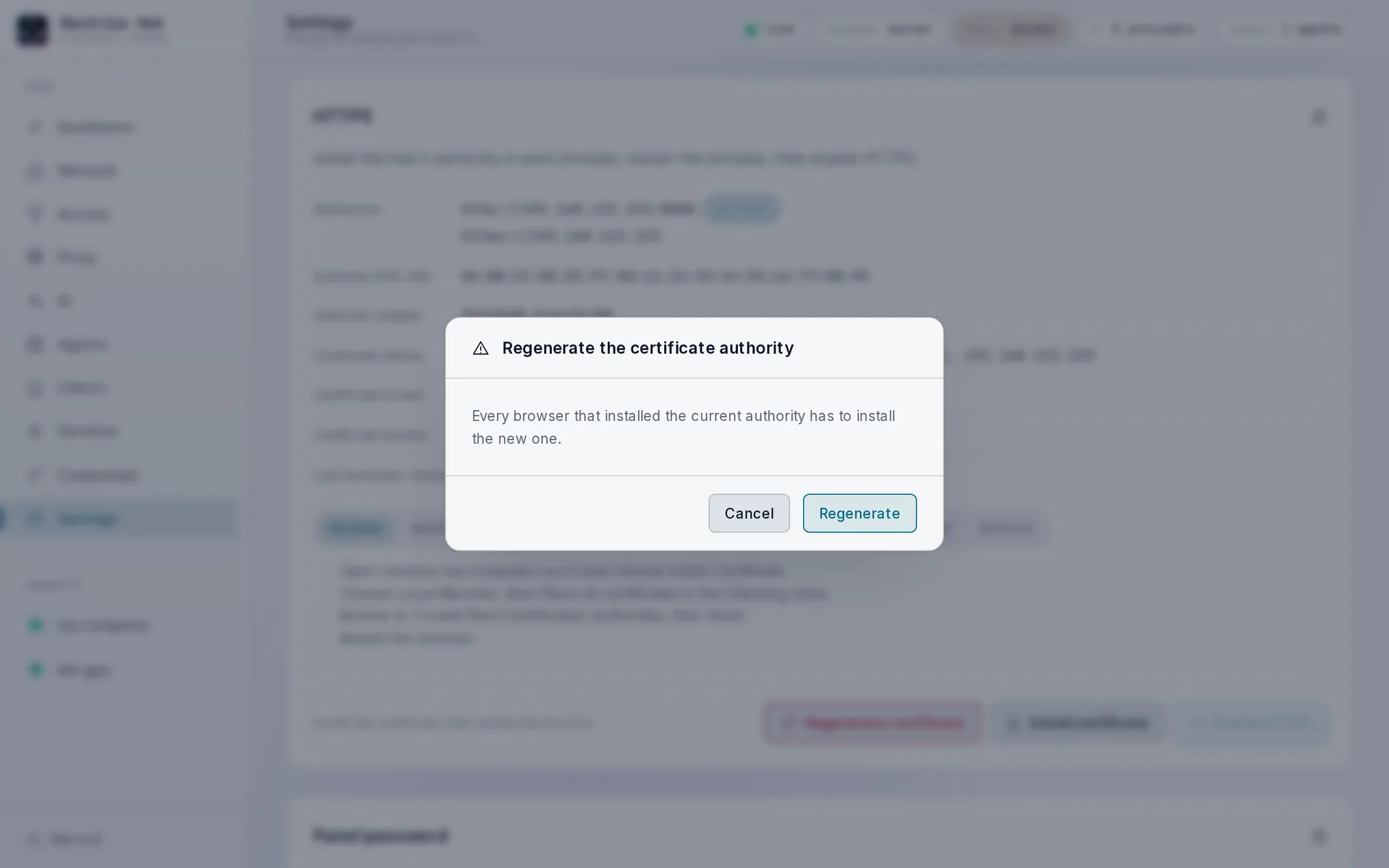
To Regenerate certificate, first select Disable HTTPS. After you confirm in the dialog, every browser that installed the old certificate must install the new one.
Other settings
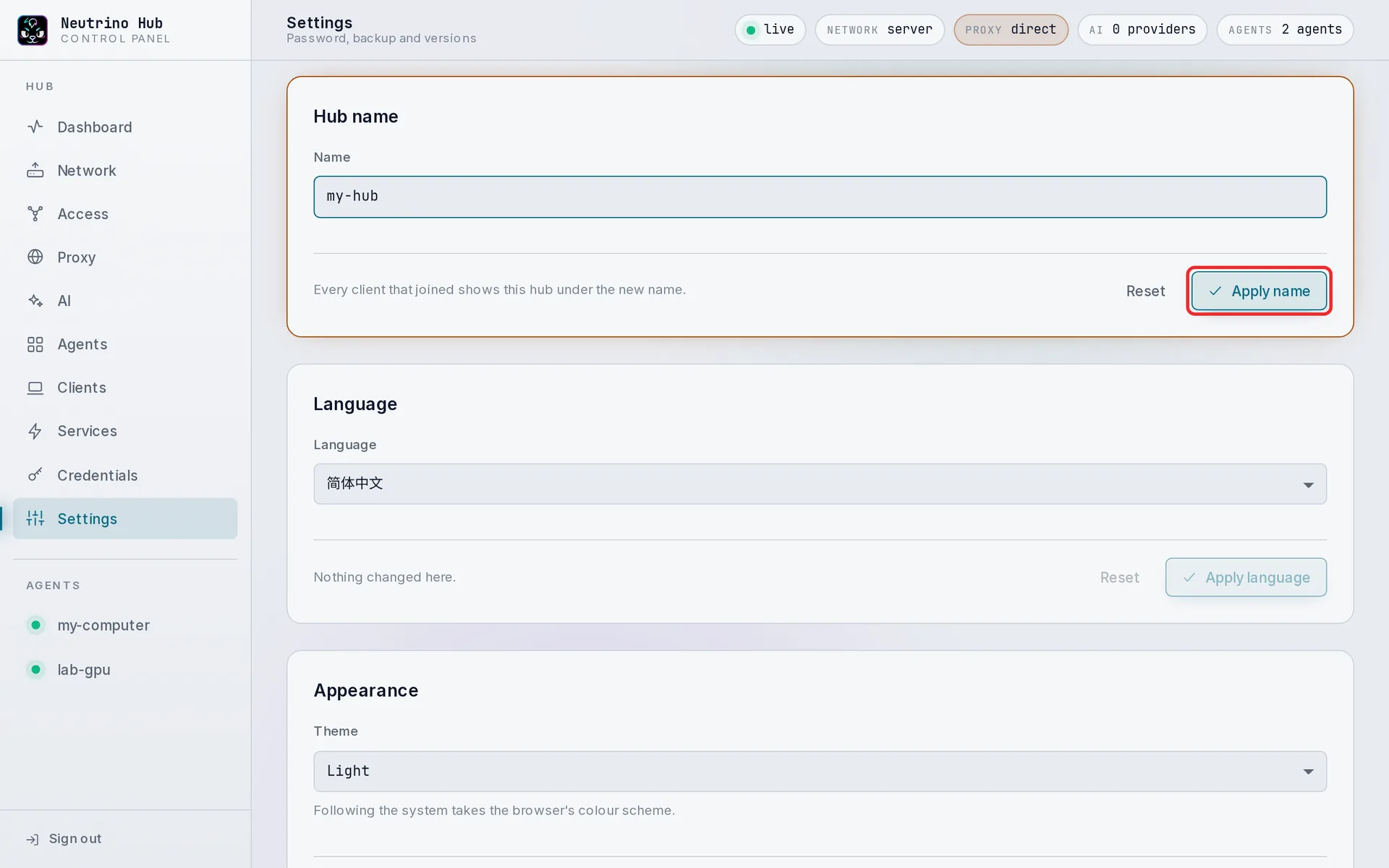
Hub name is the name that joined clients show. A change to it takes effect after you select Apply name.
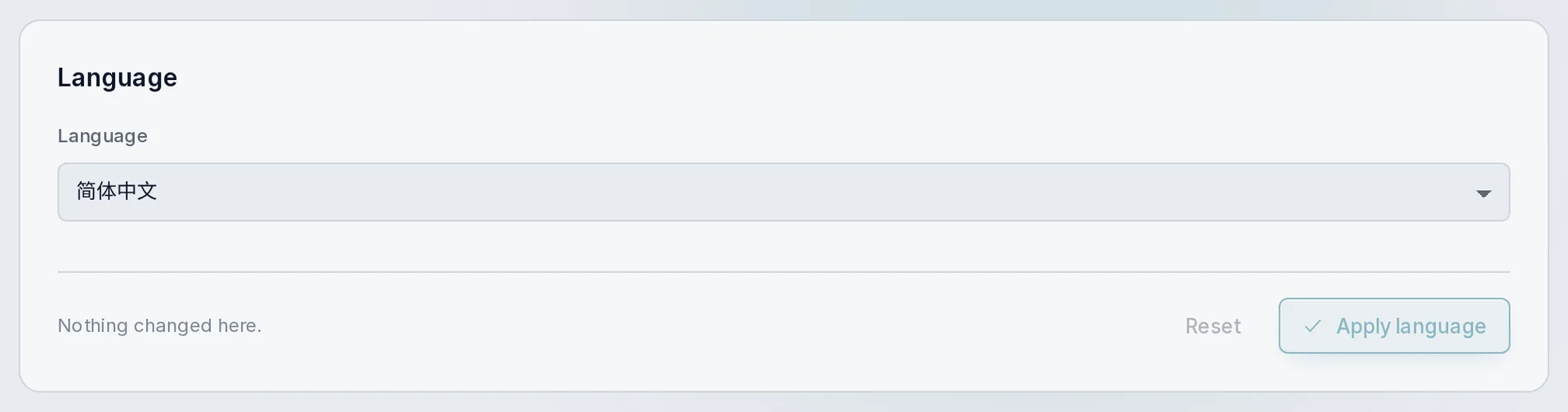
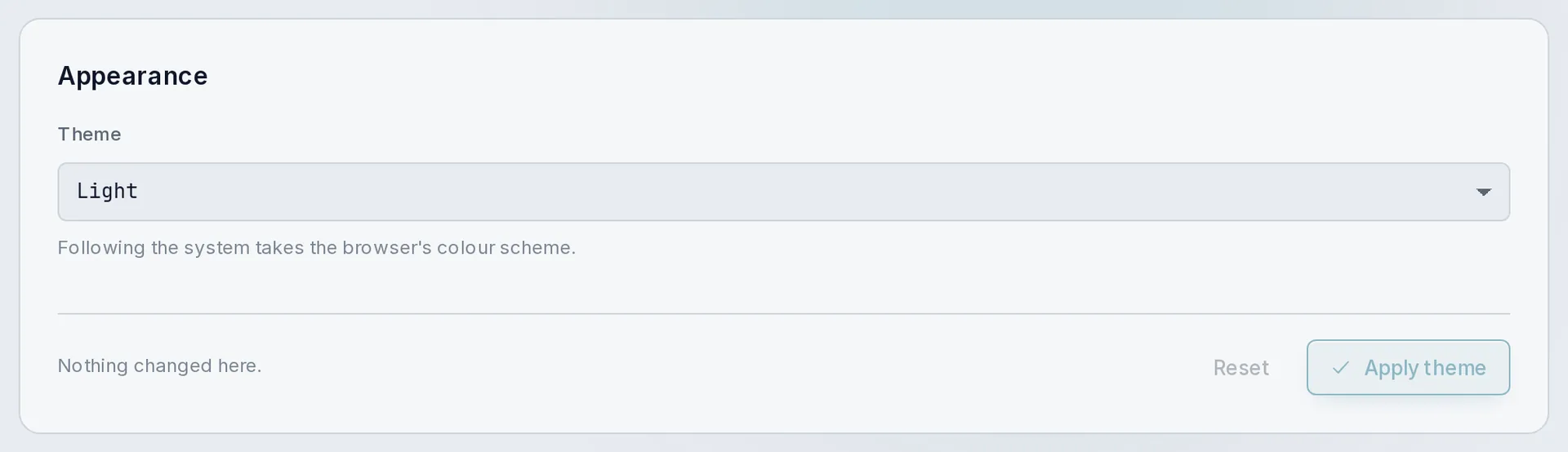
After you change Language or Appearance, select the apply button of that section, and every page updates.
About shows the version and the open source software in the package.