
English
Proxy
The proxy is the feature that sends the traffic of chosen devices and destinations to an exit server by rule. All other traffic uses this computer's own connection.
SystemsLinuxWindowsmacOS
EditionsInternationalChina
Sincev0.1.0
The China edition leaves out this feature. Access from outside works without the proxy, as Choose an access method describes. You provide the exit server yourself, because the hub includes none.
Add an exit
In the panel's sidebar, select Proxy, then select Add node.
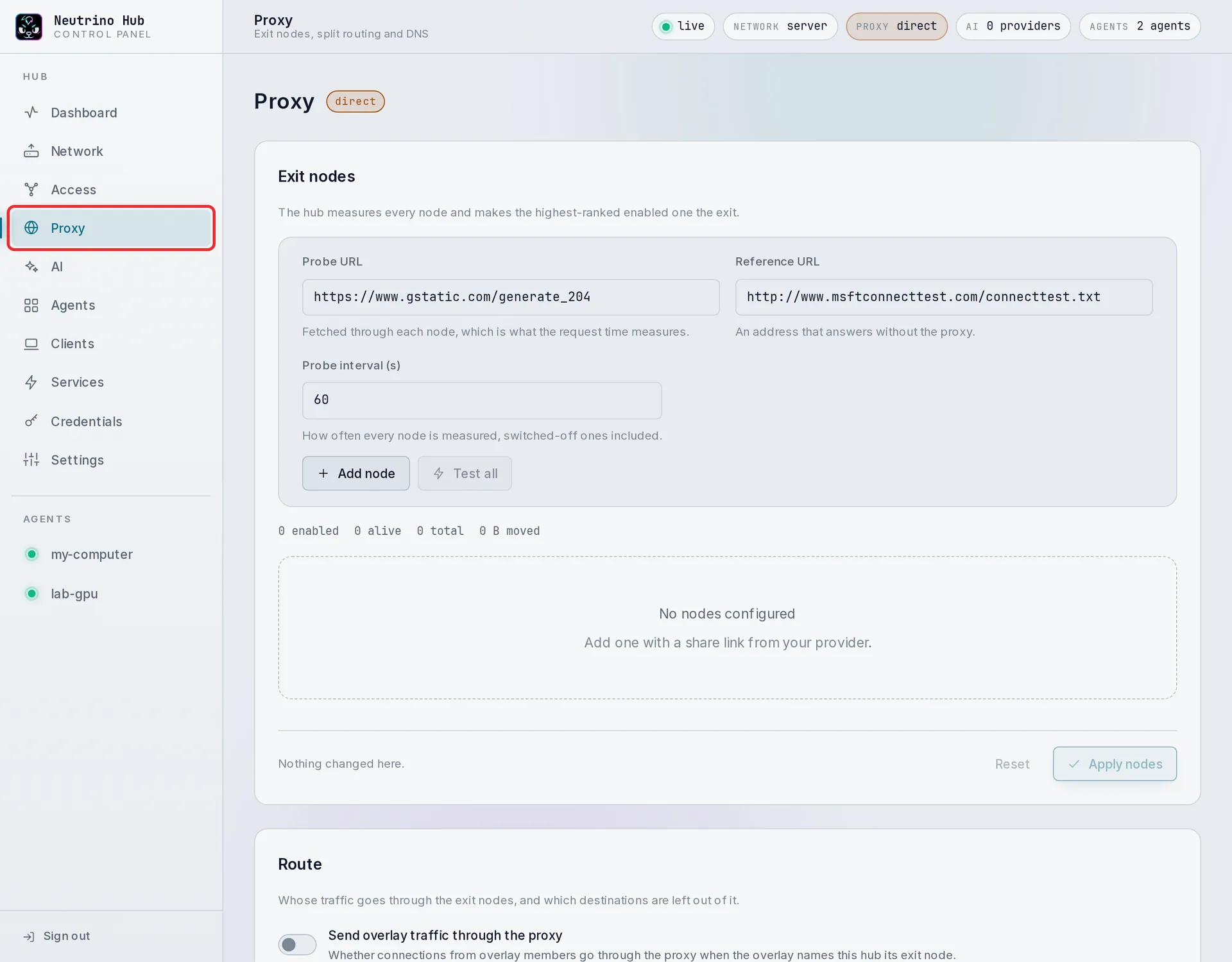
1Select Proxy 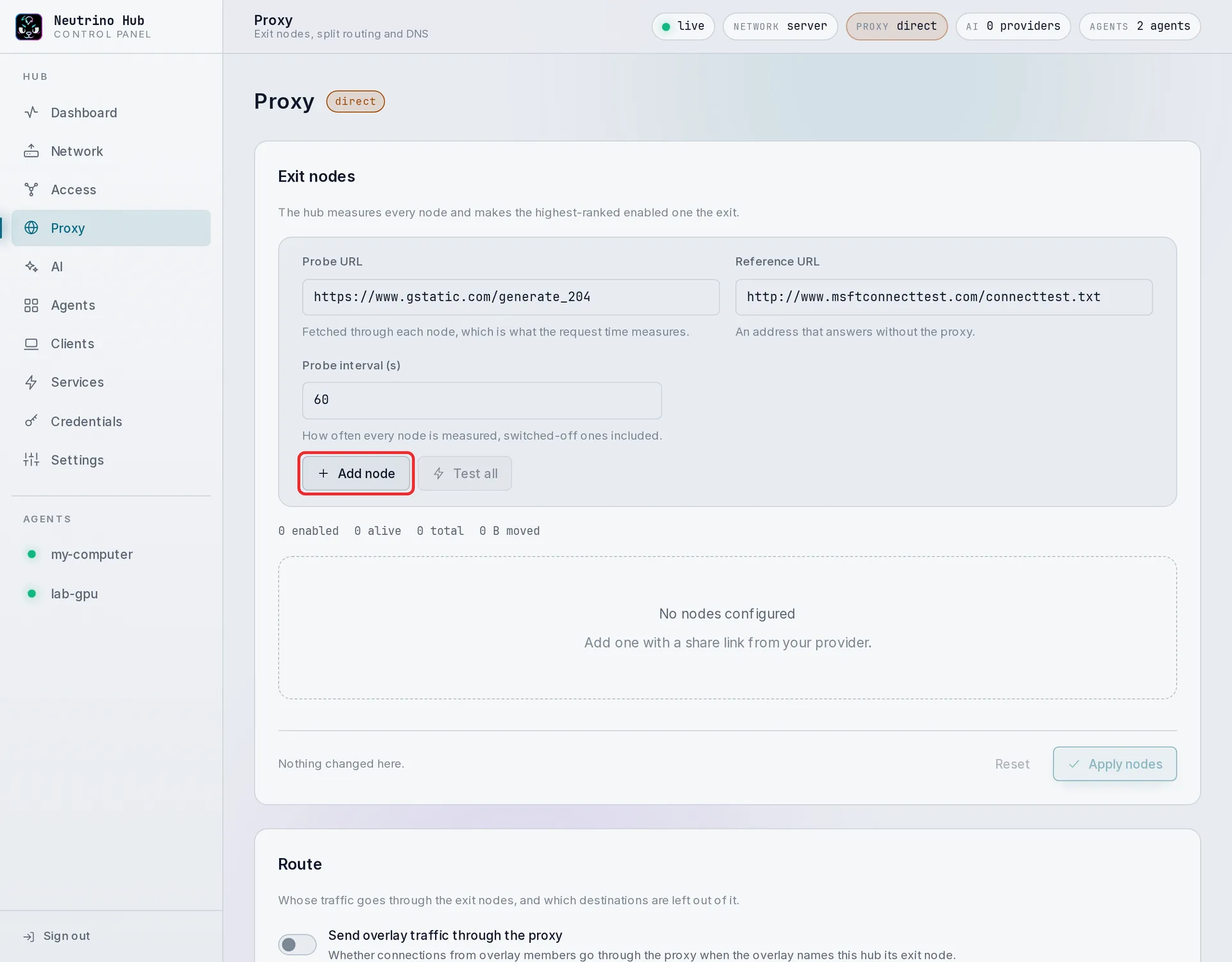
2Select the button that adds an exit In Share link, paste the link from your provider exactly as it is. The link starts with
ss://orvless://. Then select Add.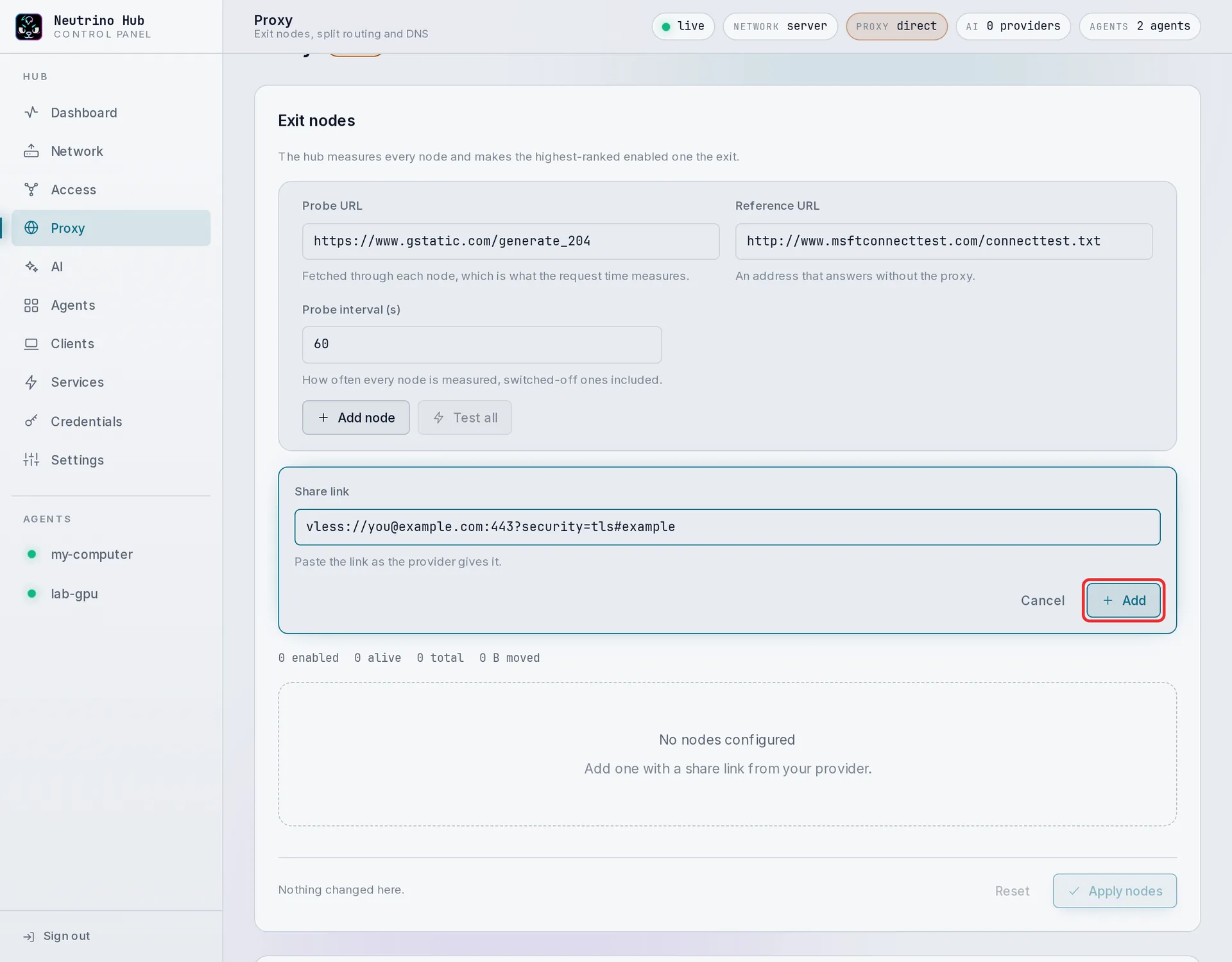
A new card appears. It takes effect only after you select Apply nodes, which loads it. The yellow notice states that this restarts the proxy and drops every connection through it.
The hub then measures each exit automatically. Each card shows a connect time and a request time, a score and a response rate. The exit with the highest score is marked current exit, and traffic goes through it. To test immediately, select Test on a card or Test all at the top.
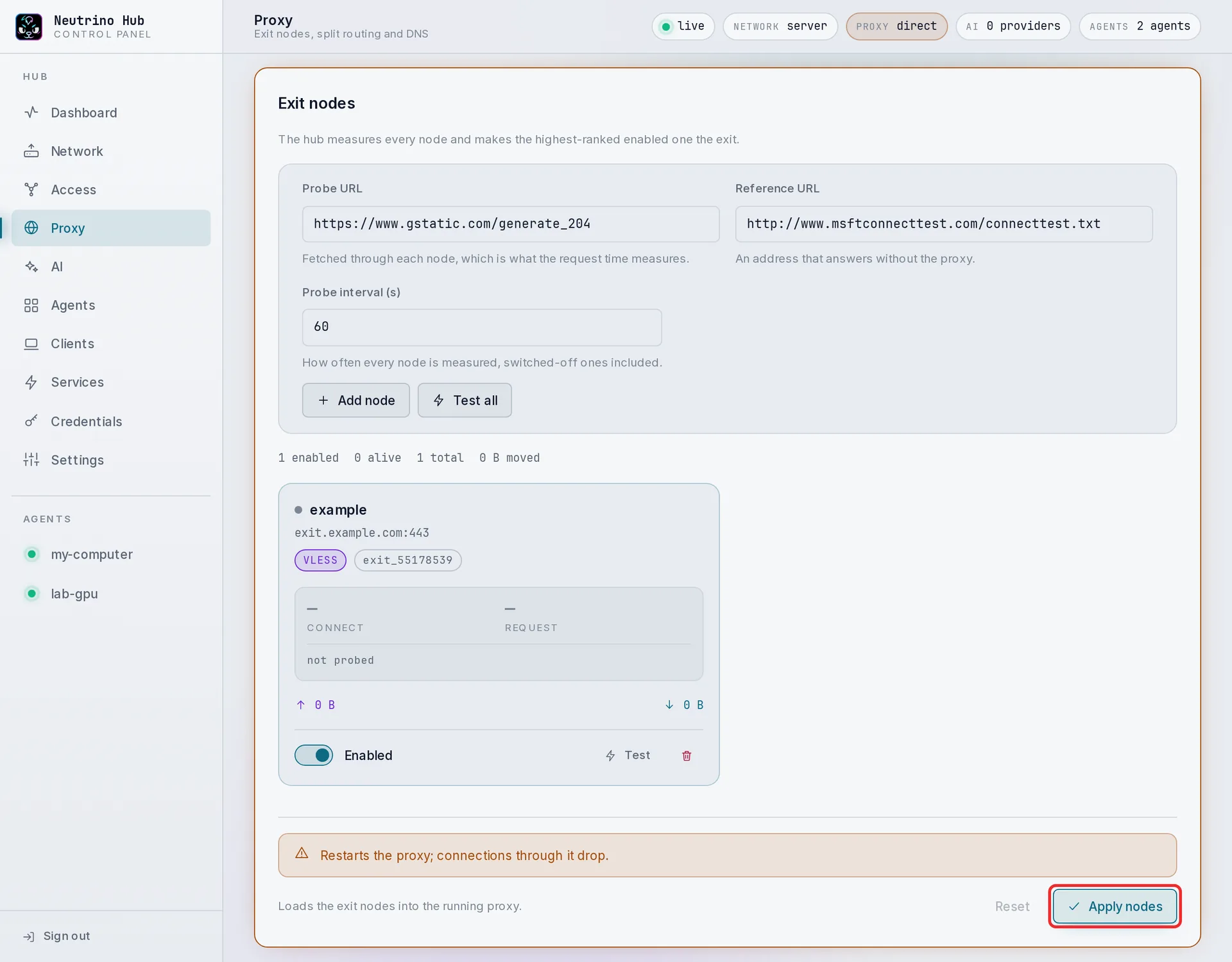
1Load this card 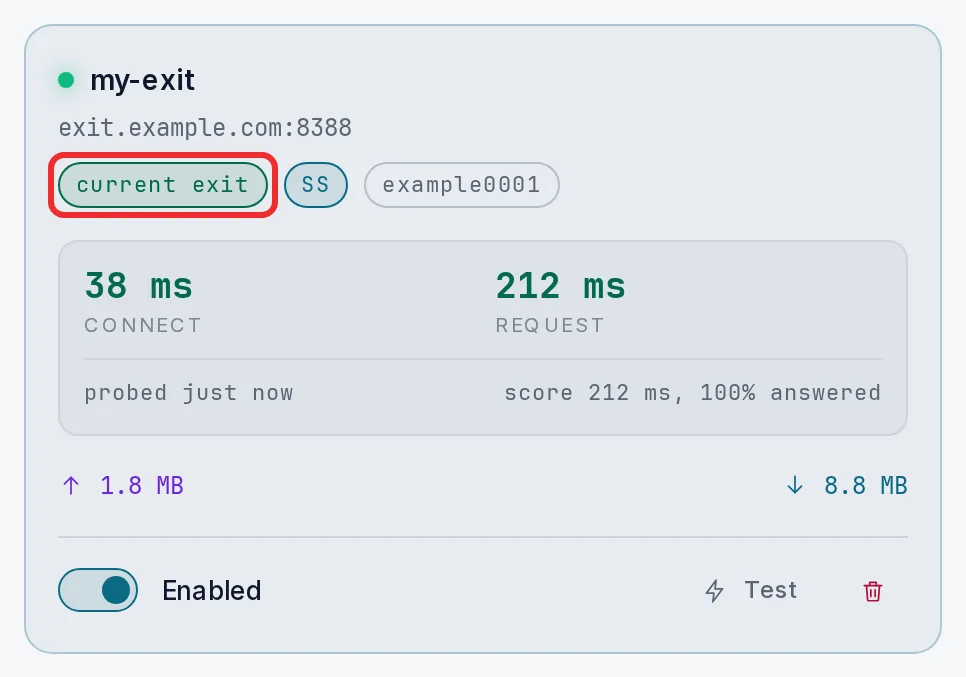
2The exit with the highest score is marked current exit
You can usually leave Probe URL, Reference URL and Probe interval (s) as they are.
Choose the traffic that uses the proxy
The switches in the Route section set which traffic goes through an exit. The hub opens no proxy port, so devices and programs have no proxy address to enter. For the same reason, you cannot send only one program through an exit.
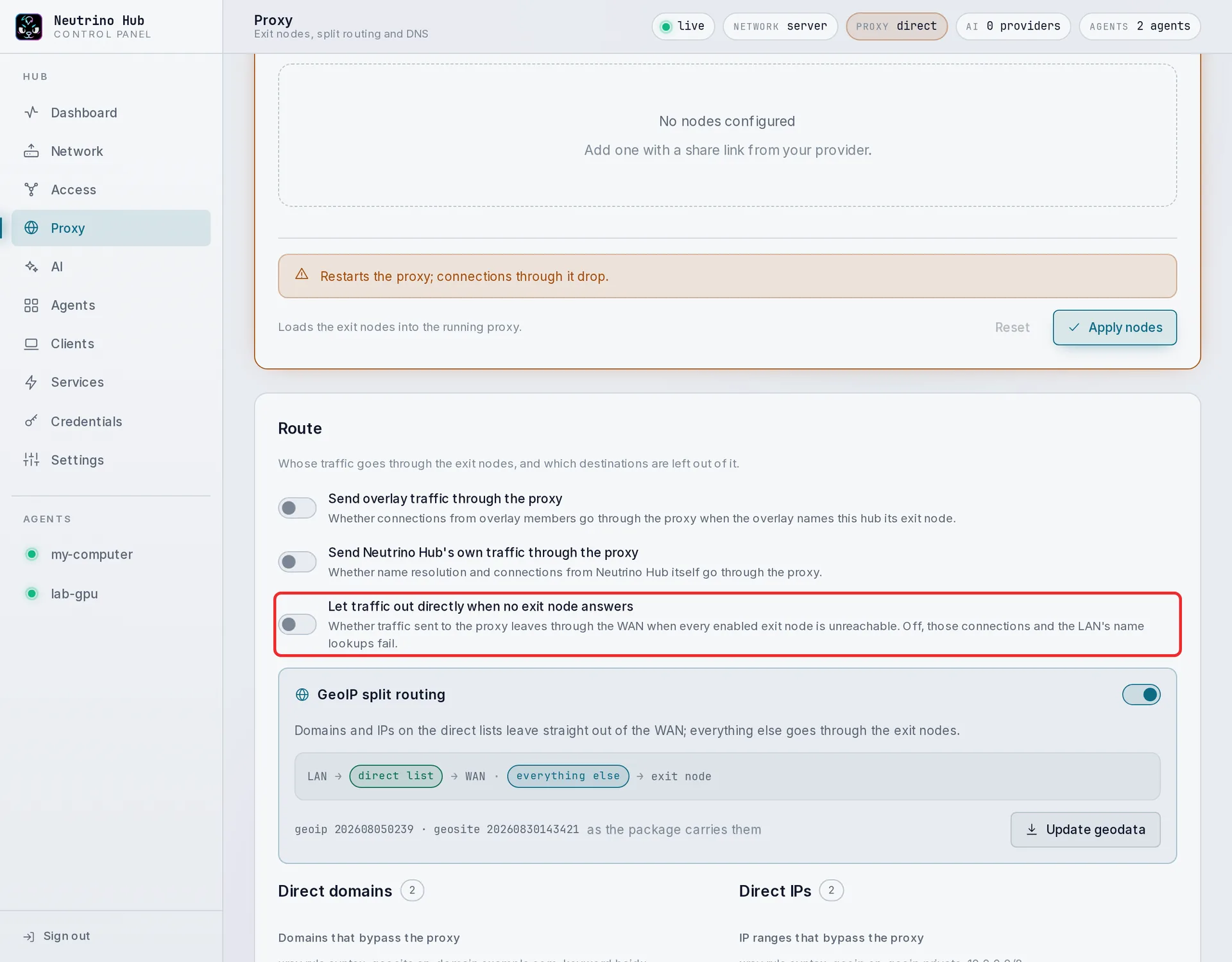
| Switch | What it covers |
|---|---|
| Send LAN traffic through the proxy | Devices on the networks the hub serves. Server mode has no such switch |
| Send overlay traffic through the proxy | Virtual network members that use the hub as their exit, which you set in the NetBird or EasyTier console |
| Send Neutrino Hub's own traffic through the proxy | The hub's own computer. Its updates and software installs also go through the exit, and they stop when the exit is unavailable |
On macOS and Windows, the last two switches take effect together. After a change, select Apply route at the bottom of the section.
Set direct destinations
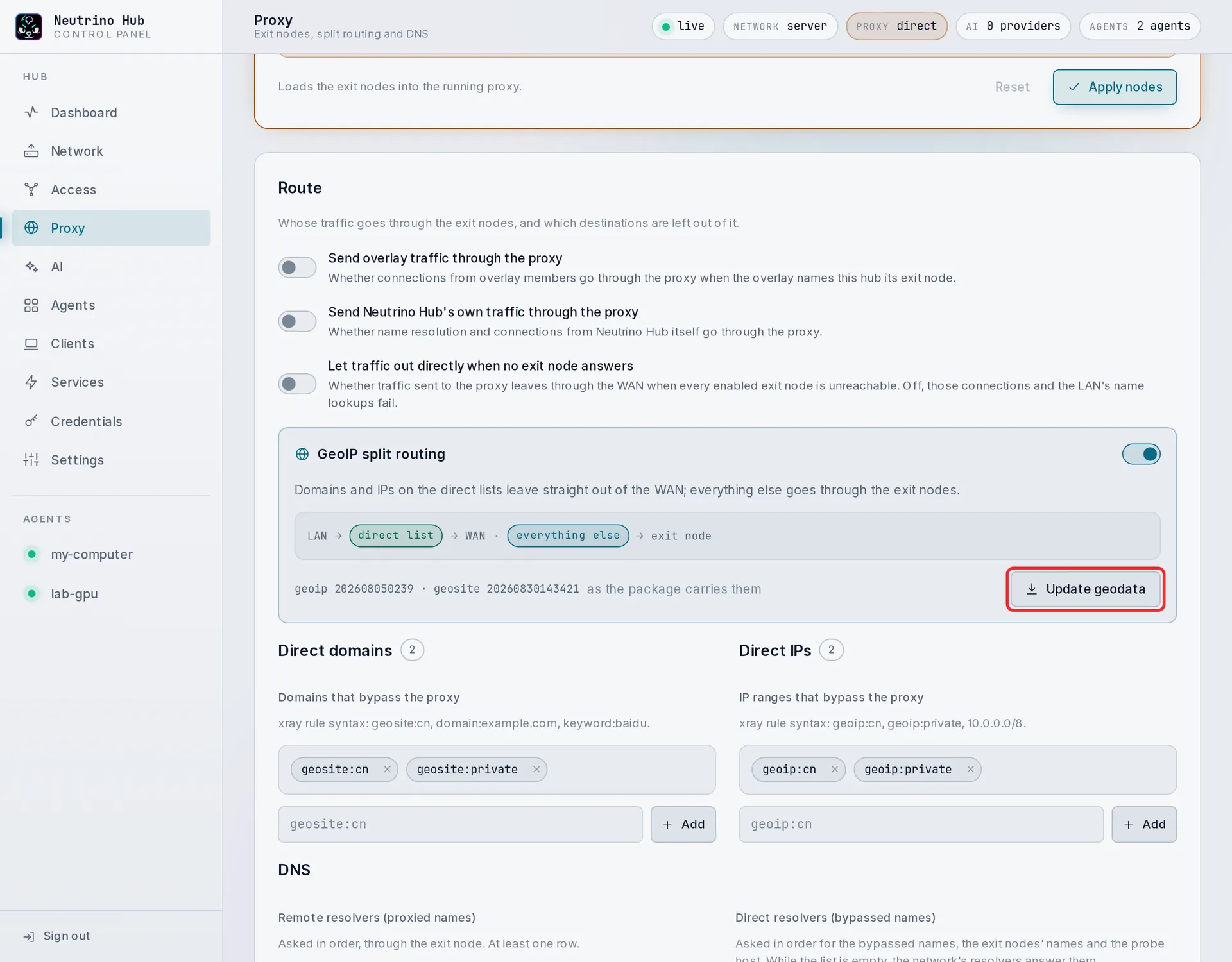
When GeoIP split routing is on, destinations that match a direct list connect directly, and the rest go through the exit. Select Update geodata to update the two data files that the matching uses.
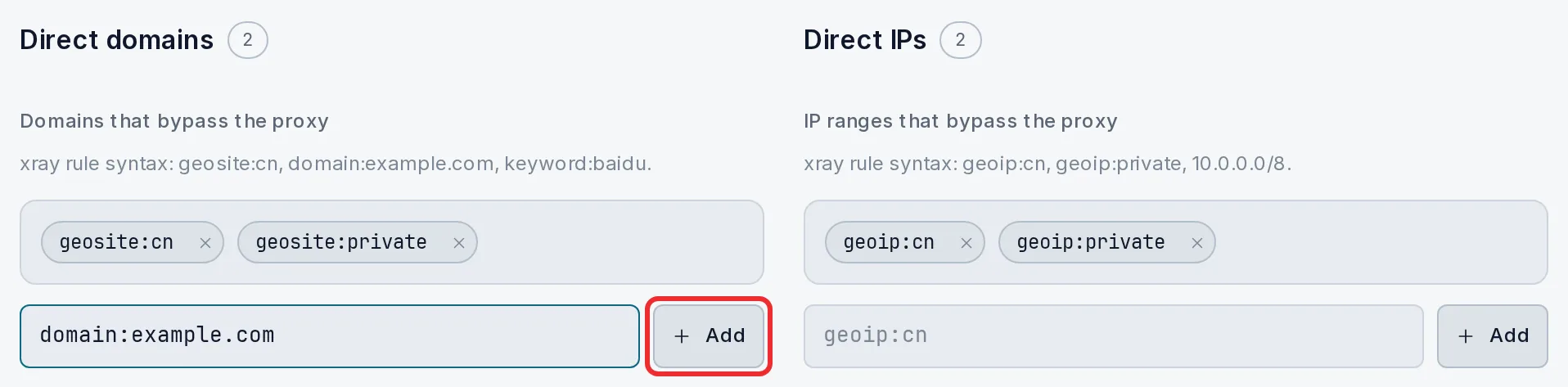
You can edit the following lists, one rule per line. Type a rule in the input box, then select Add beside it.
- Direct domains takes rules such as
geosite:cn,domain:example.comandkeyword:baidu. - Direct IPs takes rules such as
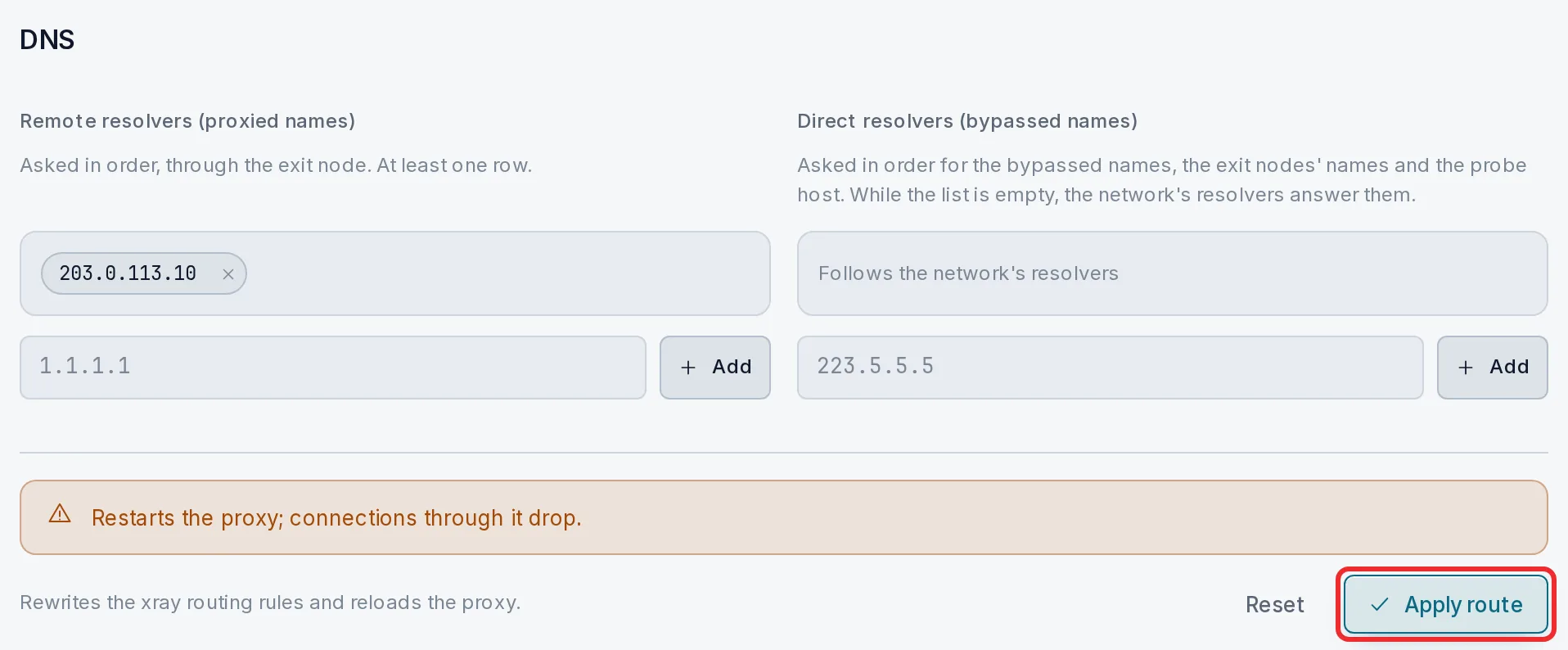
geoip:cn,geoip:privateand10.0.0.0/8. - Remote resolvers (proxied names) must have at least one line.
- Direct resolvers (bypassed names) uses the resolvers of the Network page when it is empty.
Select Apply route to save the lists.
When every exit is down
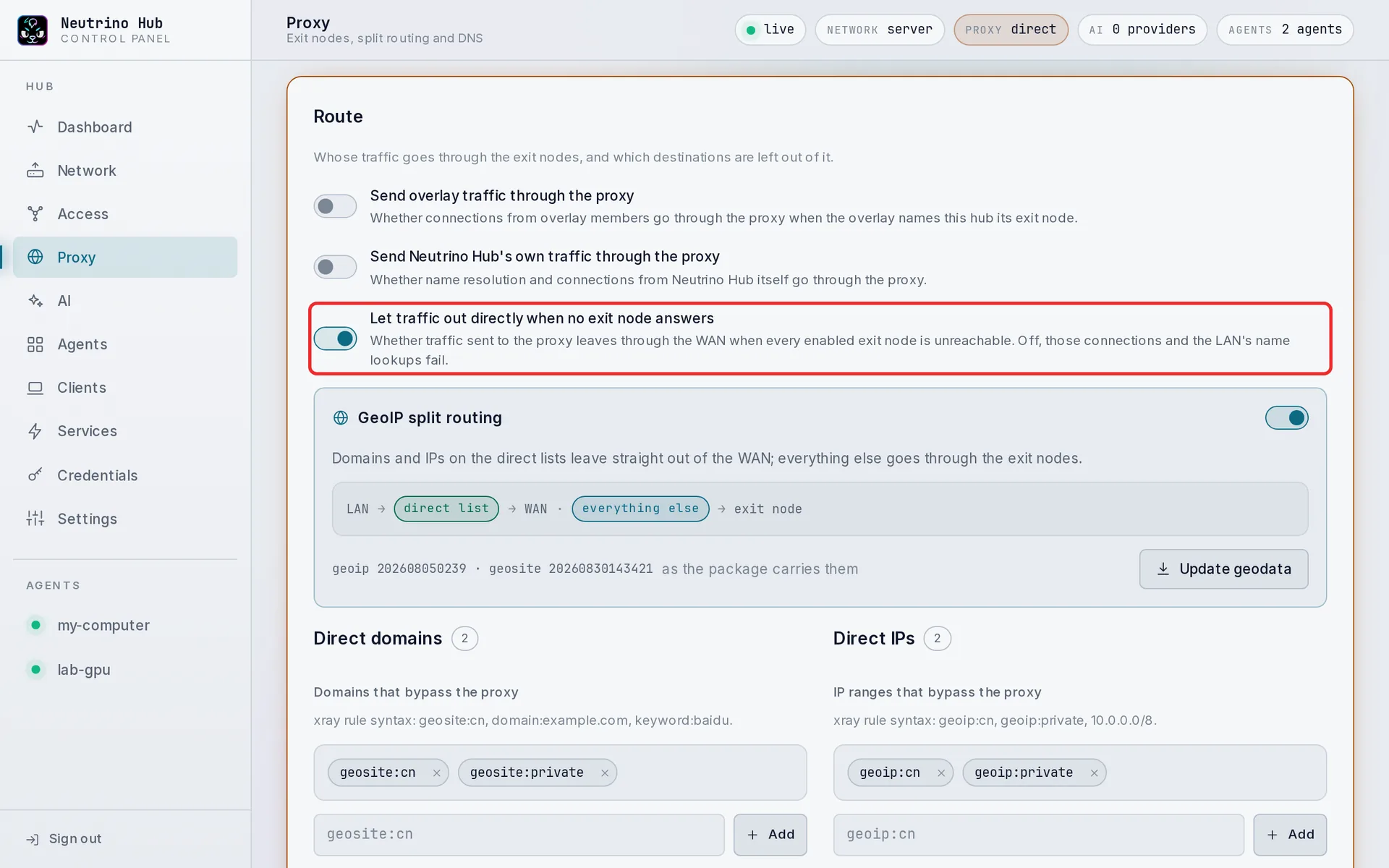
By default, when every exit fails to connect, all proxied traffic fails, and LAN domain lookups fail as well. The panel's status bar turns yellow and shows exit down, cut off.
To send this traffic through this computer's own connection instead, turn on Let traffic out directly when no exit node answers in Route. Then select Apply route. The traffic then goes to its destinations from this computer's own address, and the status bar shows exit down, going direct.
With traffic flowing, the hub detects that the exits are down in about 5 seconds on Linux and macOS, and about 30 seconds on Windows. Without traffic, detection takes up to one routine probe round, which is 60 seconds.
Verify the proxy
On a device whose traffic goes through the proxy, run the following command. If it prints the exit's address, the proxy works.
bash
curl ifconfig.me