
English
Terminal
Terminal is a window where you control a computer by typing commands. You can open it on a phone too. With Persistent on, commands keep running after you close the window.
SystemsLinuxWindowsmacOS
EditionsInternationalChina
Sincev0.5.0
Terminal is installed with Neutrino Hub on every system that has joined the hub, so there is nothing to download. At first it has no enabled account, so choose an account before you use it.
Supported systems
| System | Architecture | First Neutrino Hub version | Default shell |
|---|---|---|---|
| Linux | amd64, arm64 | 0.5.0 | The account's login shell |
| Windows | amd64 | 0.5.0 | PowerShell |
| macOS | Apple silicon, Intel | 0.5.0 | The account's login shell |
Install
Terminal is already installed, so you only enable an account:
Open the panel in a browser, sign in, and select the system to use the terminal on in the lower half of the sidebar. Check that Available accounts lists your account. If it does not, add it first with the steps in Add an account.
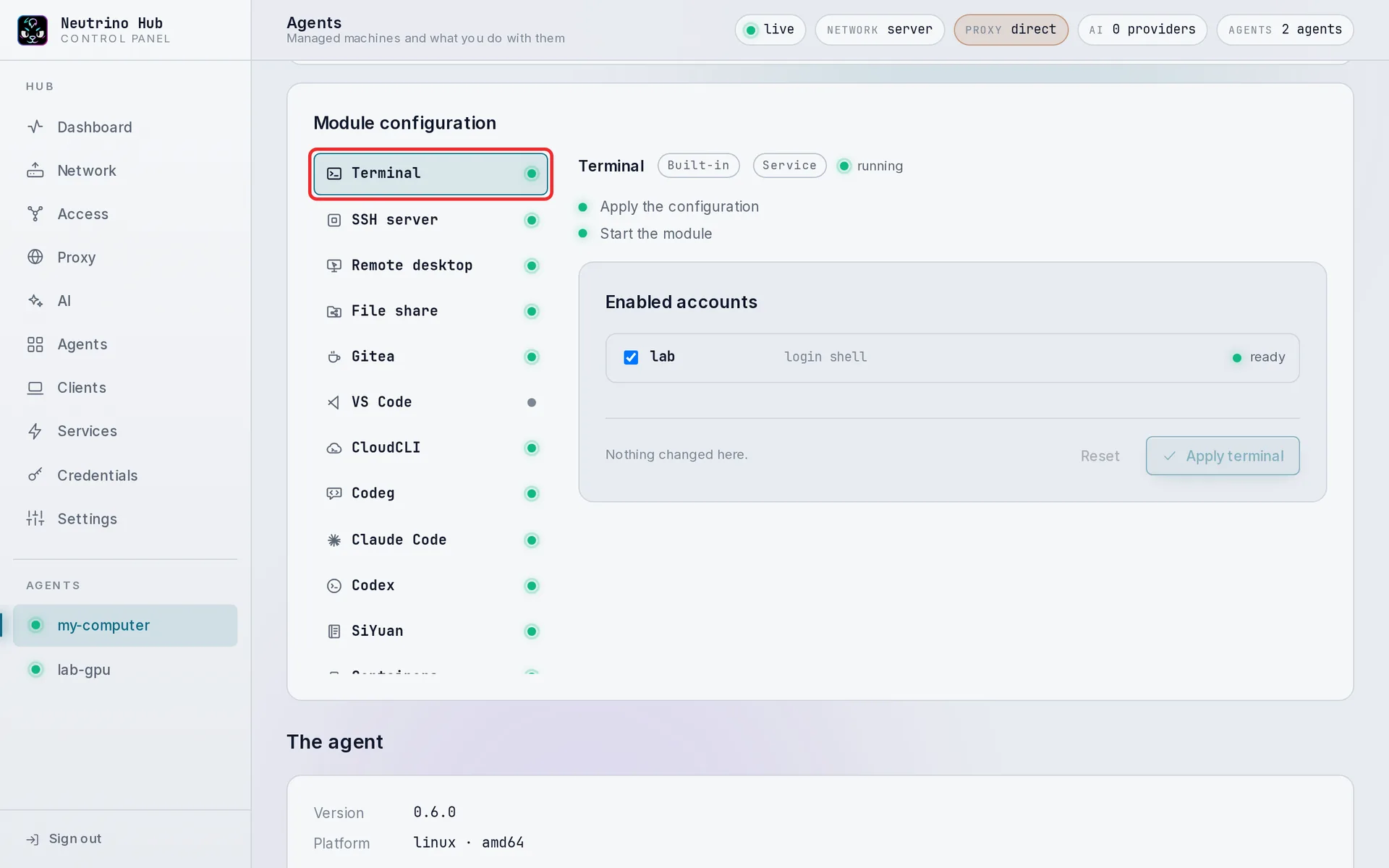
In the list of the Module configuration area, select Terminal. This tab is always present, so you do not add it.
The tab shows running, no accounts. Under Enabled accounts, select your account, then select Apply terminal.
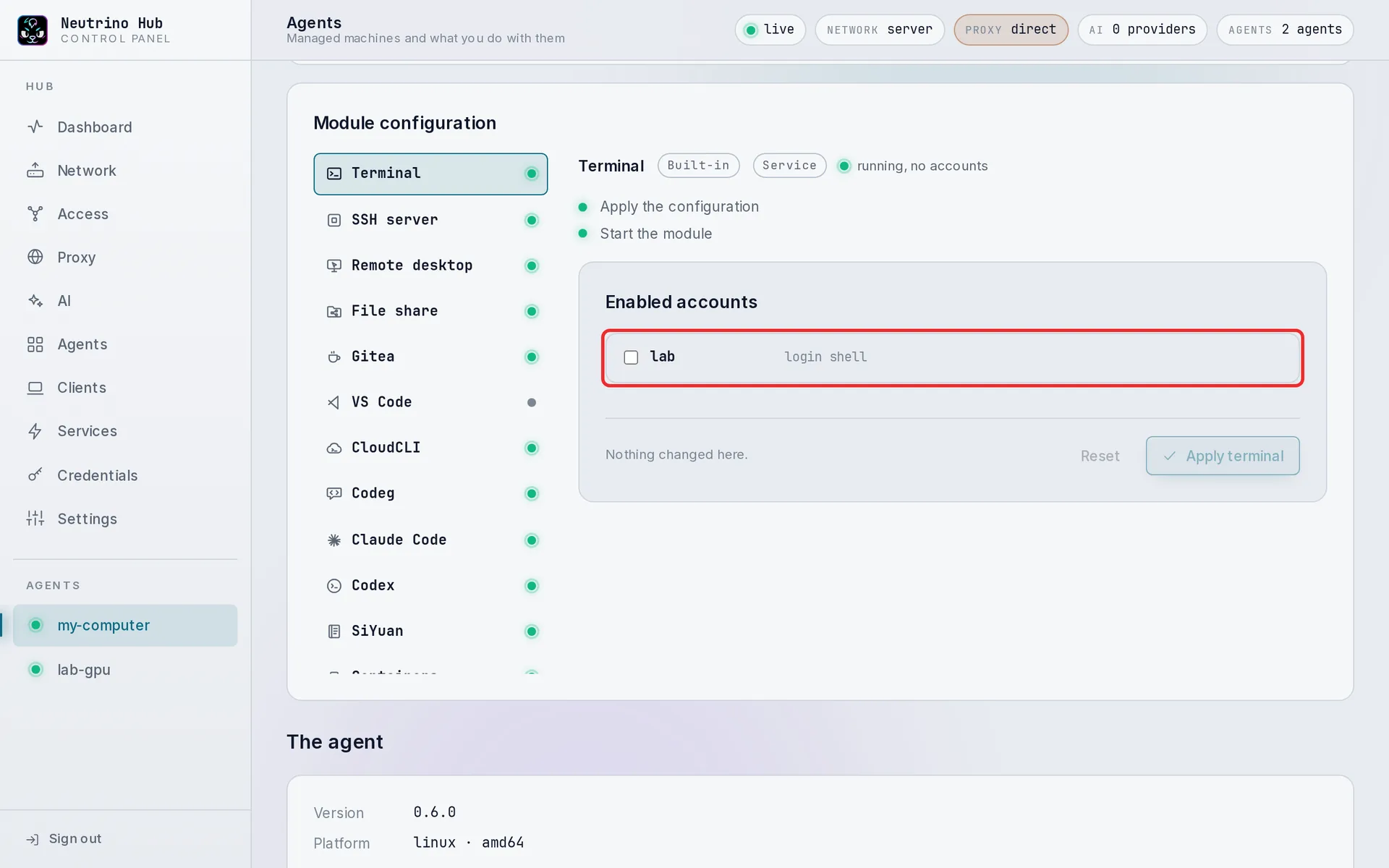
1Select lab 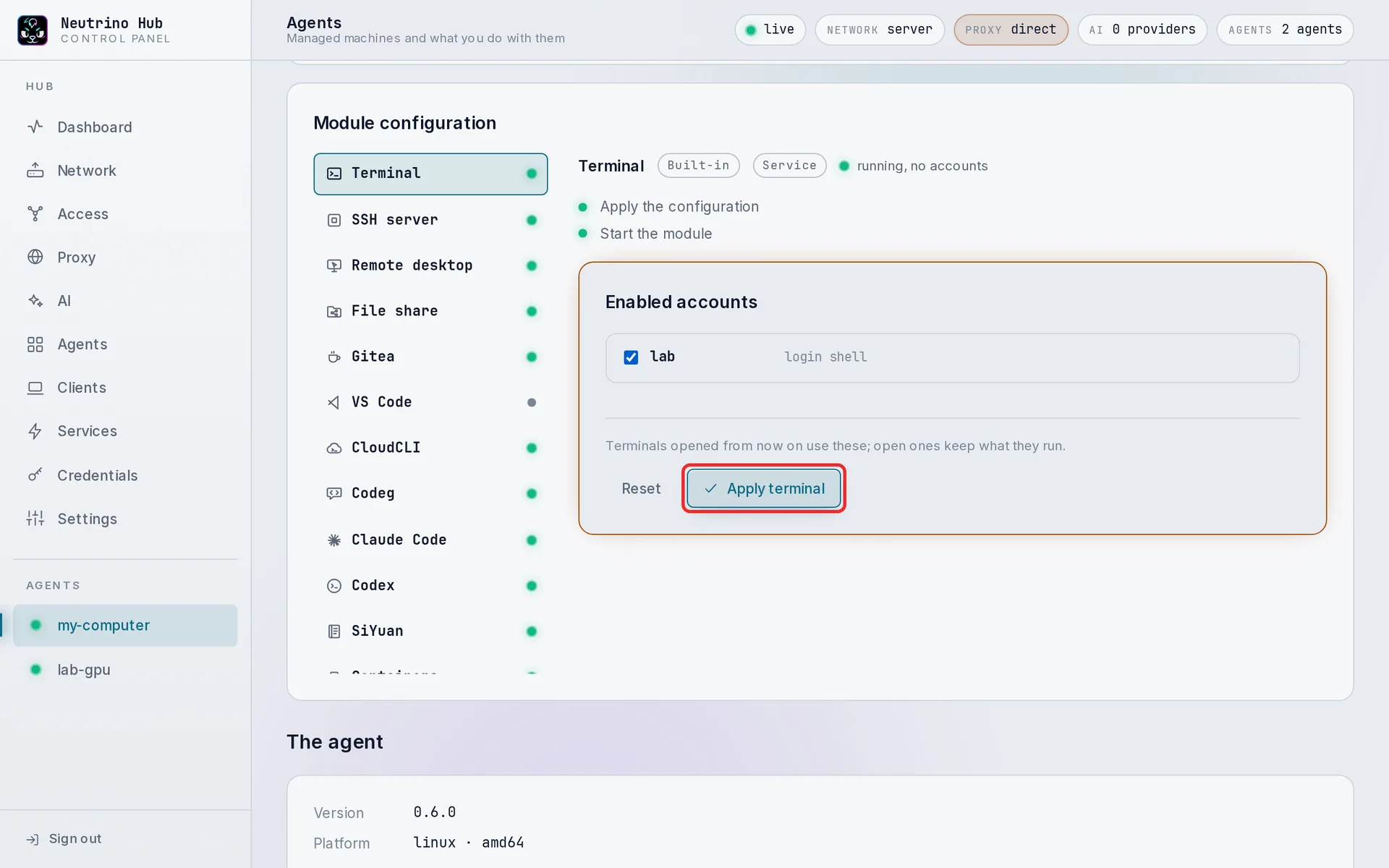
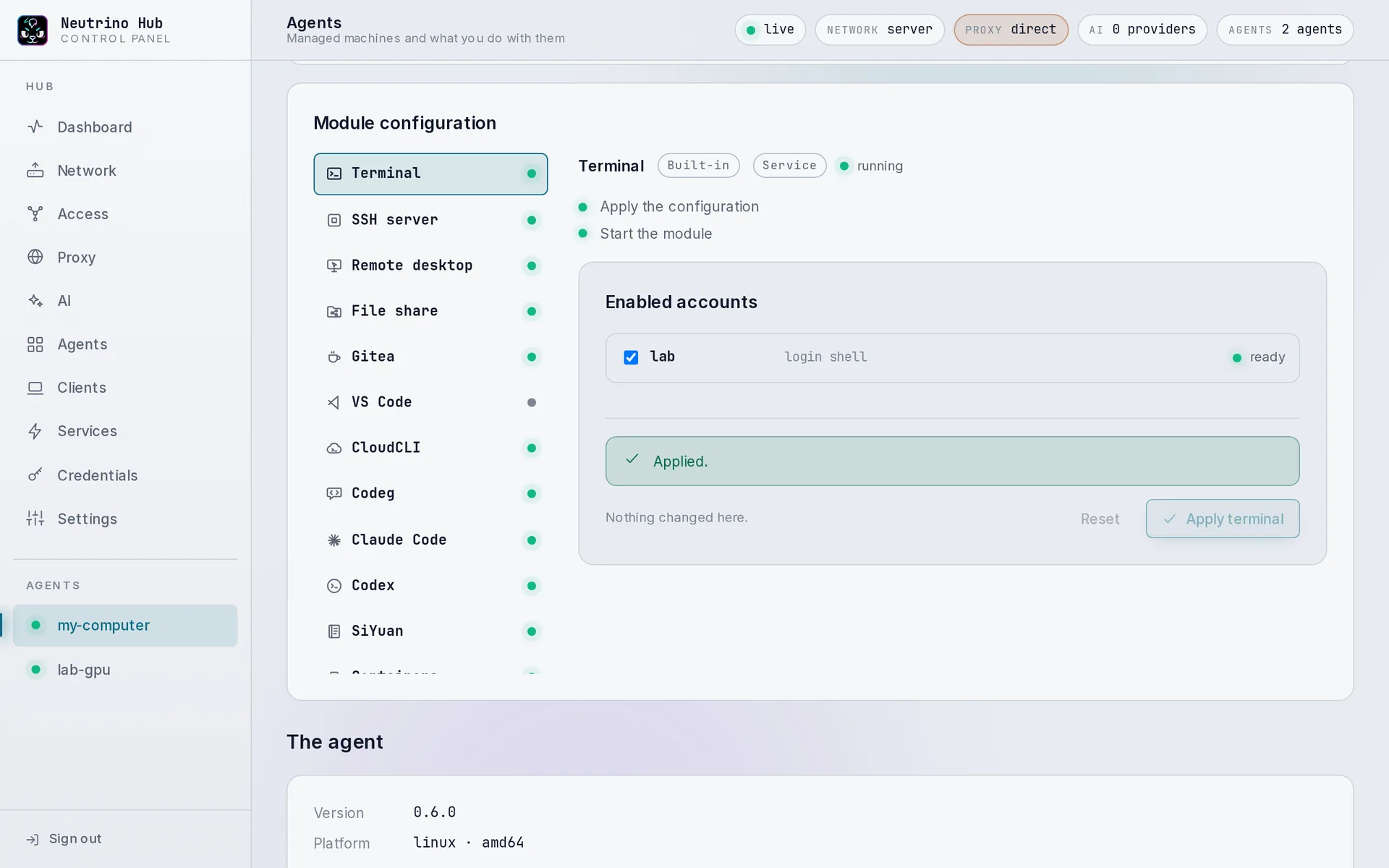
2Select Apply terminal The account shows ready, and Applied. appears under it. The tab shows running, and the terminal is ready to use.
On Windows, enter this account's password in the account form first, because Windows can start a program as another account only with that account's password.
Use
Before you start, add your phone or computer to the hub, as Join the hub describes. Terminals are on the client's Terminals page, separate from the Apps page.
Open the client and go to the Terminals page. Select your system from the list at the top, and if it has several enabled accounts, also choose the Account. Then select New terminal, with no password to enter.
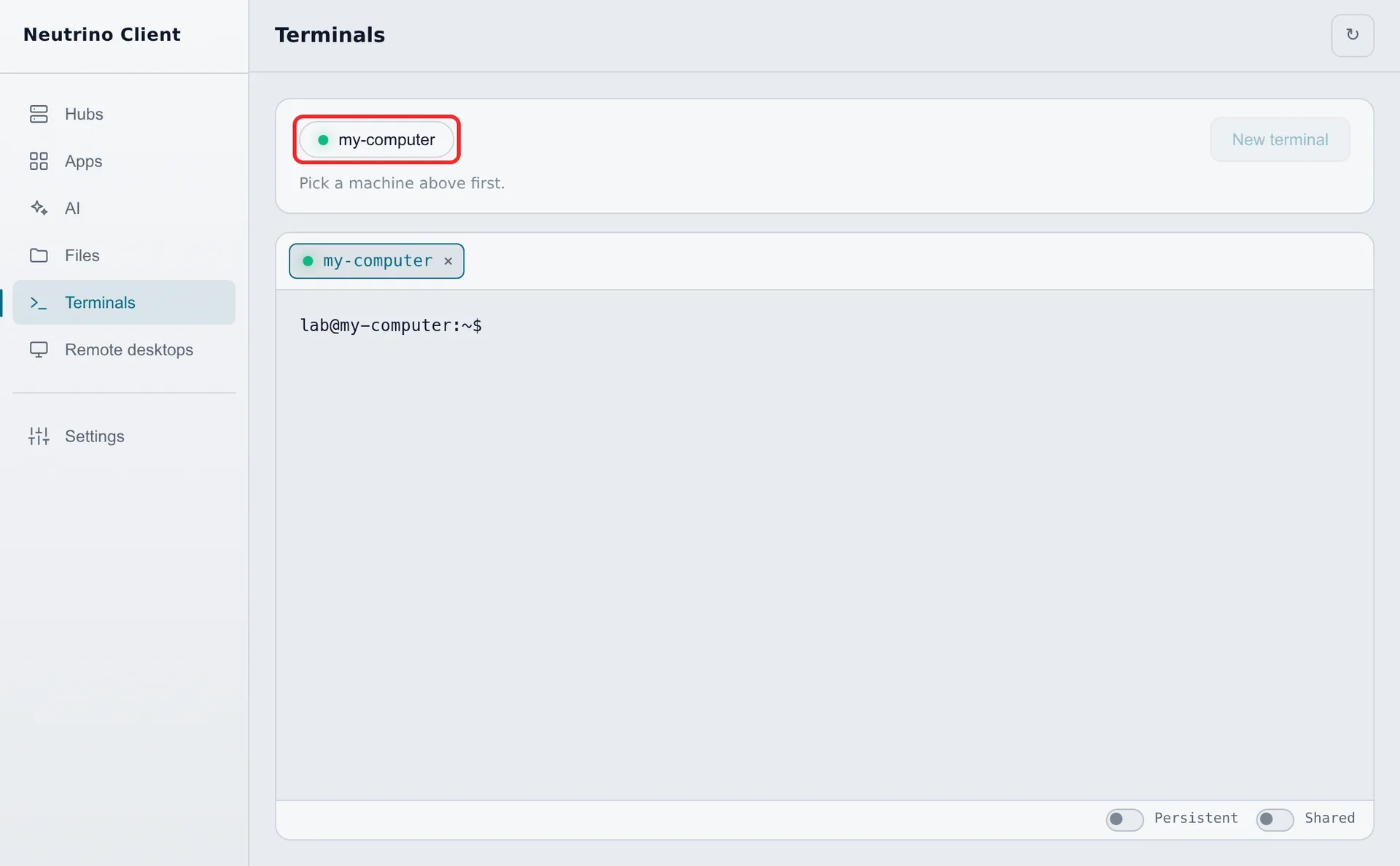
1Select my-computer 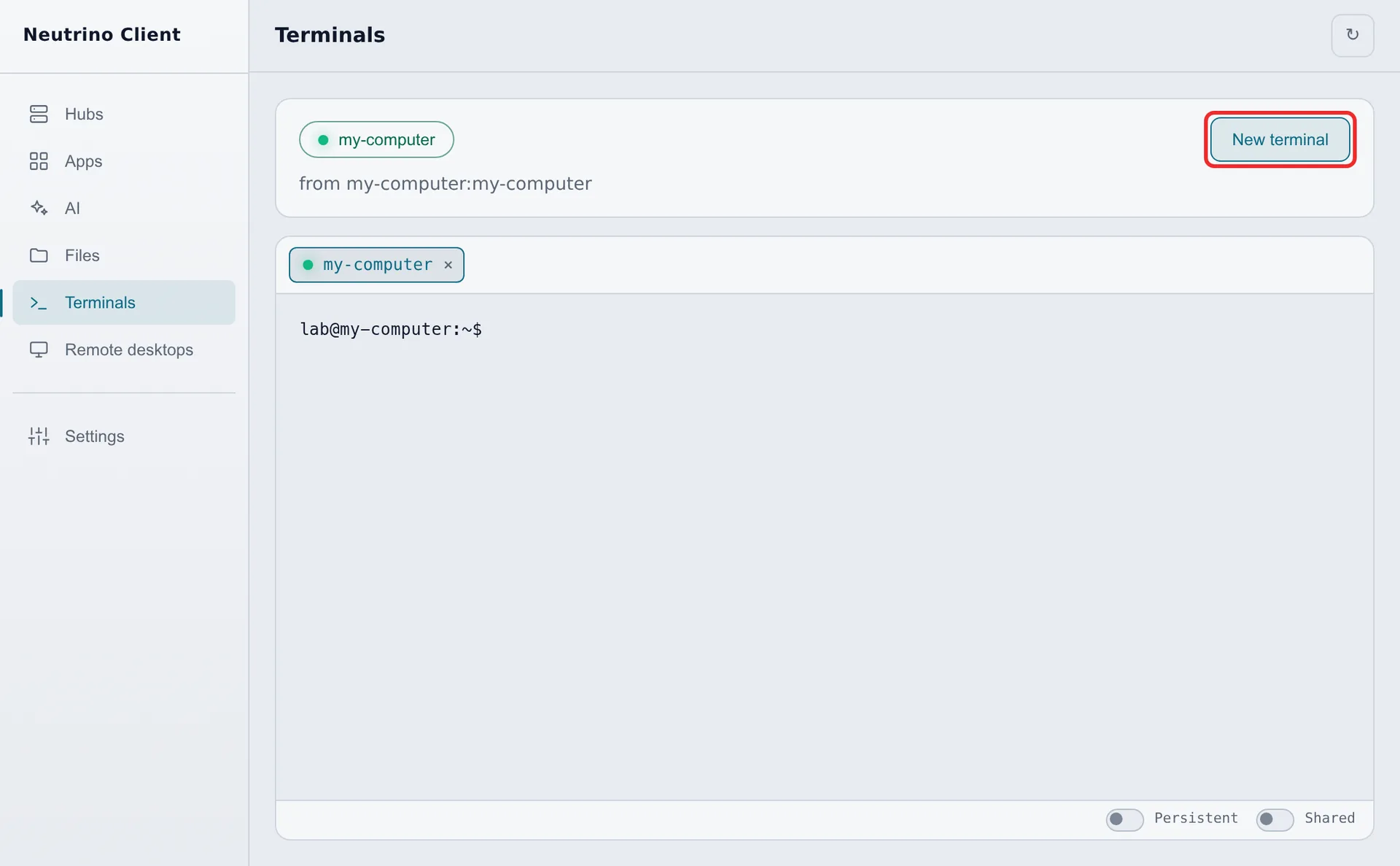
2Select New terminal A terminal opens under it, already signed in as this account, and you can type commands right away. The two switches under the terminal are Persistent and Shared. With Persistent on, the session and its commands keep running after you close the window or lose the network; you can continue on your phone. With Shared on, every client with this system's Terminals permission can connect to the session.
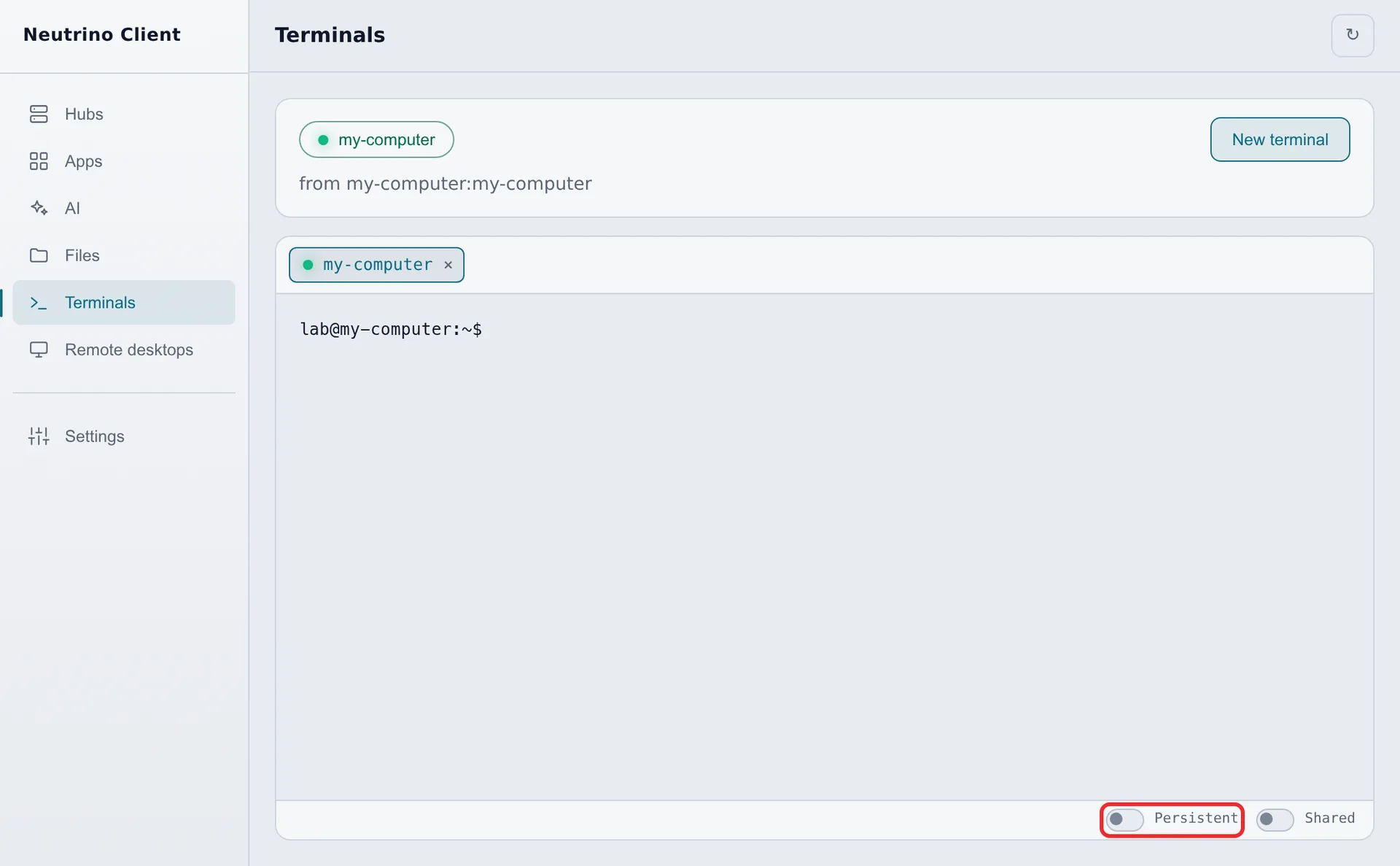
1Turn on Persistent 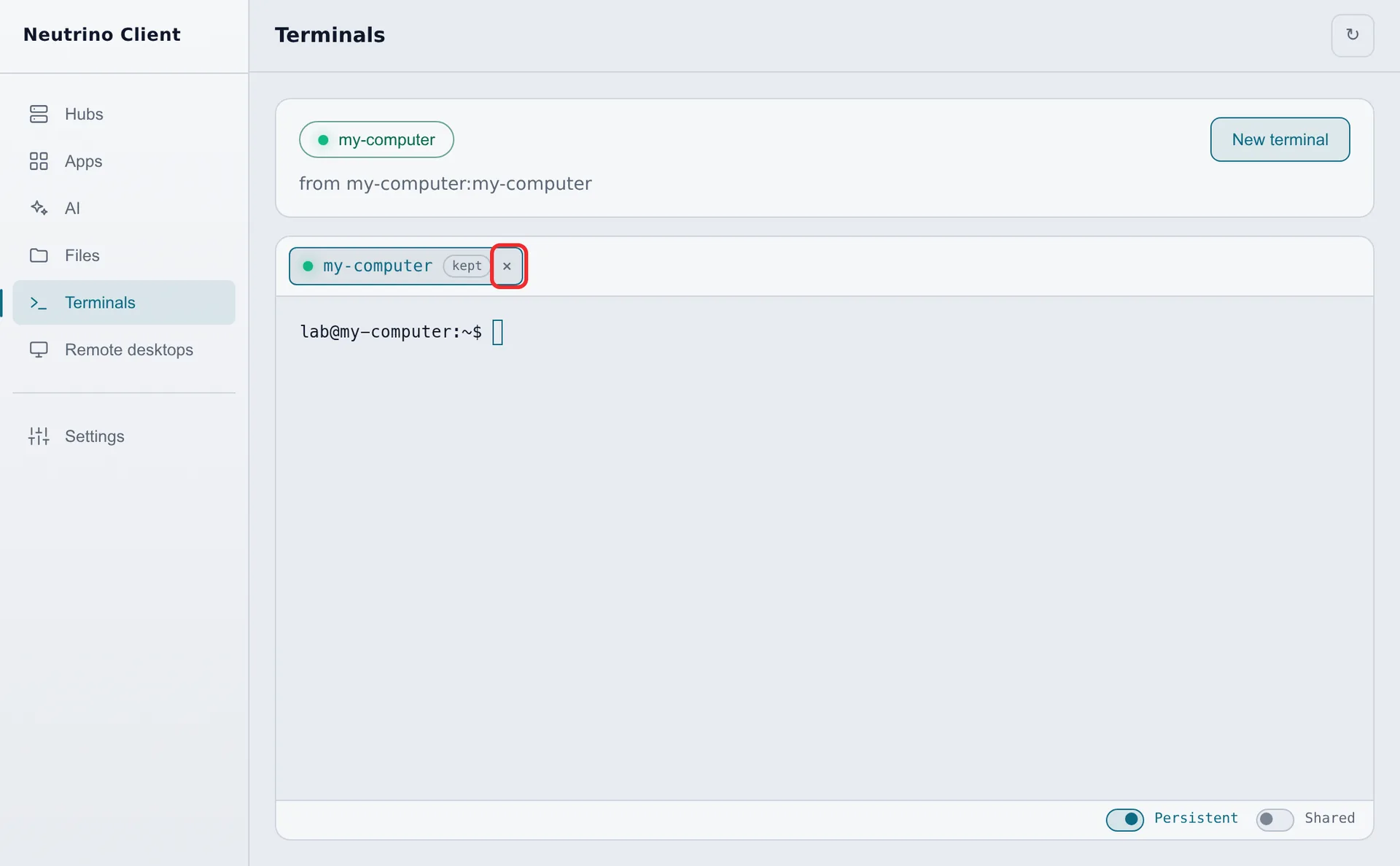
2Select × to end When you finish, select × on the tab to end the session. A persistent or shared session ends only after you select × twice.
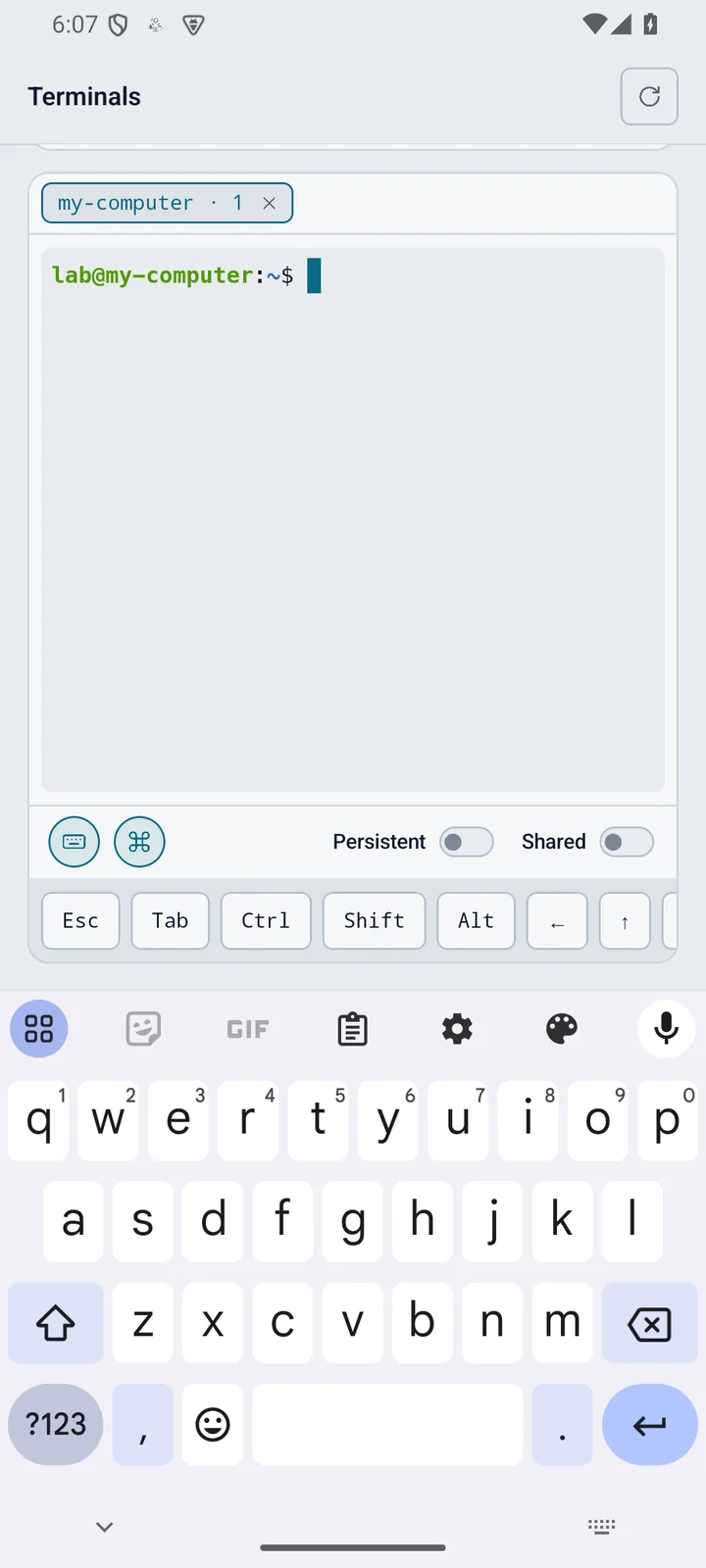
On a phone, the terminal has an extra row of keys under it, such as Esc, Tab, Ctrl and the arrow keys. This row holds every key the phone keyboard lacks.
You can also use the terminal from the command line, for example to run one command and return immediately; see nclient commands.
Messages when a terminal disconnects
When a terminal's connection breaks, the terminal shows a one-line message. The desktop client, Android and iOS show the same messages:
| Situation | Ordinary terminal | Terminal with Persistent or Shared on |
|---|---|---|
| The network drops | Detached, and this terminal has ended. | Detached; waiting for the hub. After the reconnect, the client reattaches the original shell |
| You disabled this device on the panel | The hub has switched this client off, and this terminal has ended. | Detached; waiting for the hub. After you enable the device again, the client reattaches the original shell |
| The hub has no record of this device, for example because the device was deleted | The hub has no record of this client, and this terminal has ended. | The hub has no record of this client; this terminal still runs on its machine. |
Share
Terminal cannot generate a link with App share, and the Services page does not list it.
To let other clients see this session, turn on Shared. To let someone use it in a browser, share code-server or VS Code instead, which include this account's terminal.
Risks and limits
In the terminal, you can do anything this account can do, so give the Terminals permission only to devices you trust; see Clients.
The terminal runs as the enabled account; it does not run as root, or as SYSTEM on Windows.
When the agent restarts or upgrades, every session ends, persistent sessions included.
Settings
Apart from selecting accounts, the following settings can stay at their defaults:
| Setting | Where | Purpose |
|---|---|---|
| Enabled accounts | Terminal tab | The accounts that can open a terminal; the first is the default |
| Shell | Account form in Available accounts | When empty, the account's login shell, or PowerShell on Windows |
A changed setting applies only to terminals opened afterwards, and terminals already open keep their settings.
Uninstall
Terminal cannot be uninstalled, and it has no data to keep. To stop people from using an account's terminal, deselect the account, then select Apply terminal.
If you cannot open a terminal, see Troubleshooting.