
English
Android app
The Android app is the phone client of Neutrino Hub. With only your phone, you use the apps, files, terminals and desktops on your computers.
EditionsInternationalChina
Sincev0.5.0
Before you start, install the client on the phone and join the phone to a hub, as Install the client and Join a hub describe. The bar at the bottom of the screen holds the pages: Hubs, Apps, Files, Terminals, Desktops and Settings. Compared with a computer, the app lacks the AI page and the SSH for other programs.
Connections stay open when you switch to another app. The notification Connected to N hubs keeps the connections running in the background.
Hubs
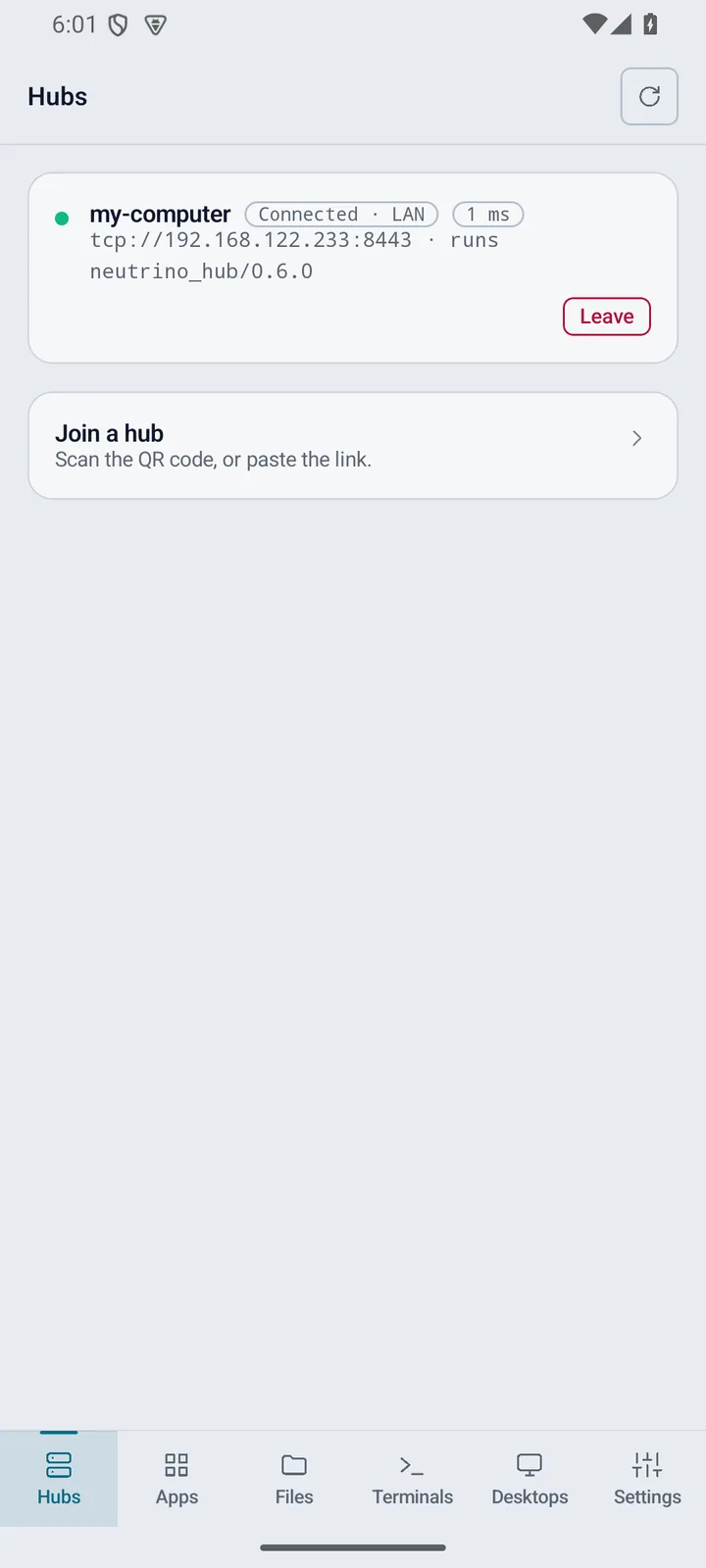
The Hubs page has one row per hub and shows its status as a computer does, such as Connected · SakuraFrp. When the phone moves between mobile data and Wi-Fi, the app reconnects immediately. The row also has these buttons:
- Panel opens the panel in the phone's browser. It appears only when the phone has the Hub panel without the password permission.
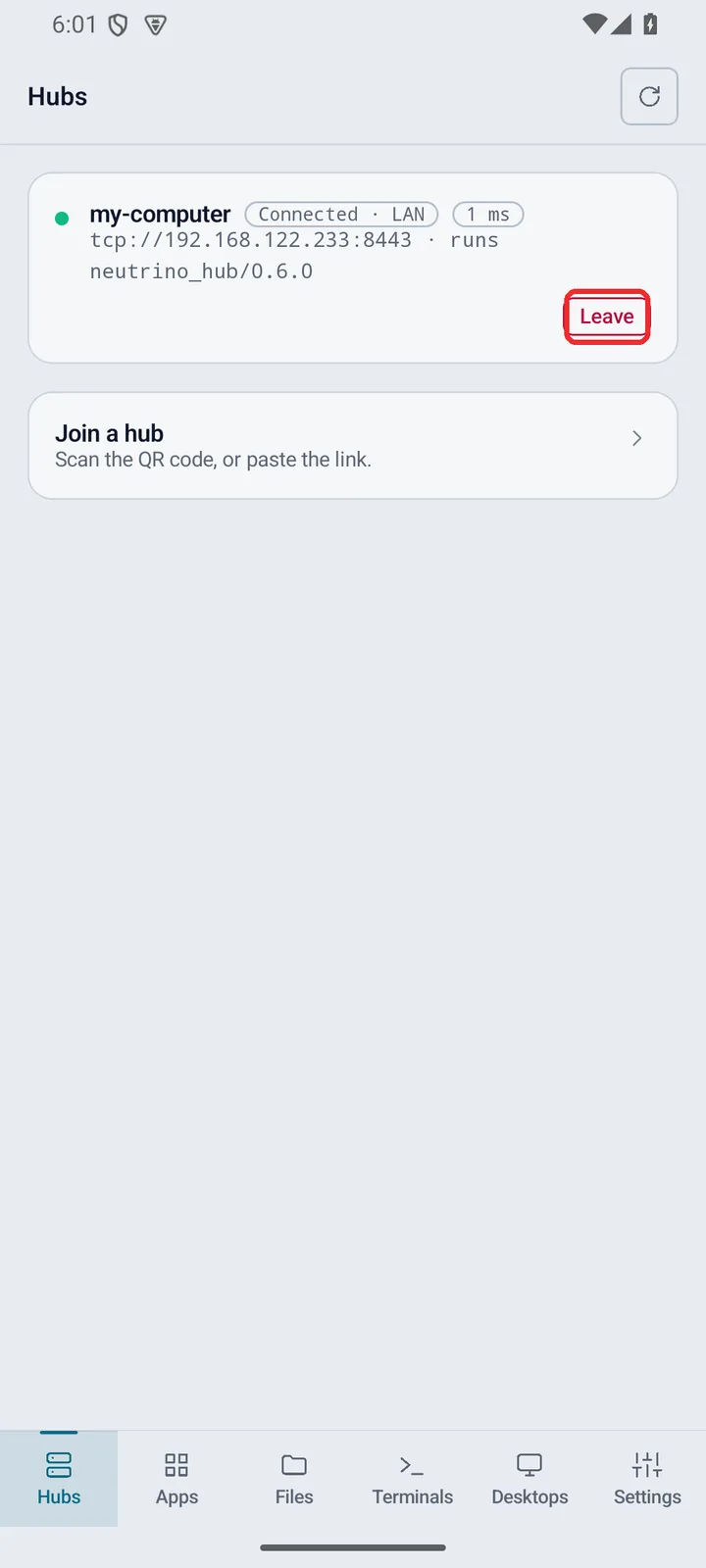
- Leave takes effect on the second press.
- Connect appears only when the hub publishes NetBird or EasyTier. At the first connection, the system shows a permission dialog; select OK.
Apps
In the bottom bar, select Apps, find the row you want, and select Use. On Android 13 and later, the system requests notification permission at the first press; allow it.
The row gains Open. Select Open to open the app in the phone's browser. Only apps with a web page have this button.
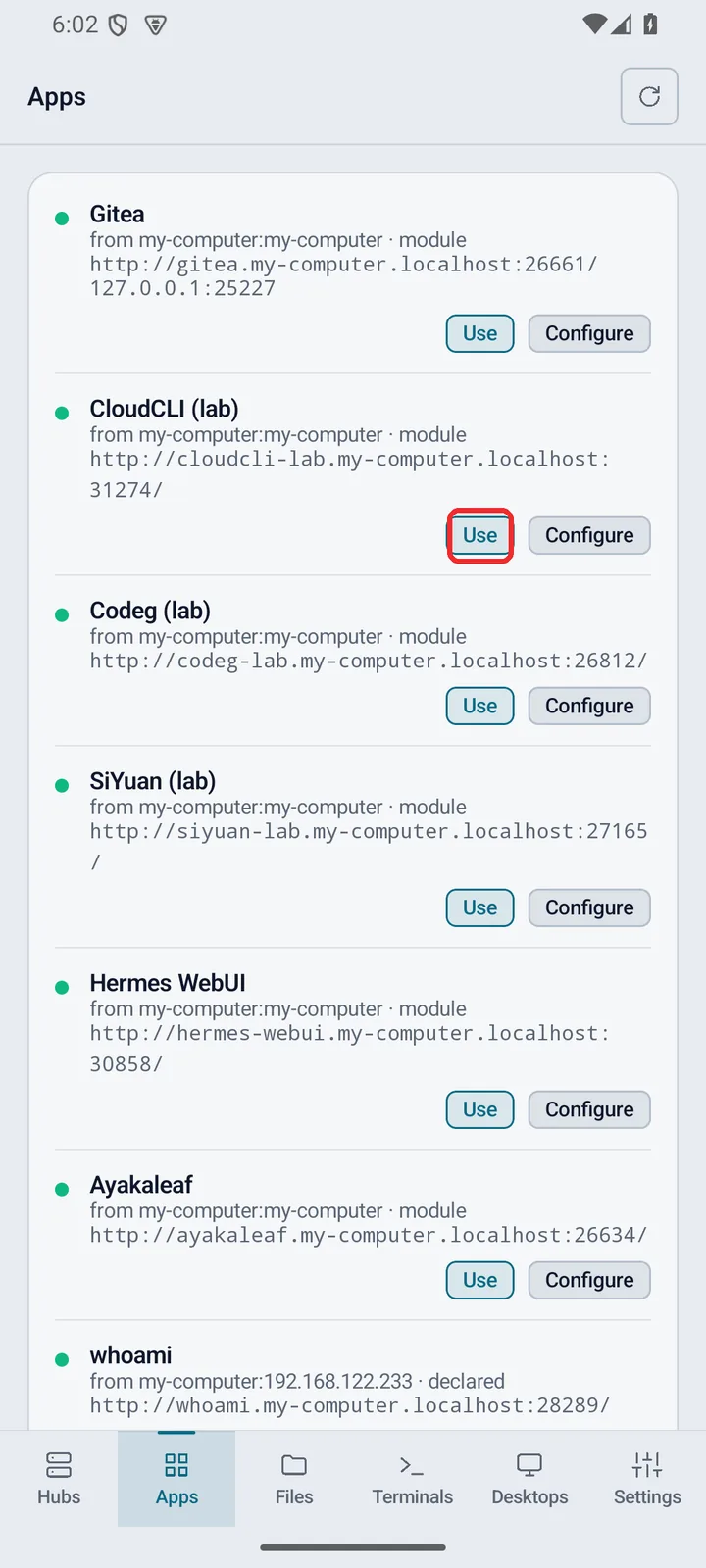
1Select Use 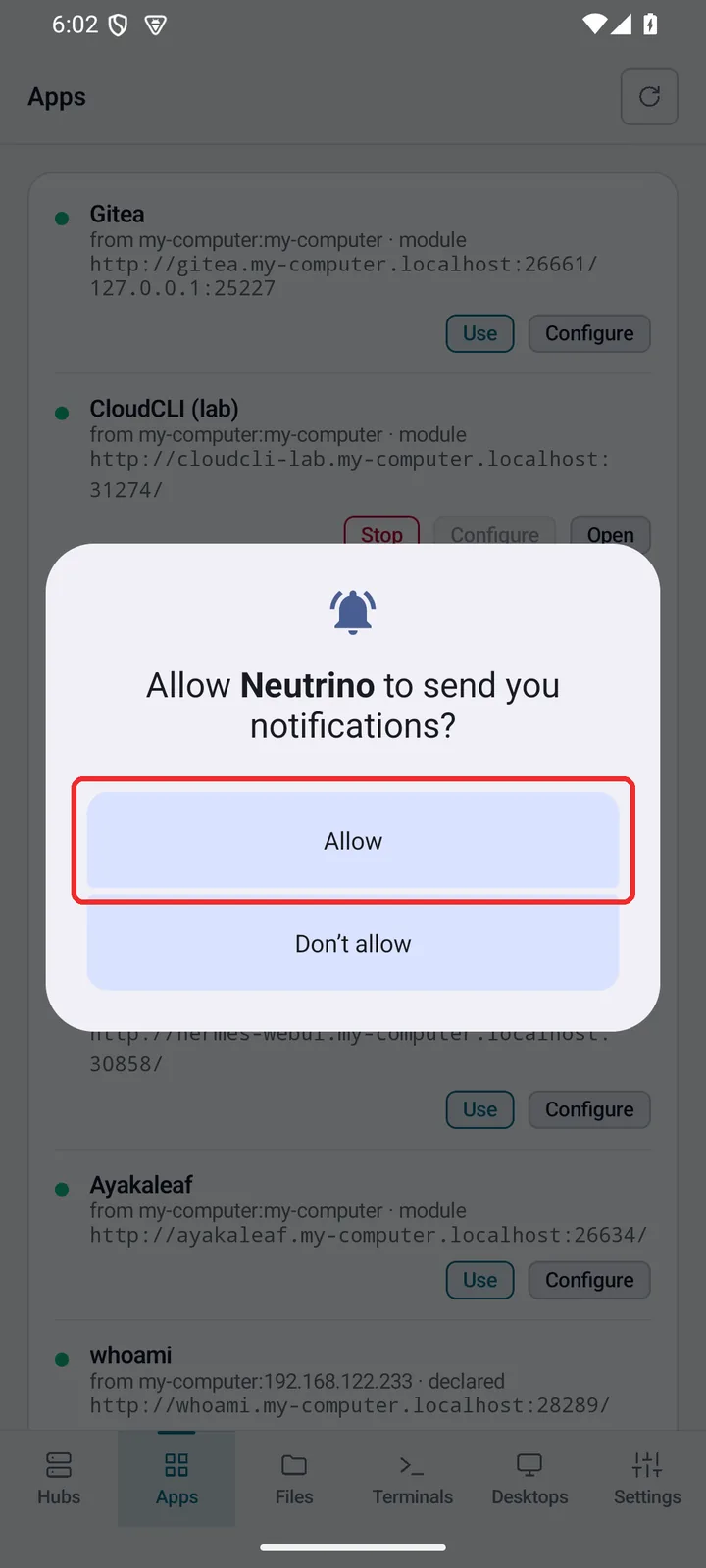
2Allow it the first time 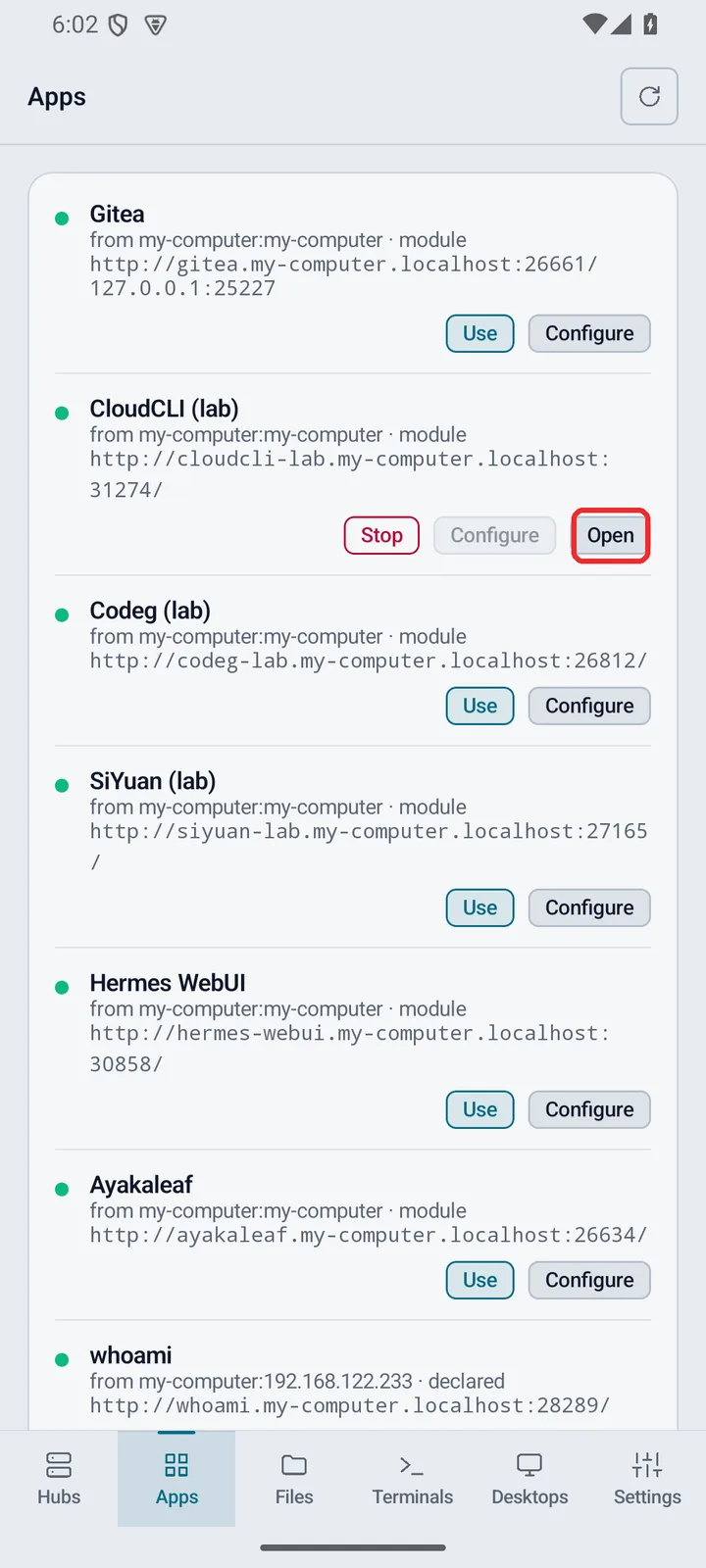
3Select Open 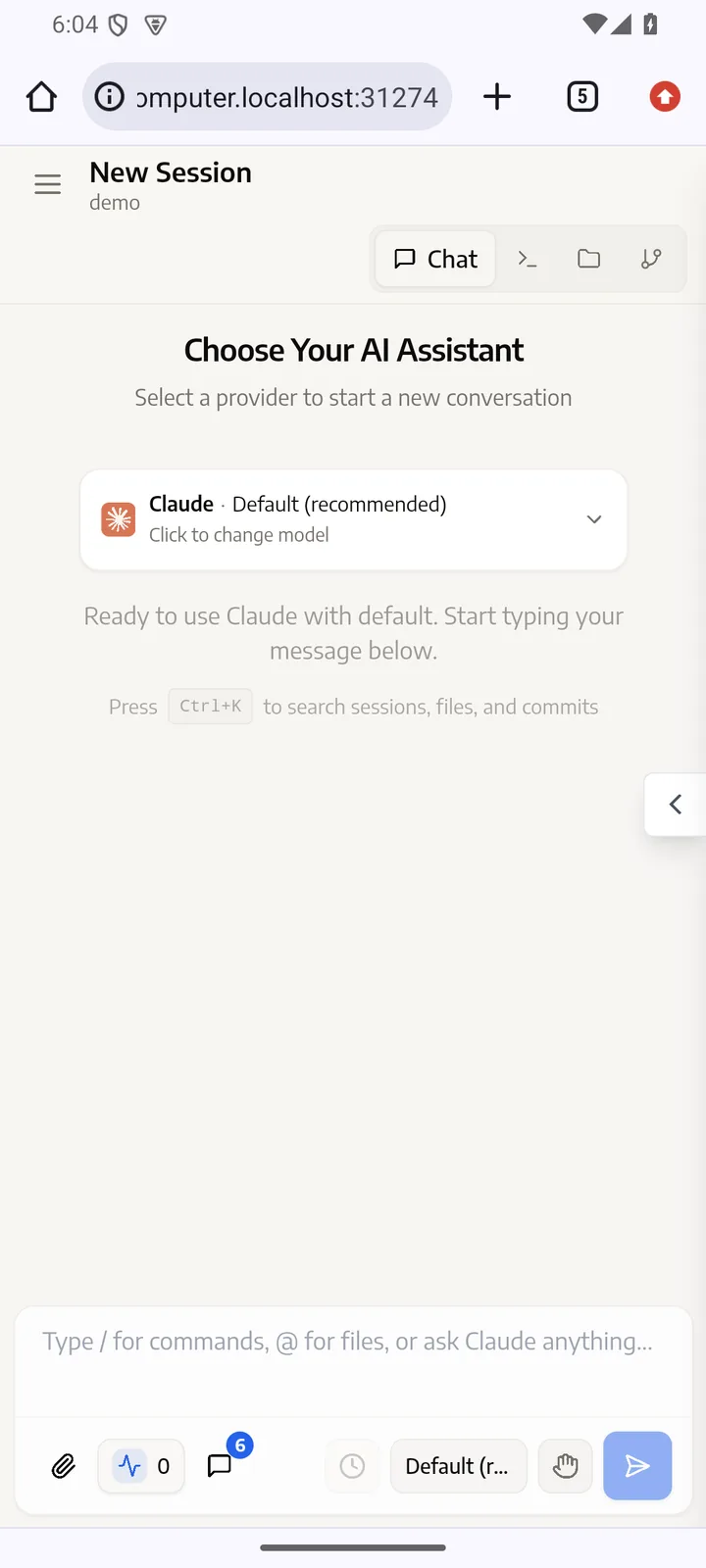
4Use it in the browser When you finish, return to the Apps page and select Stop.
Select Configure to change the local port on the phone; you rarely need to change it. While the app is in use, the button is grey.
Files
In the bottom bar, select Files, then select Open in Files on the share's row. The phone's Files app opens with the share as one of its locations. There you can open, write, create and delete files.
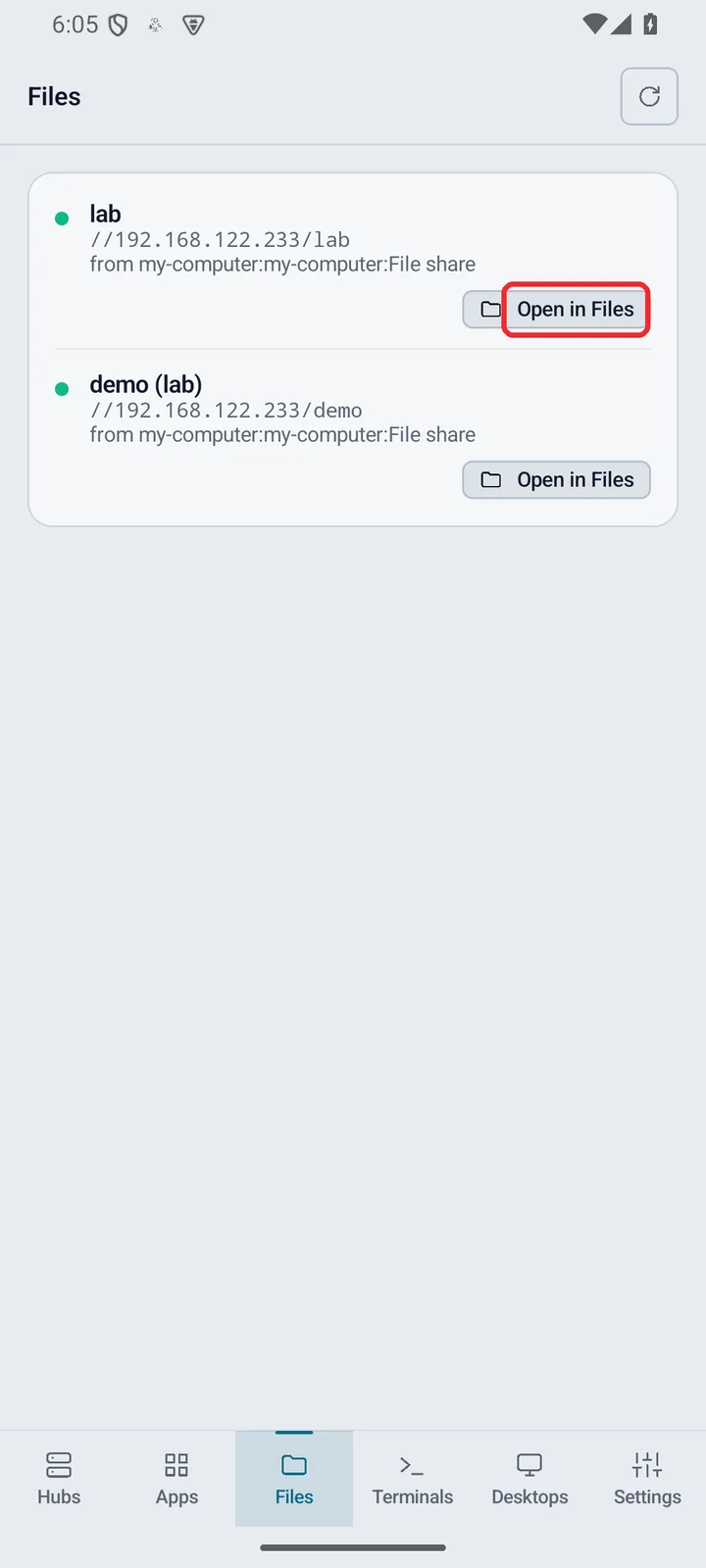
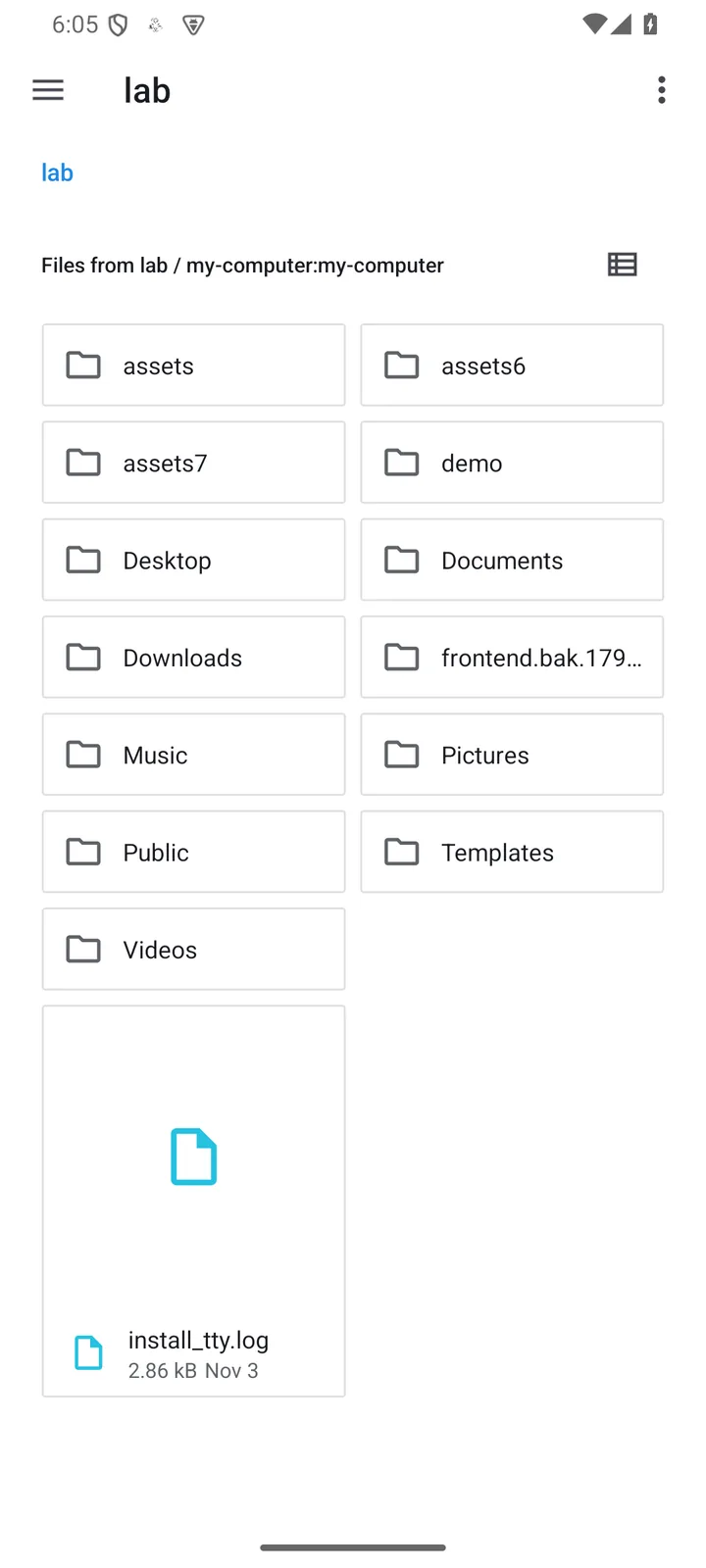
Shares on your systems open without a password. For a share declared by hand, such as a NAS, enter Share username and Share password the first time, keep Remember selected, and select Connect. Forget password takes effect on the second press.
Terminals
In the bottom bar, select Terminals and choose a system. If the system has two or more accounts enabled, also choose an Account. Then select New terminal.
When the terminal opens, a row of keys appears on top of the keyboard: Esc, Tab, Ctrl, Shift, Alt and the arrow keys. Touch and hold the screen to show Copy and Paste.
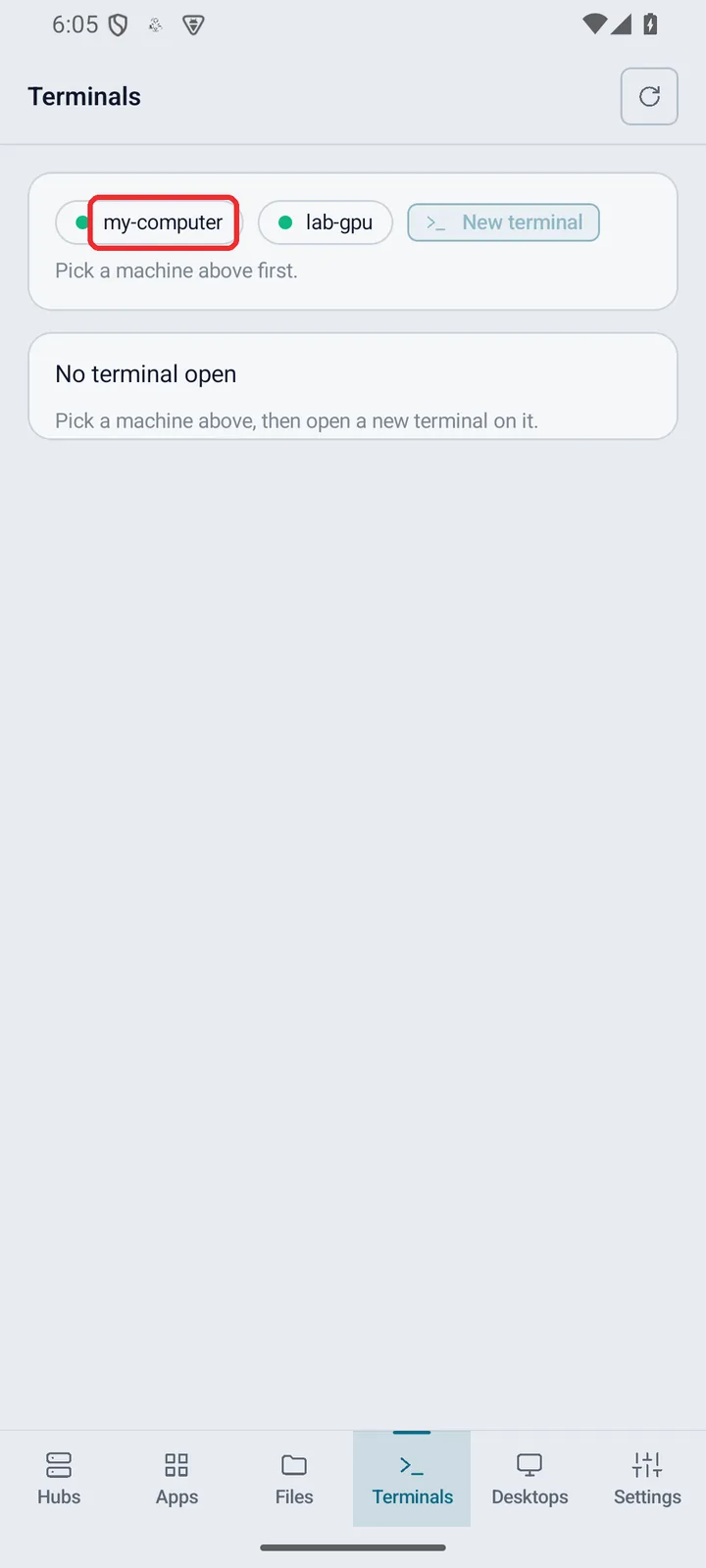
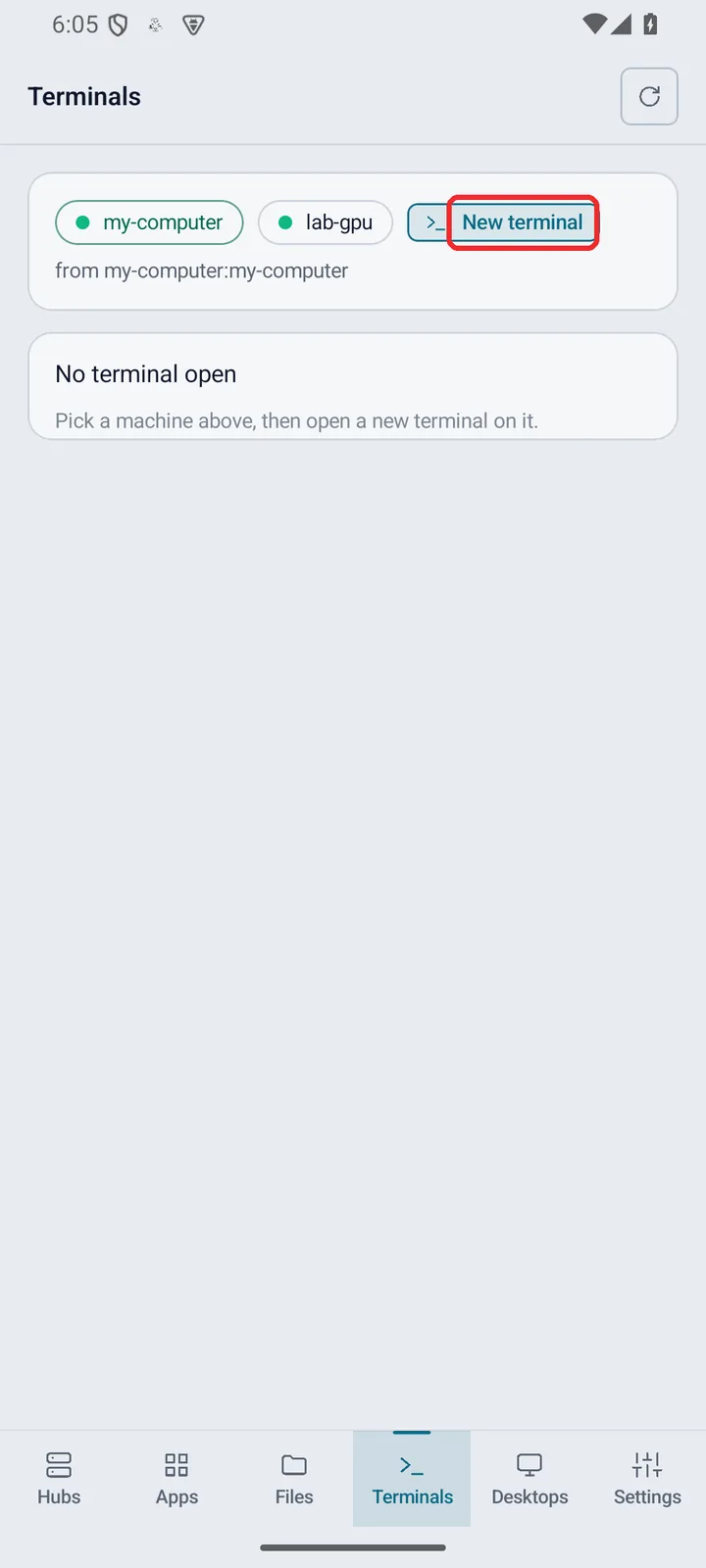
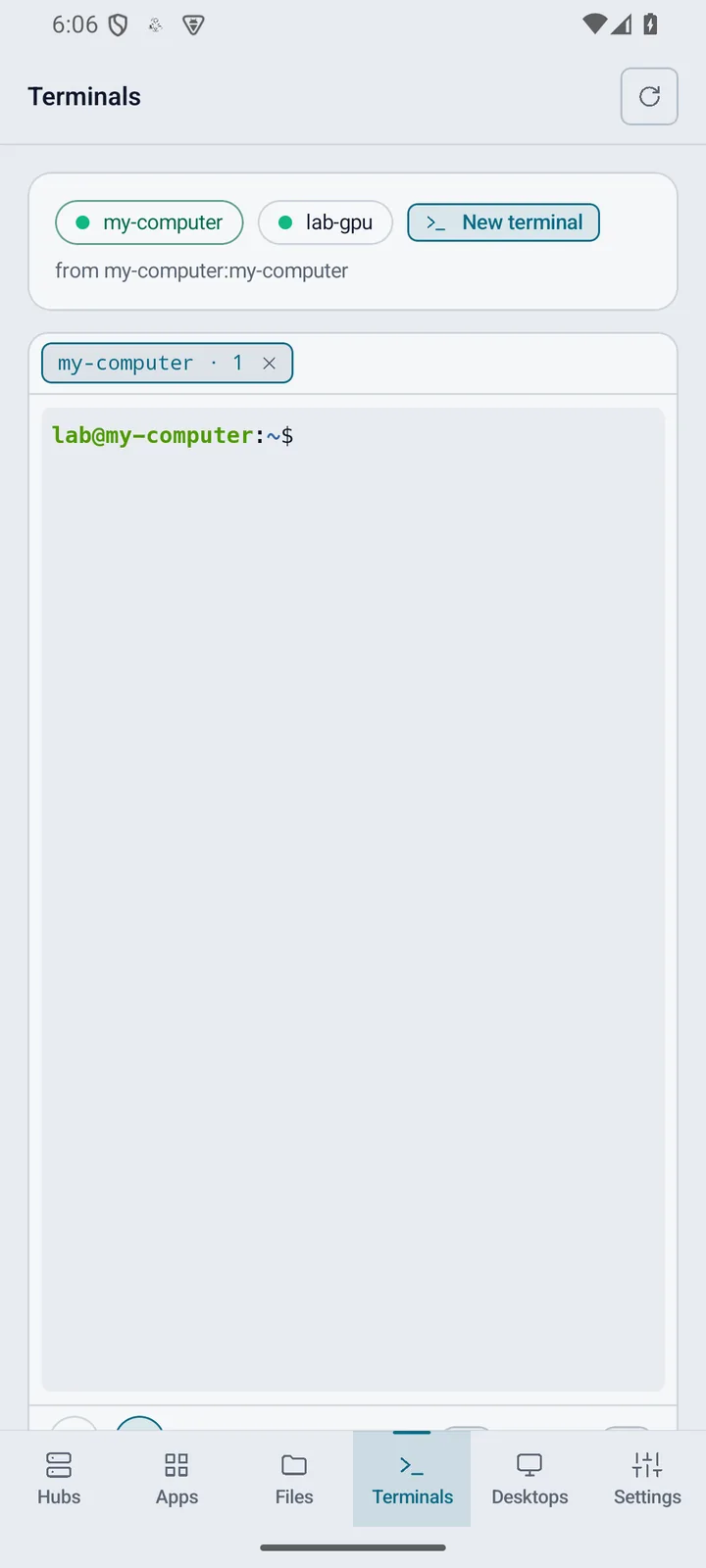
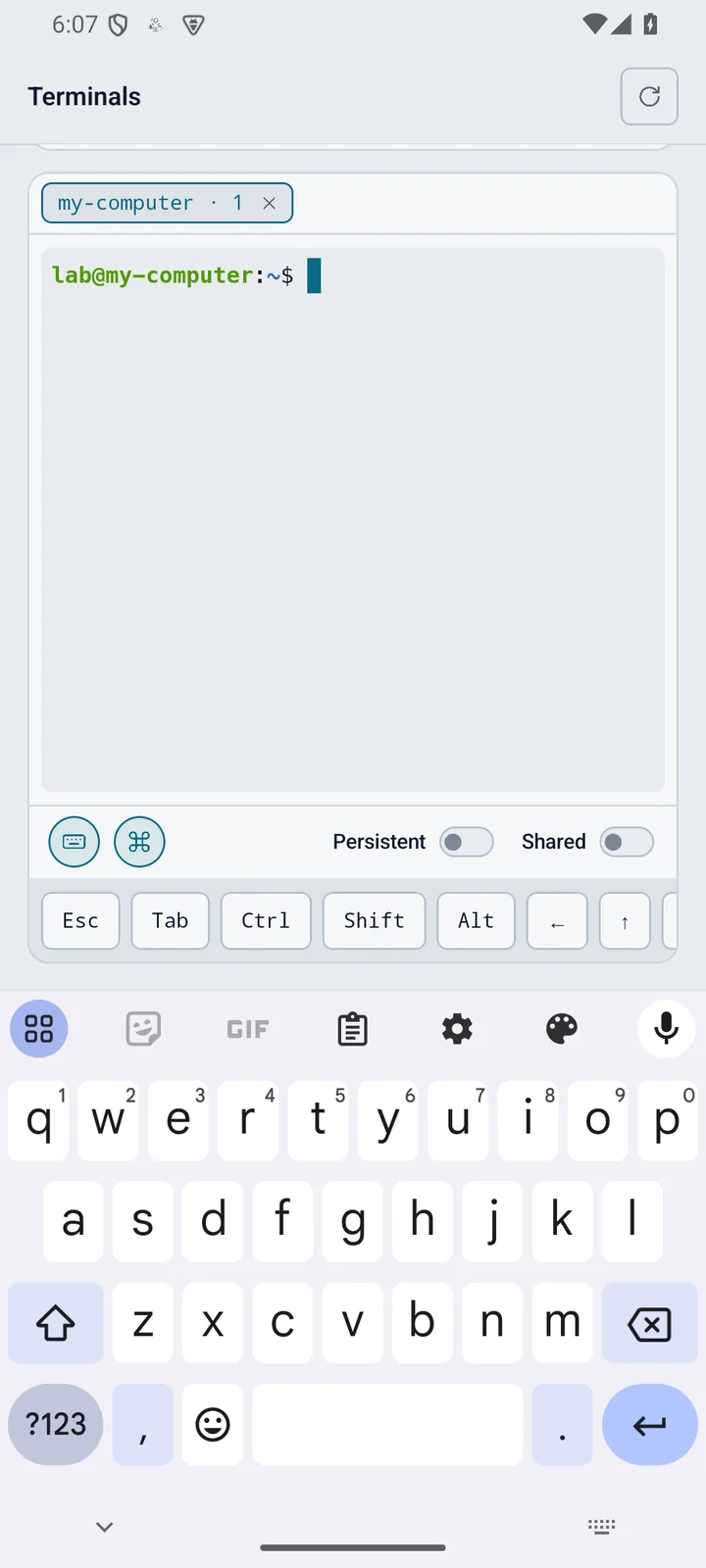
The Persistent and Shared switches work as in the Desktop client.
Desktops
Turn on sharing on that system first, as Remote desktop describes.
In the bottom bar, select Desktops. To adjust the picture, first select Configure on the row and choose Codec and Quality. Select Connect; the desktop fills the screen, and you can zoom with two fingers.
The round buttons in the upper-right corner are Keyboard, Keys and Disconnect, from left to right. Keys holds the keys a phone keyboard lacks, such as Esc, Ctrl and the arrow keys. Chinese input methods work as usual.
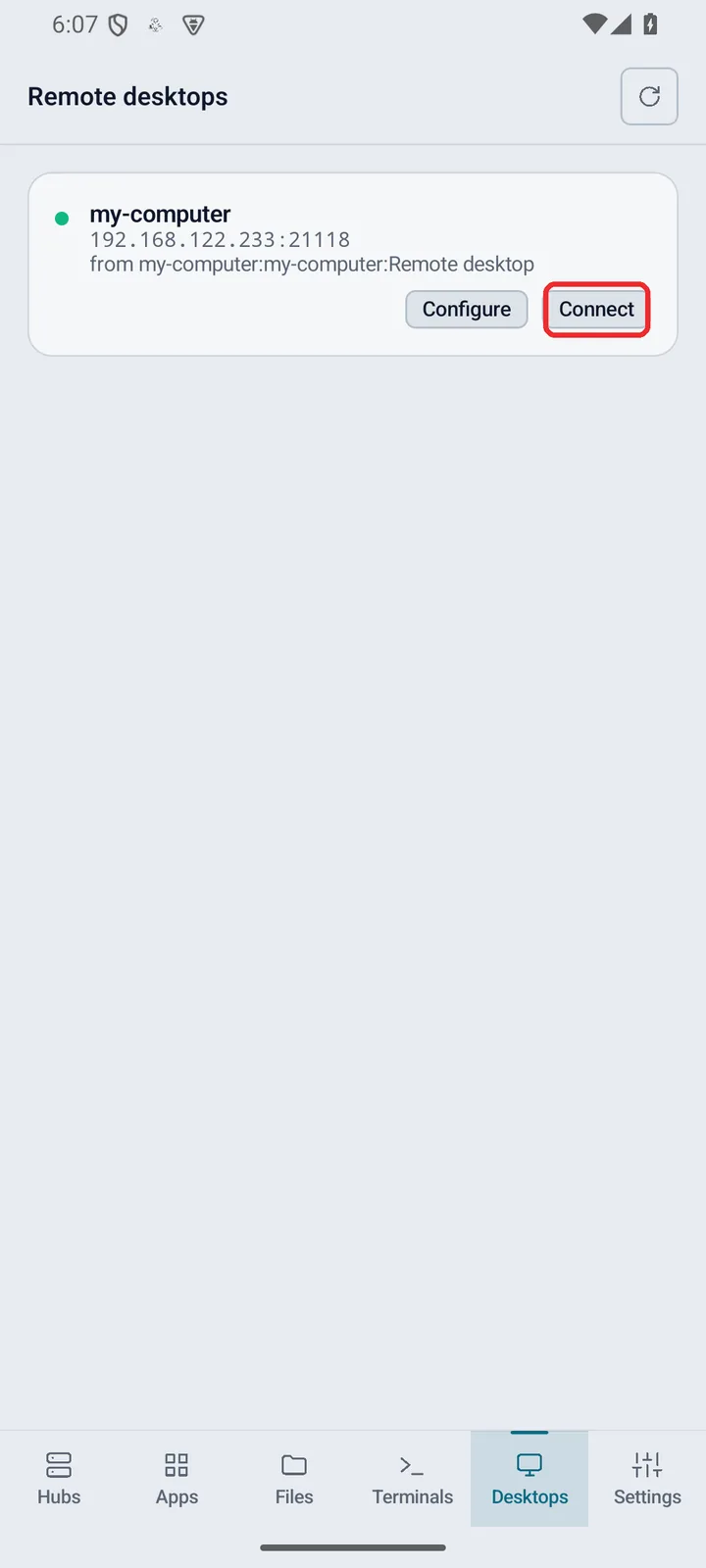
1Select Connect 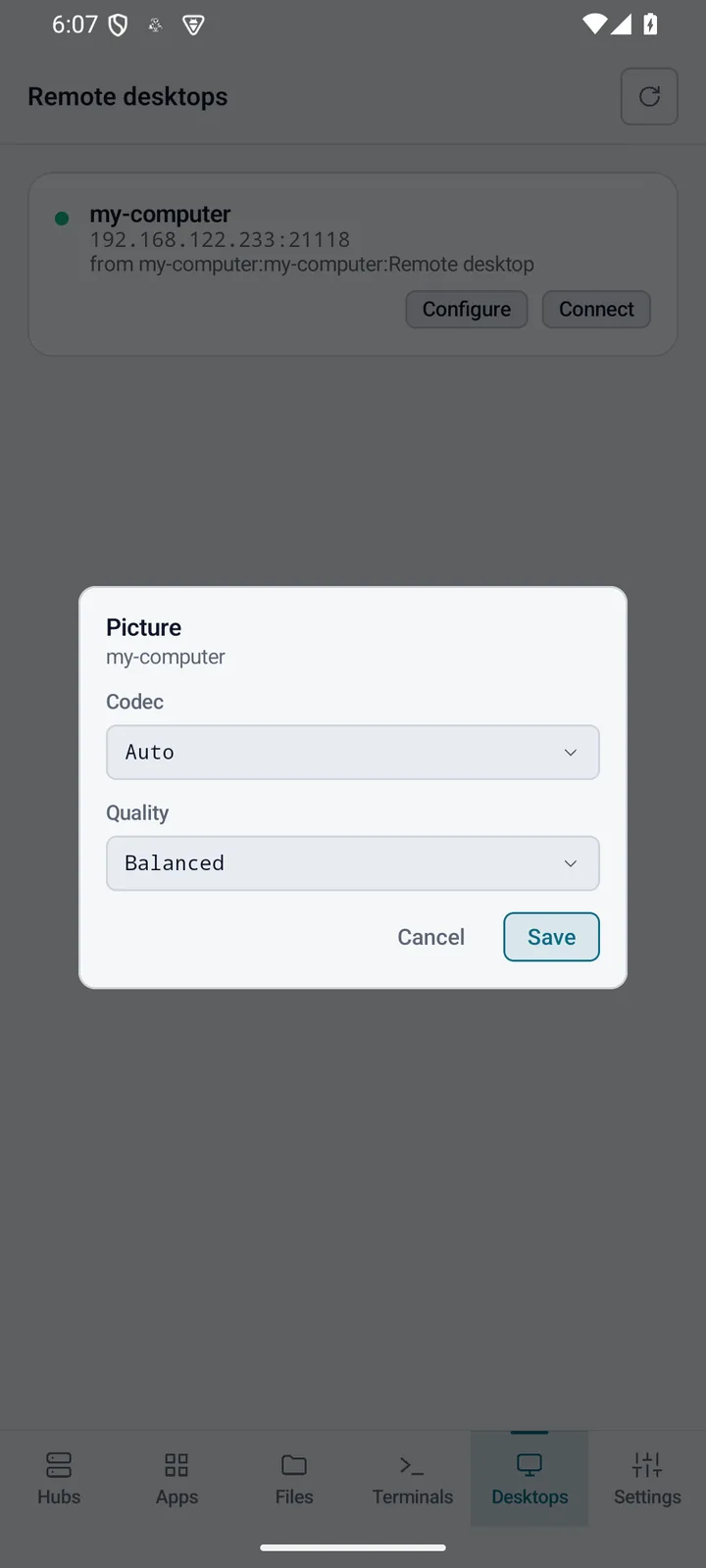
2Configure: Codec and Quality 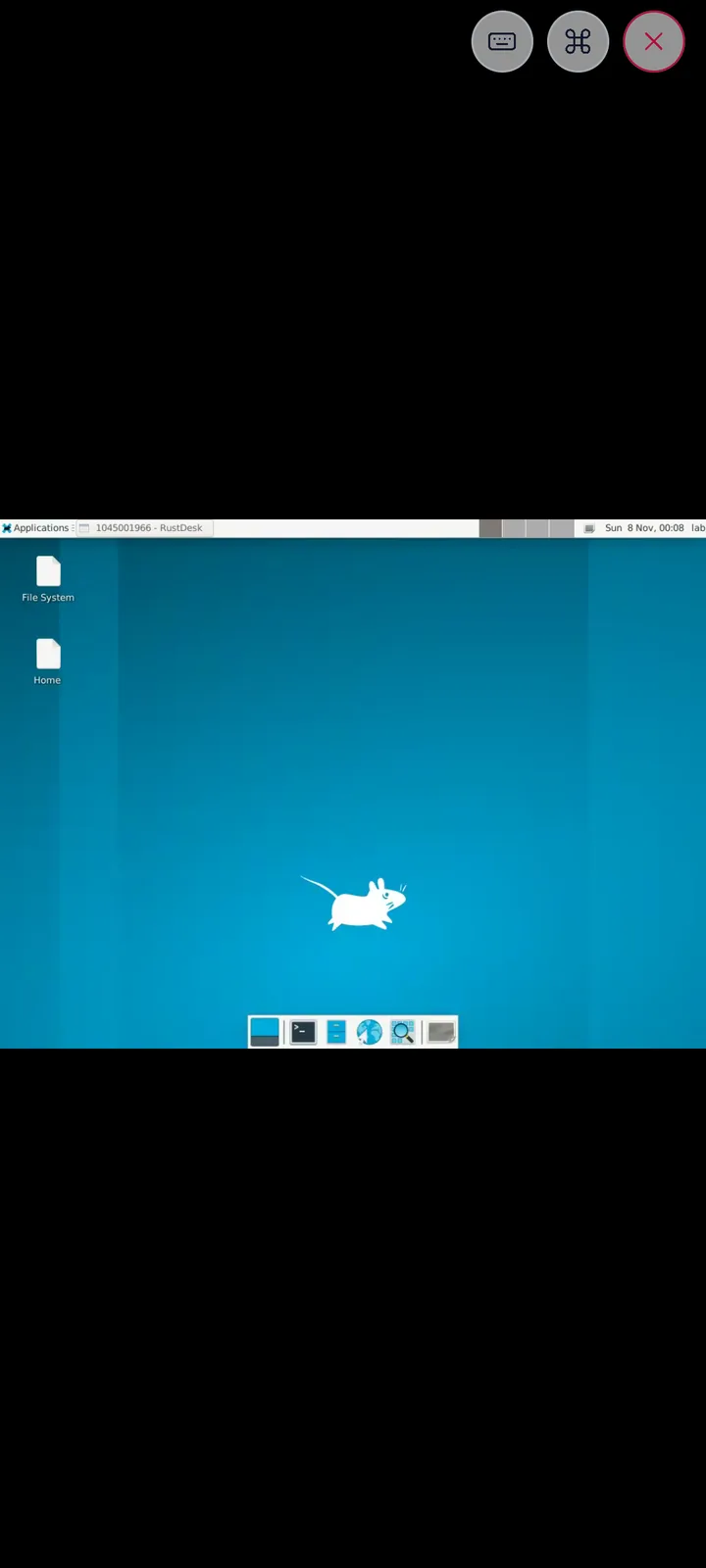
3The desktop fills the screen 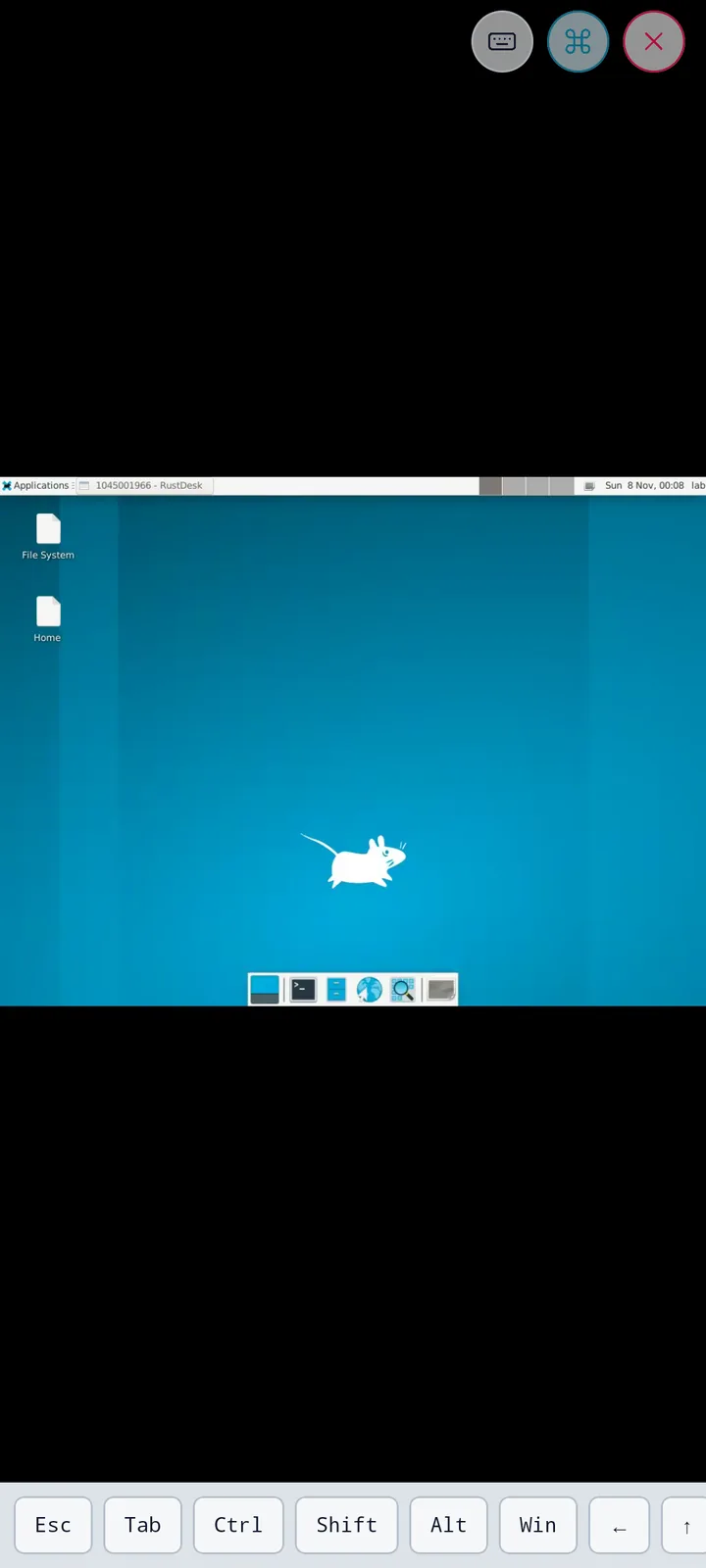
4Select Keys
Settings
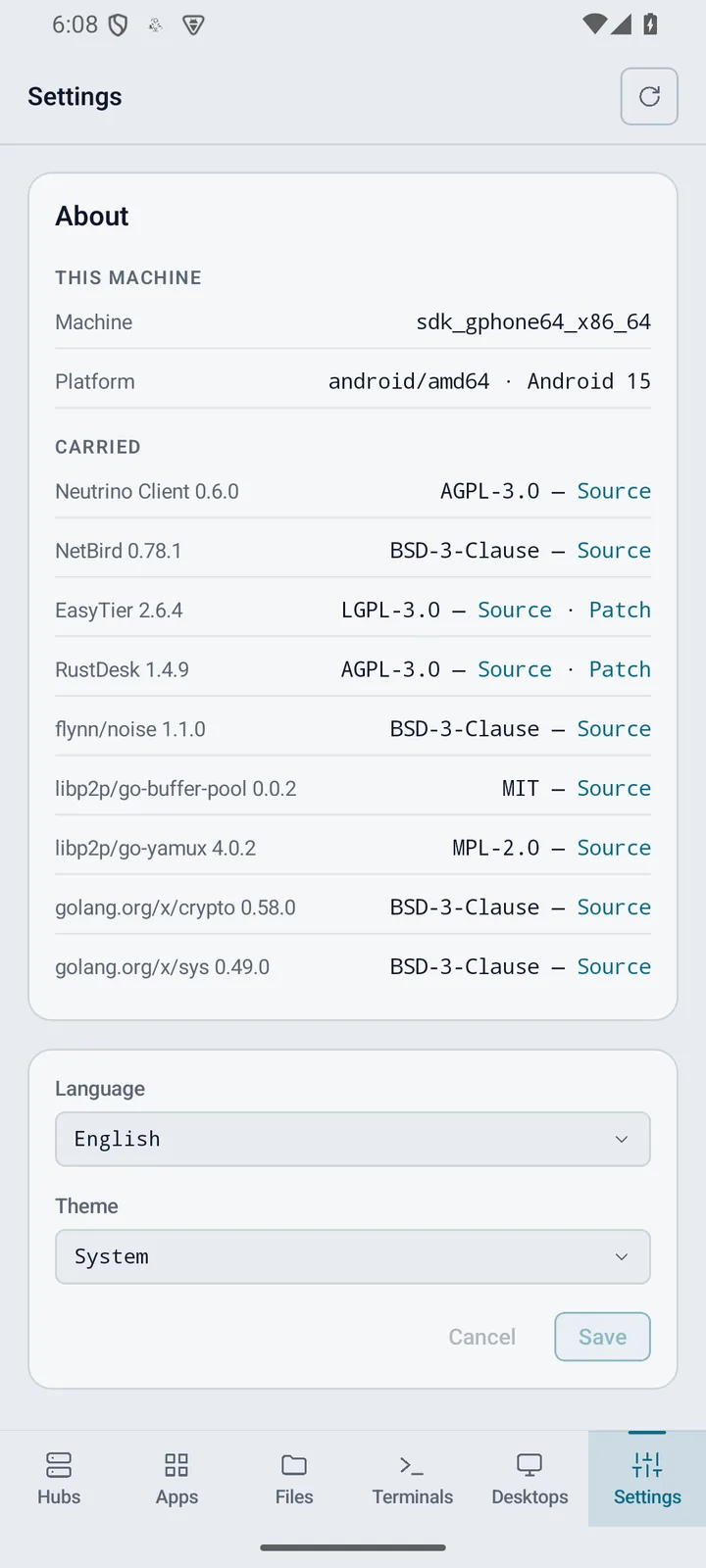
In the bottom bar, select Settings. Change Language and Theme, then select Save. About shows the phone's name, the app version and the bundled programs.