English
Agents
An agent is the program on a system that installs and runs apps and reports the system's status to the hub. On the panel's Agents page, you add systems, view their status and manage them.
SystemsLinuxWindowsmacOS
EditionsInternationalChina
Sincev0.1.0
Installing the hub also installs an agent on the same computer, so you start with one system. To manage another computer, install the agent on it and join it to the hub. The computer then appears in the lower part of the panel's sidebar, and you can install apps on it as on this computer.
Supported systems
| System | Architecture | First Neutrino Hub version |
|---|---|---|
| Debian 12, Ubuntu 22.04, Fedora, RHEL 9, AlmaLinux 9, Rocky 9, or later | amd64, arm64 | 0.1.0 |
| Arch, EndeavourOS, Manjaro | amd64 | 0.1.0 |
| Windows 10 1809 or later | amd64 | 0.5.0 |
| macOS 13 or later | Apple silicon, Intel | 0.5.0 |
Page contents
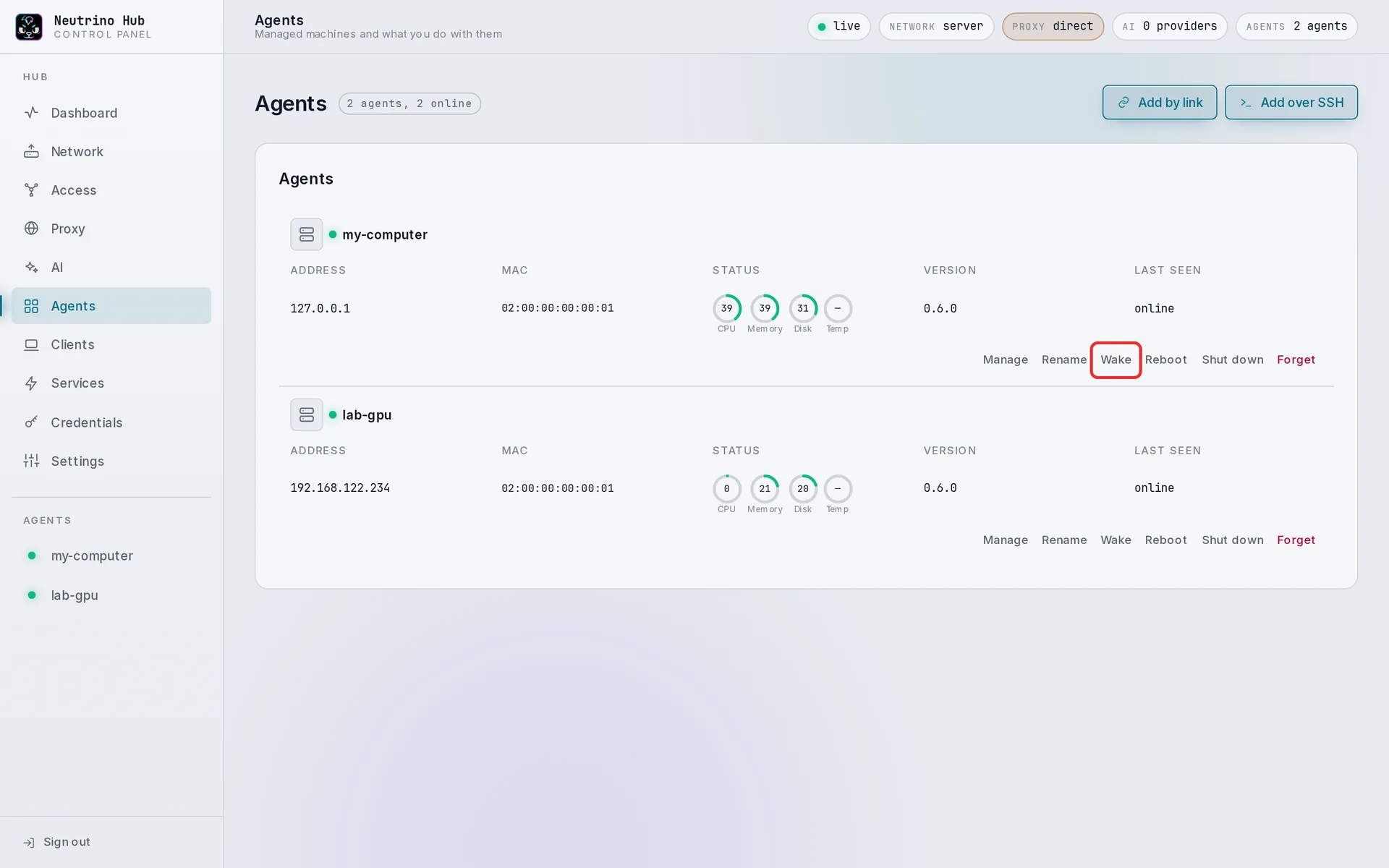
In the panel's sidebar, select Agents. Each system has one row, and the title shows the total number of systems and how many are online. In a window narrower than 1280 pixels, the table scrolls sideways.
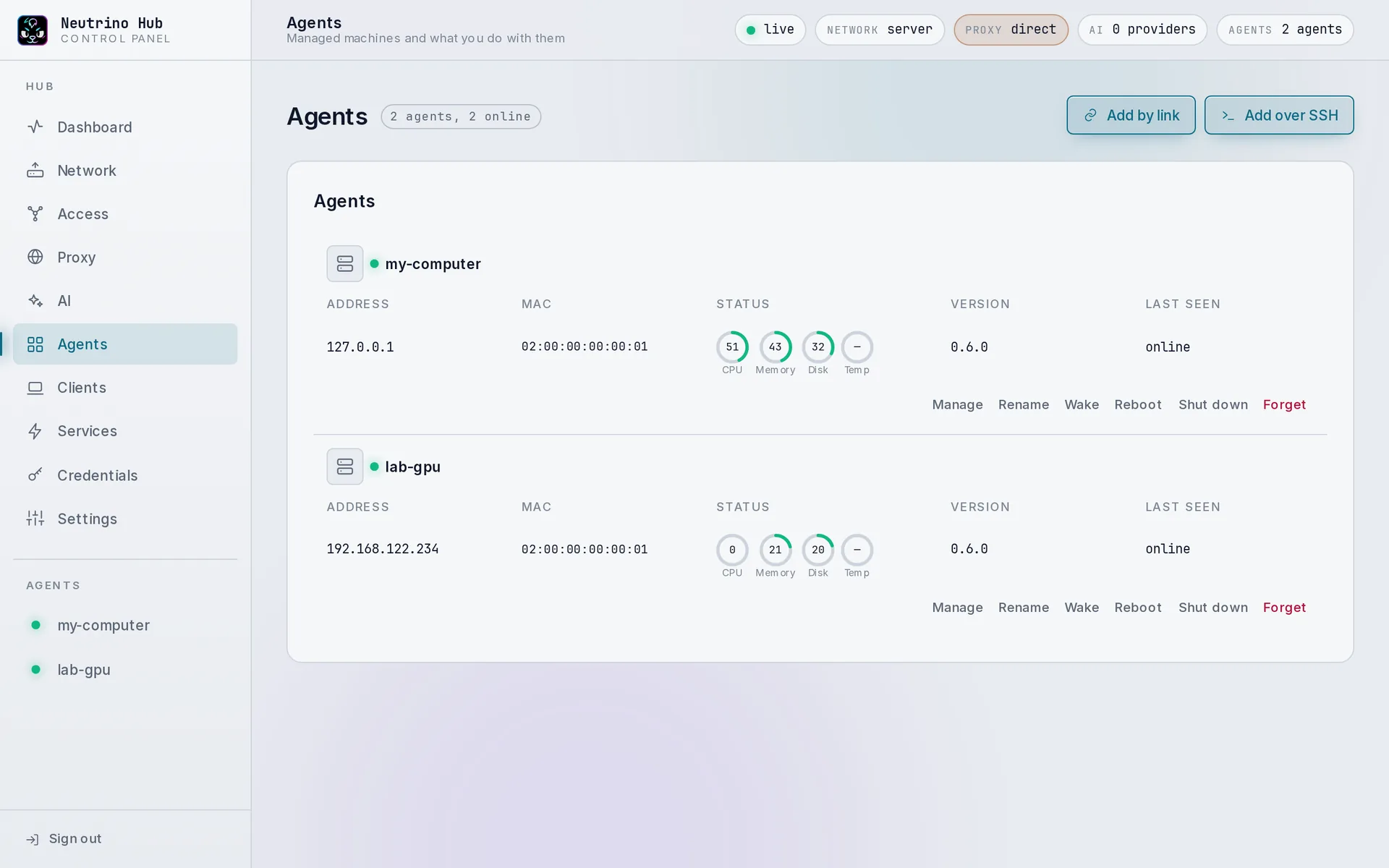
| Column | Content |
|---|---|
| Name | The icon, the status dot and the system's name |
| Address | The system's address |
| MAC | The system's MAC address, which Wake uses |
| Status | When online, rings for CPU, memory, disk and temperature, plus GPU on a system with a graphics card. When offline, offline and how long it has been offline |
| Version | The agent's version |
| Last seen | When the agent last connected to the hub, or online while it is online |
Add a system
Before you add a system, make sure the other computer can connect to the hub. Either both computers are on the same LAN, or the hub has an access method turned on.
Add by link works for every system, and you run two commands on the other computer. Add over SSH works for Linux only, and the hub signs in over SSH, installs the agent and joins the computer to the hub. If the other computer runs Linux and you can sign in to it over SSH, adding over SSH takes fewer steps. In every other case, add by link.
Add by link
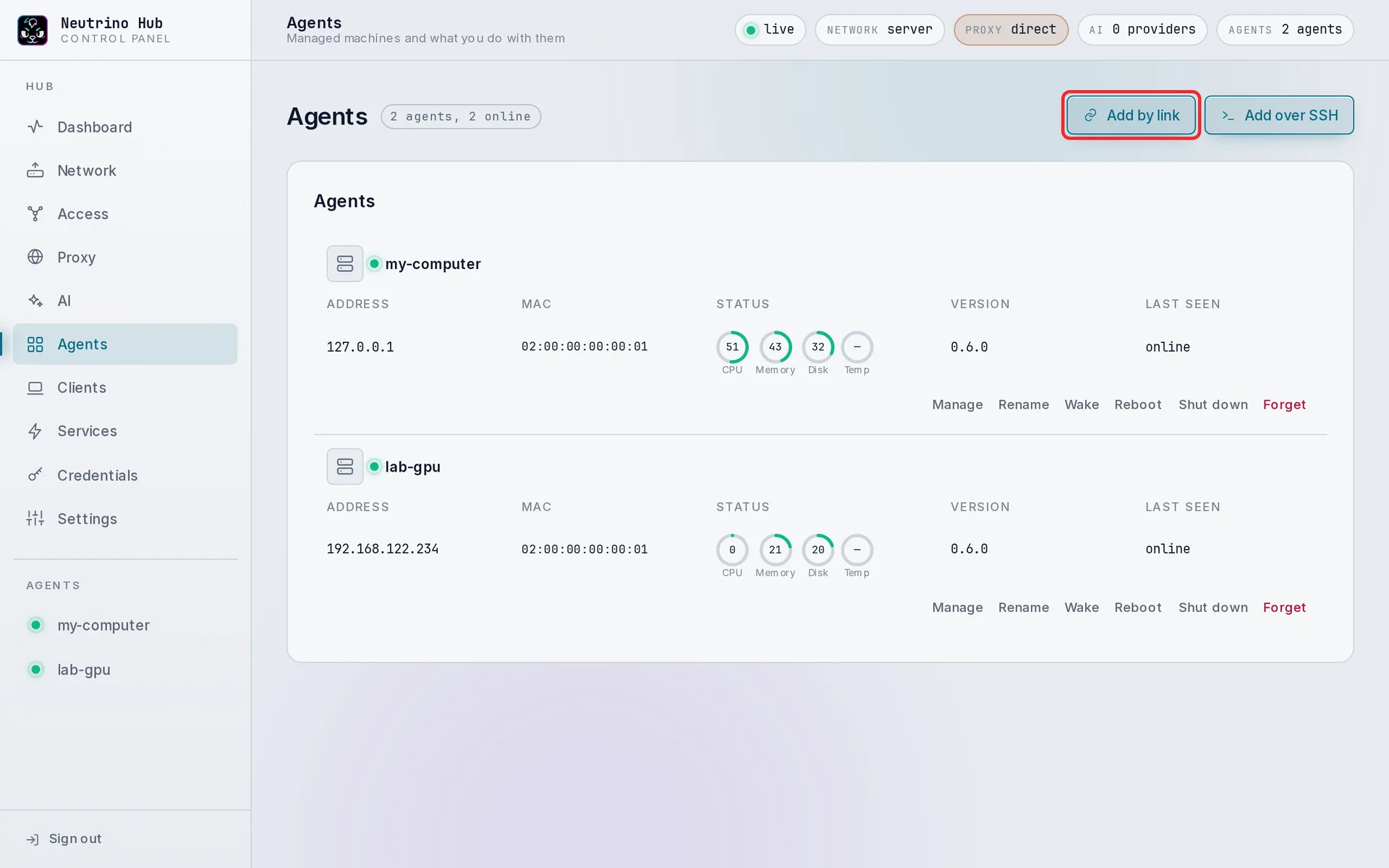
In the panel's sidebar, select Agents, then select Add by link at the top right.
In Name, enter a name for the other computer, for example
lab-gpu, or leave it empty to use the computer's host name. Select Generate link, then select Copy in the dialog that shows the link. The link is valid for 30 minutes, and generating a new one invalidates the previous one.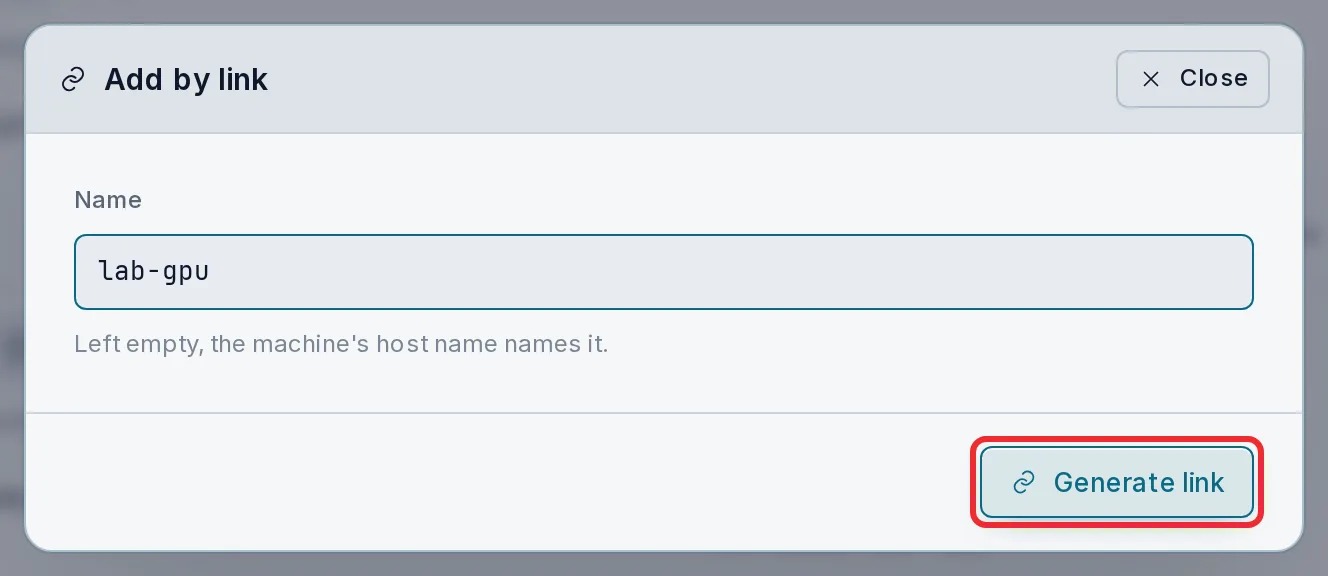
1Enter a name, then select Generate link 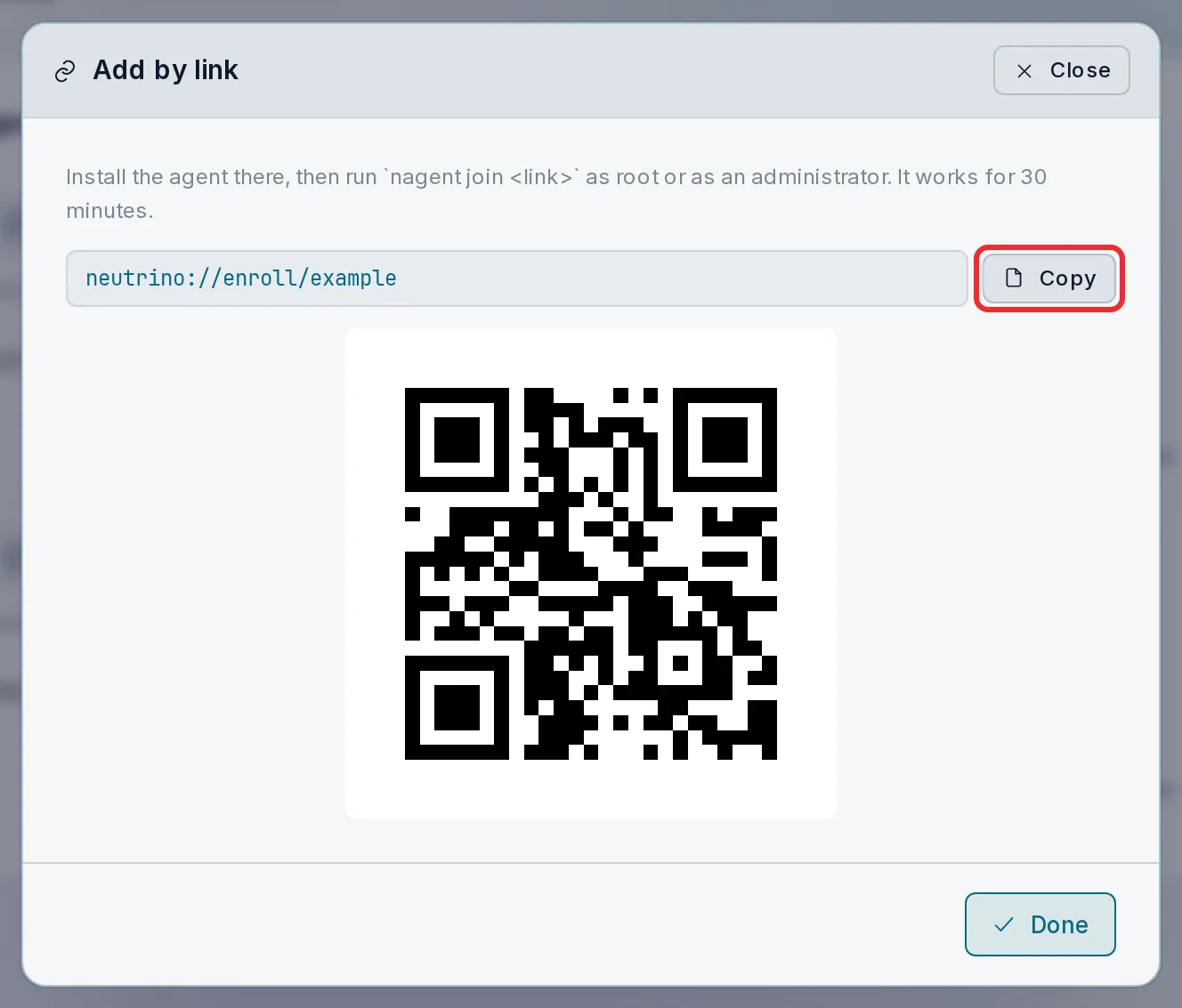
2Select Copy On the other computer, open a terminal, or PowerShell on Windows. Run the following command to install the agent. In mainland China, choose the China edition, which downloads faster.
bashcurl -fsSL https://github.com/iffiX/neutrino/releases/latest/download/install.sh | sh -s -- agentpowershell& ([scriptblock]::Create((irm https://github.com/iffiX/neutrino/releases/latest/download/install.ps1))) agentbashcurl -fsSL https://cnb.cool/iffi-X/neutrino/-/git/raw/main/packaging/install/install.sh | sh -s -- agentpowershell& ([scriptblock]::Create((irm https://cnb.cool/iffi-X/neutrino/-/git/raw/main/packaging/install/install.ps1))) agentGrant administrator rights when the script requests them, one time. On Linux and macOS, enter this computer's sign-in password. On Windows, select Yes in the permission dialog, and the script continues in a new window. The agent is installed when the terminal ends with
Installedand a prompt to join a hub.textneutrino-agent_0.6.0_amd64.deb matches its SHA256SUMS line Installing neutrino-agent_0.6.0_amd64.deb ... Installed neutrino-agent_0.6.0_amd64.deb Next, join this machine to a hub: sudo nagent join '<enrollment link from the hub's Agents page>'Run the following command, with the link you copied in place of
<link>, and enteryif it prompts you to replace another hub. On Windows, run it withoutsudoin the administrator window that the script opened. The computer has joined the hub when the terminal showsjoined. If the command reports an invalid link, the link has usually expired or been used, so generate a new one.bashsudo nagent join '<link>'textjoined tcp://192.168.1.20:8443 as 7a30fd786d7941d7b29d148ba0b5f034Back on the panel's Agents page, a row for the other computer appears shortly, with Last seen showing online. Its name also appears in the lower part of the sidebar.
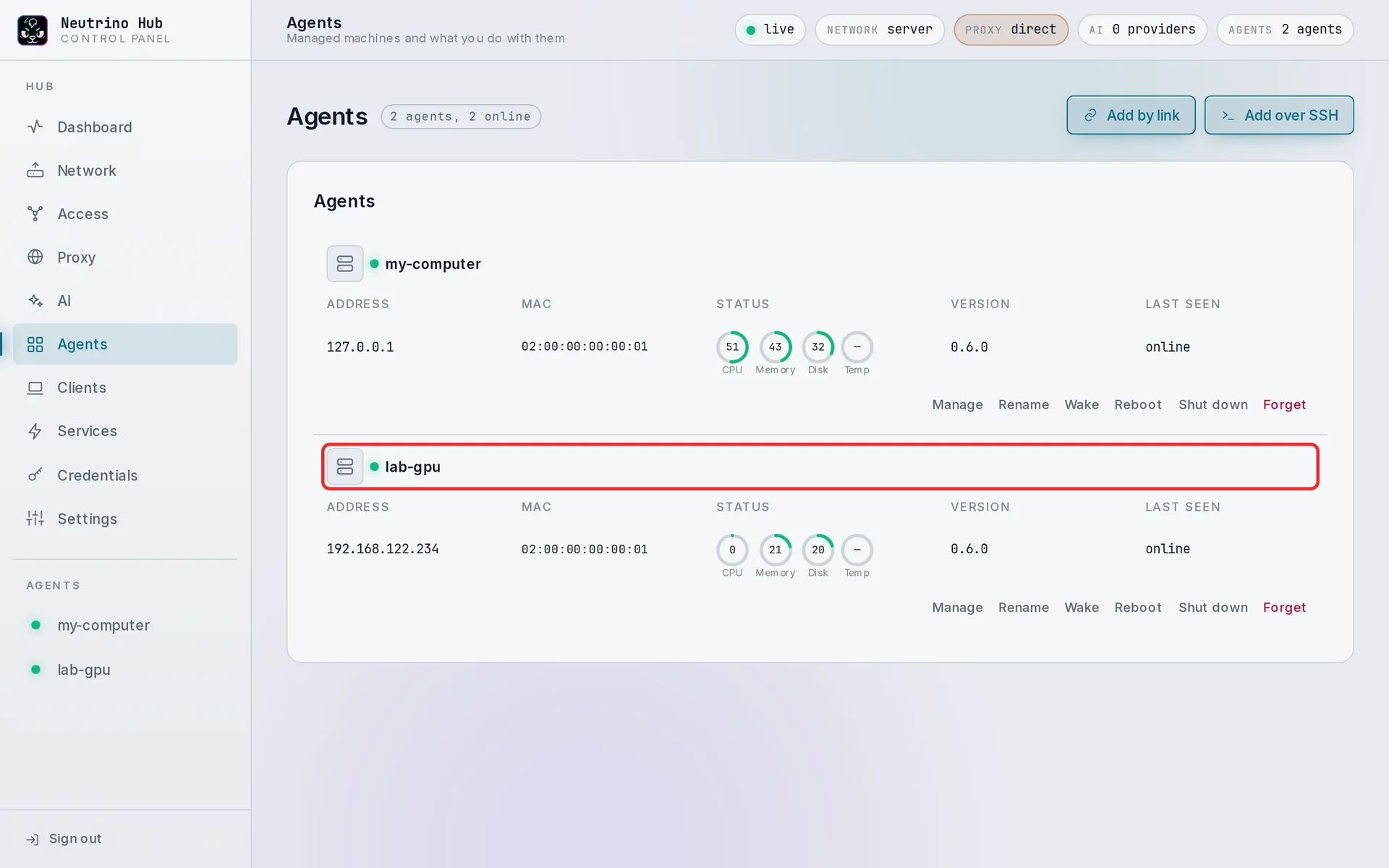
To check the connection on the other computer, run sudo nagent status. The connection works when service shows running and heartbeat shows ok.
text
neutrino-agent 0.6.0
hub        tcp://192.168.1.20:8443
binding    7a30fd786d7941d7b29d148ba0b5f034
service    running
heartbeat  ok. The service holds its session to the hub
Add over SSH
Adding over SSH works for Linux only. On any other system, the install stops with a message to use a join link instead. You need the other computer's address and an SSH sign-in to it with a key or a password.
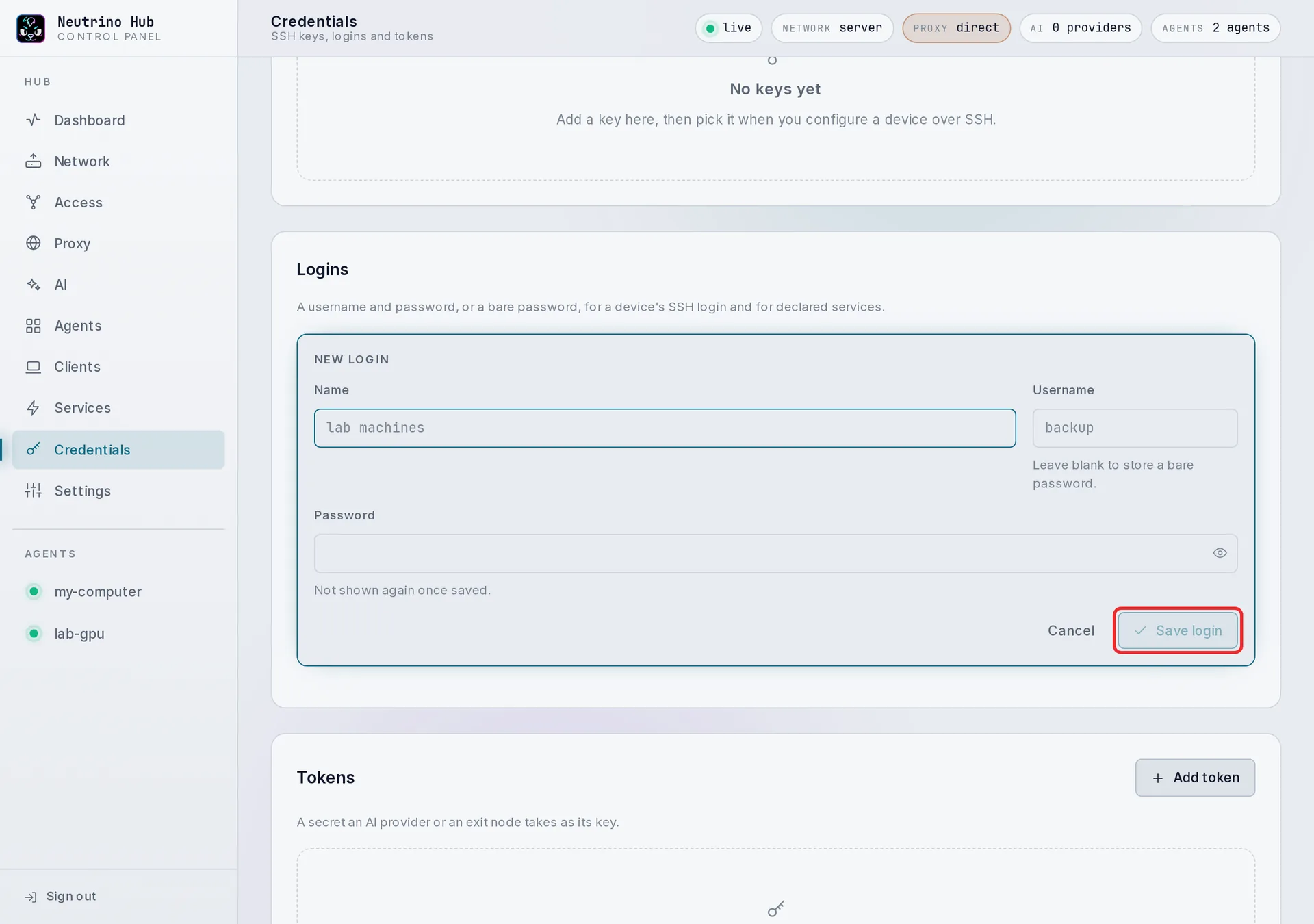
To sign in with a key, save the key to the hub: in the sidebar, select Credentials, then Add key. Fill in Name, paste the whole private key into Private key, and fill in Key passphrase if the key has one. The private key is usually the file in
~/.ssh/without a.pubsuffix. Then select Save key.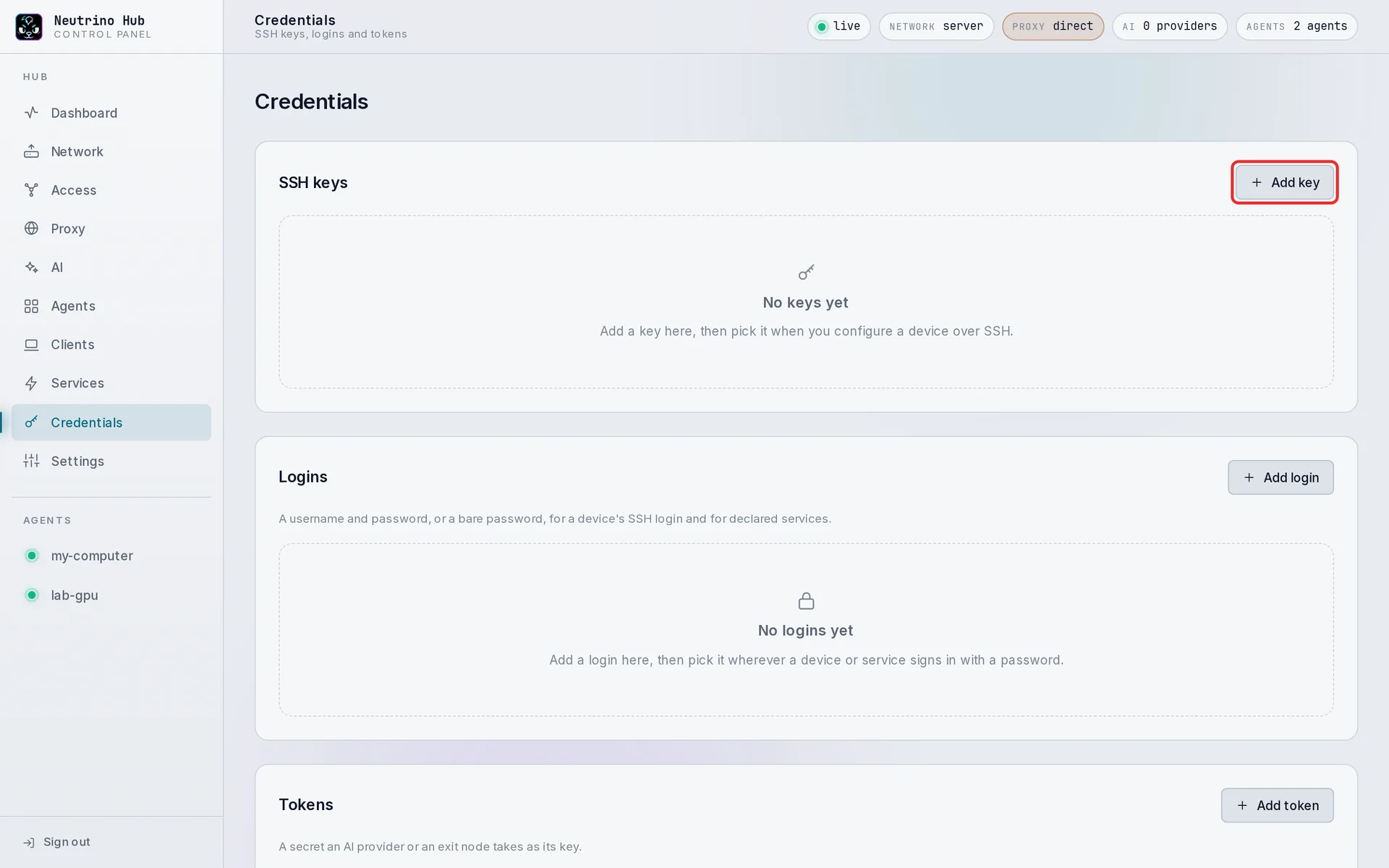
1Select Add key 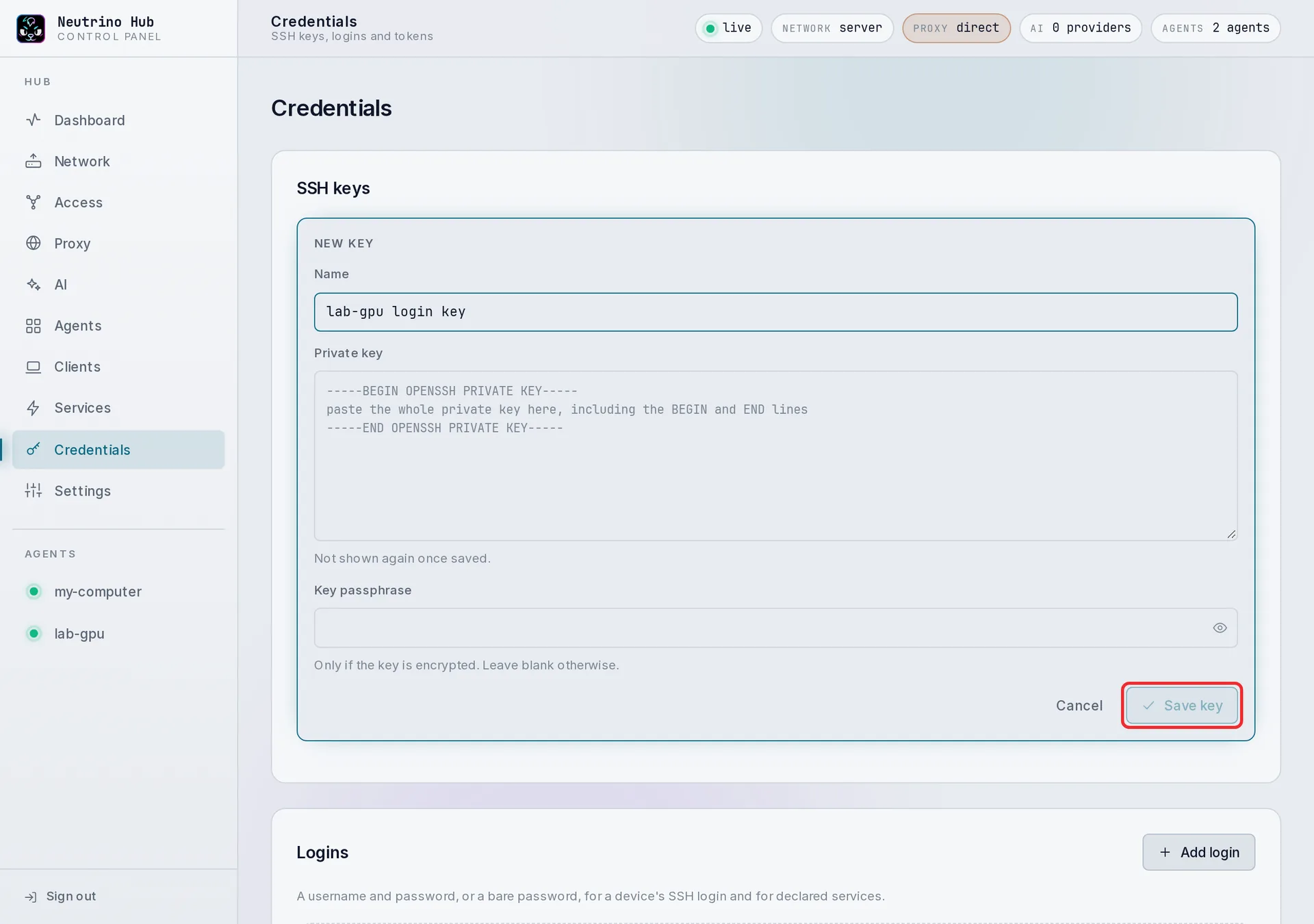
2Fill it in, then select Save key To sign in with a password, select Add login instead, fill in Name, Username and Password, then select Save login. If the account needs a password to use sudo, save that sudo password with the same form.
In the sidebar, select Agents, then Add over SSH, and fill in Host, Port (22 by default) and Username. Under Credential, choose SSH key or Password, then select the entry you saved. If the account has passwordless sudo, leave Sudo password empty.
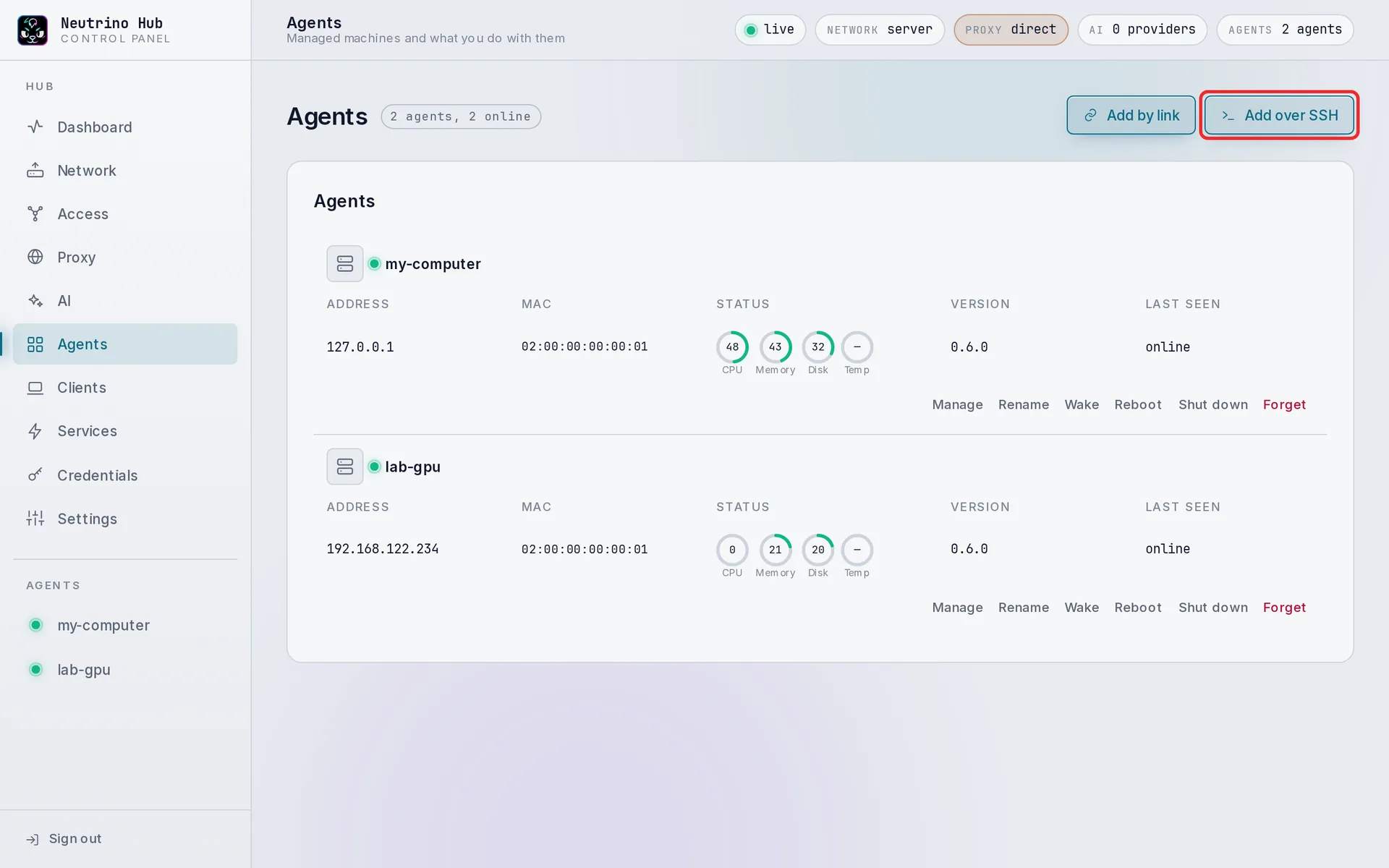
1Select Add over SSH 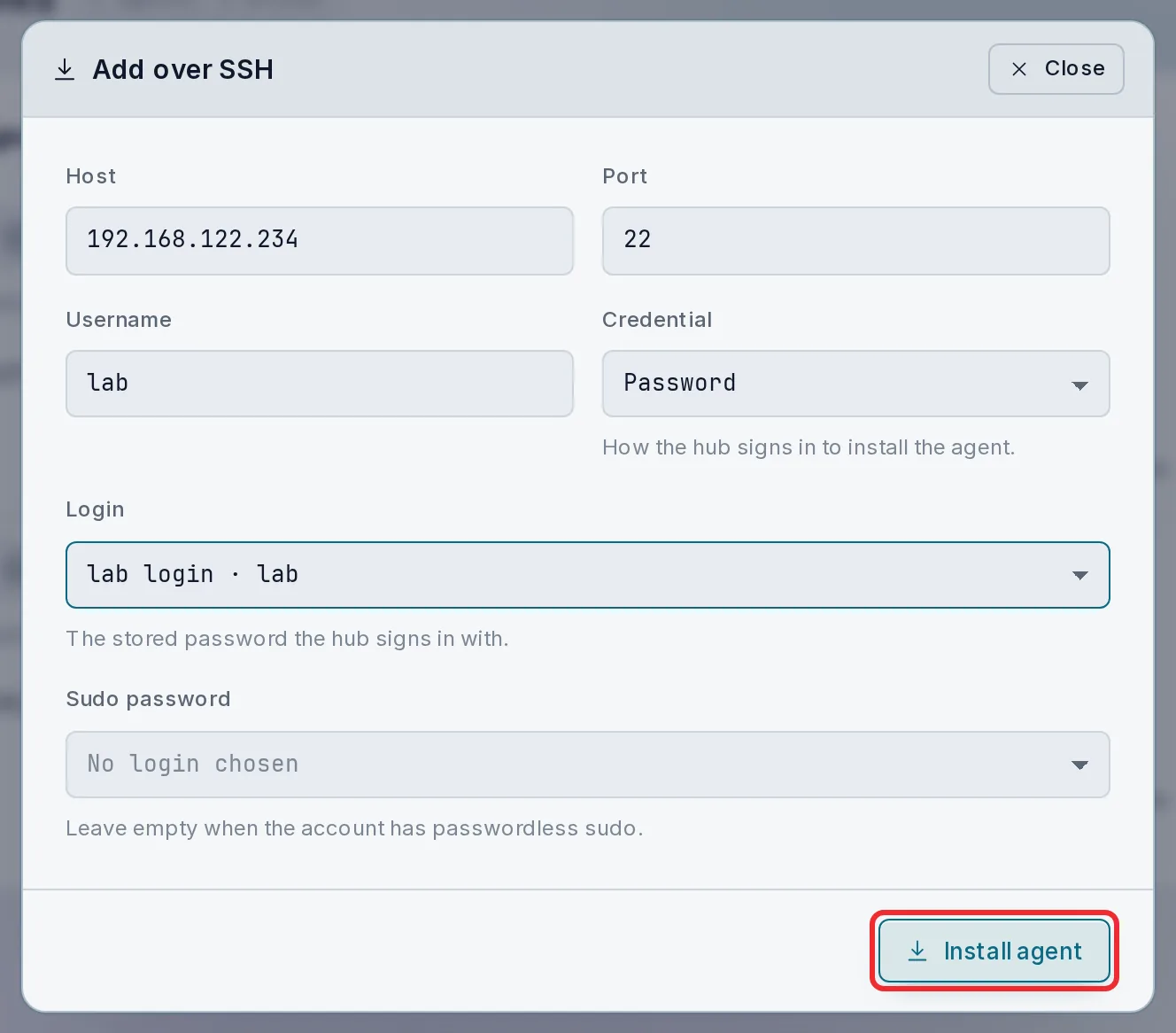
2Fill it in, then select Install agent Select Install agent. Install output shows the progress, and you take no action. A green exit 0 at the top right means the install finished. If the install fails, the top right shows a red exit code:
Exit code Cause 1 The other computer rejected the upload of the install file 255 The hub cannot connect to the other computer, the computer rejected the sign-in, or its host key differs from the one the hub recorded 95 The other computer is not Linux, or the hub has no package for it Other The exit code of the step that failed A grey The task ended without a result at the top right means the install stopped partway. After a failure, read the error in Install output and see Troubleshooting. A failed install adds no row to the Agents page, so fix the cause and select Install agent again in the same dialog.
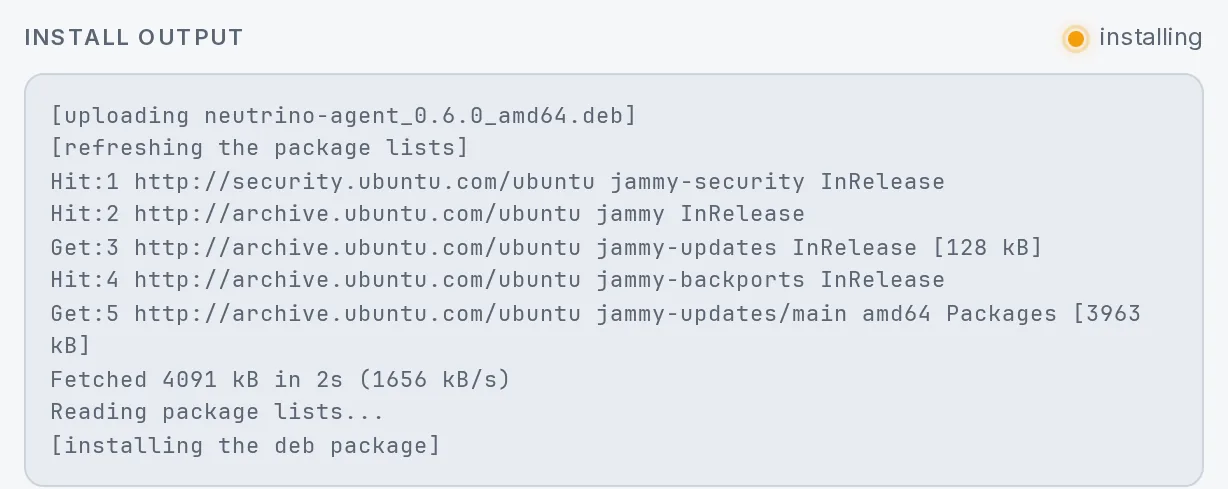
1Installing 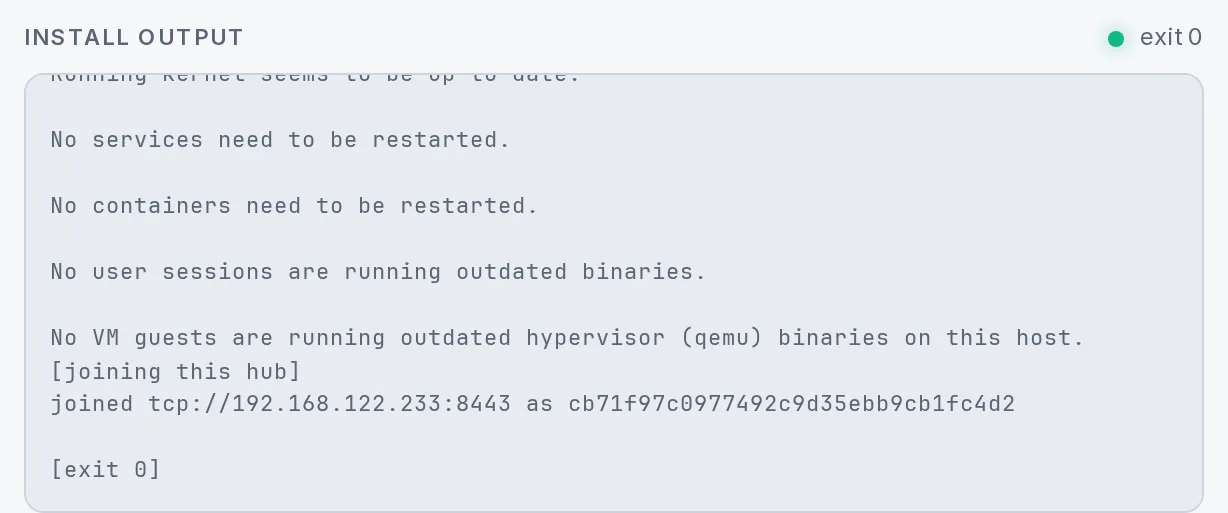
2It shows exit 0 The other computer has joined the hub automatically. After you select Close, a new row appears on the Agents page, with Last seen showing online.
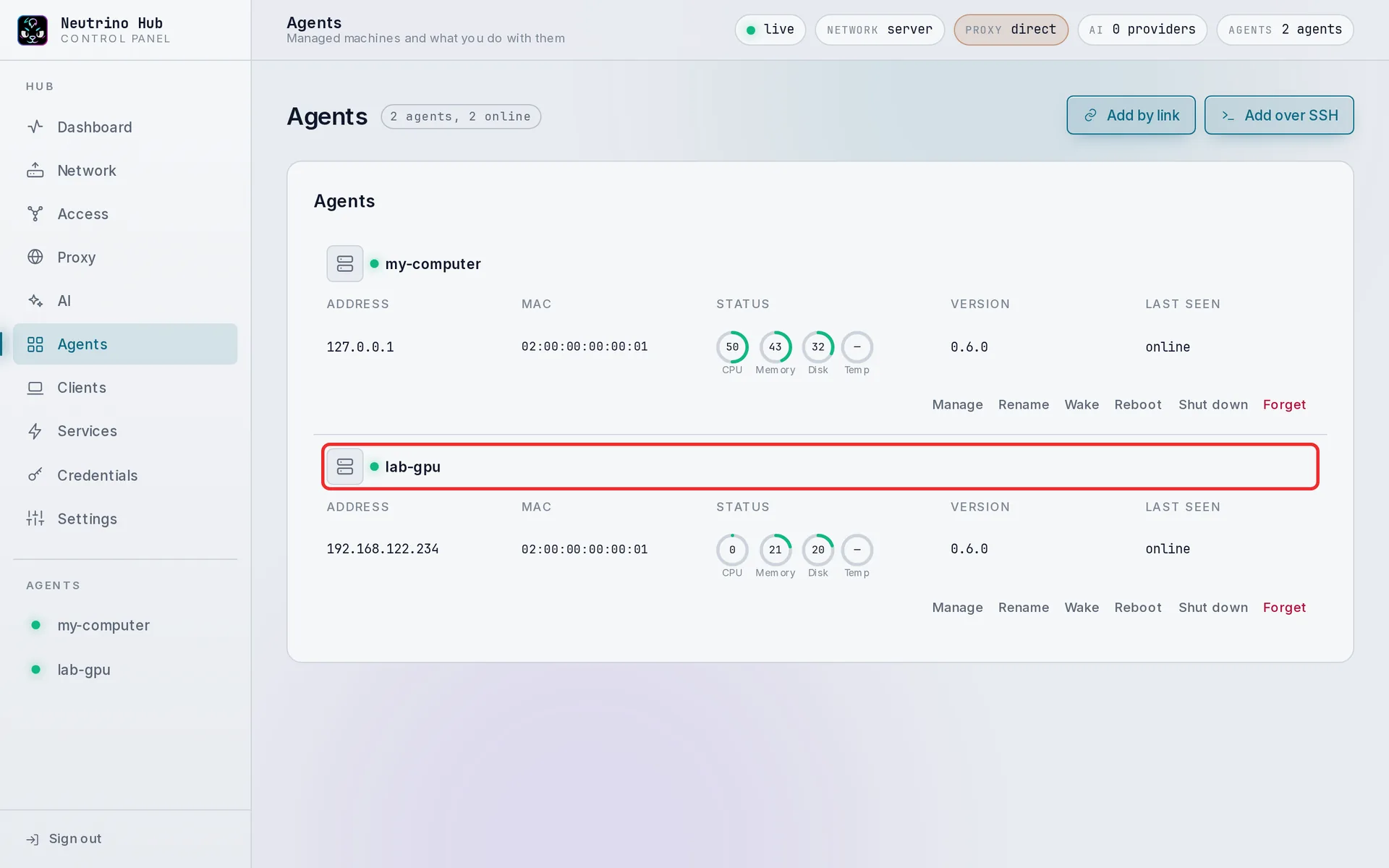
Row buttons
Each row has an icon button, and on the right Manage, Rename, Wake, Reboot, Shut down and Forget.
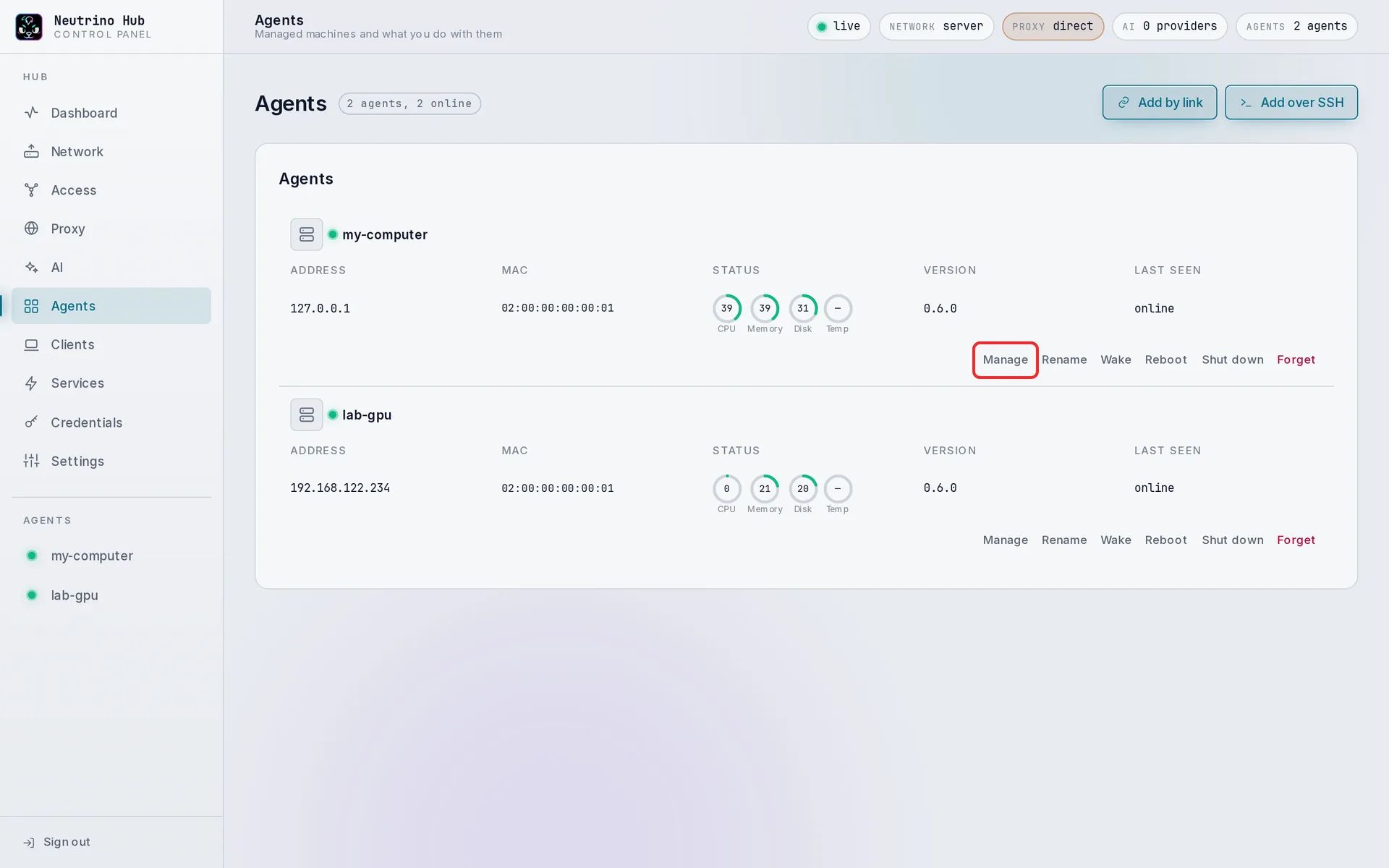
Change the icon
Select the icon at the start of the row, then choose an icon from the list that opens. The panel saves your choice immediately.
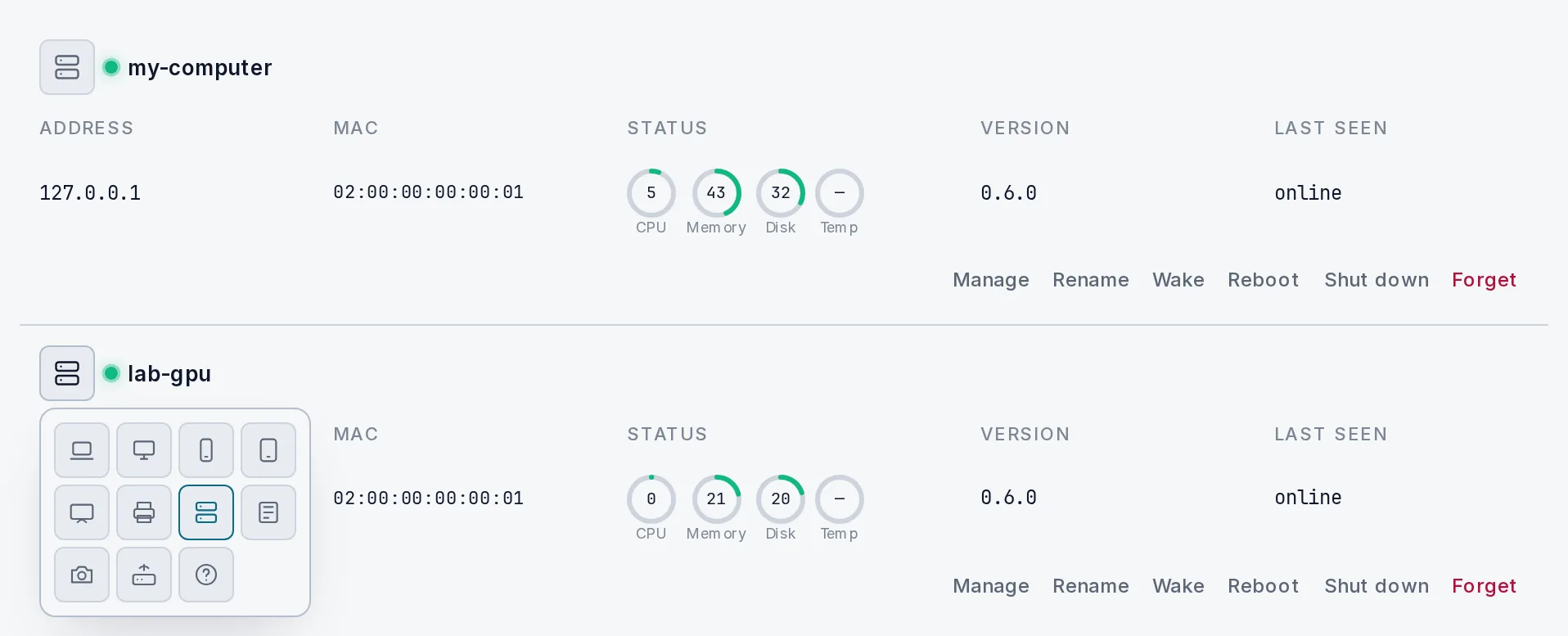
Manage
Select Manage to open the system's page. On that page, you install apps, add accounts and view monitoring.
Rename
Select Rename. The name turns into an input box, and only Save and Cancel remain on the right. Edit the name, then select Save.


Renaming changes the name that the panel and the clients show, and the system's own host name stays the same. The local name a client uses to open apps on the system changes too. So does the SSH host name <name>.nt, where the system's name replaces <name>. The local ports stay the same.
Wake
Select Wake to make the hub send a Wake-on-LAN signal to the computer. The button works only when the computer shares a LAN with the hub and has Wake-on-LAN on in its motherboard settings and operating system. The hub must also have recorded the computer's MAC address, which means the MAC column is not empty.
Reboot and shut down
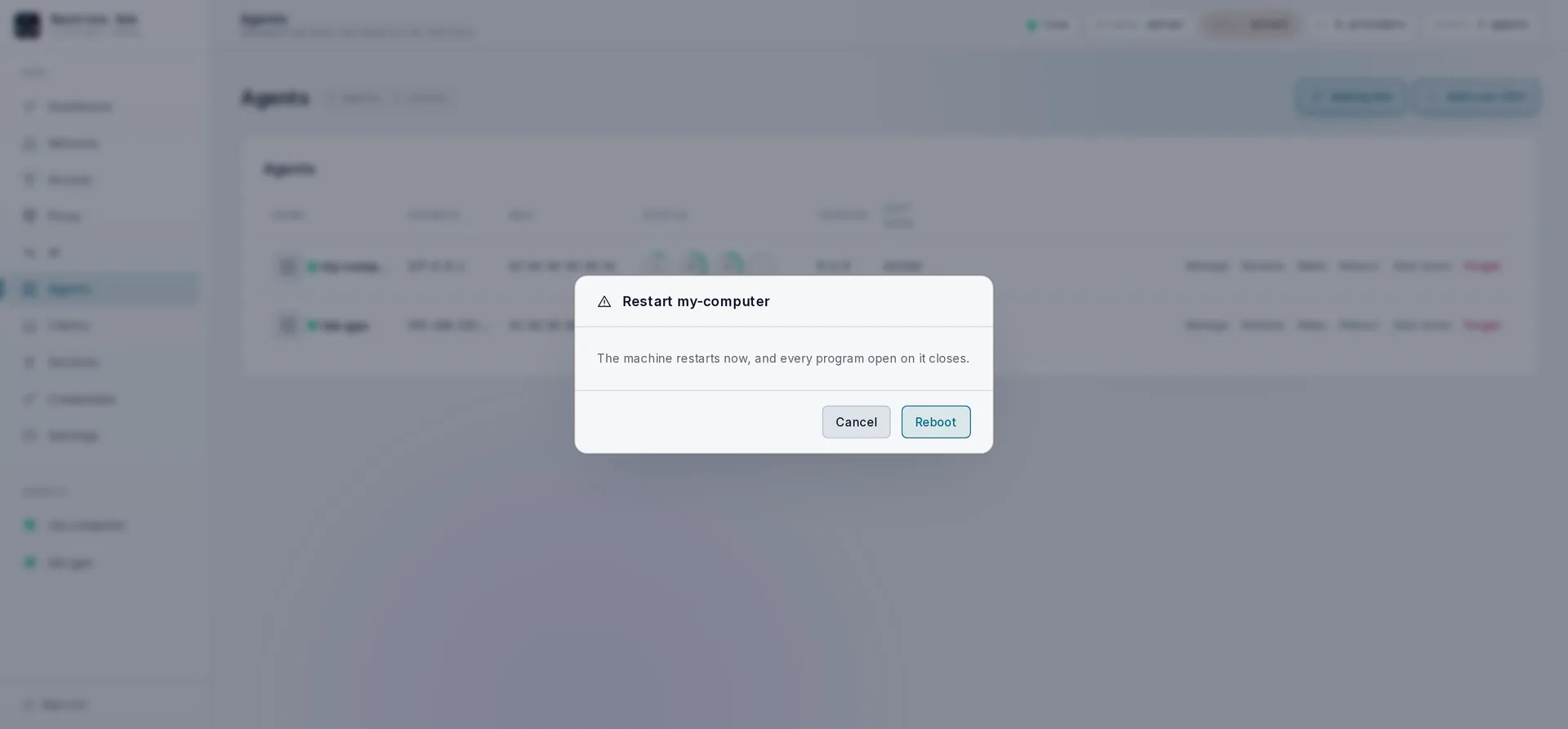
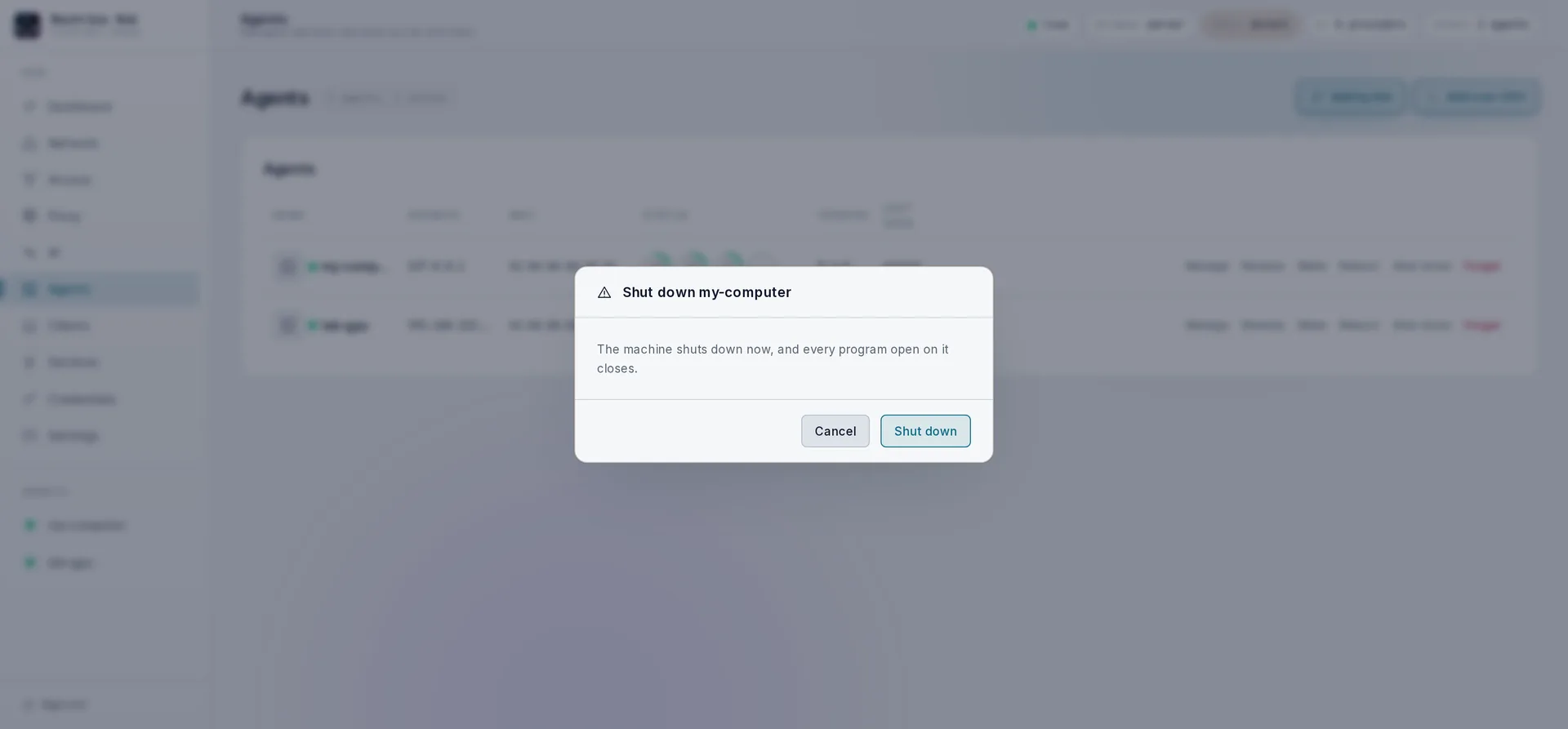
Select Reboot or Shut down, then confirm in the dialog. The computer acts immediately, and every program open on it closes. After a shutdown, the hub can no longer restart the computer. To start it again, select Wake, or turn the computer on in person.
Forget
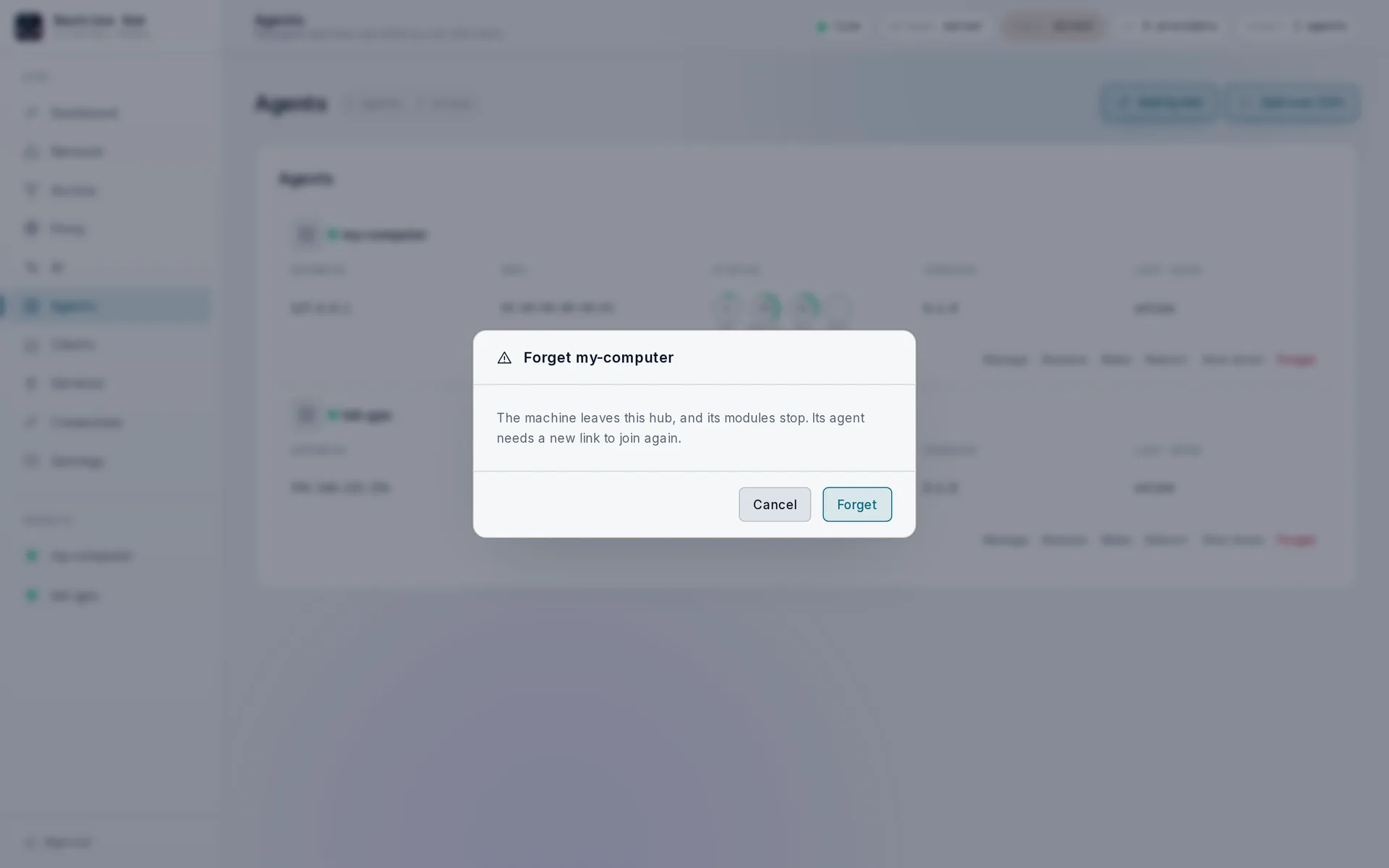
Select Forget, then confirm in the dialog. The system leaves the hub and its modules stop: its shares end, its AI tools return to their own settings, and its desktop sharing turns off.
The agent and the installed apps stay on the computer. The system needs a new link to join again. After it rejoins, its modules return to the list as stopped, and Start puts each one back into use. To remove them completely, see Uninstall.
Agent versions
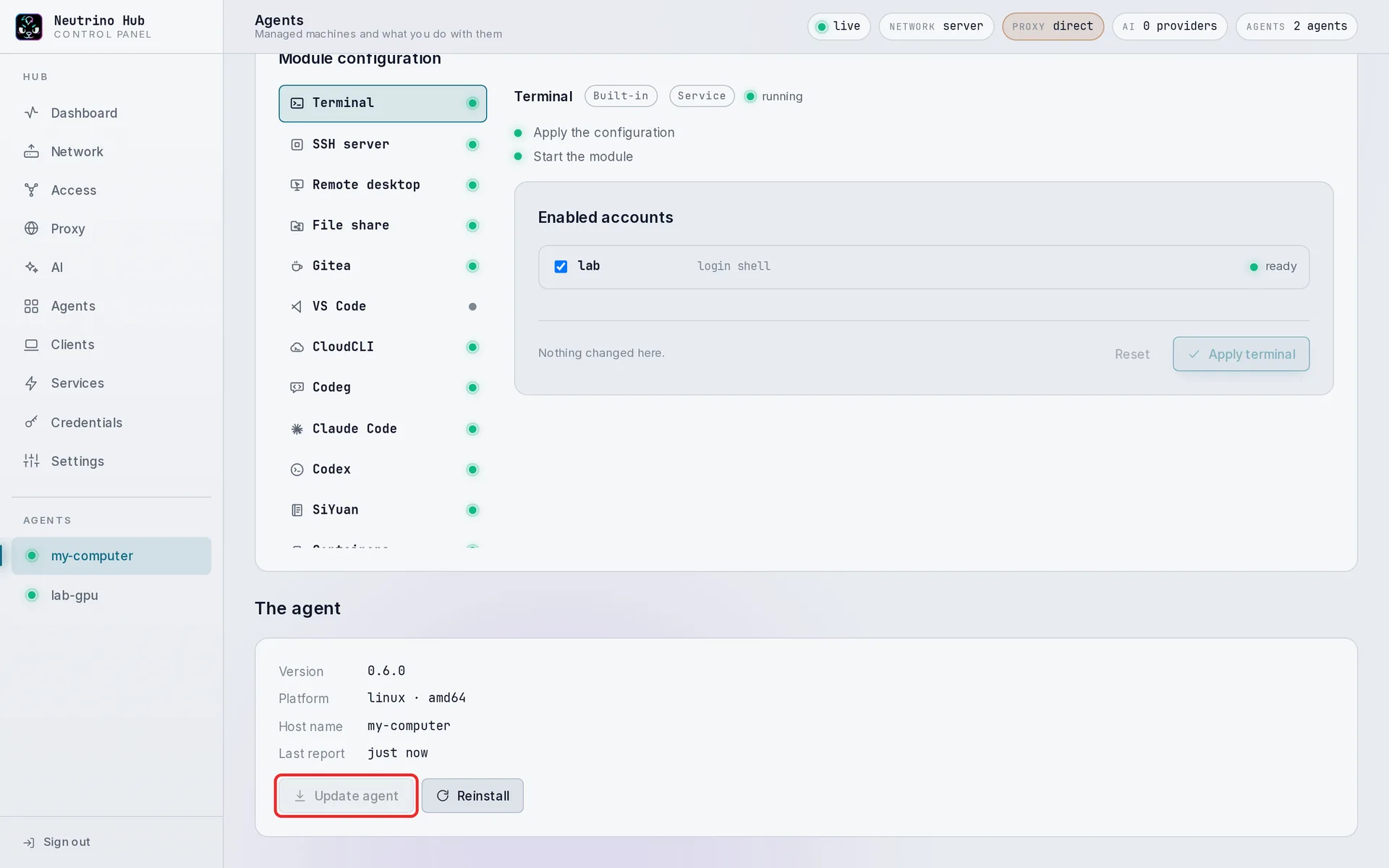
After the hub upgrades, each agent updates automatically when it connects to the hub. If a system did not update, its row shows Not the hub's version; update it on its machine page. In that case, select Manage, scroll to The agent at the bottom of the page, and select Update agent. Reinstall in that section runs over SSH and works for Linux only.
After you select Update agent, a green exit 0 on the status dot means the update finished. If the updated agent never reports to the hub, the status dot shows a red exit 124. The host key can differ from the one the hub recorded, for example after a system reinstall on that computer. The install output then tells you to delete the system and add it again, and it ends with exit code 255.