
English
Choose an access method
An access method is how you connect to the hub when you are away from its LAN. Turning on one method is enough.
A phone and a computer on the same Wi-Fi or router connect over the LAN without an access method. For use away from that network, pick one method by what you already have:
| What you have | Method to turn on |
|---|---|
| A public address on your broadband | Direct |
| A VPS of your own | SSH relay |
| Neither, and you send links to visitors outside | SakuraFrp or OpenFrp |
| Neither, and only you use the hub | EasyTier or NetBird |
SakuraFrp, OpenFrp, EasyTier and NetBird all have free quotas, and you can turn on several at the same time. Of these, only SakuraFrp charges 1 yuan, for its identity verification.
To send a share link to someone, turn on an access method before you generate the link. A link generated earlier does not use a route turned on later.
Requirements of each method
| Method | What you prepare | Can visitors outside open share links |
|---|---|---|
| LAN | Nothing | No |
| NetBird | An account and a reusable setup key | No |
| EasyTier | A console account, or no account and bootstrap peers you enter yourself | No |
| SSH relay | A VPS of your own whose SSH settings you can change | Yes |
| Direct | A public address, with port forwarding set on the router | Yes, after you enter Public address |
| SakuraFrp | An account, 1 yuan for identity verification, and a tunnel created on its website | Yes |
| OpenFrp | An account, real-person verification, and a tunnel created on its website | Yes |
The iPhone app has no virtual network row. To use EasyTier or NetBird on an iPhone, install that service's own app on the phone.
Turn on an access method
Every method turns on the same way. The following steps use Direct:
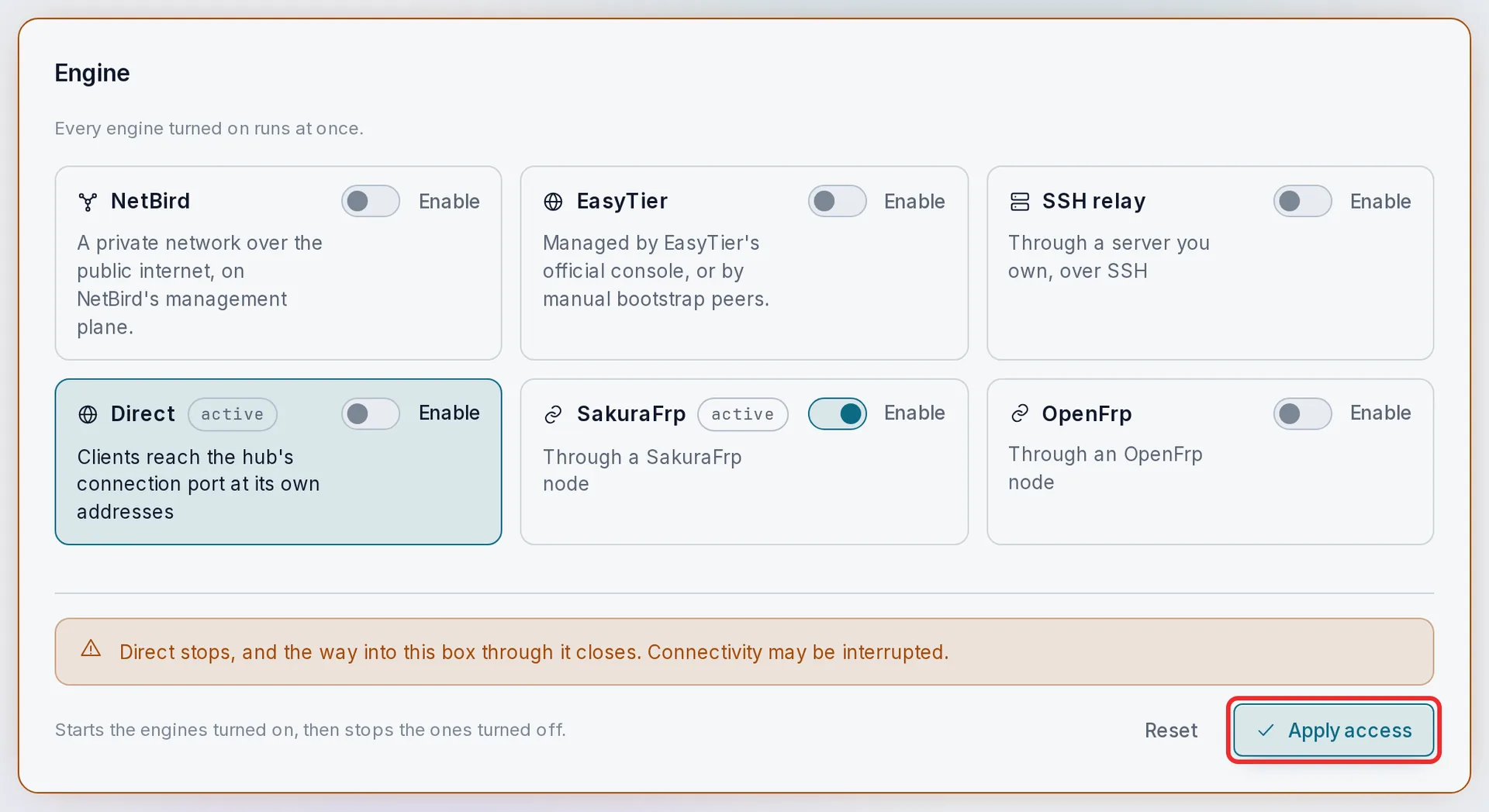
In the panel's left sidebar, select Access. The page has six cards, each with an Enable switch in its upper-right corner, and every switch is off at first.
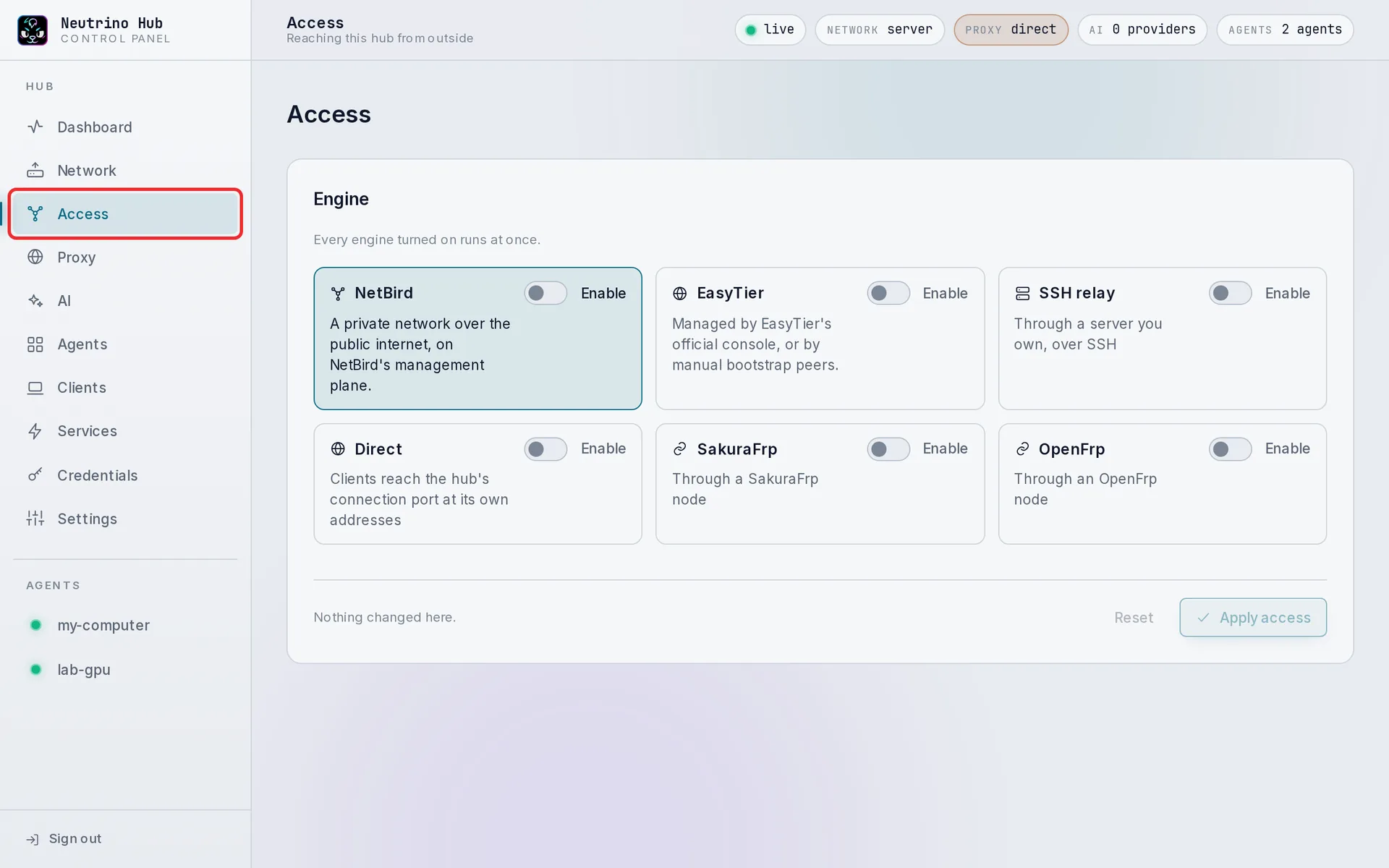
1Select Access 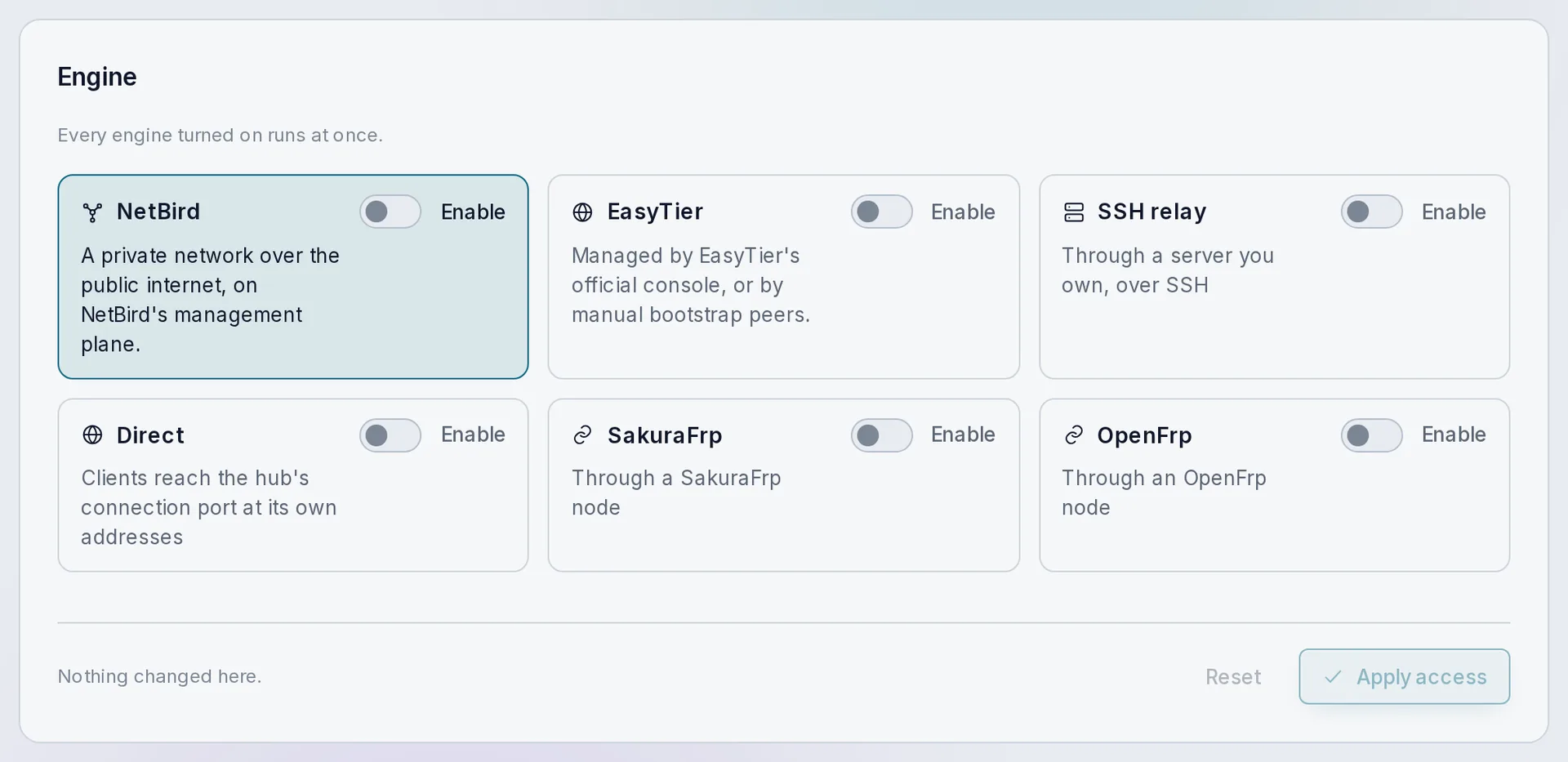
2Six cards Turn on the switch of the card you chose, then select Apply access. The change takes effect only after Apply access.
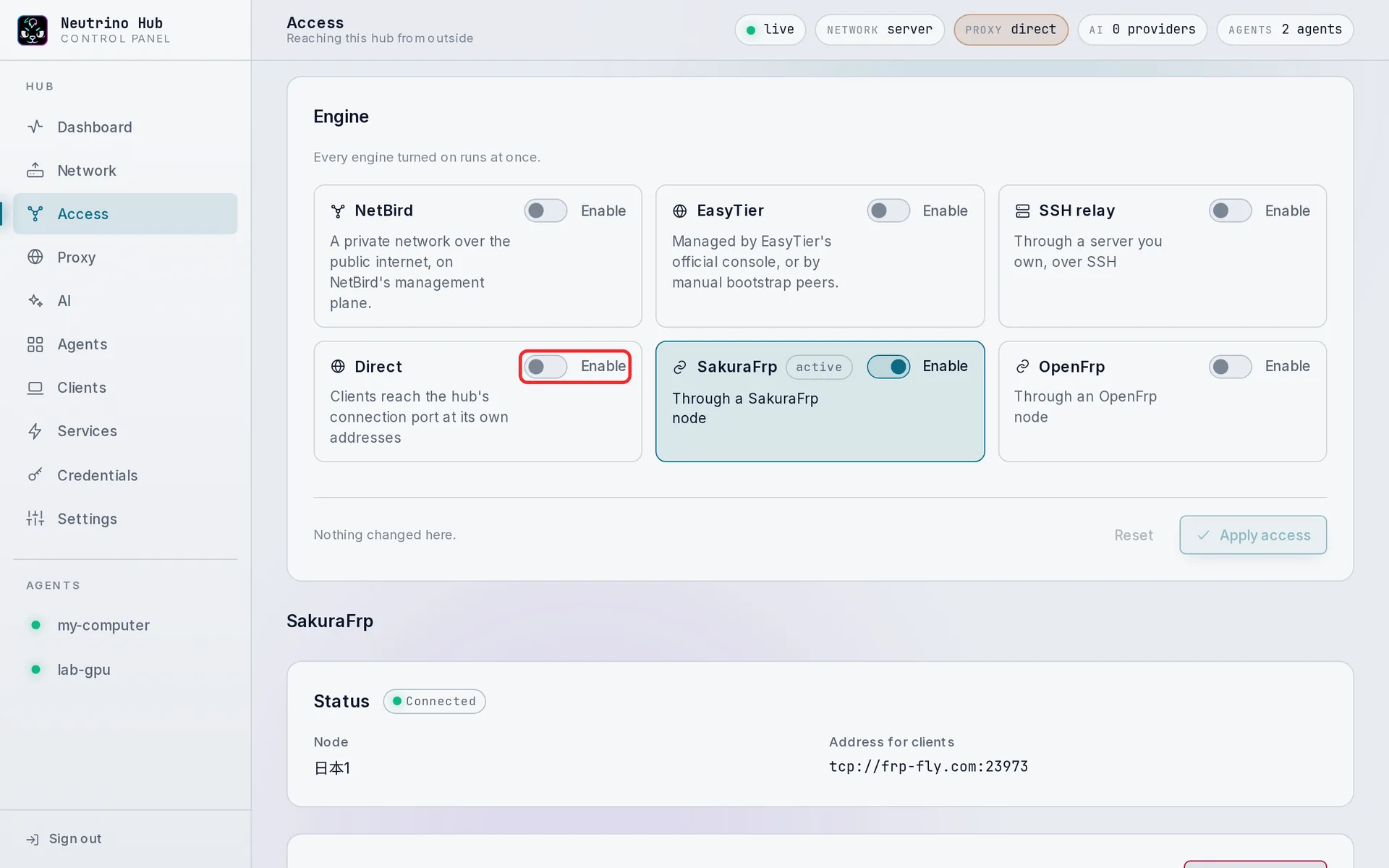
1Turn on the switch 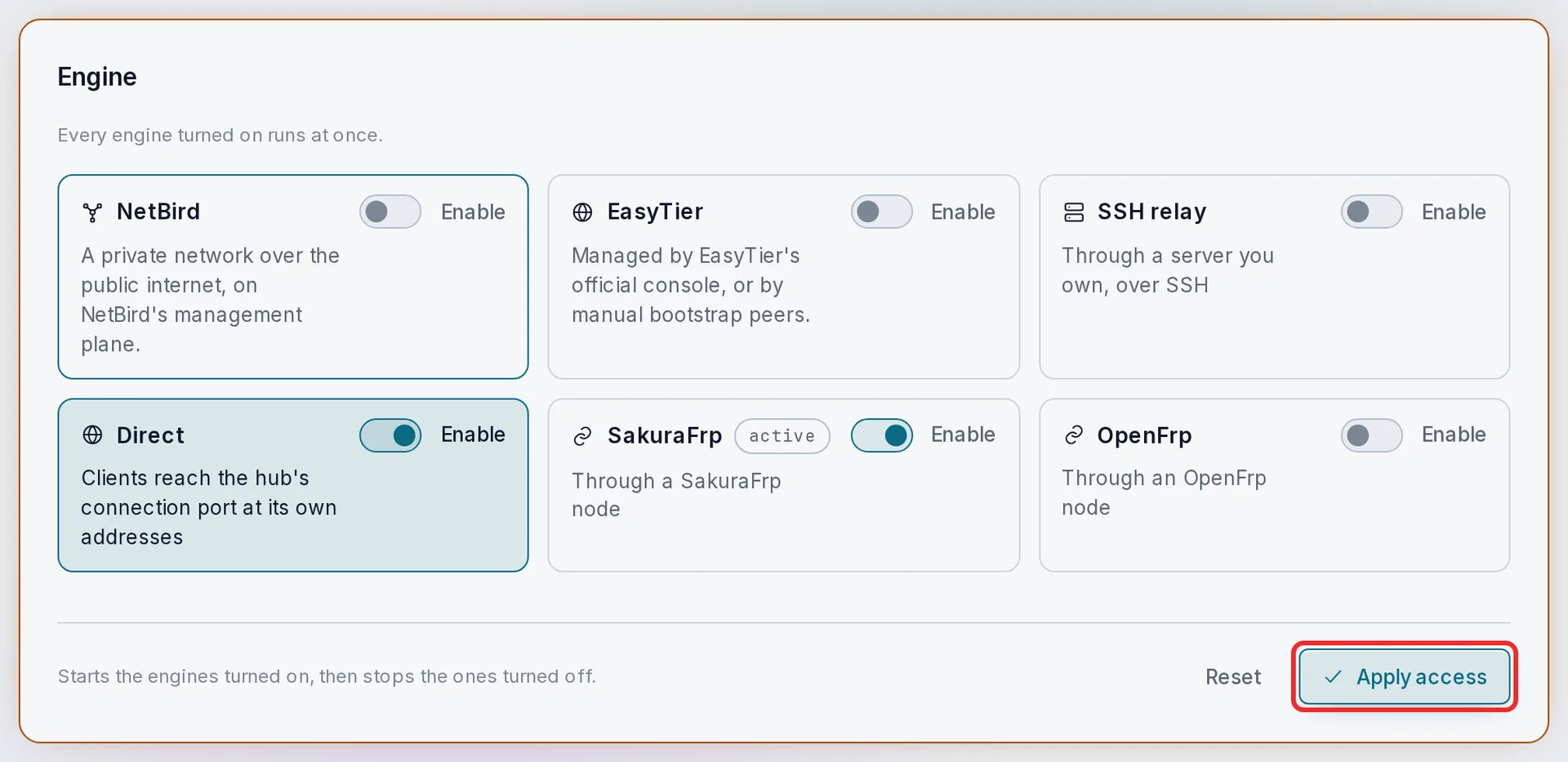
2Select Apply access The card shows active, and its settings appear under it. Continue on that method's own page, which the first table links to.
If a card shows No build for this machine, you cannot turn that card on.
To view the settings of a card that is on, select the card itself. To turn a method off, turn off its Enable switch and select Apply access; the hub keeps every setting you entered. A yellow notice then states that the method stops and how many online clients use it.
Turn on several methods
You can turn on several methods at the same time. When connecting and when the network changes, the client tries every route in parallel and uses the first that connects. When one route fails, the client can use another.
The hub can run EasyTier and NetBird at the same time, and you choose one in the client's virtual network row.
Smart routing applies only to clients. A share link holds one address, fixed when the link is generated. To make a share use a route turned on later, share again, as App share describes.
Free quotas
Free accounts have these limits:
| Service | Bandwidth and traffic | Count | Other limits |
|---|---|---|---|
| SakuraFrp | 10 Mibps, 5 GiB per month | 2 tunnels | Identity verification costs 1 yuan |
| OpenFrp | 12 Mbps | See the official website | Real-person verification; free servers are often overloaded at peak hours |
| EasyTier | Official console: unlimited P2P, 1 GB of relay traffic per month | Up to 20 devices | All features included |
| NetBird cloud | See the official website | Up to 5 users and 100 devices | See the official website |
| Reading date | 2026-10-30; each service's official website is authoritative |
The hub uses one tunnel. The service you use sets your quota. To send links to visitors outside without a public address or a VPS, turn on at least SakuraFrp or OpenFrp.