
English
App sources and kinds
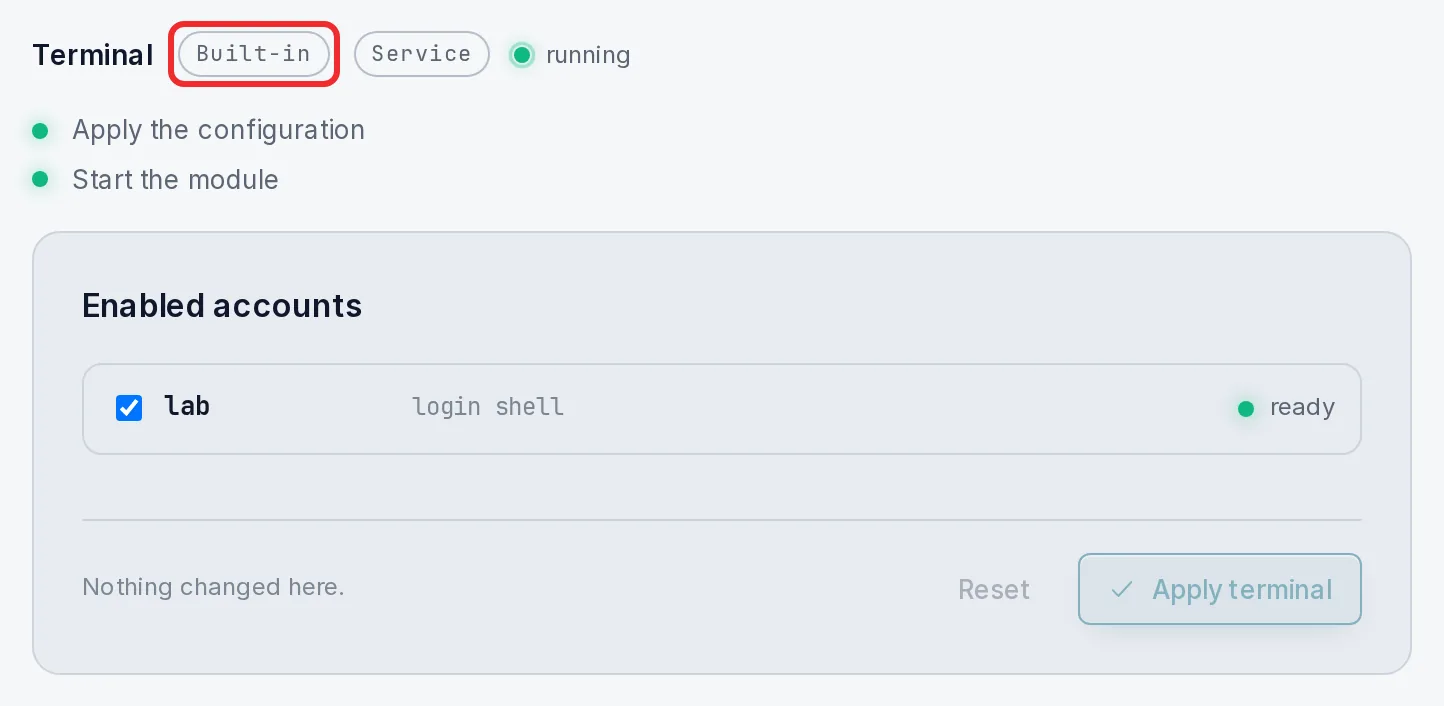
The source and the kind of an app are the two chips the panel shows on every module tab. The source says who installs, upgrades and uninstalls the software, and the kind says whether it runs in the background all the time.
SystemsLinuxWindowsmacOS
EditionsInternationalChina
Sincev0.6.0
On a system's page, select a module in Module configuration. The two chips follow the tab's title, before the running state. In the following picture, Terminal shows Built-in and Service.
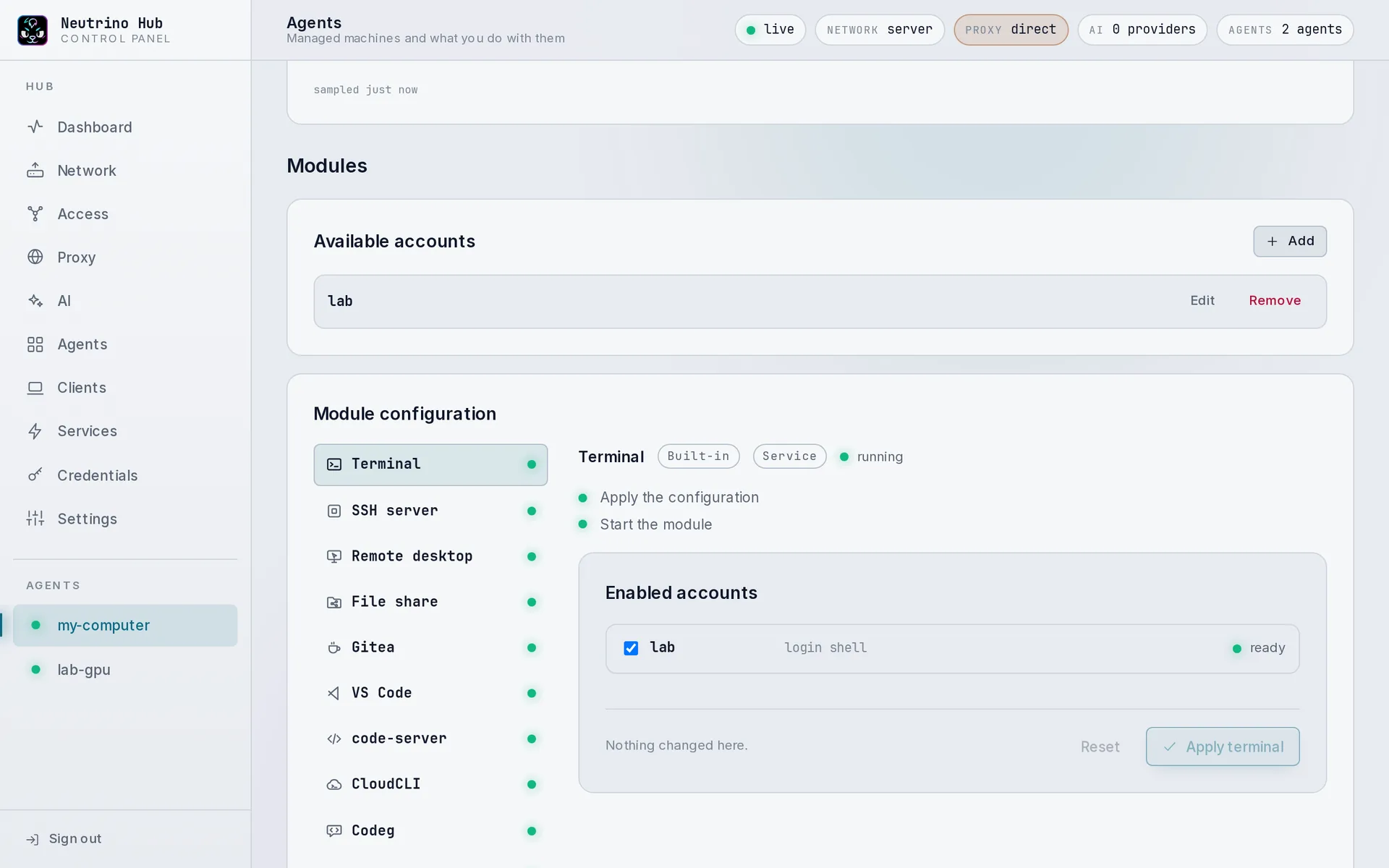
The modules in Module configuration appear in this order: Terminal, SSH server, Remote desktop, File share, Gitea, Ollama, VS Code, code-server, CloudCLI, Codeg, Claude Code, Codex, OpenCode, SiYuan, Containers, Hermes WebUI, Ayakaleaf.
Source
| Source | Meaning | Modules |
|---|---|---|
| Built-in | Installed with the agent, which manages it | Terminal, SSH server, Remote desktop |
| System | Managed by the operating system: installed through its package manager, or a service the system includes. Software you installed earlier counts too | File share; Containers on Linux |
| Upstream | The hub downloads it from the publisher and decides the version | Gitea, Ollama, VS Code, code-server, CloudCLI, Codeg, SiYuan, Claude Code, Codex, OpenCode; Containers on Windows and macOS |
| Container | An image that Podman in the Containers module pulls | Hermes WebUI, Ayakaleaf |
The system's package manager upgrades and uninstalls software whose source is System, whether or not Neutrino Hub installed it.
If the system already has software of the same name that you installed yourself, Neutrino Hub takes it over, and it has no separate source. When the system joins the hub, the agent only reads this software and leaves its files and services unchanged. The agent starts managing it the first time you select a button of this module. Claude Code, Codex and OpenCode are exceptions: the module always installs its own copy, and when you select an account you choose whether to switch to that copy; see Claude Code, Codex and OpenCode. Ollama's official app that you installed yourself on Windows or macOS is handled differently too: after you install the Ollama module, the hub stops the app and turns off its start at sign-in, until you uninstall the module; see Ollama.
Kind
| Kind | Meaning | Modules |
|---|---|---|
| Service | Has Start and Stop; after it starts, it runs in the background until you stop it | Every module except Claude Code, Codex and OpenCode |
| Program | Has no Start or Stop, and runs only when you run it | Claude Code, Codex, OpenCode |
The tabs of Terminal, SSH server and Remote desktop have no Start button, yet these three are services too, and the agent runs them.
Upgrade only
The tabs of Gitea, Ayakaleaf, Codeg and CloudCLI show a third chip, Upgrade only. After an upgrade, the data of these apps cannot go back to an older version. In the Install another version… list, versions older than the installed one are therefore grey and cannot be selected.
Install file types
The agent places software according to the type of its install file, and the panel does not show these types.
| Type | File format | What the agent does | Modules |
|---|---|---|---|
| Archive | tar_gz, zip; tar_zst for Ollama on Linux | Unpacks it into the module's program folder and makes it read-only; the system's zstd unpacks Ollama's tar_zst on Linux | VS Code, code-server, the Codeg server, SiYuan on Linux, OpenCode, Ollama, and the Node.js, Claude Code and Codex included with CloudCLI and Codeg |
| Installer package | msi on Windows, pkg on macOS | Puts it in the module's program folder, then passes it to the system's installer | Containers on Windows and macOS |
| Disk image | dmg on macOS, nsis on Windows | Takes the program out, copies it into the module's program folder and makes it read-only; the program inside the image does not run | SiYuan on Windows and macOS |
| Virtual machine image | tar_zst, raw_zst | Downloaded by the hub and placed unchanged in the module's program folder, where Podman creates the virtual machine from it | Containers on Windows and macOS |
| Container image | image | Pulled from a registry by Podman on the system | Hermes WebUI, Ayakaleaf |
| Single program file | binary | Keeps the publisher's original file and adds execute permission | Gitea |
| npm package | npm | Installed with npm, as the account, into the account's data folder | CloudCLI |
Install locations
The module's program folder and the account's data folder are in these places on each system, where <module> is the module's name:
| Folder | Linux | macOS | Windows |
|---|---|---|---|
| Program folder | /var/lib/neutrino/agent/<module>/ | /Library/Application Support/Neutrino/agent/state/<module>/ | %ProgramData%\Neutrino\agent\state\<module>\ |
| Account's data folder | ~/.local/share/neutrino/agent/<module>/ | ~/Library/Application Support/Neutrino/agent/<module>/ | %LOCALAPPDATA%\Neutrino\agent\<module>\ |
Some types use other locations:
- Single program file: in
/usr/local/bin/on Linux, and in the module's program folder on macOS and Windows. A new version replaces the old file as a whole. - Container image: in Podman's own storage, outside the module's program folder. On Linux this is root's storage, and on Windows and macOS the storage inside the Podman virtual machine.
- Program: in the module's program folder. The agent puts this folder first in the PATH of each selected account; see the Settings section of Claude Code.
- Installer package: the system's installer puts the program in a location of its own. Podman is in
C:\Program Files\Podman\on Windows and in/opt/podman/on macOS.
For the steps to install an app on a system, see Install an app on a system.