
English
iOS app
The iPhone client of Neutrino Hub is the iOS app. After you sign it with your own Apple ID and install it one time, you use the apps and files on your computers from the iPhone.
EditionsInternationalChina
Sincev0.6.0
The app comes as an .ipa file from outside the App Store and TestFlight. You download the file, sign it with your own Apple ID, and install it. The app requires iOS 16 or later.
Install
Open the release page of the International edition or the China edition. Download
neutrino-client-<version>-ios.ipa, where<version>is the release number. The China edition's file name contains-cn.Connect the iPhone to the computer with a USB cable. On the computer, open a signing tool, sign in with your Apple ID, then sign the file and install it on the phone.
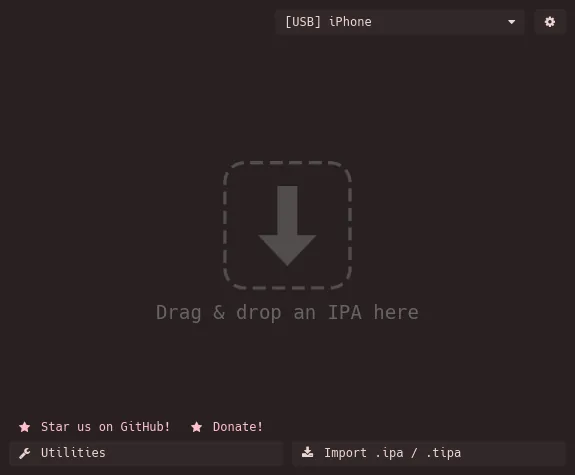
Signing tools include Sideloadly and AltStore (Windows, macOS) and Impactor (Linux, macOS, Windows). The following picture shows Impactor, with the USB-connected iPhone in the upper-right corner. Select Import .ipa / .tipa and choose the downloaded file.
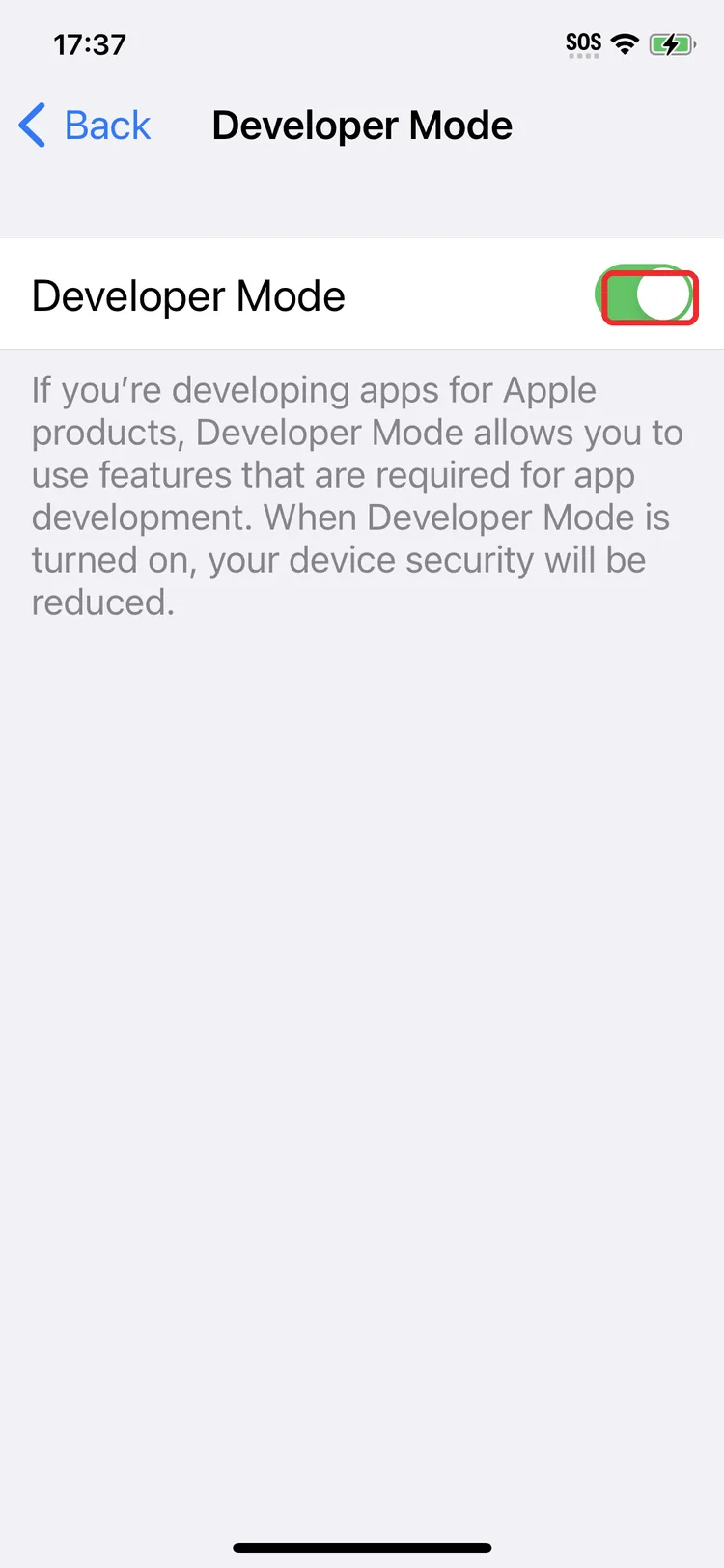
On the iPhone, open Settings > Privacy & Security > Developer Mode and turn on the switch. The iPhone prompts for a restart; after it restarts, confirm one more time.
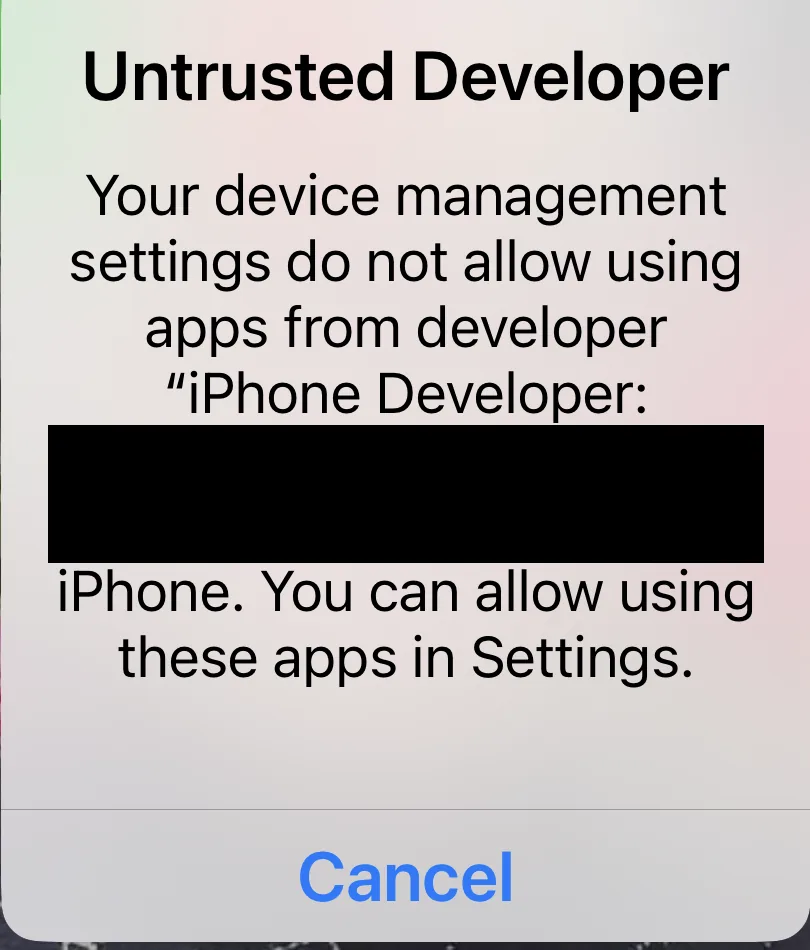
The first time you open the app, the screen shows Untrusted Developer, because the signature uses your own Apple ID. Select Cancel.
Open Settings > General > VPN & Device Management, and select your Apple ID under Developer App. Select Trust, then select Trust in the dialog. The step is complete when Neutrino appears with Verified.
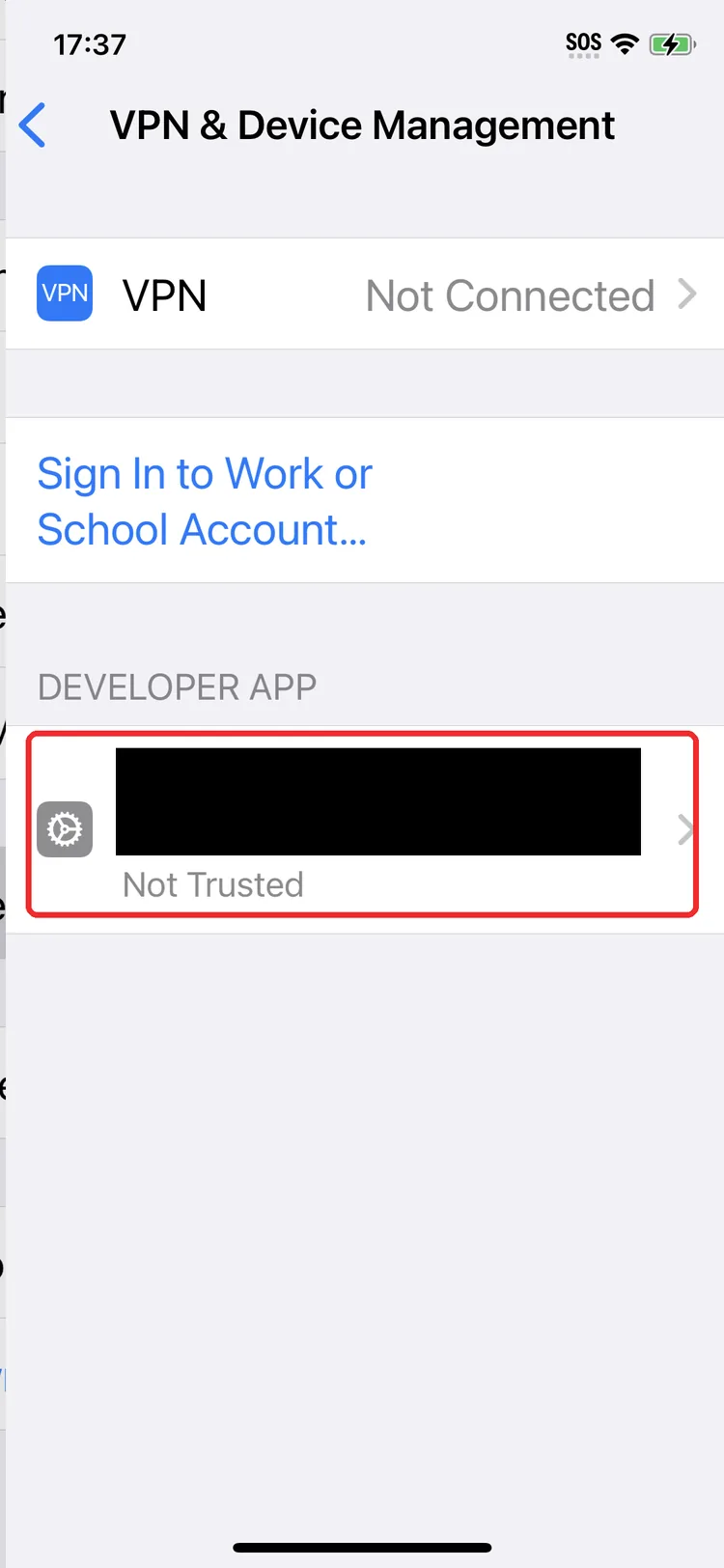
1Select your Apple ID 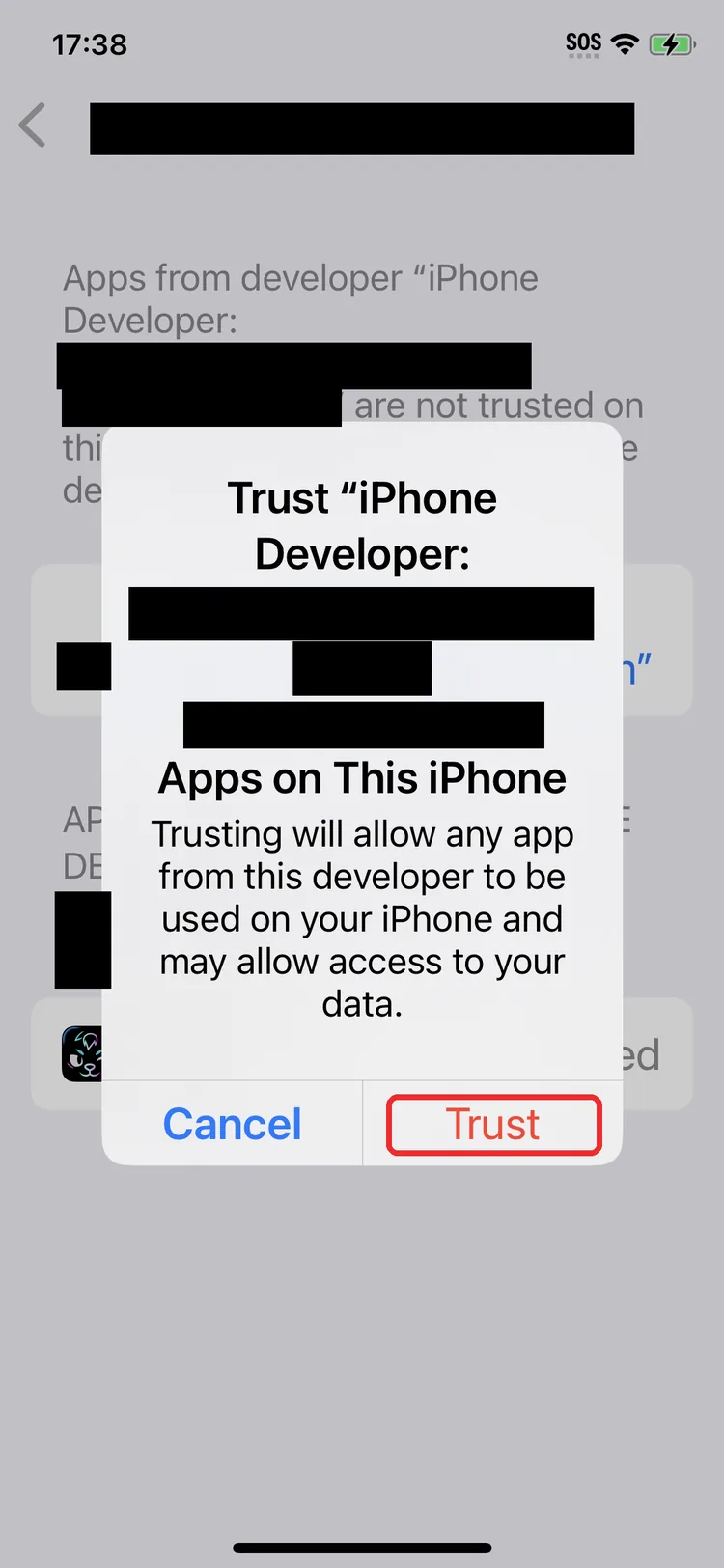
2Select Trust 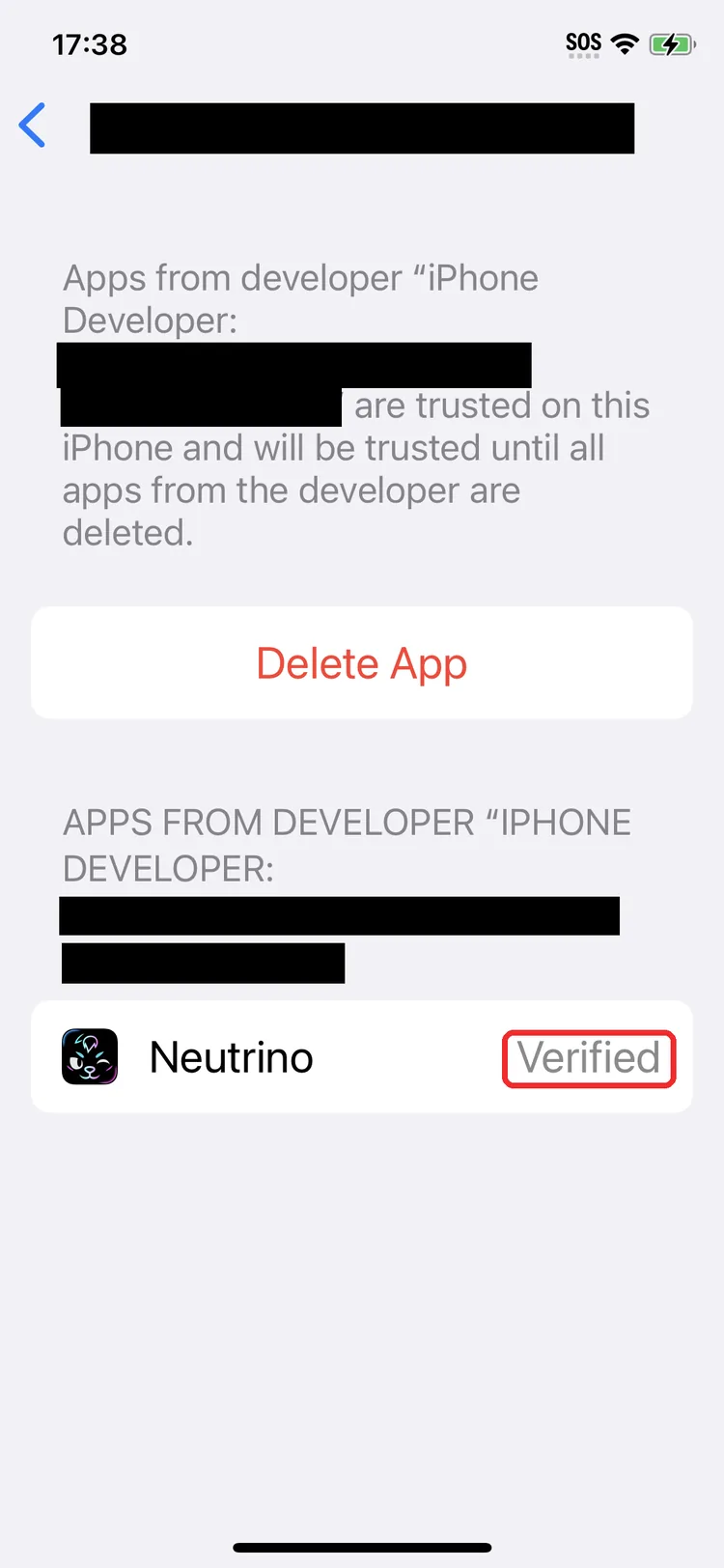
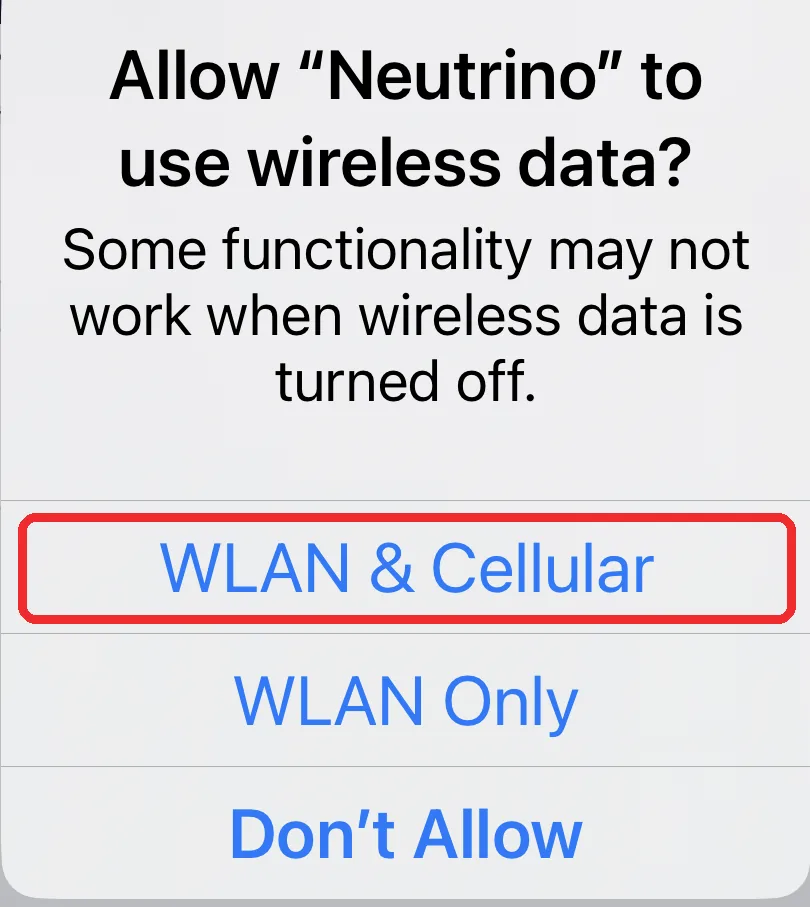
3Verified Open the app again. If the screen shows Allow “Neutrino” to Use Wireless Data?, select WLAN & Cellular. With WLAN alone, the phone loses the hub when it leaves the wireless network.
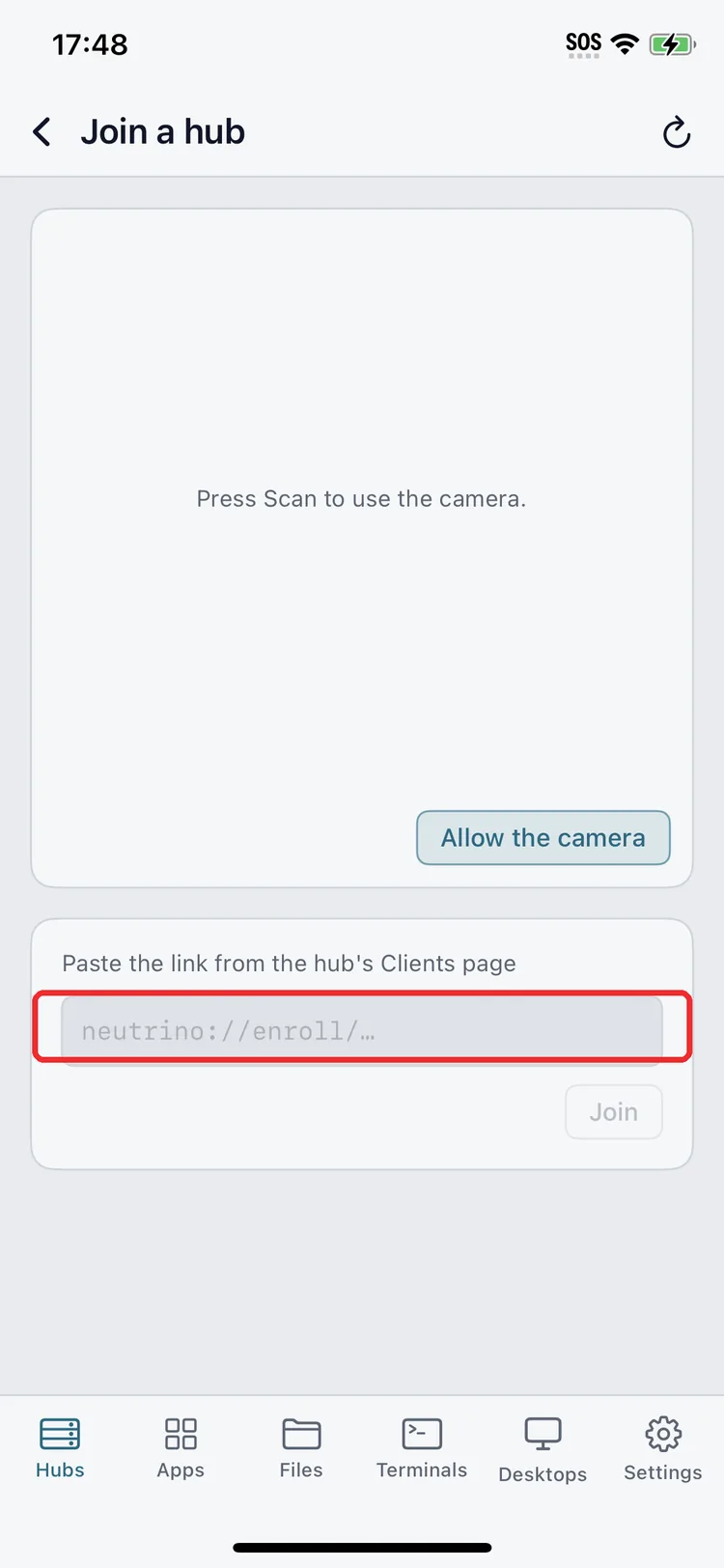
Select Join a hub, then scan the QR code in the panel, or paste the link into the input box and select Join. Join a hub covers the panel steps.
A signature from a free Apple ID expires after 7 days, and a phone holds at most 3 such apps at a time. Sign the app again before it expires. A paid Apple ID's signature is valid for one year. To upgrade, sign the new .ipa and install it over the old version.
Connect to the hub
The app tries every hub address at the same time and uses the first that connects. Direct, SakuraFrp, OpenFrp and SSH relay work with the app alone.
A virtual network takes different steps, because the app has no virtual network row. Install the NetBird or EasyTier app on the phone and join the same virtual network. If the App Store in mainland China lacks these apps, you can use an Apple ID from the United States store. When NetBird or EasyTier connects or disconnects, the app tries to connect again.
Apps
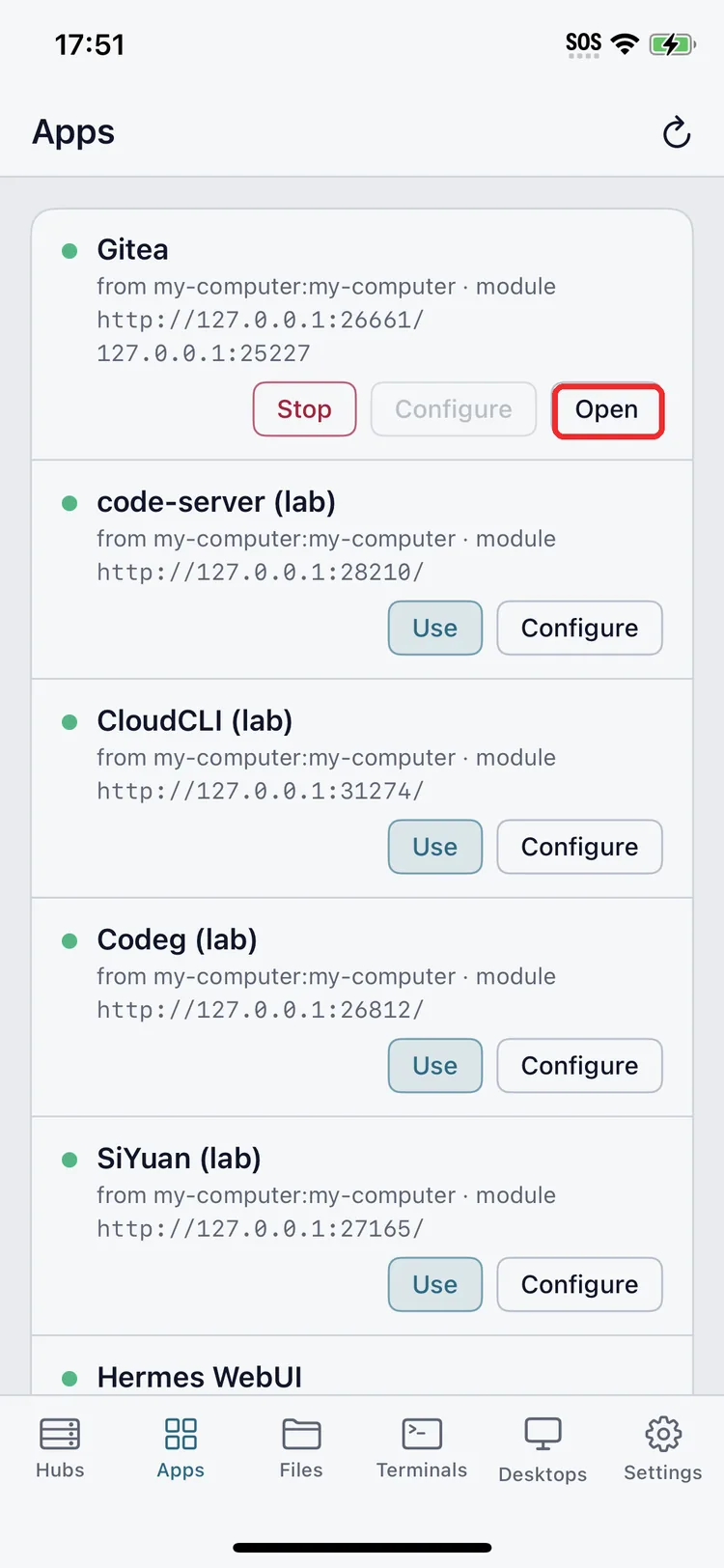
The buttons match the Android app: select Use, then Open.
Open shows the web page in the app's built-in browser, and the back arrow in the upper-left corner closes the page. The entry stays open until you select Stop.
Pages in the built-in browser share one set of sign-in data, so two apps can sign each other out; select Open again when that happens. A port entry works only while the app is on screen.
Files
You view shares inside the app; the system's Files app does not list them.
Select Open on the row to open the app's share page. The page shows one folder per screen.
Select a file to preview it, then use the share button in the preview to save it elsewhere.
The + button in the lower-right corner holds Upload from Files, Upload from Photos and New folder.
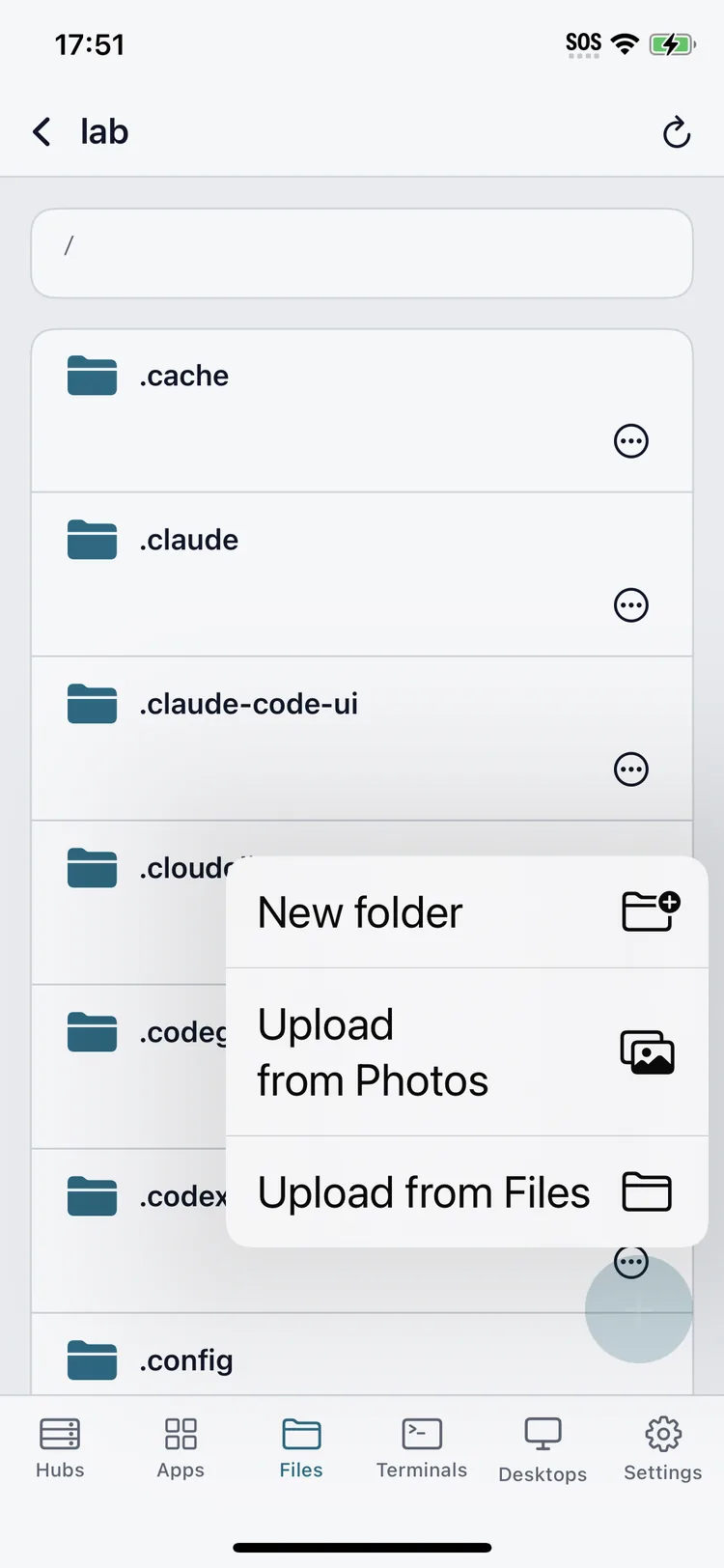
Each row's menu has Rename, Save to Files and Delete. Files transfer one at a time, the rest show Waiting, and you can Cancel any of them. For a share declared by hand, enter the username and password the first time, then select Connect.
Terminals and desktops
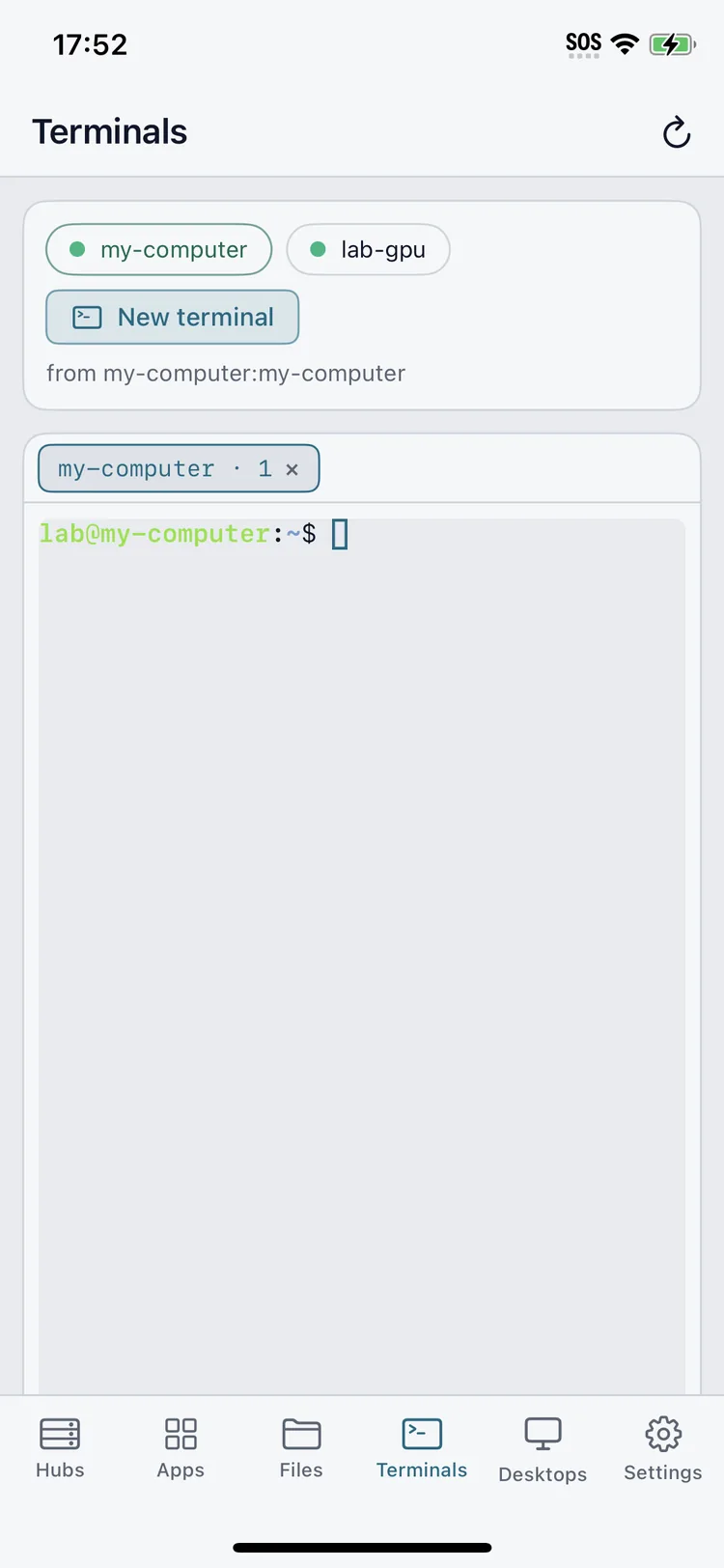
Terminals and Desktops work as in the Android app.
After switching to another app
On iPhone, connections stay open for about 30 seconds after you switch to another app, then all of them close. When you return, the app reconnects automatically, and each entry returns to its previous port.
Plain terminals end. After you return, you can reconnect to terminals with Persistent or Shared on. Transfers in progress show as interrupted; select Retry.
If you return within that time, the desktop stays connected. After that time, select Connect again.
Settings
Change Language and Theme, then select Save. In About, this device appears by its model, such as iPhone, in place of the name you gave the phone.