
English
Terminal commands
You can open terminals on your other systems and run commands there from the command line and from scripts, with the same results as on that system.
These commands exist only in the desktop client. Before you start, check these conditions:
- The client is running.
- This computer has the Terminals permission.
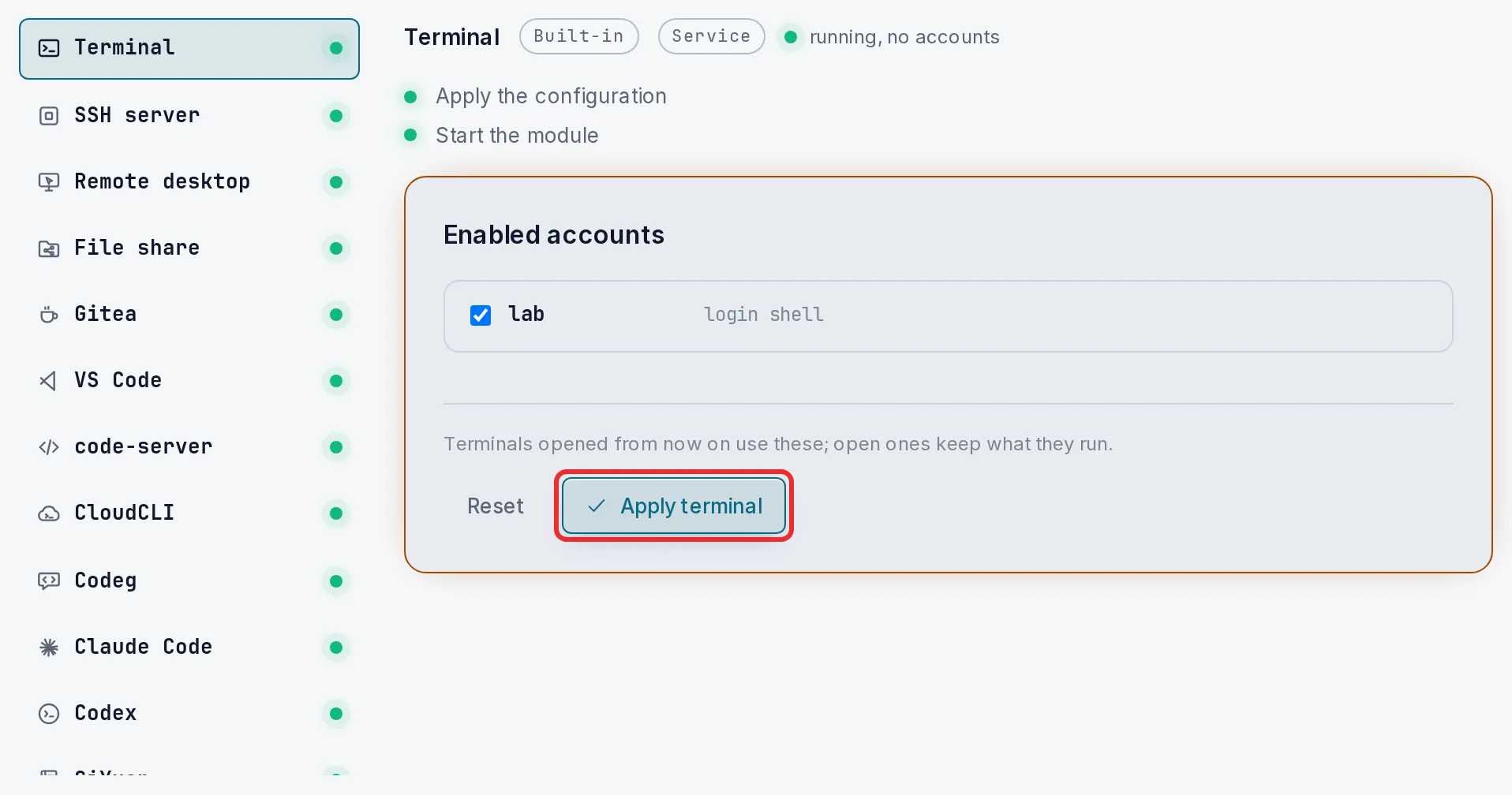
- That system's Terminal tab has an account enabled.
To enable an account, open that system's page, select the Terminal tab, select the account, then select Apply terminal. When the account shows ready, terminal commands work.
Run one command
nclient terminal exec runs a command and returns when the command finishes. Replace my-computer with your system's name in the panel, and put the command to run after --.
bash
nclient terminal exec my-computer -- uname -srexec returns the output and the exit code unchanged, so a script can check whether the command succeeded.
text
Linux 5.15.0-198-genericExit code 125 means the run was refused, for example because that system has no account enabled. Exit code 126 means the system was not found, and the command lists the available systems. Every other exit code comes from the command you ran.
exec runs outside any session, so other windows cannot see its input.
Open a terminal
The following command opens a new terminal in your current window. The terminal ends when you exit the shell.
bash
nclient terminal open my-computerTo list the sessions, run the following command:
bash
nclient terminal list my-computertext
SESSION   ACCOUNT  OPEN  PERSISTENT  SHARED  ATTACHED
91c99b07  lab      5s    no          no      1
To reattach to a running session, run the following command, with the first characters of a session from the list in place of <session>. If two sessions match, the command lists the candidates. Press Ctrl+] to detach, and the session keeps running.
bash
nclient terminal attach my-computer <session>To keep a session after you close the window, run the following command:
bash
nclient terminal set my-computer <session> --persist onOther options
| Option | Effect |
|---|---|
--account <account> | Chooses the account for open and exec; without it, the first enabled account is used |
--tty | Gives exec a terminal, which full-screen programs such as top and vim need |
--hub <hub> | Picks one hub when two hubs have systems with the same name |
terminal set <system> <session> --share on | Opens the session to every client with the permission |
terminal stop <system> <session> | Ends the session and the programs in it |
Add -h to any command level for its help. nclient commands lists every command.