
English
EasyTier
EasyTier is software that connects your devices in a virtual network. The hub and the devices join the same virtual network, and the devices connect to the hub's address in it. It works without a public address.
SystemsLinuxWindowsmacOS
EditionsInternationalChina
Sincev0.2.0
| Free account quota | Value |
|---|---|
| Features | All features |
| Official console | Unlimited P2P, 1 GB of relay traffic per month |
| Devices | Up to 20 |
| Reading date | 2026-10-30; the EasyTier website is authoritative |
EasyTier runs in one of these modes:
- EasyTier console: uses the official console, where you register an account.
- Manual bootstrap peers: works without an account. You enter a bootstrap peer address, that is, the address of a computer already on the virtual network.
Before you start, join the device to the hub and turn on its Virtual network permission, as Clients describes. With only EasyTier on, the hub refuses to generate App share links; to share an app, also turn on SakuraFrp. A device uses one of EasyTier and NetBird at a time. On an iPhone, install EasyTier's own app.
Turn on EasyTier
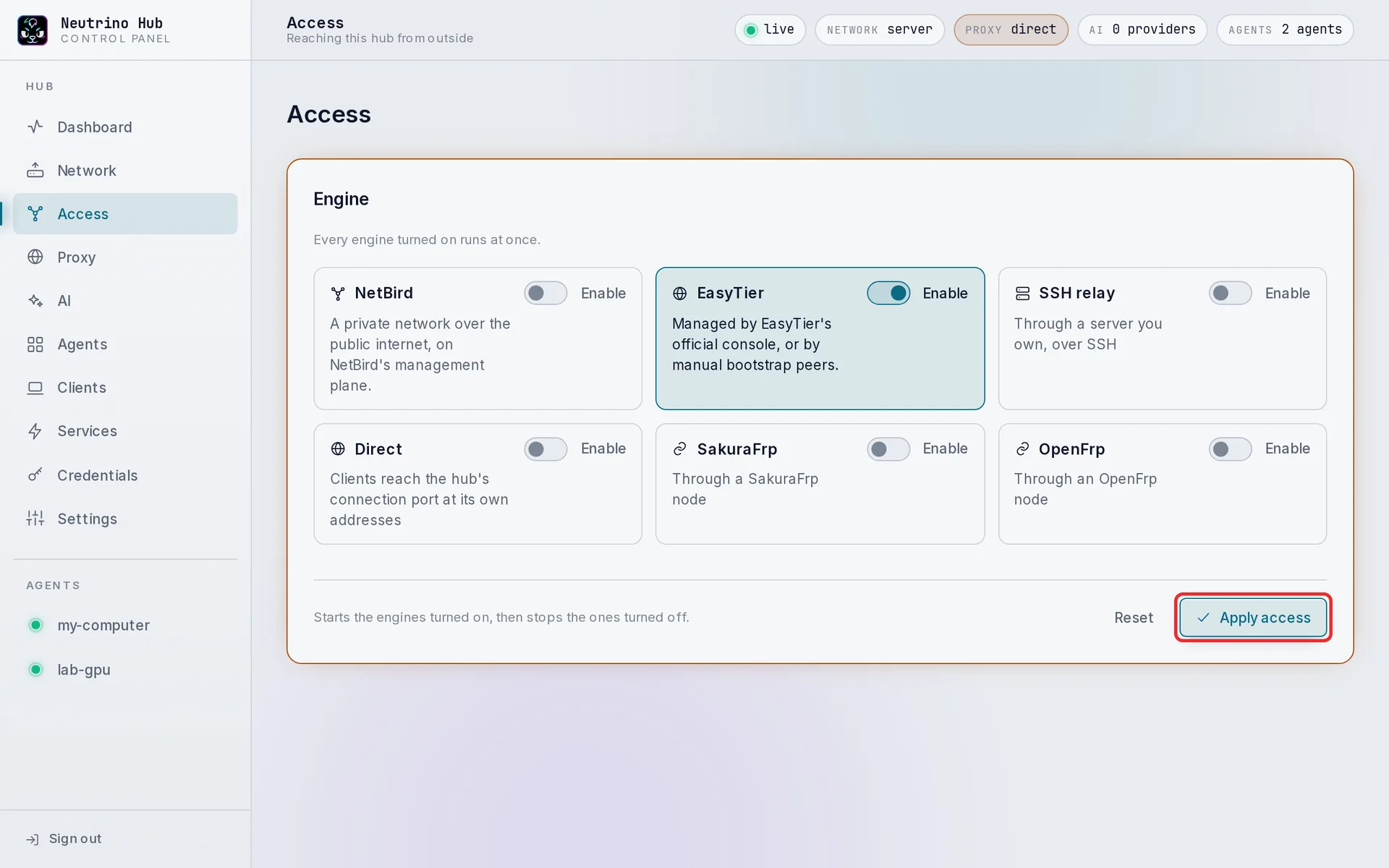
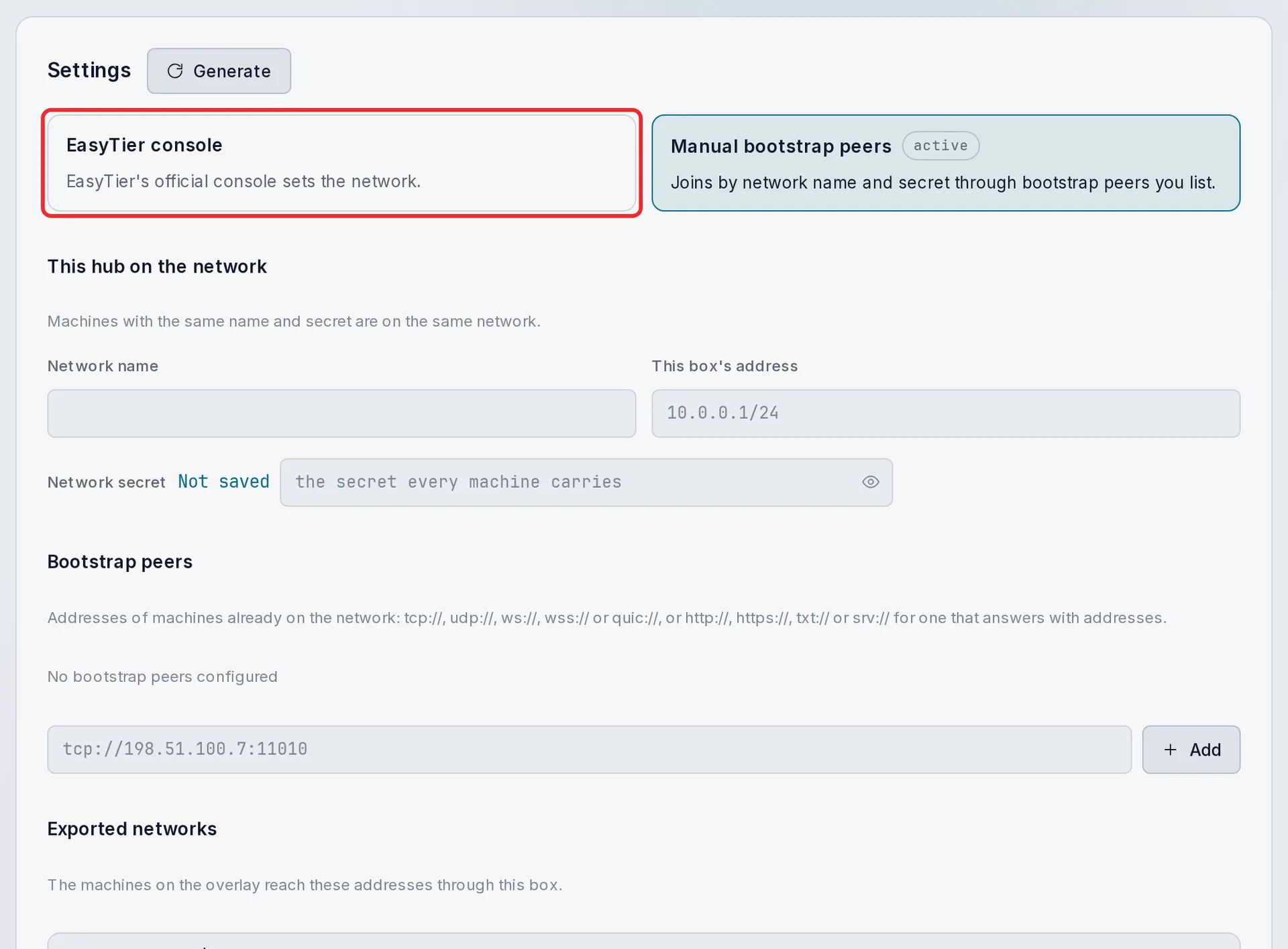
In the panel's left sidebar, select Access, turn on the EasyTier card's switch, then select Apply access. The Settings section appears with the EasyTier console and Manual bootstrap peers cards. Choose one card, then follow its section.
Use the console
In a browser, open console.easytier.net, register and sign in.
In the upper-right corner, select 设备接入方法 (Device enrollment method), then choose a key in 接入密钥 (Enrollment key).
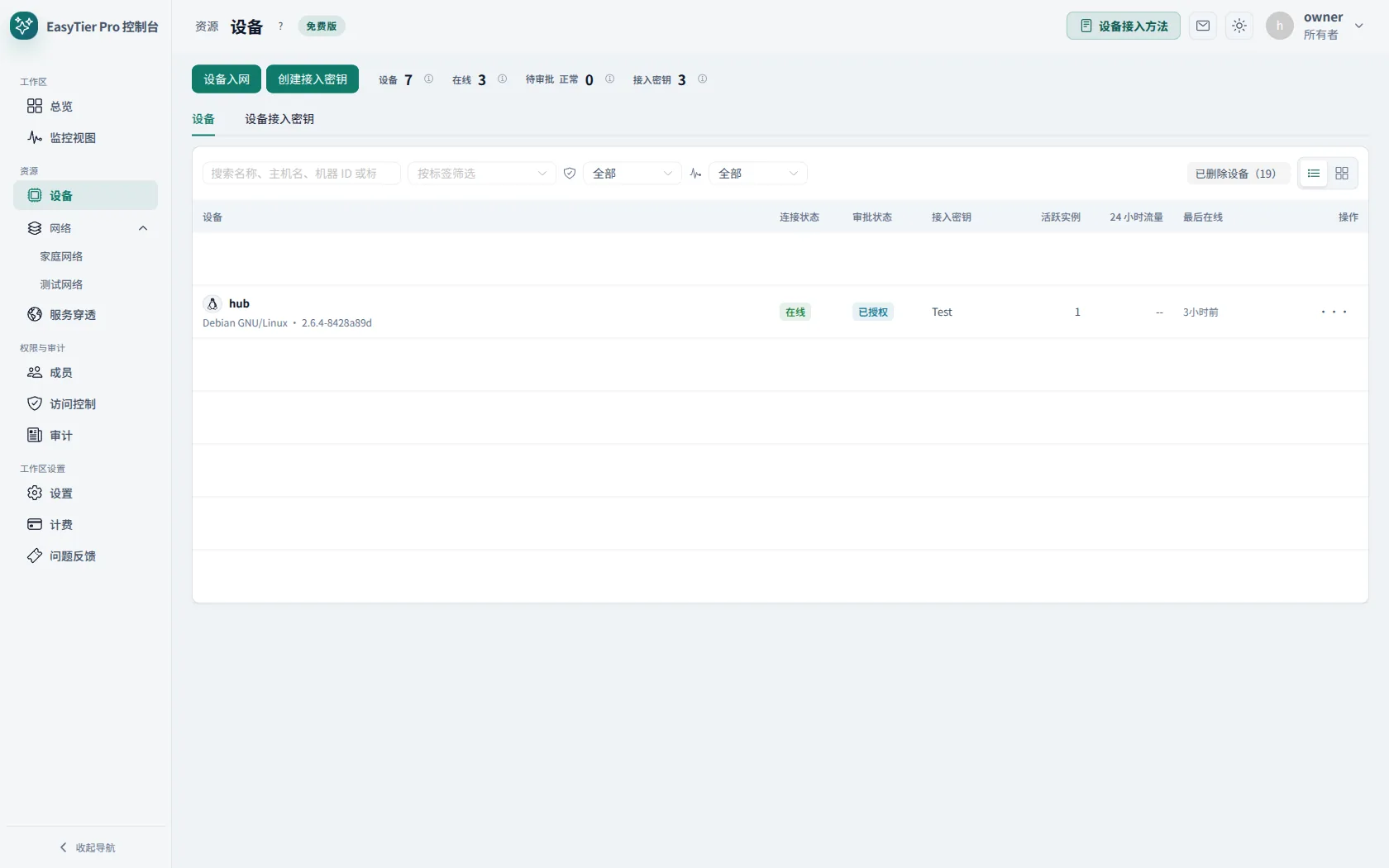
Copy the whole address after
--config-serverin the command.Back in the panel, select the EasyTier console card and paste the address into Console address. Turn on Secure mode, because the EasyTier console uses secure mode by default. Then select Apply EasyTier settings, and the panel shows Waiting for the console.
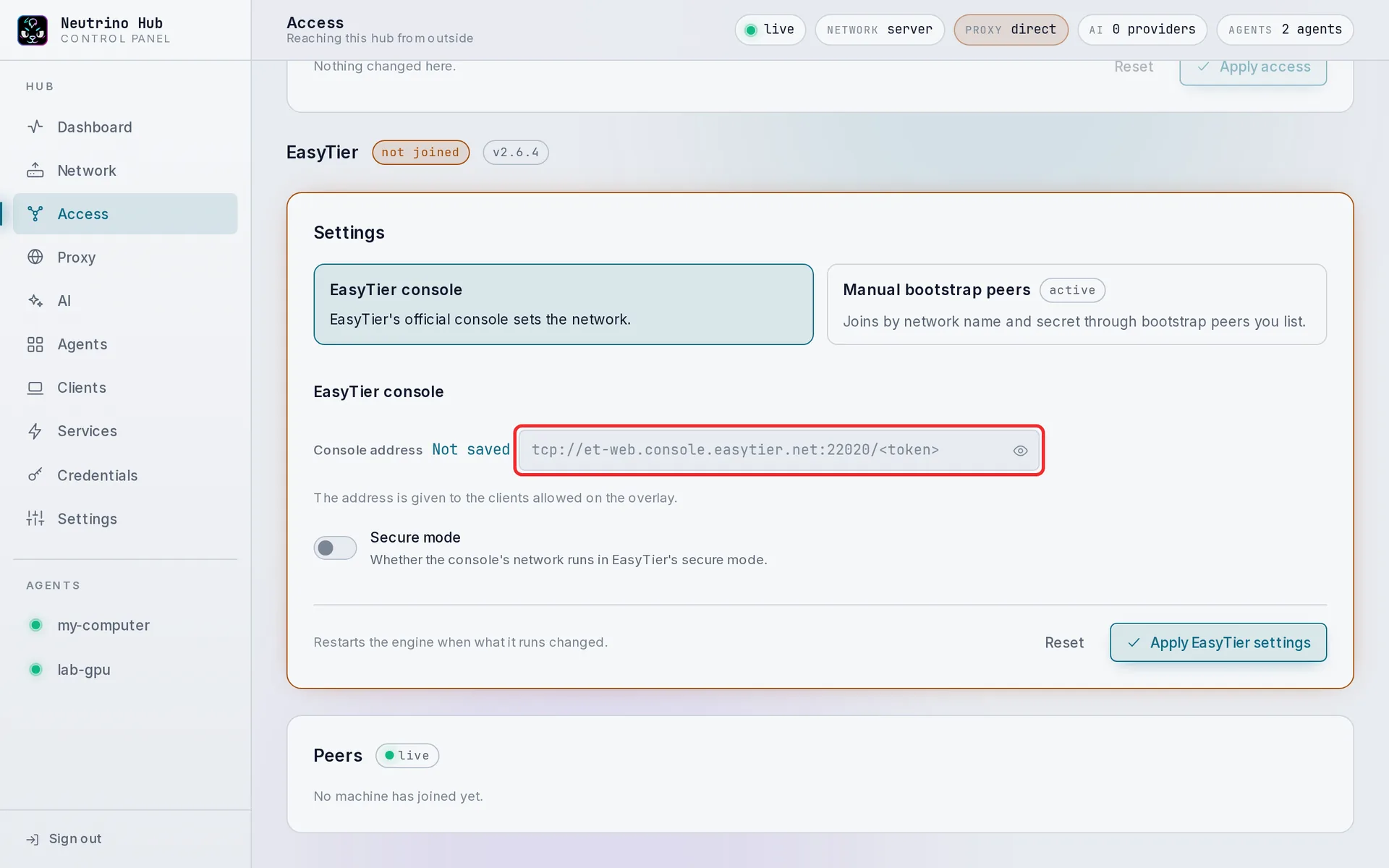
1Paste the address 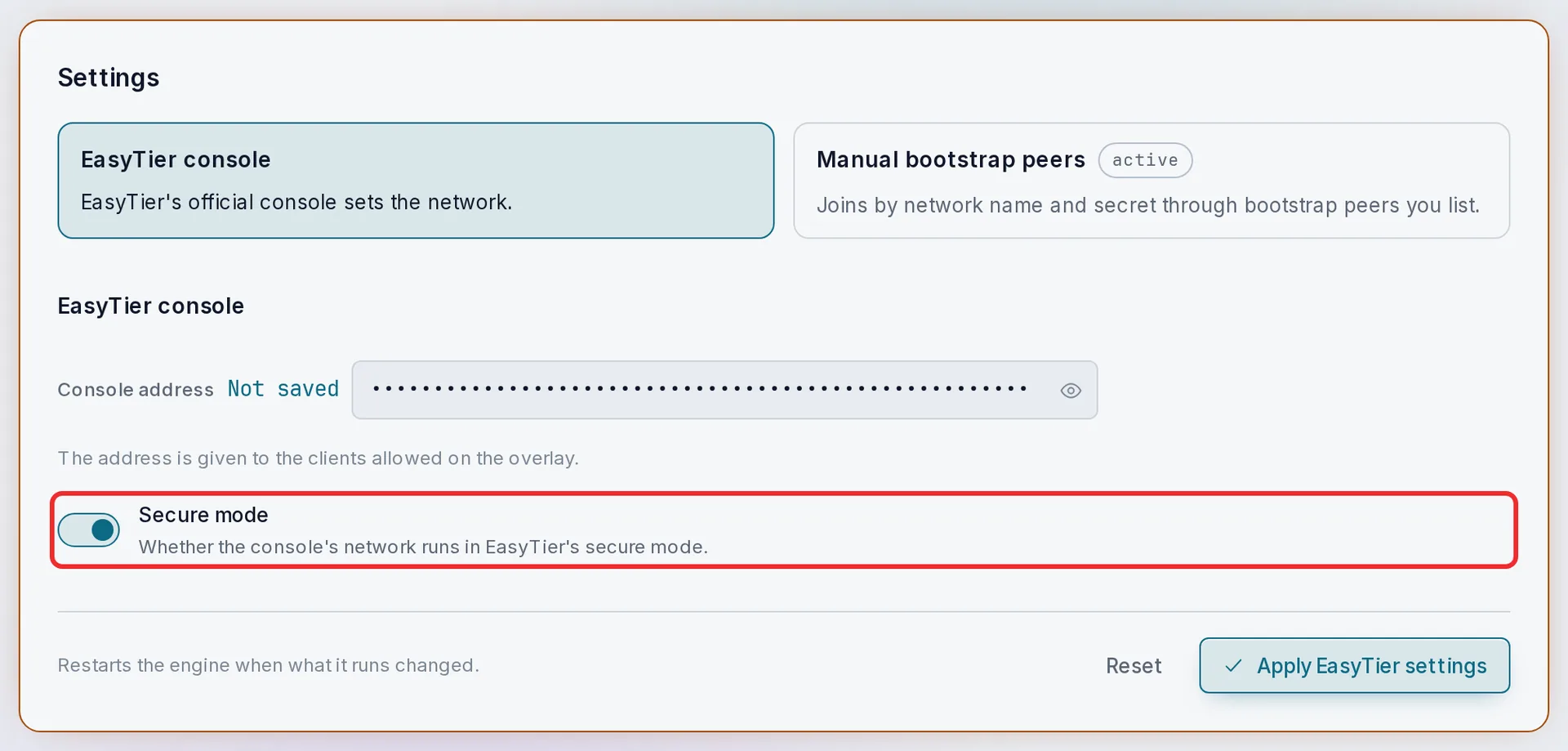
2Turn on Secure mode, then select Apply EasyTier settings Back in the console, create a network under 网络 (Networks) and attach the hub to it.
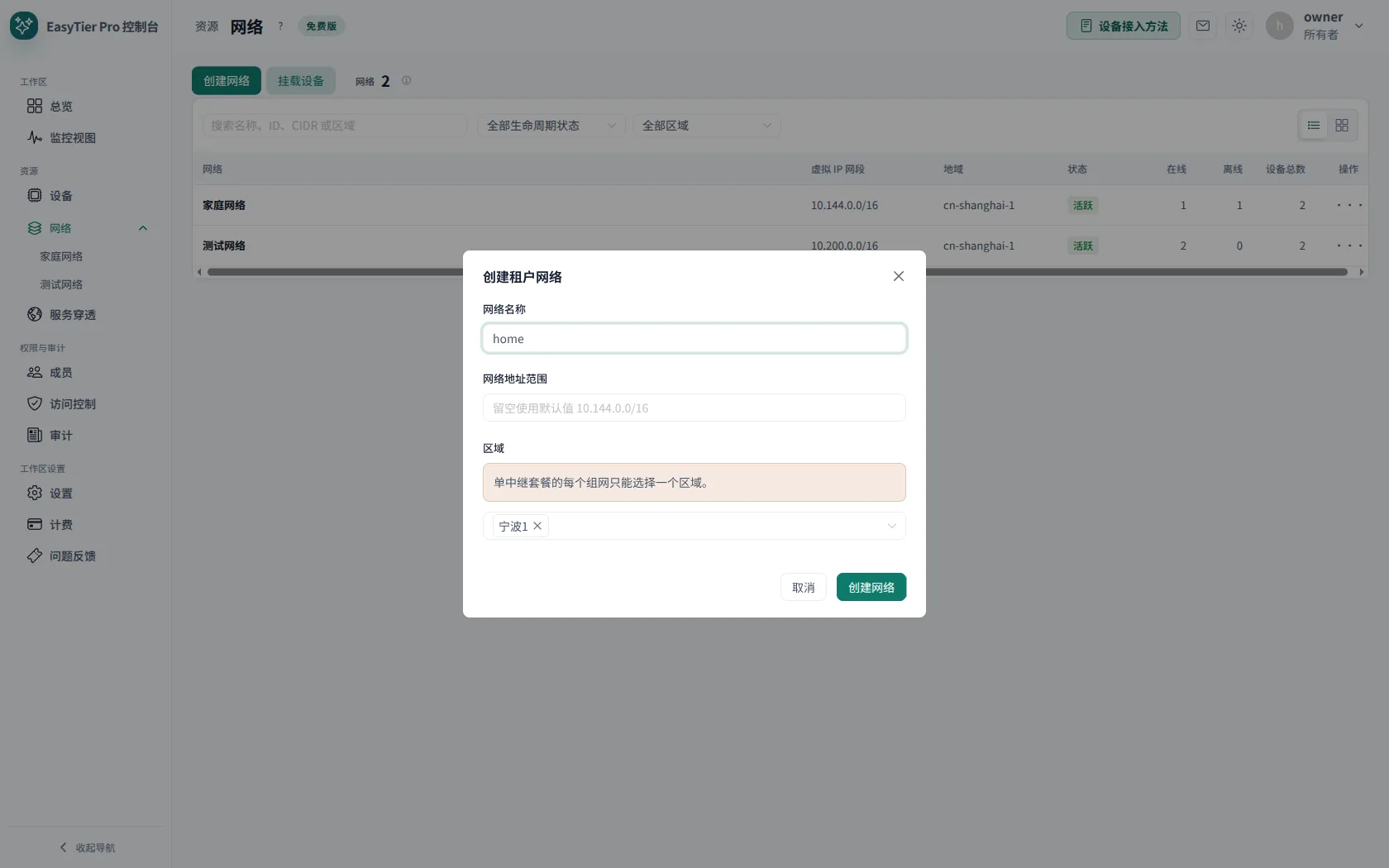
1Create a network 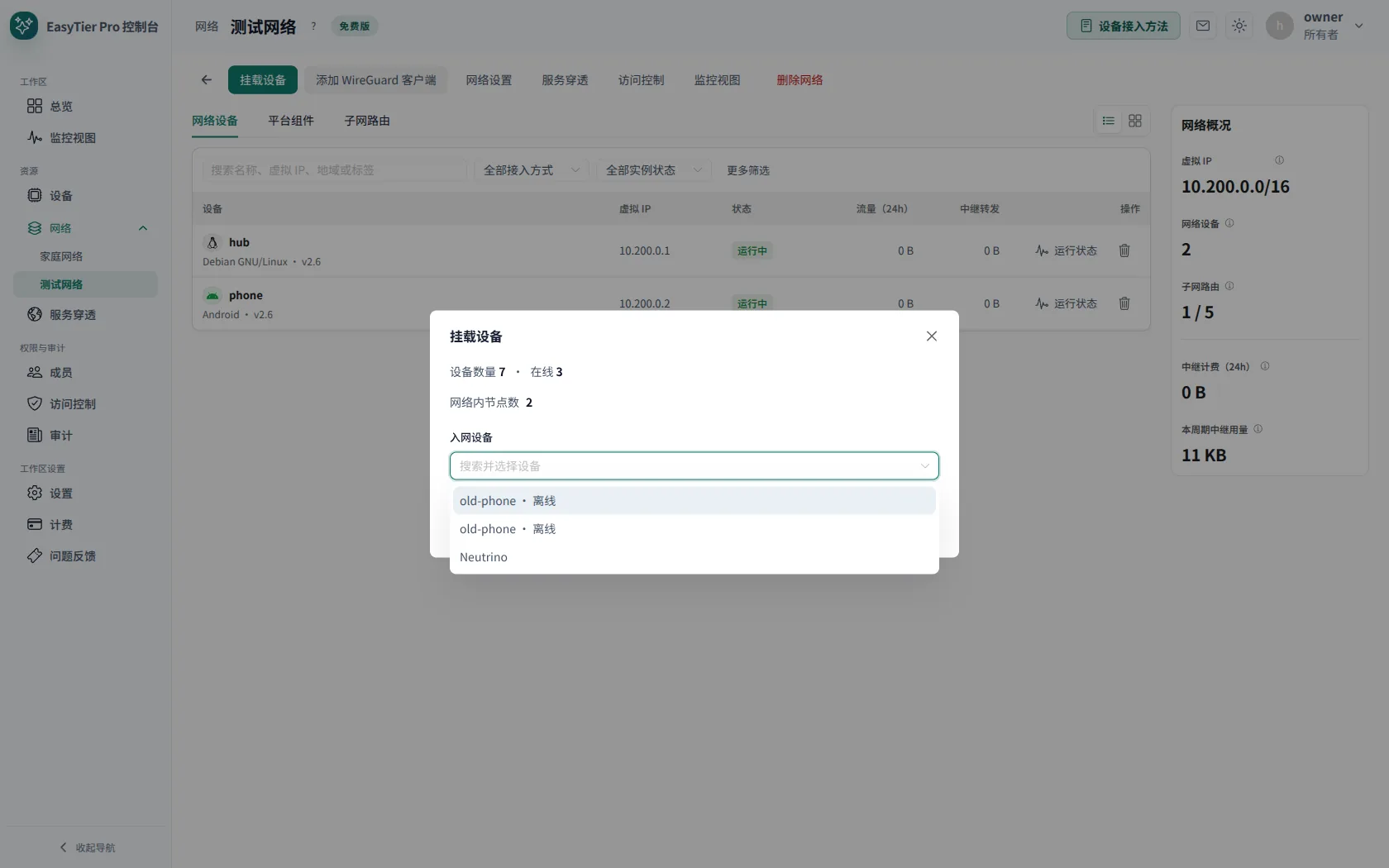
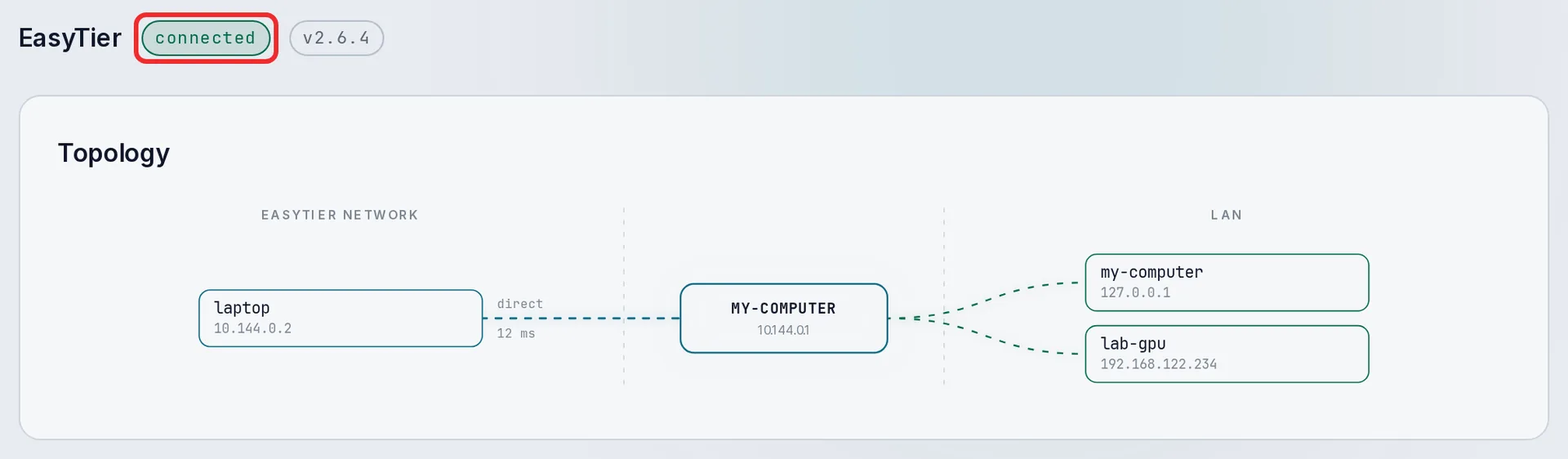
2Attach the hub to the network The panel first shows no peers yet, then connected after another device connects. Networks from the console lists each network.
The first time you select Connect on each client, its row shows Connecting…. A line under it states that this machine is registered with the console. Attach that client to the same network in the console, and the row shows Connected and an address.
Use manual bootstrap peers
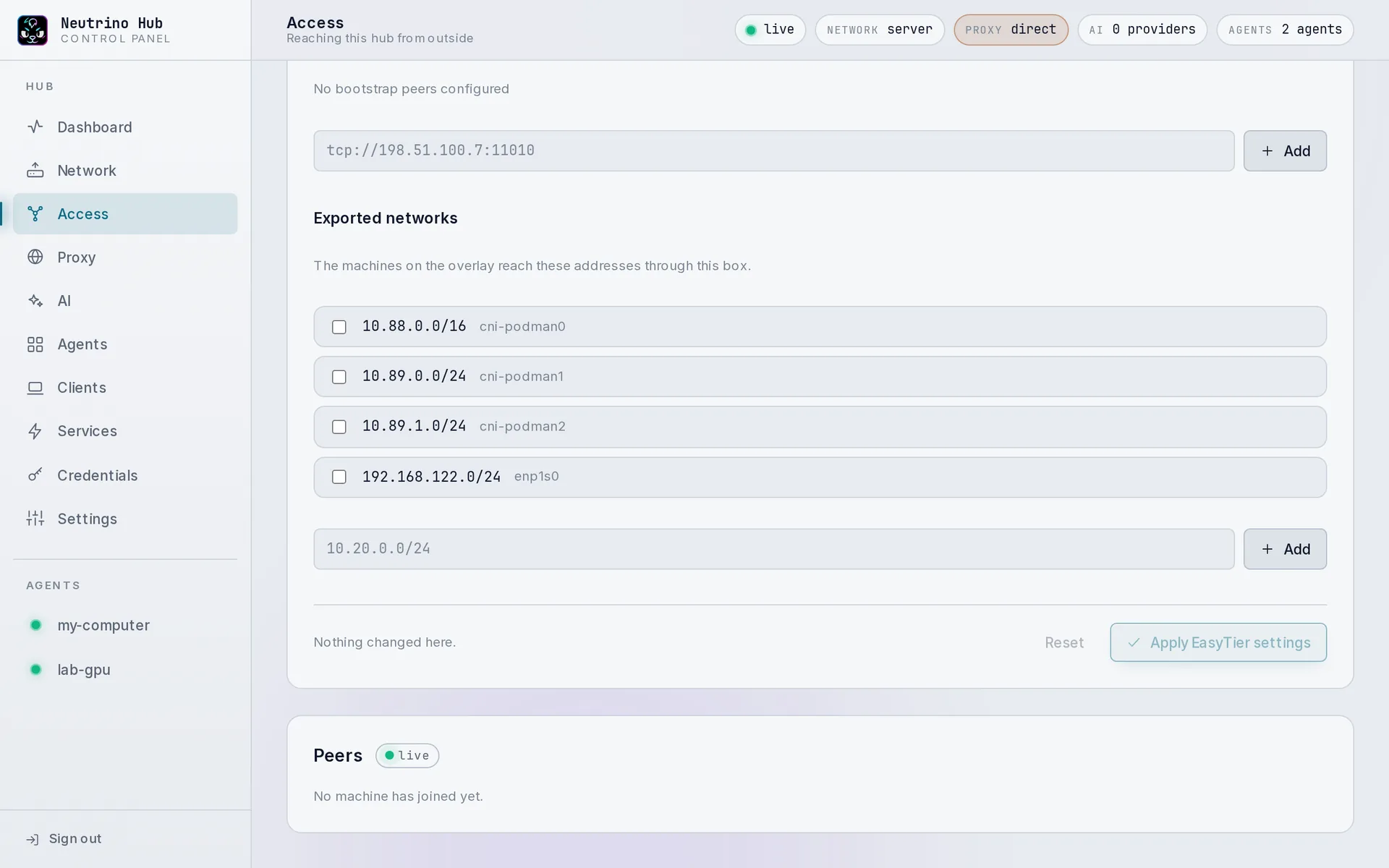
Select the Manual bootstrap peers card, then select Generate beside Settings. The hub fills in Network name, Network secret and This box's address automatically.
In Bootstrap peers, enter the address of a computer already on the virtual network, starting with
tcp://,udp://,ws://,wss://orquic://. Then select Add. Until you add one peer, the apply button stays grey.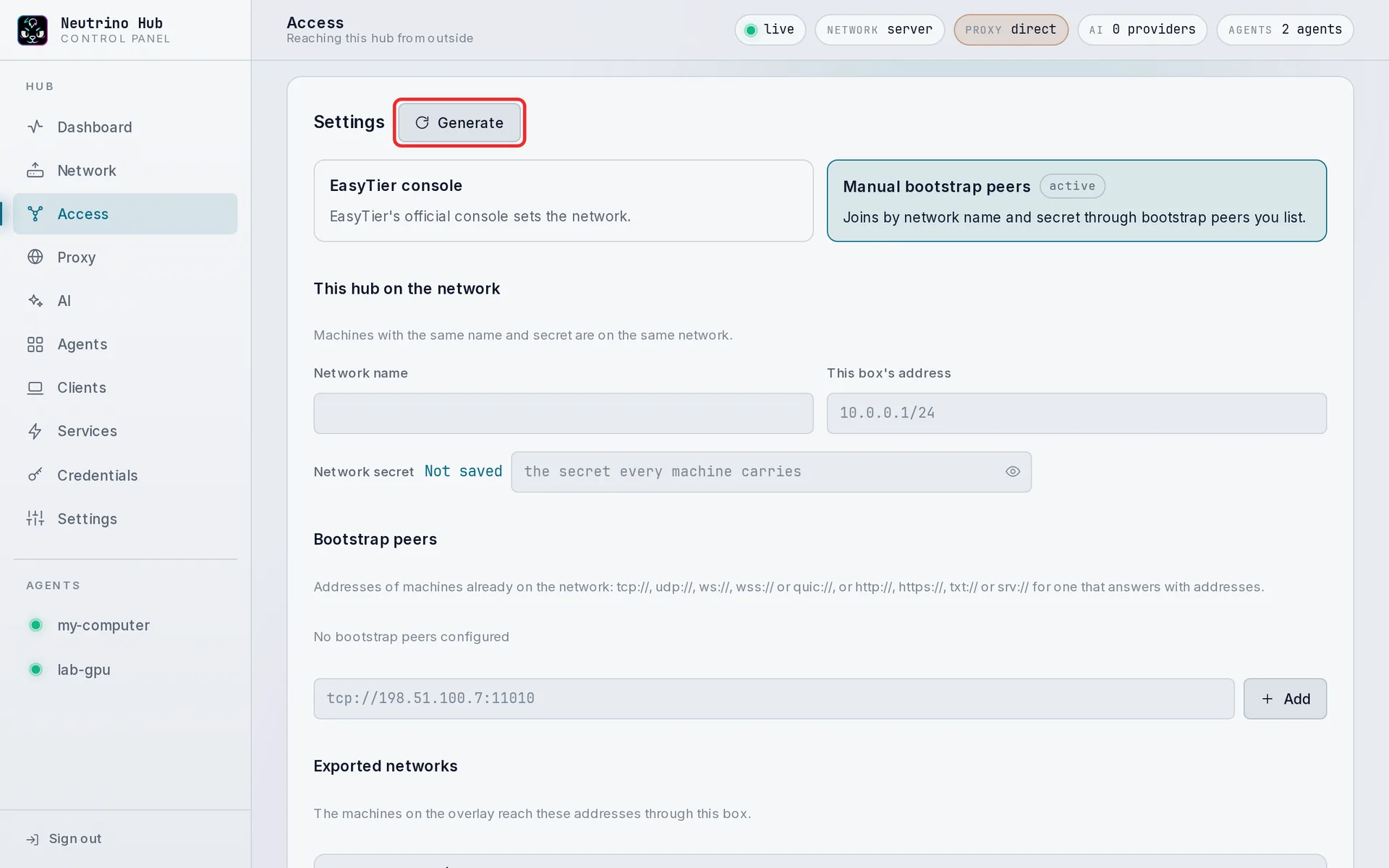
1Select Generate 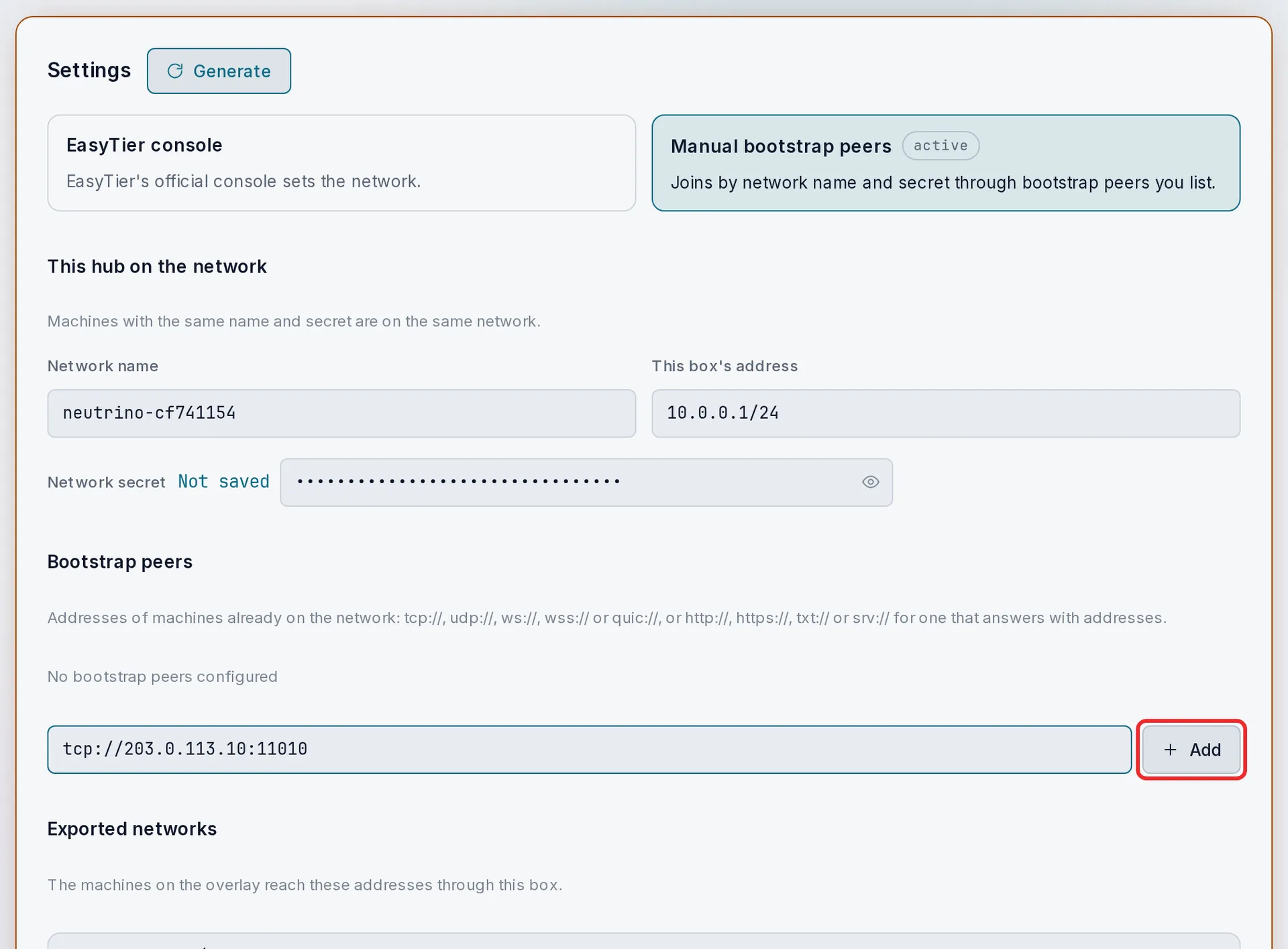
2Enter a bootstrap peer and select Add Select Apply EasyTier settings.
If the virtual network has no other computer yet, run the second command under Commands for another machine on a computer with a public address. That computer becomes a bootstrap peer. Other computers join with the first command, and Copy with the secret copies the command with the real secret.
Changing the secret amounts to creating a new virtual network. Other computers stay on the old network until their secret changes too.
Connect a client
The client receives its EasyTier settings from the hub, so you enter nothing on the client.
Open the client's Hubs page and select Connect in the EasyTier row. On Android, the system shows a permission dialog at the first connection; select OK. The connection works when the row shows Connected and an address.
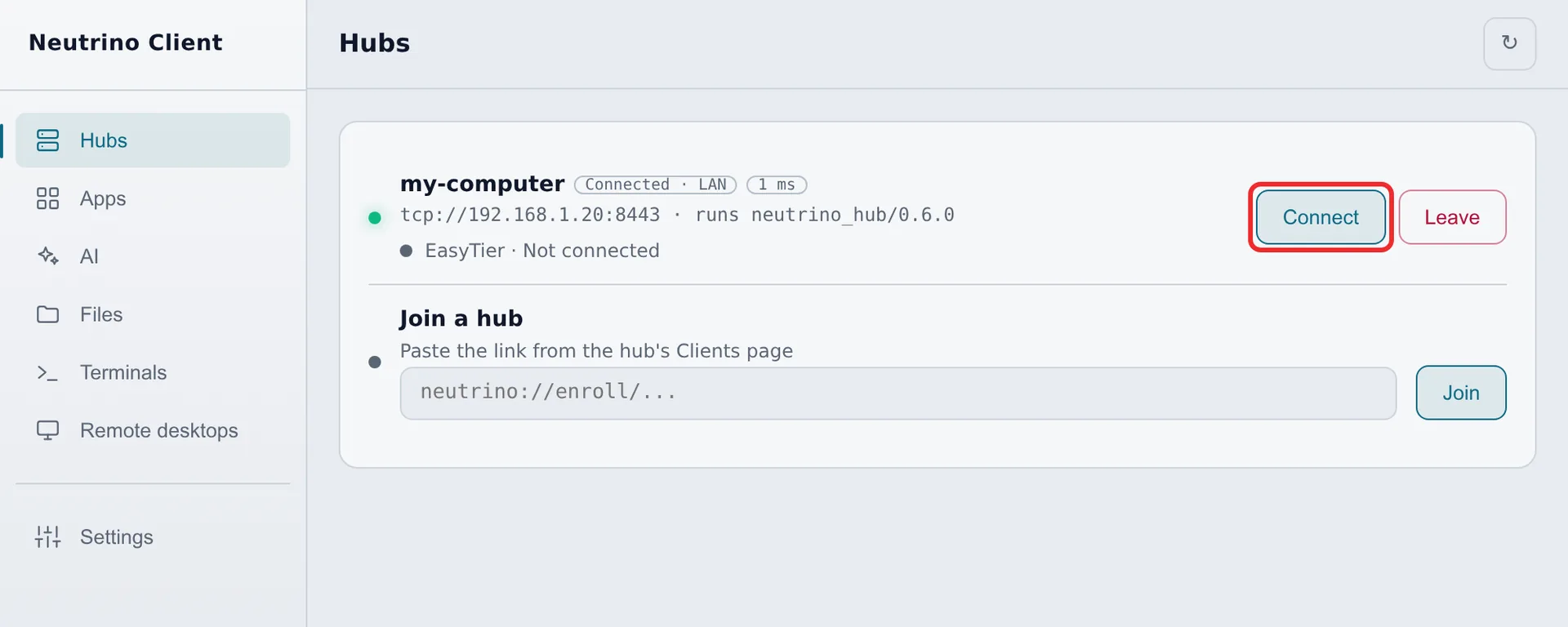
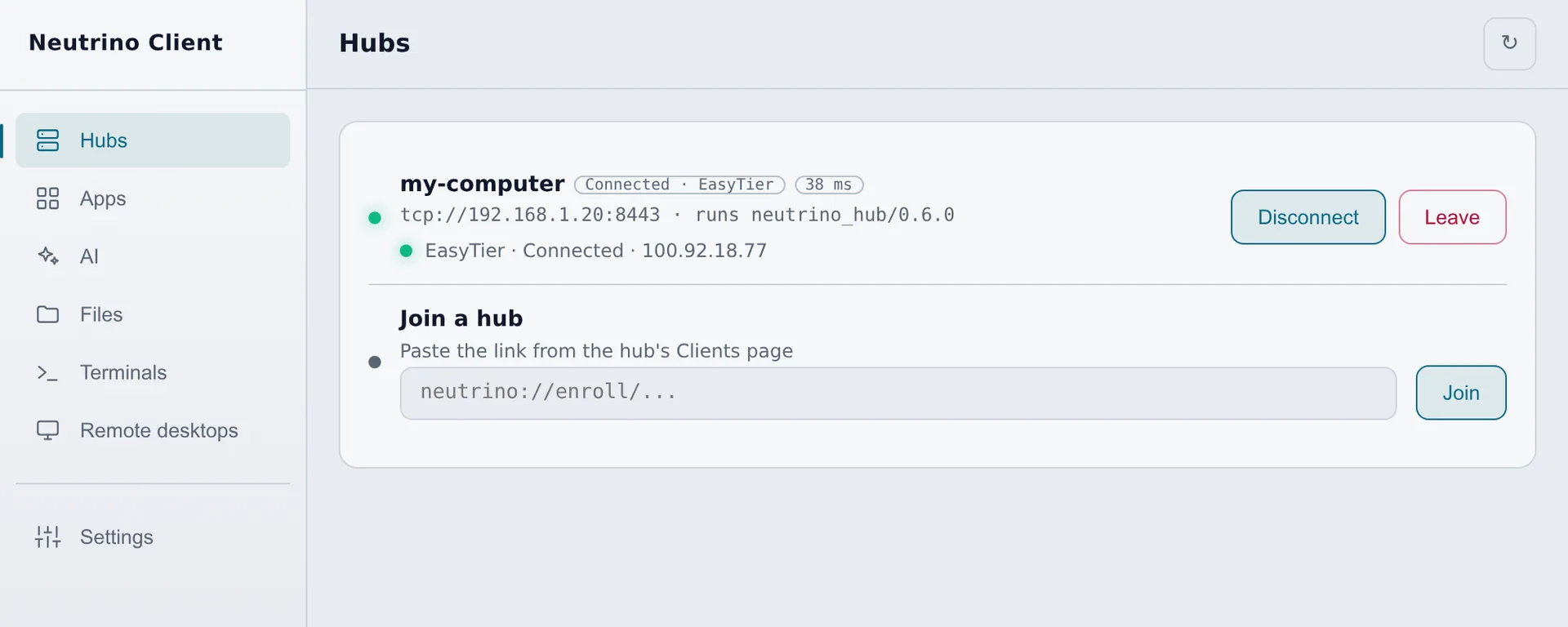
To switch the client to another virtual network, wait until the row shows Not connected. A device joins the virtual network of one hub at a time.
Maintenance
The Peers section lists every device on the virtual network, and Topology shows how they connect.
Changing the mode restarts EasyTier, and connections through it drop for a moment. Relay traffic through EasyTier's servers counts against the console quota.
The virtual network's switch under Exposure on the Network page is on by default. With it off, devices on the virtual network cannot connect to the hub.
To reach LAN devices that have no agent installed, see Access devices without the agent.