
English
Uninstall
You can remove one app or the whole of Neutrino Hub:
- To uninstall one app, use the panel.
- To uninstall the whole of Neutrino Hub, uninstall the clients, the agents and the hub, in that order.
Uninstall an app
Open the system's page, select the app's tab under Module configuration, then select Uninstall. The dialog states whether the app's data is kept or deleted. Read it, then select Uninstall.
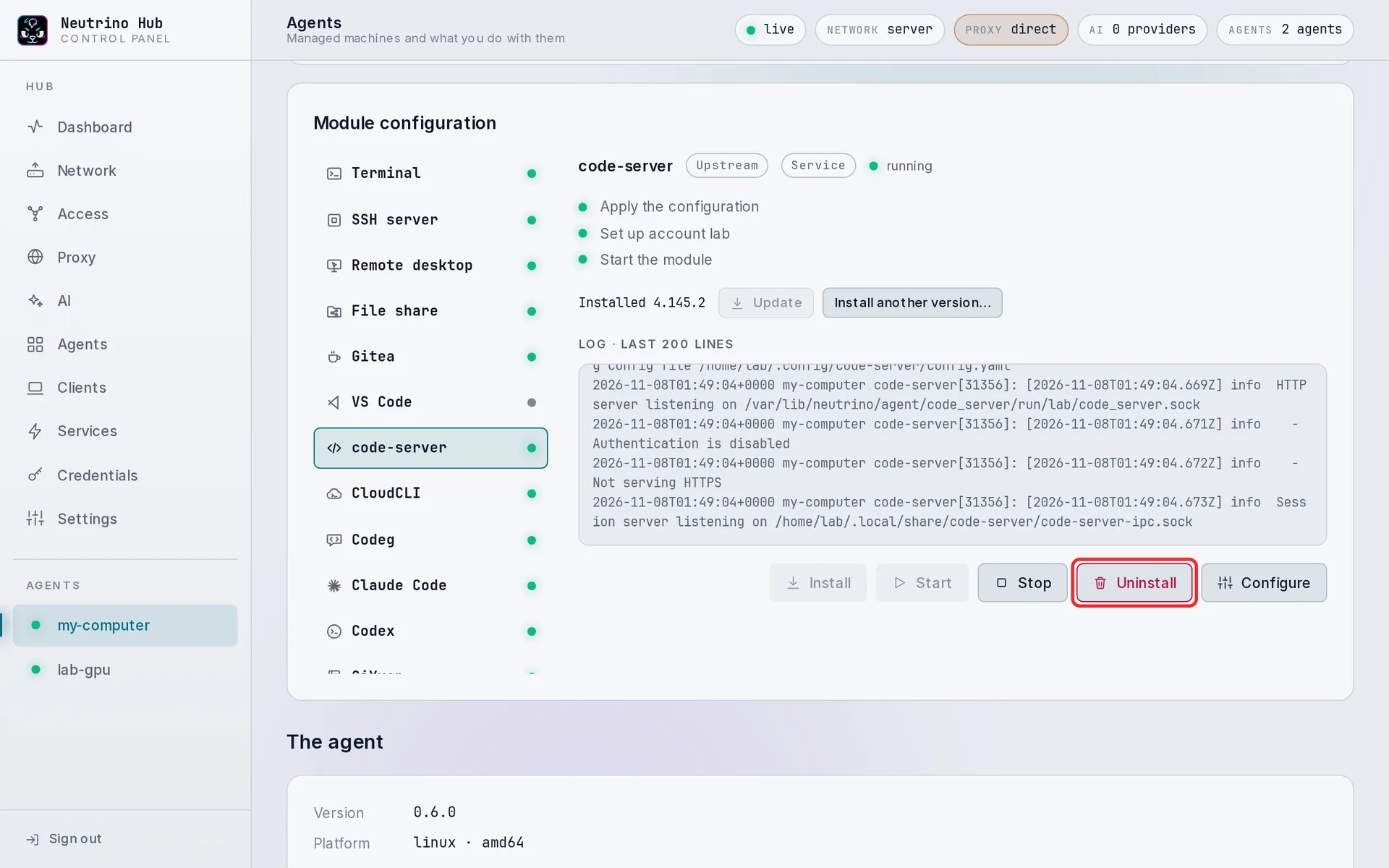
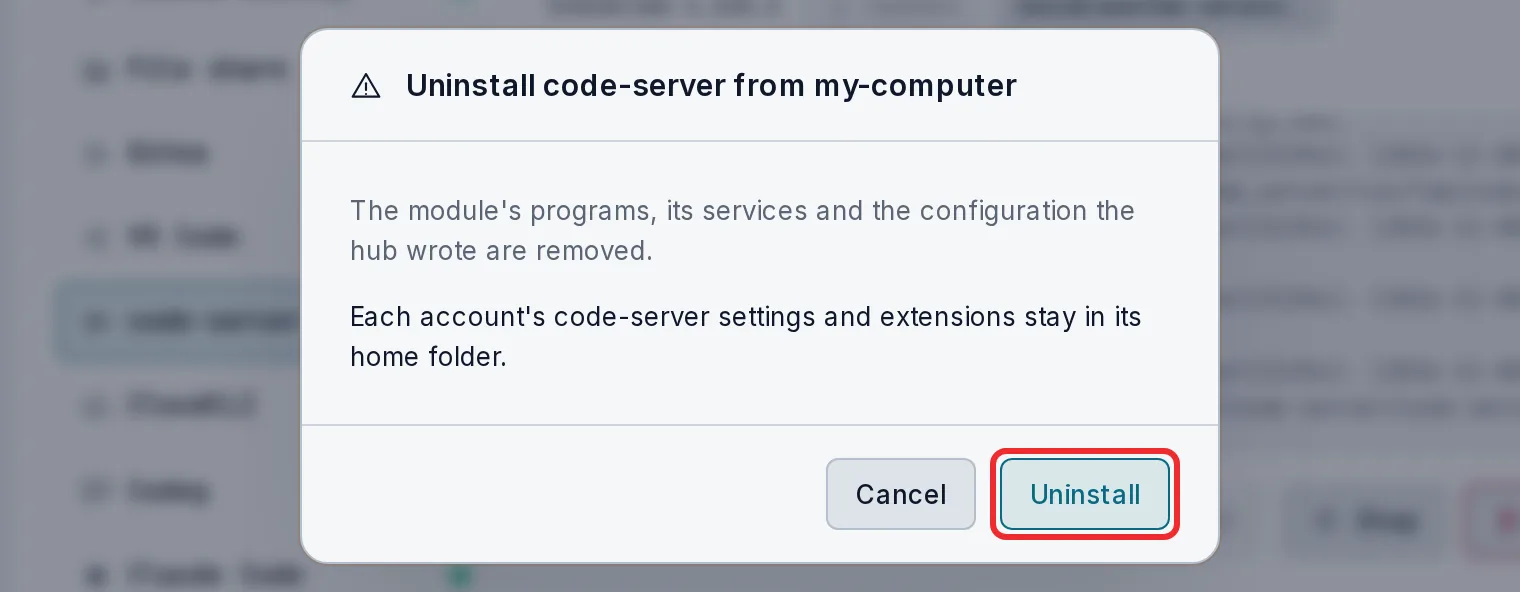
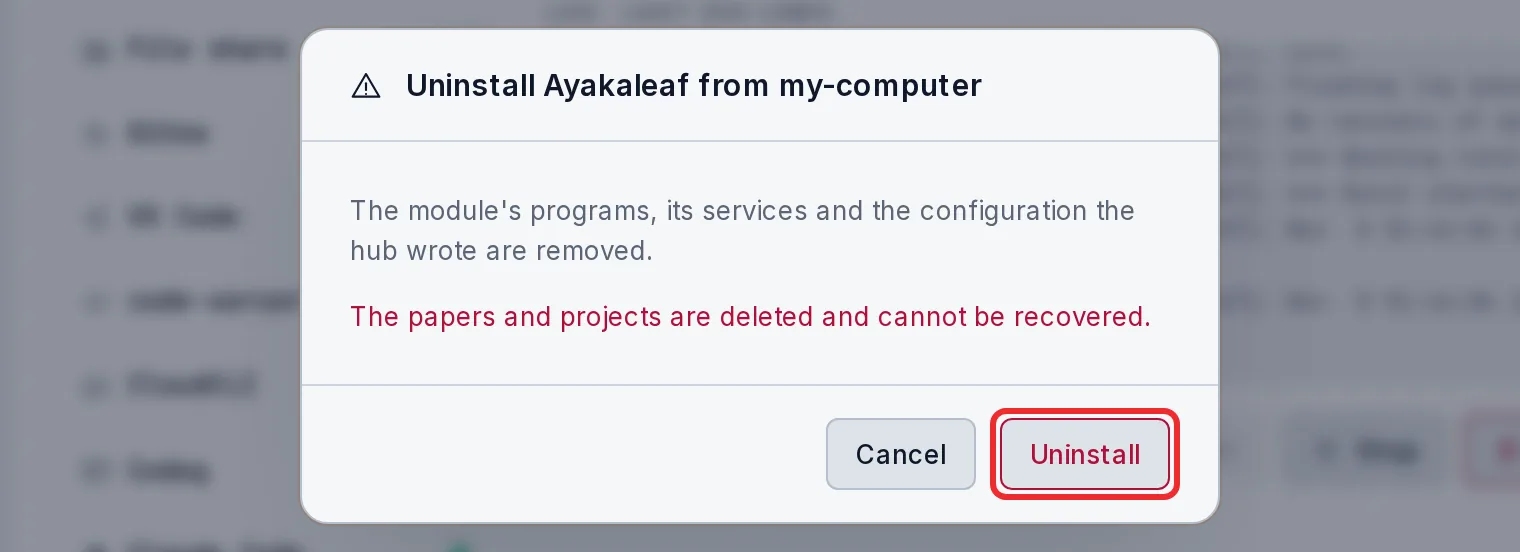
Most apps keep their data. Ayakaleaf and Hermes WebUI differ: red text in the dialog states that the data is deleted and cannot be recovered. Copy out the data you want to keep first.
Uninstall all of Neutrino Hub
Work in this order: the clients, the agents, then the hub.
Step 1: clients
On each device, open the client's Hubs page and select Leave. The button changes to Press again to leave, and the second press takes effect. Then uninstall the program, as Uninstall the programs describes. On Android and iOS, delete the app.
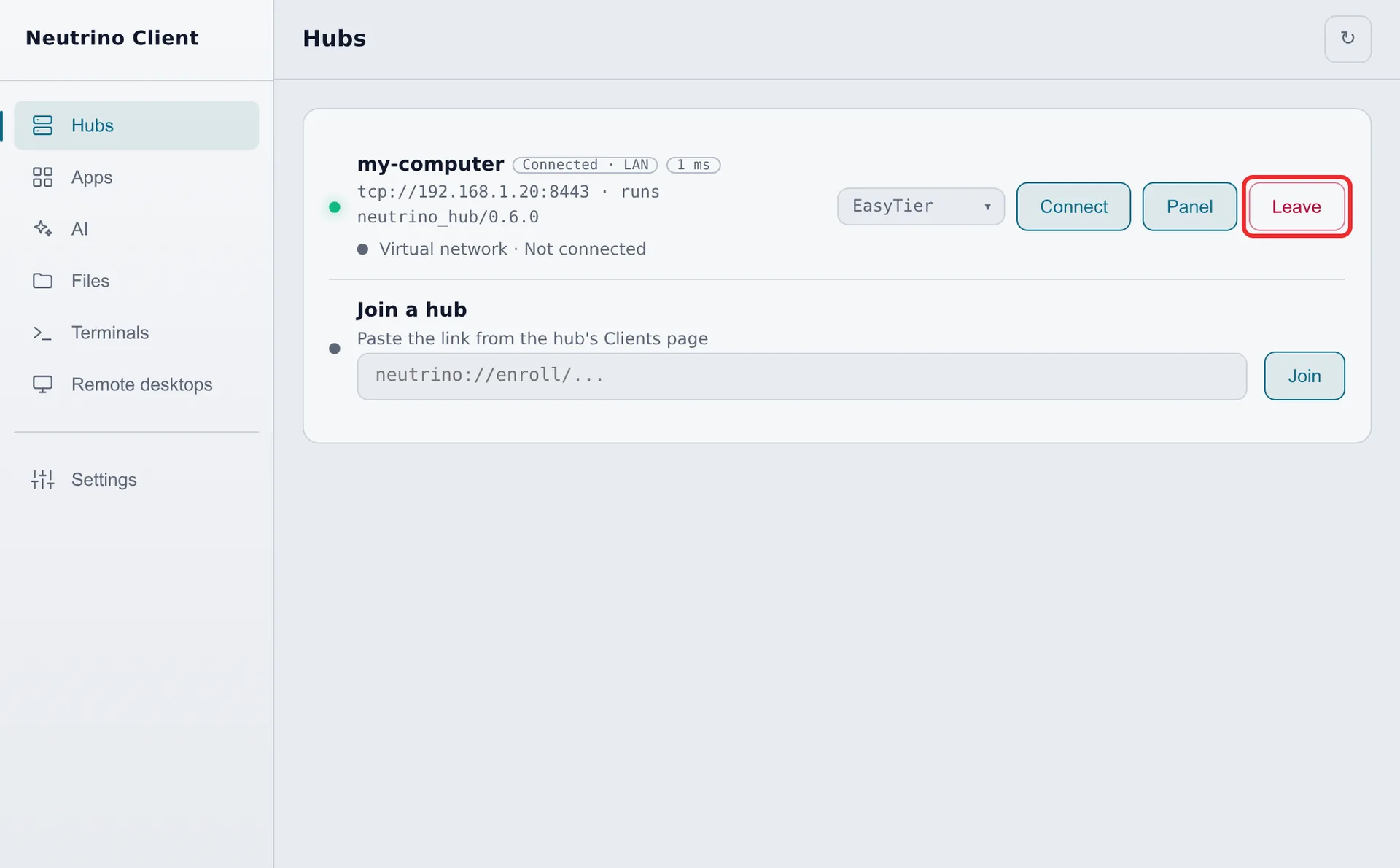
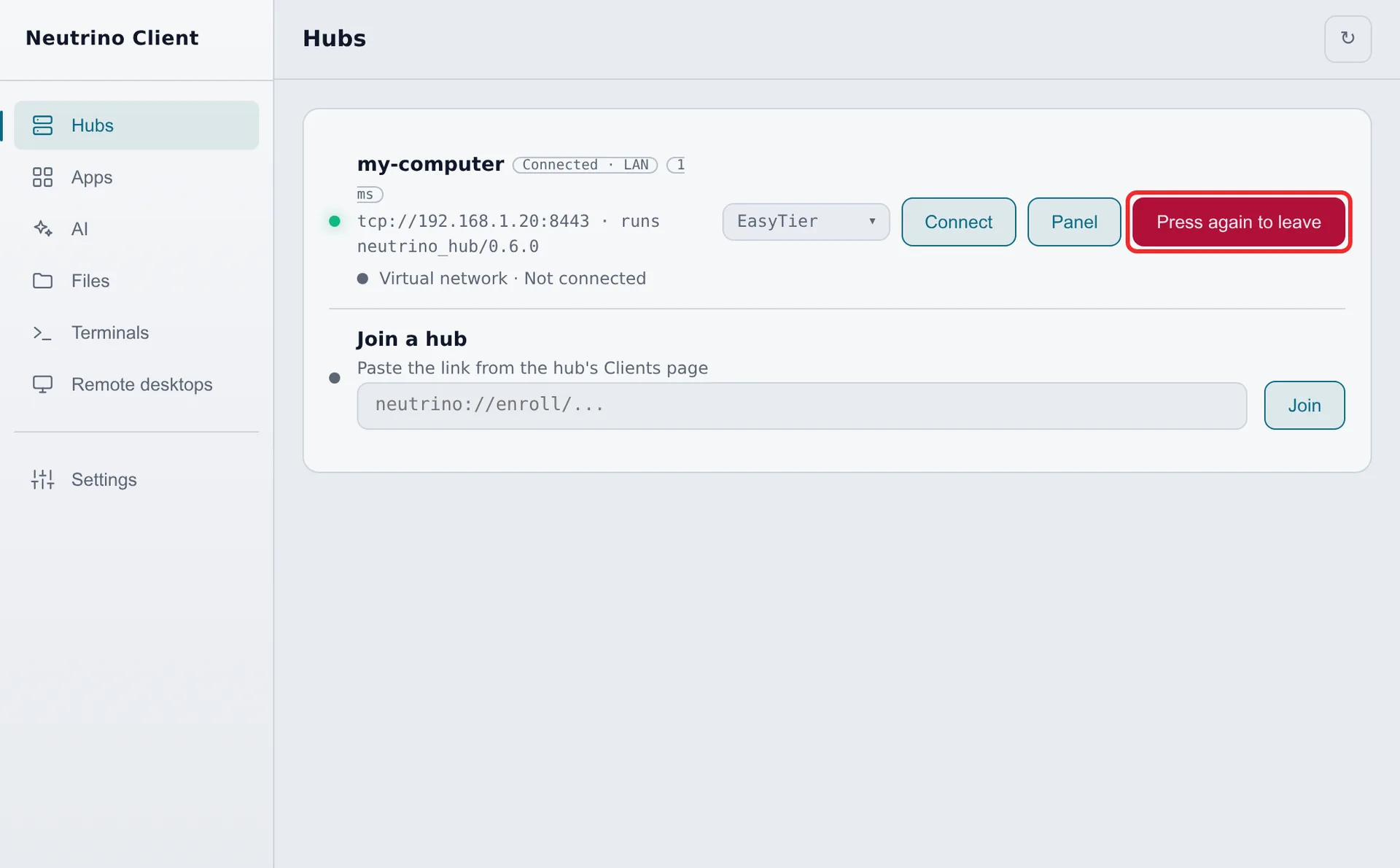
If the client cannot connect to the hub, select Delete on its row on the panel's Clients page. To leave from the command line, run nclient hub leave <hub>, where <hub> is the hub's name or its number in nclient hub list.
Step 2: agents
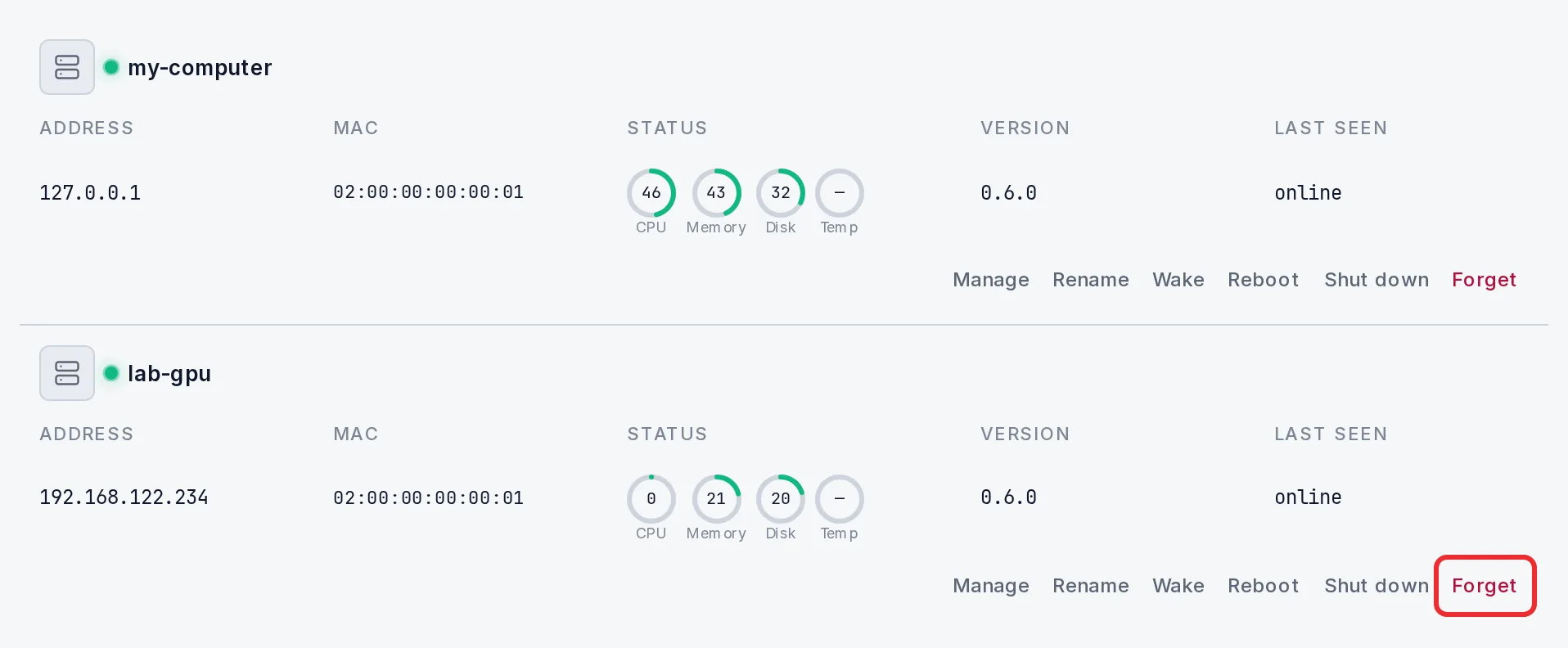
On the panel's Agents page, select Forget on each system's row, then Forget in the dialog. Then uninstall the program on that computer. To leave from the command line, run sudo nagent leave.
Step 3: the hub
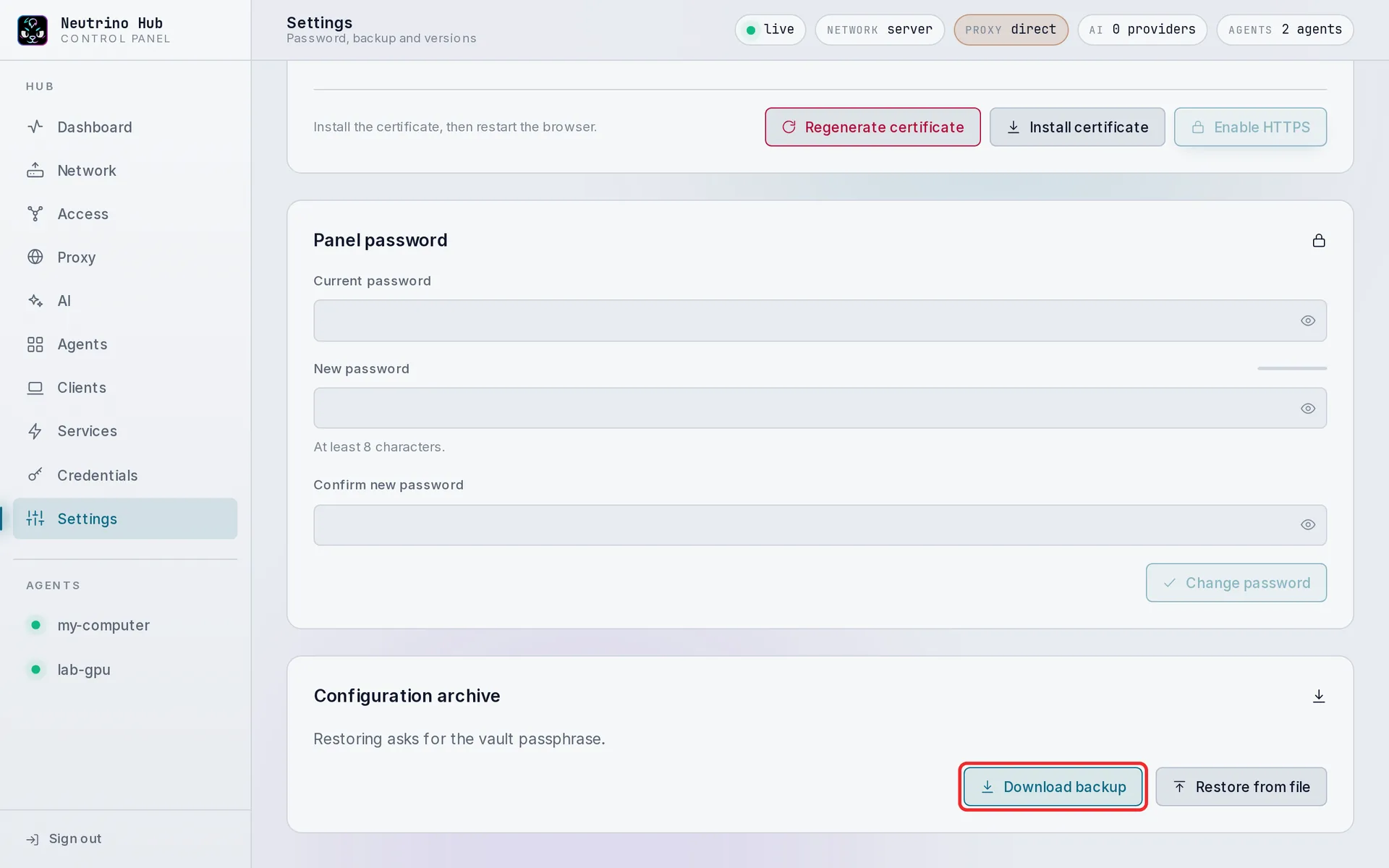
To keep a backup, first select Download backup on the Settings page and record the vault passphrase. Then uninstall the program. The agent on this computer needs its own uninstall.
Your files, Gitea repositories and container data stay on the computer.
Uninstall the programs
The packages are named neutrino-hub, neutrino-agent and neutrino-client, and <package-name> in the following table is one of them.
| System | How to uninstall |
|---|---|
| Debian-based | sudo apt remove <package-name>, which keeps the configuration and state |
| RHEL-based | sudo dnf remove <package-name>, which keeps the configuration and state |
| Arch-based | sudo pacman -R <package-name>, which keeps the configuration and state |
| Windows | Uninstall Neutrino Hub, Neutrino Agent or Neutrino Client under Apps in the system settings |
| macOS | There is no uninstaller. Run the matching commands in the following macOS section |
On Debian-based systems, sudo apt purge <package-name> also deletes the configuration and state. That deletes the hub's vault as well, and only a backup can restore it.
When you uninstall the client on Windows, select Keep my configuration to keep the hubs it has joined.
Uninstall on macOS
To uninstall the hub, run sudo nhub reset all first, then run the following commands:
bash
sudo launchctl bootout system/com.neutrino.hub
sudo rm -rf "/Library/Application Support/Neutrino/hub/app" "/Applications/Neutrino Hub.app"
sudo rm -f /Library/LaunchDaemons/com.neutrino.hub.plist /usr/local/bin/nhub
To uninstall the agent, run the following commands:
bash
sudo nagent service uninstall
sudo rm -rf "/Library/Application Support/Neutrino/agent" /Library/Logs/Neutrino/agent
To uninstall the client, run the following commands:
bash
sudo launchctl bootout system/com.neutrino.client.easytier
sudo launchctl bootout system/com.neutrino.client.netbird
sudo rm -f /Library/LaunchDaemons/com.neutrino.client.*.plist /usr/local/bin/nclient
sudo rm -rf "/Applications/Neutrino Client.app"
What each uninstall removes
When you uninstall the hub, the package's uninstall script first hands the network back to the system, then deletes the program.
Uninstalling the agent deletes the services and scheduled tasks that apps added, returns the AI tools to their own settings, and turns off desktop sharing. It keeps the shares and the accounts, which the system's SMB service goes on serving. It also keeps repositories, the data in accounts and container data.
Claude Code in your account, its sessions and your files are unaffected.
On a system with SELinux enabled, file sharing has turned on the system switch samba_export_all_rw. The switch stays on after sudo nagent service uninstall. To turn it off, run the following command:
bash
sudo setsebool -P samba_export_all_rw offReset to the state after install
To return to the state right after install without uninstalling the programs, run one of the following commands. Each one shows a [y/N] prompt first, and --yes skips it. On Windows, use an administrator PowerShell and leave out sudo.
sudo nhub reset networkhands the network back to this computer and stops the panel, and it leaves the configuration unchanged.sudo nhub reset allresets the configuration to the examples and deletes the vault key, the hub key and the panel's certificate. It also stops the services. Afterwards, runsudo nhub setupto set up again, and every device must join again with a new link.
What remains after uninstall
If you no longer need these items, delete them by hand. In the following table, <part> is hub, agent or client.
| Item | Linux | macOS | Windows |
|---|---|---|---|
| Configuration | /etc/neutrino/<part> | /Library/Application Support/Neutrino/<part>/config | C:\ProgramData\Neutrino\<part>\config |
| State | /var/lib/neutrino/<part> | /Library/Application Support/Neutrino/<part>/state | C:\ProgramData\Neutrino\<part>\state |
| Logs | /var/log/neutrino/<part> | /Library/Logs/Neutrino/<part> | C:\ProgramData\Neutrino\<part>\log |
| Client configuration of each account | ~/.config/neutrino/client | ~/Library/Application Support/Neutrino/client | %APPDATA%\Neutrino\client |
| CloudCLI, Codeg and SiYuan data | ~/.local/share/neutrino/agent | ~/Library/Application Support/Neutrino/agent | %LOCALAPPDATA%\Neutrino\agent |