
English
OpenFrp
OpenFrp is a tunnel service run by a third party: the hub runs frpc against an OpenFrp node, and the node forwards a public port to the hub's connection port. The content between the devices and the hub is encrypted, and the node cannot read it.
SystemsLinuxWindowsmacOS
EditionsInternationalChina
Sincev0.6.0
| Free account quota | Value |
|---|---|
| Bandwidth | 12 Mbps |
| Free servers | Often overloaded at peak hours |
| Reading date | 2026-10-30; the OpenFrp website is authoritative |
Register an account
Open OpenFrp and register an account.
Complete the real-person verification on the website.
Sign in from the panel
In the panel's left sidebar, select Access, turn on the OpenFrp card's switch, then select Apply access. The Status section appears and shows Not signed in.
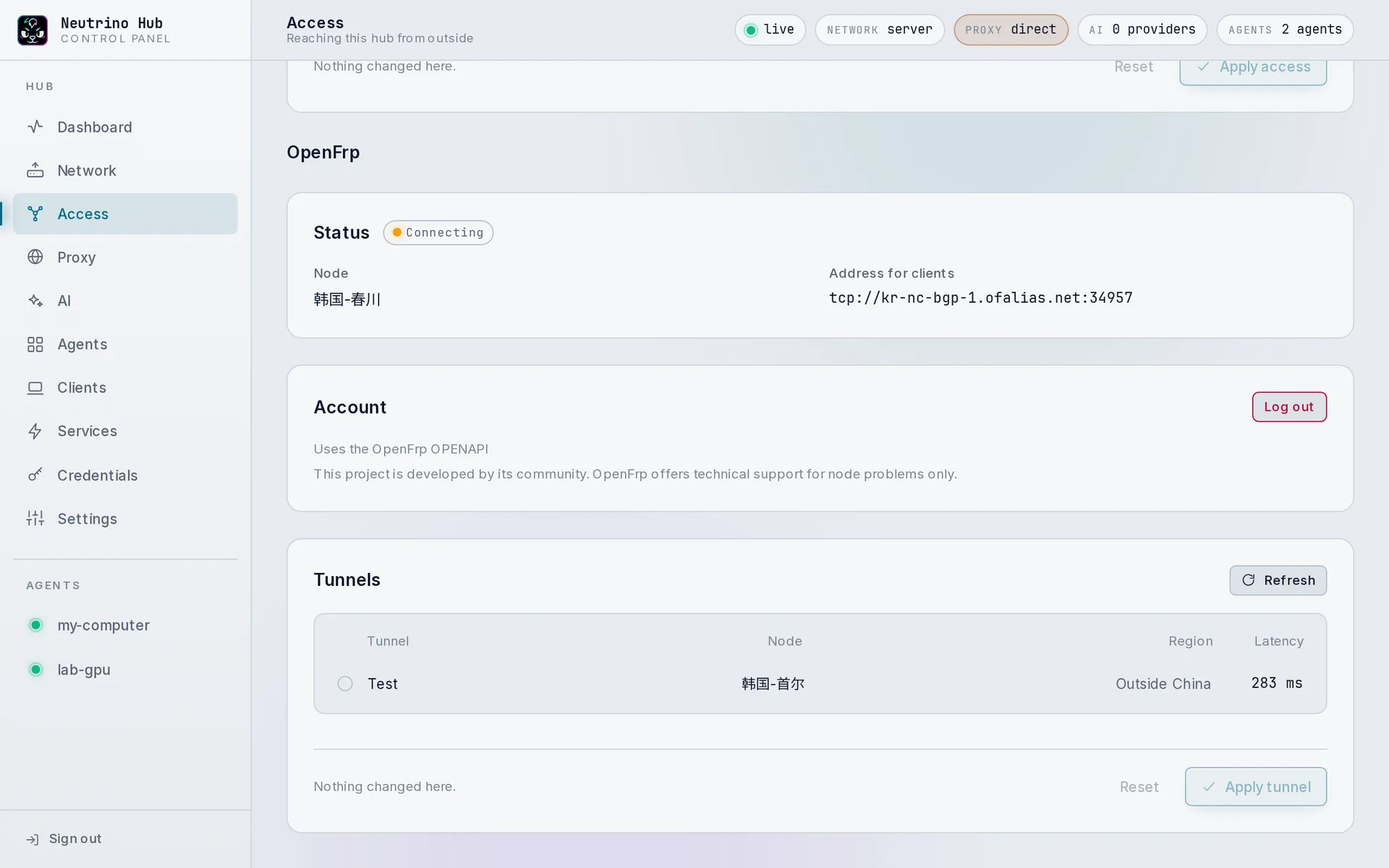
In the Account section, select Log in, and the browser opens a new tab. OpenFrp's terms require two lines that stay under Account: Uses the OpenFrp OPENAPI and This project is developed by its community. OpenFrp offers technical support for node problems only.

In the new tab, sign in to OpenFrp and confirm within 5 minutes. Meanwhile, the panel shows Confirm the login on the OpenFrp page. If the tab is closed, select Open the login page again.
After a successful login, Log in changes to Log out, and the status changes to Enabled, not connected.

A login lasts at most 30 days. After it expires, the panel shows The login has expired. The tunnel keeps running; log in again to pick another.
Create a tunnel
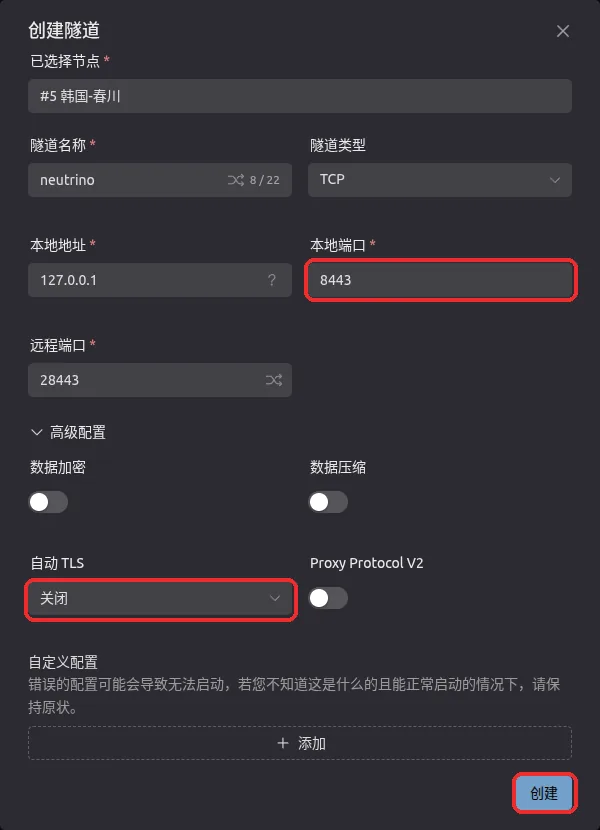
Note the connection port, which is in the Ports section of the panel's Network page and is 8443 by default.
After you log in, the panel shows the Tunnels section. If the list is empty, select Open the OpenFrp console.
In the OpenFrp console, select 创建隧道 (Create tunnel) on the left and choose a node. Clear 满载 (Full) and 无权限 (No permission) to list only the nodes you can use. The picture shows 韩国-春川 (Korea-Chuncheon) in the overseas group; pick a node close to where you usually are.
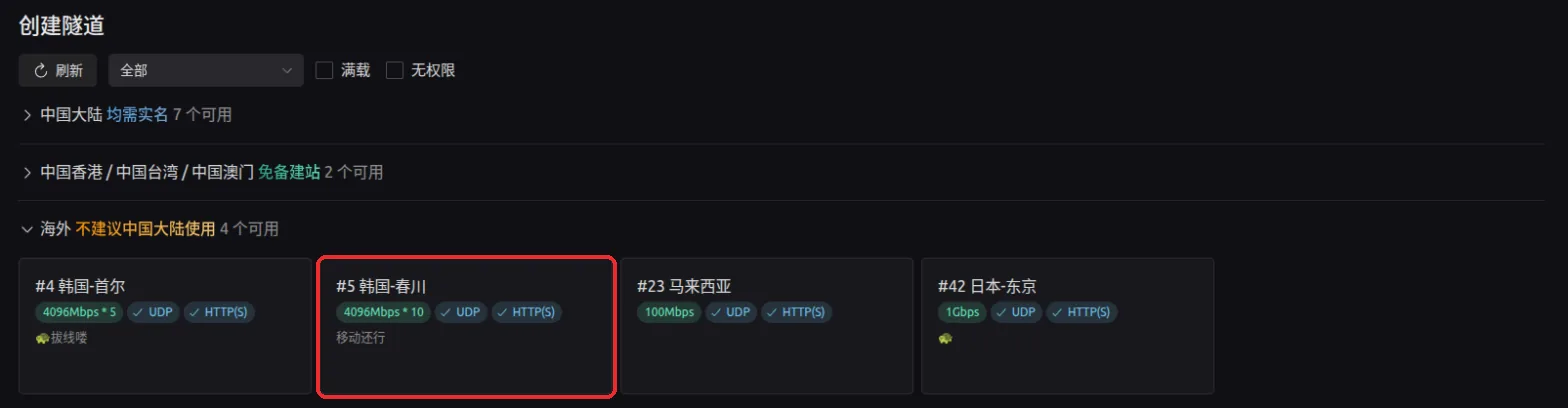
Some nodes drop encrypted traffic, and the hub then cannot connect. In that case, the status shows Public port closed, and you create the tunnel again on another node.
Enter a name such as
neutrinoin 隧道名称 (Tunnel name), and keep 隧道类型 (Tunnel type) at TCP. Keep 本地地址 (Local address) at127.0.0.1, enter the connection port in 本地端口 (Local port), and generate 远程端口 (Remote port) with the button on its right.Expand 高级配置 (Advanced settings), check that 自动 TLS (Auto TLS) is 关闭 (Off), then select 创建 (Create).
Back in the panel, select Refresh in the Tunnels section. The list shows only usable tunnels, and each row shows the tunnel name, the node, Region and Latency.
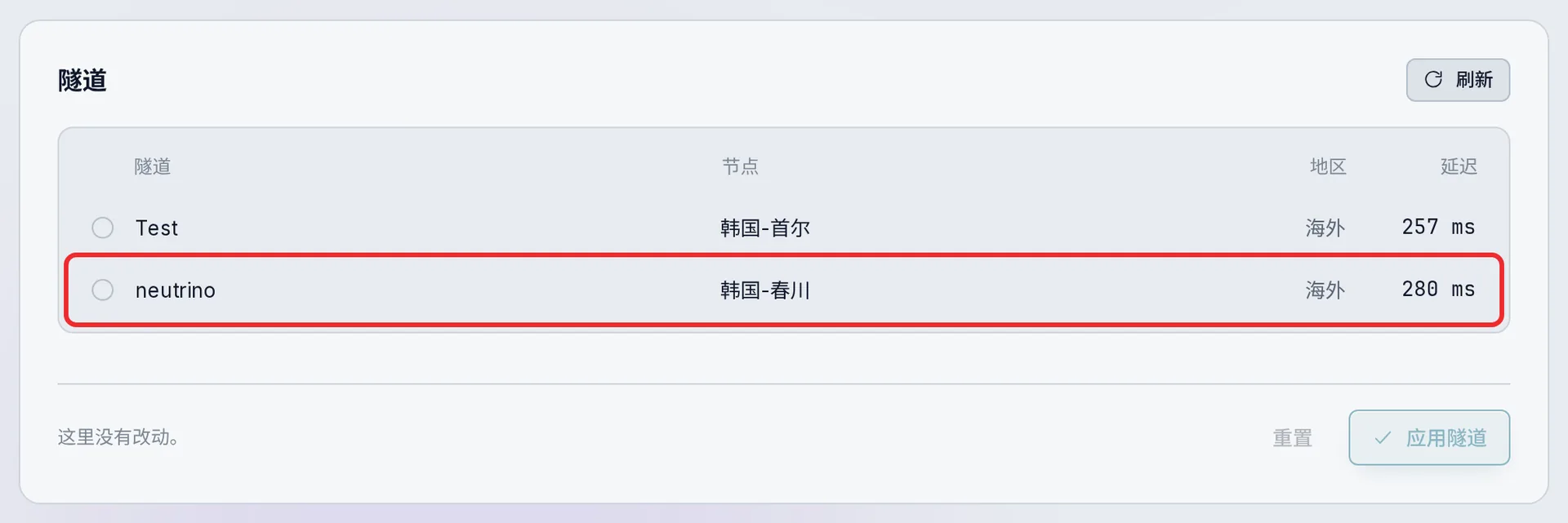
Select the tunnel, then select Apply tunnel.
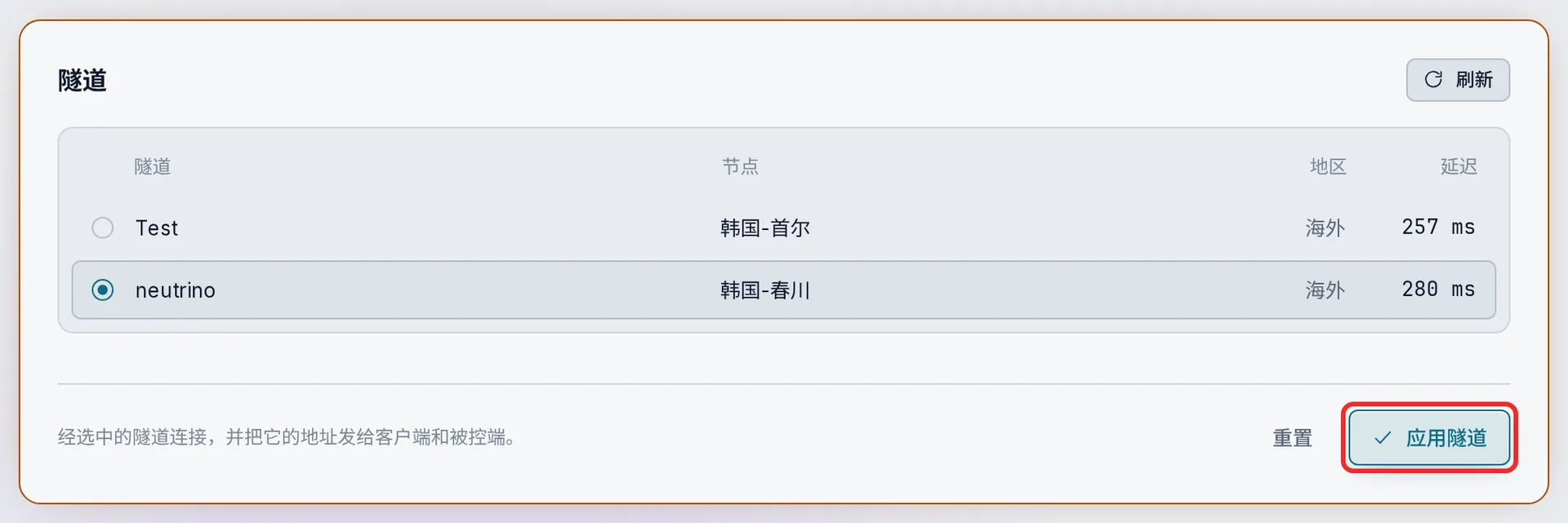
Wait for the status to show Connected; the result appears within a minute.

Each status means:
| Status | Meaning |
|---|---|
| Not signed in | You have not logged in to OpenFrp yet |
| Vault locked | The hub cannot read the login |
| Enabled, not connected | You are logged in, and no tunnel is selected yet |
| Connecting | The first check has not finished, and the result appears within a minute |
| Connected | Outside networks can connect to this hub |
| Local port in use | Another program uses the local port the hub reserves for frpc |
| Tunnel config unavailable | The tunnel was deleted, the login expired, or OpenFrp returned no configuration |
| Tunnel refused by the node | Another tunnel uses the public port, or the tunnel was turned off at OpenFrp |
| Public port closed | The tunnel runs, but outside networks cannot connect to it. Some nodes drop encrypted traffic; create a tunnel on another node |
| Node login failed | The node rejects this account |
| Node unreachable | The hub cannot connect to the node, or the connection dropped |
Verify the connection
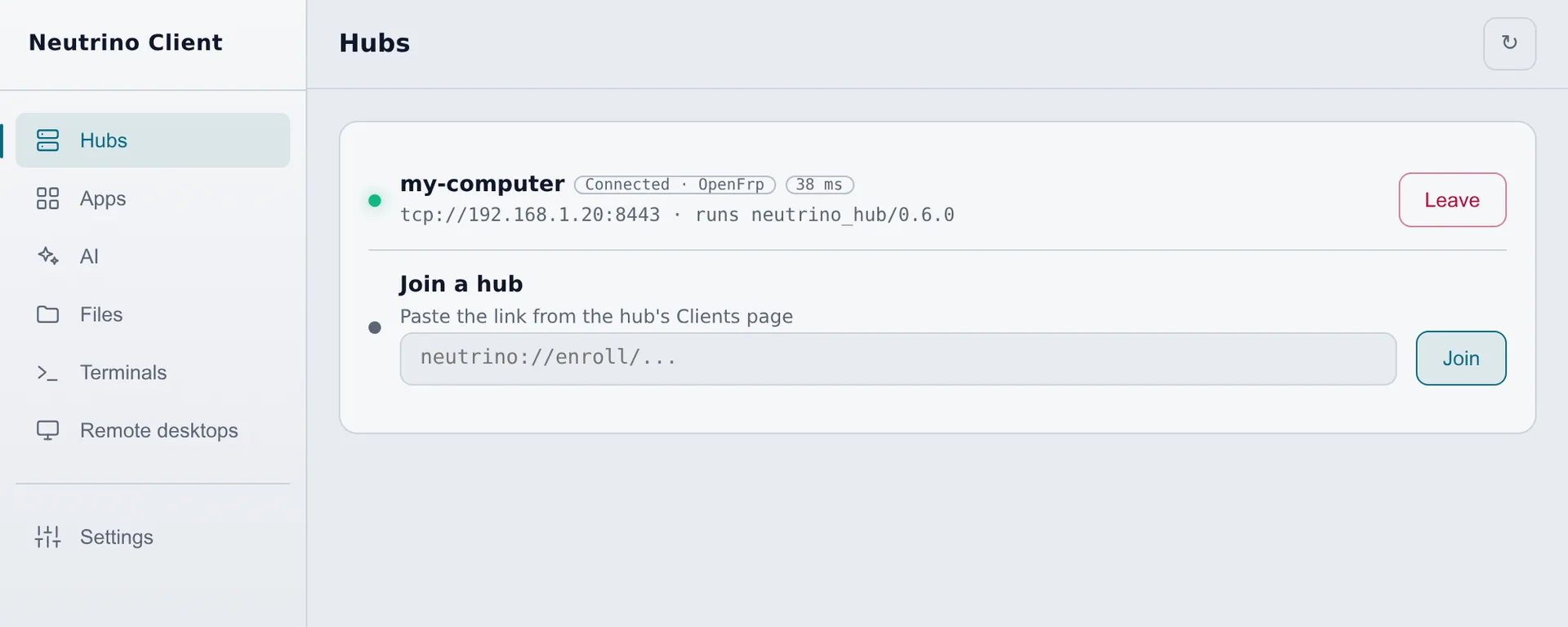
Joined devices pick up this address automatically, so you do not join them again. Turn off Wi-Fi on the phone and open the client over mobile data. OpenFrp works when the hub row shows Connected · OpenFrp.
Maintenance
- Changing the tunnel or turning off the card: clients connected through this tunnel disconnect. If another access method is on, the clients reconnect automatically.
- Changing the connection port: after you change it on the Network page, change the local port in the OpenFrp console, then select Refresh and Apply tunnel.
- Pausing: turn off the card's Enable switch. The hub keeps the account and the tunnel.
- Stopping use of this account: select Log out.