
English
SiYuan
SiYuan is note-taking and knowledge base software. You open the same notes on your phone and your laptop, and the notes are stored on your own computer.
SystemsLinuxWindowsmacOS
EditionsInternationalChina
Sincev0.6.0
SiYuan runs one instance per account, and the notes of each account are kept apart from the others.
Supported systems
| System | Architecture | First Neutrino Hub version |
|---|---|---|
| Linux | amd64, arm64 | 0.6.0 |
| Windows | amd64 | 0.6.0 |
| macOS | Apple silicon, Intel | 0.6.0 |
Install
Open the panel in a browser and sign in. In the lower part of the left sidebar, select the system to install on. Check that Available accounts lists your account. If it does not, add it as Add an account describes.
In Module configuration, select + Add module. In the dialog, select the SiYuan card. When the card is highlighted, select Close.
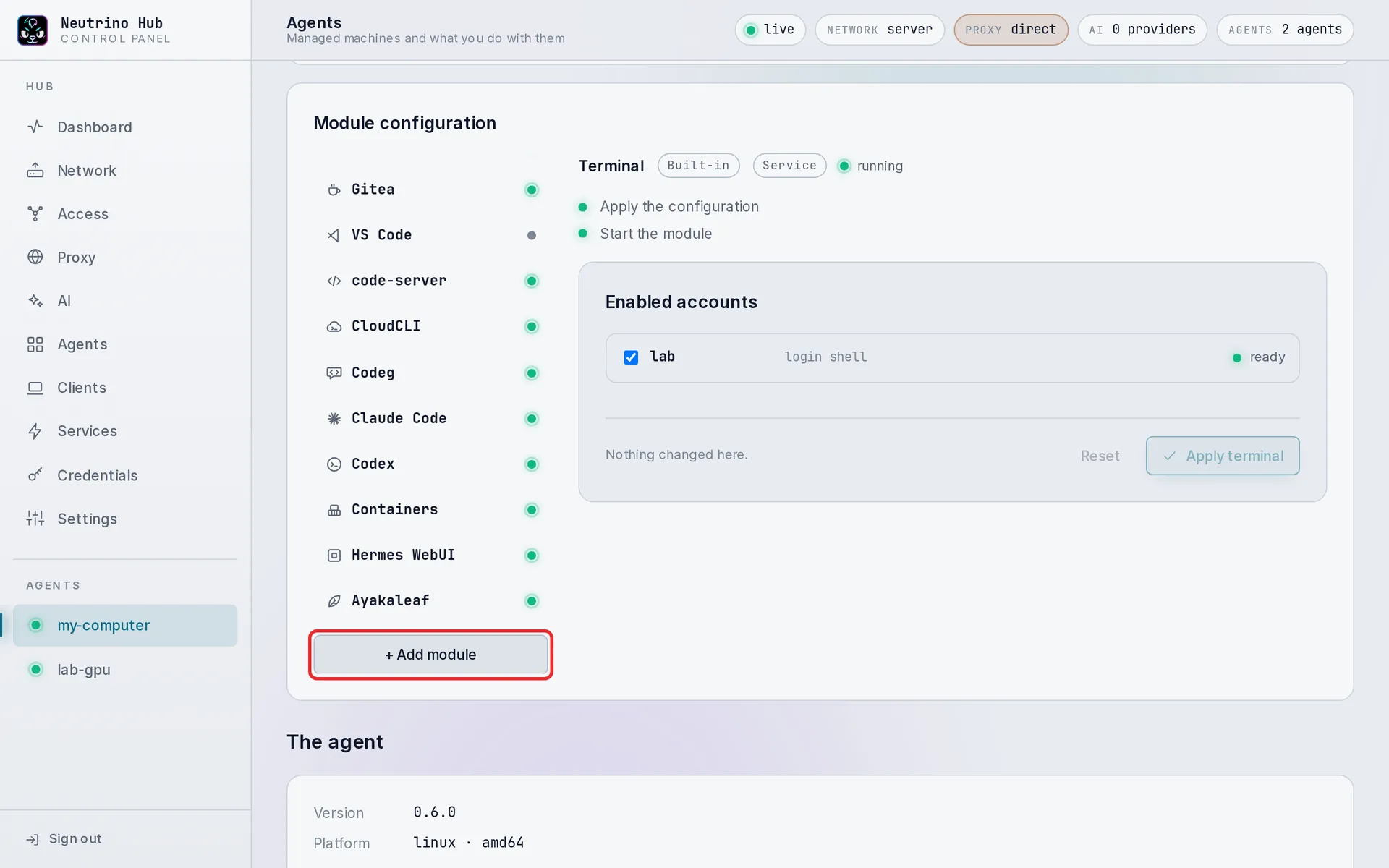
1Select + Add module 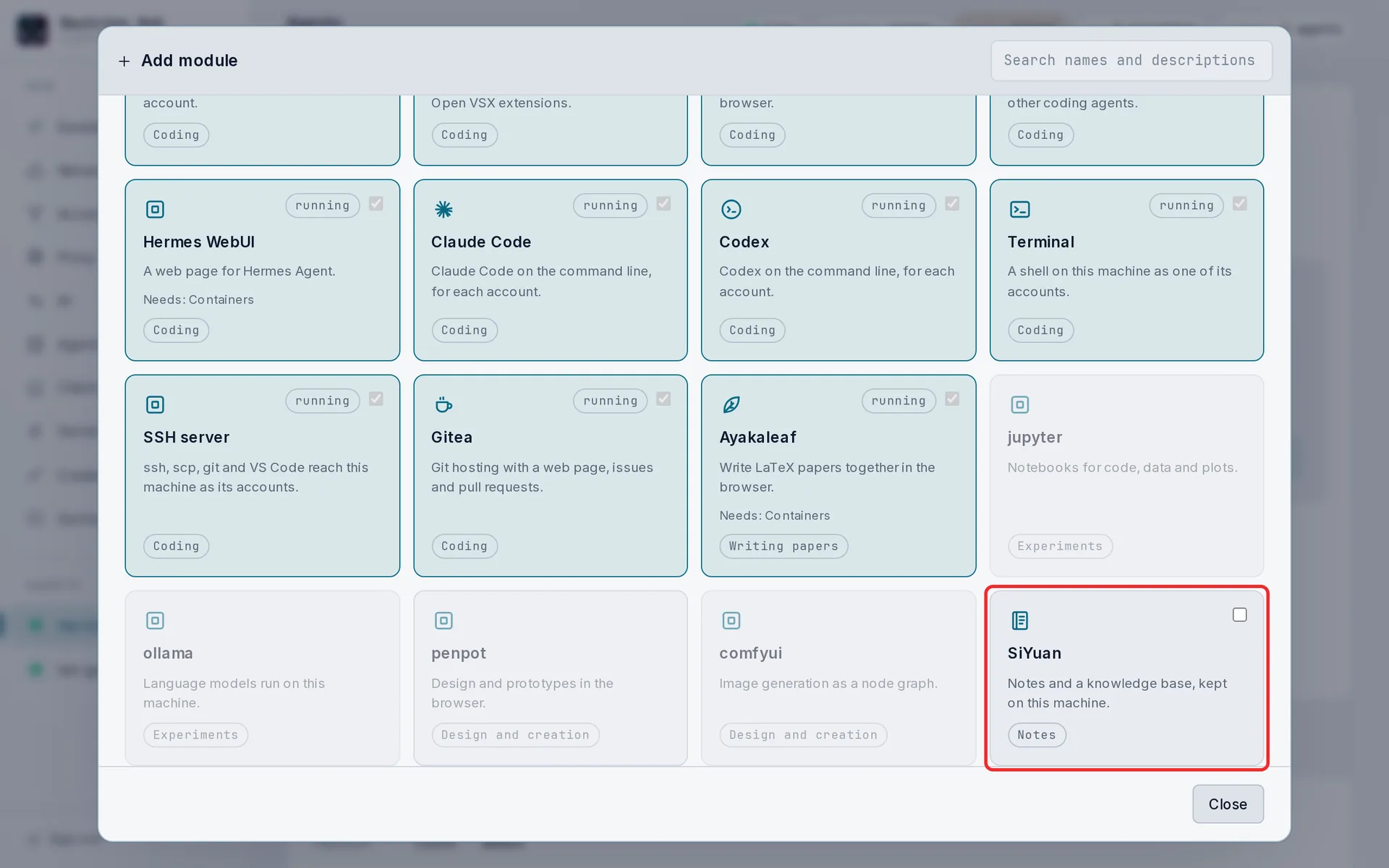
2Select SiYuan 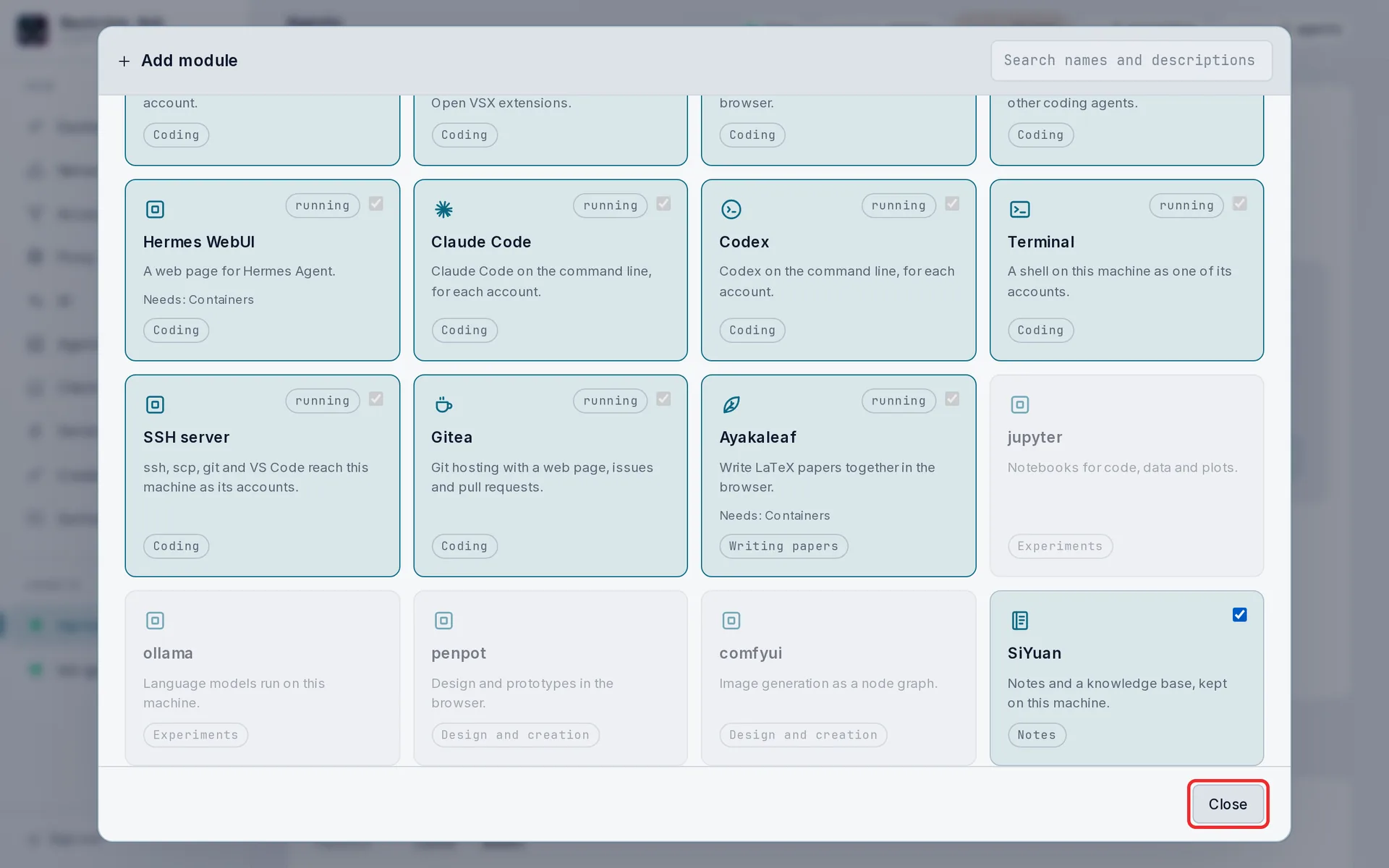
3Select Close After the dialog closes, select the SiYuan row in the list on the left, and its tab opens on the right. Select Install.
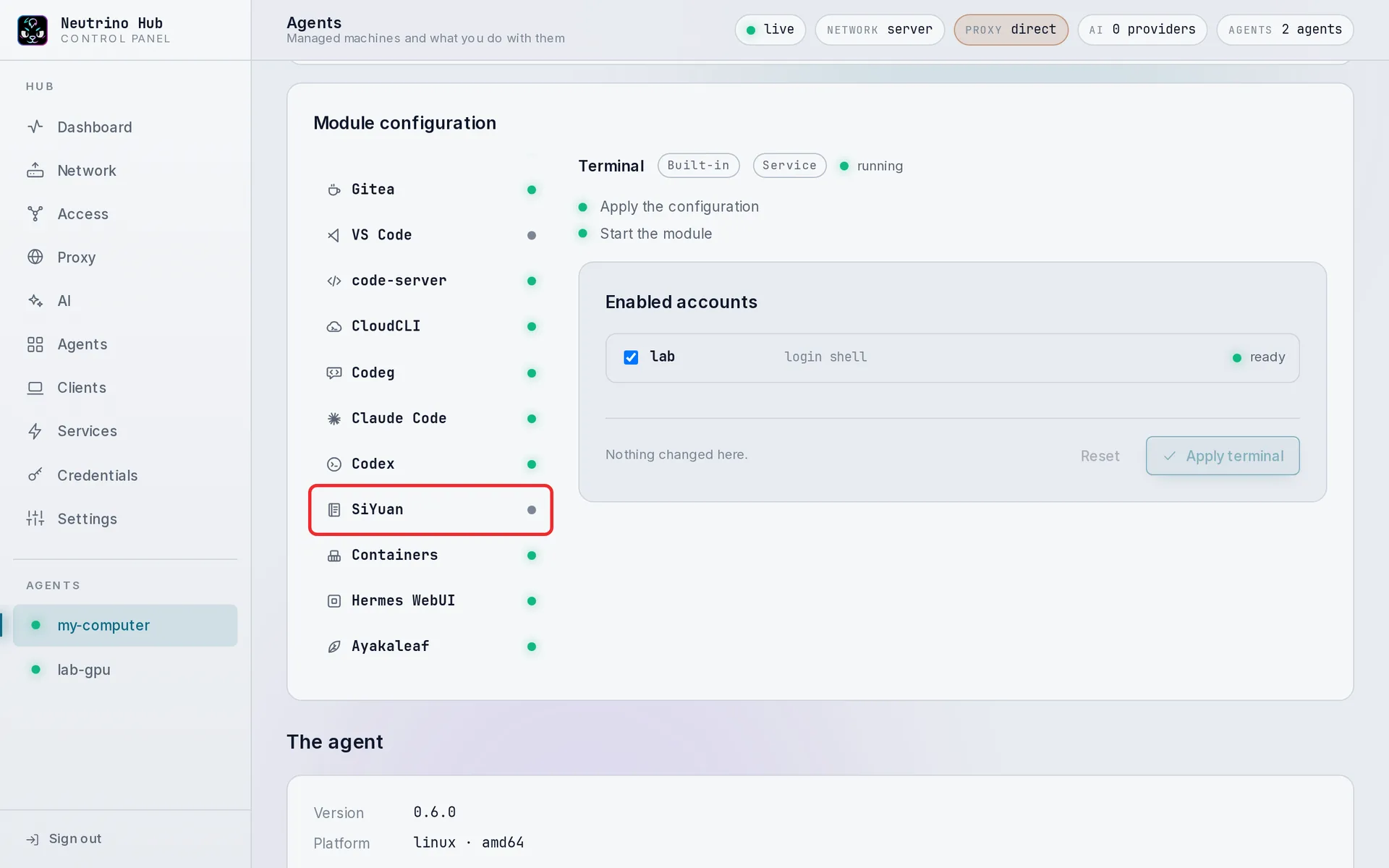
1Select SiYuan 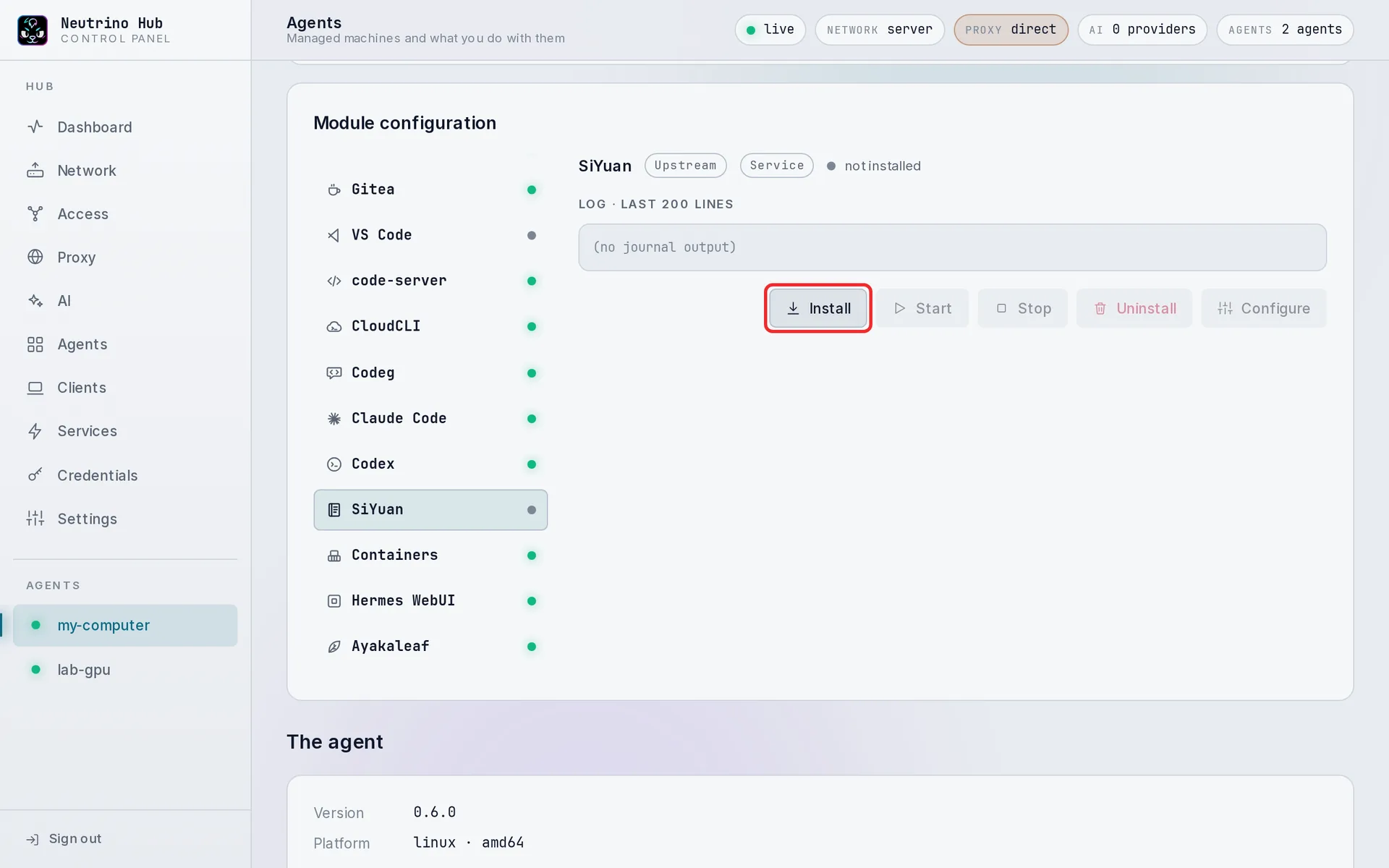
2Select Install The tab lists each step. It downloads the full desktop edition, which is 700 to 800 MB unpacked, so this step takes a while. When the tab shows installed, select Start.
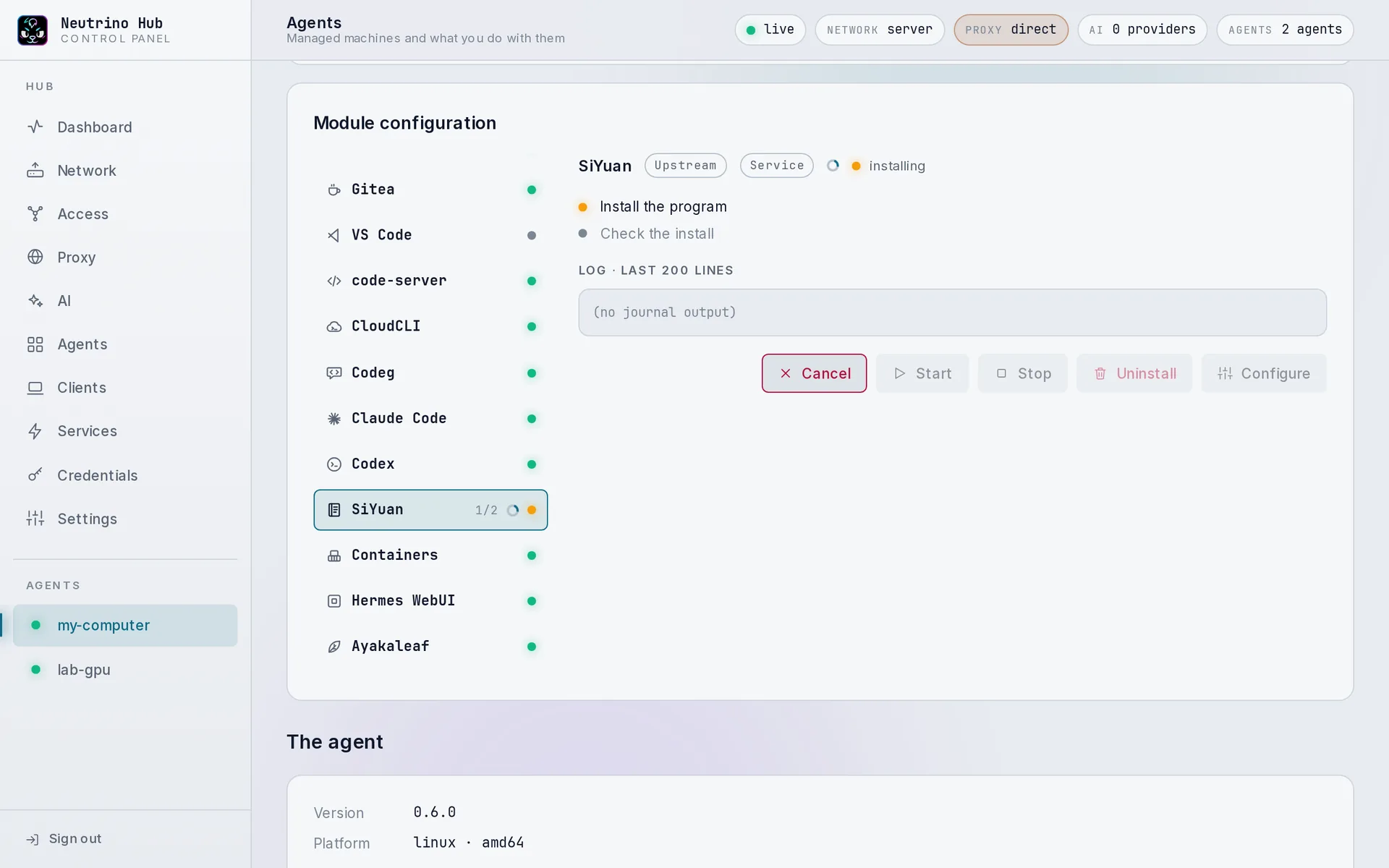
1Installing 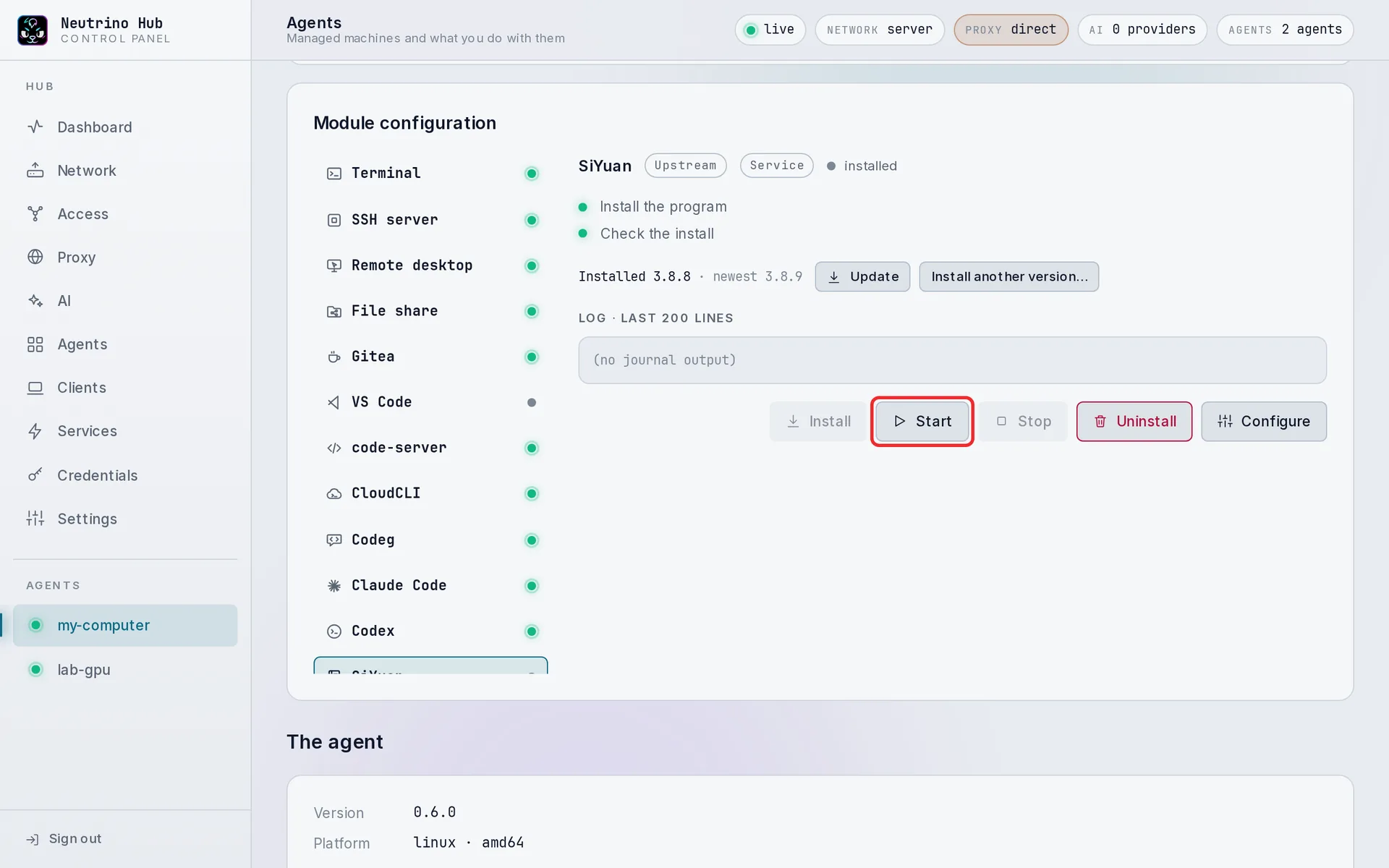
2Select Start The tab shows running, no accounts. Select Configure to expand the settings. Under Enabled accounts, select your account.
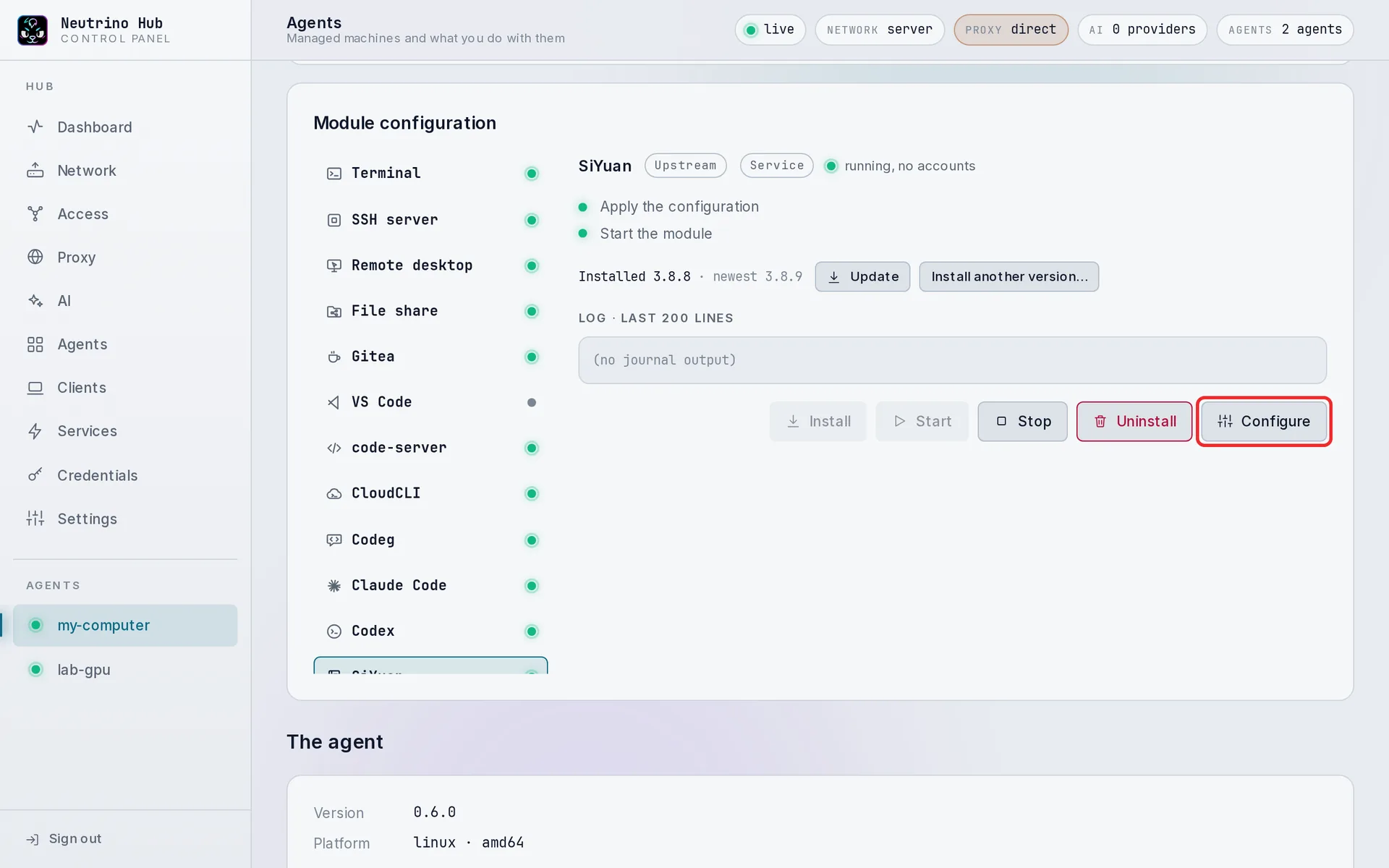
1Select Configure 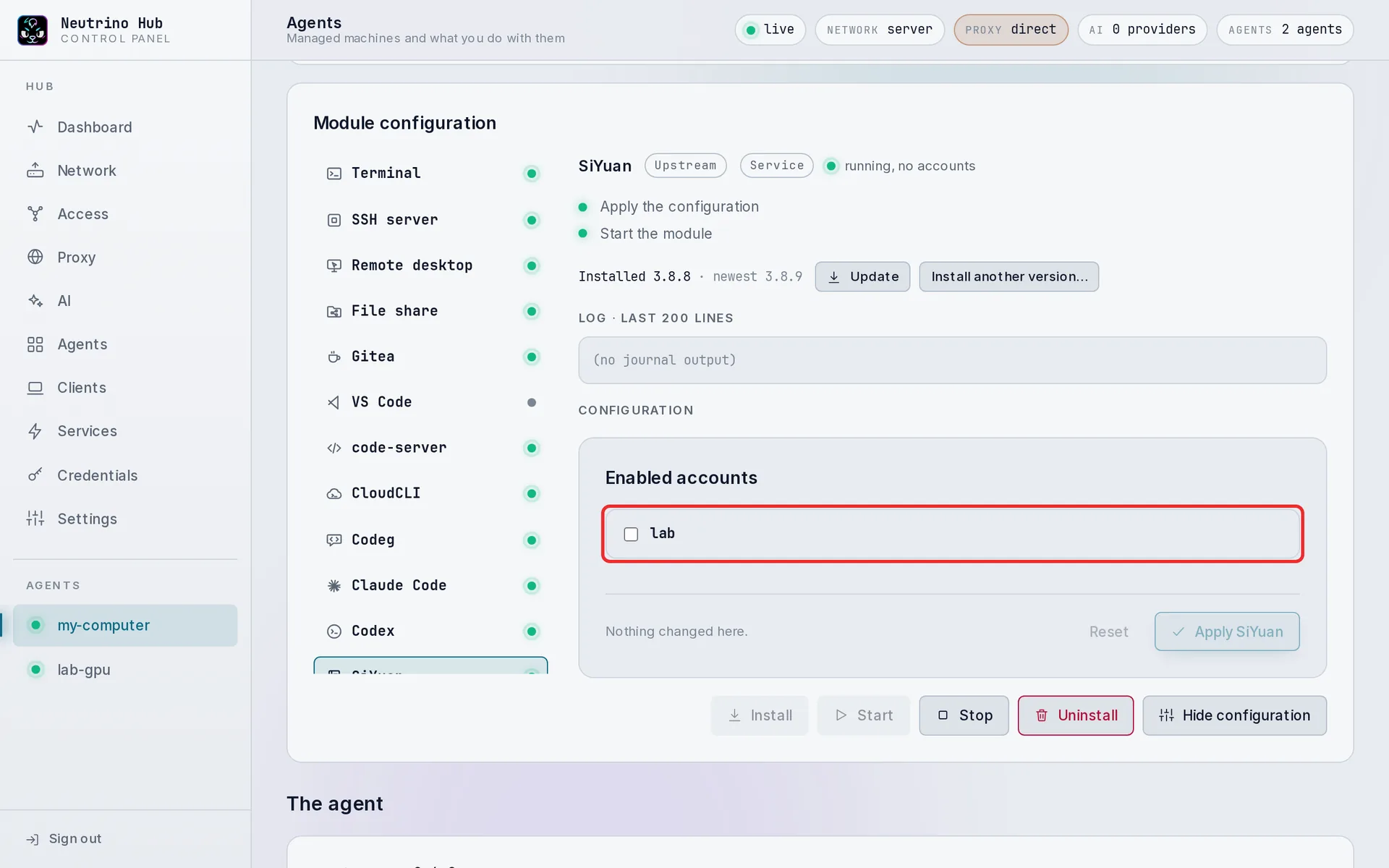
2Select lab Select Apply SiYuan. The button changes to Applying… for a few seconds. When the step list on the tab gains Set up account lab and the tab shows running, the installation is complete.
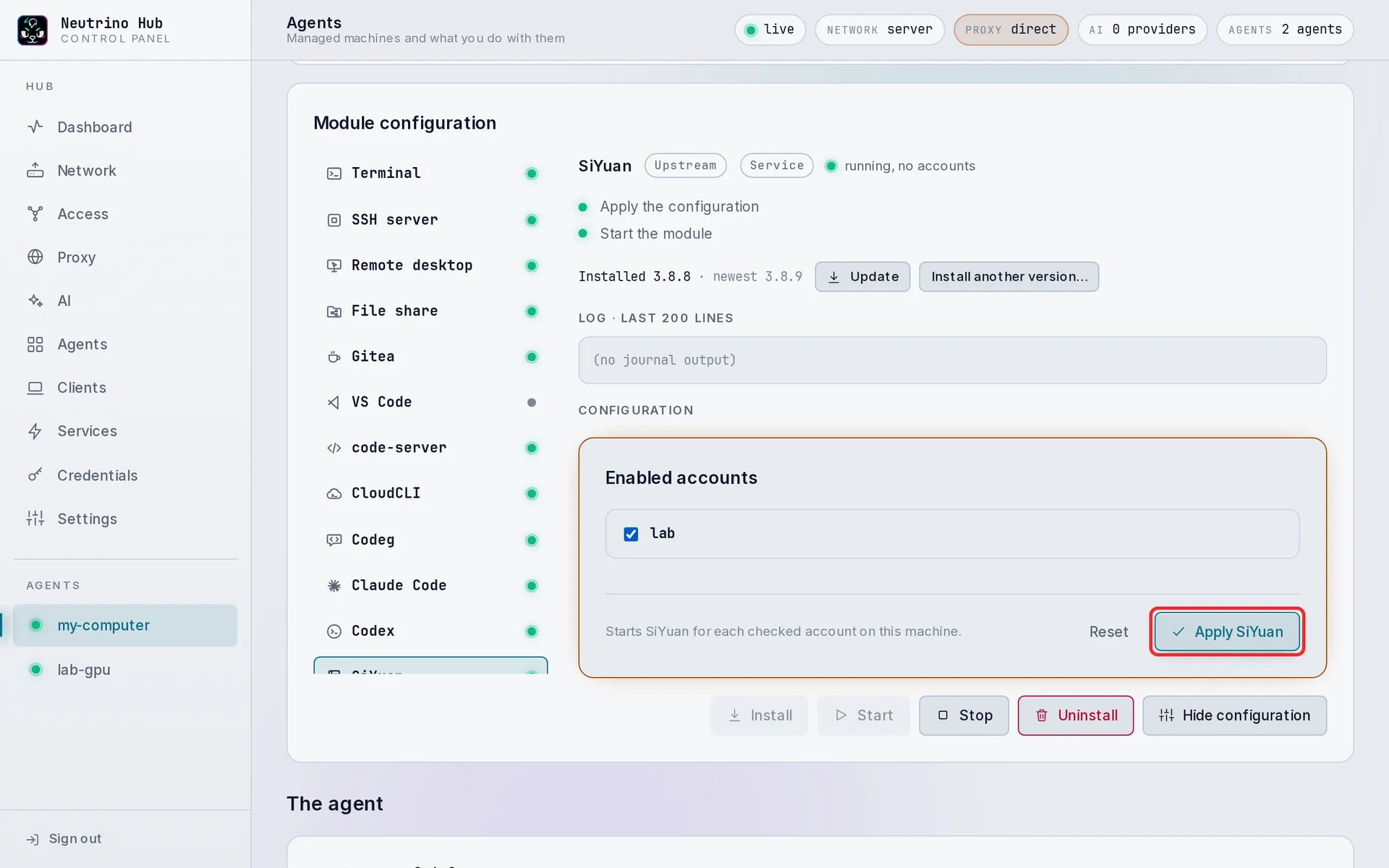
1Select Apply SiYuan 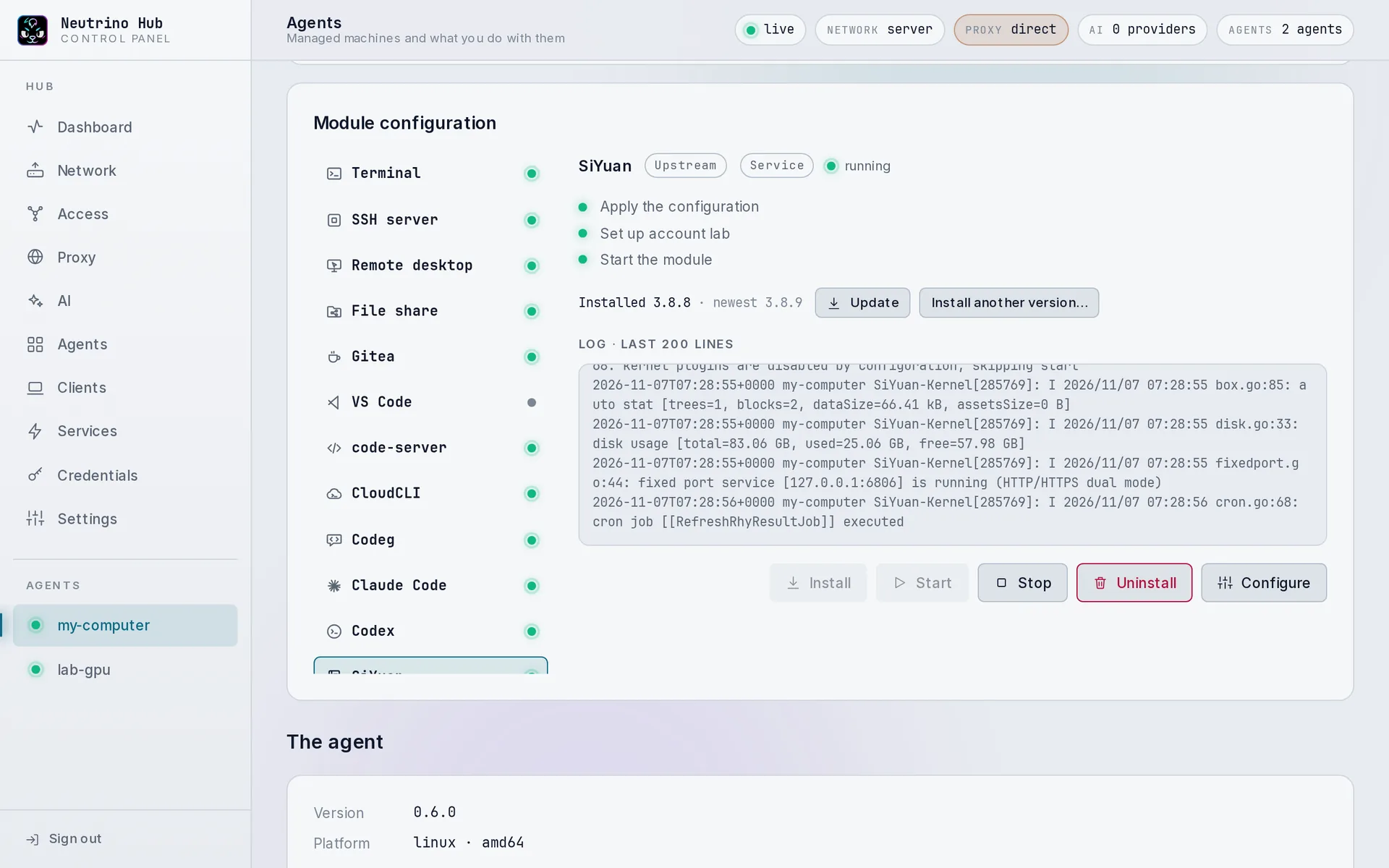
2Running
Use
Before you start, join your phone or computer to the hub, as Join the hub describes.
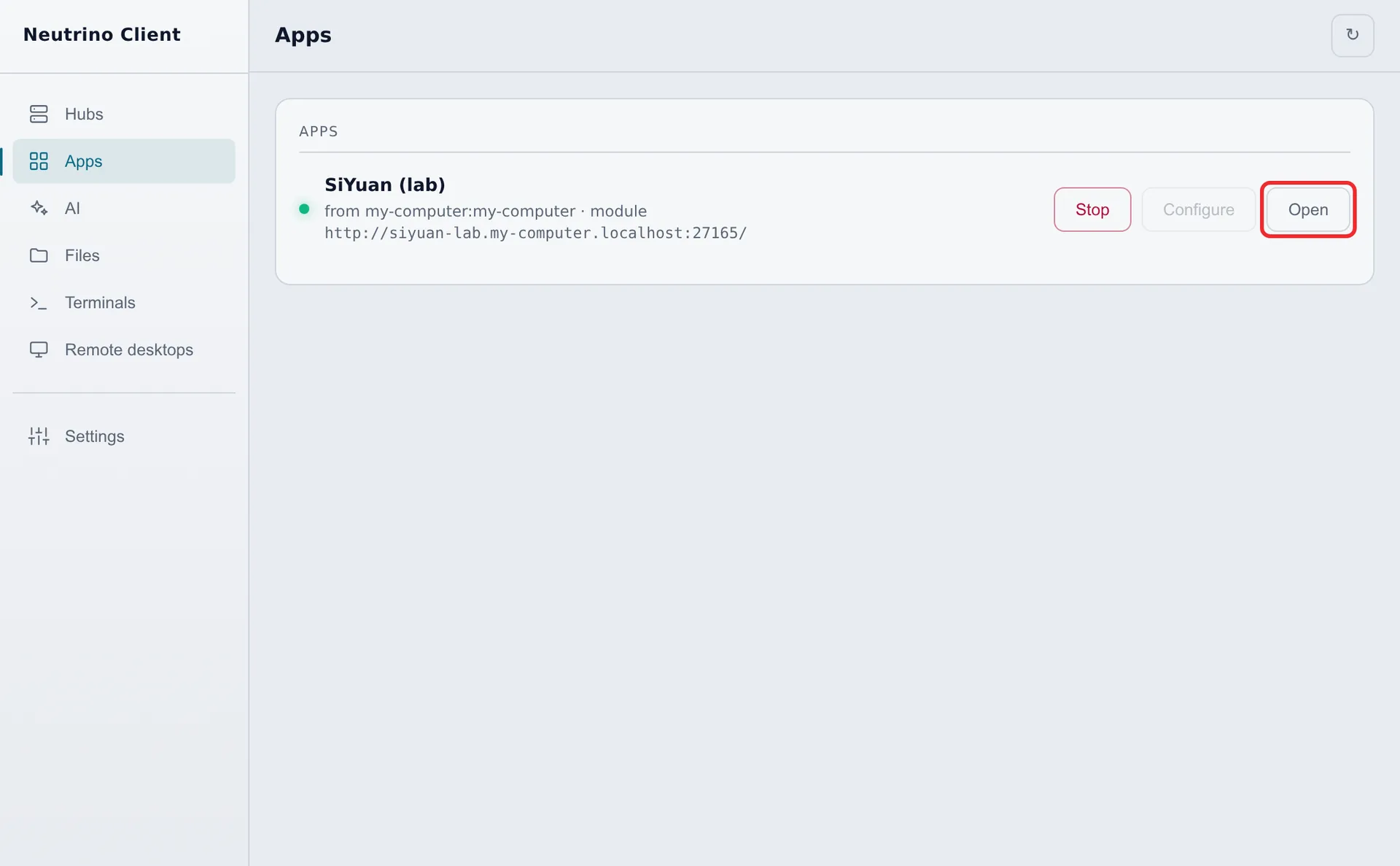
In the client, open the Apps page and find the SiYuan (lab) row, where the name in parentheses is the account. Select Use, and the row shows a local address with the buttons Stop, Configure and Open. Select Open.
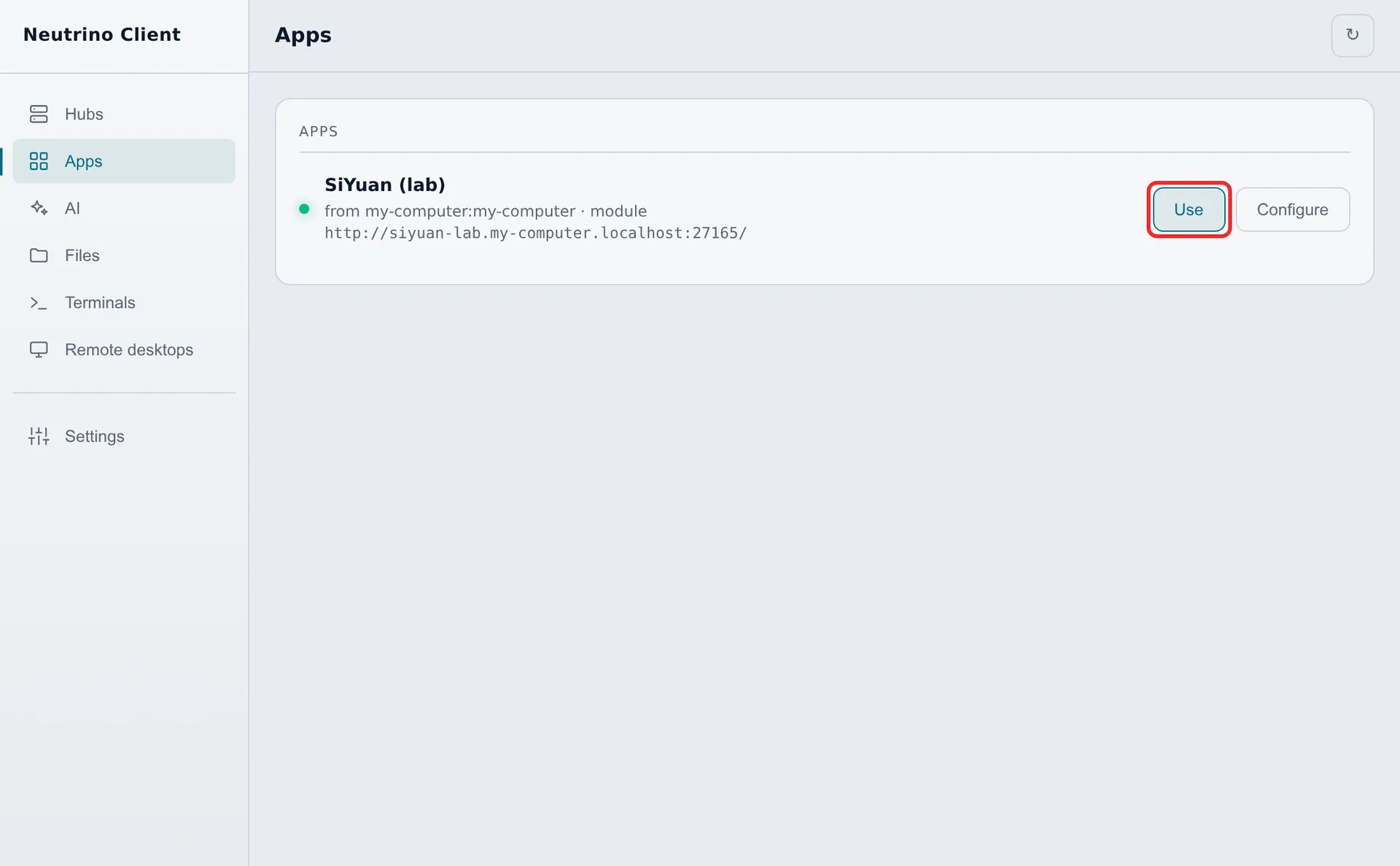
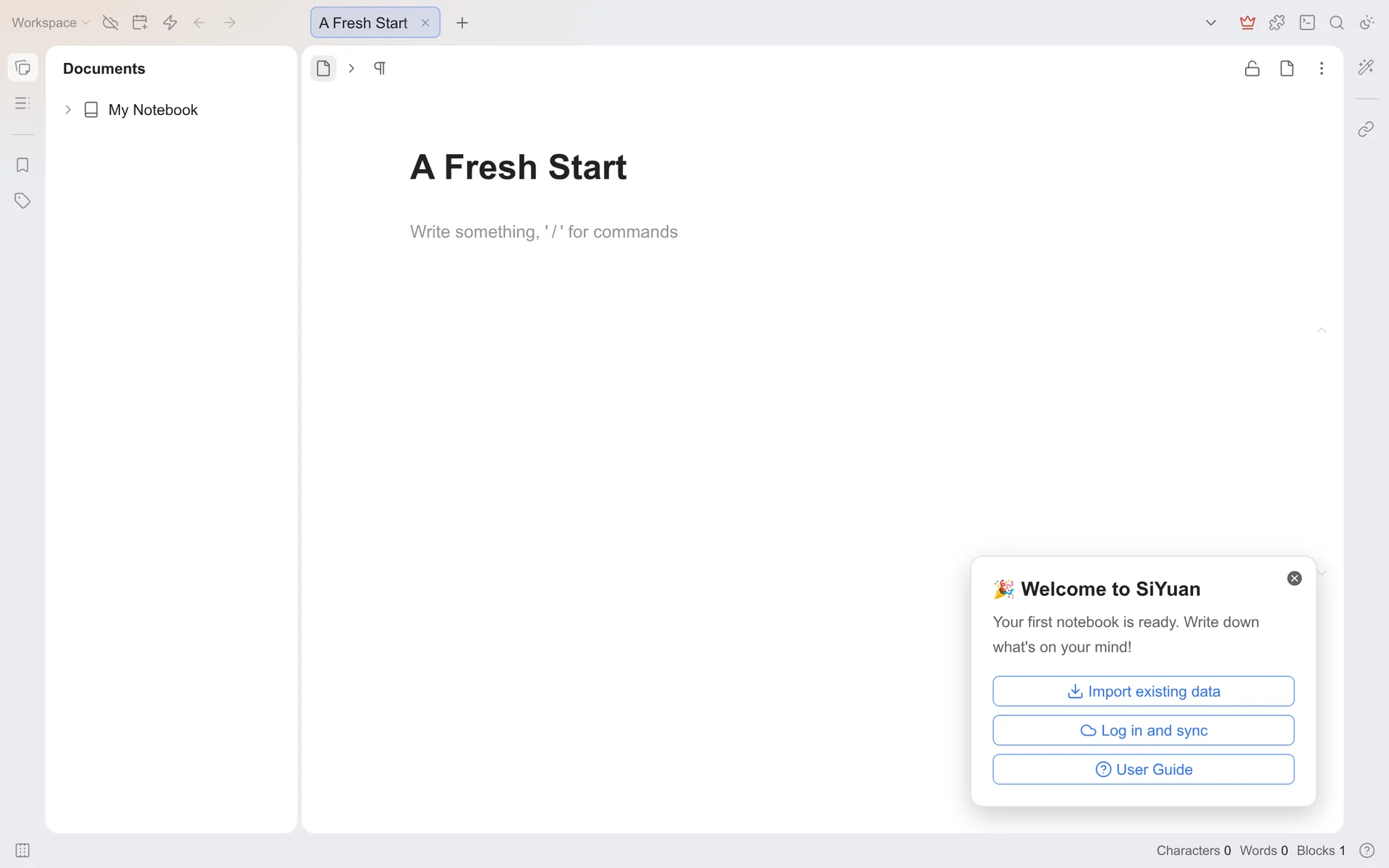
SiYuan opens in the browser without an access password. On the first visit, it already holds a notebook and a document named A Fresh Start, and you can type in the body right away.
To change the interface language, use the settings of SiYuan itself. When you finish, return to the client and select Stop. On a phone, the steps are the same: on the Apps page, select Use, then Open.
Share
SiYuan can generate a link with App share, and the visitor opens it in a browser.
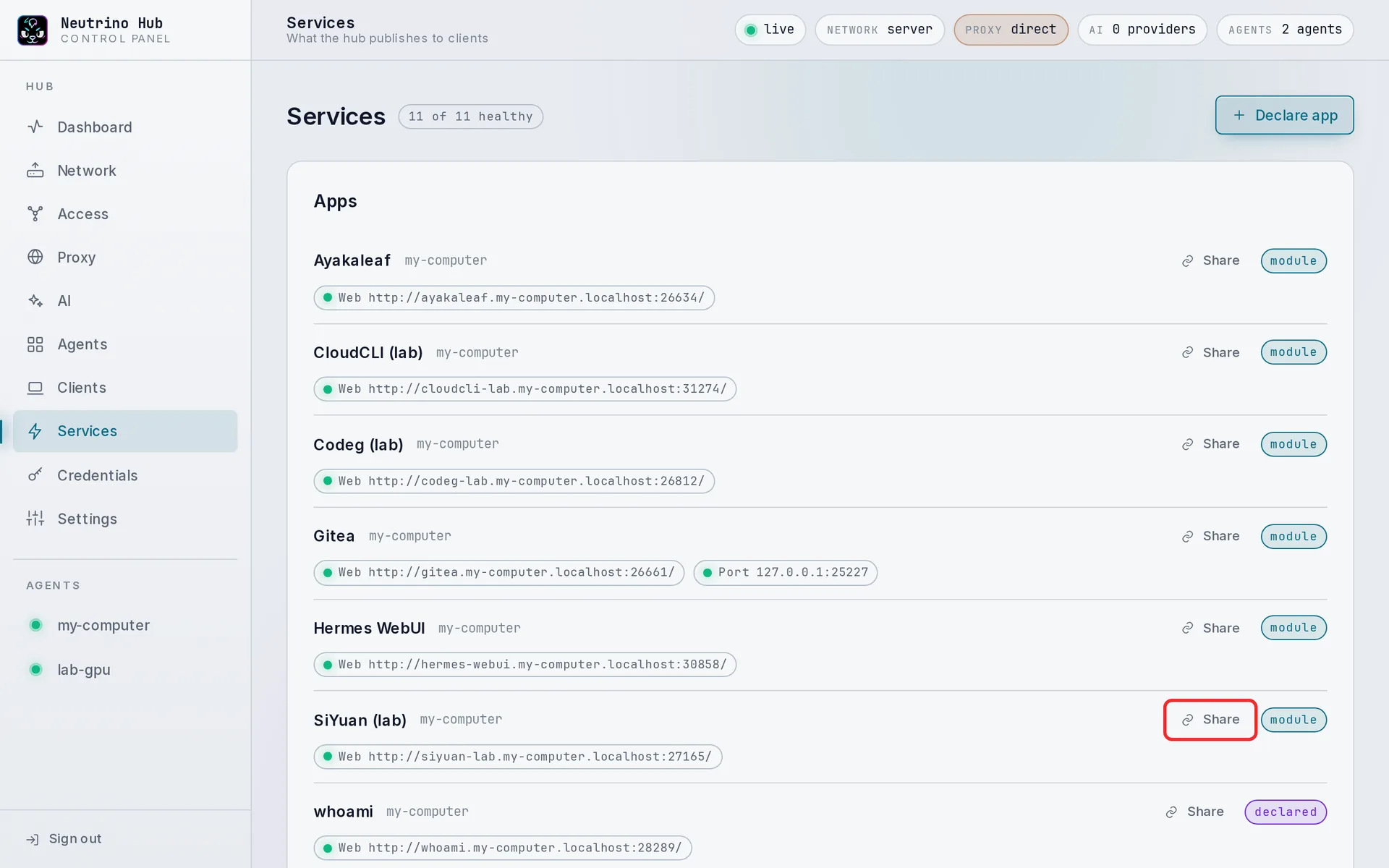
In the panel's left sidebar, select Services. Find the SiYuan (lab) row and select Share.
In the dialog, enter a Name that helps you recognize the link; the name is visible only to you. The yellow notice under it states that the visitor uses this app as this account. Expires defaults to 7 days, and you can choose another option. Select Generate link.
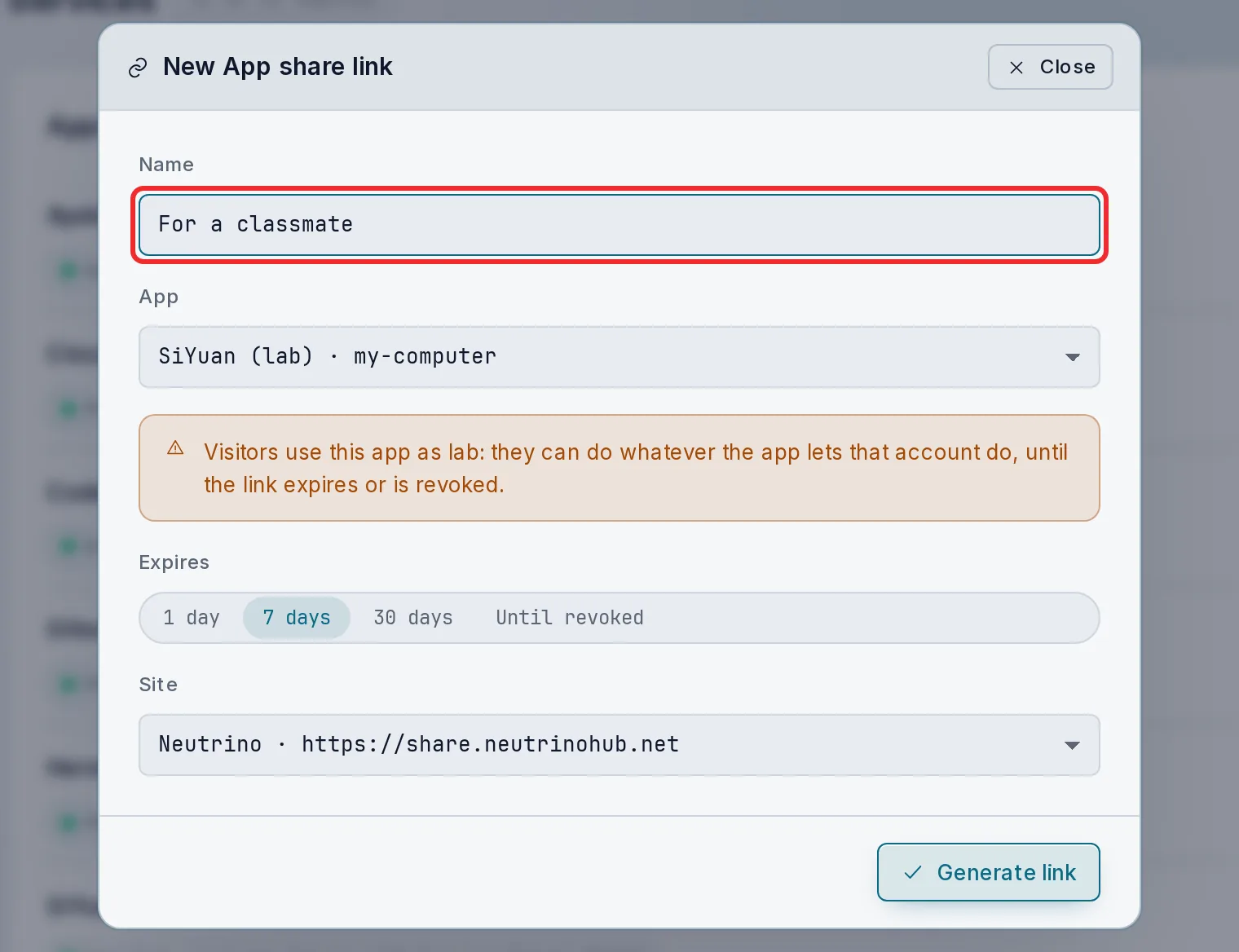
1Enter a name 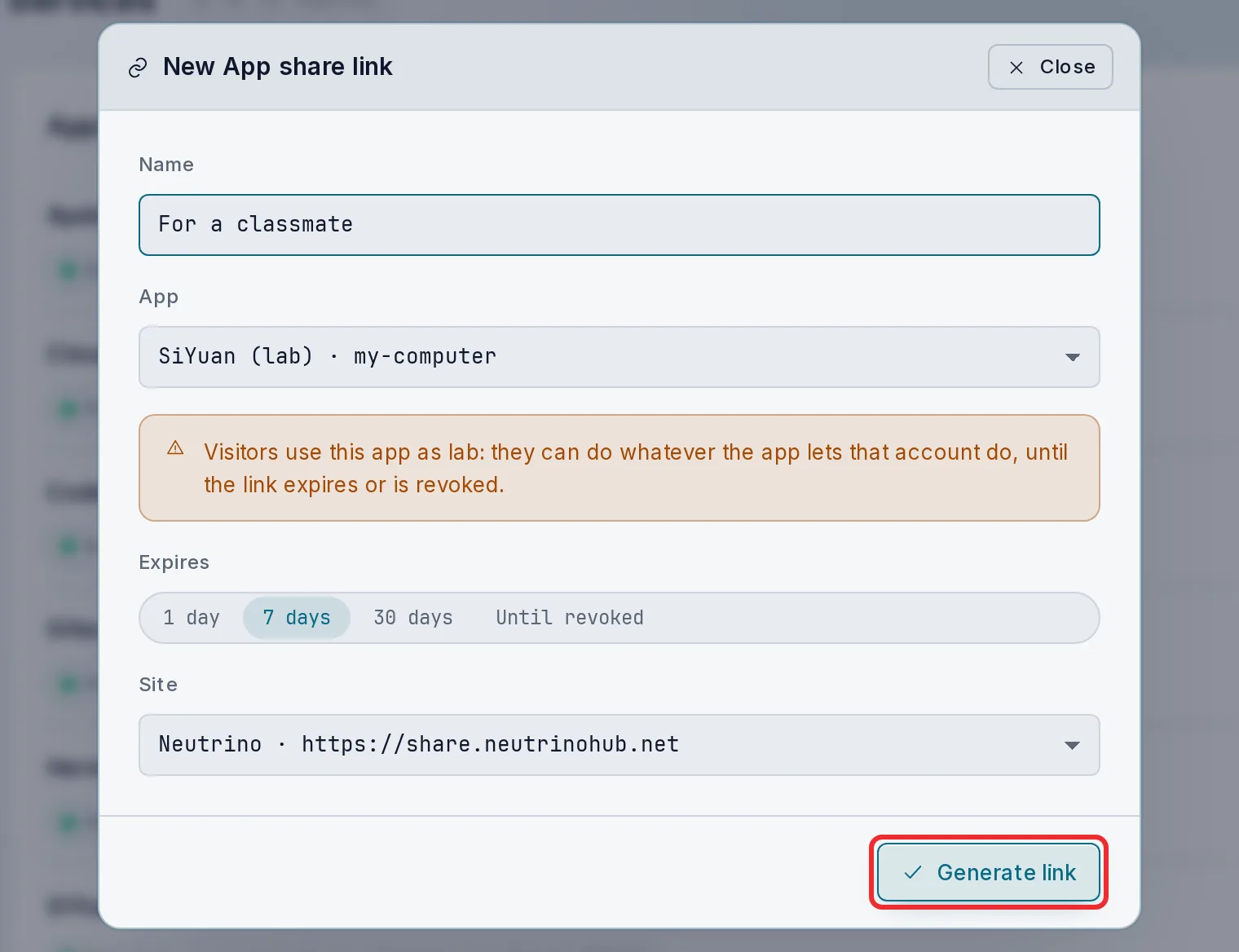
2Select Generate link Select Copy right away and send the link to the visitor. Then select Done to close the dialog. After the dialog closes, the panel no longer shows the link.
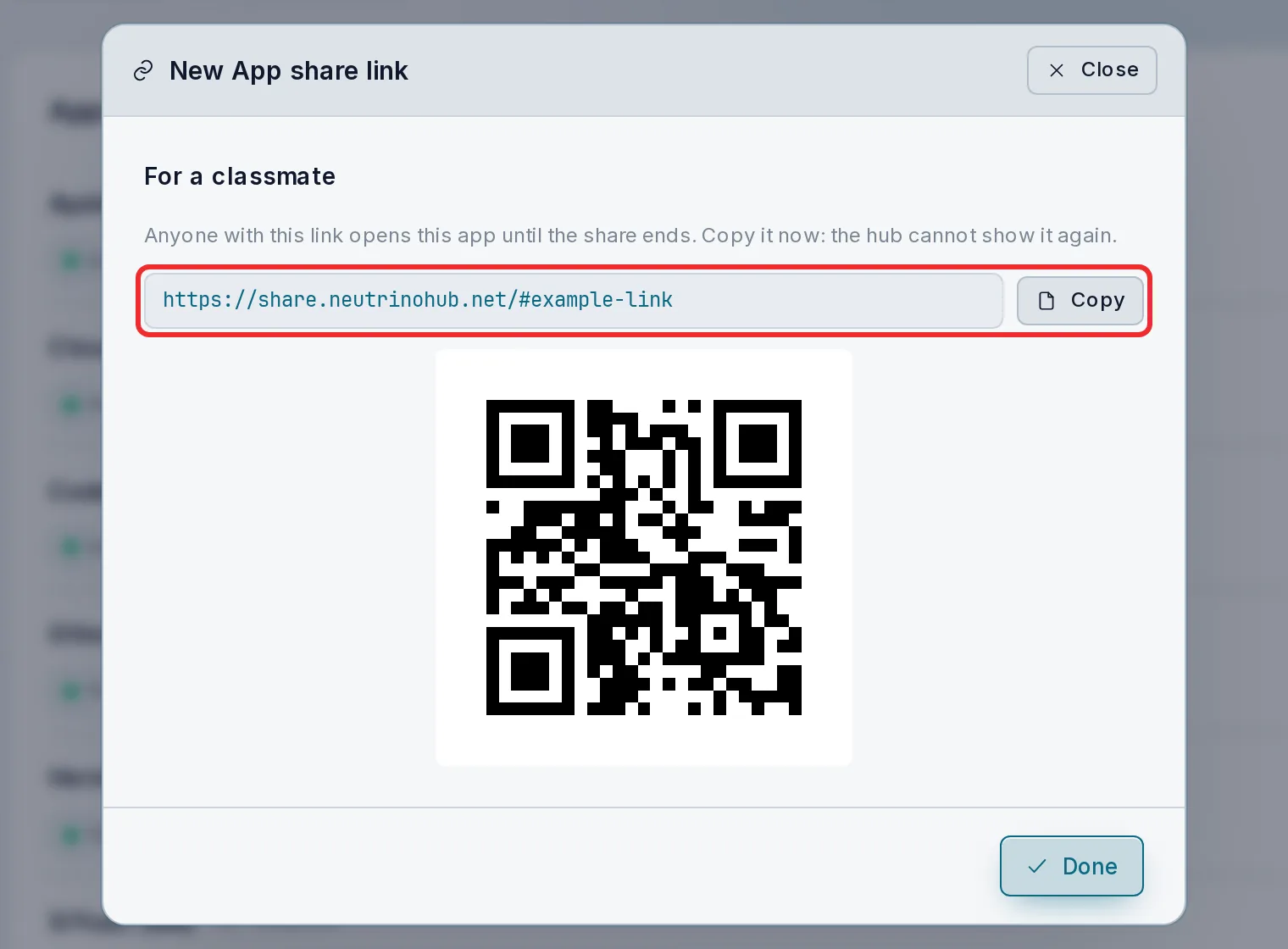
Select Copy
The visitor opens the link without signing in and uses the same account as you. The visitor can view, edit and delete every note of this account.
To share only some notes, add another account on this system and keep only the notes to share in it. Then share the row of that account.
Risks and limits
The SiYuan here and the desktop edition on your computer keep separate notes, so import your existing notes by hand.
The AI settings gain a provider automatically, which uses models from the AI gateway, and the visitor can use it too. When the accounts or providers of the gateway change, SiYuan restarts one time for every account.
Settings
Apart from the enabled accounts, the following settings can stay at their defaults:
| Setting | Where | What it does |
|---|---|---|
| Enabled accounts | Configure on the tab | Each selected account has its own notes |
| Update, Install another version… | Under the status on the tab | Changes the version; the steps are in Change version. SiYuan downloads no new packages automatically |
Uninstall
On the SiYuan tab, select Uninstall. The dialog shows the folder where the notes of each account stay. Select Uninstall to confirm.
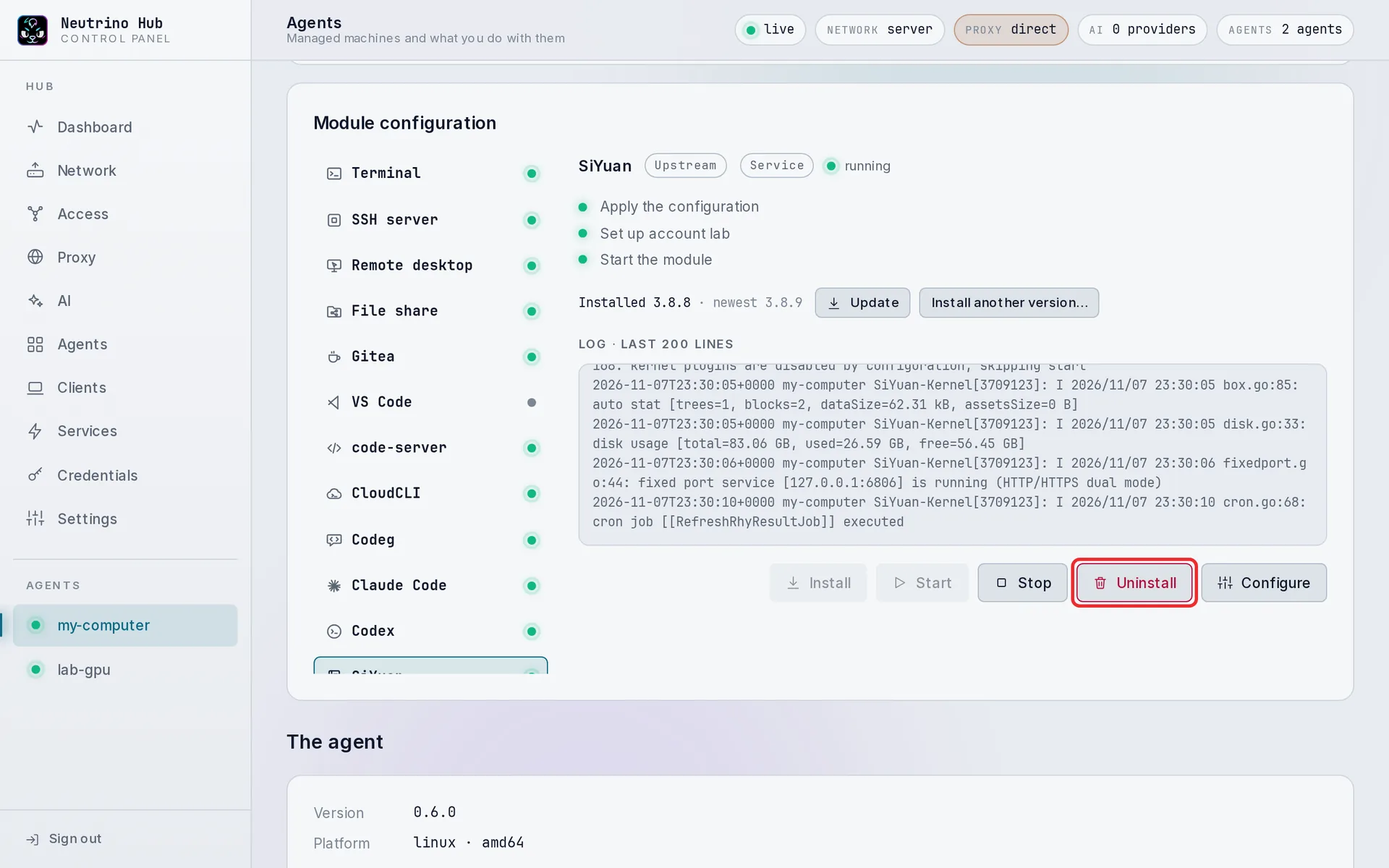
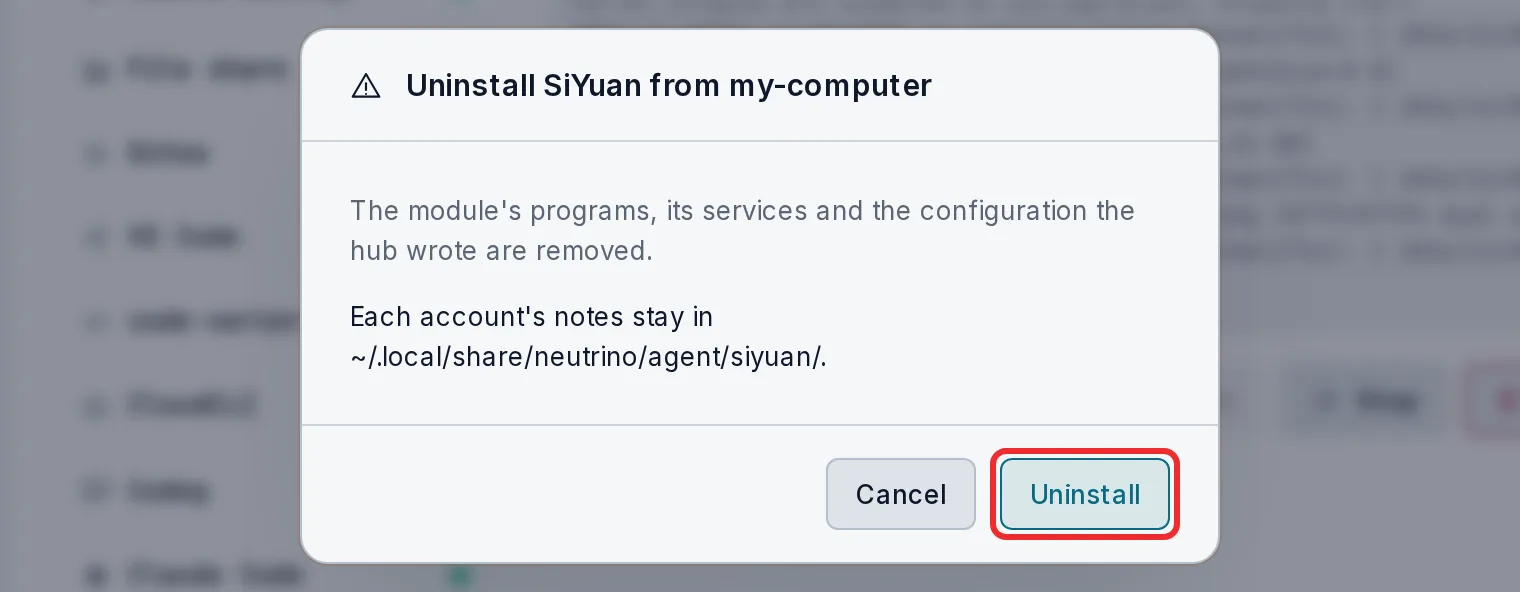
When you clear only one account, its notes also stay.
If SiYuan does not start, see Troubleshooting.