
English
Install the client
You install the client on a phone or computer to use the apps and files on your systems.
On a phone, the client is an app named Neutrino. On a computer, it is a window program named Neutrino Client. Install it on every device you want to use. After installing, join the device to the hub, as Join a hub describes.
Supported systems
| Device | System requirement | First Neutrino Hub version |
|---|---|---|
| Linux computer | Debian 12, Ubuntu 22.04, Fedora, RHEL 9 or AlmaLinux 9 with a desktop, or a later version; Arch-based (amd64) | 0.2.0 |
| Windows computer | Windows 10 1809 or later, amd64 | 0.2.0 |
| Mac | macOS 13 or later, Apple silicon or Intel | 0.2.0 |
| Android | Android 8.0 or later, 64-bit ARM | 0.5.0 |
| iPhone | iOS 16 or later | 0.6.0 |
Install on an Android phone
Scan the QR code with the phone camera or WeChat, then download and install the app.
| China edition | International edition |
|---|---|
 |  |
Install on an iPhone
The iPhone app comes as an .ipa file from outside the App Store and TestFlight. You download the file, sign it with your own Apple ID, and install it. iOS app lists the steps.
Install on a computer
Open a terminal. On Linux, open the Terminal program. On macOS, open Terminal from Utilities in Applications. On Windows, search for PowerShell in the Start menu and open it.
Run the following commands as your everyday account, without root and without
sudo.Copy the command for your system, paste it into the terminal, and press Enter. In mainland China, choose a China edition command, which downloads faster.
bashcurl -fsSL https://github.com/iffiX/neutrino/releases/latest/download/install.sh | sh -s -- clientpowershell& ([scriptblock]::Create((irm https://github.com/iffiX/neutrino/releases/latest/download/install.ps1))) clientbashcurl -fsSL https://cnb.cool/iffi-X/neutrino/-/git/raw/main/packaging/install/install.sh | sh -s -- clientpowershell& ([scriptblock]::Create((irm https://cnb.cool/iffi-X/neutrino/-/git/raw/main/packaging/install/install.ps1))) clientWhen the script requests administrator rights, grant them one time. On Linux and macOS, enter this computer's login password at the prompt and press Enter; the terminal shows no characters while you type. On Windows, select Yes in the permission dialog.
Wait for the script to finish. The installation is complete when the terminal shows
Installed, with a prompt to join a hub on the next line.textneutrino-client_0.6.0_amd64.deb matches its SHA256SUMS line Installing neutrino-client_0.6.0_amd64.deb ... Installed neutrino-client_0.6.0_amd64.deb Next, join this computer to a hub: nclient hub join '<client link from the hub's Clients page>'Open the client from Neutrino Client in the application menu or Start menu, or run
nclient gui. The window opens on the Hubs page, with No hub joined yet at the top and a box for pasting a link under it.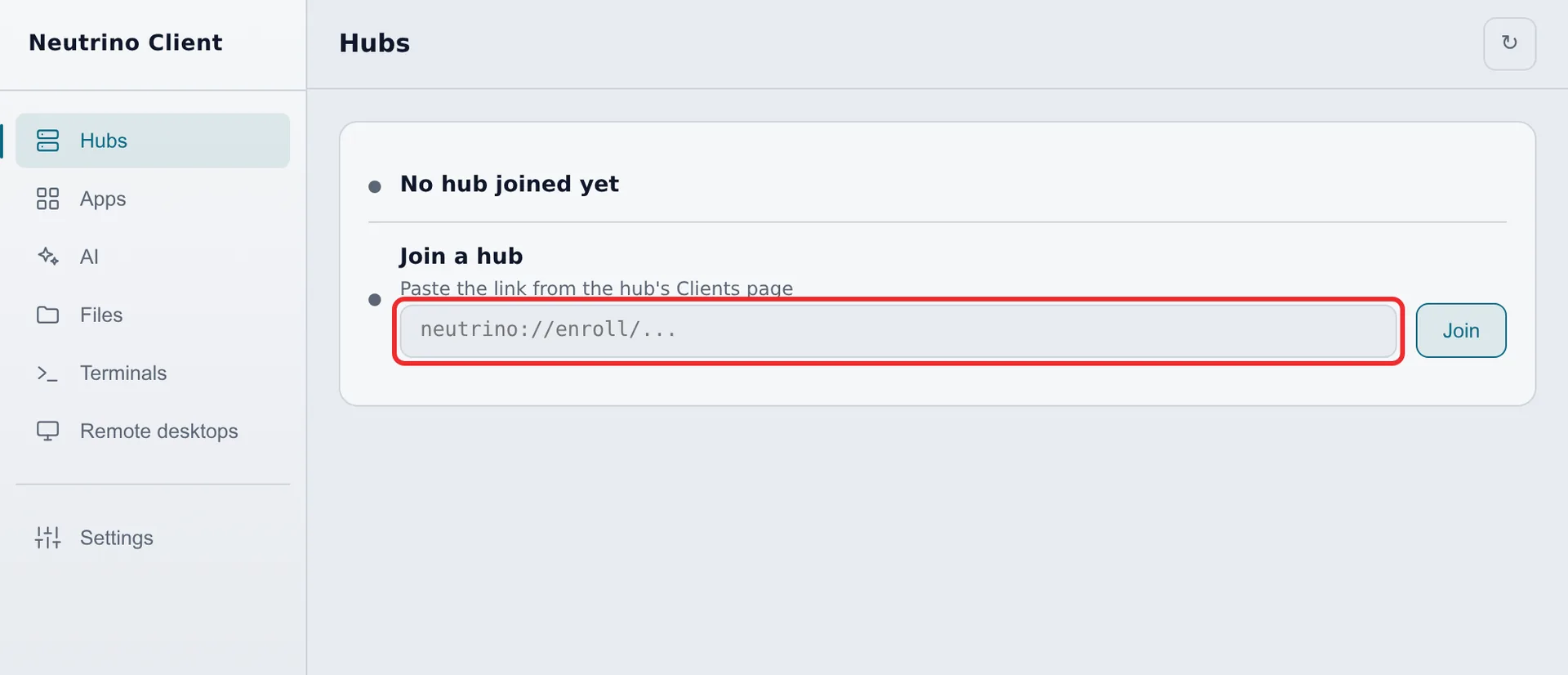
The client has an icon in the tray. Closing the window leaves the client running. To quit the client completely, select Quit in the tray menu.
Install without the script
If you prefer not to run the script, download a package from the release page. Its file name starts with neutrino-client, and its extension is .deb, .rpm, .pkg.tar.zst, .pkg or .msi; choose the one for your system.
After downloading, install the package for your system, with the downloaded file name in place of <file>:
- Debian-based: run
sudo apt install ./<file>. - RHEL-based: run
sudo dnf install ./<file>. - Arch-based: run
sudo pacman -U <file>. - macOS and Windows: open the file.
Upgrade
The client does not upgrade automatically. After the hub upgrades, the client's row for it can show Version too old · update the client. Then run the install command again, or download the new package and install it over the old version.
On Android, download the new apk and open it to install. On iPhone, sign the new .ipa and install it. Every hub you joined stays joined, and you do not join again.
Upgrading from 0.5 takes different steps, as Upgrade from 0.5 describes.