
English
Troubleshooting
You can look up a message on your screen or an error code in the following entries to find its cause and its fix.
The entries are grouped by screen, and each one states the cause first, then the fix. Press Ctrl+F to search for the text or the code on your screen. The most common entries are:
- Locked after repeated failures.: run
sudo nhub unlock. - Forgotten panel password: run
sudo nhub reset password. - The hub did not answer: check that the hub is running, then turn on an access method. See Access: choose a method.
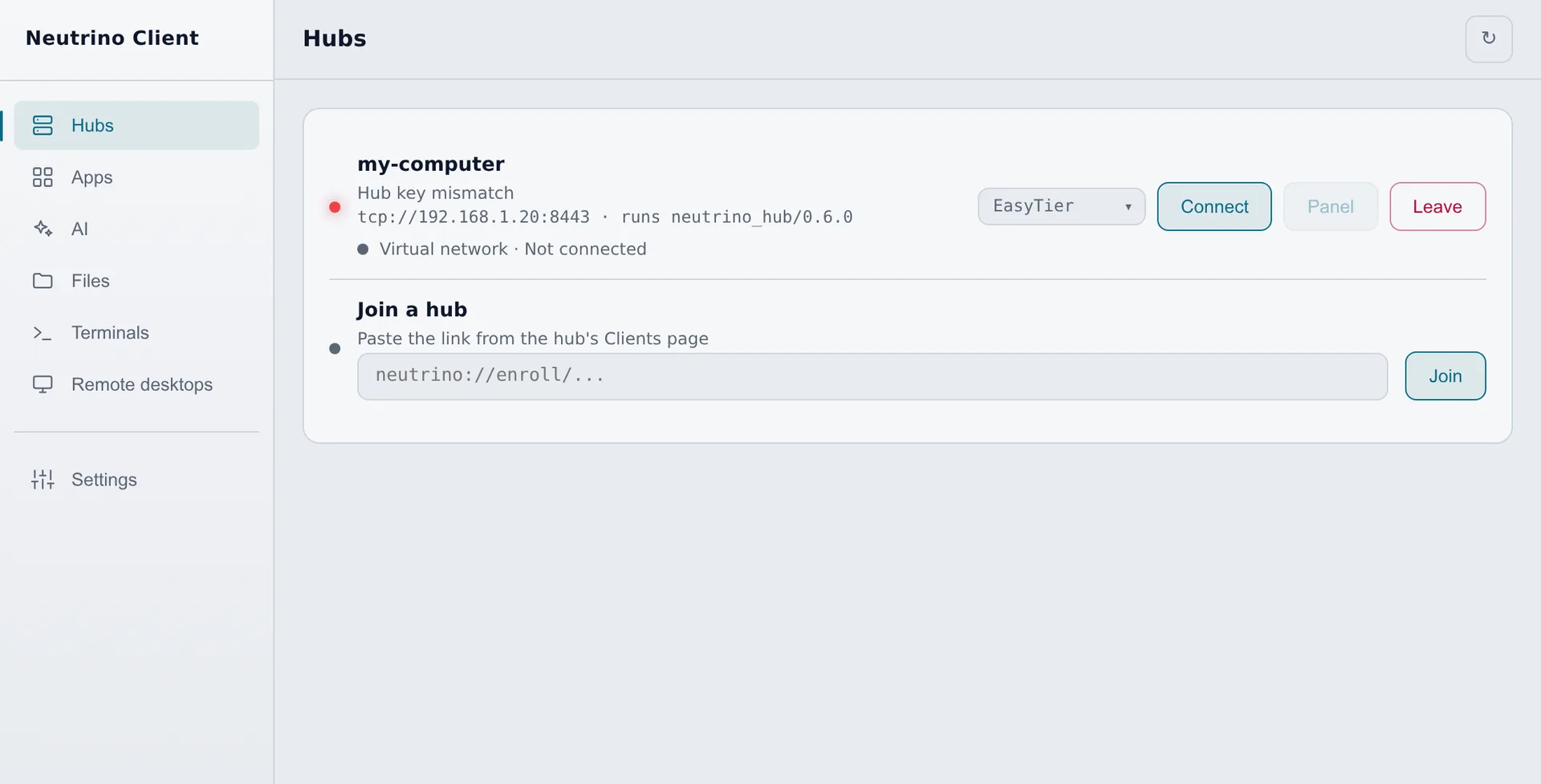
- Hub key mismatch: the hub was reset. Select Leave, then join with a new link.
agent_offline: runsudo nagent statuson that system.download_failed: check the network of that system and of the hub.- This link is no longer valid.: the share has ended. Generate a new share link.
General errors
agent_offline
The system you want to use is not connected to the hub. To bring it back:
- On that system, run
sudo nagent statusand look at theserviceandheartbeatlines. - If the service is stopped, run
sudo nagent start. - In the panel, wait until the system is online, then try again.
hub_unreachable
The hub's connection port, 8443 by default, cannot be reached. To restore the connection:
- Check that the hub's computer is on, then run
nhub status. Thetransportline must showrunning. - If you are outside the hub's LAN, check that a method is turned on on the Access page.
- On the Network page, check Exposure. The network you use must be turned on there.
permission_denied
This client lacks this kind of permission, or the permission does not cover that system.
On the Clients page of the panel, select Permissions on this client's row. Turn on the matching permission, then select Apply permissions.
control_unavailable
The hub is busy and did not respond in time. This counts as a delay: the program retries automatically, and you take no action.
result_too_large
The system's answer was larger than the 65536 bytes (64 KiB) one record holds, so the agent sent this code in its place. The panel shows The machine's answer was larger than the 65536 bytes one record holds.
vault_locked
The hub has no working key for the vault on this system, so it cannot read the credentials.
On the Settings page, restore a backup and enter the vault passphrase that was set when the backup was made.
Panel access and sign-in
The browser cannot open the panel address
The service is not running, the port changed, or your device is outside Exposure. To find the cause:
- On the hub's computer, run
nhub status. Thewebline must showrunning. - Run
sudo nhub open --printto see the panel's current address. - In the panel, check Ports and Exposure on the Network page.
Signed out after a panel port change or an HTTPS switch
The change ends every session, as expected. Sign in again at the new address the browser opens.
An old session in this browser blocks this sign-in
The browser still keeps an old sign-in for the HTTPS port. Select Clear the old session, then sign in.
Locked after repeated failures
The password was entered wrong too many times in a row. On the hub's computer, run sudo nhub unlock. The command also lifts the SSH ban.
Forgotten panel password
The panel password cannot be read, only replaced. To replace it:
- On the hub's computer, run
sudo nhub reset password. - Type
y, then the new password. Everyone is signed out, and you sign in again with the new password.
Forgotten vault passphrase
Backups made with the old passphrase cannot be opened, and the running hub keeps working. To start over with a new passphrase:
- Run
sudo nhub vault rekeyand set the new passphrase. - On the Settings page, download a new backup, and use that backup from now on.
setup_in_progress
The wizard of this hub is already running. Wait until the wizard ends, or return to the wizard page and continue.
The panel's HTTPS certificate
These entries cover the panel's HTTPS port only. They are separate from how devices connect to the hub.
The browser warns that the certificate is untrusted
This device lacks the hub's certificate. On the Settings page, select Install certificate, follow the steps, then restart the browser.
Enable HTTPS is grey
Enable HTTPS is grey and shows Install the certificate, then restart the browser. The cause is that this browser does not trust the hub's certificate. To turn on HTTPS:
- On the Settings page, select Install certificate, follow the steps, then restart the browser.
- Open the panel at its
http://address, then select Enable HTTPS.
Firefox warns and Chrome does not on the same computer
Firefox keeps a certificate list of its own. Repeat the Firefox steps of Install certificate.
Every browser warns after a settings change
Someone selected Regenerate certificate. Every device must install the certificate again, then restart the browser.
The browser says the certificate belongs to another name
The address in the address bar is missing from the certificate, which holds no public address. Open the panel by a name or an address that the certificate lists.
https_authority_missing
This hub has no certificate authority yet. Generate one on the Settings page first.
https_reset_over_https
The certificate can be regenerated from the HTTP address only. Open the panel at its http:// address and try again.
Settings page and wizard
When you restore a backup, an error code can start with backup_ or vault_passphrase_. Such a code means the hub restored nothing, and your settings are unchanged. The last three codes in this section appear when you update the hub.
backup_wrong_extension
The chosen file is not a backup that the panel exported. Choose a backup file that the panel downloaded.
backup_unrecognized, backup_corrupt
The hub cannot recognize this file, or the file is damaged. Use another backup.
backup_mode_unavailable
This hub lacks the network mode in the backup. Use another backup, or a hub of the matching edition.
vault_passphrase_needed, vault_passphrase_wrong
The passphrase is empty or wrong. Enter the vault passphrase that was set when this backup was made.
Files restored, but the dialog says the apply did not finish
The files are restored, but one step of applying them failed. Fix the cause the dialog shows, then run sudo nhub apply.
health_gate_failed
The new version did not respond within the time limit, so the hub restored the old version. Read the logs to find the cause, then update again.
disk_space_short
The disk lacks the space to save the new version. Free some space, then update again.
release_major
A new major version cannot be upgraded from the panel. Follow its upgrade guide by hand, for example Upgrade from 0.5.
Credentials page
key_is_public
The pasted key is a public key. Paste the matching private key here, that is, the file without .pub.
key_passphrase_needed
This private key has passphrase protection. Enter its passphrase with it.
Agents page
unsupported_remote_install
Add over SSH installs on Linux only. Install the agent on that system first, then use Add by link instead.
key_passphrase_not_stored
The Add over SSH or Reinstall dialog shows This key is passphrase-protected and the hub cannot open it. Add it on the Credentials page with its passphrase. The hub holds this key without its passphrase. On the Credentials page, select Add key, paste the private key and fill in Key passphrase. Then select the new key in the dialog.
install_credentials_invalid
That system rejects these sign-in details. Check the user name, the key or the password.
agent_package_missing
The hub has no agent package for this platform. Install the agent on that system with the install script.
transport_key_missing
The connection port is not ready yet. Generate the link again later.
wol_no_mac
This system has never reported a MAC address, so it cannot be woken. After it goes online one time, it can be woken from then on.
reinstall_failed, update_failed
Reinstalling or updating the agent failed. Run the install script on that system again.
Access page
overlay_subnet_overlap
The virtual network's subnet overlaps another virtual network or this system's network. Change the EasyTier address, or change the LAN address on the Network page.
overlay_route_overlap
A virtual network route overlaps this system's network. Change that route in the console that manages the virtual network.
overlay_default_route_refused
The console sent the hub a default route. The hub removed it and reaches the internet through its own uplink as before. Delete that route in the console as well.
direct_host_invalid
Public address is neither an IP address nor a host name. Correct it, then select Apply Direct.
easytier_config_server_invalid
The console address is wrong. Copy it again from the EasyTier console.
easytier_invalid
Manual mode has no bootstrap peer. Enter at least one.
NetBird shows not joined
The hub has no NetBird identity, or its sign-in expired. Join again with a new setup key.
NetBird shows Management plane unreachable
The hub cannot connect to the NetBird management plane. Check the uplink and the DNS of this system.
NetBird shows not running
NetBird is not running. Turn the card off and on again, then select Apply access.
EasyTier shows No machine has joined yet
The network name or the password on the other system differs. Copy the command again and run it on that system again.
No connection to the hub through the virtual network
Exposure has the virtual network turned off. On the Network page, turn it on, then select Apply exposure.
SSH relay shows Connecting
The first check has not finished yet. Look again in a minute.
SSH relay shows Not configured
The server, the account or the credential is empty. Fill them in, then select Apply SSH relay.
Authentication failed
The server rejects this key or this password. Check authorized_keys on the server, or check the password.
Forward refused
The server rejects the listen request, or another program uses this port. Check the permitlisten setting, then free the port.
Public port closed
The forward is running, but the public address does not respond. With the SSH relay, check GatewayPorts and the firewall. With frp, check with the provider.
Host key changed
The key the server presents has changed. Confirm that you reinstalled the server, then select Forget host key. If you did not reinstall it, stop and go no further.
Server unreachable
SSH cannot connect to the server. Check that the server is running and that the SSH port is correct.
Vault locked
This is the same as the earlier vault_locked entry. Restore a backup on the Settings page.
frpc_missing
The hub's package lacks frpc. Reinstall the hub on the original system.
frp_credential_refused
The provider rejects these sign-in details. Copy the access key again, or sign in again.
frp_not_signed_in, Not signed in
You are not signed in to the provider, or the sign-in expired. Sign in again, as SakuraFrp and OpenFrp describe.
frp_tunnel_unknown
The selected tunnel is no longer in the account's list. Refresh the list and select a listed tunnel.
frp_vendor_unreachable
The hub got no usable reply from the provider. Check the hub's uplink and DNS, then try again.
frp_config_unusable
The configuration the provider returned lacks this tunnel. Check it in the provider's console, then refresh.
Enabled, not connected
You are signed in, and no tunnel is selected yet. Select a row, then select the apply button.
Local port in use
Another program uses the local port, which is 18443 for SakuraFrp and 18444 for OpenFrp. Stop that program, then turn the card off and on again.
Other red text on a card
The provider's tunnel or server has a problem. See SakuraFrp or OpenFrp.
Network page
network_invalid
An interface turned on in Exposure has the role Disabled. Change its role, or turn its exposure off.
port_out_of_range
The port is outside the allowed range. Use a port in the range that the message shows.
port_already_in_use
The page shows that the port is already in use, because another program uses it. Change the port, or stop that program.
lan_subnet_overlaps
The subnets of two networks overlap. Change one of them.
dhcp_range_invalid
The DHCP range is wrong. Use a range inside this subnet.
interface_not_ap_capable
This wireless card can only join other networks. Use another card, or use this one to join another network.
wifi_join_failed
This system cannot join the wireless network. Check the network name and the password.
resolver_required, no_exit_node_enabled, xray_refused
These codes appear only in the exit settings. resolver_required means there is no remote resolver, and no_exit_node_enabled means no exit is enabled. xray_refused comes with the raw output of xray.
System page: install, start, uninstall
After you fix the cause, select the same button again to retry.
download_failed
Every download source failed to provide this file, and the message lists each source with its reason. To retry:
- Check that this system and the hub can reach the internet.
- After the network works again, select the same button again.
no_platform_build, module_architecture_unsupported
This system or architecture cannot run this app. See Supported platforms.
install_failed
The install failed, and the message shows why. Fix the cause, then select Install again.
install_unconfirmed
The install finished, but the software cannot be found. Select Install again.
uninstall_unconfirmed
The uninstall finished, but the software is still there. Select Uninstall again.
module_digest_mismatch
The downloaded file does not match its checksum. Try again. If it still fails, change to another network and retry.
package_manager_busy
Another program has held the system's package manager for 5 minutes, for example an automatic system update. Wait until the update ends, then try again.
module_needed
An app it depends on is not running, and the message names that app. If the message says to select Install, select Install. If it says to select Start, select Start. Both apps retry together.
containers_not_applied
Containers cannot run the containers of this app. Fix the error on the Containers tab first, then select Start.
module_in_use
Another app still depends on it, and the message names that app. Uninstall that app first, then this one.
state_not_settled
This app is still applying its configuration. Try again later.
version_switch_failed
The new version failed to start, and the original version is restored. Read the reason that follows the code, or keep the original version.
version_locked
The version of this app follows the system or the agent and cannot be chosen. Leave it as it is.
apply_failed
This system cannot apply this configuration, and the message shows why. Fix the cause, then try again.
Grey cards
This system cannot run this app. See Supported platforms.
Waiting messages such as Waiting for the system's package manager
A message such as Waiting for the system's package manager means the action is in a queue. Wait for the action to finish.
System page: accounts
account_unknown
The system has no such account. Choose another account, or create it on the system first.
account_invalid
This name cannot be used in this app. Choose another account.
account_duplicate
This account is already added. Skip adding it again.
account_no_profile
This Windows account has never signed in, and this app needs its home folder. Sign in to the computer with this account one time, then select the same button again. Containers are exempt from this limit.
credential_missing
This Windows account has no saved password. In Available accounts, select Edit on this row and fill in Password.
credential_invalid
Windows rejects this password, for example because it changed. Enter the correct password in the dialog or in the account form.
account_logon_refused
This account is locked, disabled or has an expired password, and the raw Windows message follows the code. Fix the account in Windows.
System page: individual apps
page_silent
The containers are all running, but the app's page has not responded for 5 minutes. Check which other program listens on this port.
gitea_git_missing
On a Mac with the Apple command line tools installed, Gitea still cannot find git. Install the developer tools or git from Homebrew, then select Install.
terms_not_accepted
Microsoft's terms are not accepted on this system yet. On the VS Code tab, select Open and accept the terms.
cloudcli_npm_install_failed
The npm install failed, and the message shows why. Fix the cause, then select Apply CloudCLI.
cloudcli_native_module_failed
A prebuilt file failed to download. Check that this system can reach GitHub, then select Apply CloudCLI.
cloudcli_install_out_of_memory
The npm install ran out of memory. Close other programs to free memory, then select Apply CloudCLI.
cloudcli_register_failed
This CloudCLI already has an administrator with a different password. After a hub reset or reinstall, CloudCLI uses a new database automatically and keeps the old files.
cloudcli_port_taken, code_server_port_taken, codeg_port_taken, siyuan_port_taken
The page shows that the port is taken, because another program uses it. Stop that program, then try again.
ayakaleaf_setup_failed
The first start stopped at one step, and the message names the step. Fix the cause, then select Install.
ayakaleaf_guest_failed
The guest account could not be created, so the share shows failed. The next apply retries automatically, and the message after the code gives the reason.
copy_runs_first, copy_unreached
The account's shell runs another program with the same name first, or cannot find the copy that the module installed. Select Put this module's copy first on this row. See Claude Code.
copy_in_system_path
On Windows, a program with the same name is in the system PATH. The module's copy cannot go before it, so this account cannot be selected. Uninstall that copy, or remove its folder from the system PATH, then select this account.
share_name_taken
This system already has a share with the same name. When you add a share, give the new share another name. If the share with the same name is one you created, only the Neutrino share stays offline, and the other shares keep working. Rename the Neutrino share, or change your own share.
share_path_missing
The shared folder does not exist, or the agent cannot read it. When you add or change a share, the form saves nothing, so choose a folder that exists. If the folder disappears after the share is added, the share stays and is offline until then. When the folder returns, the share goes online automatically.
If you no longer need the share, select Remove, or clear the check box of this account.
share_path_link
The shared folder is a link, or its path contains a link. Choose the folder that the link points to.
share_not_served
On Windows and macOS, the system's SMB service rejected this share, and the system's reason follows the code. Other shares keep working. Fix the cause, then select Apply file share.
user_name_taken
This system already has an account with the same name, and file sharing did not create it. Change that account.
share_users_unknown
A folder share has no account selected, so the hub does not serve it. Select an account for it, or remove it.
samba_domain_member
This system's Samba is a domain member, and such a system cannot use file sharing.
samba_hosts_allow_no_loopback, samba_interfaces_no_loopback
The Samba configuration excludes this computer itself. Add 127.0.0.1 and lo to the Samba configuration.
reboot_required
Installing WSL requires a restart of the computer. Select Restart now. The install continues automatically after the restart.
windows_feature_failed
Windows cannot turn on the features that WSL needs. Check that the build is 19041 or later, then select Install.
podman_install_failed
The WSL or Podman installer returned an error. Look up its exit code, then select Install.
machine_account_missing
The account that runs the containers is not chosen yet. In Run settings, choose Account.
machine_image_missing
The virtual machine image is lost. Select Uninstall, then Install.
machine_init_failed, machine_set_failed
Podman cannot create or change the virtual machine. Check that virtualization is on in the computer's firmware, then read the output that follows the code.
machine_unreachable
The virtual machine does not respond. Right after boot, wait 30 seconds. If it never responds, select Start.
machine_cpus_invalid, machine_memory_invalid
The number is larger than what the computer has. Use a value within the limit that the message shows.
machine_disk_shrink, machine_disk_invalid
The disk limit is smaller than the current size, or it is 0 on Windows. Enter the current size or a larger value.
volume_not_shared
The virtual machine cannot access the volume's folder. Use a fixed disk on Windows or a folder under /Users on macOS, or use a named volume.
udp_not_forwarded
A UDP port was published on Windows, which Windows does not support. Publish it as TCP.
container_name_invalid, container_name_duplicate, container_name_reserved
Name is invalid, already taken, or starts with neutrino_. Change Name.
container_hub_owned
An app runs this container. Change it on the tab of that app.
image_invalid
Image tag is empty or contains a space. Enter a valid tag, for example redis:7.
port_mapping_invalid
Ports has a wrong format. Write it as 8080:80, and add /udp for UDP.
service_invalid, service_protocol_none
A port in Services is wrong, or neither TCP nor UDP is selected. Keep one row per port and select its protocol.
volume_invalid, environment_invalid, command_invalid
Volumes, Environment or Command (optional) has a wrong format. Fix it as the message says.
mirror_invalid
Registry mirrors holds something other than a host name. Enter the host name only, without http://.
rdp_takeover_failed, rdp_restore_failed
A step of starting or restoring RustDesk failed. Fix the cause that follows the code, then select Apply remote desktop.
terminal_account_missing
The terminal of this system has no enabled account. Enable one on the Terminal tab.
key_missing
The SSH server lacks the key that the hub generated. Select Apply SSH server again.
AI
Phones have no AI page.
gateway_not_serving, gateway_no_models
The AI gateway has no usable model yet. On the AI page, add a provider or sign in to a subscription first.
gateway_unreachable
The gateway does not respond. Read the logs on the AI page, or on Linux, run the following command:
bash
systemctl status neutrino_hub_cliproxyapigateway_settings_refused
The gateway rejects these settings. Change them as the reason after the code says.
login_expired
This sign-in timed out. Select Sign in again and finish it quickly.
switch_failed
cc-switch cannot point the tools at the gateway. Fix the cause that follows the code, then turn the switch off and on again.
no_exit_hub
That hub was not connected when the switch was turned on. Wait until the hub's row shows Connected.
no_endpoint
The hub has not given this client a key yet. On the AI page, revoke its key, and the hub gives it a new one.
ai_tools_managed
This computer has the agent installed, so the hub sets its tools. On its system page, set them in the account form.
A tool cannot connect
The tool connects to the client's forward, and the forward closes when the client closes. Keep the client running.
Share links
This link is incomplete
Part of the link was lost in copying. Copy the whole link again.
This link is no longer valid
The share ended while the page was open. Generate a new share link.
The hub is offline
The hub's computer cannot be reached, or the share has ended. The page retries automatically. If the message stays, generate a new share link.
The app cannot be opened right now
The app's system is offline, or the app has stopped. After it recovers, the page opens the app automatically.
The line is slow, still connecting
The line is slow, and the page is still connecting. If it has not connected after 30 seconds, the page shows The hub is offline.
web_share_entry_invalid
The page of this app cannot be shared. Choose an app from the list.
web_share_site_invalid
The site is not an https:// address. Change it to an address that starts with https://.
web_share_unknown
This share no longer exists. Refresh the page.
web_share_no_public_address
None of Direct, SakuraFrp, OpenFrp and the SSH relay is on, so the hub refuses to generate the share link. The panel shows First turn on one way in from the internet: Direct, SakuraFrp, OpenFrp or the SSH relay. EasyTier or NetBird alone gives the same result. To fix it:
- Turn on one of Direct, SakuraFrp, OpenFrp or the SSH relay; see Choose an access method.
- Generate the share link again, as App shares describes.
Client: the hub row
For a status with a countdown, the client reconnects automatically when the countdown reaches 0.
Keeps switching between Connecting… and The hub did not answer
None of the addresses in the link can be reached, for example when the phone is outside the hub's LAN. Return to the hub's network, or connect to the virtual network.
The hub did not answer · retrying in 5 s
No address tried in this round connected. Check that the hub is running. If you are outside the hub's LAN, check that an access method is on. See Access: choose a method.
The hub is not on the virtual network · retrying in 5 s
This device is on the virtual network but cannot reach the hub through it. In the panel, check the status of this virtual network and Exposure.
No network
This device has no network. The row recovers after you connect to a network.
Hub key mismatch · retrying in 60 s (hub_untrusted)
The hub was reset or reinstalled, and its key changed. To join again:
- On this row, select Leave.
- On the Clients page of the panel, generate a new link and join again.
The hub pauses new devices · retrying in 60 s (admission_paused)
Too many joins failed, and the hub accepts no new joins for a while. When the countdown reaches 0, the client joins again automatically.
The hub does not know this device (binding_unknown)
This client is missing from the Clients page of the hub. Select Leave, then join with a new link.
Version too old · update the client (protocol_too_old)
The client is older than the hub. Install the new client, which keeps every hub already joined.
Version too old (protocol_too_new)
The client is newer than the hub, so the hub must be upgraded.
Join refused (ticket_spent, role_mismatch, hub_key_missing)
The link expired, was used already, or is not a client link, or the binding comes from 0.5. Select Leave, then join with a new link.
Replaced by another client · Reconnect (replaced)
Another client connected to the hub with the same binding. Select Reconnect.
Disabled by the hub (client_disabled)
The screen shows The hub has switched this client off. This device was disabled in the panel. On the Clients page of the panel, select Enable.
channel_full
The hub has reached its connection limit. The program treats this as a delay and retries automatically.
Client: the join box
link_not_for_client
The pasted link is an agent link. On the Clients page of the panel, generate a client link.
link_unreadable, link_incomplete
The link is not pasted in full. Copy the whole link from the panel.
Client: the virtual network row
After a failure, the client does not retry automatically. Fix the cause, then select Connect.
overlay_join_failed
The join failed. The usual cause is a setup key that works one time only. Create a reusable setup key, then select Replace on the NetBird card.
overlay_other_network
This device is already on another virtual network. Disconnect from that network first.
overlay_no_address
No address arrived within 90 seconds. Check that this device can reach the internet, then select Connect.
overlay_daemon_down, bundle_missing
The install is incomplete. Reinstall the client.
overlay_console_invalid
The EasyTier console address from the hub is unusable. Check it on the EasyTier card.
overlay_withdrawn
The hub no longer offers this network. Turn it on again on the Access page.
overlay_not_authorized
The permission was not allowed on the phone, or it was revoked in the system settings. Allow it in the system settings, then select Connect.
Stays on Connecting… and shows that this machine is registered with the console
The EasyTier console has not attached this device to a network yet. In the console, attach it to the hub's network.
Client: the program itself
client_not_running
The client is not running. Run nclient gui.
client_held
The client of another account is running on this computer. Have that account quit it from the tray.
root_refused
The client was started with sudo. Start it as your own account.
gui_webkitgtk_missing, gui_webview2_missing
A component that the window needs is missing. Install the packages that the message lists.
transport_unavailable
The transport program is not running. Quit the client and open it again. If it still fails, reinstall the client.
Client: the apps page
Not reachable now
The system or the service that provides the app cannot be reached now. Bring it back online.
connect_failed
That service does not respond. Check that the service is running. For a declared app, also check the address.
port_not_published
That system no longer publishes this port. Start the app again on its page.
service_unknown
The hub no longer publishes this item. Refresh the client.
connect_limit
This client has too many connections open. Close the forwards or programs that you no longer need.
port_taken
The page shows that the local port is in use, because another program uses it. Select Configure to change the port.
app_in_use
The local port cannot change while the app is in use. Select Stop first.
app_not_in_use
Use is not selected yet. Select Use first.
web_token_missing
The hub did not provide a token for this web page. Select Open again.
Client: the files page
mountpoint_invalid
The path is outside your home folder. Enter a folder under your home folder.
mountpoint_not_drive_letter
On Windows, the choice is not a free drive letter. Choose a free drive letter.
mountpoint_not_empty
This folder has files in it. Choose an empty folder.
mountpoint_in_use
Another share is already set to mount here. Choose another location.
mount_not_authorized
The sign-in dialog was closed, or the client started from a session without a desktop, such as ssh. Select Mount again. On Linux, start the client from the desktop.
mount_timed_out
The system did not finish the mount within ten minutes. Select Mount again.
mount_tooling_missing
The mount tool is missing. Reinstall the client's package.
share_not_mounted
The share is not mounted, so it cannot be opened. The window shows Mount the share first. Select Mount first, or run nclient file mount.
folder_open_failed
The system's file manager could not open the mounted folder, and the window shows The file manager could not open followed by the folder's path. Check that this computer has a file manager, then select Open again.
pkexec_missing
This Linux system has no pkexec. Install it with the package manager.
credentials_missing
The saved sign-in details are lost. Select Configure and enter them again.
share_login_rejected
The user name or the password is wrong. Enter them again in Configure.
share_hub_login_rejected
The screen shows The share refused the login the hub gave. Check this machine's file share in the panel. In the panel, open the File share tab of this system, select Configure, then select Apply file share.
share_access_denied
The screen shows The share refused this login: the password is wrong, or this account may not use the share. Check the password and the accounts selected for this share.
share_not_found
The host has no such share. In the panel, check that the share exists.
share_unreachable
The host cannot be reached, on a computer and on a phone alike. Check the hub row first, then bring that system online.
share_session_conflict
Windows already connects to this server with another account. Disconnect that connection first.
files_adapter_unavailable
The Windows files adapter service is missing or stopped. Run sc query NeutrinoClientFiles. If the service is missing, reinstall the client.
files_adapter_in_use
The screen shows The files adapter is in use by another account on this machine. Have that account quit the client.
Client: the terminal page
No account is enabled for this machine's terminal
No account is enabled yet. Enable one on its Terminal tab.
account_not_enabled
This account is not enabled. Select it on the Terminal tab.
session_not_owned
This session was opened elsewhere. Have the other person turn on Shared, or open a new terminal.
session_unknown
The session has ended, for example because the agent restarted. Open a new terminal.
unknown_terminal
The hub does not provide a terminal for that system. Choose a system from the list.
The hub has switched this client off, and this terminal has ended
This device was disabled in the panel, which ends normal terminals. On the Clients page of the panel, select Enable, then open a new terminal. A terminal with Persistent or Shared on shows Detached; waiting for the hub, and reattaches automatically after the device is enabled.
The hub has no record of this client, and this terminal has ended
The hub no longer has a record of this device, for example because the device was deleted. Join the hub again with a new link, as Join a hub describes. If the screen shows this terminal still runs on its machine, the terminal is persistent or shared. After you join again, you can reattach to its session.
Detached, and this terminal has ended
The network dropped, which ends normal terminals. After the connection returns, open a new terminal. To keep a session through a network drop, turn on Persistent under the terminal.
Detached; waiting for the hub
A persistent or shared terminal is waiting to reconnect, and its command still runs on the system. When the connection returns, the client reattaches to the original shell automatically, with no action from you.
shell_program_unusable
This program does not exist or cannot run. Choose another program, or leave Shell empty.
Client: the remote desktop page
rdp_viewer_open
A viewer is already open for this desktop. Close that window, then select Connect.
rdp_not_shared
That system stopped sharing. Turn sharing on in its Remote desktop tab.
rdp_nobody_seated
Nobody is signed in at the screen. Sign in to the desktop on that computer.
rdp_screen_not_allowed
Wayland has not allowed screen sharing yet. Allow it one time at the screen.
rdp_permissions_needed
RustDesk has no permissions on the Mac yet. Turn on Screen Recording and Accessibility for it.
rdp_no_desktop
This session has no screen. Open it in a session with a desktop.
rdp_launch_failed
The viewer failed to start. Fix the cause that follows the code. If it still fails, reinstall the client.
rdp_no_address
That system published no address to connect to. On its Remote desktop tab, select Apply remote desktop again.
The agent's system
nagent command explains what nagent status shows.
hub_key_missing
This binding comes from 0.5. Run sudo nagent join with a new link, as Upgrade from 0.5 describes.
binding_unknown, hub_untrusted
The hub has no record of this system, or the hub's key changed. To join again:
- On the Agents page of the panel, select Add by link to generate a new link.
- On this system, run
sudo nagent join '<link>'.
replaced
Another session holds this binding. Restart the service, or join with a new link.
Log locations
For a problem that the earlier entries do not cover, read the logs:
| Log | Linux | macOS | Windows |
|---|---|---|---|
| Hub | journalctl -u neutrino_hub_web -n 200, and the same for the other services | /Library/Logs/Neutrino/hub/ | C:\ProgramData\Neutrino\hub\log\ |
| Agent | journalctl -u neutrino_agent -n 200 | /Library/Logs/Neutrino/agent/agent.log | C:\ProgramData\Neutrino\agent\log\agent.log |
| Client | ~/.config/neutrino/client/client.log | ~/Library/Logs/Neutrino/client/client.log | %LOCALAPPDATA%\Neutrino\client\client.log |
| First setup | /var/log/neutrino/hub/setup.log |
The AI gateway's log is also on the AI page of the panel.