
English
Ollama
Ollama is a server that runs large language models on your own computer. You install it on a system from the panel, pull models there, and use them from a client or the AI gateway.
SystemsLinuxWindowsmacOS
EditionsInternationalChina
Sincev0.6.1
Each system runs one Ollama, and every account shares it and its models, so you skip choosing an account. Its source is Upstream, which means the hub downloads it from the publisher, as App kinds describes. Ollama is released under the MIT license.
Supported systems
| System | Architecture | First Neutrino Hub version |
|---|---|---|
| Linux | amd64, arm64 | 0.6.1 |
| Windows 10 1809 or later | amd64 | 0.6.1 |
| macOS 14 or later | Apple silicon, Intel | 0.6.1 |
Install
Open the panel in a browser and sign in. In the lower part of the left sidebar, select the system to install on.
In Module configuration, select + Add module. In the dialog, select the Ollama card. When the card is highlighted, select Close.
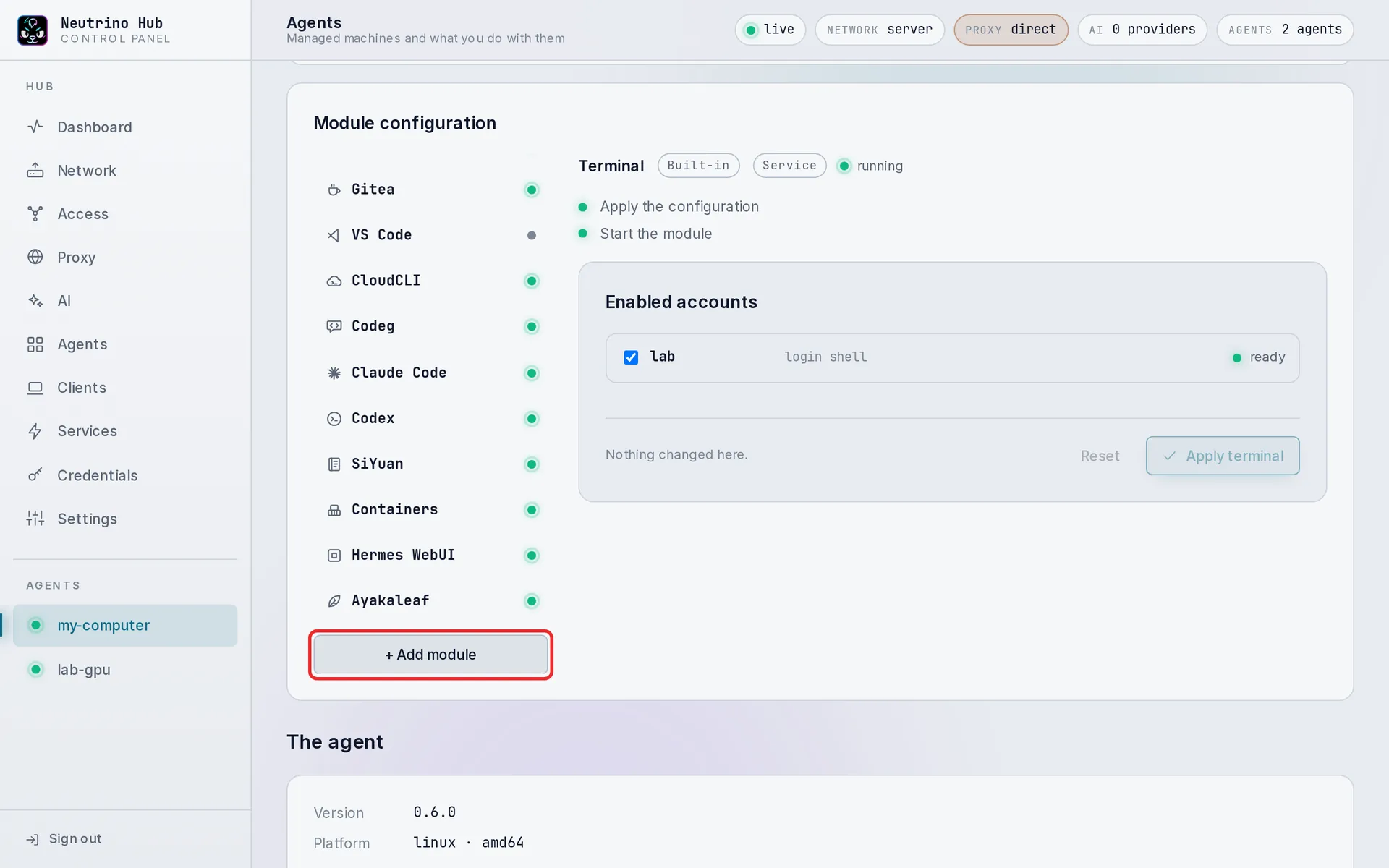
1Select + Add module 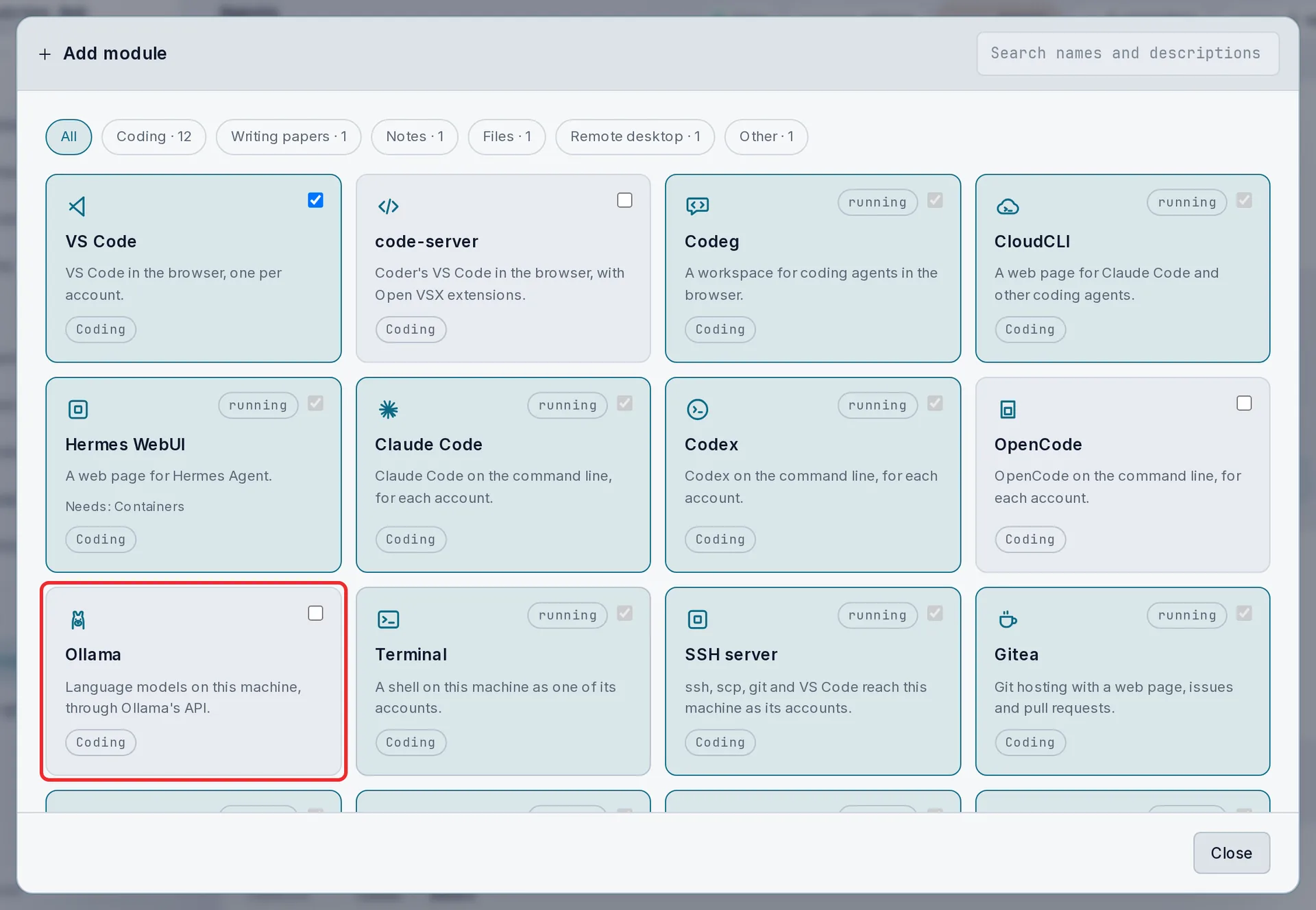
2Select Ollama 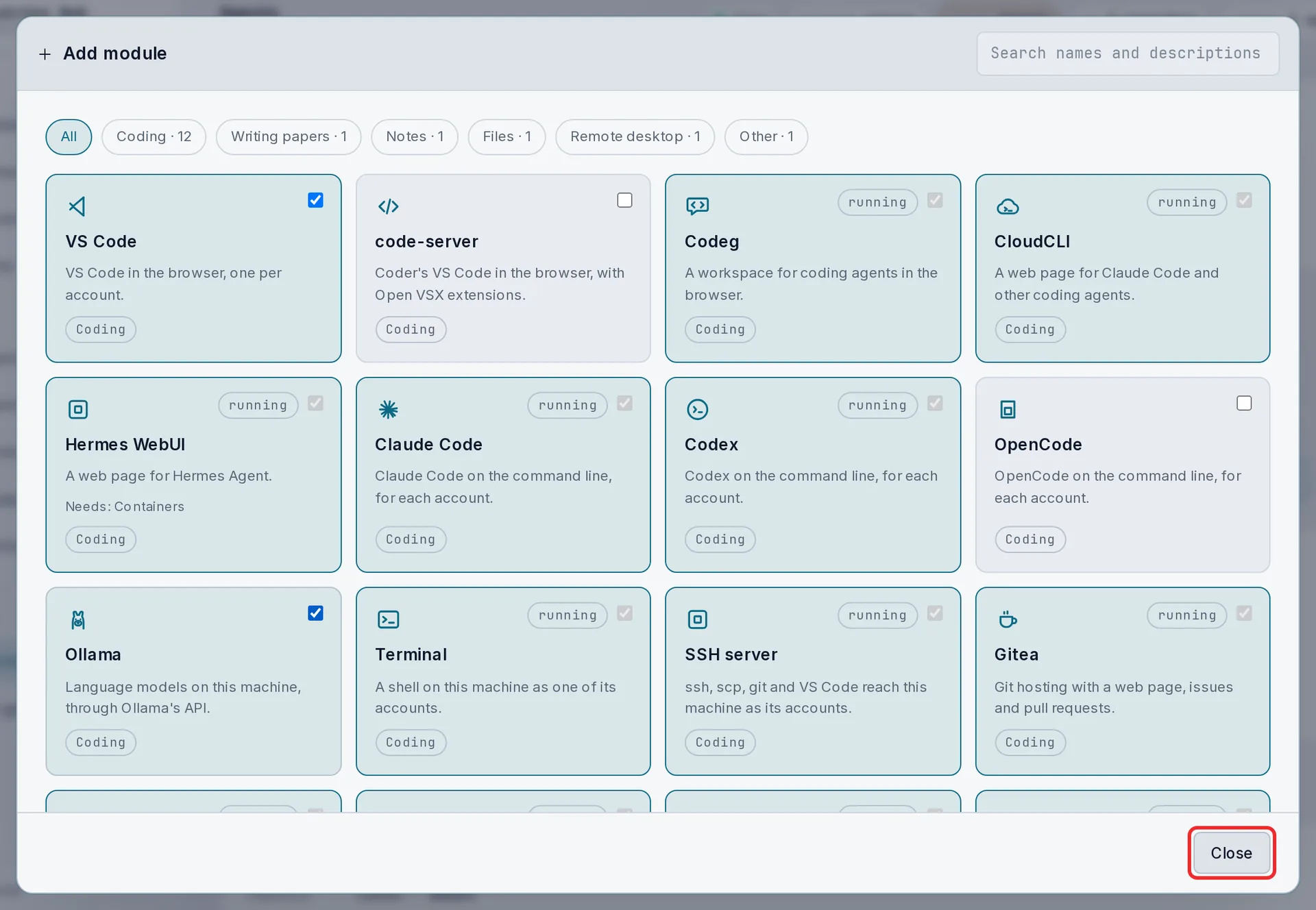
3Select Close After the dialog closes, select the Ollama row in the list on the left, and its tab opens on the right. Select Install.
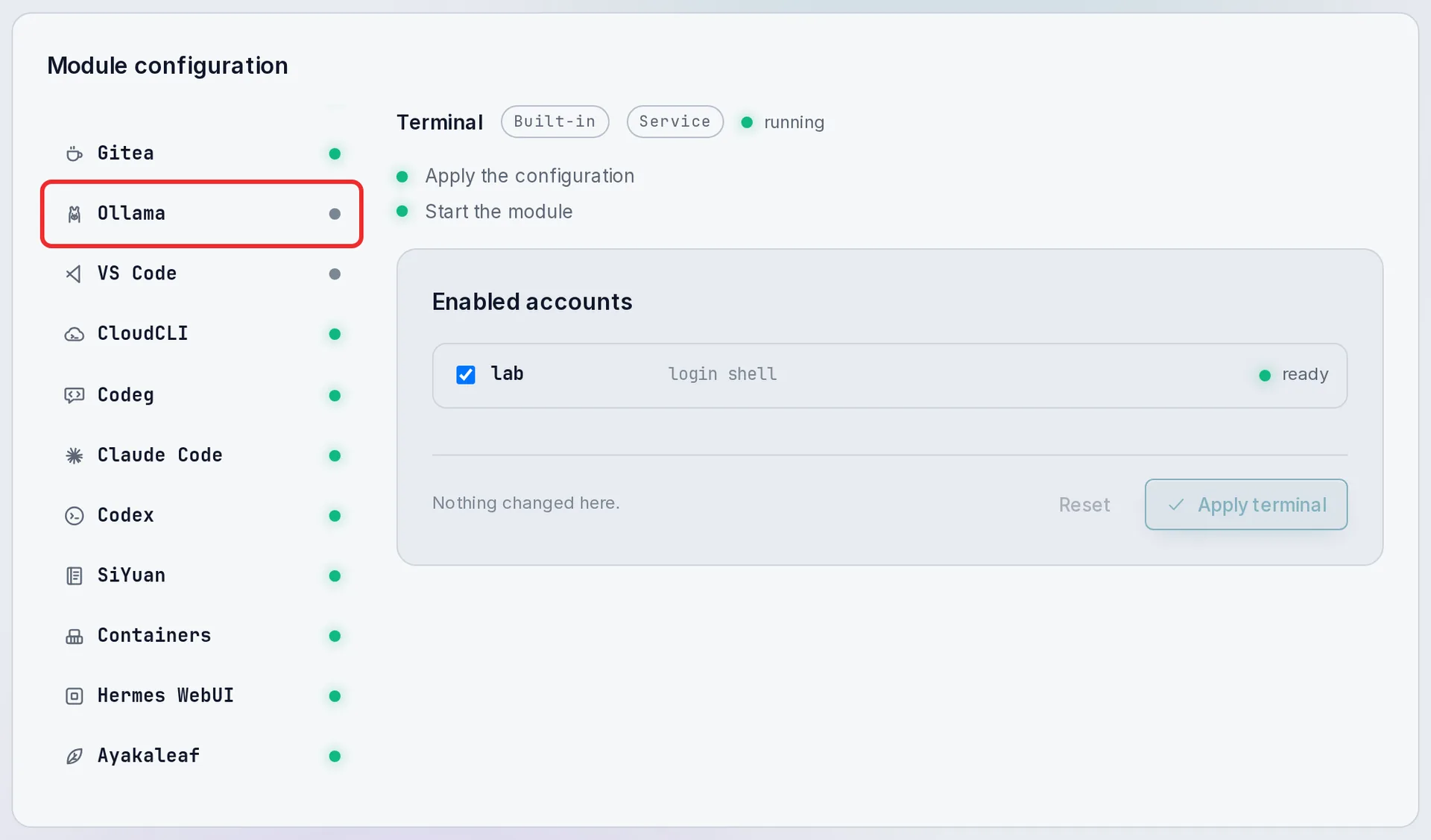
1Select Ollama 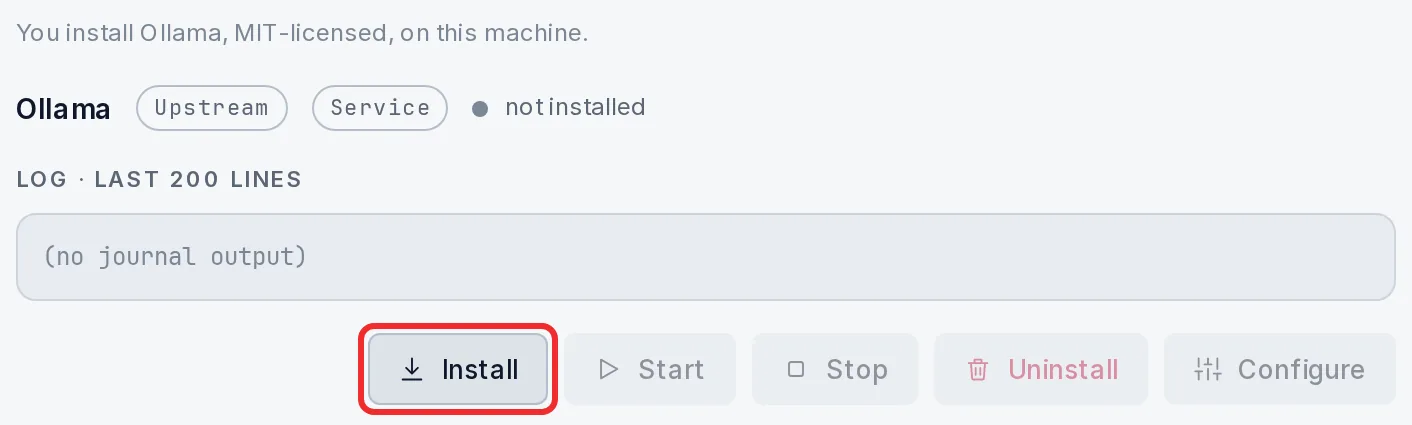
2Select Install The tab lists each step while the hub downloads the archive and sends it to the agent. When the tab shows installed, select Start. The install is complete when the tab shows running.
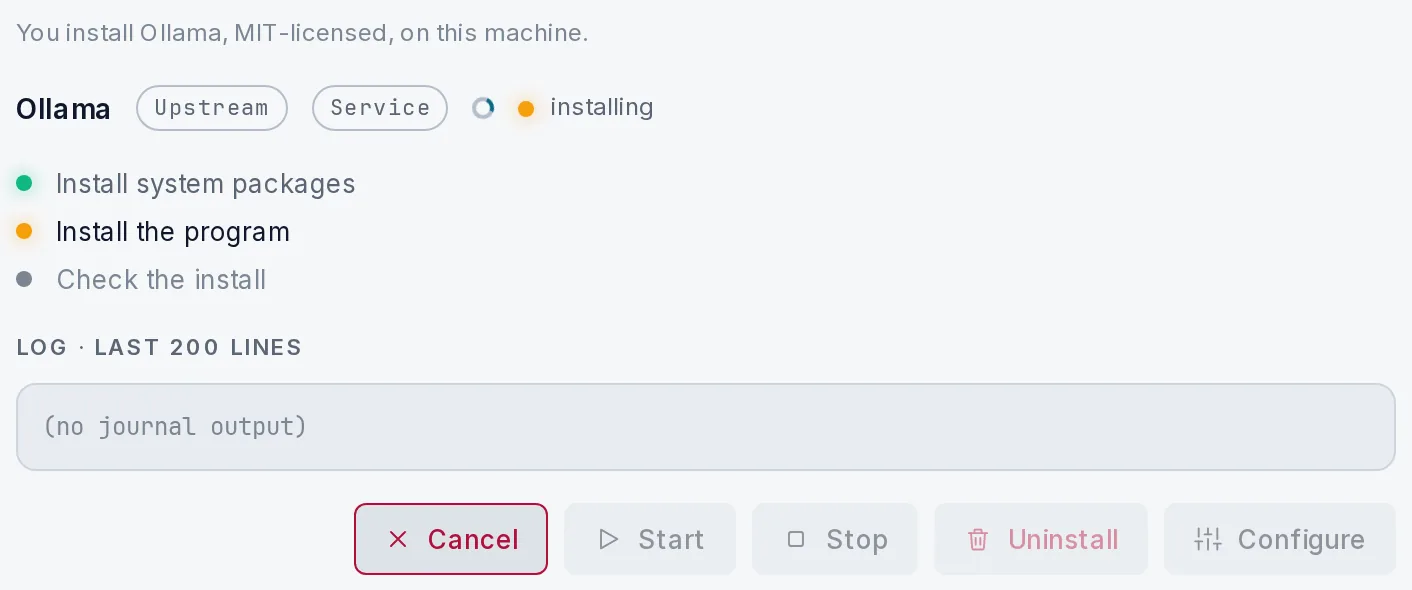
1Installing 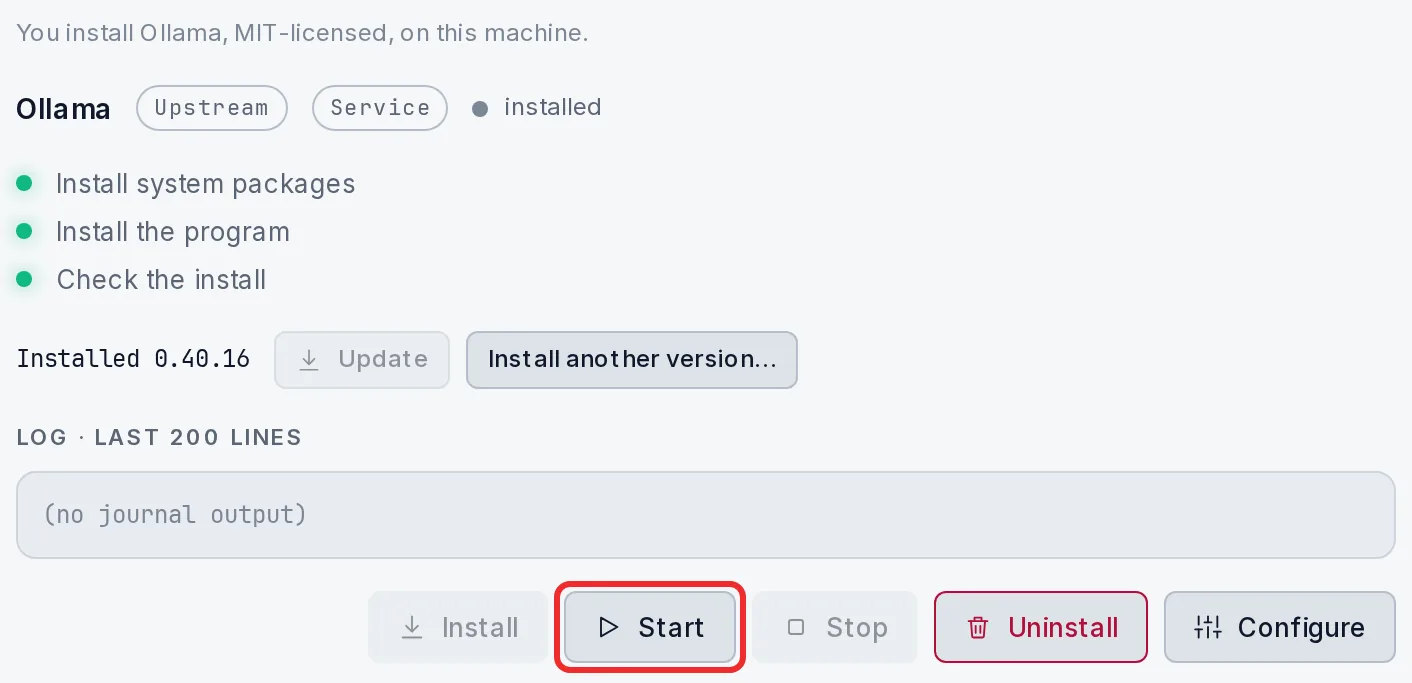
2Select Start
If you installed Ollama on this system yourself, the panel handles it by system:
| System | Your own Ollama | What the panel does |
|---|---|---|
| Linux | The ollama.service unit, from Ollama's install script or a package | The tab shows installed. Your first Start puts the unit under the agent's control. Uninstall returns the unit to the state your first Start found it in, and keeps your files |
| Windows, macOS | Ollama's official app, which starts when you sign in | After you install this module, Neutrino Hub stops the app and turns off its start at sign-in. Do not open the app while the module runs. When you uninstall the module, the app starts at sign-in again |
On Linux, you update your own Ollama yourself, and the panel manages only its models. If the install fails, see Troubleshooting.
Use
Pull a model
Ollama pulls models from its own library, such as qwen2.5:7b, and from GGUF repositories on Hugging Face and ModelScope. In mainland China, pull with a ModelScope name. The Ollama on this system downloads the model, so the system needs access to the model's source.
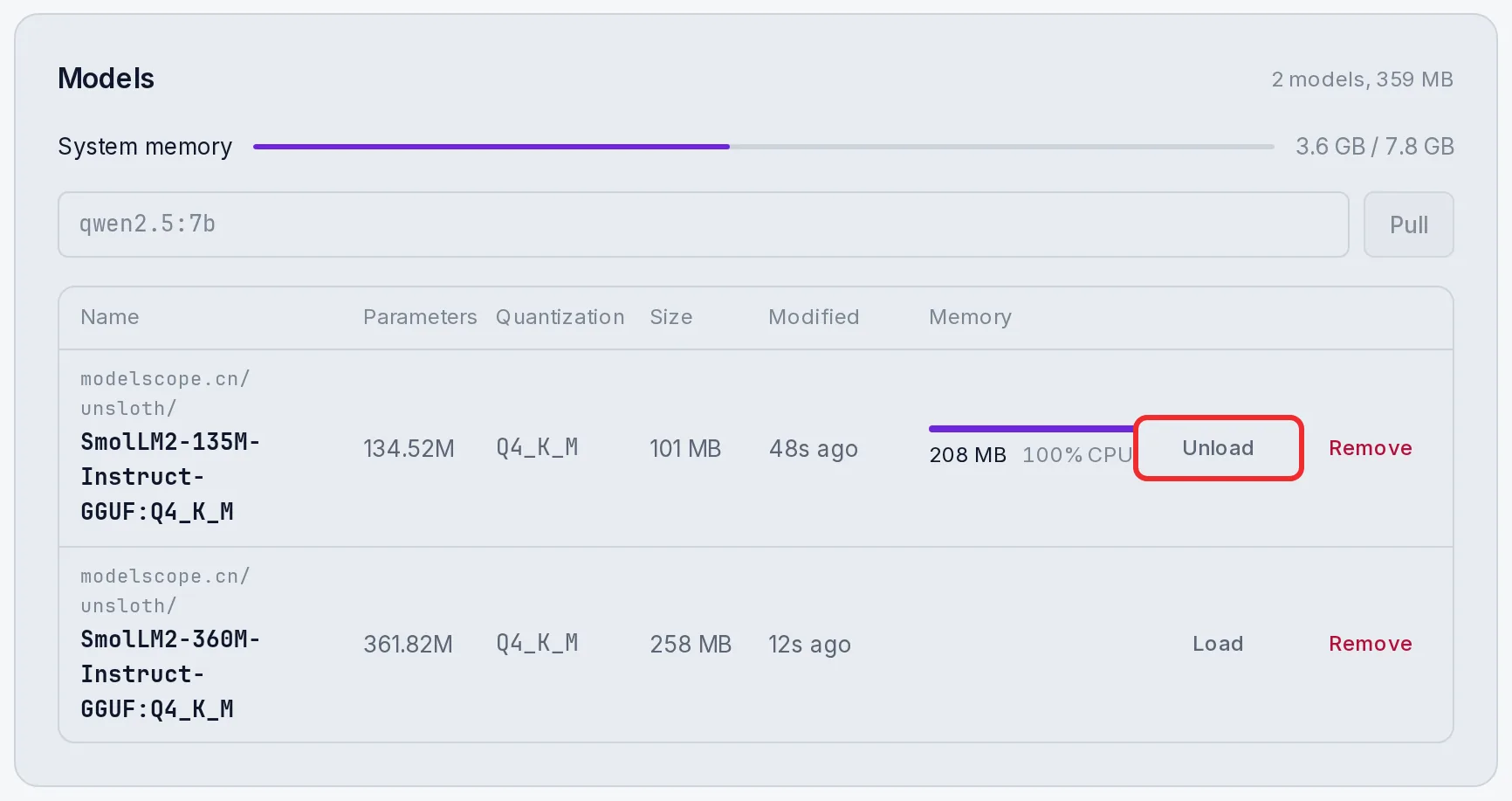
On the Ollama tab, select Configure, and the Settings and Models areas open under it. The top of Models shows the use of System memory, plus one line per GPU on a system with GPUs. With no models yet, the list shows No models yet.
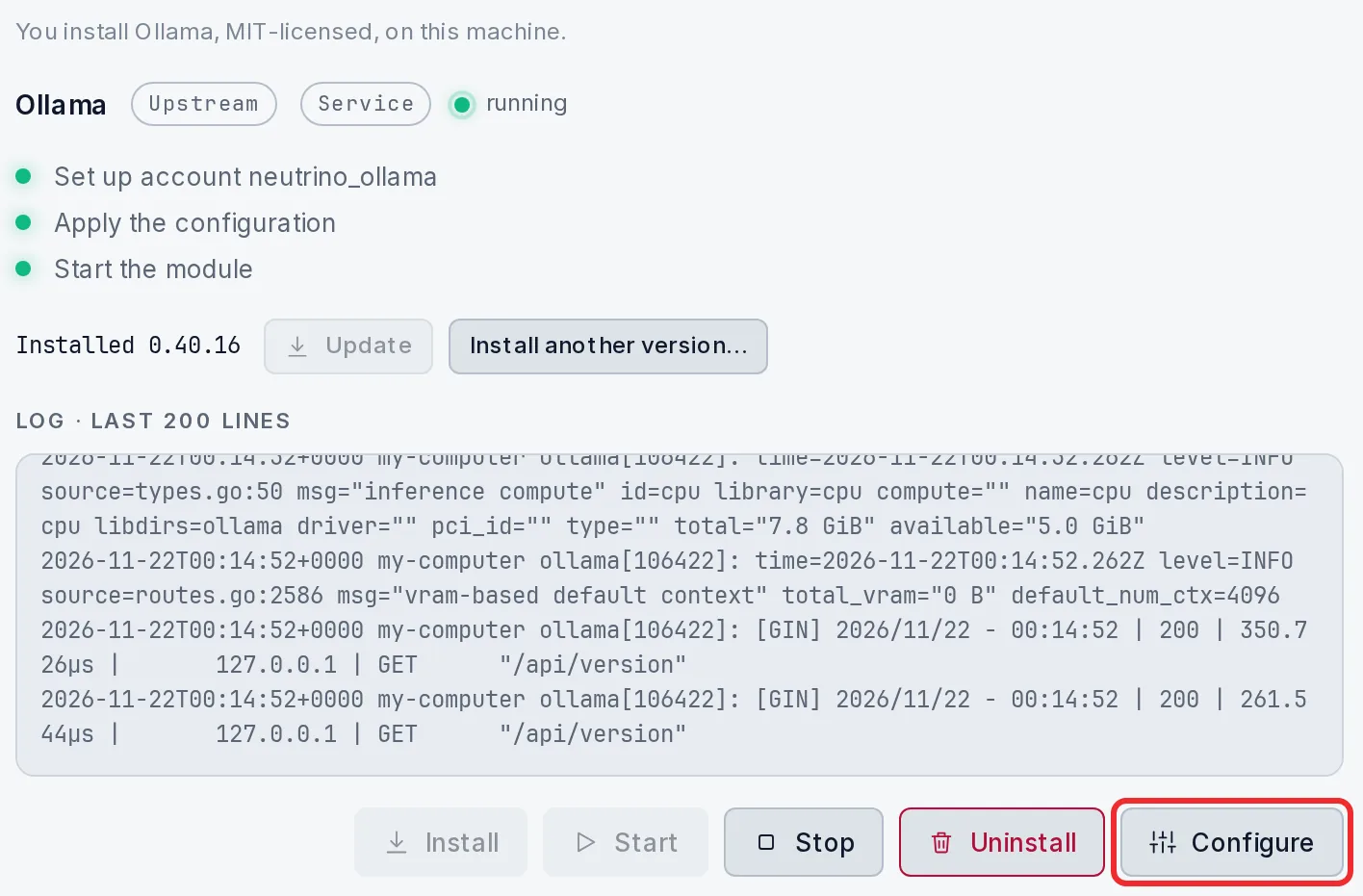
1Select Configure 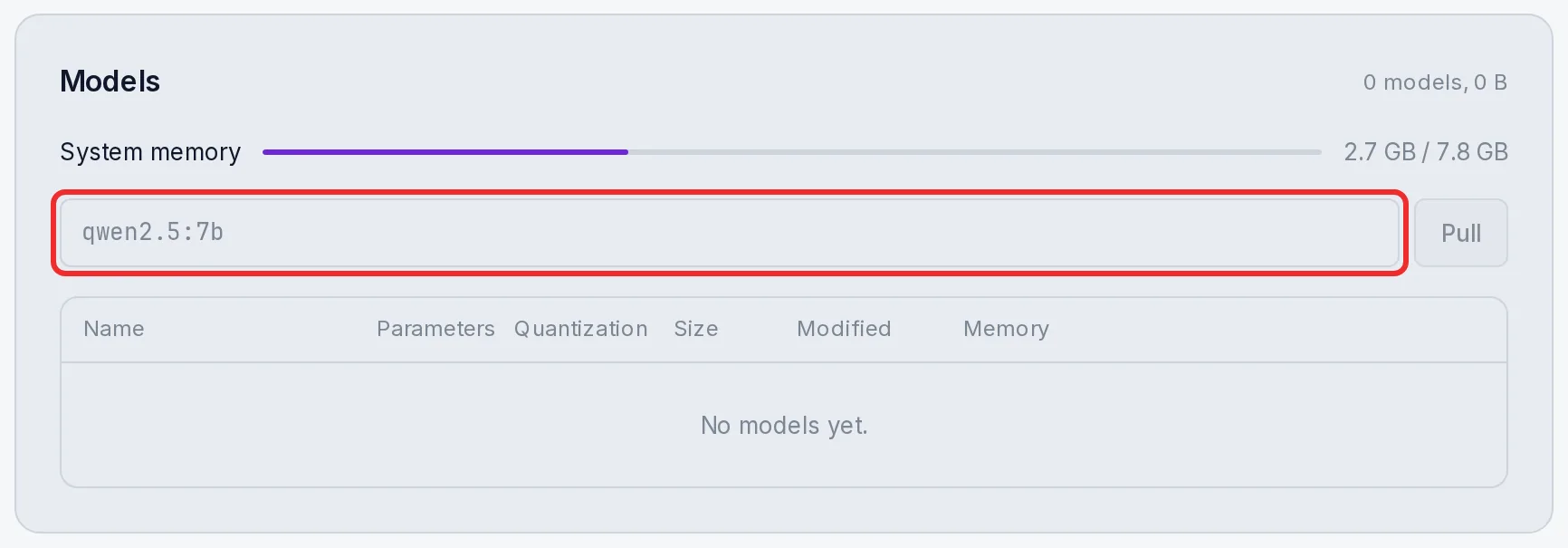
2The Models area Enter a model name in the field and select Pull. The following name is a small model on ModelScope, and a Hugging Face name starts with
hf.co/:textmodelscope.cn/unsloth/SmolLM2-135M-Instruct-GGUF:Q4_K_M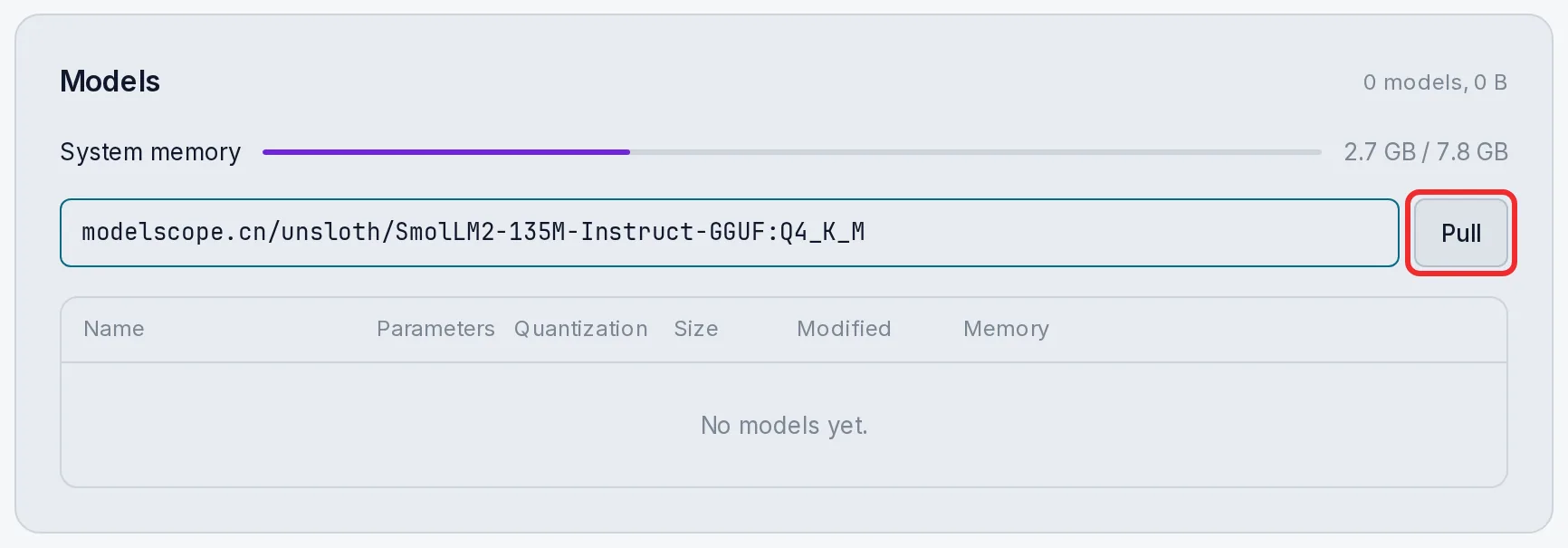
The model appears in the list with a progress bar, the bytes so far, the total and the speed. The hub runs the pull, so closing the page leaves it running. Further pulls show queued and run in order.
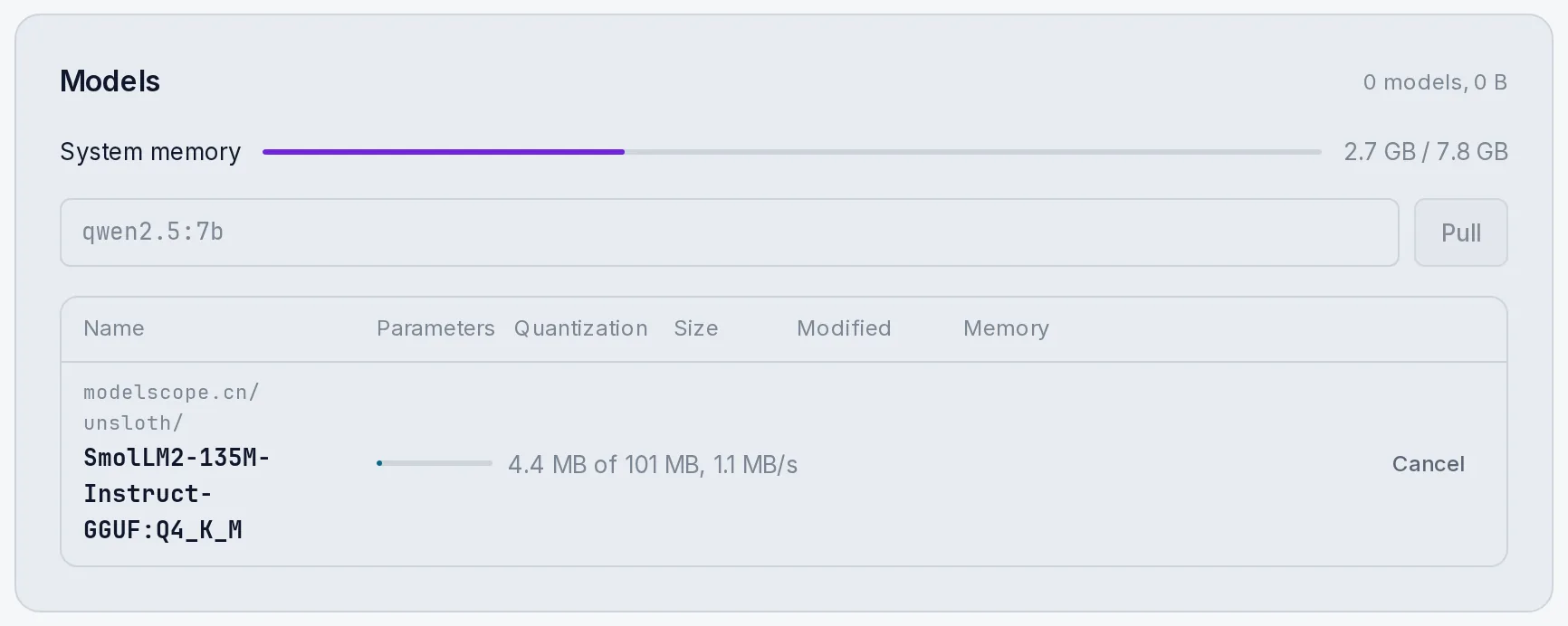
When the pull finishes, the row shows Parameters, Quantization, Size and Modified. A name with a source in front takes two lines: the source on top, the model's own name under it. The top-right corner shows the number of models and their total size.
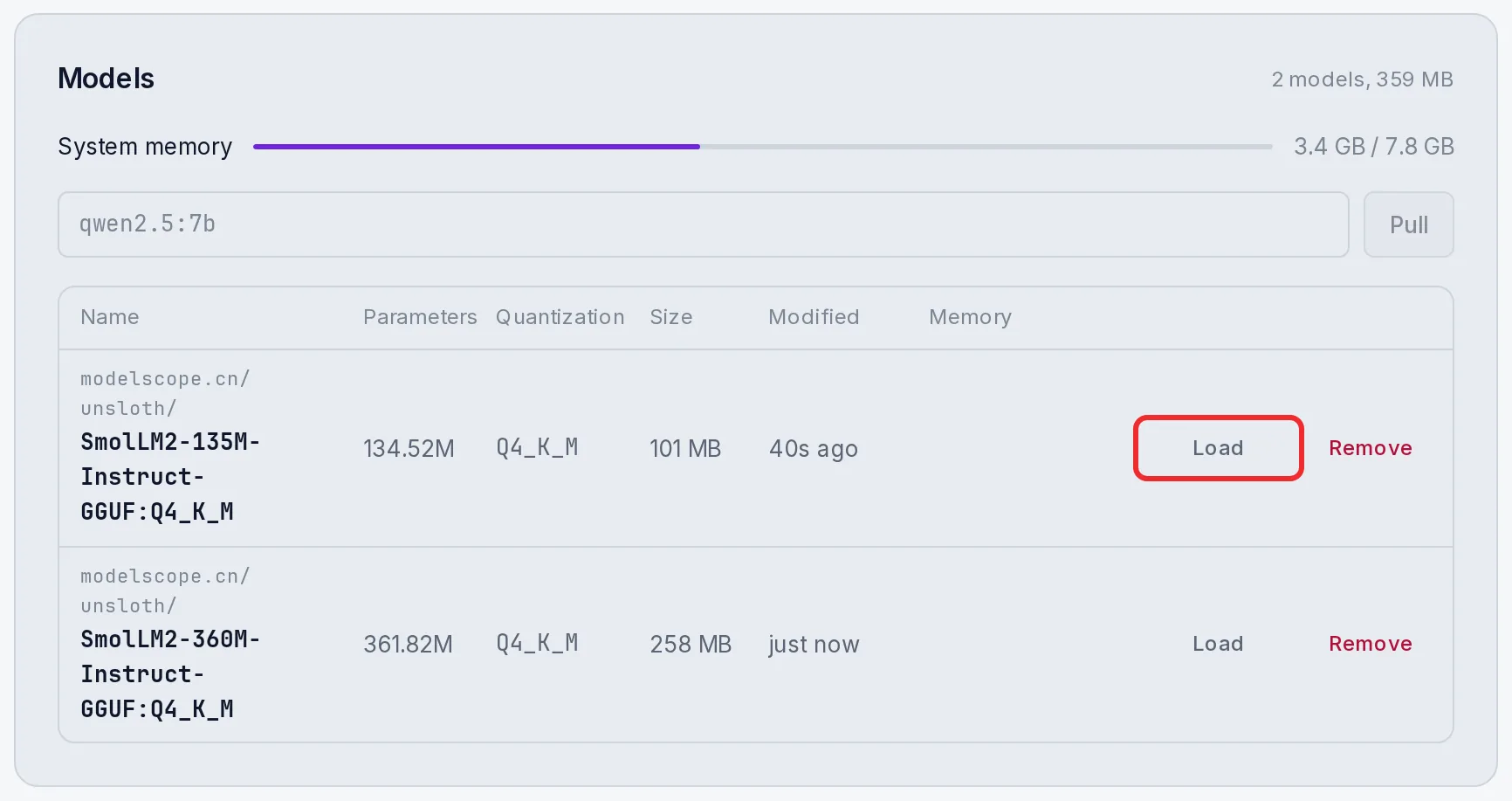
Cancel stops a pull and keeps the parts already downloaded, so a later pull of the same name continues from them. A failed pull stays in the list with its reason until you select Cancel.
Select Load on a model to load it into memory, where it stays until you select Unload. When Ollama restarts, the hub loads that model again. Models in memory come first in the list. Each shows how much memory it takes, and its share on the CPU and the GPU, such as 100% CPU.
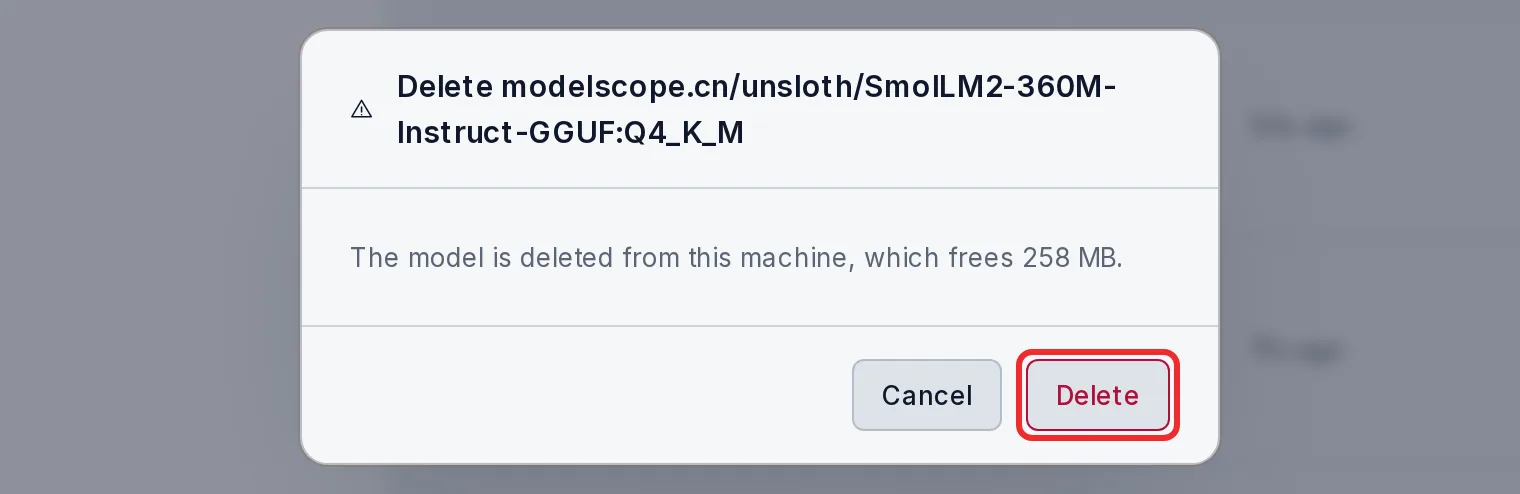
When a program uses a model that is not in memory, through the API or the AI gateway, Ollama loads it too. Ollama unloads that model after it stays idle for the Idle unload time. Select Remove and confirm in the dialog to delete a model from this system.
Connect from a client
Before you start, add your computer to the hub, as Join the hub describes. The computer also needs the Ports permission, which you set on the panel's Clients page. Clients shows how.
Open the client, go to the Apps page, and find the Ollama row. The row shows a local address under it:
127.0.0.1and a port. Select Use.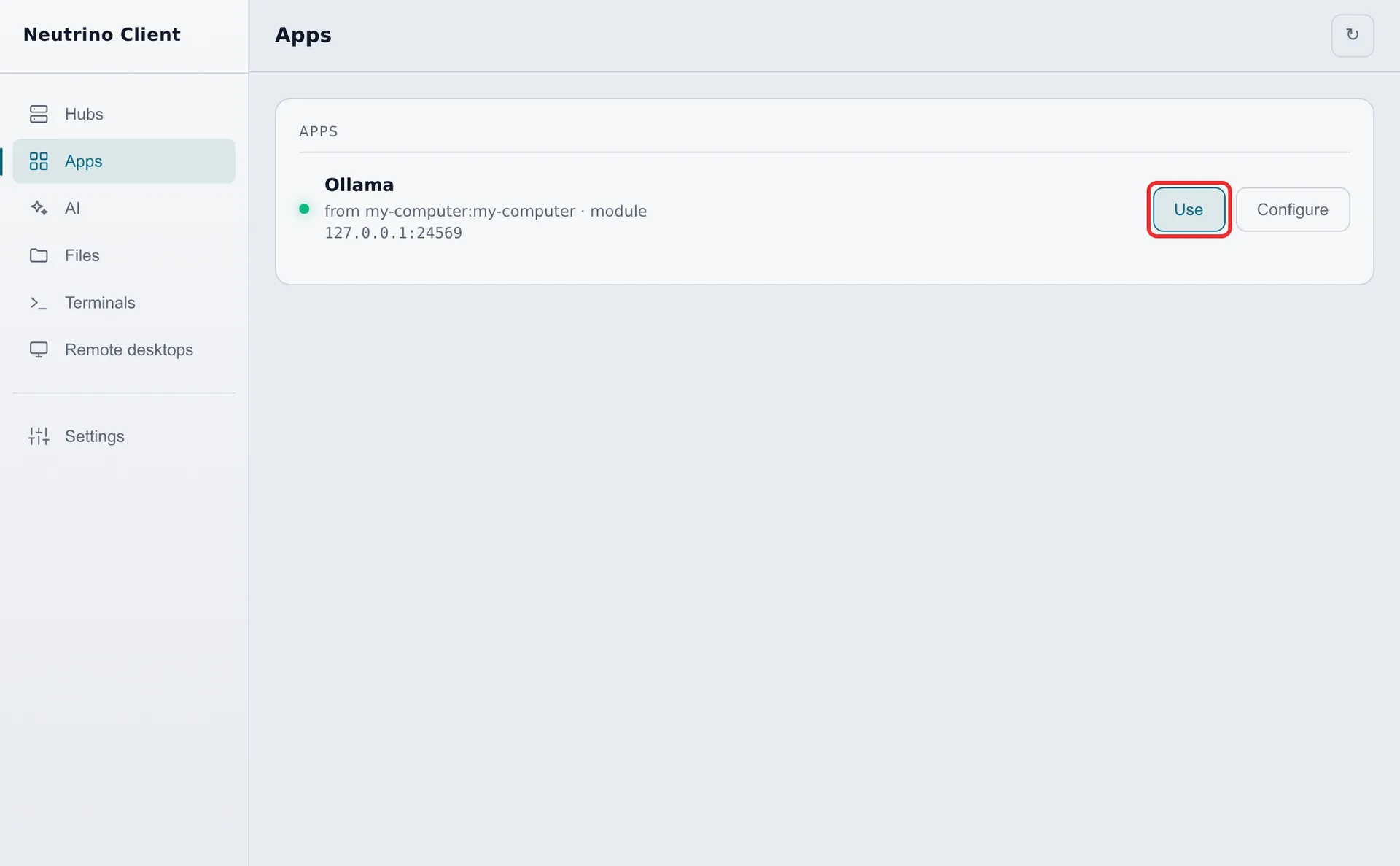
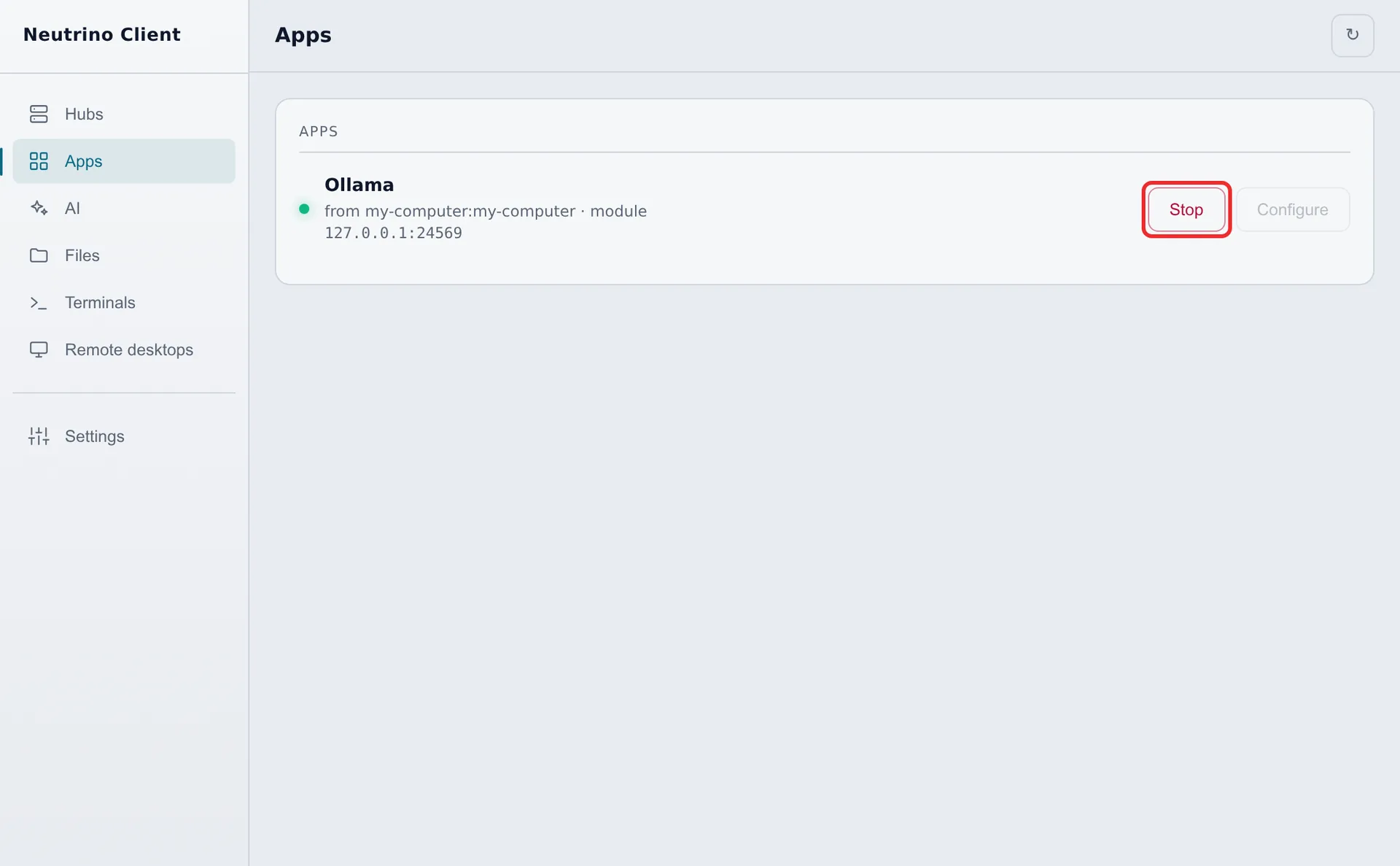
Use turns into Stop, and programs on this computer can now reach Ollama's API. Ollama has no web page, so the row has no Open.
To list the models, run the following command, with <local-port> replaced by the port the Ollama row shows:
bash
curl http://127.0.0.1:<local-port>/api/tagsAny other tool that uses Ollama's API takes http://127.0.0.1:<local-port> as its address. Configure on this row in the client changes the local port. While the app is in use, the button is grey until you select Stop.
Use the models through the AI gateway
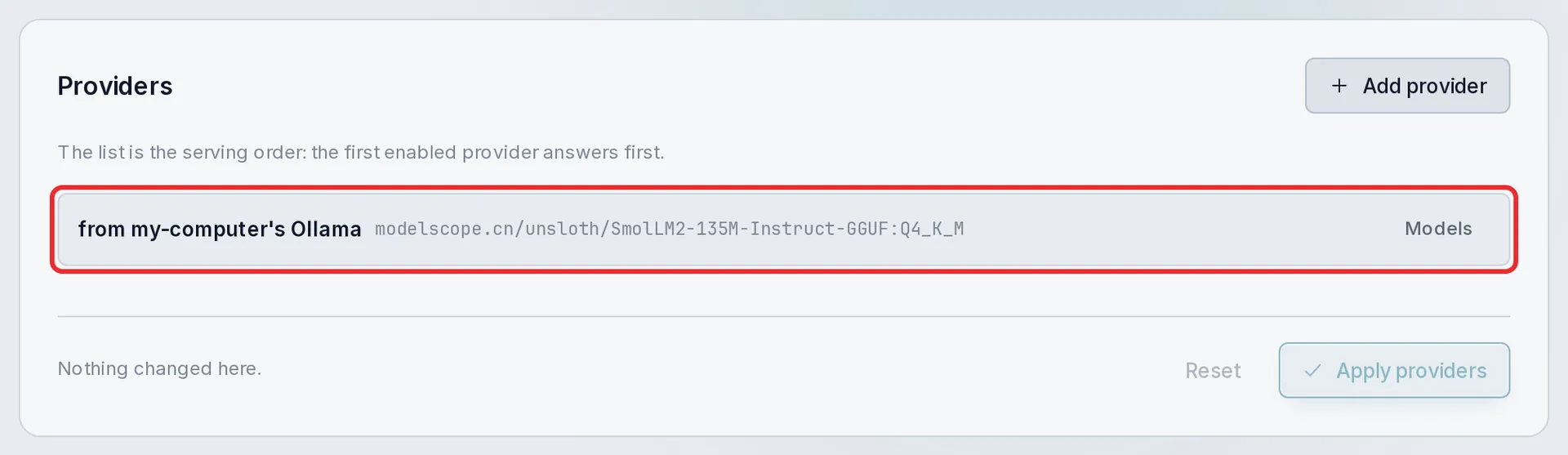
While this system is online and its Ollama runs with at least one model, the hub adds the models to the AI gateway. They keep their names from Ollama, and every tool that uses the gateway can choose them. Under Providers on the panel's AI page, the row from my-computer's Ollama lists them, where my-computer is the name of this system. Its Models button opens the Ollama tab of this system with its Models area.
Share
Ollama has no web page, so App share cannot generate a link for it. For another person to use the models, add their computer to the hub and turn on its Ports permission on the Clients page.
Risks and limits
Ollama's API has no sign-in. Any program that reaches it can use, pull and remove models, including:
- Programs of every account on this system, through
127.0.0.1:11434. - Every program on a computer where Use is on, through that computer's local port.
Ollama listens on 127.0.0.1 alone, and other computers on the LAN connect through a client.
Ollama's cloud models are off, so this system runs only the models pulled to it. Check the free disk space before a pull, since a model is often several gigabytes.
Settings
Apart from pulling models, the following settings can stay at their defaults:
| Setting | Where | What it does |
|---|---|---|
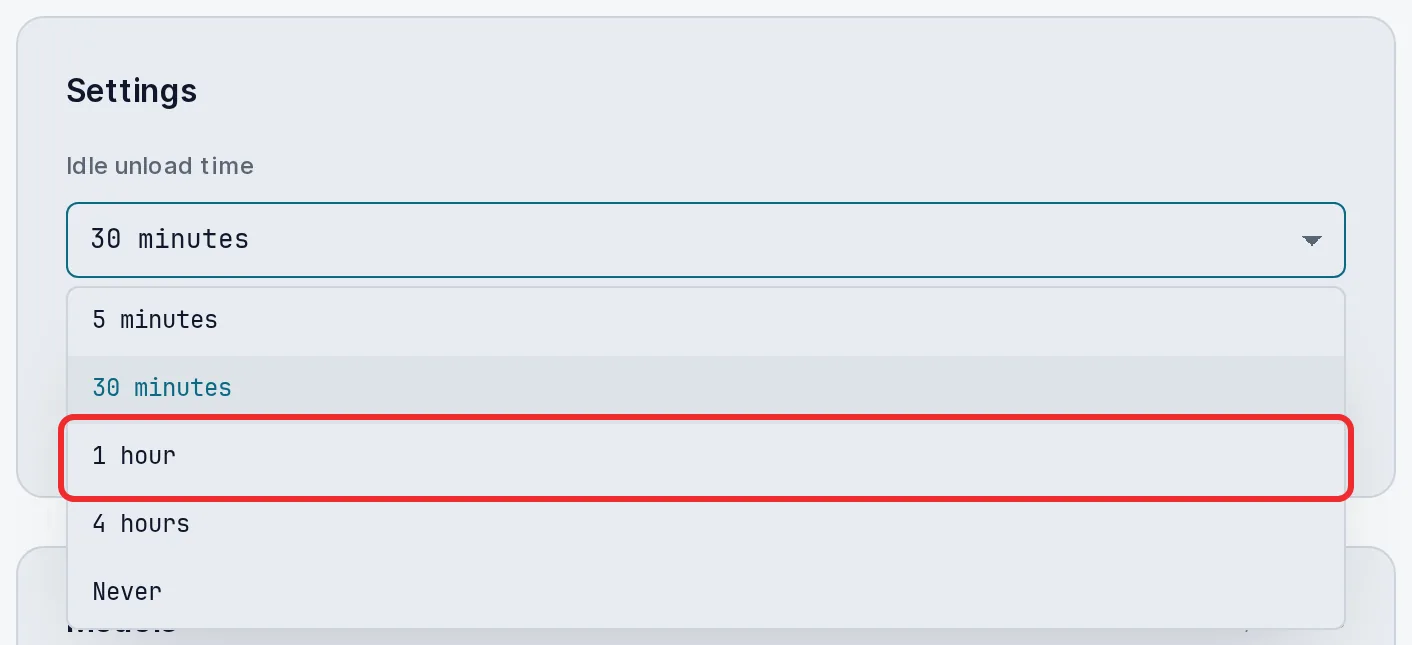
| Idle unload time | Settings under Configure | How long a model a program loaded stays in memory with no requests: 5 minutes, 30 minutes (the default), 1 hour, 4 hours or Never. A model loaded with Load stays in memory |
| GPUs | Settings under Configure | The GPUs Ollama uses, all of them by default. The row shows only on a system with GPUs, and never on macOS |
| Models | Models under Configure | Pulls, loads, unloads and removes models |
| Update, Install another version… | Under the tab's state | Changes the version of Ollama |
| Configure | The Ollama row on the client's Apps page | Changes the local port on this computer |
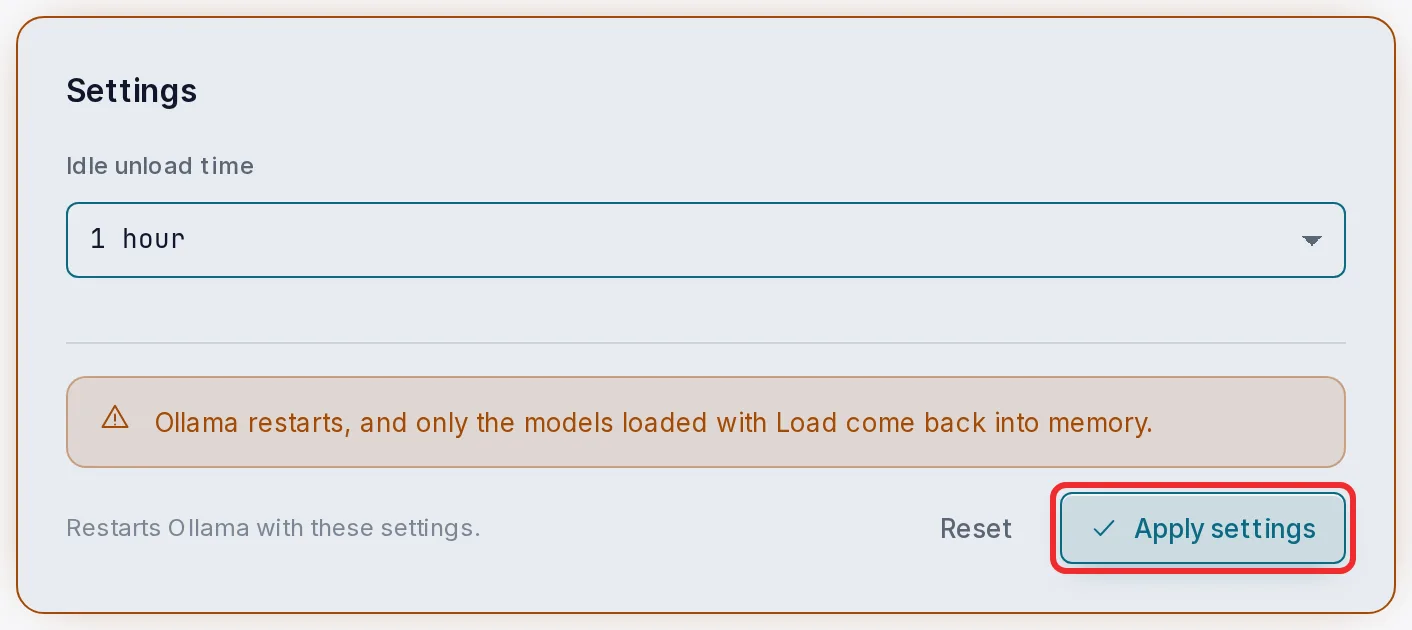
After you change Settings, select Apply settings. Ollama restarts, every model leaves memory, and the models loaded with Load come back.
The agent starts Ollama on 127.0.0.1:11434, and keeps the models in these folders:
| System | Models folder | Account that runs Ollama |
|---|---|---|
| Linux | /var/lib/neutrino/agent/ollama_data/models/ | neutrino_ollama |
| macOS | /Library/Application Support/Neutrino/agent/state/ollama_data/models/ | neutrino_ollama |
| Windows | %ProgramData%\Neutrino\agent\state\ollama_data\models\ | SYSTEM |
Uninstall
On the Ollama tab, select Uninstall. The dialog states that the pulled models stay in its data folder. Select Uninstall to confirm.
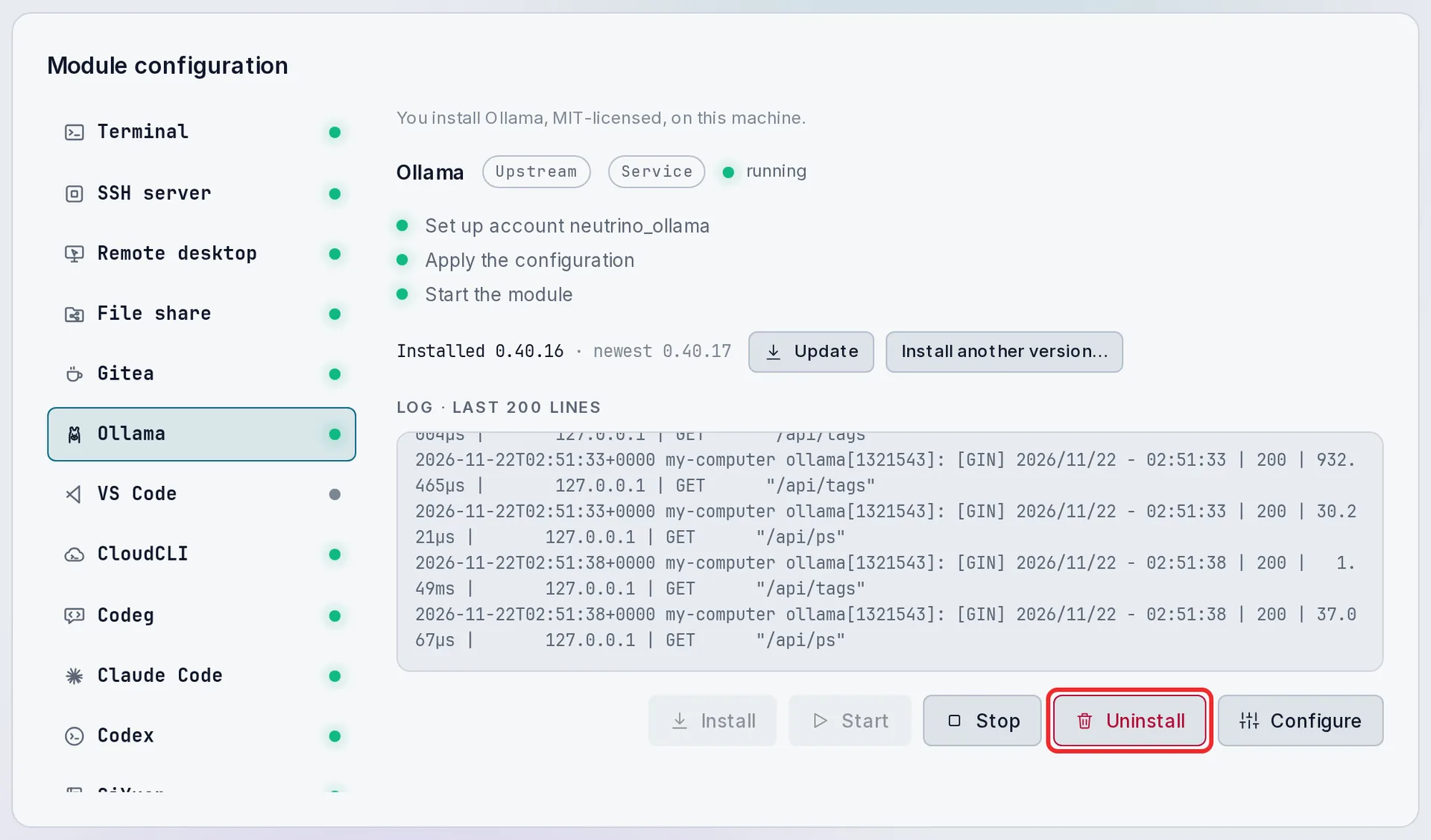
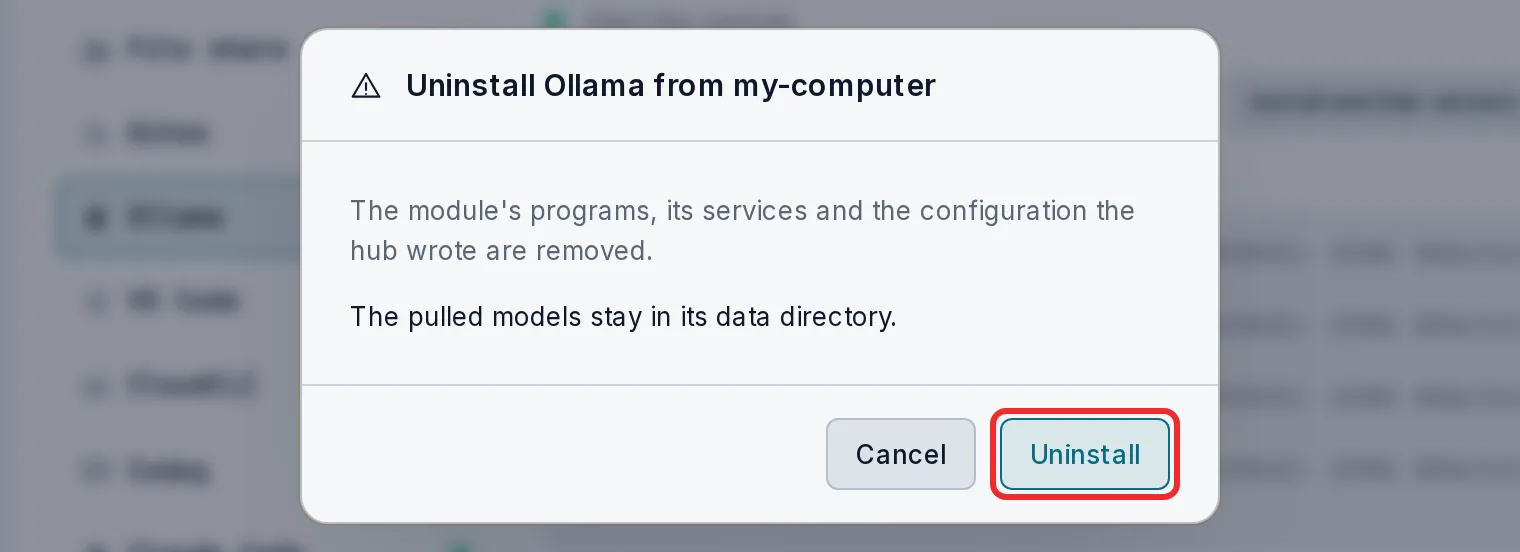
After you install Ollama again, the same models are ready to use. On Linux and macOS, the neutrino_ollama account stays as well.