
English
OpenCode
OpenCode is an open source AI coding tool for the command line, published by Anomaly. Neutrino Hub installs it for the accounts you select, and you run opencode in a terminal on that system to use it.
SystemsLinuxWindowsmacOS
EditionsInternationalChina
Sincev0.6.1
OpenCode is a plain program: it runs only while you run it, and has no start or stop. Its source is Upstream, which means the hub downloads it from the publisher, as App kinds describes. OpenCode is released under the MIT license.
Supported systems
| System | Architecture | First Neutrino Hub version |
|---|---|---|
| Linux | amd64, arm64 | 0.6.1 |
| Windows 10 1809 or later | amd64, arm64 | 0.6.1 |
| macOS 13 or later | Apple silicon, Intel | 0.6.1 |
Install
Open the panel in a browser and sign in. In the lower part of the left sidebar, select the system to install on. Check that Available accounts lists your account. If it does not, add it as Add an account describes.
In Module configuration, select + Add module. In the dialog, select the OpenCode card. When the card is highlighted, select Close.
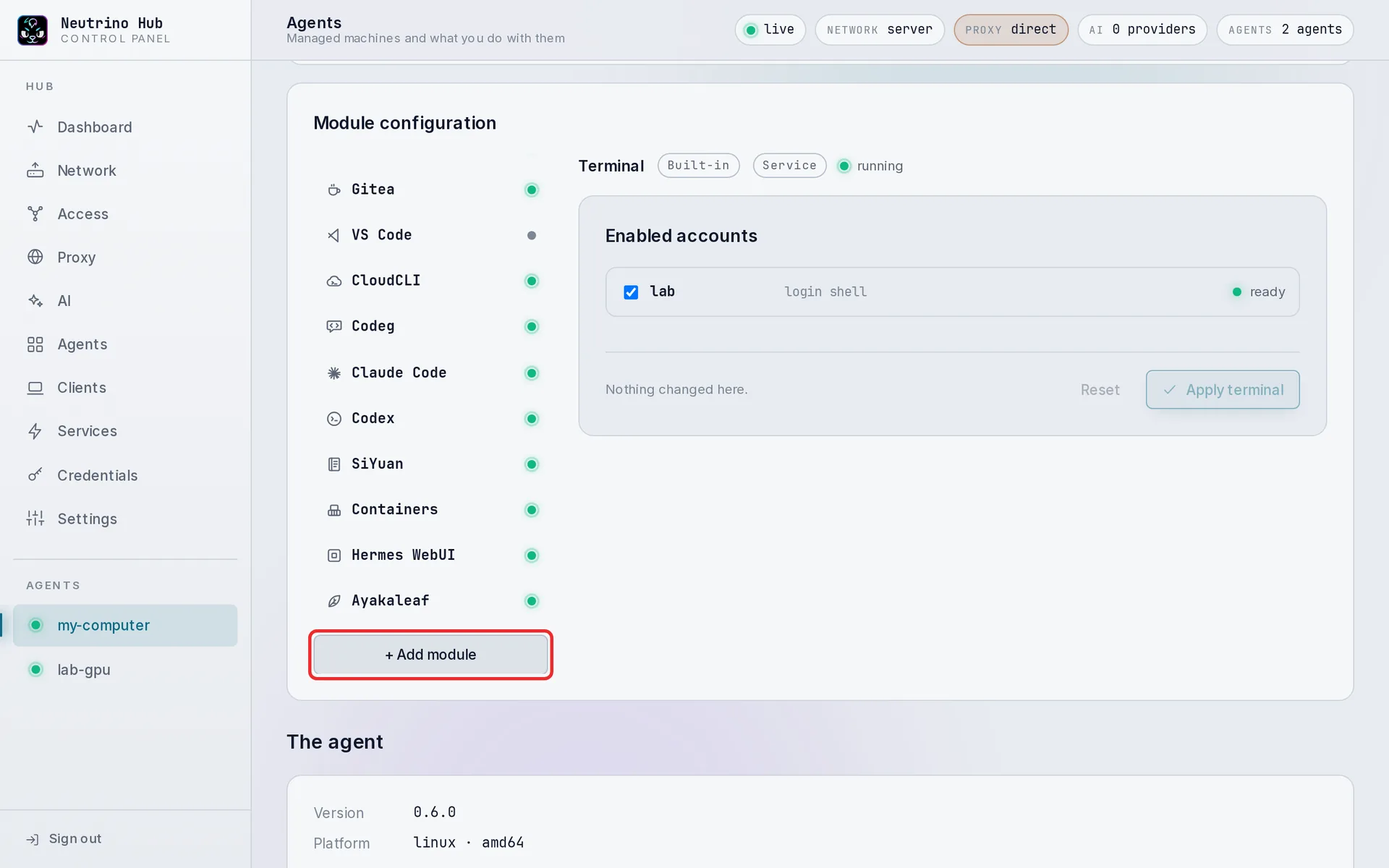
1Select + Add module 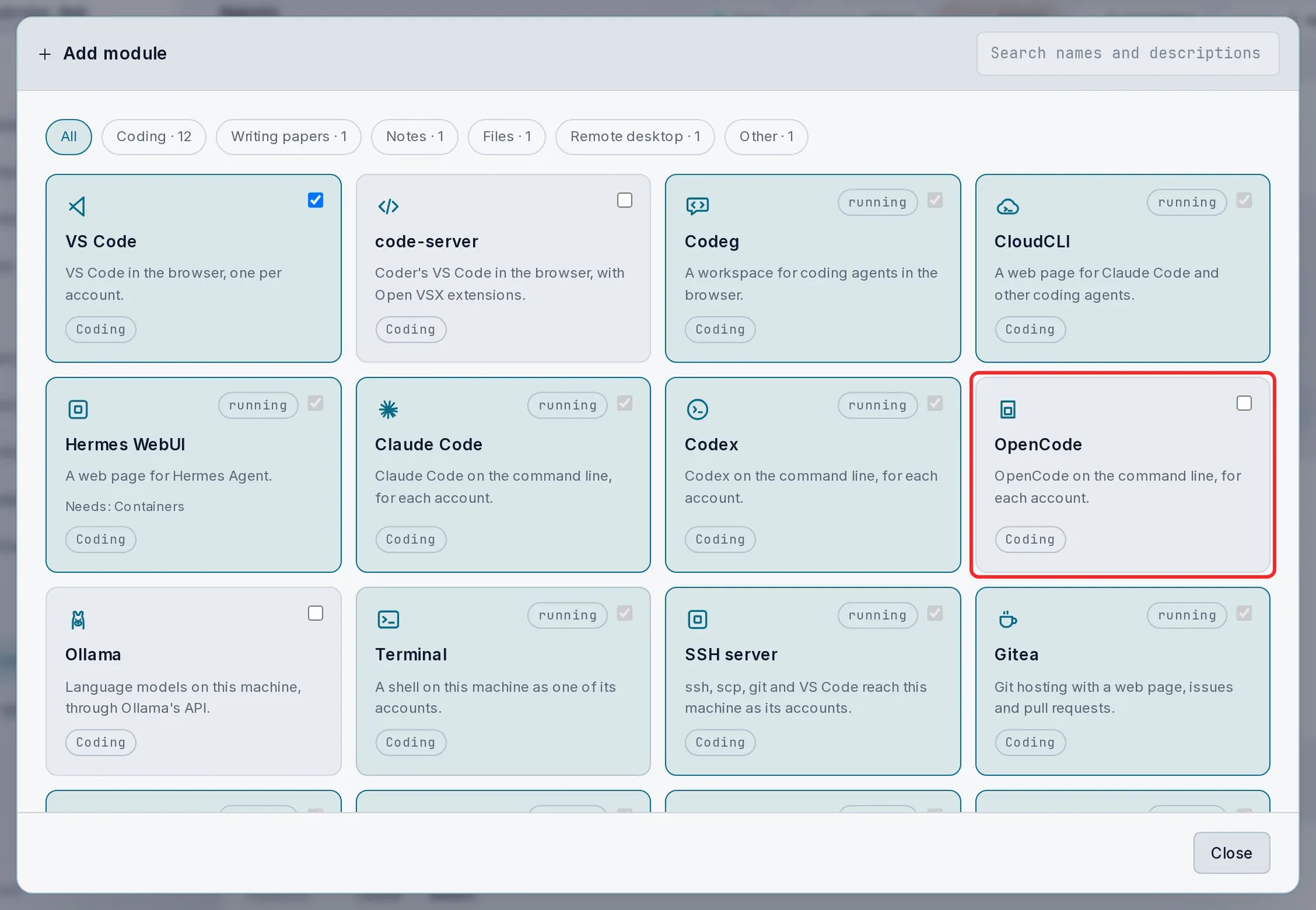
2Select OpenCode 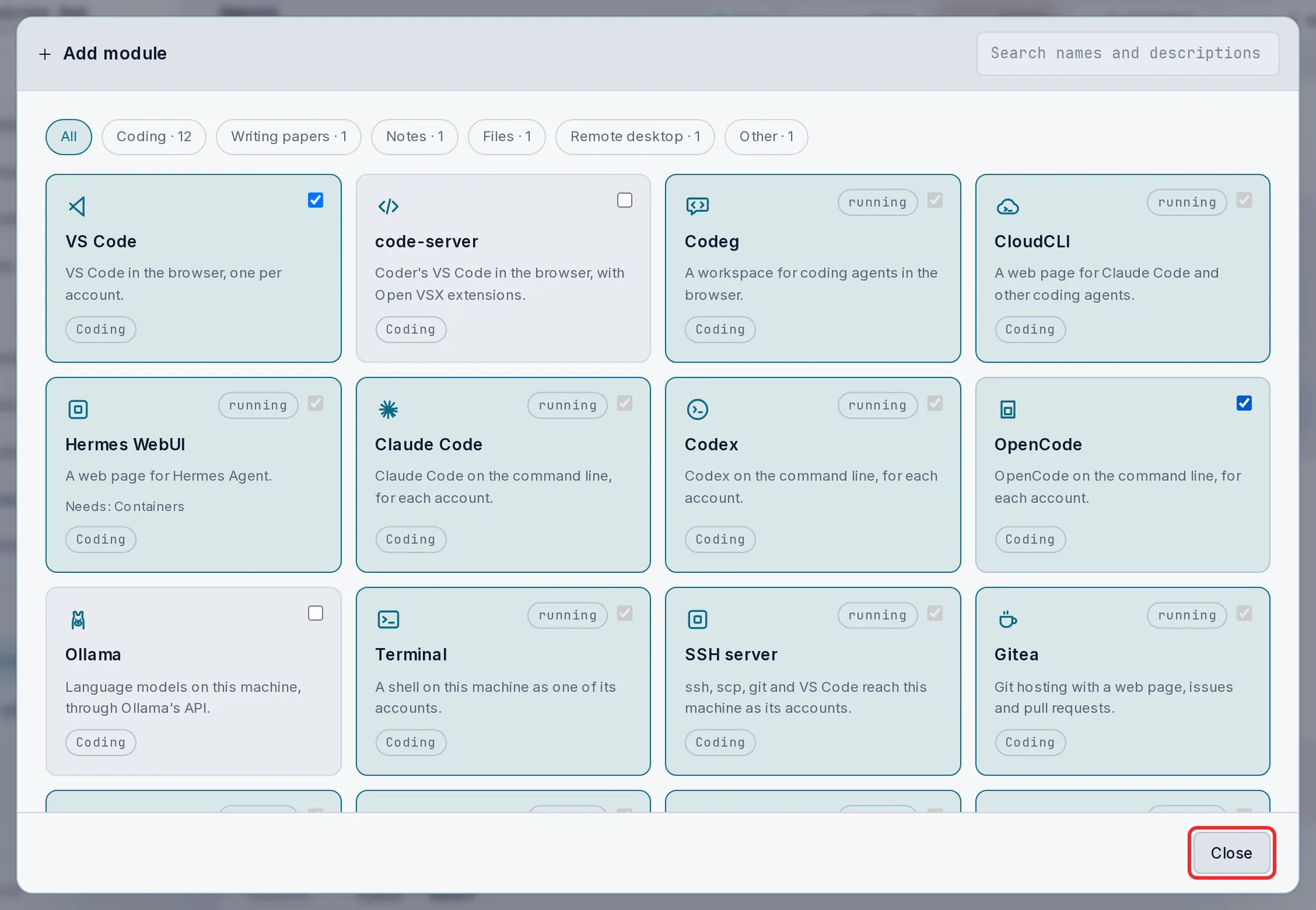
3Select Close After the dialog closes, select the OpenCode row in the list on the left, and its tab opens on the right. Select Install, and the tab lists each step.
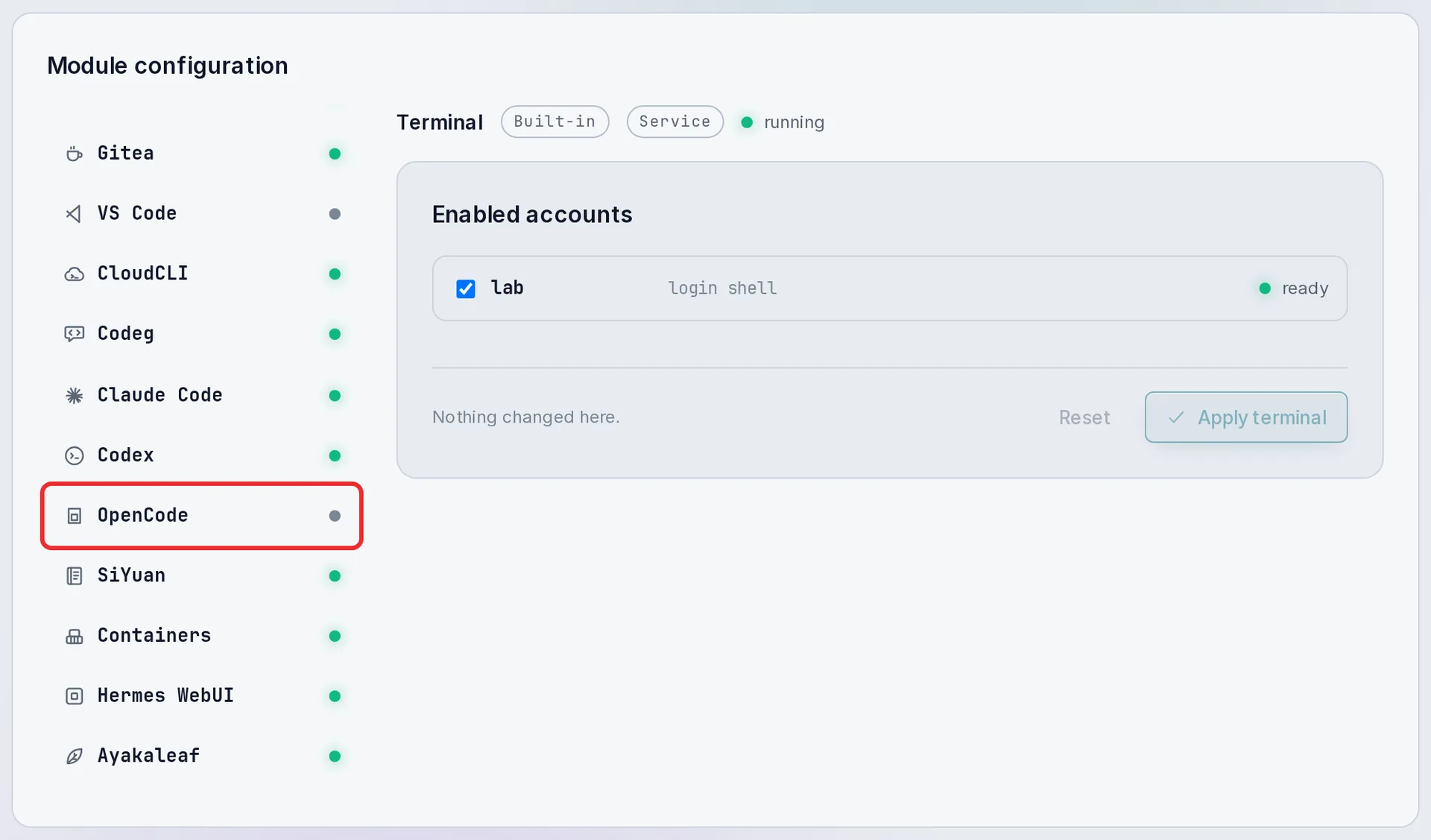
1Select OpenCode 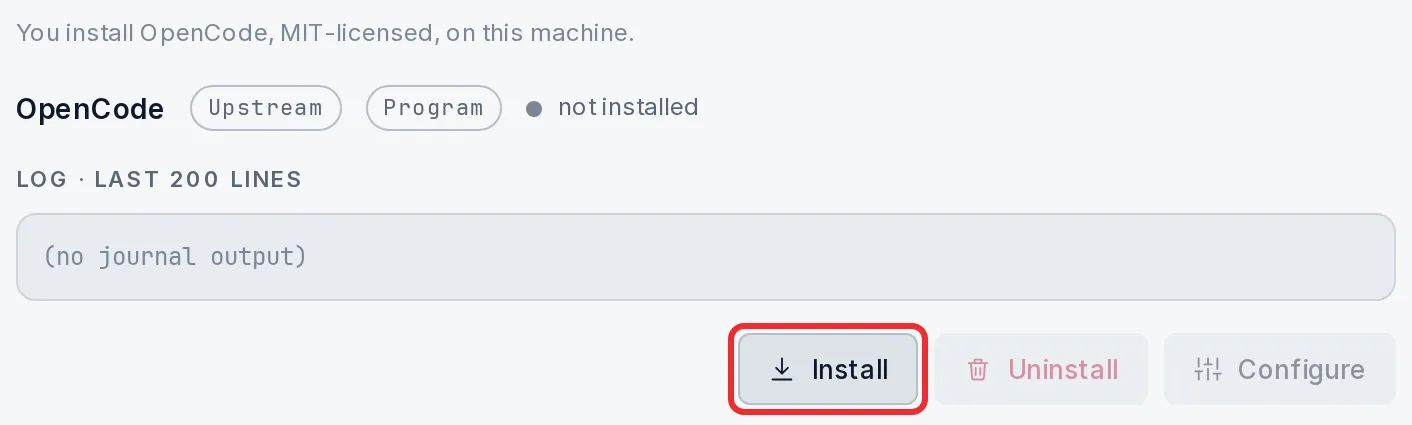
2Select Install 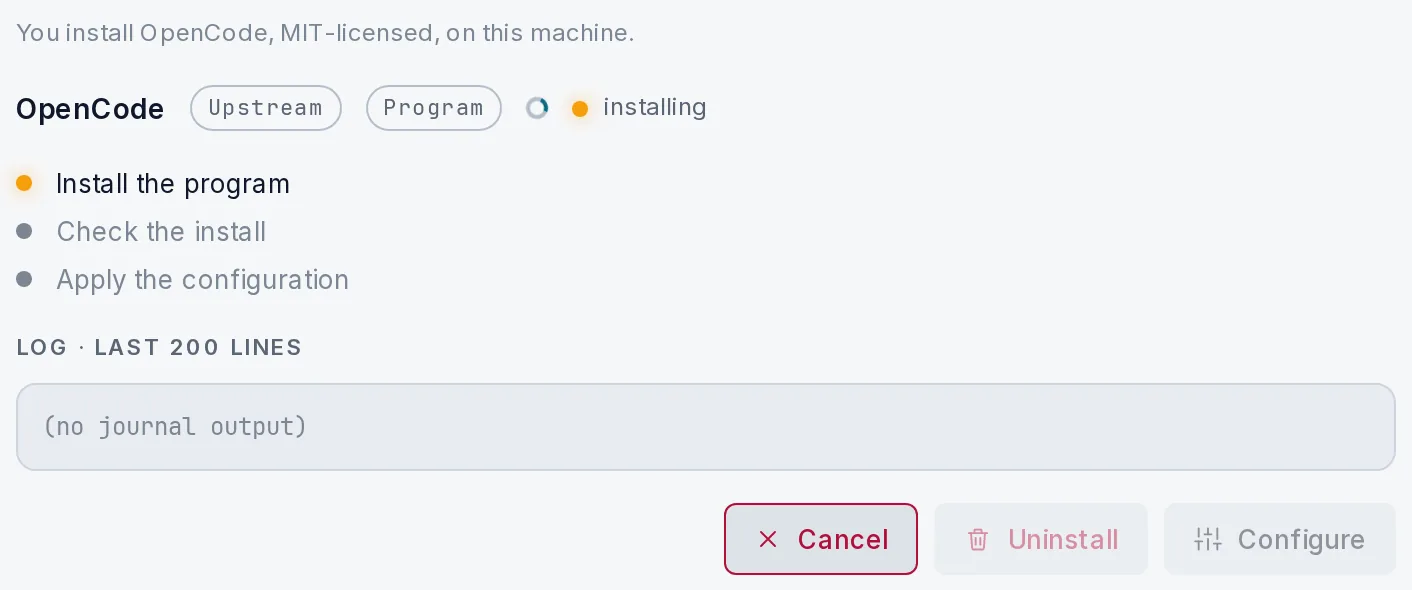
3Installing When the installation finishes, the tab shows ready. As a plain program, OpenCode has only Install, Uninstall and Configure on its tab, without Start or Stop. Select Configure, and under Enabled accounts, select each account that uses OpenCode.
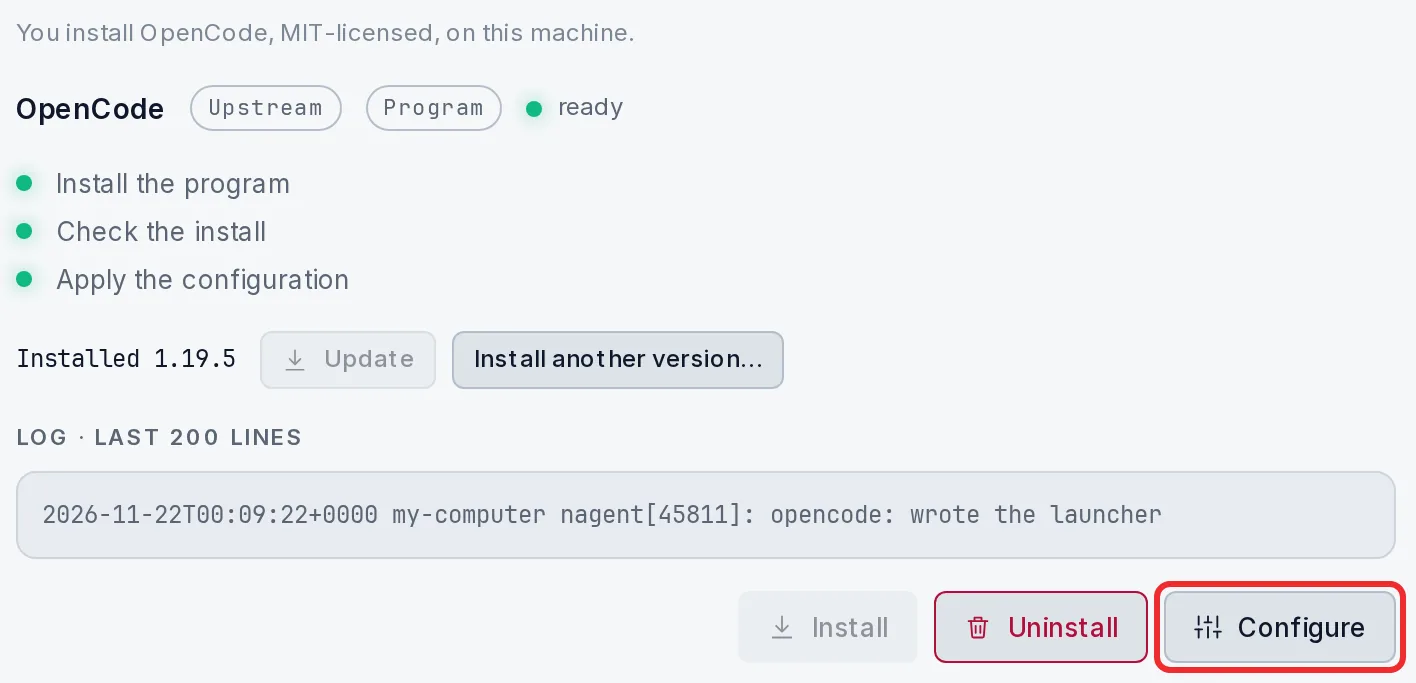
1Select Configure 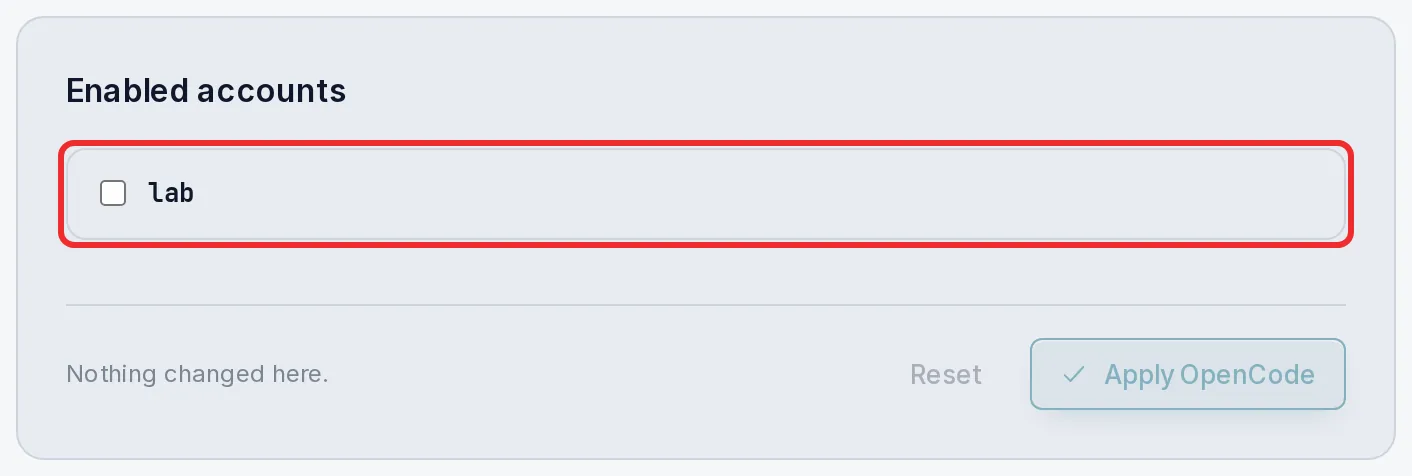
2Select lab If the account's shell already runs another copy of OpenCode, such as one you installed yourself, selecting the account opens a dialog. The dialog shows the location and version of that copy and the version of the module's copy. It also states that the other copy stays as it is. Select Replace to make this account use the module's copy, or select Cancel or outside the dialog to leave the account unselected.
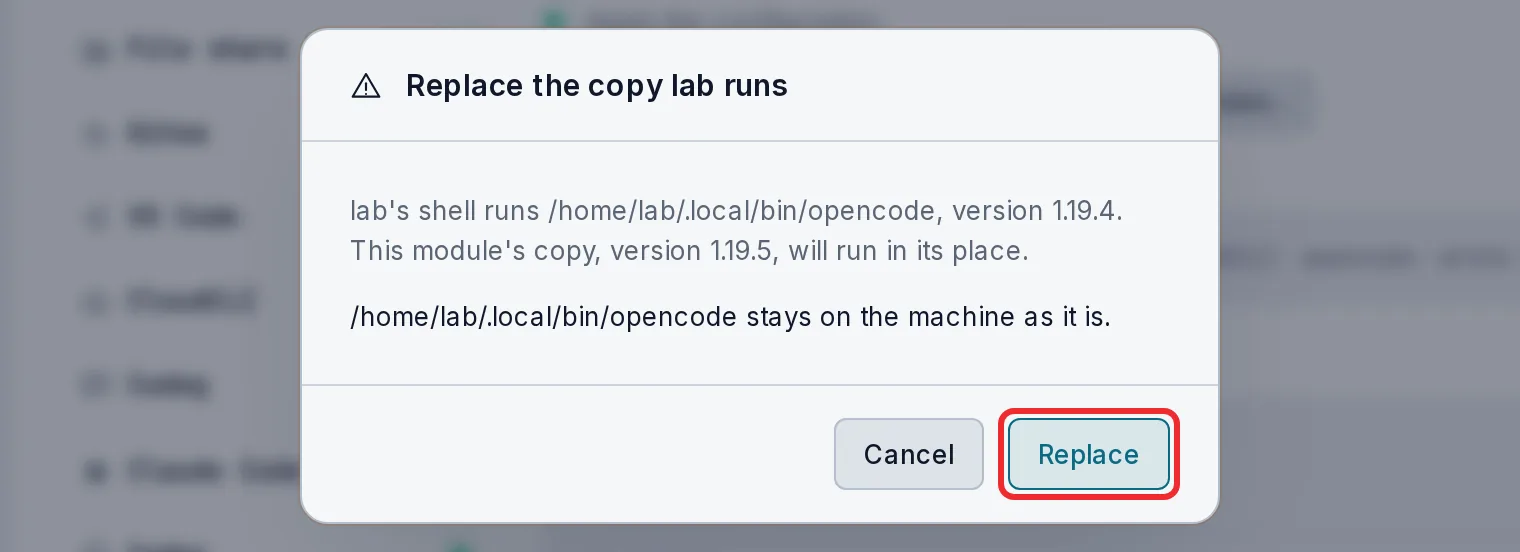
Your own copy stays unchanged, and you can still update or uninstall it yourself.
Select Apply OpenCode. The agent puts the module's copy first on the PATH of each selected account. When it finishes, the account row shows the version of the module's copy.
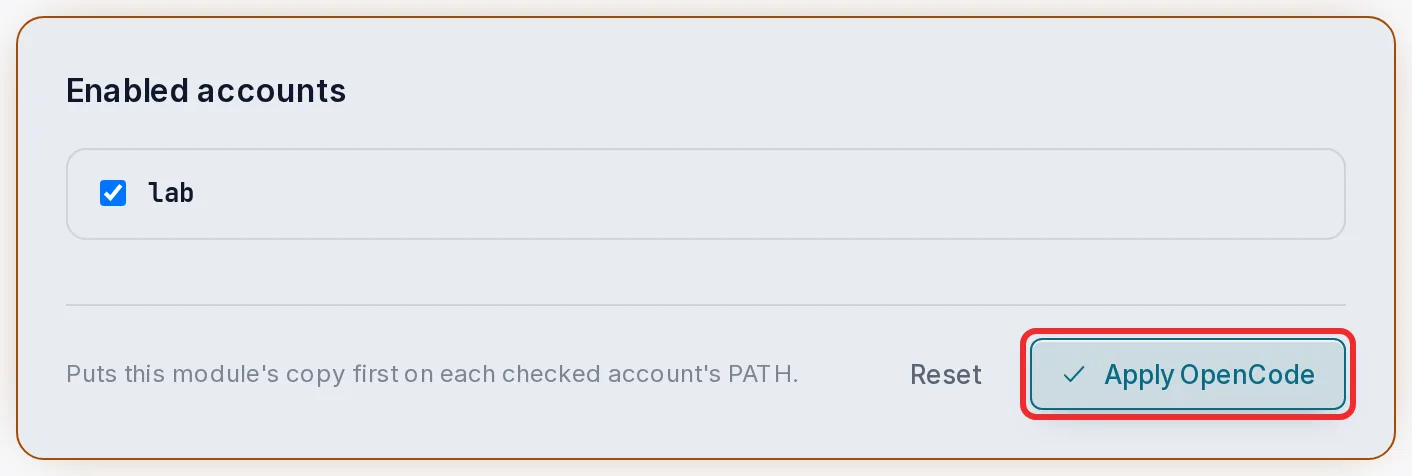
1Select Apply OpenCode 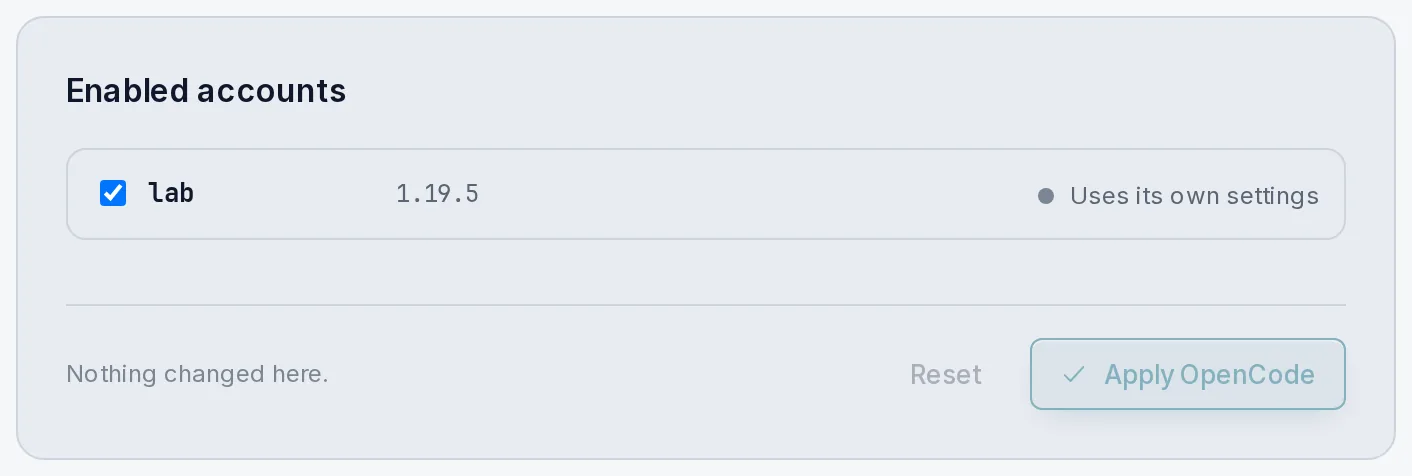
2Applied
To find another copy, the agent searches the PATH of this account first, then the places where OpenCode's installers put it:
| System | Places searched after the PATH |
|---|---|
| Linux | ~/.opencode/bin/opencode, /usr/local/bin/opencode, /usr/bin/opencode |
| macOS | ~/.opencode/bin/opencode, /opt/homebrew/bin/opencode, /usr/local/bin/opencode |
| Windows | %USERPROFILE%\scoop\shims\opencode.exe, %ProgramData%\chocolatey\bin\opencode.exe, %APPDATA%\npm\opencode.cmd |
On Windows, if another copy of OpenCode is on the system PATH, the dialog title states that the account cannot use this module's copy. The only button is Close, and the account stays unselected. Windows searches the system PATH before the user PATH, so the module's copy cannot come first. To make this account use the module's copy, uninstall the other copy, or remove its folder from the system PATH.
Use
Before you start, you need a terminal for this account on this system. You can open it on the system itself or from the client, as Terminal describes.
Open a new terminal. A terminal opened before you selected the account keeps its old PATH and cannot find the module's copy.
Run
opencode. OpenCode opens its interface in the terminal, with an input box in the middle and the current model under it. On the first run, the model is Big Pickle from OpenCode. To use a provider of your own, type/connectin the input box and follow the prompts. The provider you choose sets the fees.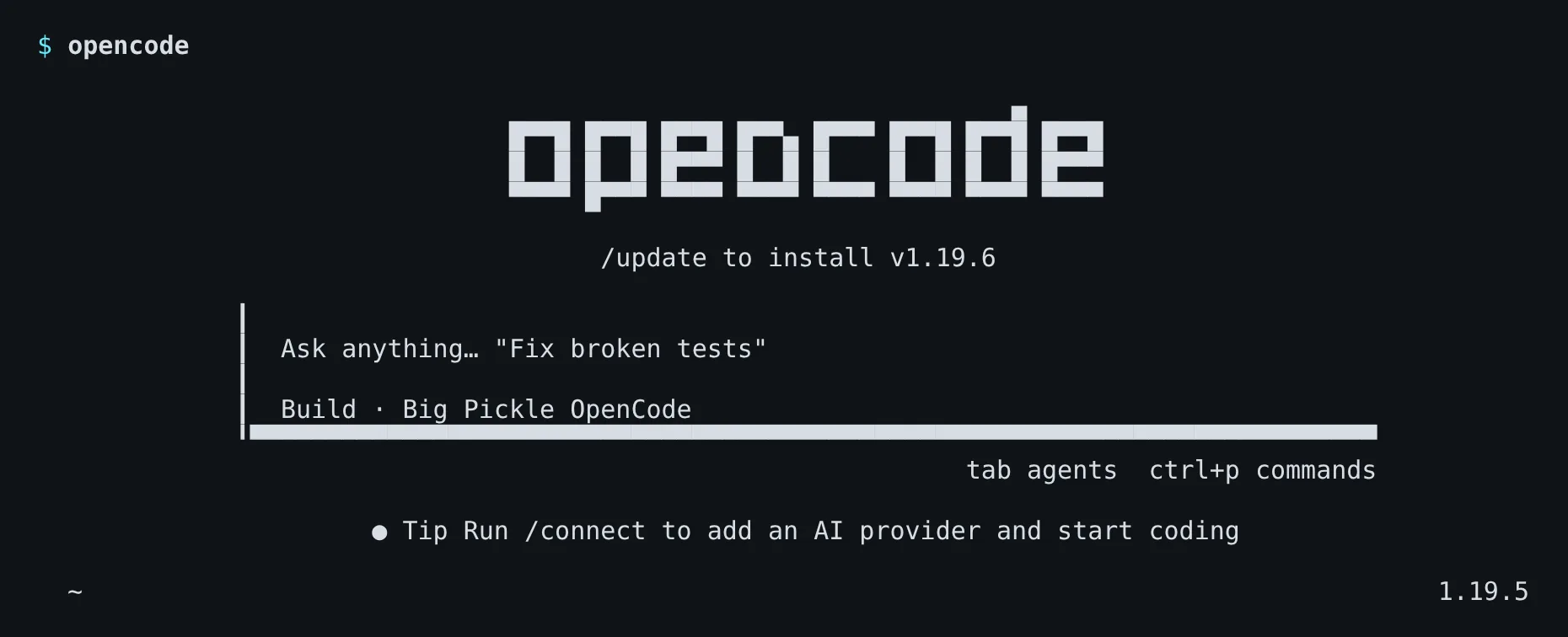
SSH connections through Neutrino work the same way, such as nclient ssh and Remote-SSH in VS Code. A new SSH session puts the selected programs first on the PATH. Selecting or clearing an account leaves open SSH sessions connected, and those sessions keep their old PATH.
To make OpenCode use the hub's AI gateway, edit this account under Available accounts on the system page. Turn on AI tools use the hub's gateway and select Save, following AI gateway. The account row on the OpenCode tab then shows Uses the hub's AI gateway, or Uses its own settings while the switch is off. The switch is outside the OpenCode tab, and a change to it takes effect without Apply OpenCode.
With the switch on, the account's ~/.config/opencode/opencode.json gains the provider neutrino, which OpenCode lists as Neutrino Hub. The providers and settings already in the file stay. If you have never set up OpenCode, it starts on the hub's model. If the file names a model, or you used another provider's model before, OpenCode starts on that model. In that case, type /models in the input box and choose a model under Neutrino Hub.
Share
This module installs only the command-line program, and the panel has no OpenCode web page, so App share cannot generate a link for it.
Risks and limits
OpenCode running in a terminal can do anything this account can do, including reading and writing every file of this account.
The hub manages the version, as Change the version describes. At each start, OpenCode checks npm and shows a notice when a newer version exists. The hub's version list does not always hold that version. To turn the check off, add "autoupdate": false to ~/.config/opencode/opencode.json of this account. opencode upgrade and /update install OpenCode only through the account's own package managers, such as npm or Homebrew. The module's copy belongs to root, and these commands leave it unchanged.
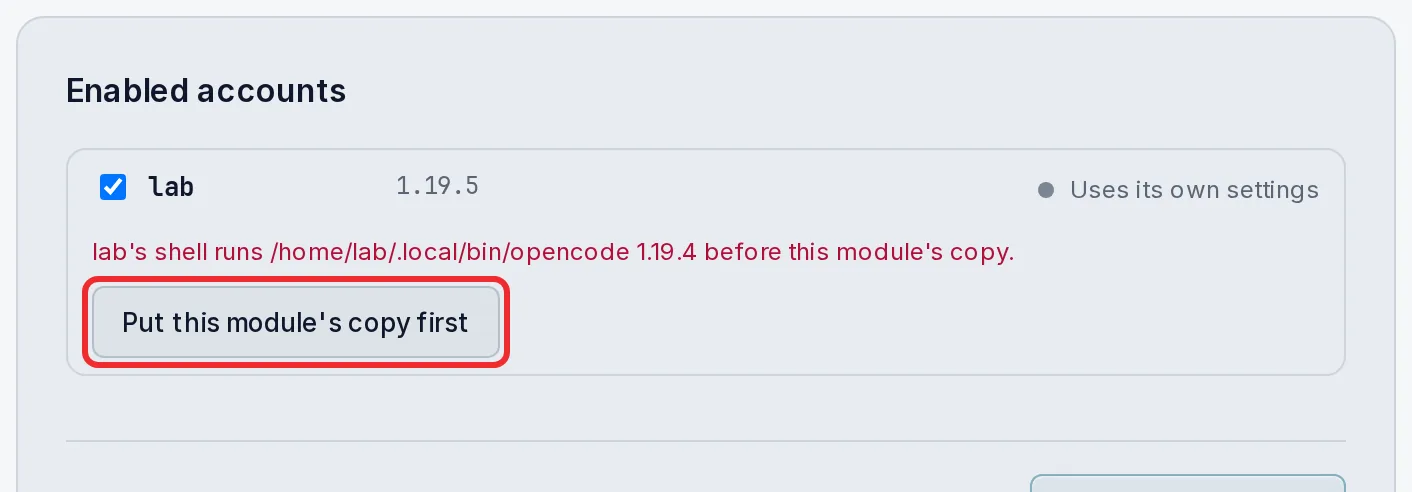
After you select an account, its row shows a notice and the Put this module's copy first button in these cases:
- The shell of this account runs another copy of OpenCode first, such as one you installed later. The notice shows the location and version of that copy.
- The shell of this account cannot find the module's copy.
When you select the button, the agent moves the line in the startup file back to the end of the file. On Windows, the agent puts the module's program folder first on the user PATH again. The agent changes nothing back until you select the button. After you edit the startup file, the notice in the row updates automatically.
OpenCode accepts comments in opencode.json, but the agent edits that file with cc-switch, which cannot read a file that holds comments. With comments in the file, turning on AI tools use the hub's gateway fails, and the account row shows the cause. Remove the comments, then turn the switch off and on again.
Settings
Apart from selecting accounts, the following settings can stay at their defaults:
| Setting | Where | What it does |
|---|---|---|
| Enabled accounts | Configure on the OpenCode tab | The selected accounts use the OpenCode the module installed |
| AI tools use the hub's gateway | The account form under Available accounts | Makes this account's OpenCode use the AI gateway; the account row on the OpenCode tab shows the result |
After you select an account, the agent makes its shell find the module's copy first, with these changes on each system:
| System | What the agent sets up |
|---|---|
| Linux | Writes ~/.local/share/neutrino/agent/env.sh and adds a line that loads it at the end of this account's startup file. The file puts the module's program folder first on the PATH |
| macOS | The same as Linux, with the file at ~/Library/Application Support/Neutrino/agent/env.sh |
| Windows | Puts the module's program folder first on the user PATH of this account |
The startup file that gets the line depends on the login shell of this account:
| Login shell | Startup file |
|---|---|
| bash | ~/.bashrc, plus a login file: ~/.bash_profile; without it, ~/.bash_login; without that, ~/.profile |
| zsh | ~/.zshrc |
| fish | ~/.config/fish/config.fish, where the line loads env.fish next to env.sh |
| Other shells | ~/.profile |
When you clear this account, the agent removes the program folder of OpenCode from env.sh, and on Windows, from the user PATH. The Codex and Claude Code modules use the same env.sh and the same line. When none of the three modules has this account selected, the agent deletes the line and env.sh. The startup files of the account then return to their original state.
Uninstall
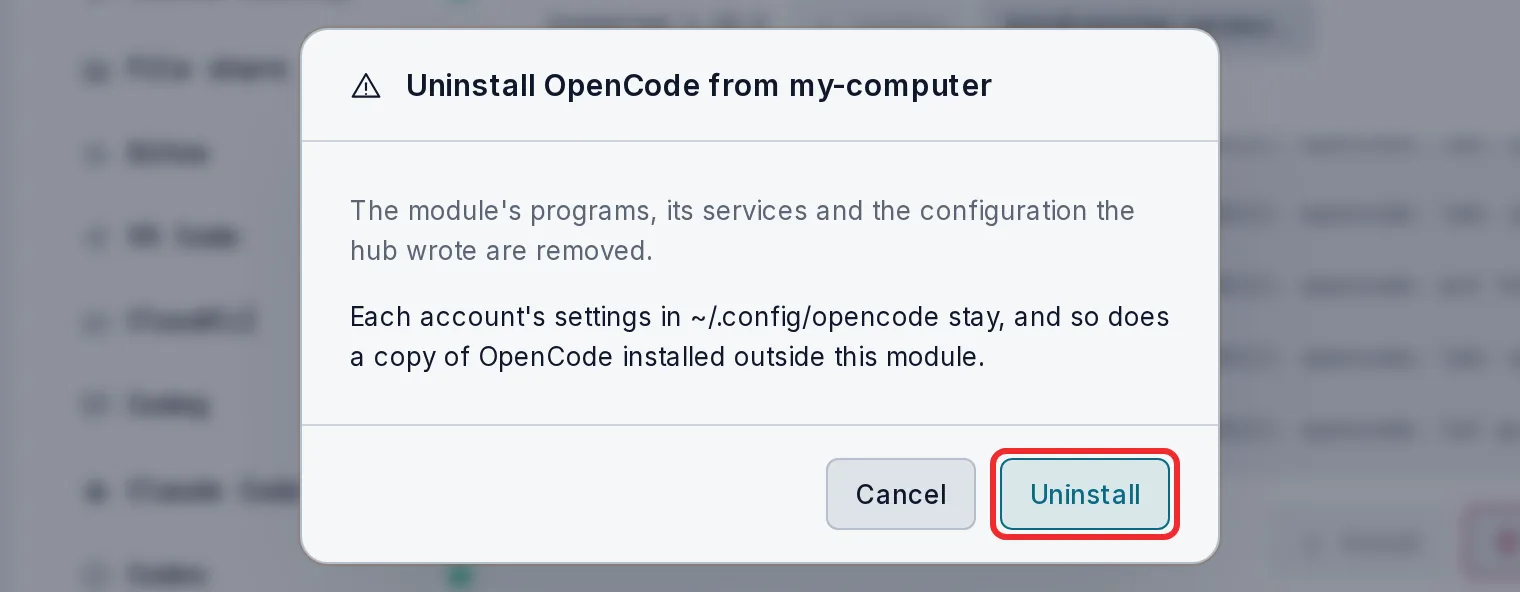
On the OpenCode tab, select Uninstall, then confirm in the dialog. The dialog states that each account's settings in ~/.config/opencode stay, and so does any OpenCode installed outside this module.
While it runs, OpenCode also writes ~/.local/share/opencode, ~/.local/state/opencode and ~/.cache/opencode in the account's home folder. The first one holds its sessions and logs. All three stay after the uninstall. The agent deletes only the folders whose names clearly belong to Neutrino Hub. Shared folders such as ~/.local/share, ~/.local and ~/.config/fish stay.