
English
Network modes: server, router and side gateway
A network mode is the role that the hub's computer has in the network: server, side gateway or router.
You chose the mode on the What is this machine for? screen of the wizard. In most cases, keep server mode. Change the mode only in the following cases:
- You want devices on the LAN to go through the proxy.
- This computer already works as a router.
The modes
| Mode | Suits | What it changes | Effect of switching to another mode | Systems | Editions |
|---|---|---|---|---|---|
| Server | Ordinary laptops and desktops | Keeps the addresses and writes only firewall rules for the hub's ports | None | Linux, Windows, macOS | International edition, China edition |
| Side gateway | A LAN with its own router, where this computer forwards traffic for some devices | Keeps the addresses and adds forwarding rules and DNS | Devices that use it as their gateway lose internet access | Linux only | International edition only |
| Router | This computer is the router | The hub takes over the network | The devices it serves lose their addresses, DNS and gateway | Linux only | International edition, China edition |
Server mode keeps the system's network manager running. Side gateway mode also turns on the system's forwarding switch. Router mode stops the system's network manager, takes over the addresses, and assigns addresses and DNS to devices.
macOS and Windows have server mode only, so their Network page has only the Mode, Exposure and Ports sections.
The wizard also has a One-arm router option. It saves router mode on a single network cable. The switch at the other end of that cable must pass VLAN tags through.
View the current mode
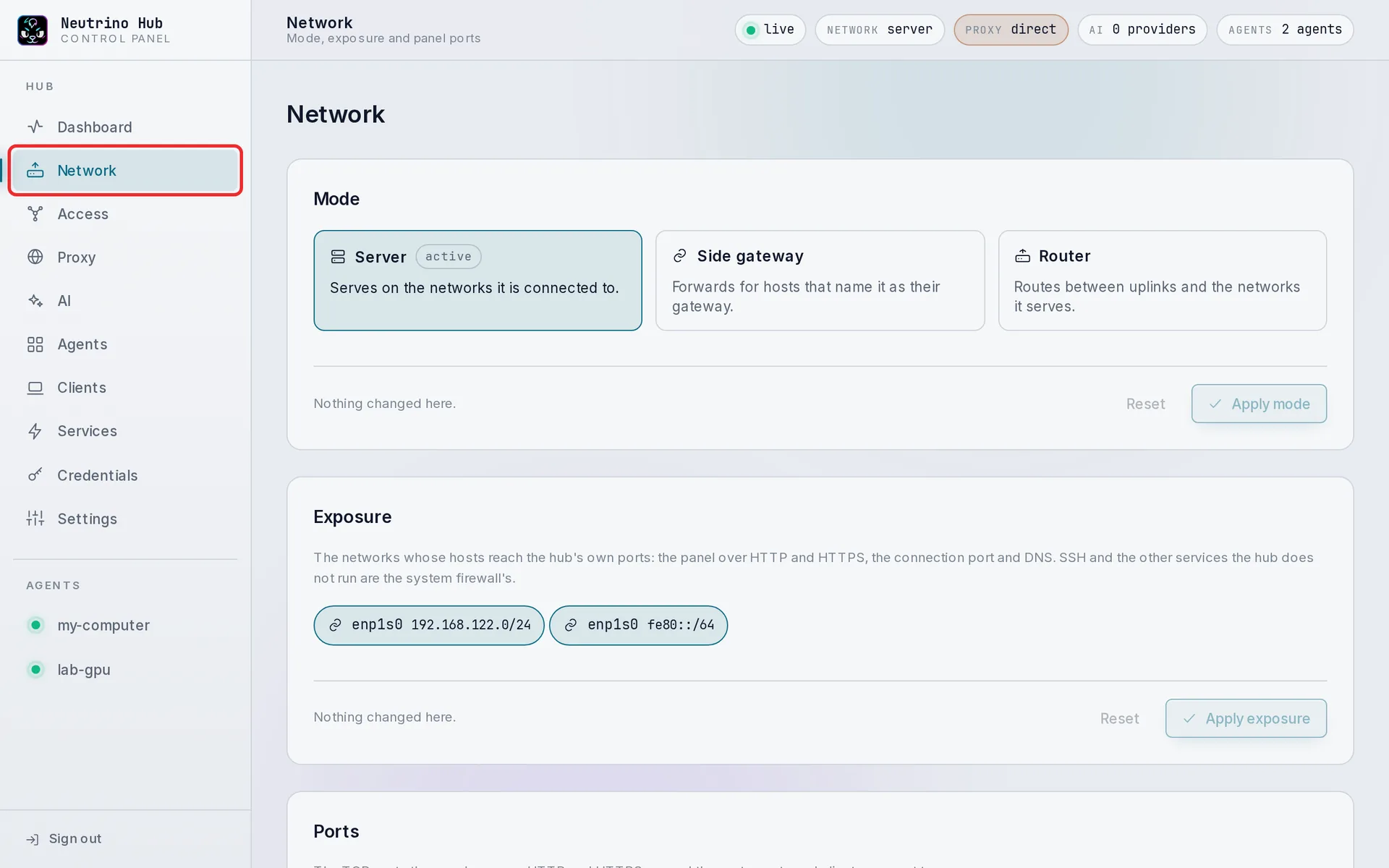
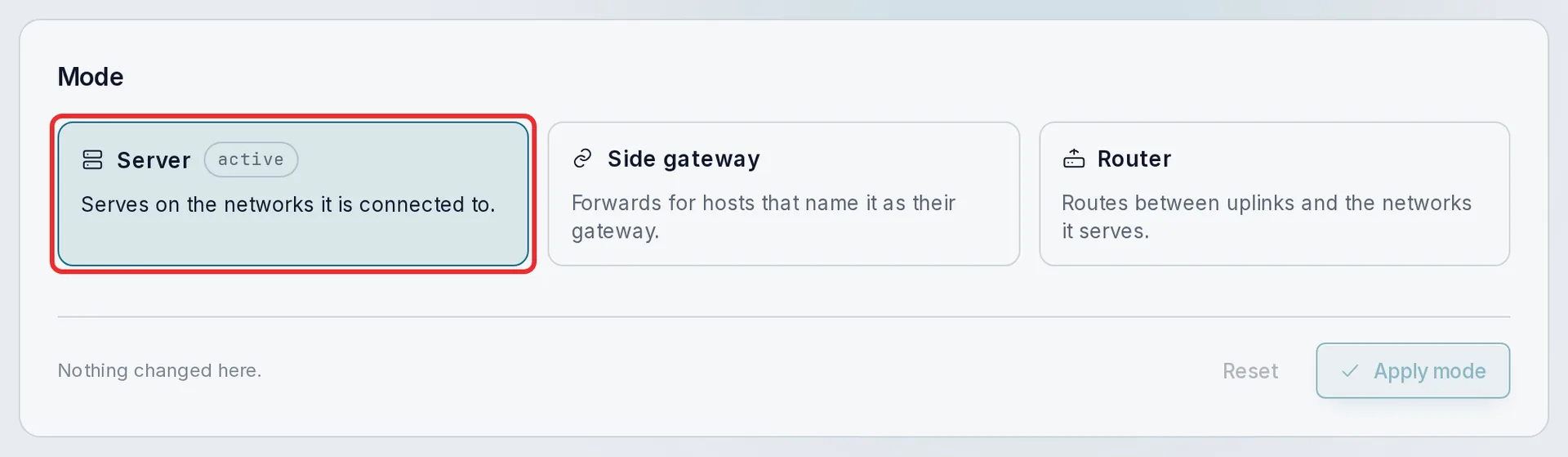
In the panel's sidebar, select Network. The Mode section has a card for each mode, and the card marked active is the current mode.
Change the mode
Changing the mode can cut the network connection, so work at this computer:
On this computer, run
nhub opento open the panel. A panel opened this way bypasses the network interfaces, so a change to them leaves it connected.In the Mode section, select the card you want. An apply bar appears, with a yellow notice that describes the effect of the change. Read the notice before you continue. The change is not in effect yet, and Reset undoes it.
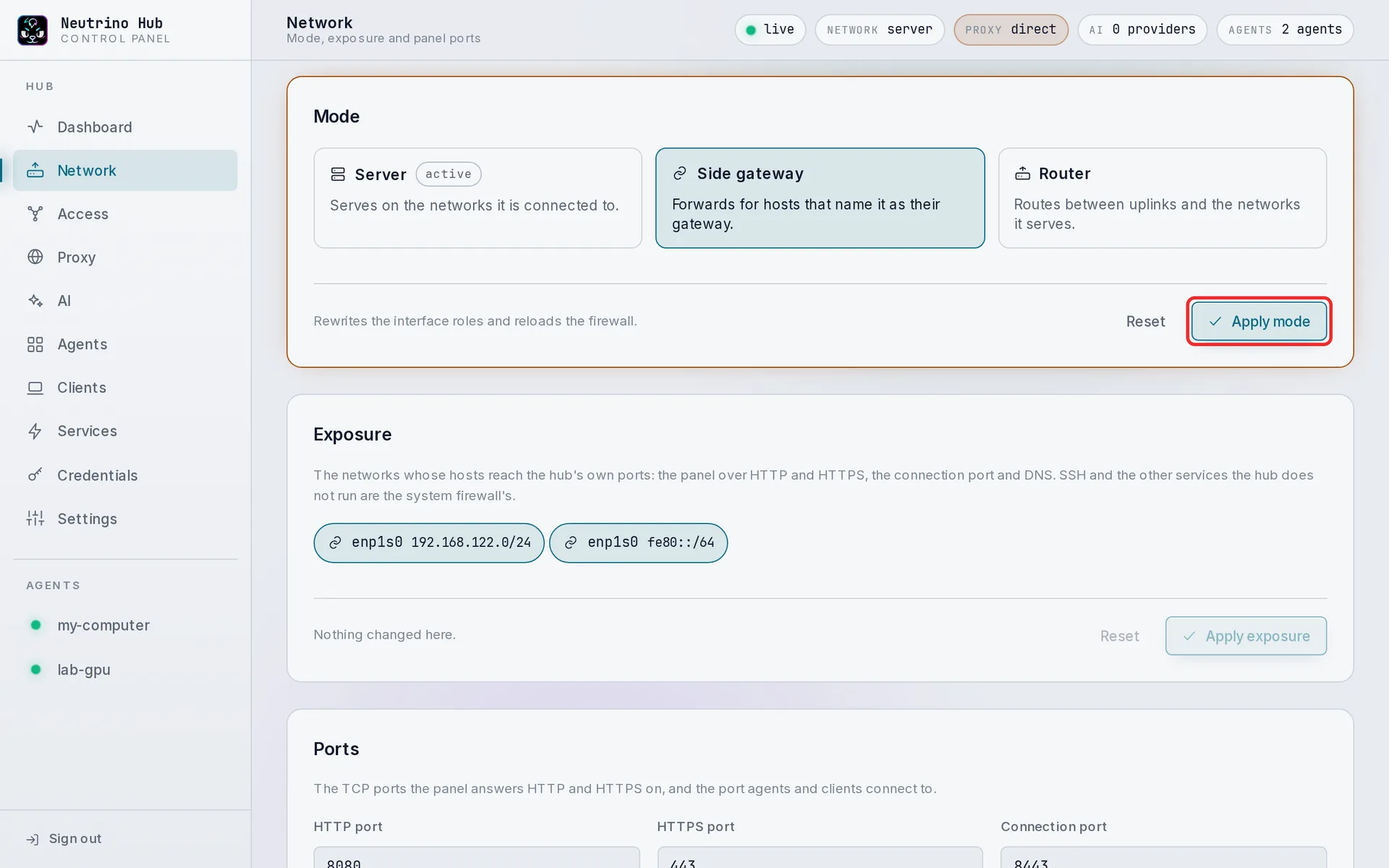
1Select Side gateway 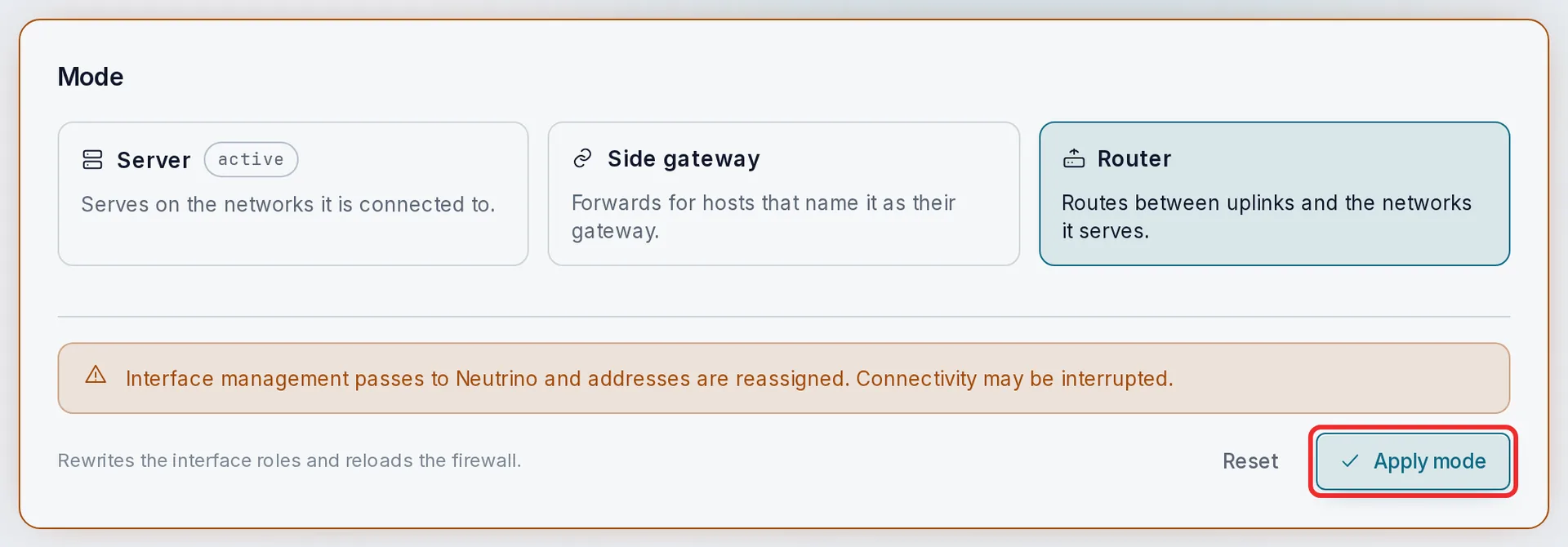
2Select Router; the yellow notice describes the effect Select Apply mode. The button has no confirmation dialog and takes effect immediately.
After you change to side gateway mode, complete these steps:
In Upstream gateway, enter the address of the LAN's original router, then select Apply upstream gateway.
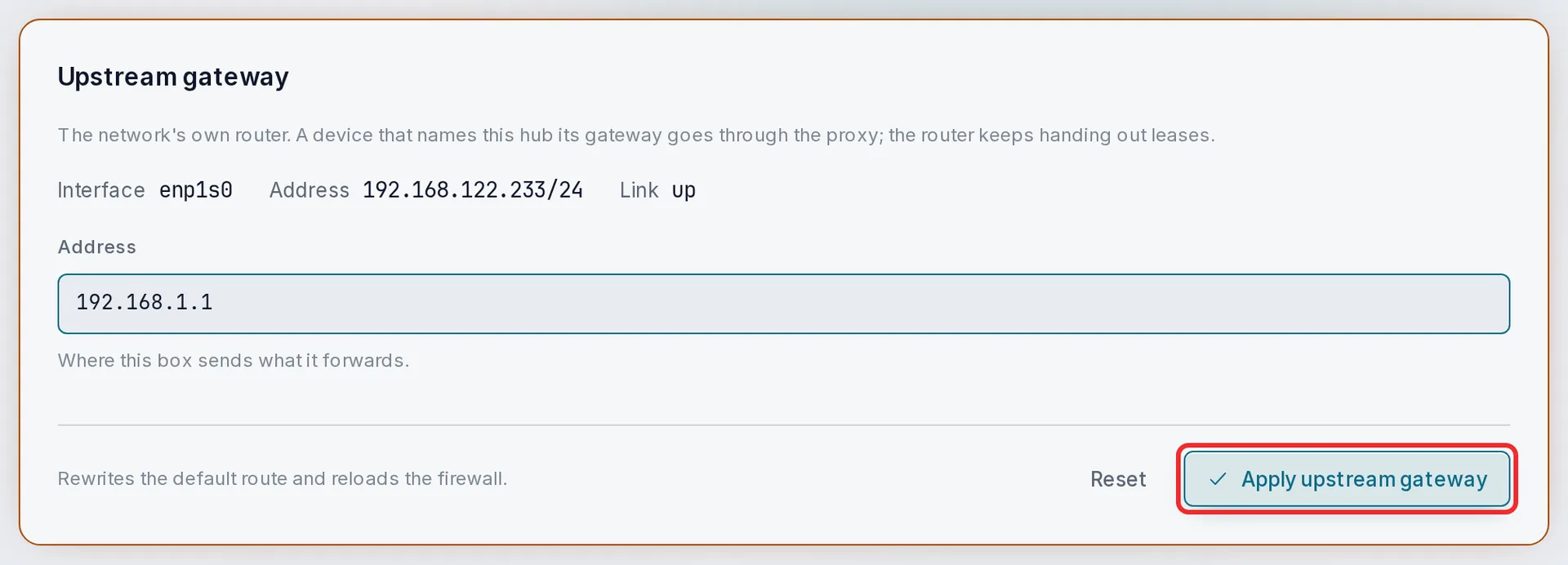
On each device whose traffic goes through the hub, change the gateway and DNS to the hub's address. Devices you leave unchanged are unaffected.
After you change to router mode, choose a role for each network interface:
If you came from server mode, every interface is Disabled. First turn on the networks you use in Exposure, then select Apply exposure.
Choose a Role for each interface from WAN, LAN, Split and Disabled.
- WAN: the uplink to the internet.
- LAN: the network this interface serves.
- Split: a trunk divided into several VLANs.
- Disabled: left to the system to manage.
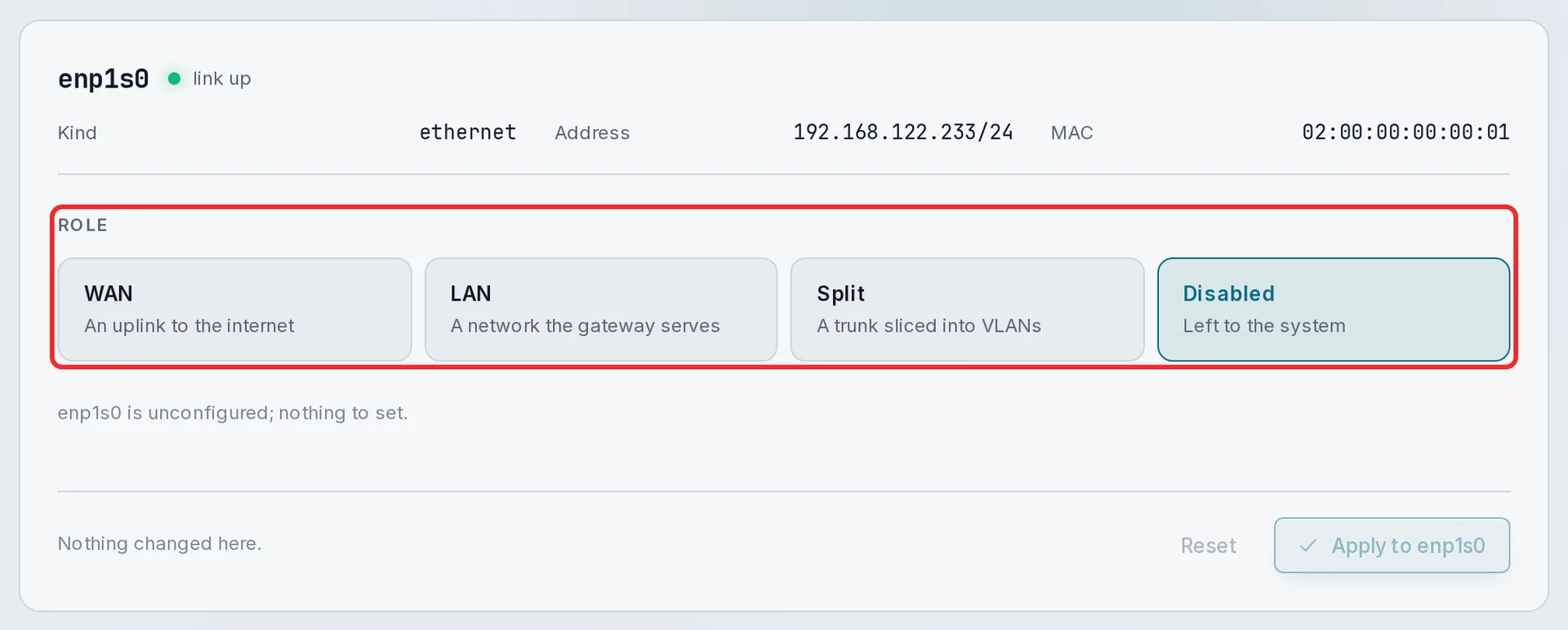
Select the Apply to button with the interface's name.
Router mode also adds Allocate address on this network, Fixed addresses, Known networks, Access point and Routing behavior. This computer's address can change in router mode. In that case, run sudo nhub open --print on this computer to see the new address.
Exposure
Exposure sets which networks can connect to the hub's own ports: the panel's HTTP and HTTPS ports, the connection port and DNS. The system firewall controls services such as SSH and file sharing, in router mode as well, and they have no setting here.
Each interface has one button for IPv4 and one for IPv6, and each virtual network has one button. Each press switches a button between open and closed, and a lit button means open. After a change, a yellow notice names the devices that can no longer connect, and how many devices connect through that network now. Read the notice, then select Apply exposure.
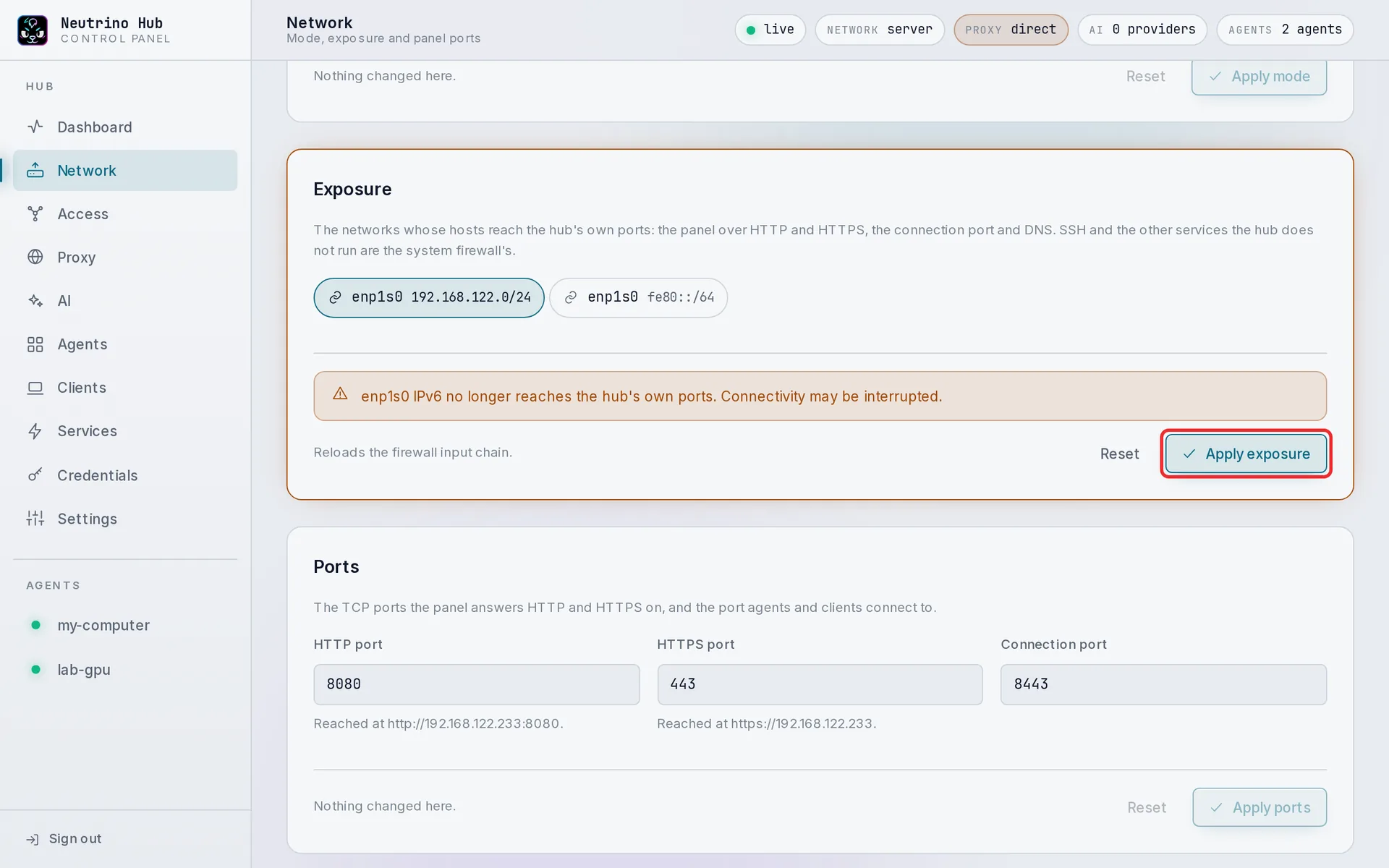
On Linux, a network card added later is closed by default and shows New, not in use until turned on and applied. On macOS and Windows, a new network card is open by default.
Direct ignores these buttons and opens only the connection port, to everyone.
Ports
The section holds HTTP port, HTTPS port and Connection port. The connection port is the port devices use to connect to the hub, 8443 by default. After a change, read the yellow notice, then select Apply ports.
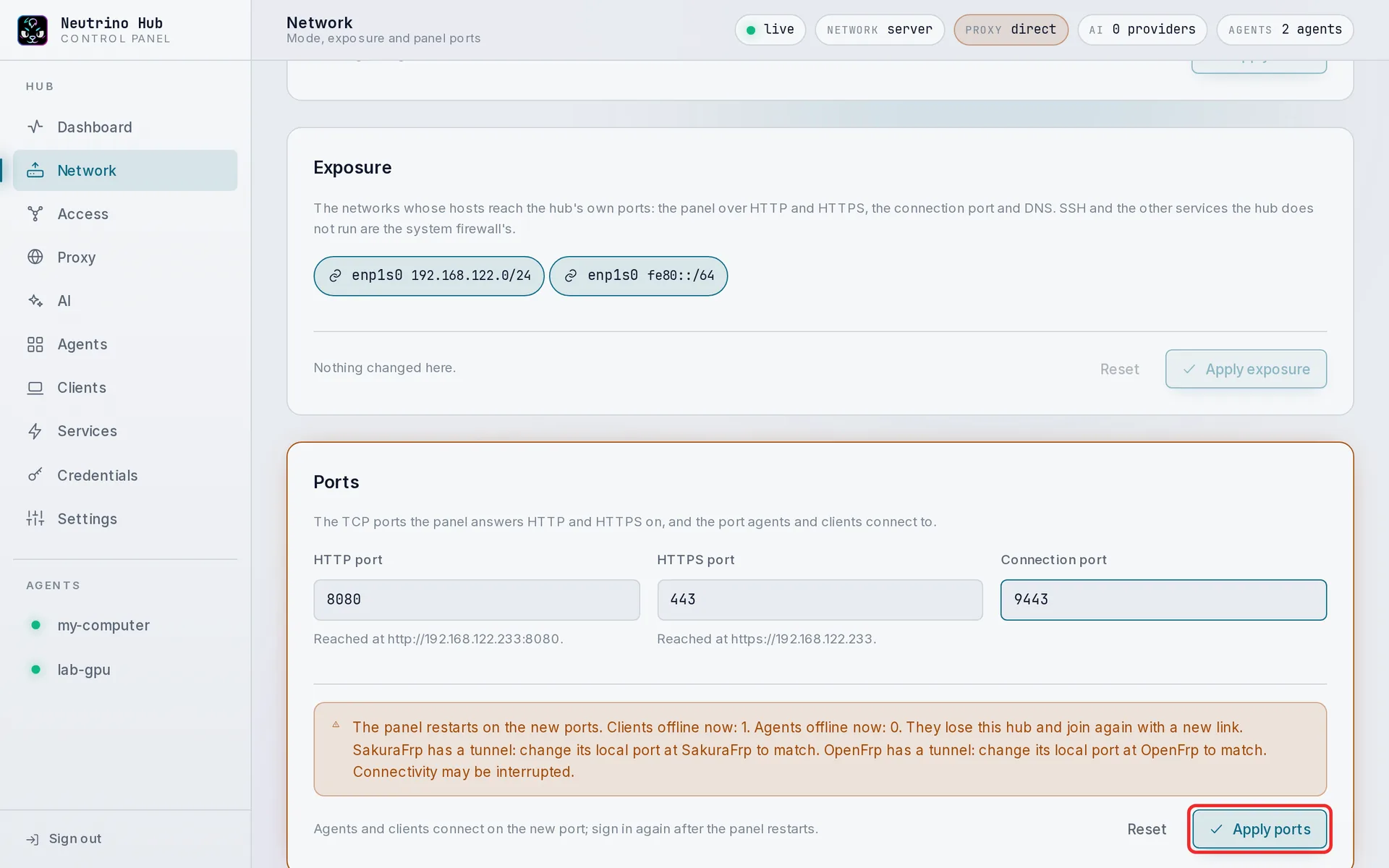
After you change a panel port, sign in again at the new address. When you change the connection port, devices offline at that time can no longer connect. Join them again with new links. If you use Direct or a third-party tunnel, also change the router's port forwarding or the provider's settings.
Hand the network back
If the hub has taken over the network and you want to hand it back to the system, run the following command:
bash
sudo nhub reset networkThe command stops the programs the hub started, keeps every address, and leaves the configuration unchanged. It shows a [y/N] prompt first, and --yes skips the prompt.