
English
Remote desktop
Remote desktop is a view of a system's screen on your phone or another computer, which you control directly.
SystemsLinuxWindowsmacOS
EditionsInternationalChina
Sincev0.5.0
It uses RustDesk. Neutrino Hub installs RustDesk on every system that has joined the hub, so there is nothing to download and no account to register. Turn on sharing in the panel first, then connect from the client.
Supported systems
| System | Architecture | First Neutrino Hub version | Notes |
|---|---|---|---|
| Linux | amd64, arm64 | 0.5.0 | Needs a graphical desktop |
| Windows | amd64 | 0.5.0 | |
| macOS | Apple silicon, Intel | 0.5.0 | RustDesk needs system permissions the first time |
Install
Remote desktop is already installed, so you only turn on sharing:
Open the panel in a browser and sign in.
In the lower half of the sidebar, which lists every system that has joined the hub, select the system to share. Its page opens on the right.
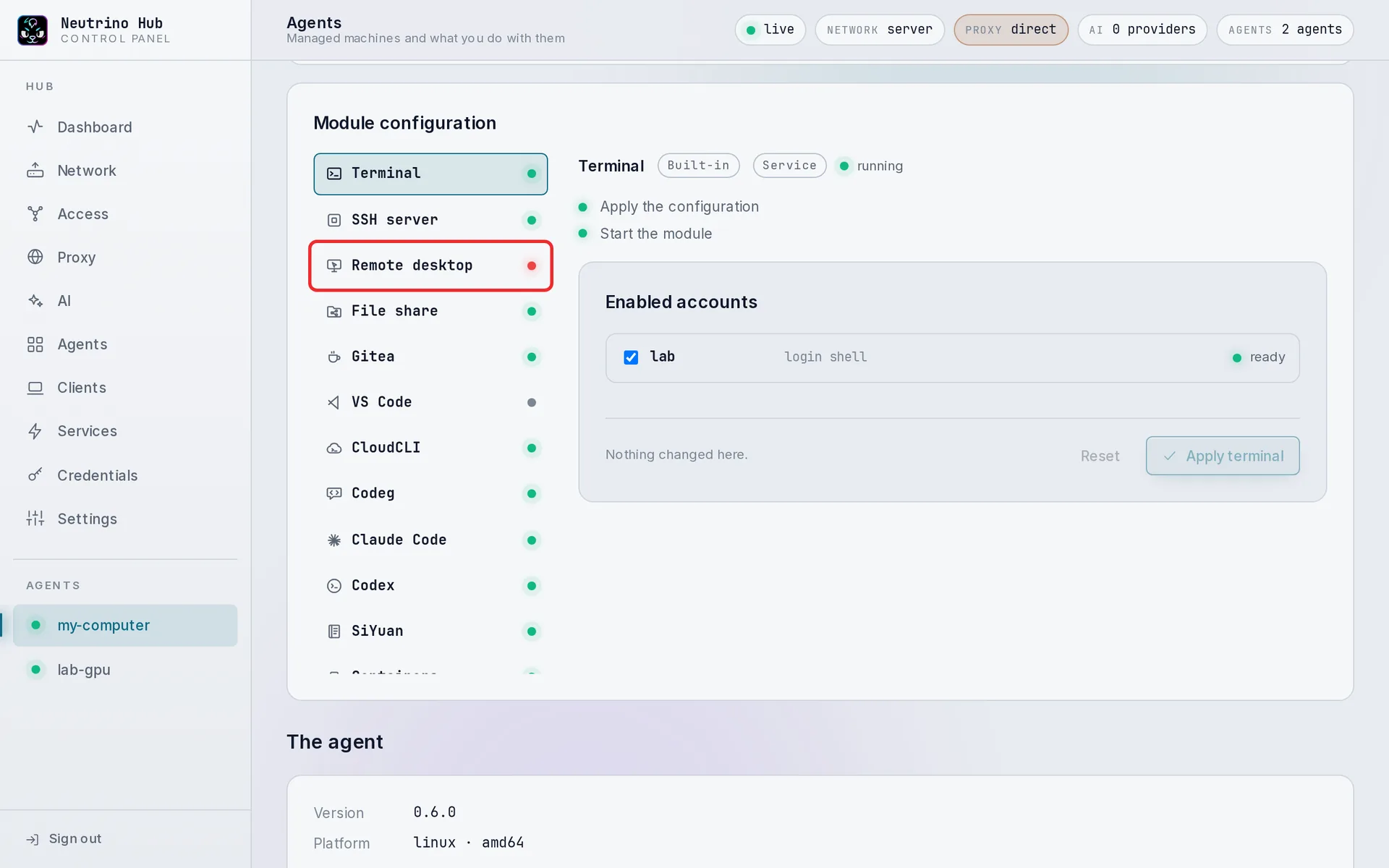
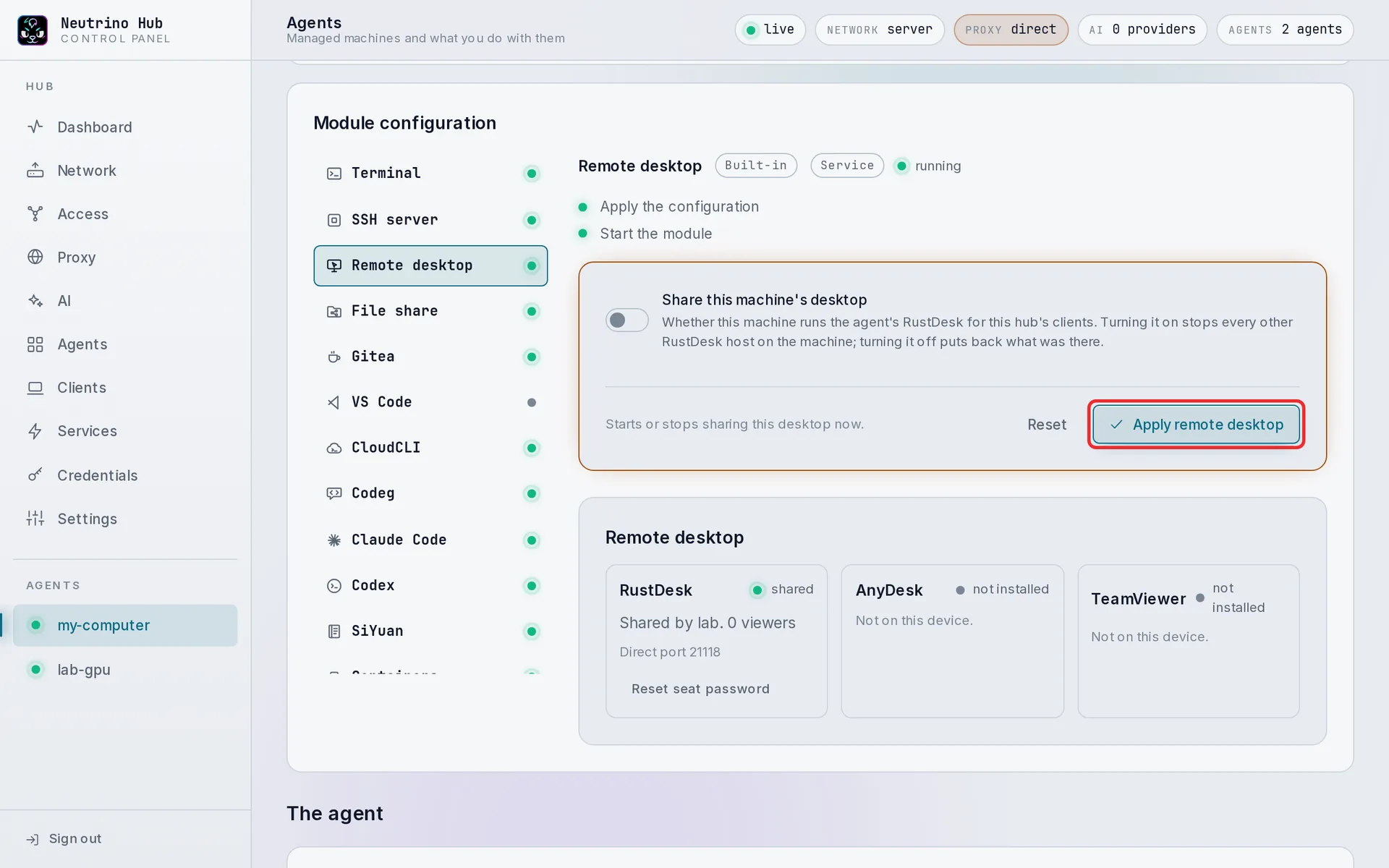
Among the module tabs on the system's page, select Remote desktop. This tab is always present, so you do not add it.
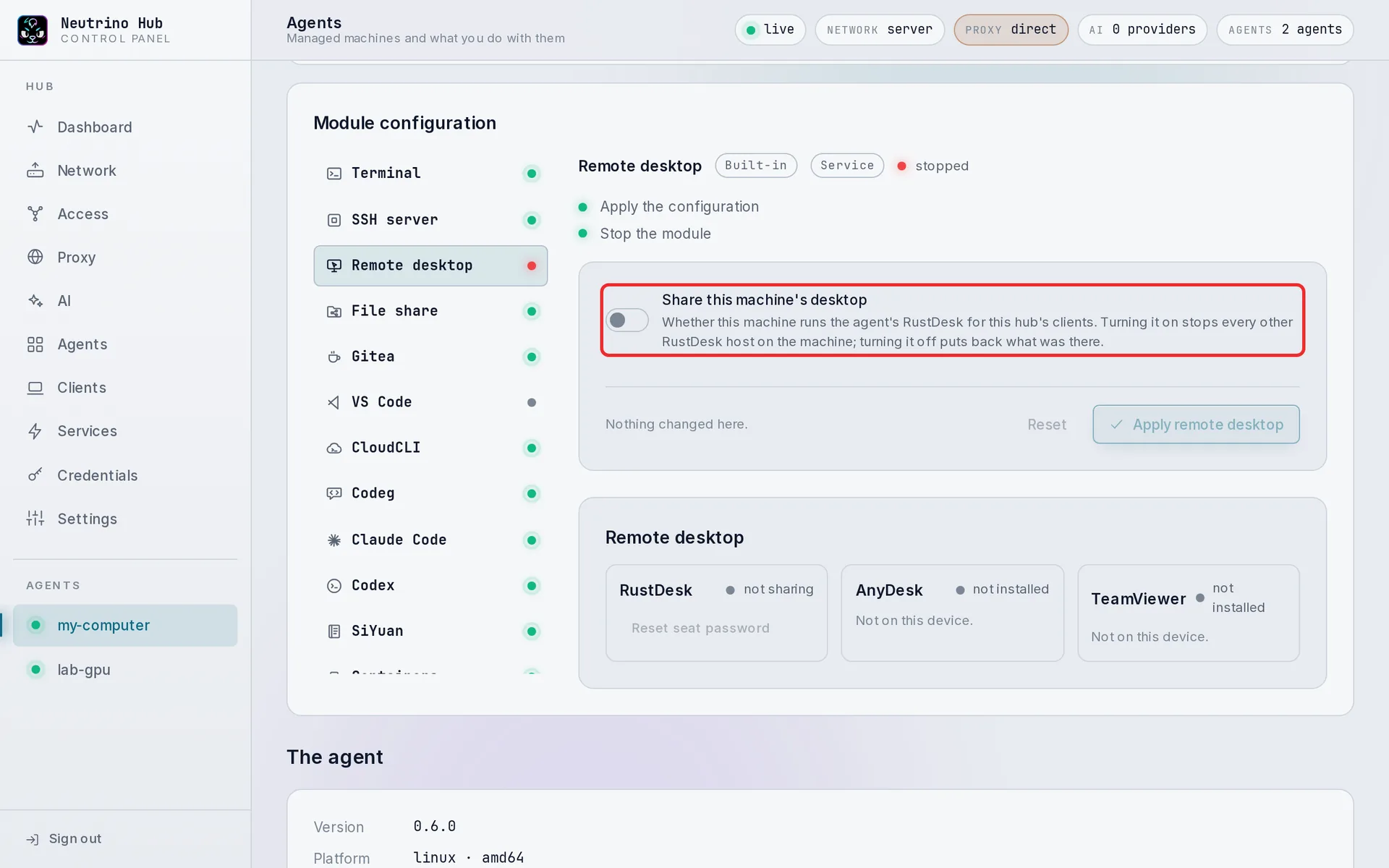
Turn on Share this machine's desktop.
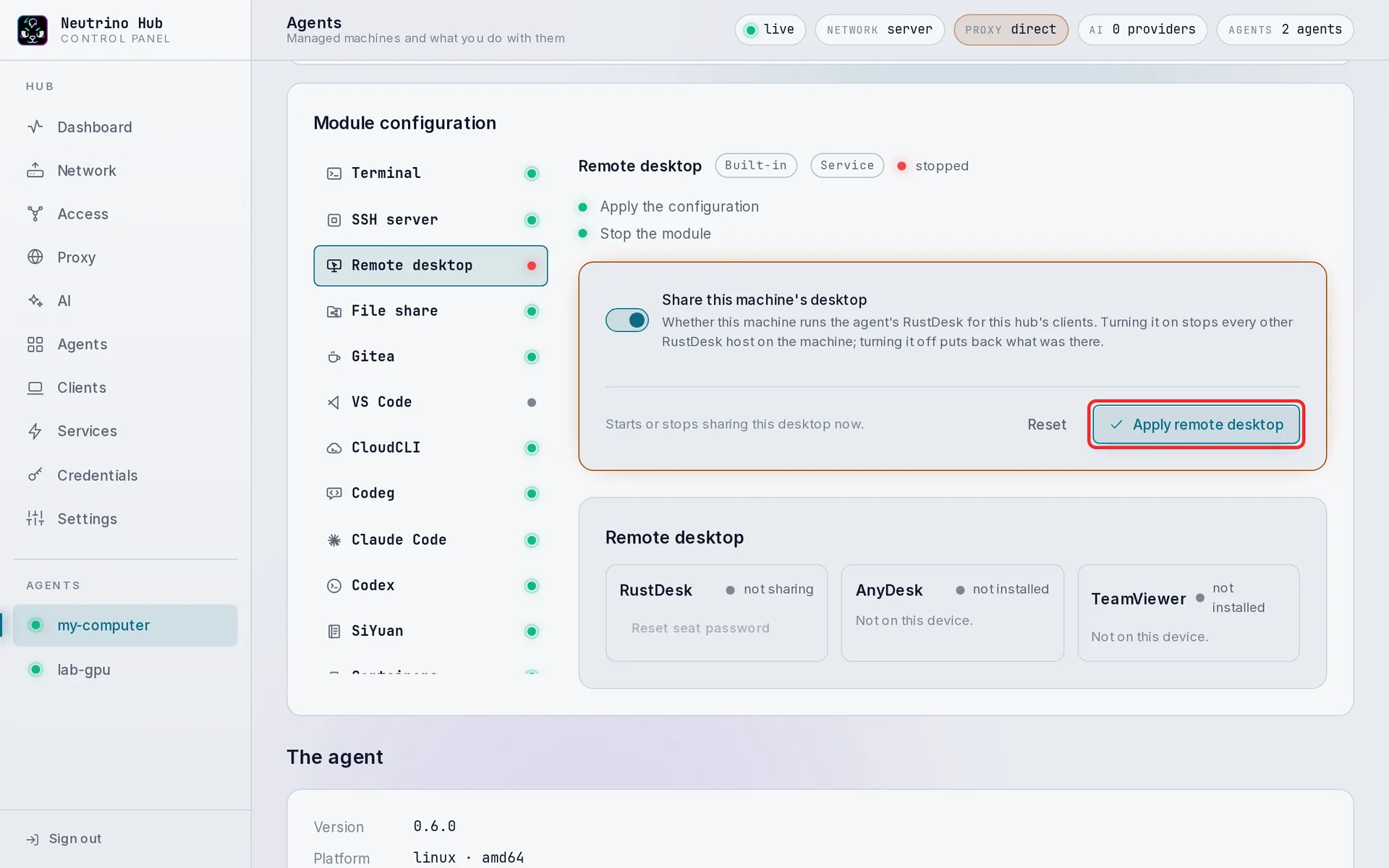
Select Apply remote desktop. The change takes effect only now.
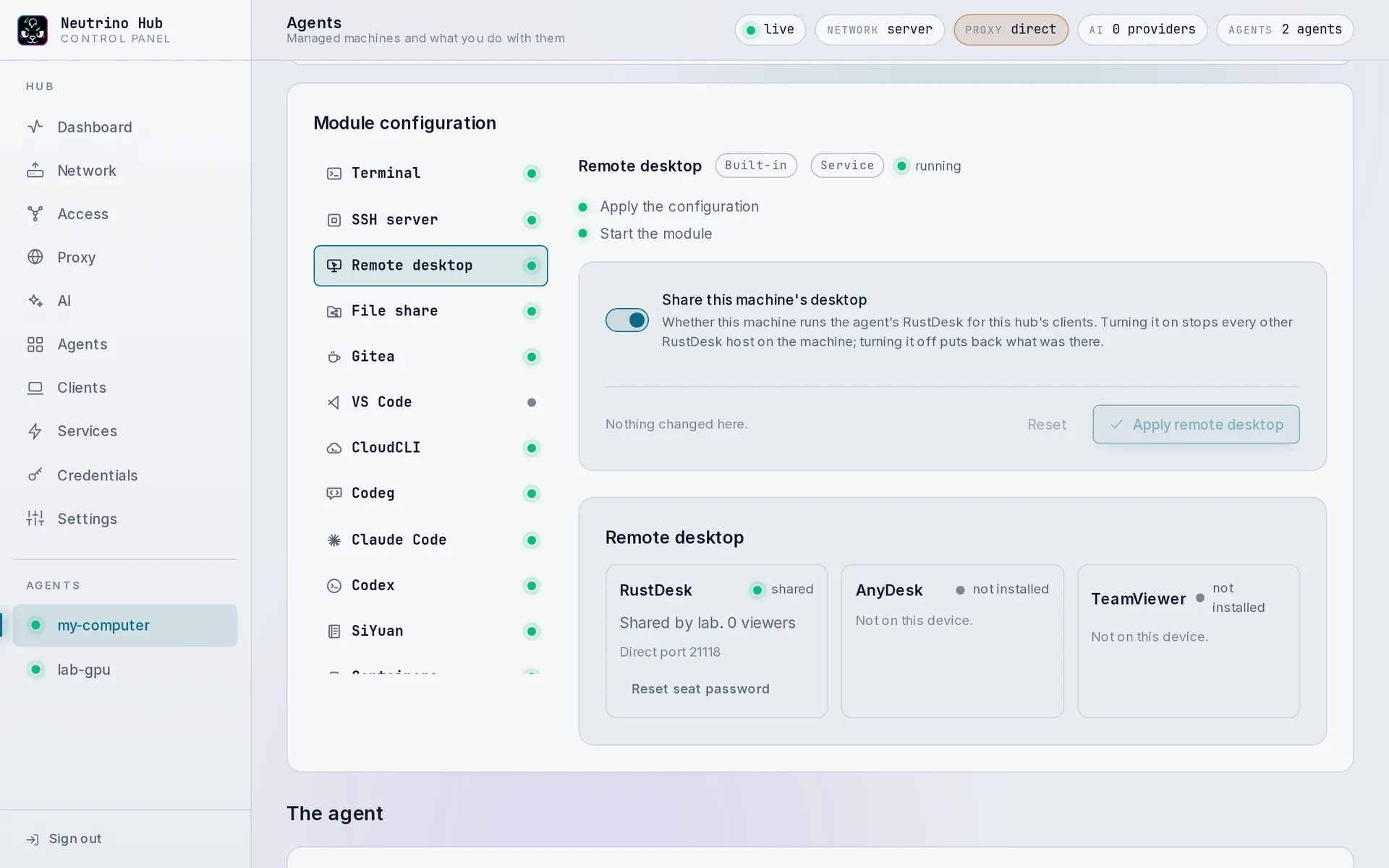
When the tab shows running, sharing is on.
A Mac needs one more step. A dialog appears on the Mac's screen, and System Settings opens. In Privacy & Security, turn on Screen Recording and Accessibility for RustDesk. If the picture is black after you connect, or the mouse does not respond, these two are still off.
A Wayland desktop on Linux also needs one more step. The client shows Allow screen sharing once at that machine's own screen. At that computer, allow sharing one time in the window that appears.
Use
Before you start, add your phone or computer to the hub, as Join the hub describes. The Remote desktops permission is on by default.
Open the client and go to the Remote desktops page. On a phone, this item shows Desktops in the bottom bar.
Find the system you shared, and select Connect on its row.
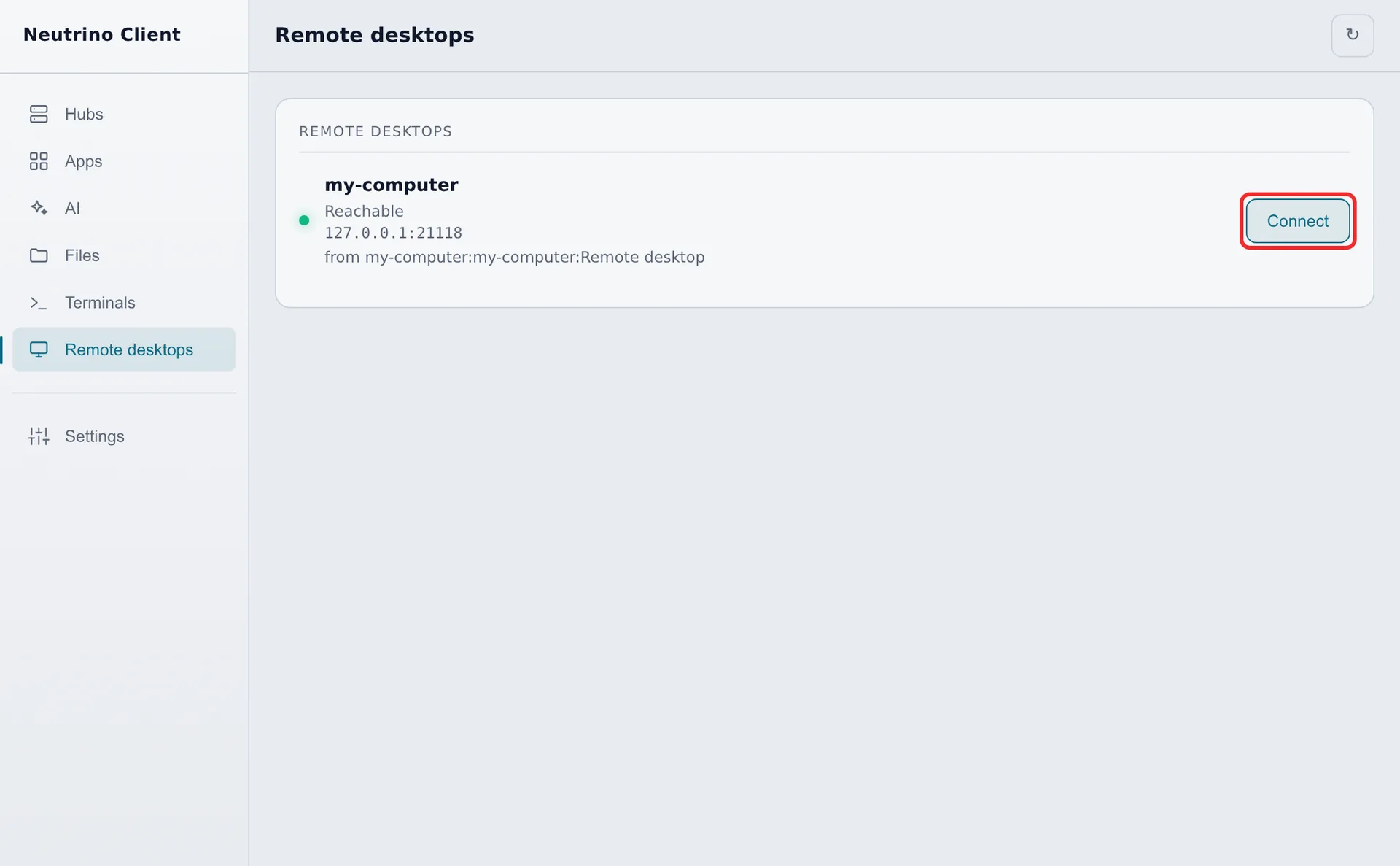
The client gets the password from the hub and fills it in automatically.
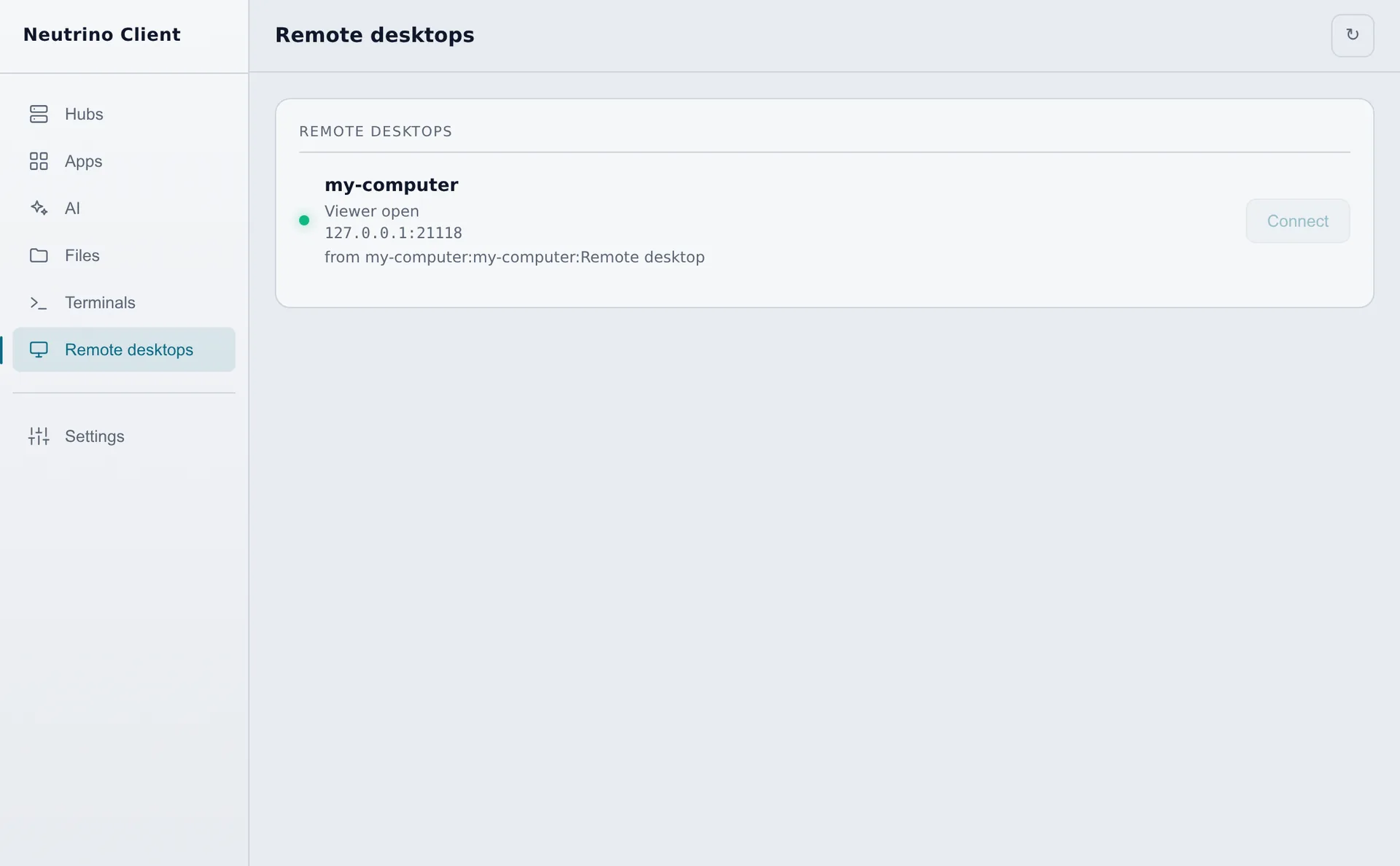
On a computer, the desktop opens in a separate window, and the client's row shows Viewer open. You can also transfer files in both directions in this window. Close the window when you finish, and the connection ends.
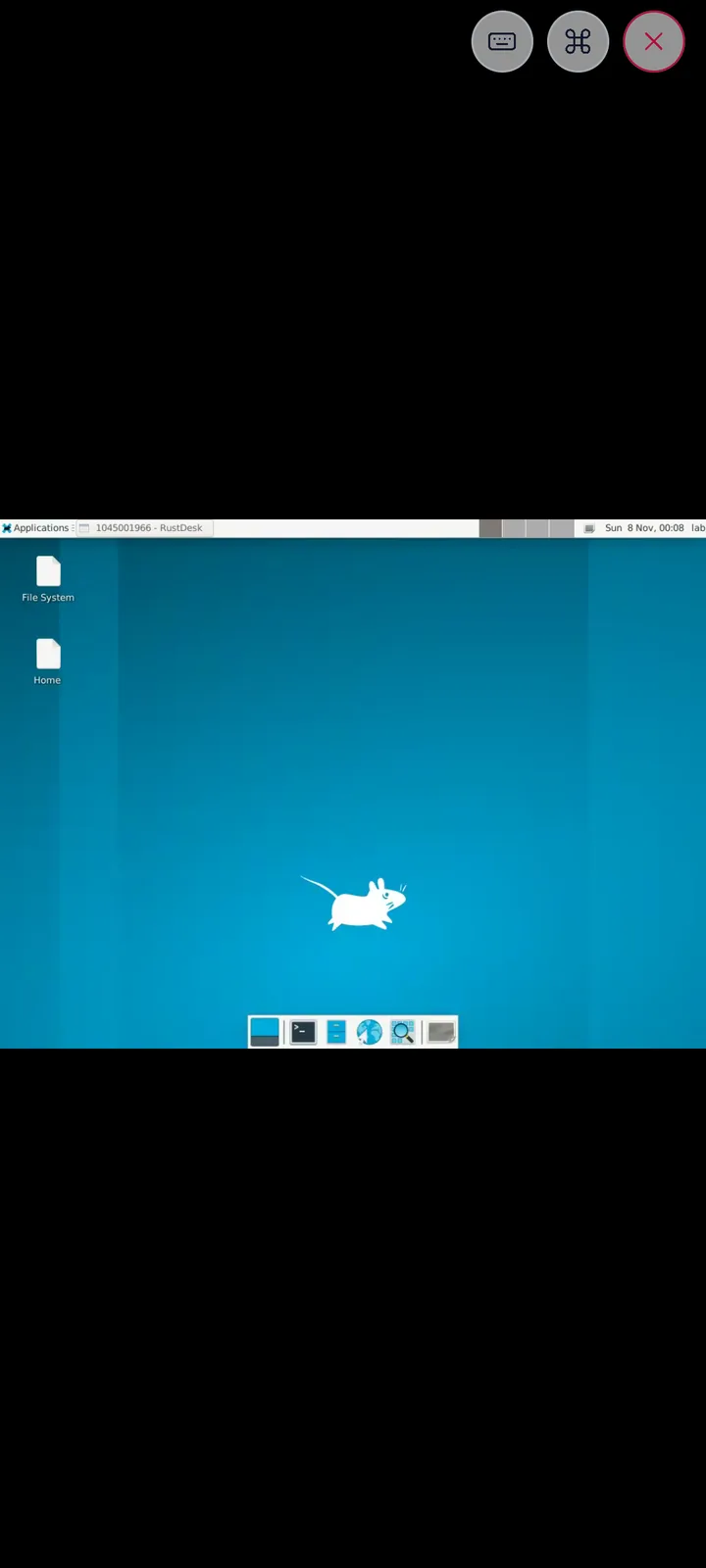
On a phone, the desktop fills the whole screen. The three round buttons in the top-right corner are, in order, Keyboard, Keys and Disconnect. Keys holds the keys a phone keyboard lacks, such as Esc, Ctrl and the arrow keys. Copy and paste work in both directions between the phone and the system.
Share
Remote desktop cannot generate a link with App share, because App share works only for apps with a web page.
To let someone else connect to this desktop, have them install the client and join the hub. Then turn on the Remote desktops permission for their device on the Clients page, as Clients describes. The other person can control the whole desktop, so turn this permission on only for people you trust.
Risks and limits
The person connecting sees the desktop of the account signed in at the screen at that moment. They can do anything this account can do.
When nobody is signed in at the screen, the client's row shows Nobody is signed in at that machine's screen. and the connection fails. Sign in on that computer first, then select Connect.
If your own RustDesk already runs on this system, it stops when you turn sharing on and starts again when you turn sharing off.
Settings
Apart from the sharing switch, the following settings can stay at their defaults:
| Setting | Where | Purpose |
|---|---|---|
| Share this machine's desktop | Remote desktop tab | The main sharing switch; off by default on a newly joined system |
| Reset seat password | Remote desktop tab | Changes the password and disconnects everyone connected; they select Connect again |
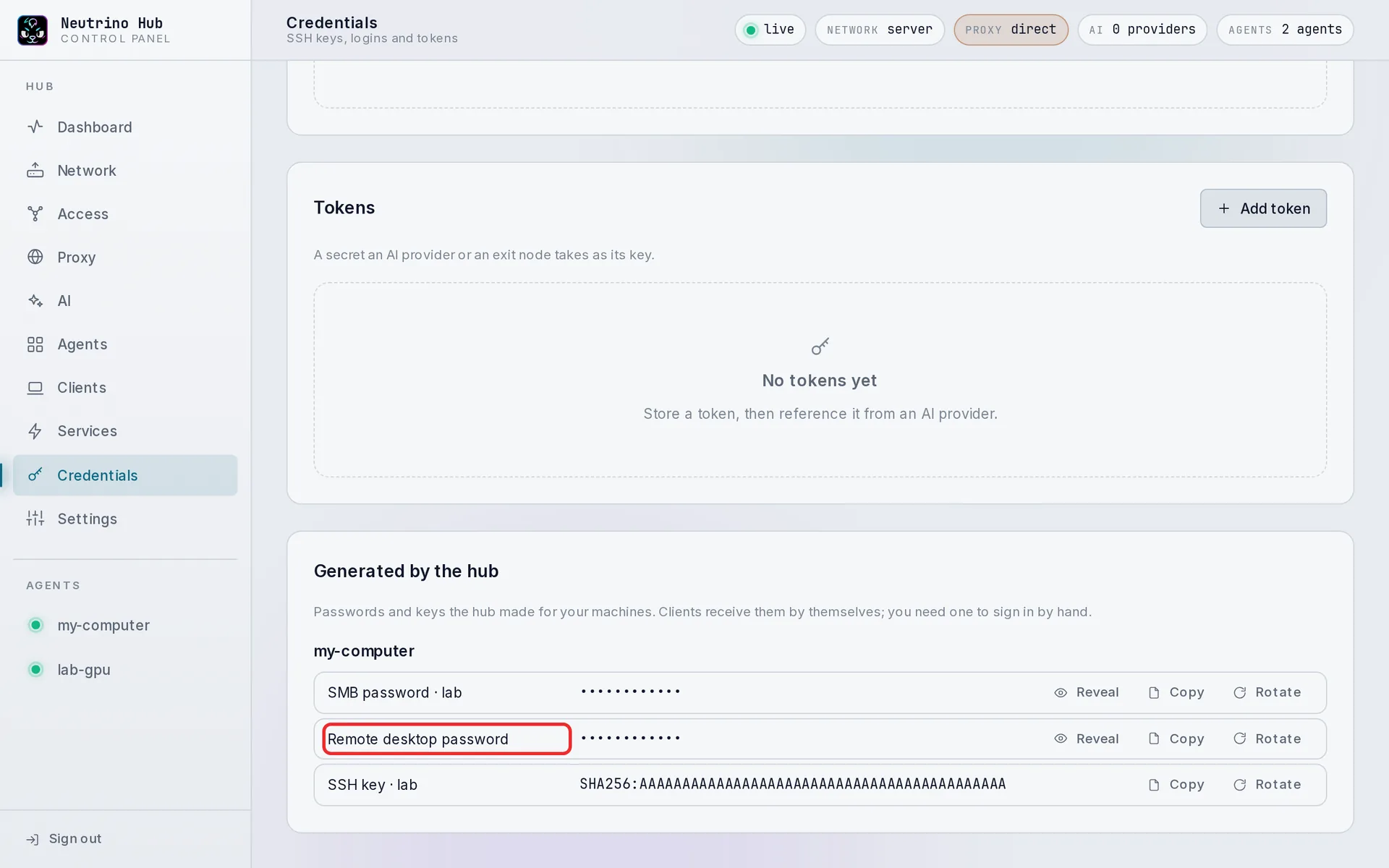
| Remote desktop password | Generated by the hub section of the Credentials page | The client gets it automatically; you need it only to sign in with RustDesk by hand |
| Codec, Quality | Configure on the row, on a phone | Adjust the picture from the next connection |
If AnyDesk or TeamViewer is installed on this system, the Remote desktop tab also shows its ID and a Set unattended password button.
Uninstall
Remote desktop has no uninstall button, because RustDesk is installed together with Neutrino Hub. It has no data to keep either.
If you no longer use it, turn off Share this machine's desktop, then select Apply remote desktop. The RustDesk that comes with Neutrino Hub stops, and your original RustDesk is restored.
If you cannot connect, see Troubleshooting.