
English
SSH
SSH is the standard way to sign in to a computer remotely. Every system includes an SSH server, and the hub sets up its keys for you.
SystemsLinuxWindowsmacOS
EditionsInternationalChina
Sincev0.6.0
The SSH server of Neutrino Hub and the system's sshd run independently of each other. The SSH server accepts only keys the hub generates, and it rejects passwords.
Supported systems
| System | Architecture | First Neutrino Hub version |
|---|---|---|
| Linux | amd64, arm64 | 0.6.0 |
| Windows | amd64 | 0.6.0 |
| macOS | Apple silicon, Intel | 0.6.0 |
Install
The SSH server is already installed, so you only enable an account:
Open the panel in a browser, sign in, and select the system to connect to in the lower half of the sidebar. Check that Available accounts lists your account. If it does not, add it first with the steps in Add an account.
In the list of the Module configuration area, select SSH server. This tab is always present, so you do not add it.
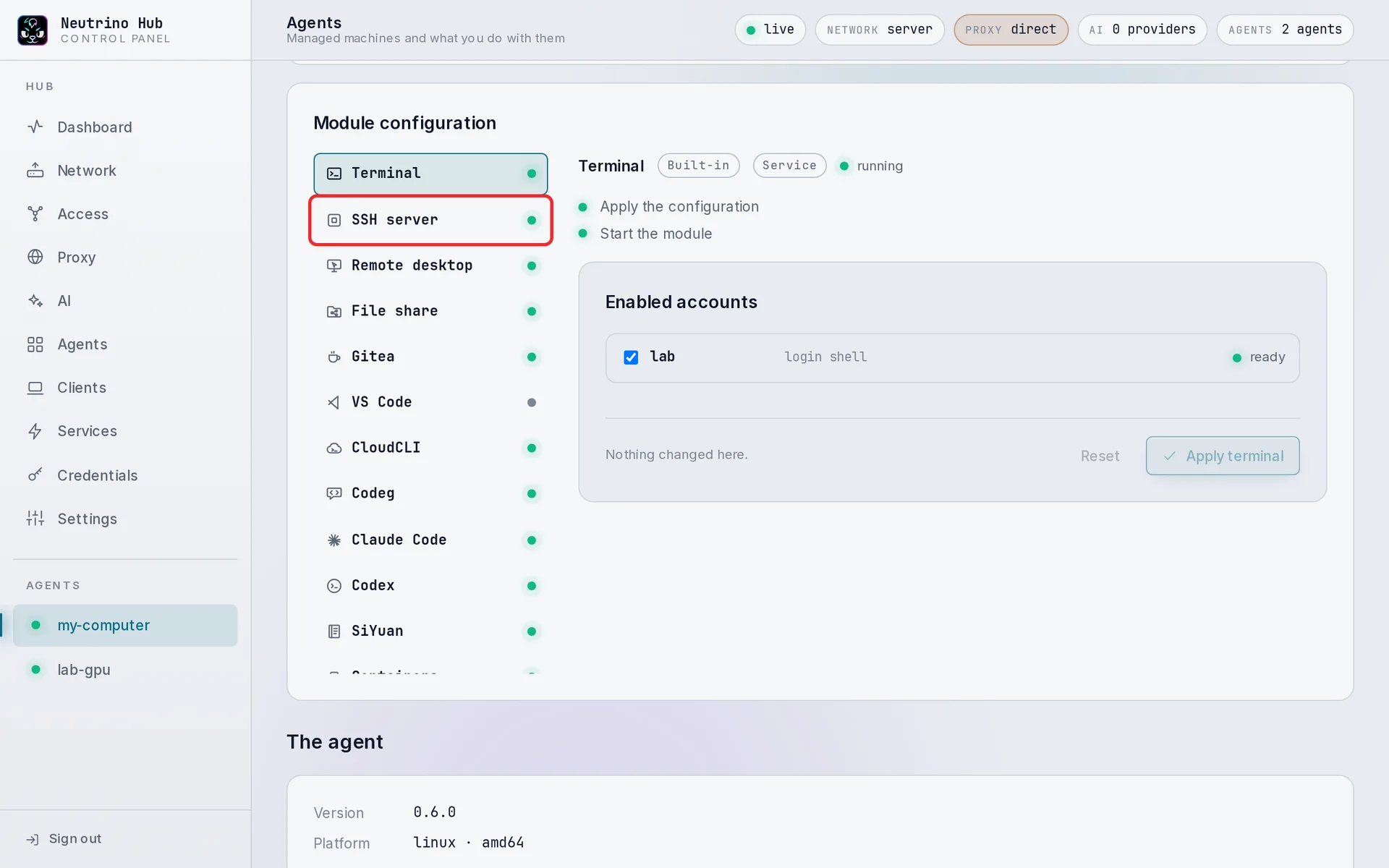
The tab shows stopped. Under Enabled accounts, select your account, then select Apply SSH server.
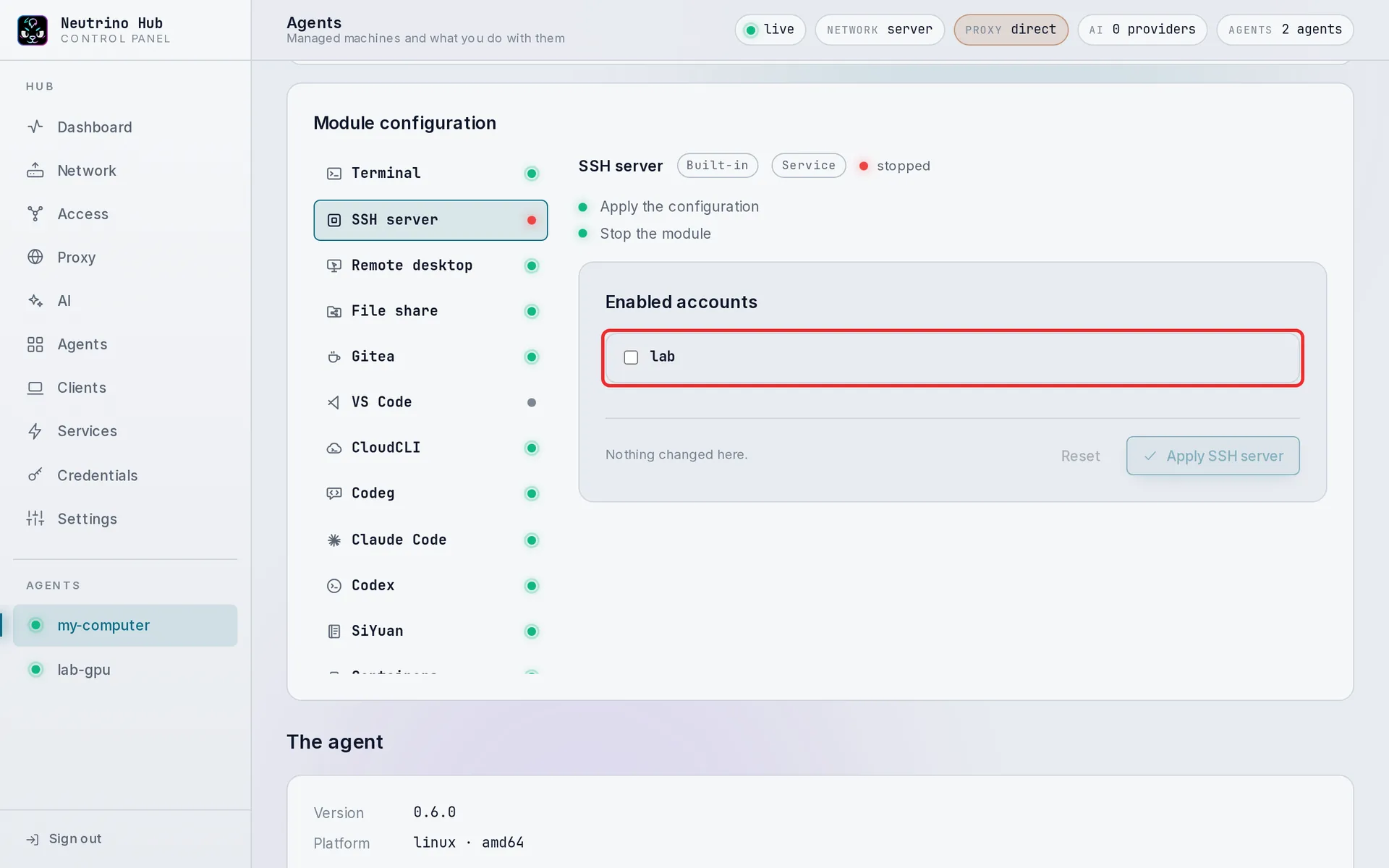
1Select lab 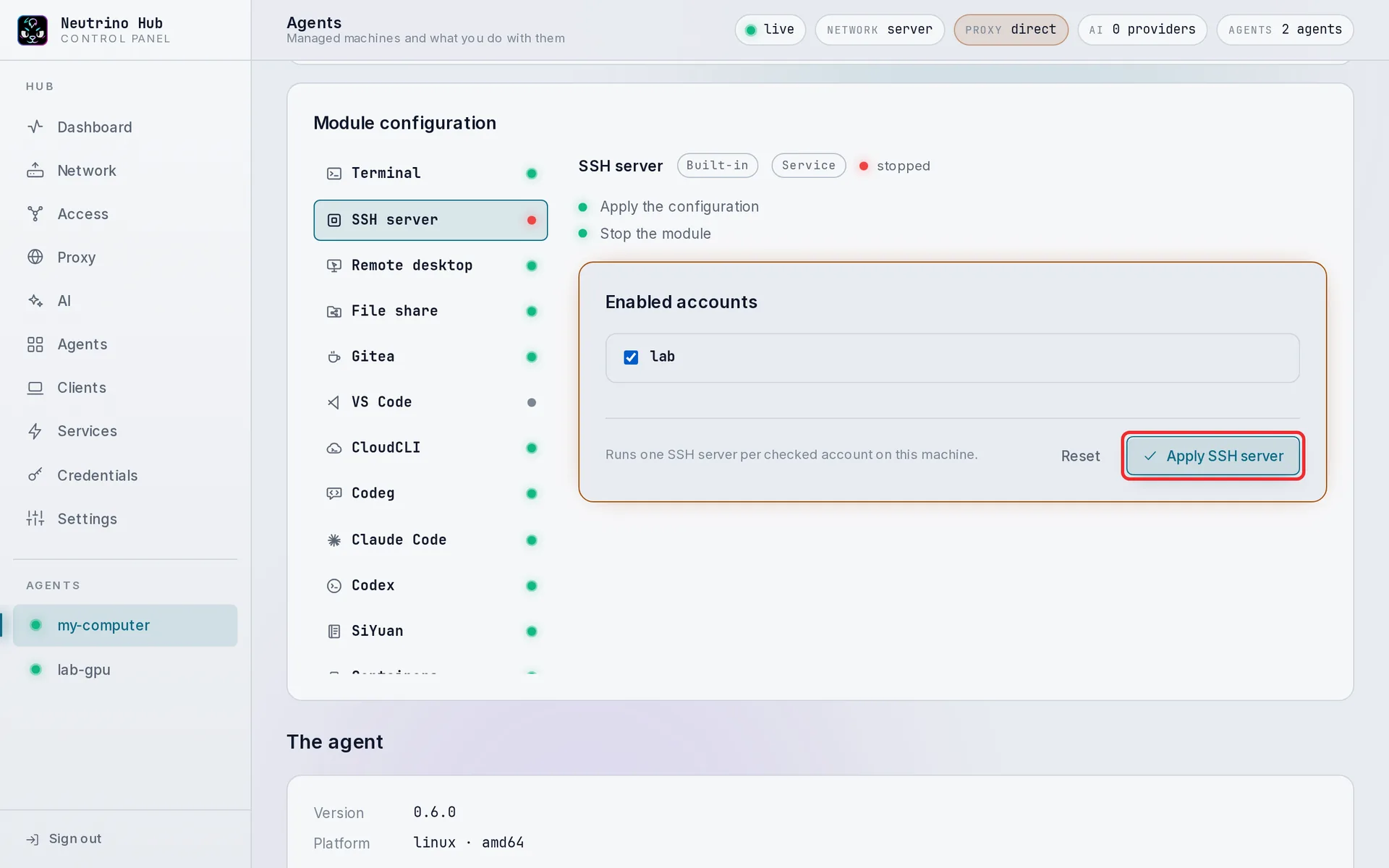
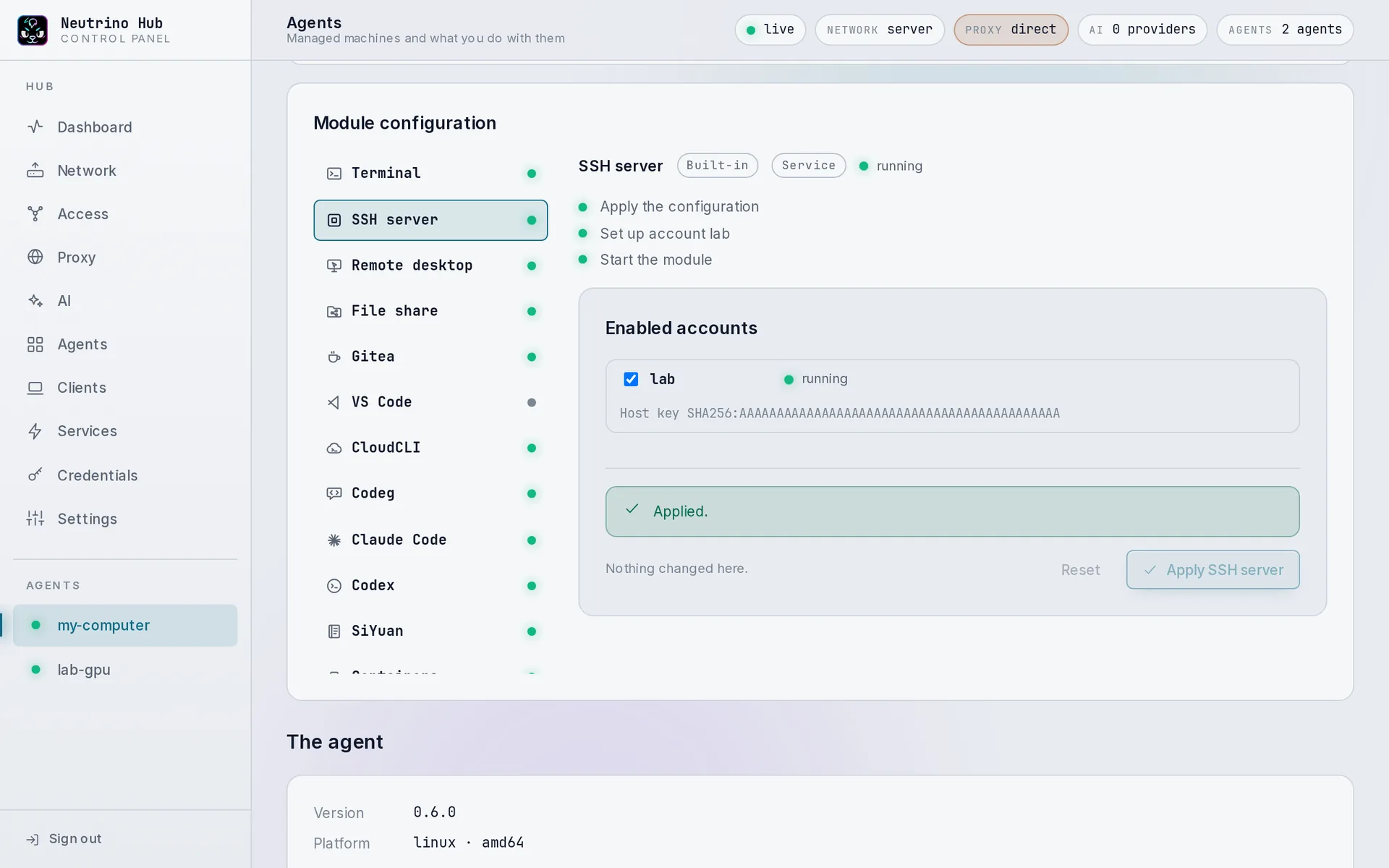
2Select Apply SSH server The tab shows running, and the account's row also shows running with this account's host key fingerprint. You can connect now.
If the Windows account has never signed in, you cannot enable it here. Sign in as this account on the computer one time, then select Apply SSH server again.
Use
Only the computer client can use SSH, and on a phone you can use Terminal. Before you start, add your computer to the hub, as Join the hub describes, and keep the client running.
In a terminal, run the following command, with my-computer replaced by your system's name:
bash
nclient ssh open my-computerTo run a single command, add -- and the command after it:
bash
nclient ssh open my-computer -- uname -srTo let tools such as ssh, scp, git and VS Code connect directly by the name my-computer.nt, run the following command one time:
bash
nclient ssh config installtext
added Include ~/.ssh/neutrino_config to ~/.ssh/configFor how these tools connect, see SSH connections.
Share
SSH cannot generate a link with App share, because App share works only for apps with a web page.
To let someone else connect, have them install the computer client and join the hub. Then turn on the SSH permission for their device, as Clients describes.
Risks and limits
The person connecting can do anything this account can do, so give the SSH permission only to devices you trust.
Each enabled account has its own host key, which the client fetches automatically. Deselecting an account deletes its host key, and selecting it again generates a new host key.
Settings
Apart from selecting accounts, the following settings can stay at their defaults:
| Setting | Where | Purpose |
|---|---|---|
| Enabled accounts | SSH server tab | Each selected account runs one instance; the first is the default |
| Shell | Account form in Available accounts | The shell used after signing in, shared with Terminal |
| SSH key · account | Generated by the hub section of the Credentials page | Select Rotate to change the key; the client fetches the new key automatically |
Uninstall
The SSH server cannot be uninstalled, and it has no data to keep. If you no longer use it, deselect the accounts, then select Apply SSH server.
If you cannot connect, see Troubleshooting.