
English
Data and outbound connections
The hub stores keys and passwords encrypted on your own computer and connects to the outside addresses listed in the following tables. None of this requires any action from you.
Your files, Gitea repositories and container volumes stay on their own computers and are not copied to the hub. The hub does not record the identity or address of a share visitor.
Stored data
| Data | How it is stored | Who can read it |
|---|---|---|
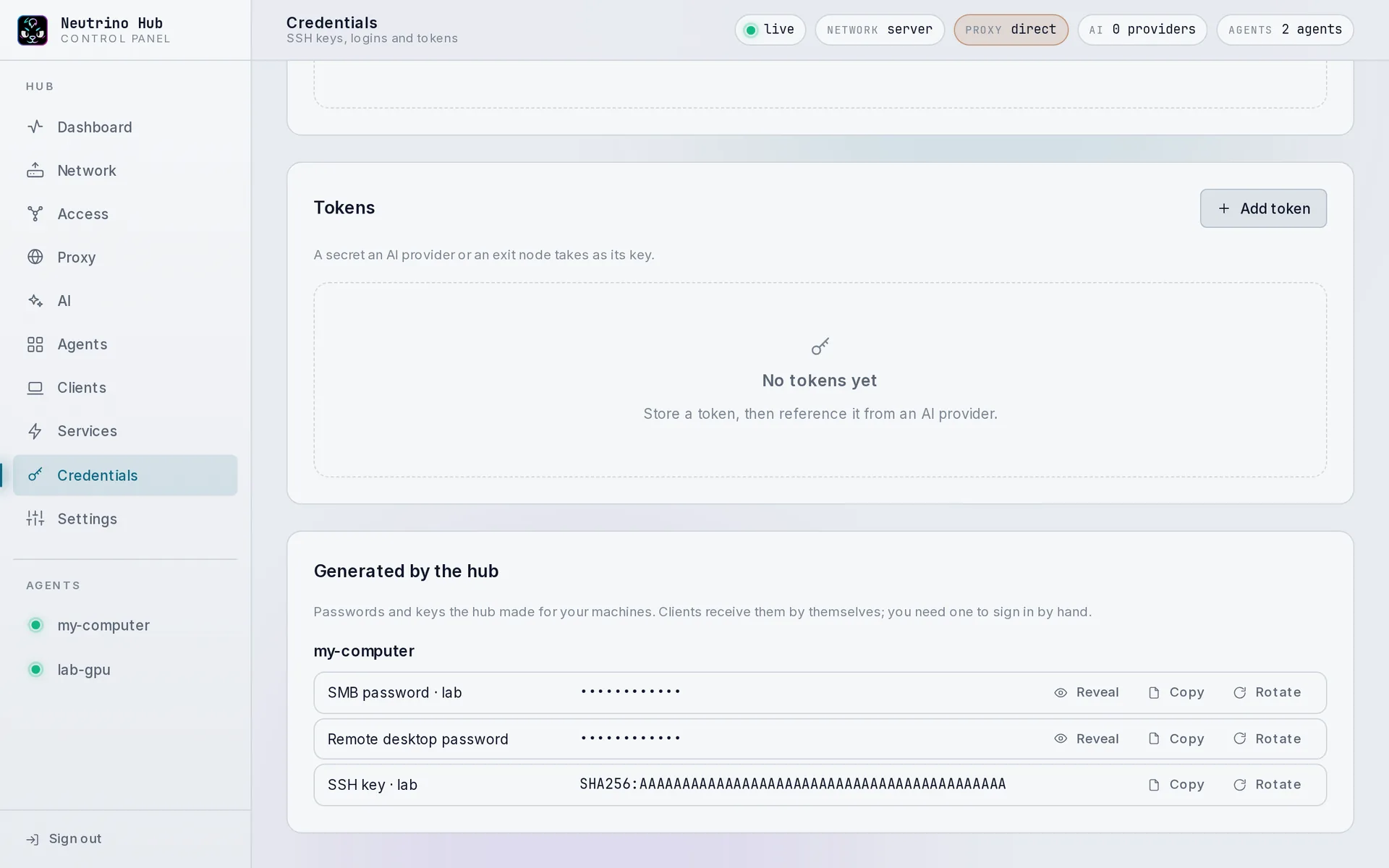
| SSH keys, Logins and Tokens on the Credentials page | In the vault, and not shown again after saving | The running hub; this computer's administrator |
| The Generated by the hub section: SMB password, Remote desktop password, SSH key | In the vault, one set per system | Passwords can be shown with Reveal in this section, and the hub logs each reveal; SSH keys show only their fingerprint |
| Third-party keys: SakuraFrp, OpenFrp, NetBird, EasyTier | In the configuration directory, encrypted with the vault key | The running hub; this computer's administrator |
| Panel password | Only a hash | Nobody can read it |
| Clients, agents | Only a hash of the token, plus the public key | Nobody can read them |
| Join links, share links | Only a hash | The panel cannot show them again |
| Sign-in files of AI subscriptions | In the state directory, and left out of backups | This computer's administrator |
The vault is encrypted with the Vault passphrase that you set in the setup wizard. To change the passphrase, run sudo nhub vault rekey.
This computer stores a working key, so nobody enters the passphrase while the hub runs. Only administrators can read this key: root on Linux and macOS, and SYSTEM and Administrators on Windows.
In EasyTier console mode, the token is part of the process's command line, where every local account on this computer can read it.
Backups hold the hub key in encrypted form, so devices do not need to join again after you restore a backup on another computer.
The hub keeps this data in these directories:
| Directory | Linux | macOS | Windows |
|---|---|---|---|
| Configuration | /etc/neutrino/hub | /Library/Application Support/Neutrino/hub/config | C:\ProgramData\Neutrino\hub\config |
| State | /var/lib/neutrino/hub | /Library/Application Support/Neutrino/hub/state | C:\ProgramData\Neutrino\hub\state |
Connections the hub makes
The hub itself makes these connections:
| When | Destination |
|---|---|
| Checking for and installing updates | GitHub, CNB |
| Reading each app's version list, one time a day, and again after an hour while an app has no version list | Each app's publisher, mostly api.github.com |
| Installing an app or changing its version, when files download to the hub first | Publishers and mirrors: GitHub, nodejs.org, npmmirror, the USTC mirror, Microsoft, dl.gitea.com, release.liuyun.io; each download picks the fastest source |
| Fetching the agent package for a system of another kind | GitHub, CNB |
| Containers listing an image's tags | Docker Hub |
| Running NetBird, EasyTier or the SSH relay | The NetBird management server; the EasyTier console or the bootstrap peers you entered; your VPS |
| Signing in to or refreshing SakuraFrp or OpenFrp | api.natfrp.com; api.openfrp.net and access.openfrp.net; every server in the list (to measure latency) |
| After you turn on SakuraFrp or OpenFrp and choose a tunnel | The server of that tunnel |
| The AI gateway forwarding a request | The providers you added, or the service of the subscription account |
| After you turn on the proxy | Your exits; the reference address, www.msftconnecttest.com by default; GitHub when you select Update geodata |
Connections the hub does not make
The system that installs an app downloads some files itself, from npm registries, container registries, PyPI and CTAN mirrors.
When a visitor opens a share link, the browser loads the page from the share site, then connects to your connection port.
The operating system handles DNS and time sync.
The earlier tables list only the connections of Neutrino Hub itself. For the addresses that bundled programs and each app connect to, see their own documentation.