
English
Direct
Direct is the access method in which devices connect to the hub at a public address. Connections go straight to the hub, without a third-party server or an account. If your broadband has a public address, you can use Direct.
SystemsLinuxWindowsmacOS
EditionsInternationalChina
Sincev0.5.2
Check for a public address
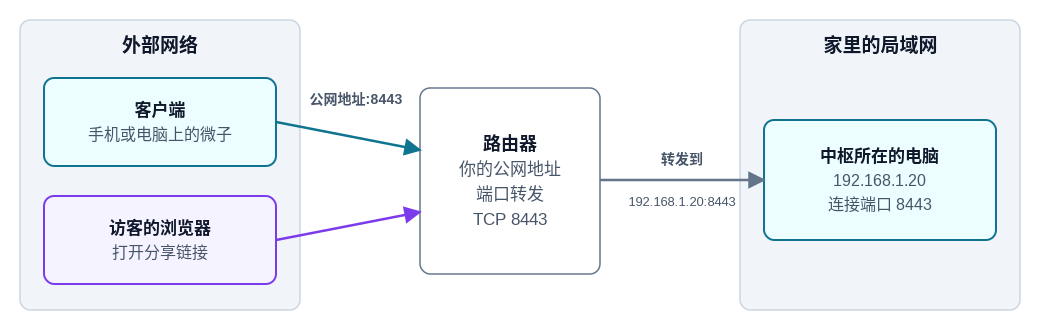
Open the router's admin page and note the WAN address it shows, then look up your address on a website that displays it. If the two addresses match, you have a public address. If they differ, or the WAN address starts with 100.64 to 100.127, you have no public address. In that case, choose another method in Choose an access method.
Direct also works in these cases:
- This computer has a public IPv6 address. Skip the port forward; after you turn on Direct, the hub adds this address to the clients' address list.
- Devices can connect to this computer directly, such as from another subnet of the same campus network.
Turn on Direct
On the router's admin page, forward an external port to this computer's connection port. The connection port is in the Ports section of the panel's Network page, 8443 by default. Router menus differ, and the feature is usually called Port Forwarding or Virtual Server. If the computer itself has a public address, skip this step.
In the panel's left sidebar, select Access, turn on the Direct card's switch, then select Apply access. The card shows active, and its settings appear under it.
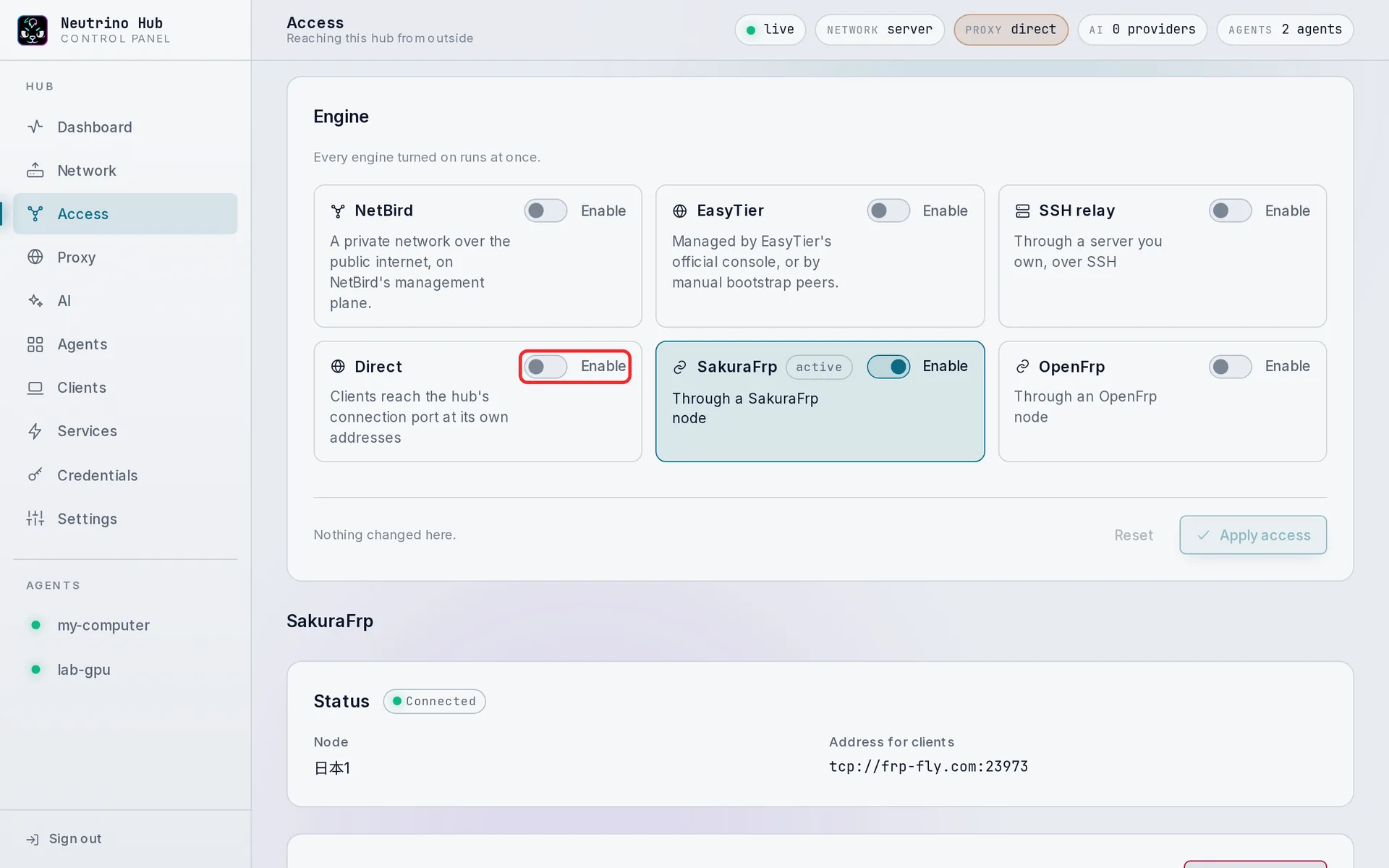
1Turn on the switch 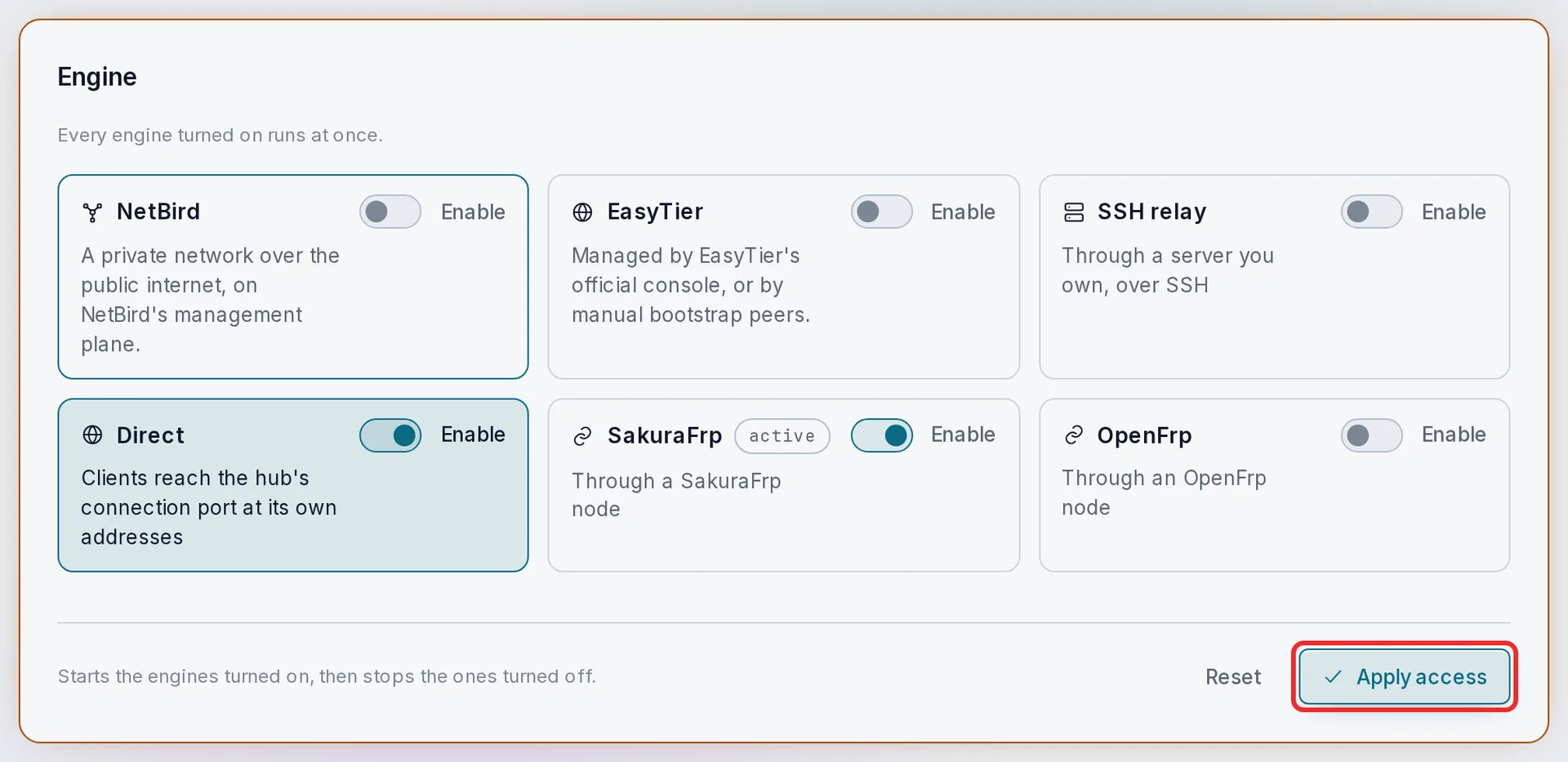
2Select Apply access In Public address, enter a host name or IP address that reaches this computer from outside. You must fill it in to send share links to visitors outside. In Public port, enter the router's external port, 8443 by default. Then select Apply Direct.
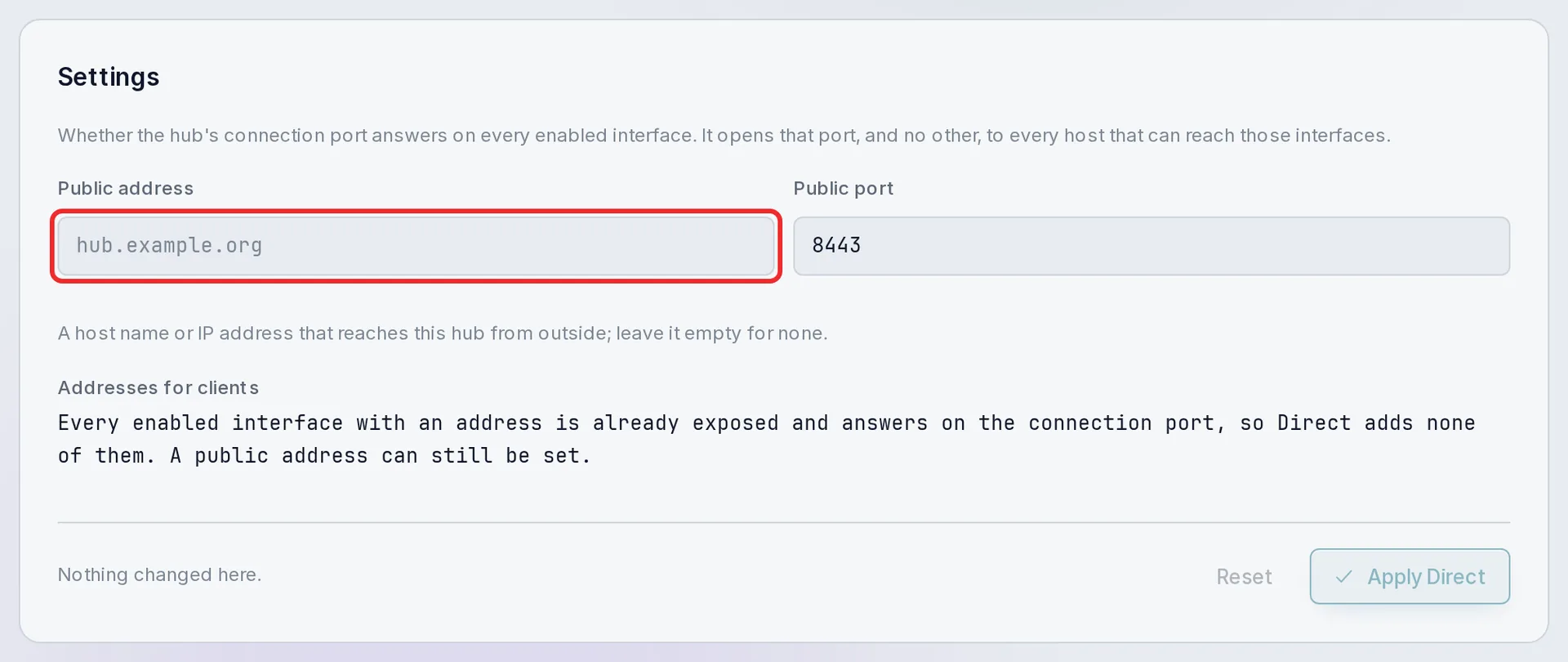
1Enter the Public address 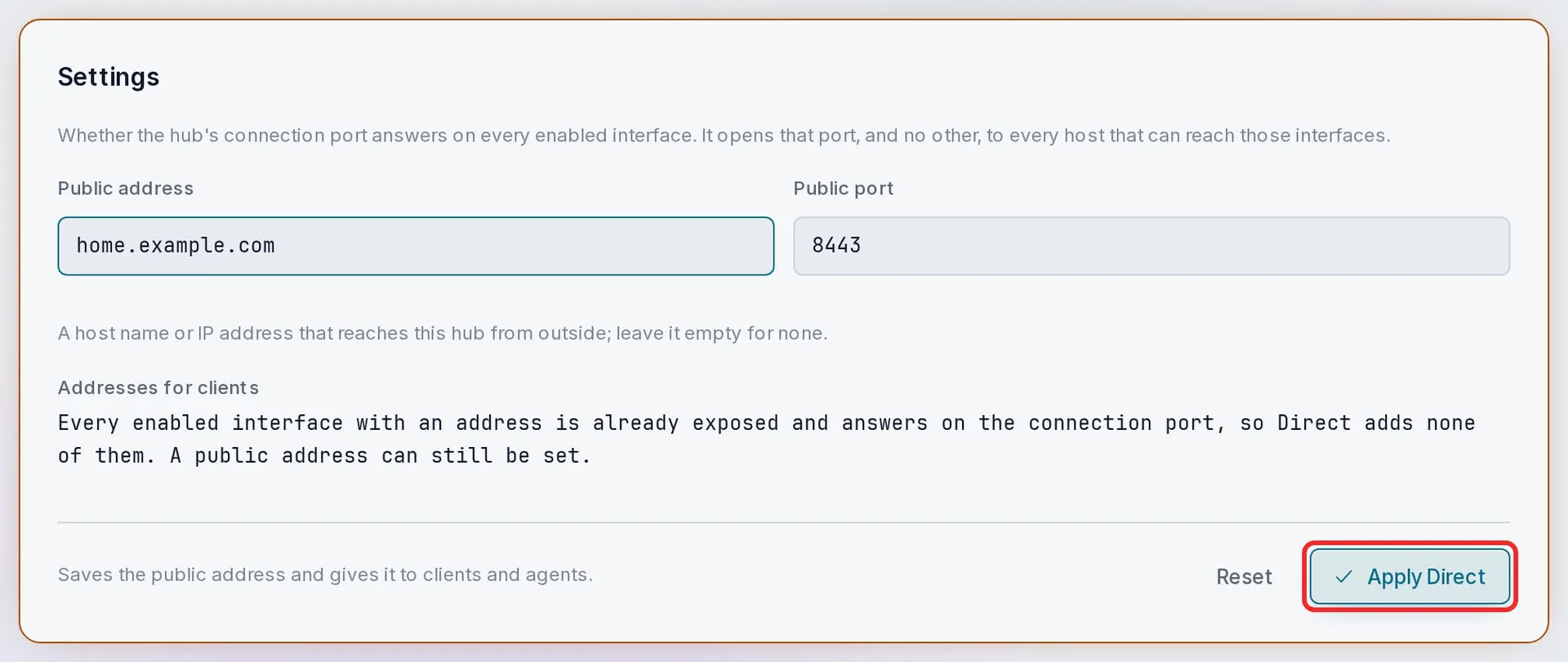
2Select Apply Direct
Leave Addresses for clients as it is, because it only lists the addresses devices use. The message No enabled interface has an address. means no interface on this computer has an address. If the list states that every interface is already exposed, those addresses already accept connections, and you can still fill in Public address.
Verify the connection
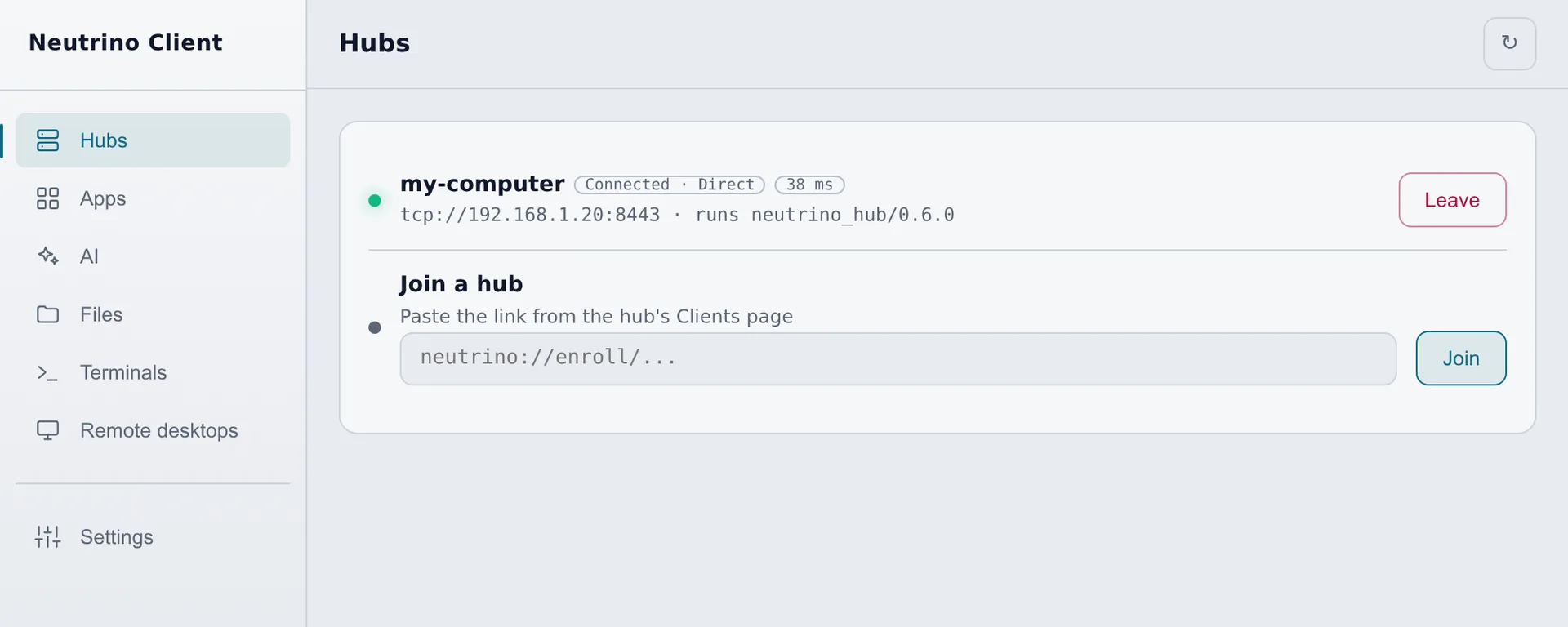
Joined devices pick up the new address automatically, so you do not join them again. Turn off Wi-Fi on the phone and open the client over mobile data. The setup works when the hub row shows Connected · Direct.
Notes
Direct opens only the connection port, and the panel stays closed to outside networks. A connection without your link or QR code receives no data. To open the panel from outside, use Panel on the hub row in the client.
A share link fixes one address when it is generated. After the address changes, old links stop opening, and you share again.
If you change the connection port on the Network page, change the router's port forward and Public port to match.
If you no longer need Direct, turn off the card's Enable switch and select Apply access.