
English
Hermes WebUI
Hermes WebUI is the web interface of Hermes Agent, an AI assistant. Hermes Agent supports memory and skills, and you can open it on your phone at any time.
SystemsLinuxWindowsmacOS
EditionsInternationalChina
Sincev0.6.0
Hermes WebUI runs in Containers, with one instance per system. Everyone who uses it shares the same conversations.
Supported systems
| System | Architecture | First Neutrino Hub version |
|---|---|---|
| Linux | amd64, arm64 | 0.6.0 |
| Windows | amd64 | 0.6.0 |
| macOS | Apple silicon, Intel | 0.6.0 |
Install
Every model in Hermes WebUI comes from the AI gateway. Before you start, add an API key or a subscription account in the AI gateway.
Open the panel in a browser and sign in. In the lower part of the left sidebar, select the system to install on.
In Module configuration, select + Add module. In the dialog, select the Hermes WebUI card, which shows Needs: Containers. When the card is highlighted, select Close.
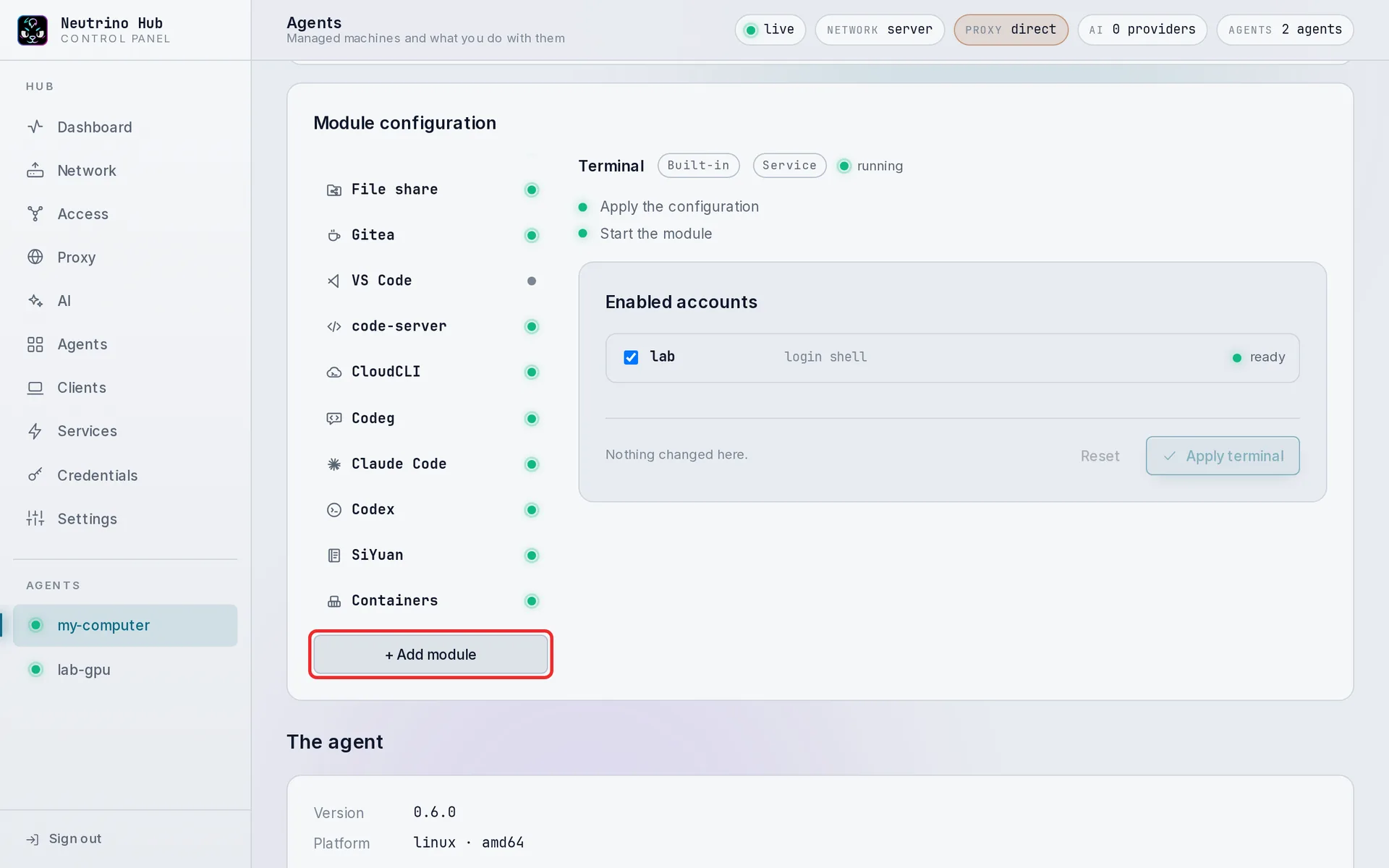
1Select + Add module 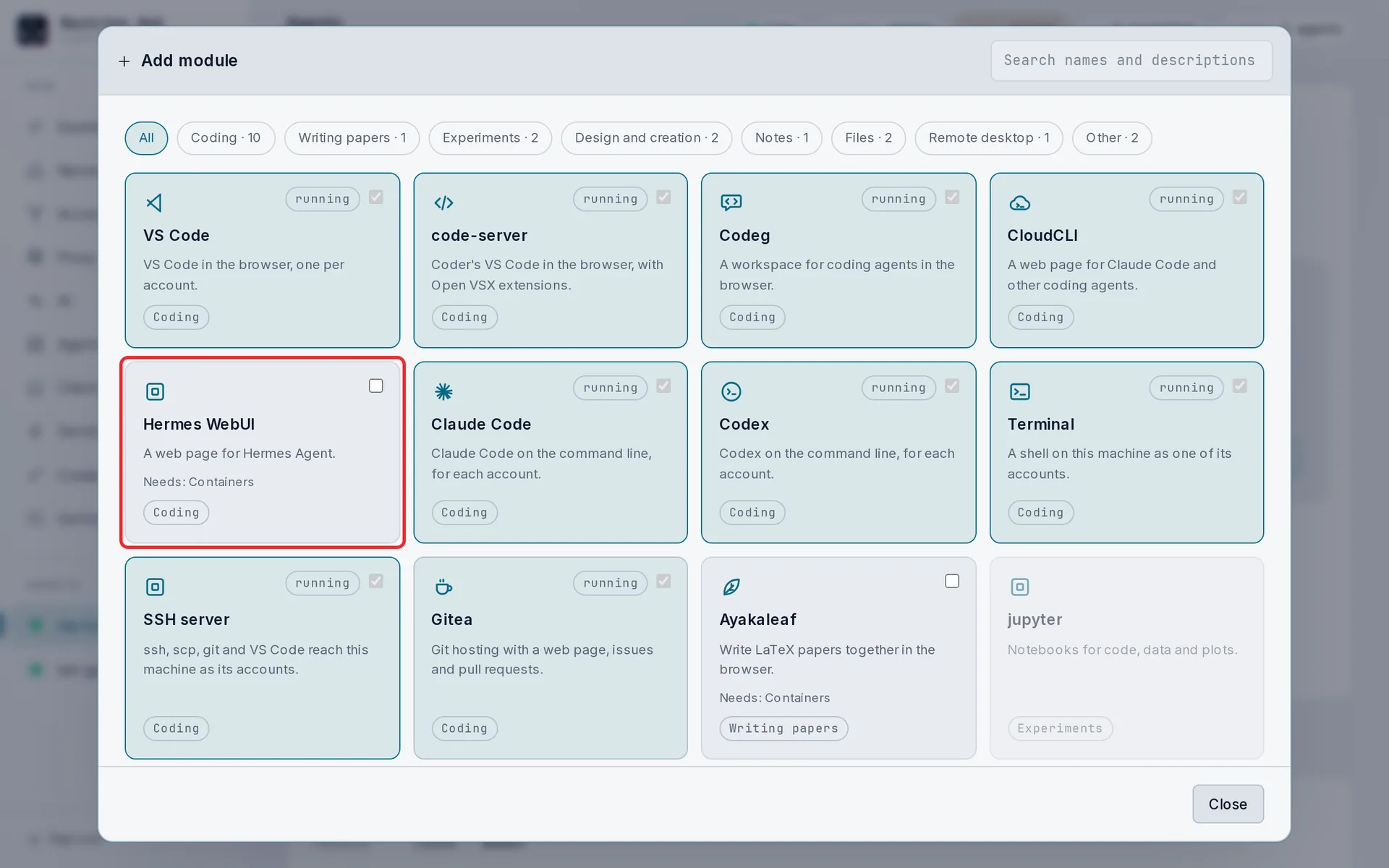
2Select Hermes WebUI 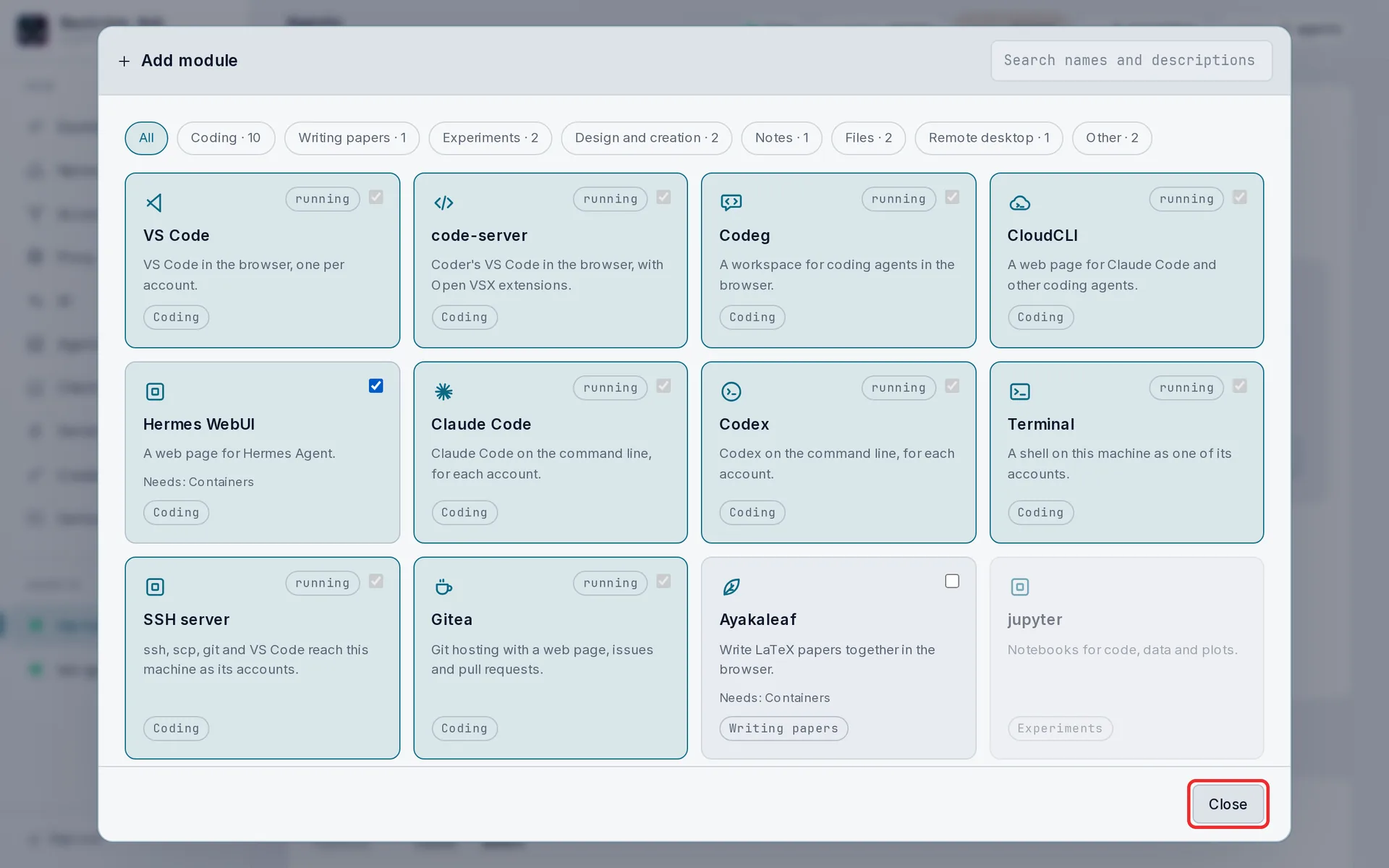
3Select Close After the dialog closes, select the Hermes WebUI row in the list on the left, and its tab opens on the right. Select Install. If Containers is not installed yet, a confirmation appears first, and Yes installs both modules. In the pictures, Containers is already installed, so the confirmation does not appear.
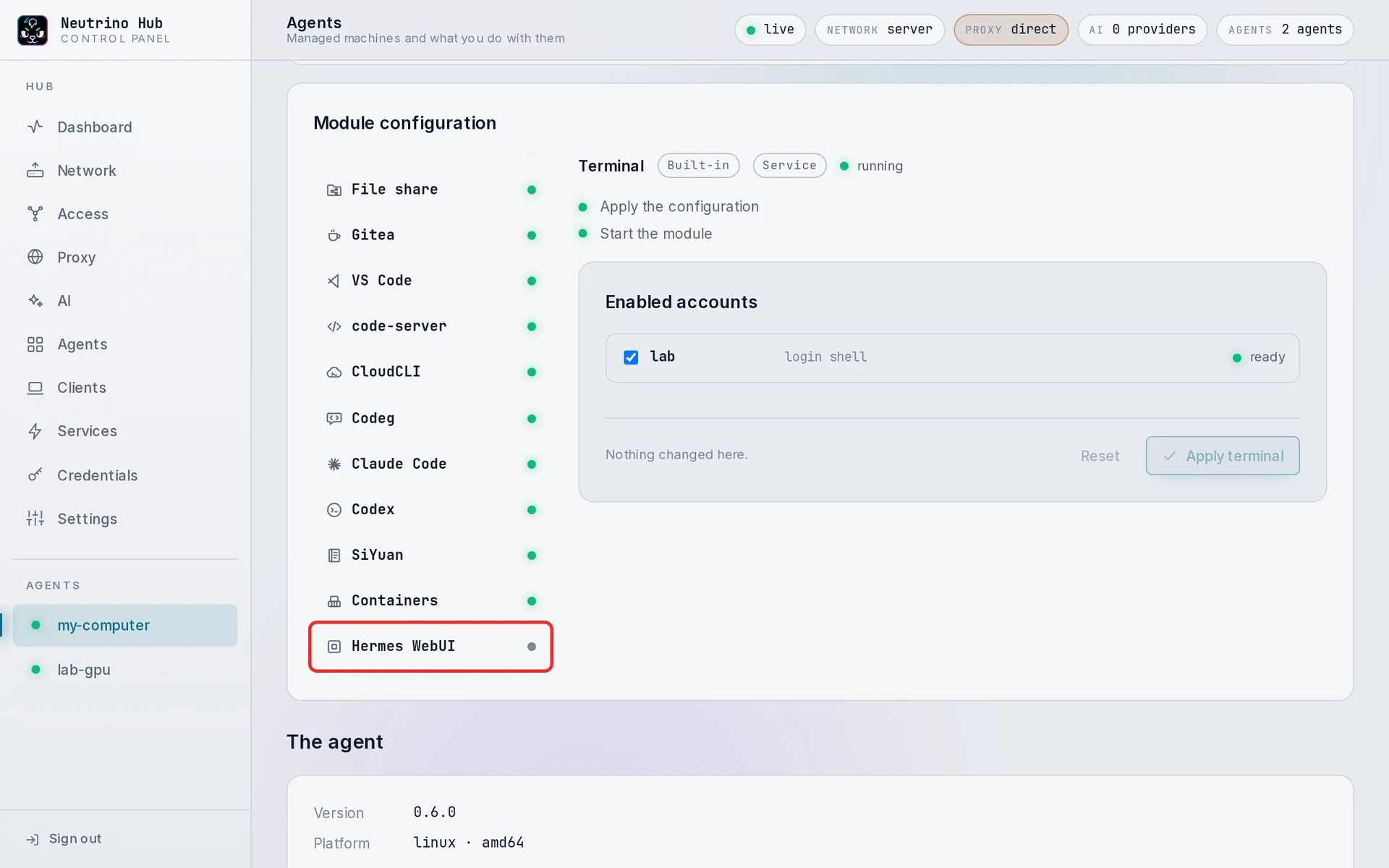
1Select Hermes WebUI 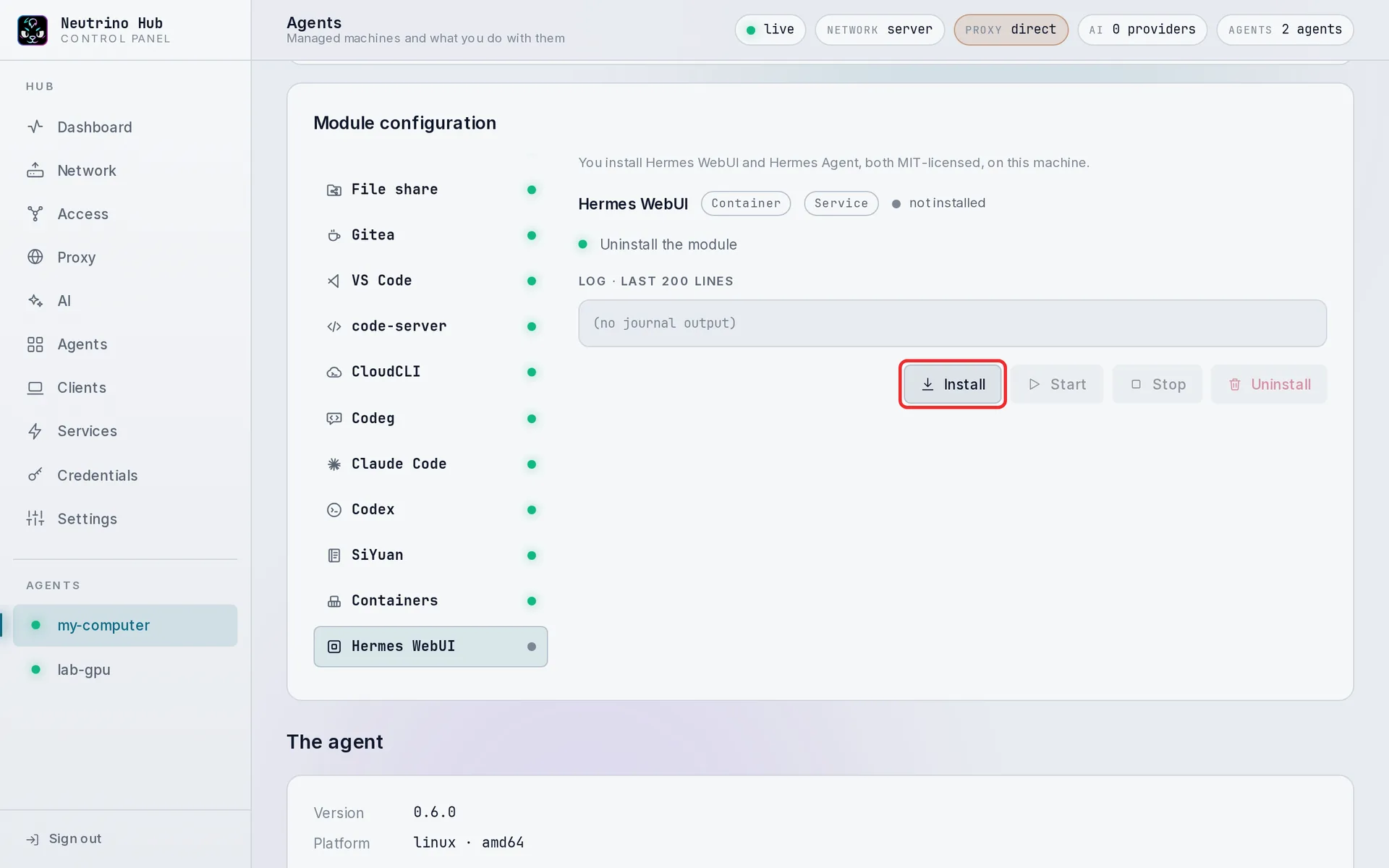
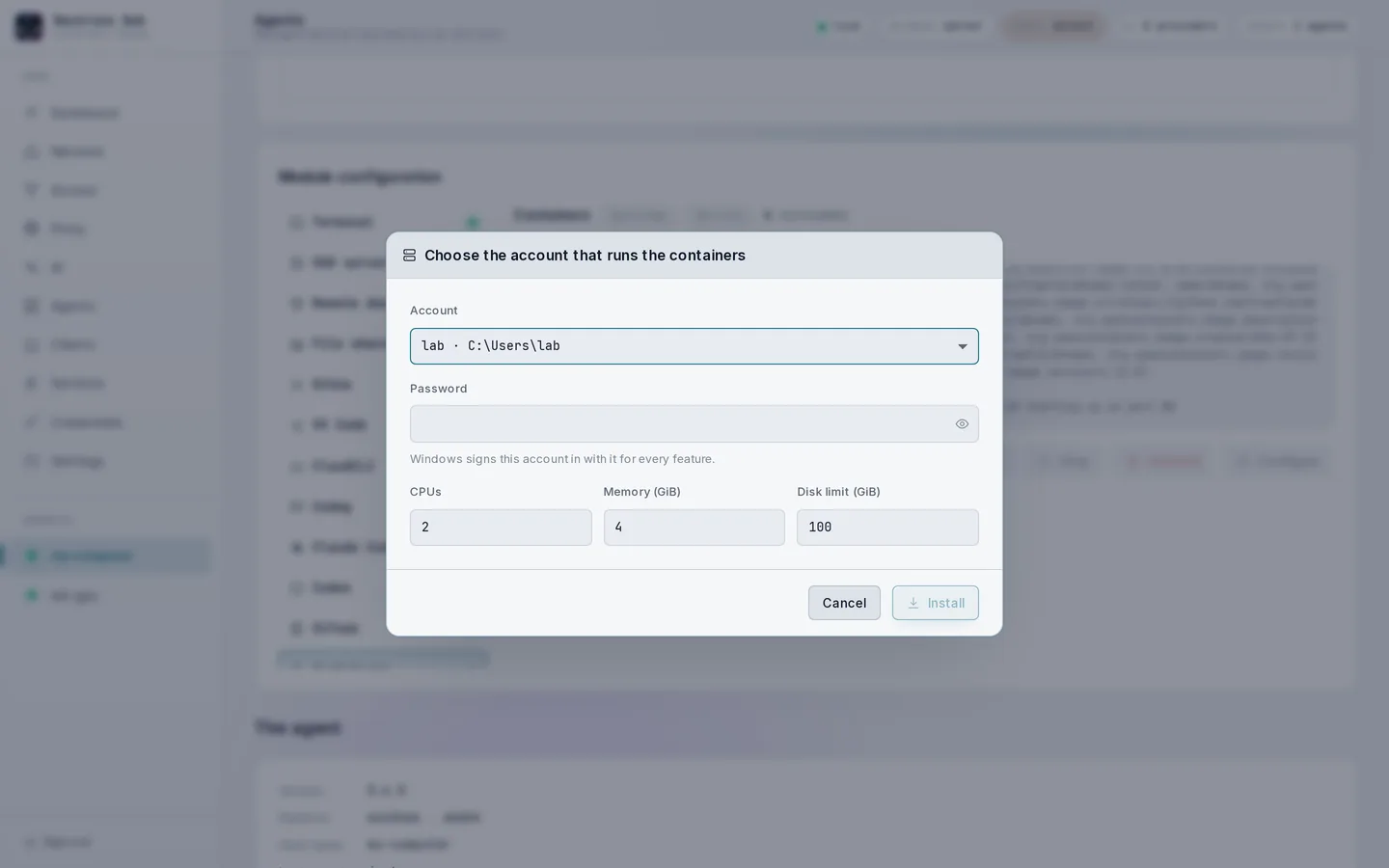
2Select Install On Windows and macOS, the first installation then opens Choose the account that runs the containers. Choose an account and select Install; the details are in Apps that need containers. Linux has no such dialog.
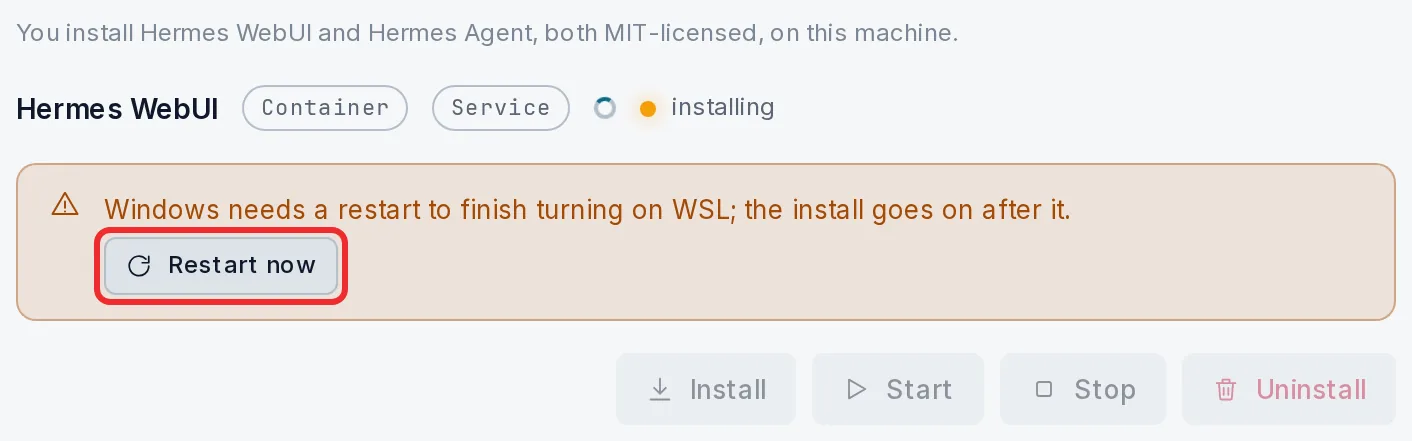
On Windows, if a restart is needed, the tab shows a notice with Restart now beside it. Select Restart now. After the computer restarts, the installation continues automatically.
The tab lists each step. It pulls two images, which takes a few minutes. When the tab shows installed, select Start.
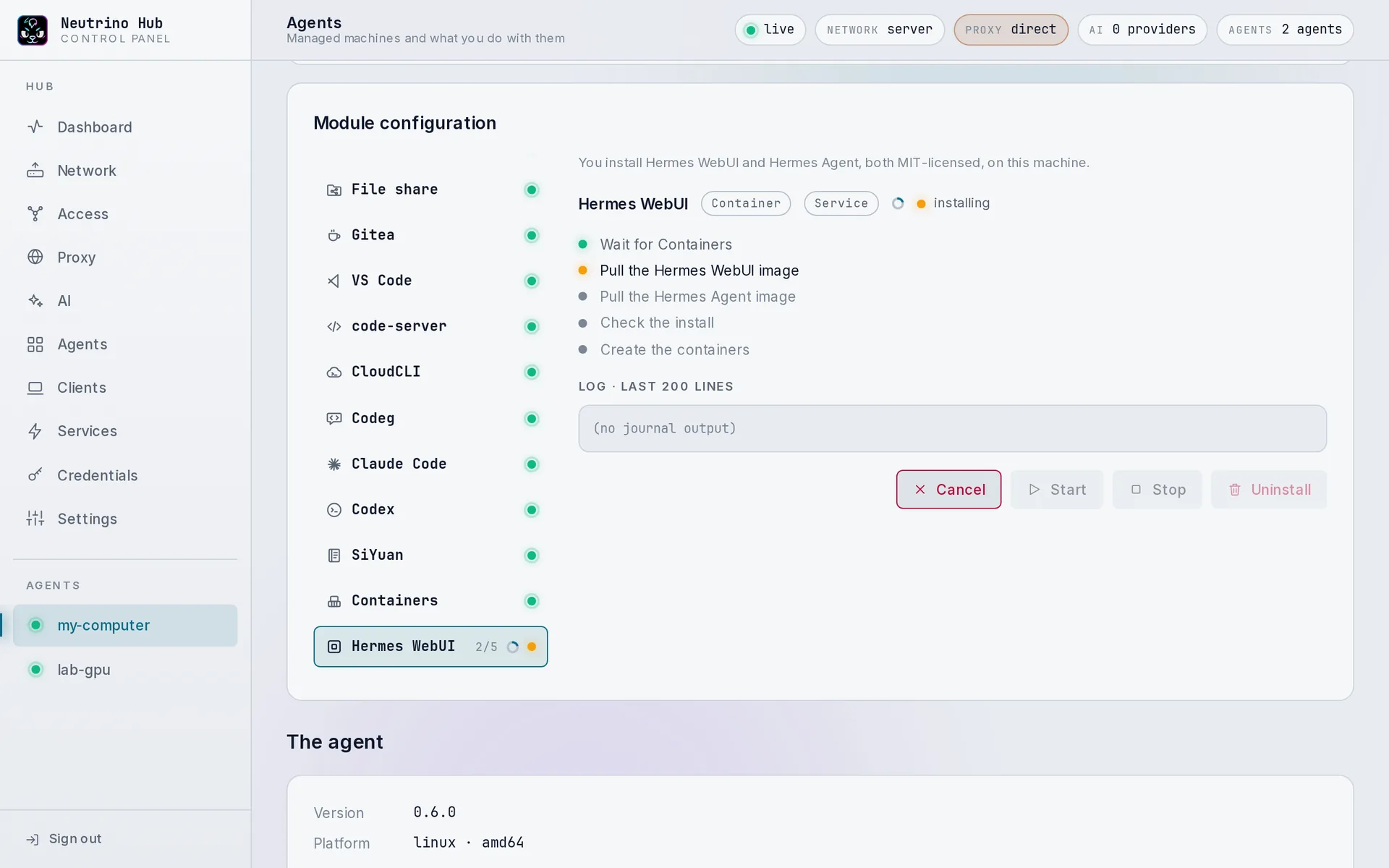
1Installing 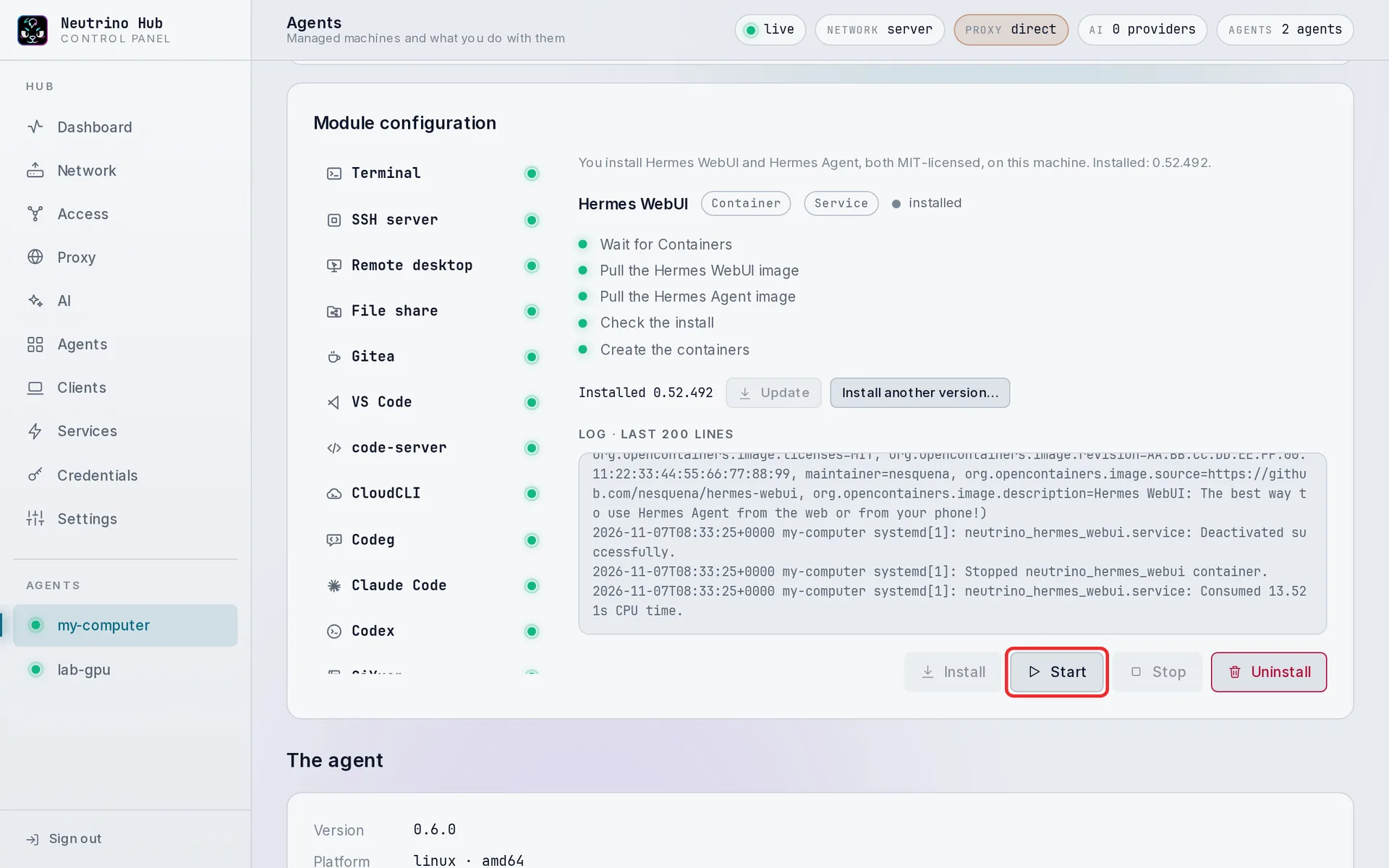
2Select Start This step runs First start, which takes a few minutes the first time. When the tab shows running, the installation is complete.
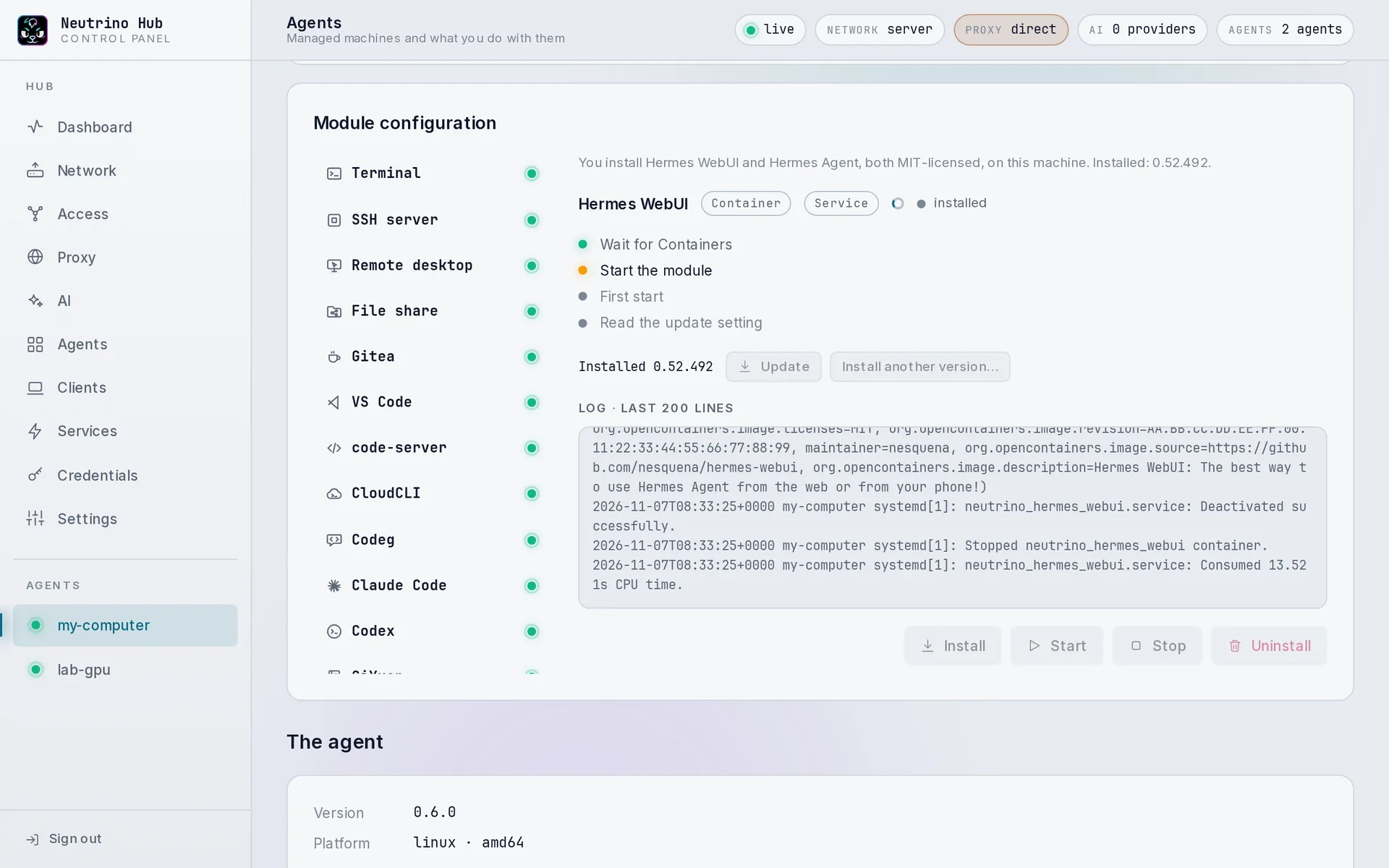
1First start 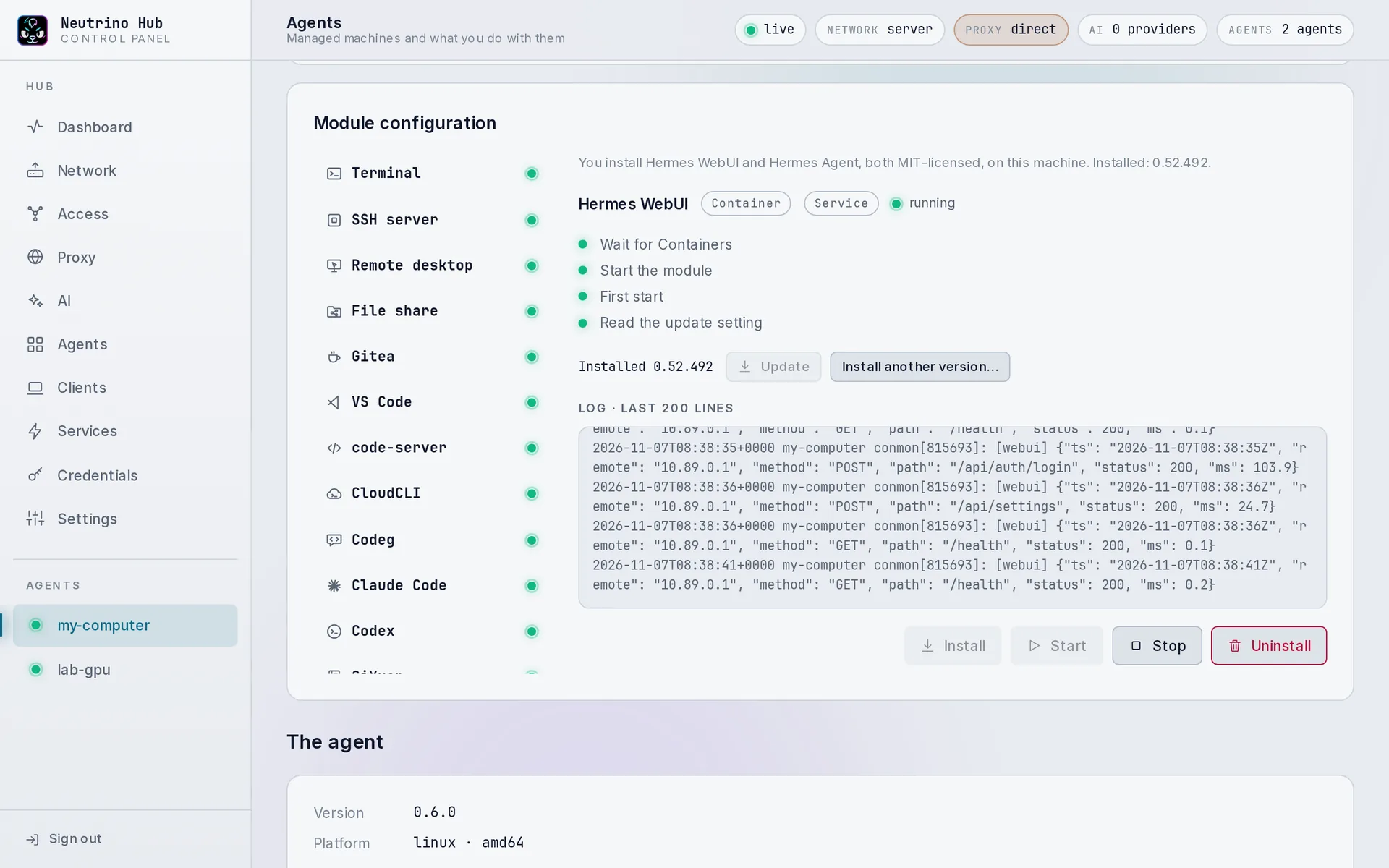
2Running
Use
Join your phone or computer to the hub first, as Join the hub describes.
In the client, open the Apps page and find the Hermes WebUI row. Select Use, and the row shows a local address with the buttons Stop, Configure and Open. Select Open.
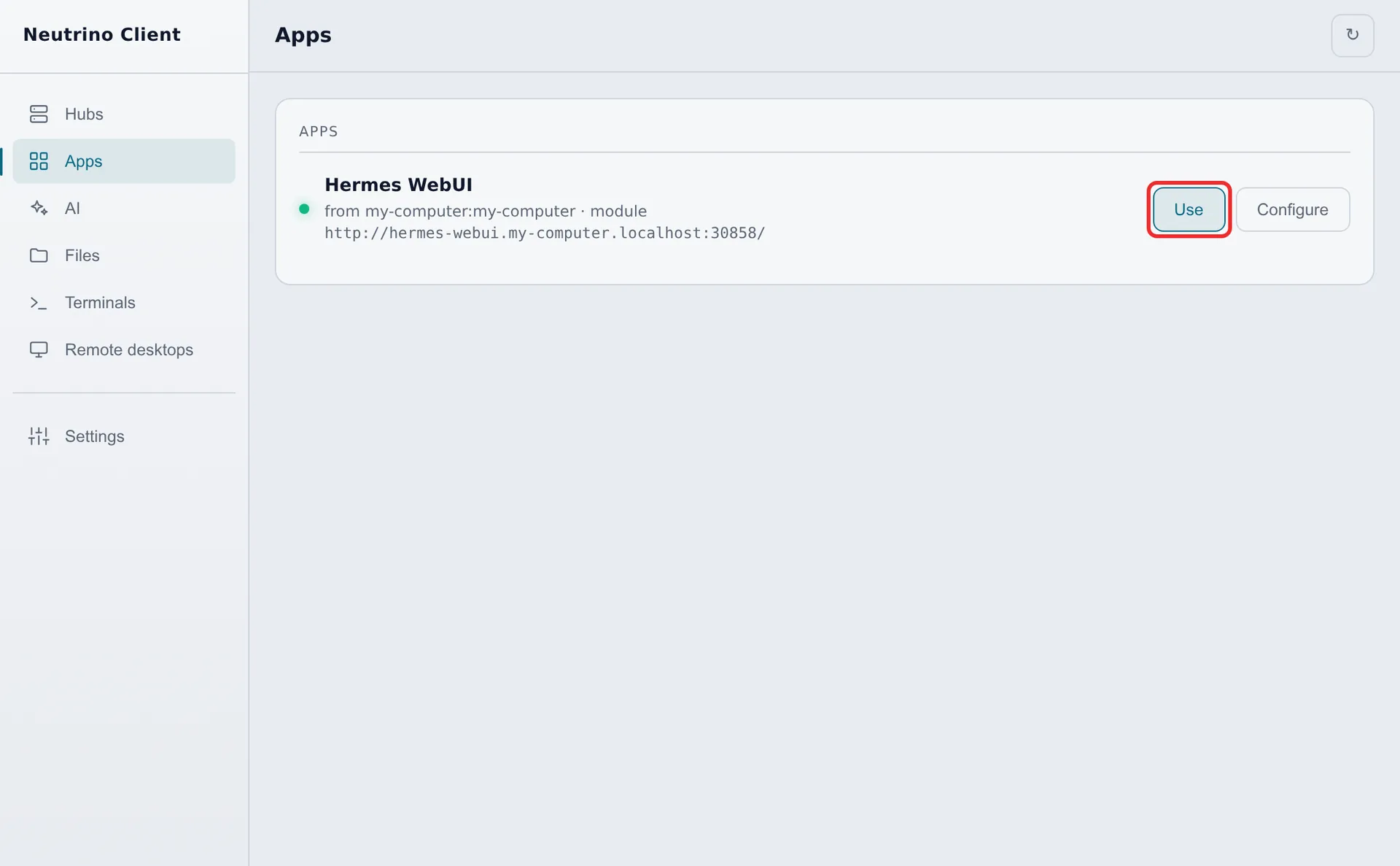
1Select Use 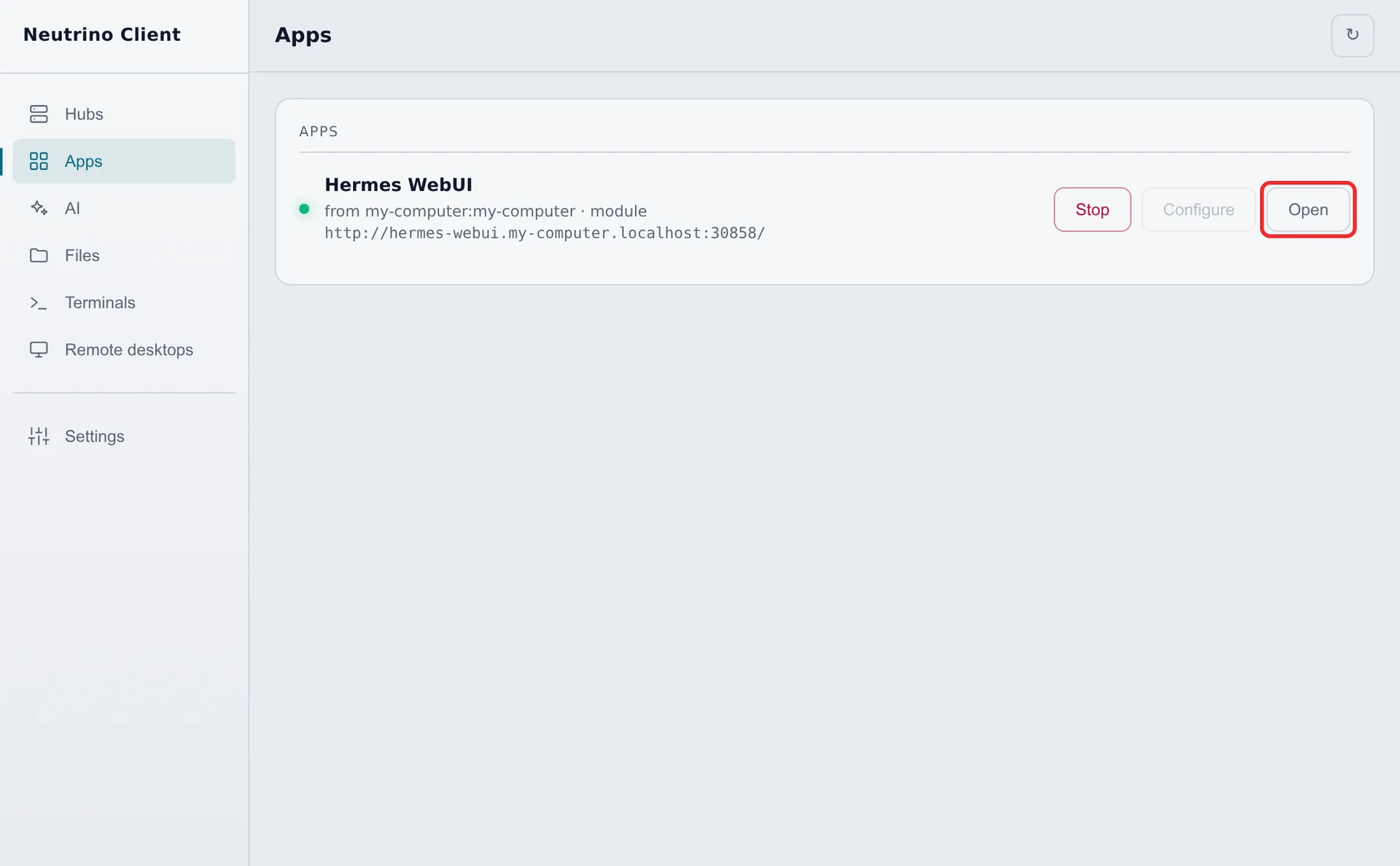
2Select Open The browser opens a page that is already signed in. Enter your question in the input box at the bottom and send it. A new conversation uses the AI gateway's default model. To change the model, use the list beside the input box, which shows the models the AI gateway serves.
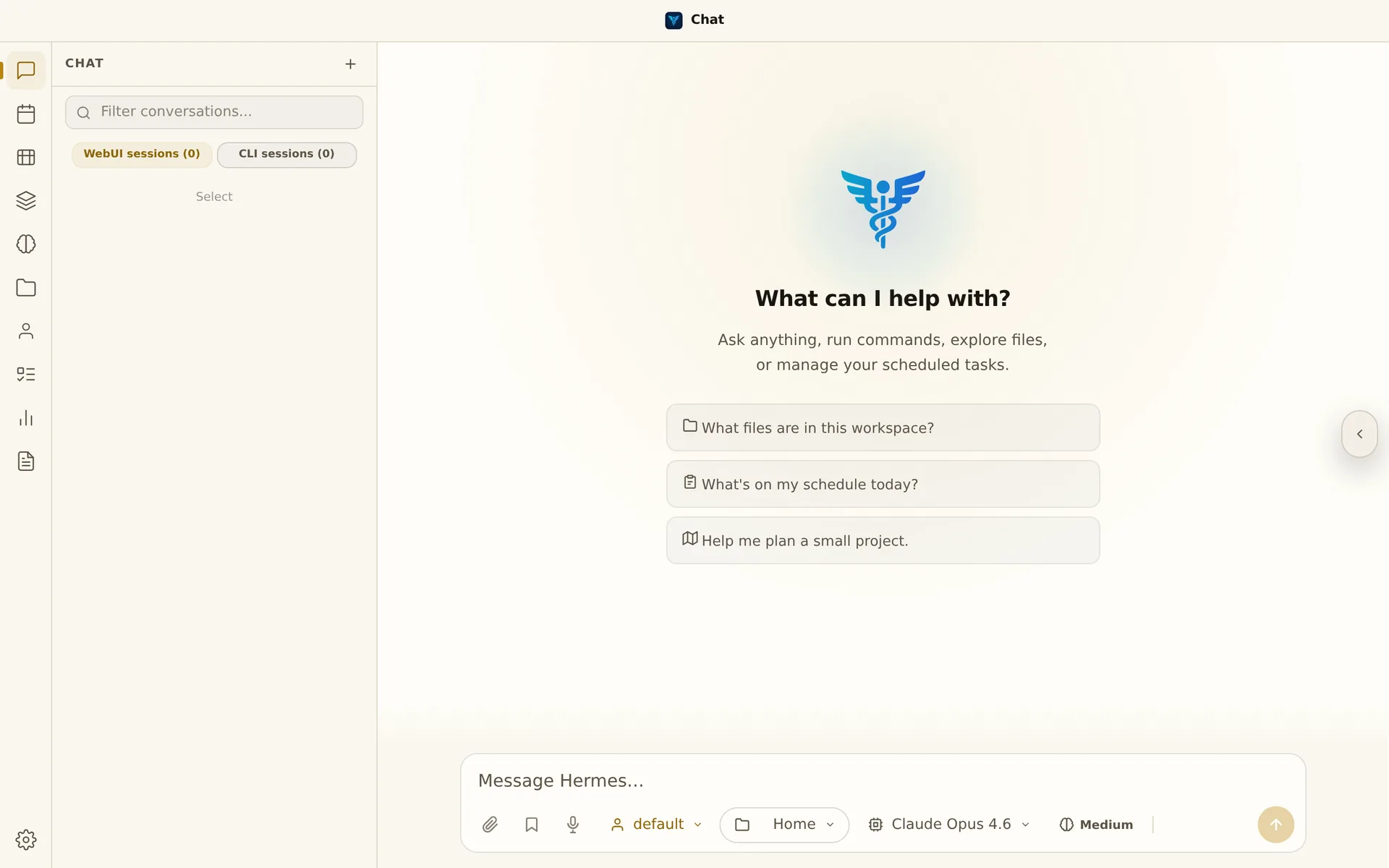
When you finish, return to the client and select Stop. On a phone, the steps are the same: on the Apps page, select Use, then Open.
Share
Hermes WebUI can generate a link with App share, and the visitor opens it in a browser.
In the panel's left sidebar, select Services. Find the Hermes WebUI row and select Share.
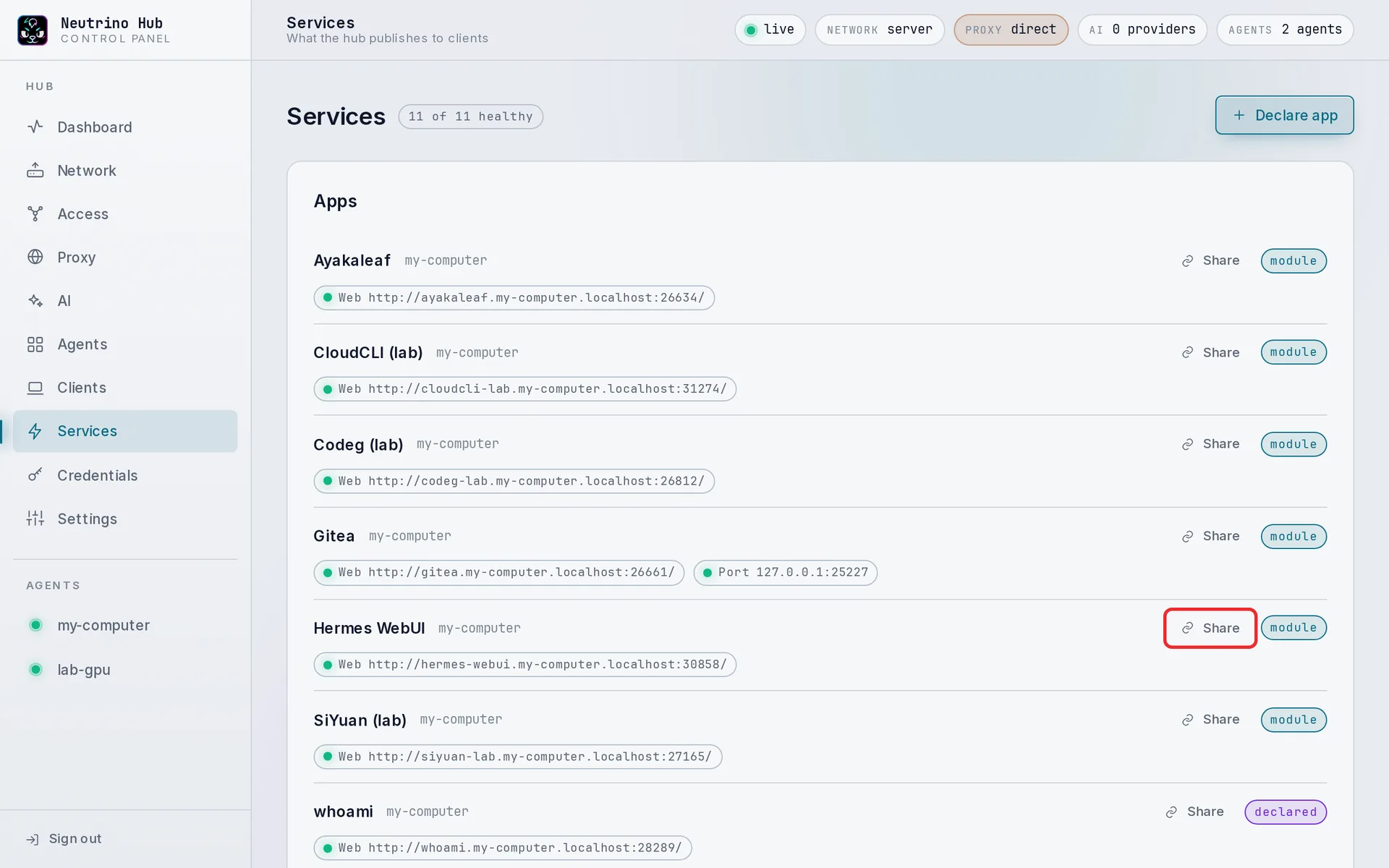
In the dialog, enter a Name that helps you recognize the link; the name is visible only to you. Expires defaults to 7 days, and you can choose another option. Select Generate link.
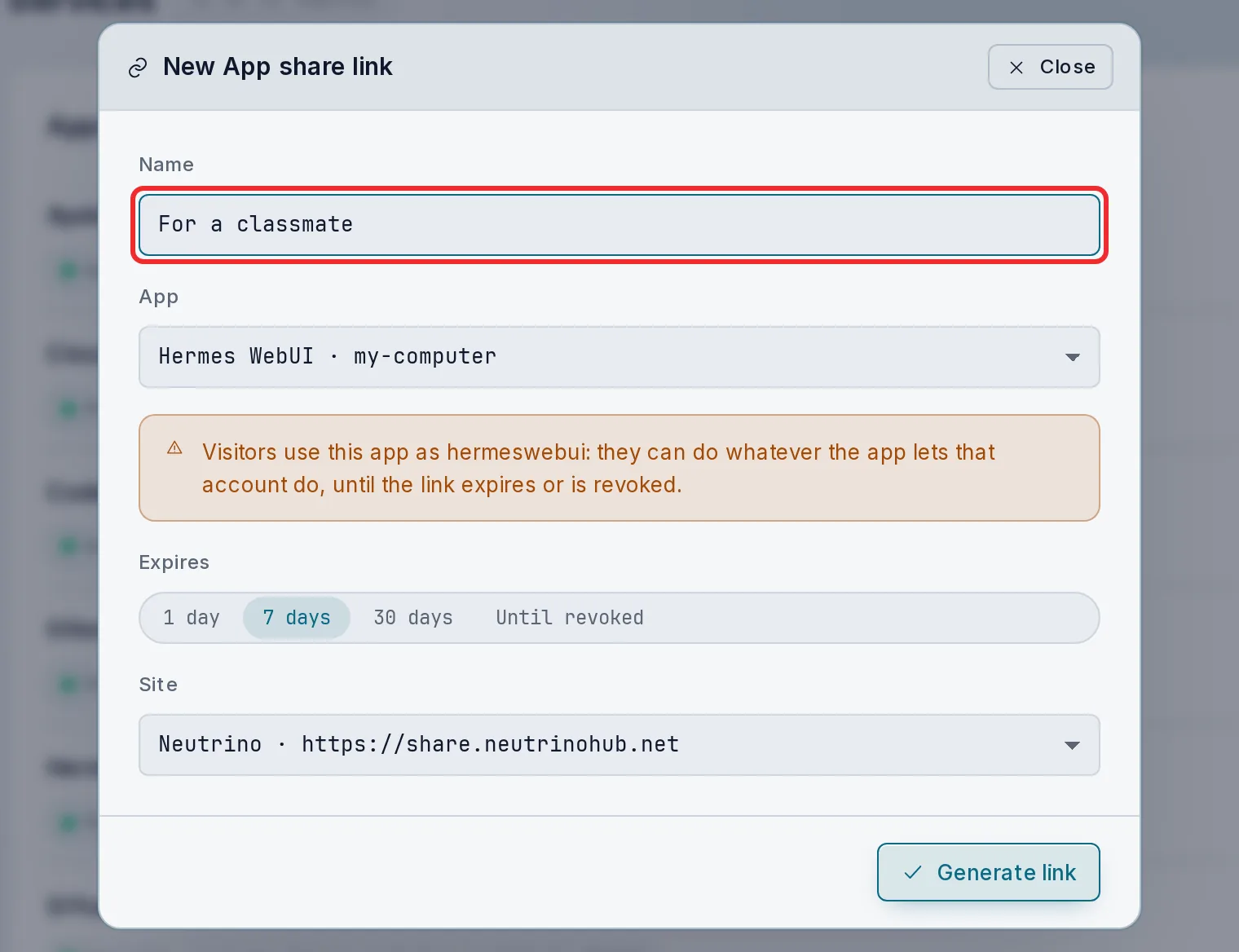
1Enter a name 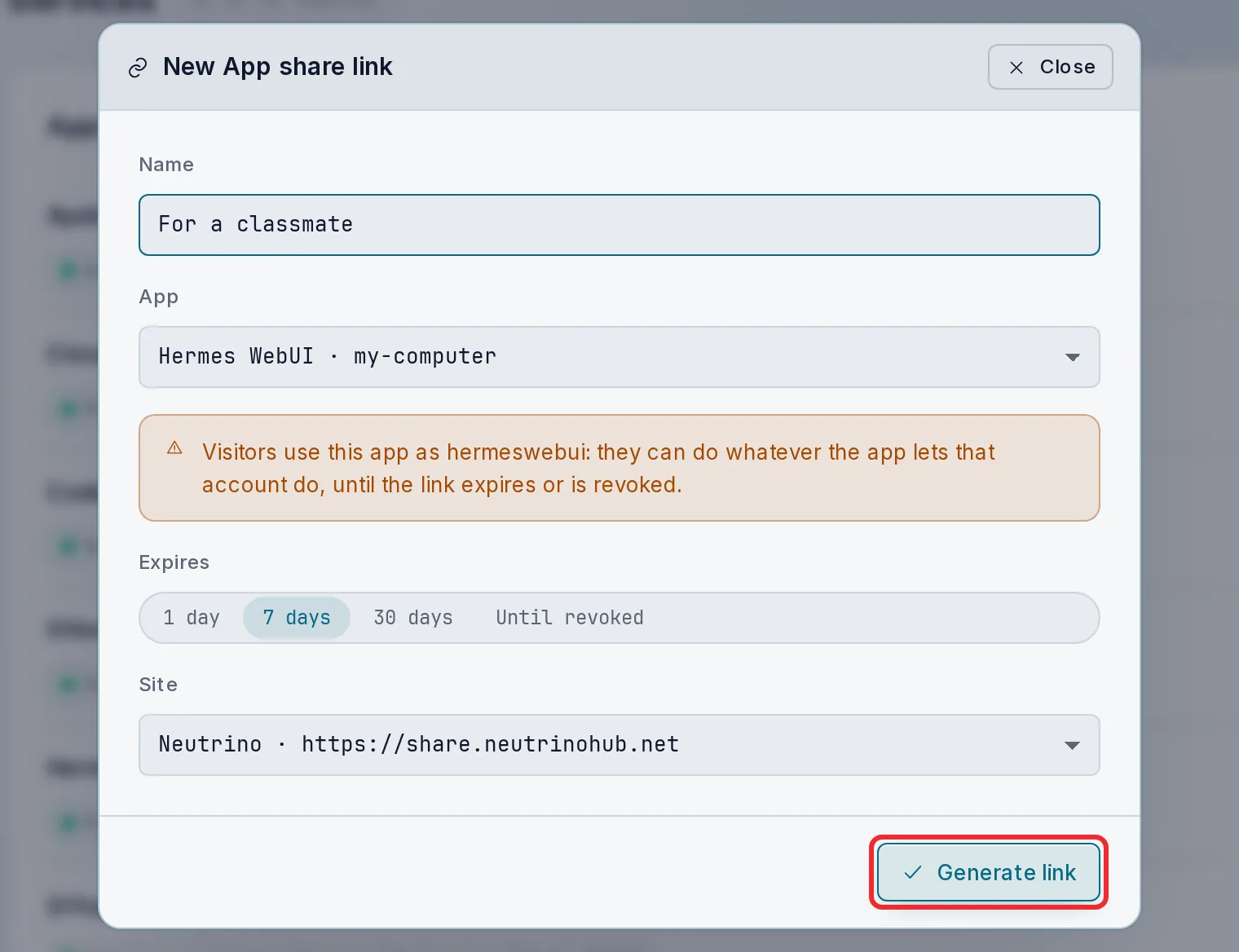
2Select Generate link Select Copy right away and send the link to the visitor. Then select Done to close the dialog. After the dialog closes, the panel no longer shows the link.
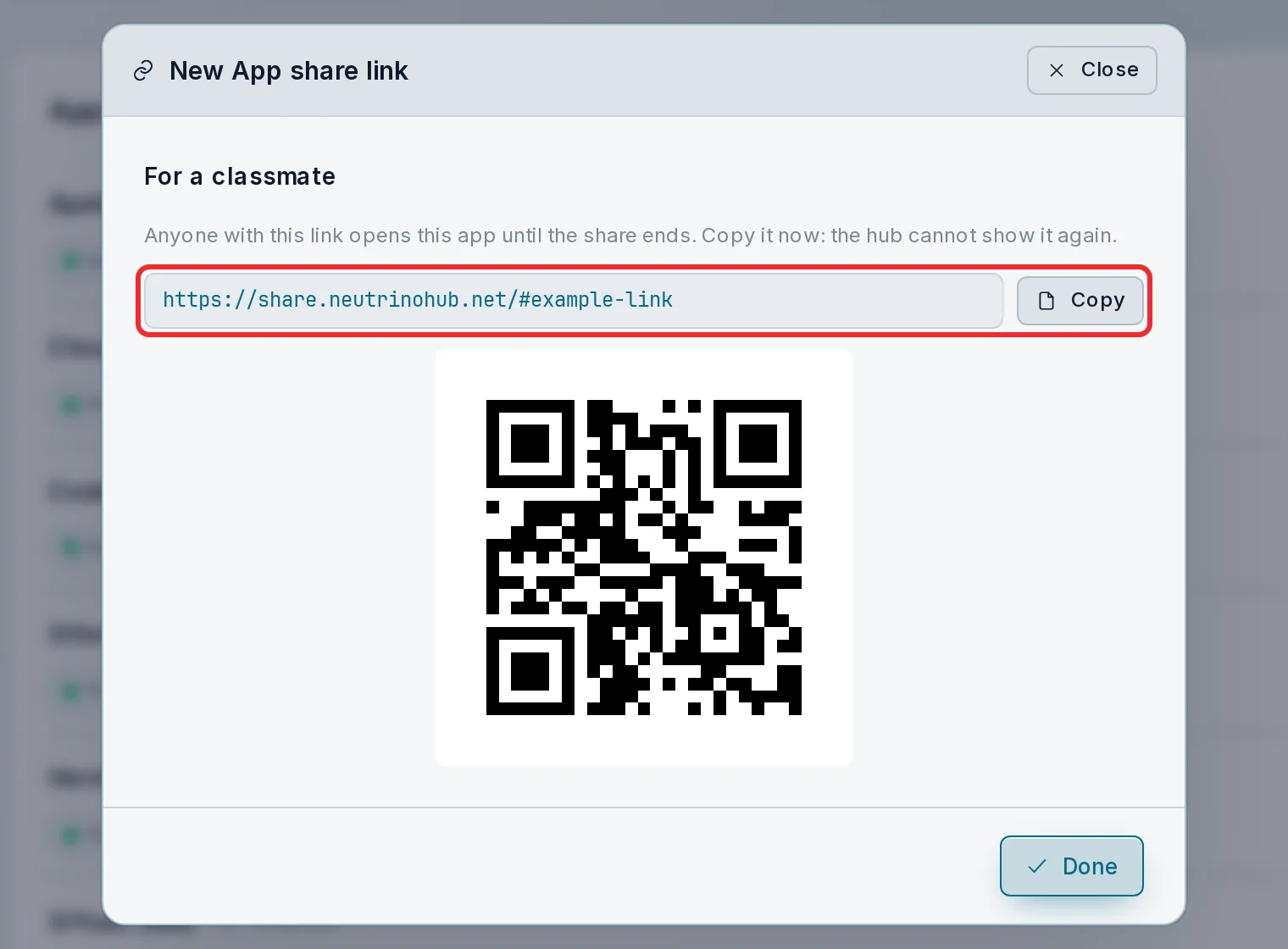
Select Copy
The yellow notice in the dialog names the account hermeswebui, which is the account Hermes WebUI uses inside its container. The visitor opens the link without signing in and sees the page shown under Use.
Risks and limits
Everyone who uses Hermes WebUI shares one set of conversations, memory and workspace. The visitor sees your conversations and uses your AI quota.
A share link that the Hermes page generates itself opens only in a browser that has signed in.
Hermes WebUI uses about 3.2 GB of disk for its images and about 2.4 GB for its cache. On Windows and macOS, every container app shares the memory of one virtual machine, and this app needs 1 GiB of it.
When Containers stops, Hermes WebUI also shows stopped. When Containers starts again, Hermes WebUI runs again.
Settings
Hermes WebUI has no Configure button, and its tab holds only the status, the journal and the action buttons. To change the model, choose it on the Hermes page.
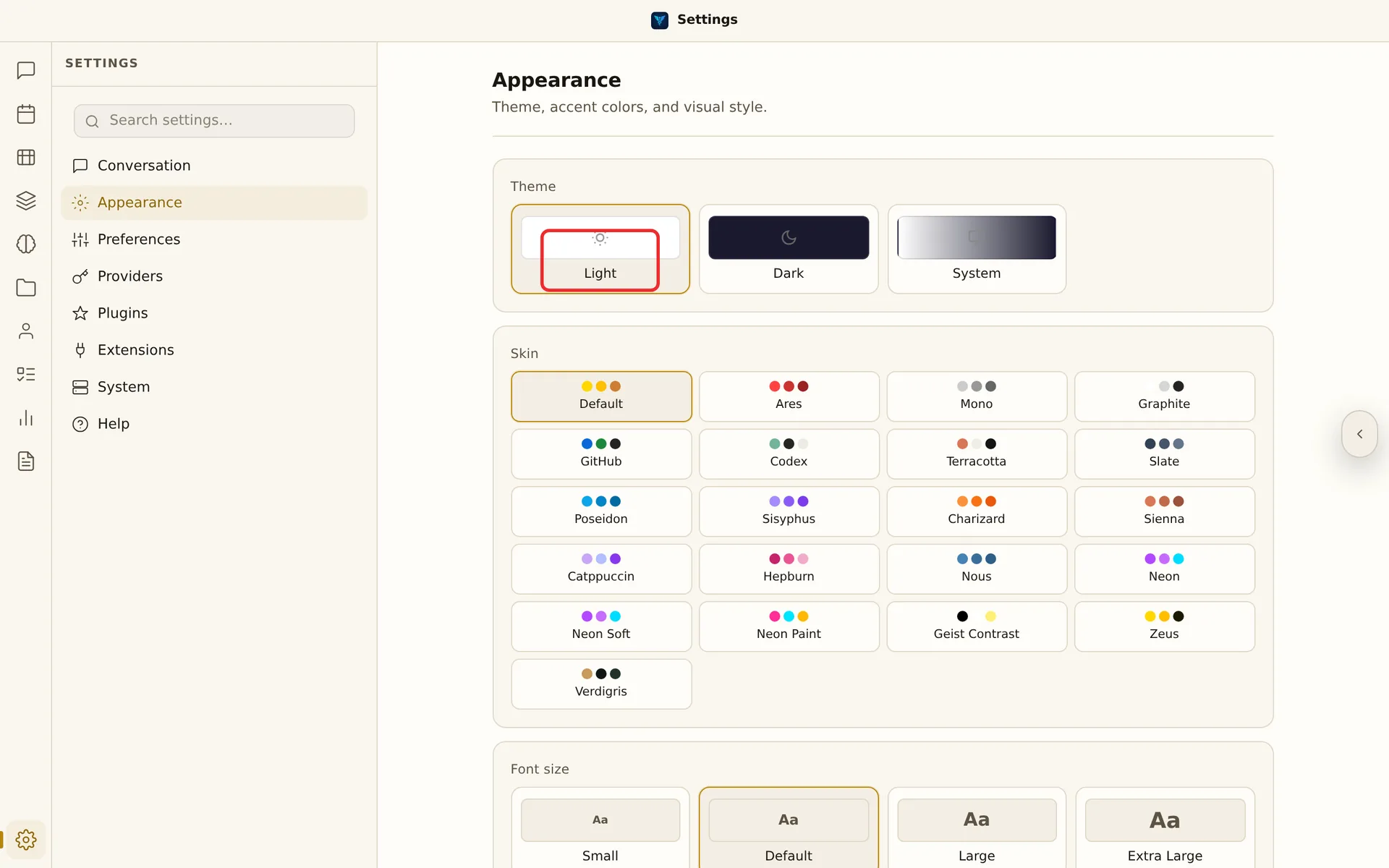
The Hermes page is dark by default. To switch to light, select the gear in the lower-left corner of the page, then choose Light under Theme in Appearance.
Its version is locked, so the Install another version… dialog lists a single version that cannot be selected. The two images are a tested pair, and each new Neutrino Hub release updates them.
Uninstall
On the Hermes WebUI tab, select Uninstall. The red text in the dialog warns that the conversations, the settings and the files in the workspace are deleted for good. Copy out anything you want to keep first, then select the red Uninstall to confirm.
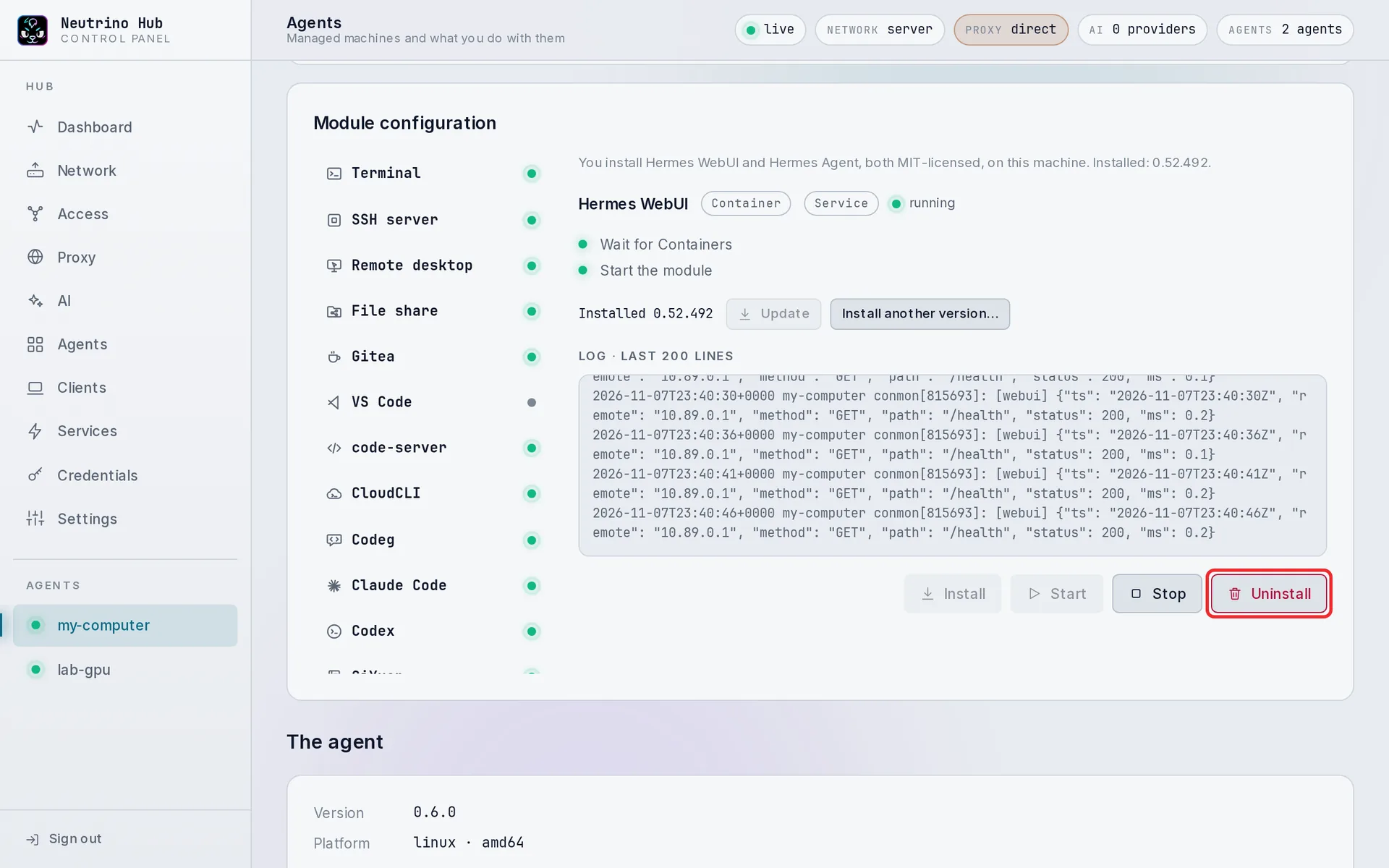
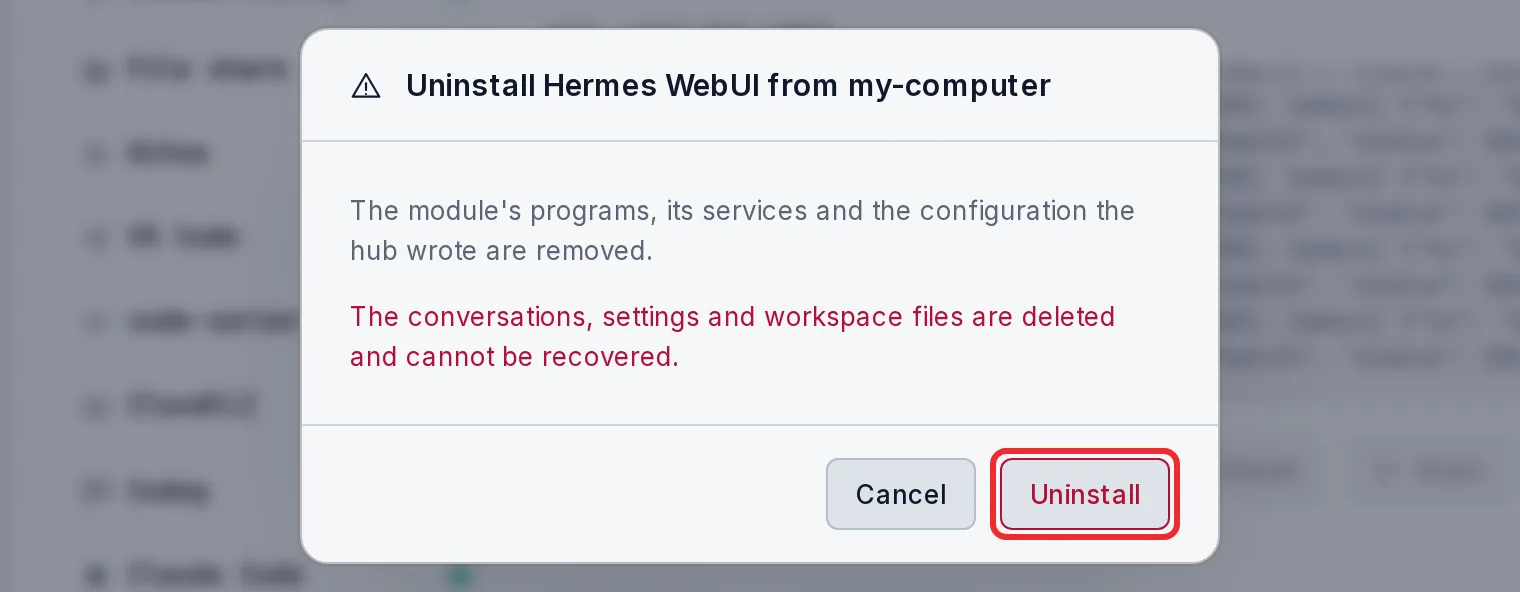
Uninstalling Hermes WebUI leaves Containers installed.
If Hermes WebUI does not start, see Troubleshooting.